
What support data segmentation actually covers
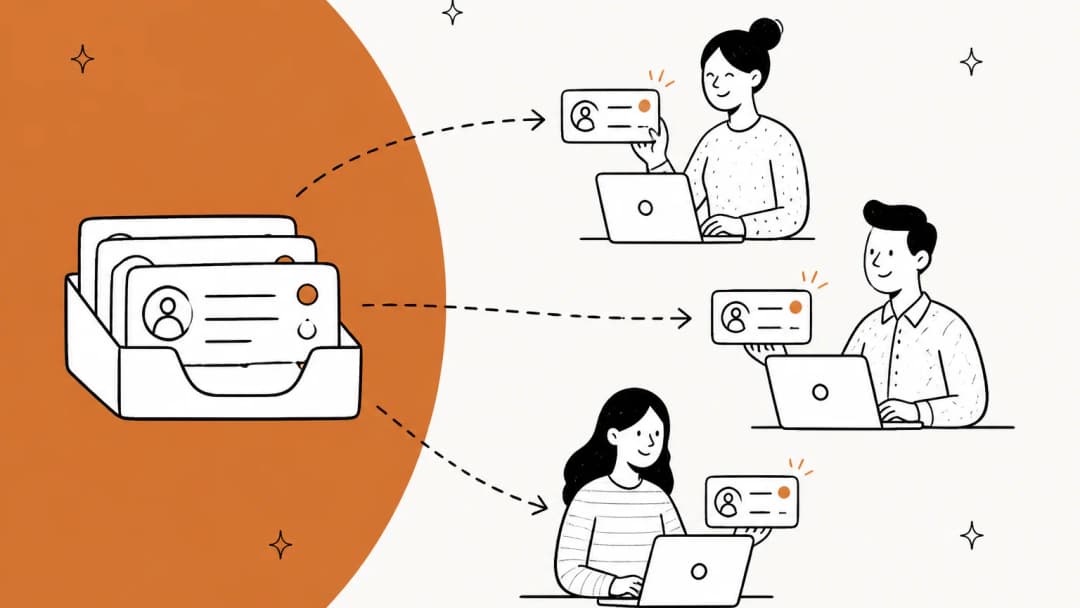
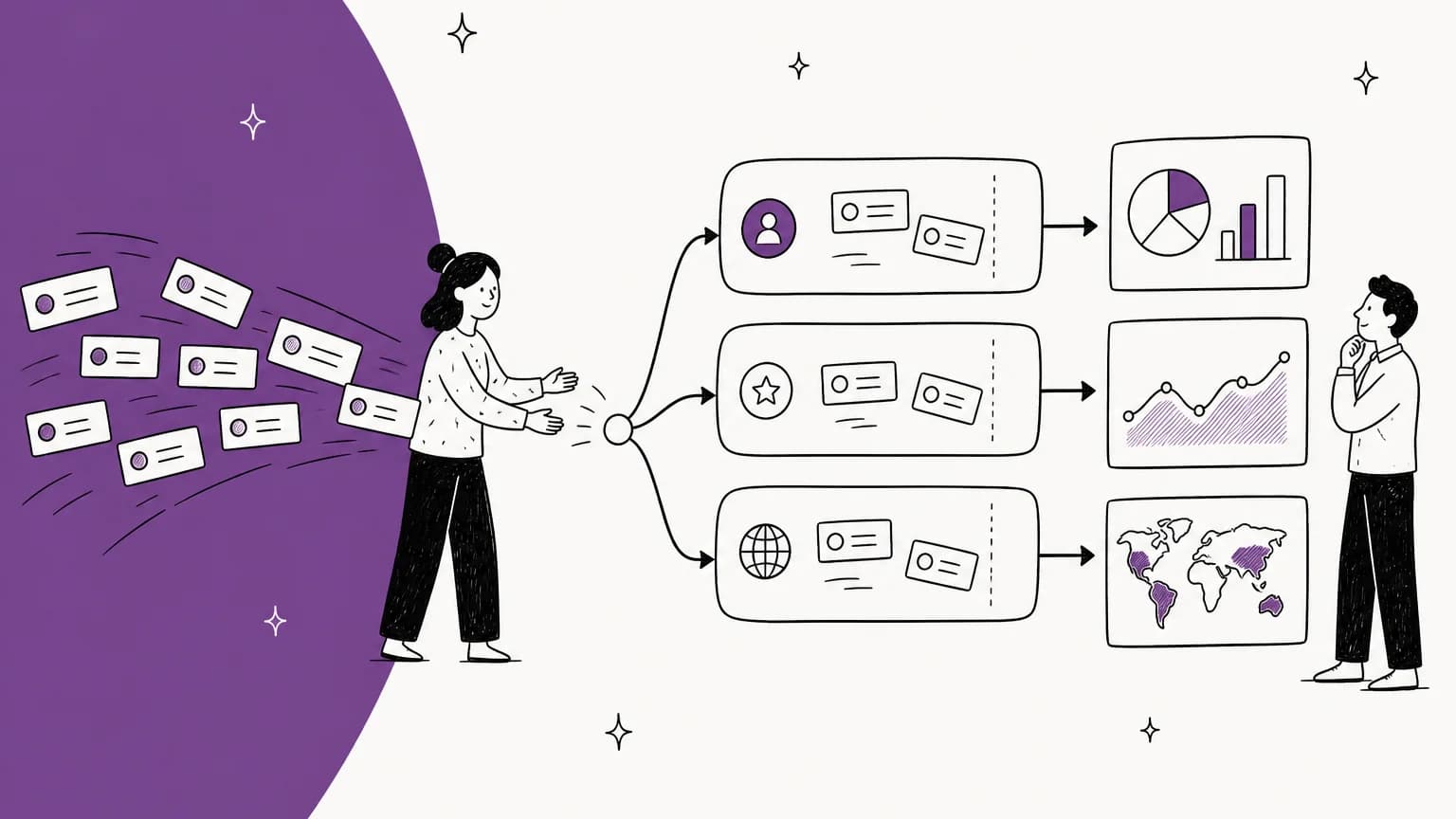
Segmentation is splitting your support data so averages stop hiding problems. A 4-hour median first response time can look fine while your top 20 accounts wait twice that, because they write in about harder things.
I think of it as three layers on every ticket:
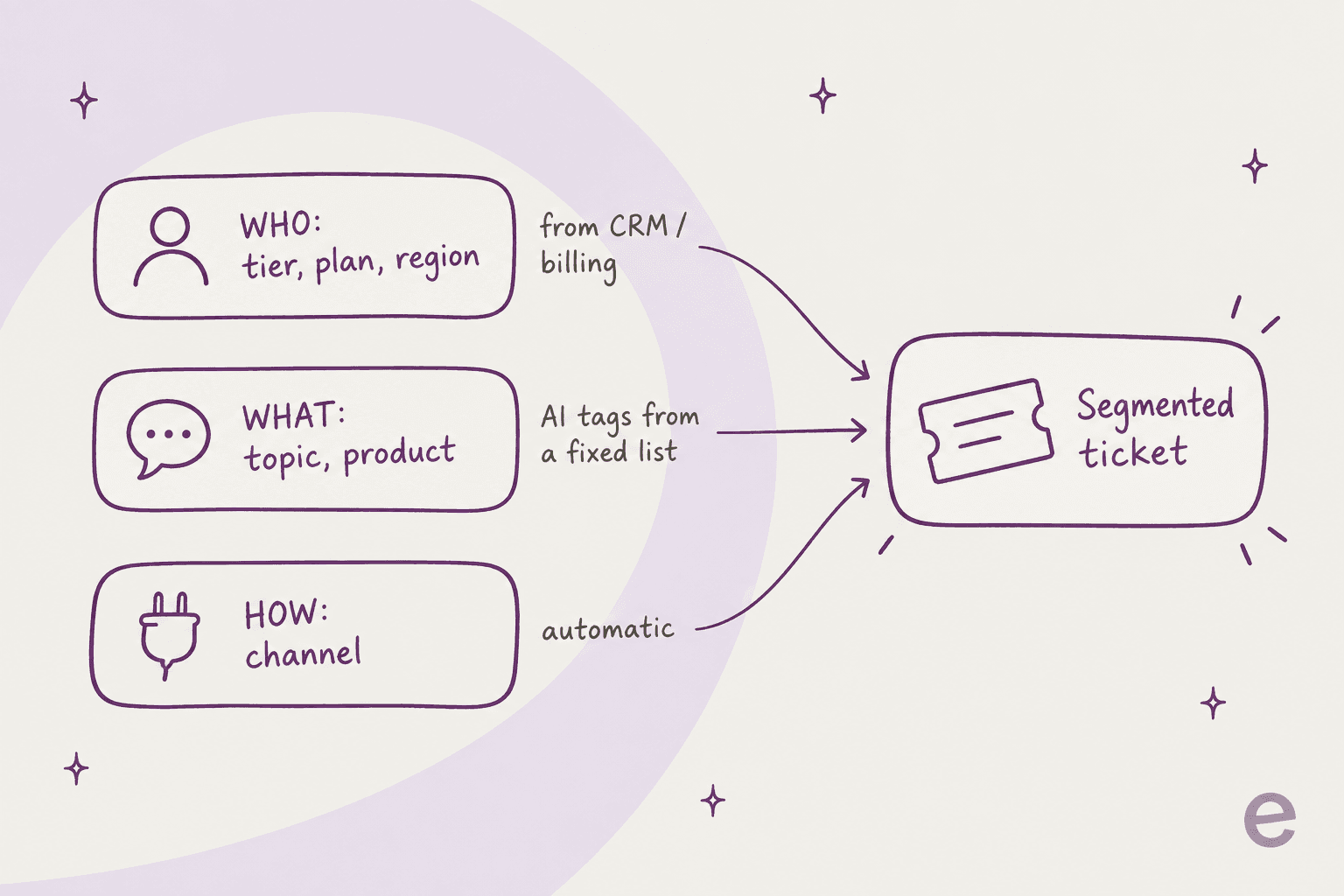
- Who: customer tier, plan, region, revenue, lifetime value. This belongs to the customer and should come from your CRM or billing system.
- What: topic, product area, intent. This belongs to the ticket and changes every time.
- How: channel (email, chat, phone, social). Your helpdesk captures this on its own.
The "how" layer is free. The "what" layer is where ticket tagging lives, and where most teams already struggle. The "who" layer is the one this guide is mostly about, because it is the one that quietly fails to reach your reports.
Tagging consistency is the usual first casualty. One customer success lead described it on Reddit:
"Tried tagging tickets ourselves for a few months which worked fine the first month, then fell apart the second we onboarded a couple more csms and every one of them tagged things their own way."

Why your tier data never shows up in reports
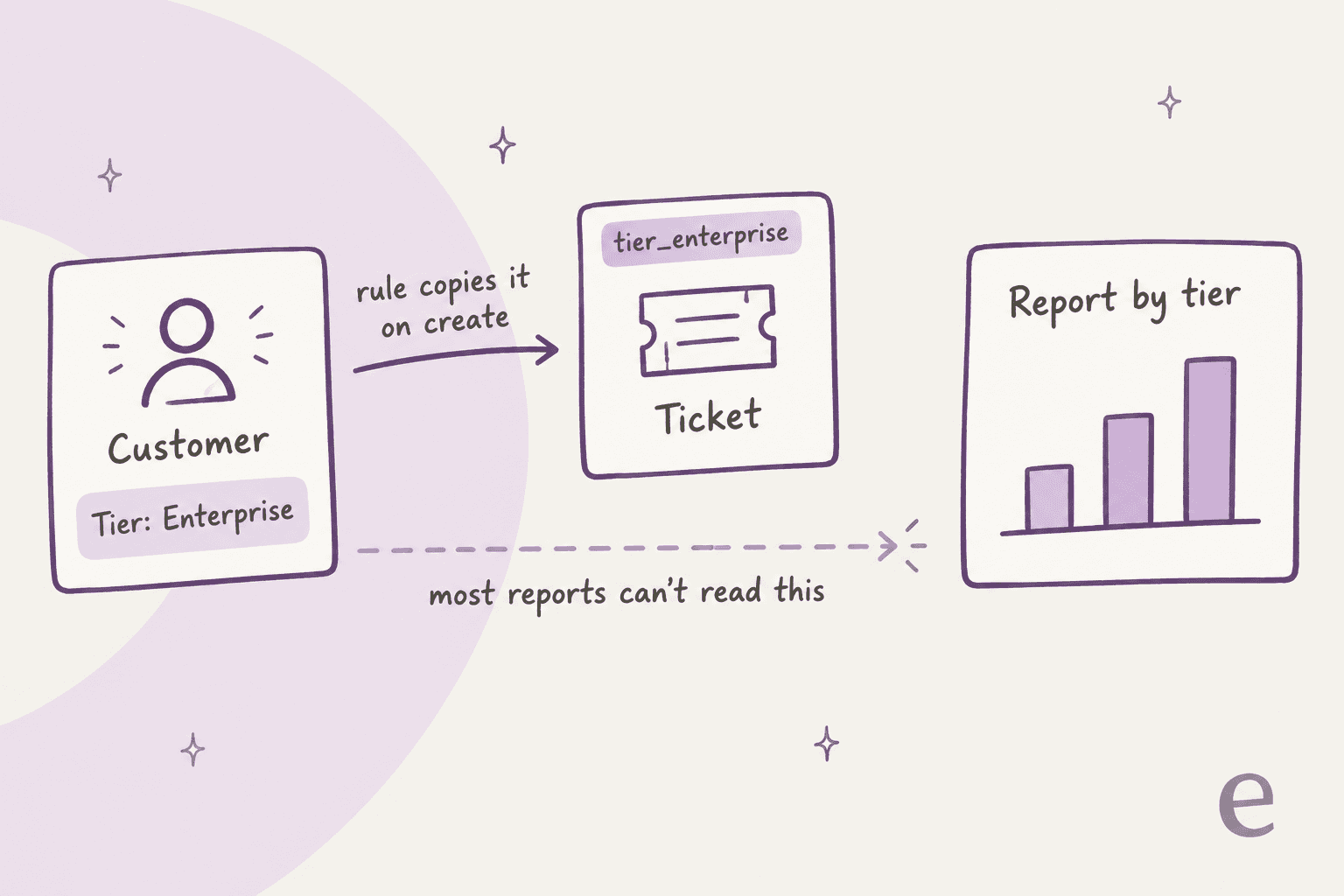
Here is the pattern I found going through the docs of five helpdesks. Customer data is stored on the customer, contact, organization or account. Rules and views can usually read it. But the analytics module filters on ticket-level data.
Three concrete examples:
- Gorgias: the Analytics filters are date, agent, channel, integration, store, tag, ticket fields and quality. The customer field filter exists, but in Views, not Analytics.
- Help Scout: Report Views filter by inbox, tag, folder and custom field. Customer properties are not in that list.
- Front: the analytics custom-field filter covers conversation custom fields only, in Text, Dropdown or Yes/No types. Contact custom fields are not there, though accounts are (on Professional).
So the "stamp" step is the whole job: a rule that fires on ticket creation and writes the customer's tier onto the ticket as a tag or field. Front says this almost word for word in its own rules documentation: store Revenue, Tier and Region on the account, have a rule add a VIP tag, then use those tags "to filter conversations in analytics, views, and other rules".
The stamp has a second benefit. It freezes the segment at the moment the ticket was created. If an account upgrades from Growth to Enterprise next month, last quarter's tickets still report under Growth, which is usually what you want.
Where segment data lives in each helpdesk
I compared the five helpdesks I see most often in eesel rollouts. Prices are as displayed on each vendor's pricing page on 2026-10-06.
| Helpdesk | Where tier/plan lives | Rules can read it | Reports can filter it | Segment-based SLA | Plan needed |
|---|---|---|---|---|---|
| Zendesk | Organization and user fields | Yes, via org tags and fields | Via ticket tags and fields | SLA policies on standard and custom fields | SLAs on Suite Growth or Support Professional and up |
| Gorgias | Customer fields (max 4 active), Shopify data | Yes, plus Shopify total spent and order count | Only after copying to a tag or ticket field | Not a ticket feature | All Helpdesk plans, from $10/mo for 50 tickets |
| Help Scout | Contact and company properties (50 each) | Plus or Pro only | Via tags or custom fields; properties not listed | Plus: 2 policies, Pro: unlimited | Plus $45 or Pro $75 per user/mo |
| Front | Accounts and contact custom fields | Yes, "Account/contact custom field contains" | Accounts filter on Professional; contact fields via tags | Not stated in docs | Starter $25 (10 rules), Professional $65 (20 rules) |
| Zoho Desk | Accounts and contacts modules | Yes, custom field values | Custom reports join Tickets with Accounts | Support plans and contracts per account | Custom reports from Standard ($14/user/mo) |
Two things stand out. Zoho Desk is the only one where a report can join tickets to account data natively, because custom reports pick a primary module and a related one. Everywhere else, the copy-to-ticket rule is mandatory.
And the cheapest plan rarely does the full job. Help Scout gates customer-property conditions in workflows behind Plus or Pro. Front caps Starter at 10 rules, which disappears fast once tier, region and plan each need one.
Pick your helpdesk: the segmentation recipe
Click your helpdesk to see the exact path from customer data to a report you can filter.
Zendesk: organizations carry the tier
Zendesk's natural home for a tier is the organization. You can map an email domain to an organization, so everyone from a customer's domain lands in it automatically. A drop-down organization field then turns the tier into a tag that follows each member's tickets.
A Zendesk admin laid out this exact recipe on Reddit when someone asked how to flag tickets from a big customer's domain as Tier 1:
"I would create an Organization drop-down field for your Tiers. This will apply a tag to that Org, and anytime an End User that's in the Org submits a ticket, they will have the Tier tag applied directly to the Ticket. Next you would setup the SLA's and use the "Tag contains the following" for each Tier."
From there, an SLA policy can use the tier tag as a condition, since conditions accept both standard and custom fields. SLA policies need Suite Growth or above (or Support Professional). The current Zendesk pricing page lists Suite Team at $55 and Suite Professional at $115 per agent per month on annual billing. If you run tier-based targets, budget for the upper tier. My Zendesk SLA walkthrough covers the targets, and SLA best practices covers what to set them to.
One team running about 5,000 tickets a month described how far this goes:
"We utilize a tiering system for organizations by MRR. We utilize that tier to set the priority of tickets and have the incoming ticket queue sorted by priority and grouped by SLA. Our top tier orgs have a 1 hour FRT, tiers 2 & 3 have a 2 hour FRT and so on."
For reporting, the tier tag is the safe bet. If you want SLA results per organization in reports, the first reply time recipe is a good template to adapt.
Gorgias: Shopify data does half the work
Gorgias has an advantage for ecommerce teams: Shopify data is already there. The rule glossary lists customer order count, total spent, customer tags and created date as conditions, with total spent described as useful for flagging high-value customers. So a rule can read "total spent greater than $1,000" and set priority or assign a VIP team, with no CRM sync at all. The same Shopify context is what eesel's Gorgias integration reads before answering.
For anything Shopify does not know, there are customer fields: Yes/No, Dropdown, Number or Text, on all Helpdesk plans. Three gotchas from the docs:
- Only four customer fields can be active at once. A fifth means archiving one.
- You cannot change a field's type after creating it.
- Shopify metafields (up to 10 per category per store) only show for customers and orders created or updated after the import, so older customers stay blank until they buy again.
Then add the stamp. Since Analytics cannot filter by customer field, add "Add tags" or "Set ticket field" to the same rule. The VIP tags guide walks through the rule.
For naming, keep tier tags short and prefixed (tier_gold, tier_silver) so they sort together; Gorgias tags covers the rest. Gorgias prices by ticket volume, not seats: Starter is $10 a month for 50 tickets and Pro is $360 for 2,000, per the pricing page.
Help Scout: properties, but gated
Help Scout splits data cleanly. Customer properties hold contact-level facts like plan name or billing status (up to 50 contact and 50 company properties). Conversation custom fields hold per-ticket facts like question type.
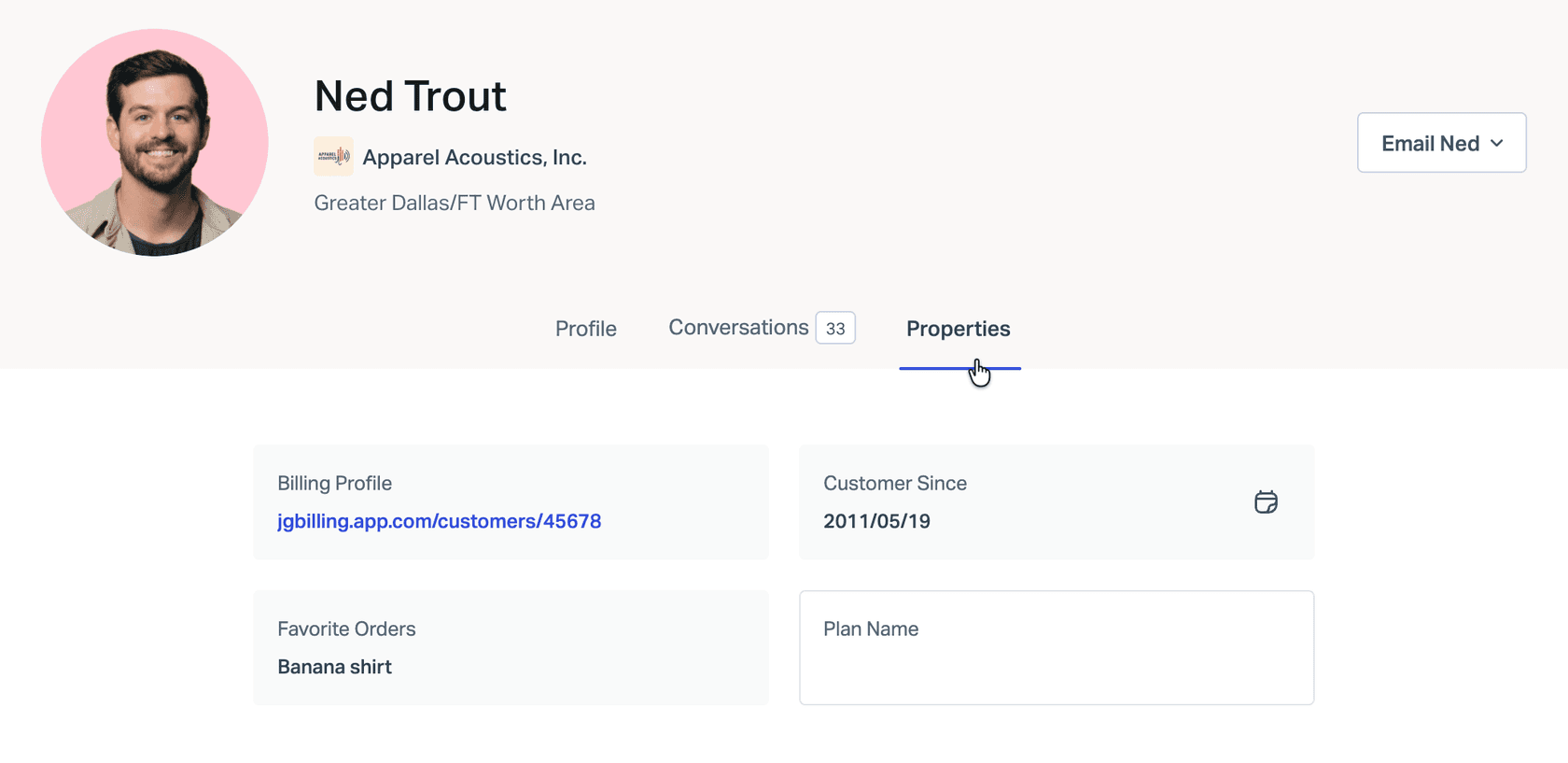
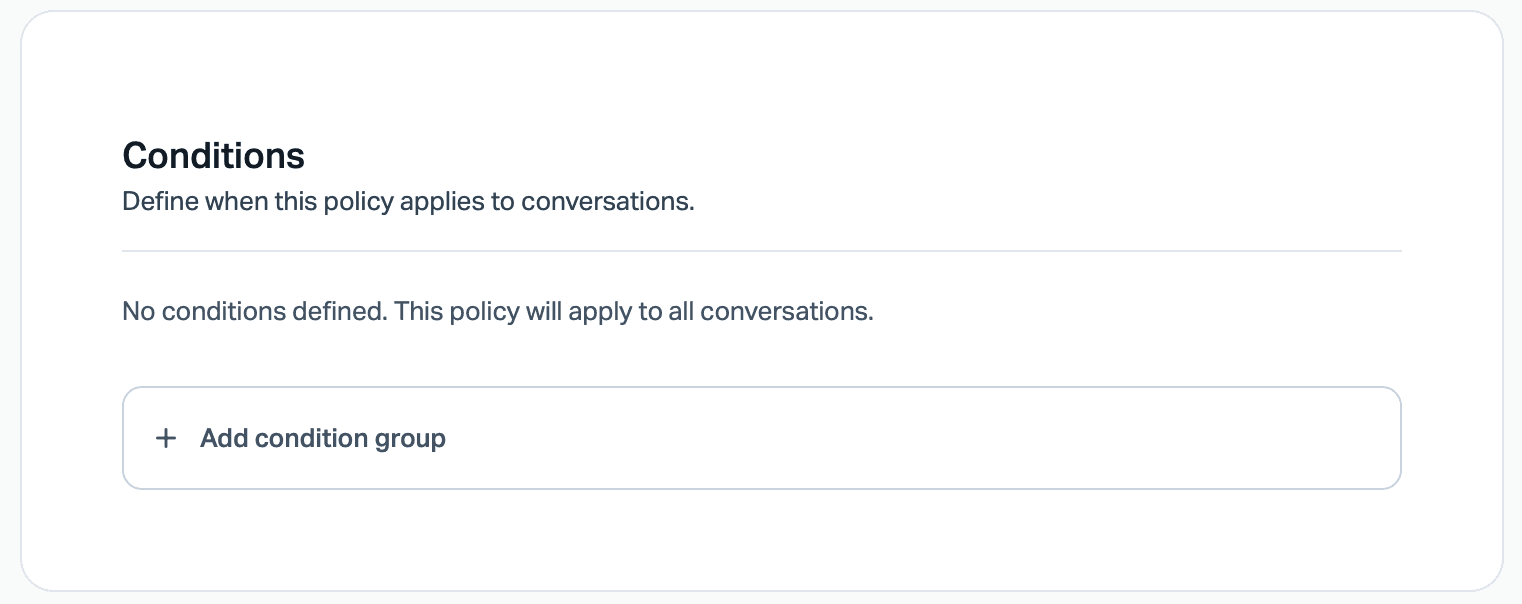
The catch is the plan. Workflow conditions on Customer Property and Company require Plus or Pro, and so do SLA conditions. On Standard, you get one SLA policy with no conditions at all.
Two more gotchas worth knowing before you build:
- A new SLA policy only applies to conversations created after the policy, per the SLA docs. Your existing backlog of enterprise tickets will not be picked up.
- Company properties update only through the API. Zapier and Beacon Identify do not support them yet.
Plus is $45 and Pro is $75 per user per month as displayed; the Help Scout pricing breakdown has the full table. If you also want topic tags without manual work, AI tagging for Help Scout fills the "what" layer, and eesel's Help Scout integration does it inside the inbox.
Front: accounts are the right home
Front's accounts represent the companies you work with, and they are on all plans. Account custom fields like Revenue, Account Manager and Account Tier can sync from Salesforce, HubSpot or Dynamics 365. Front's own advice is to store rule data on accounts by default and only use contact fields when the right owner depends on who wrote in.
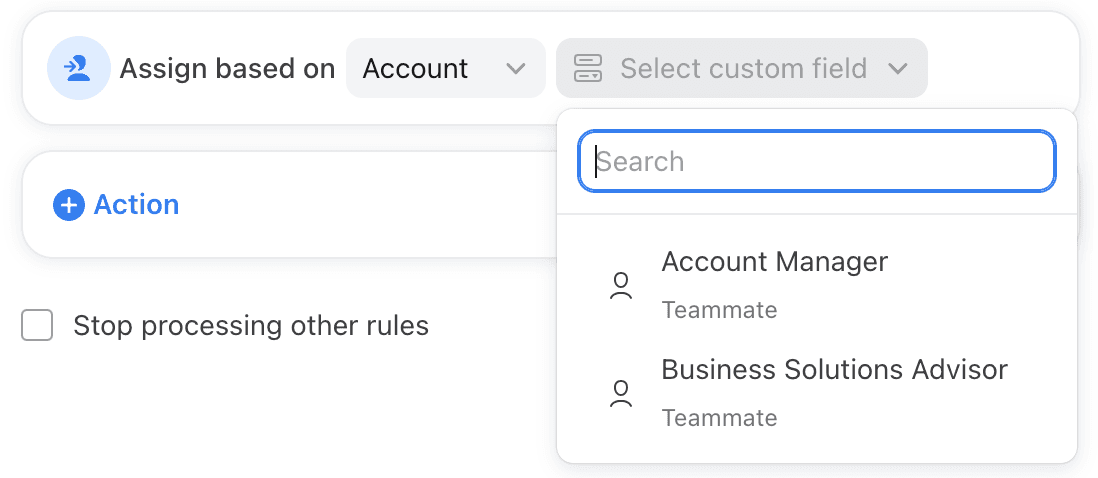
Rules can then assign based on an account field. A teammate-type field like Account Manager sends each conversation straight to its owner:
On Professional and above, Analytics has an Accounts filter, so you can see metrics per account without a stamp:
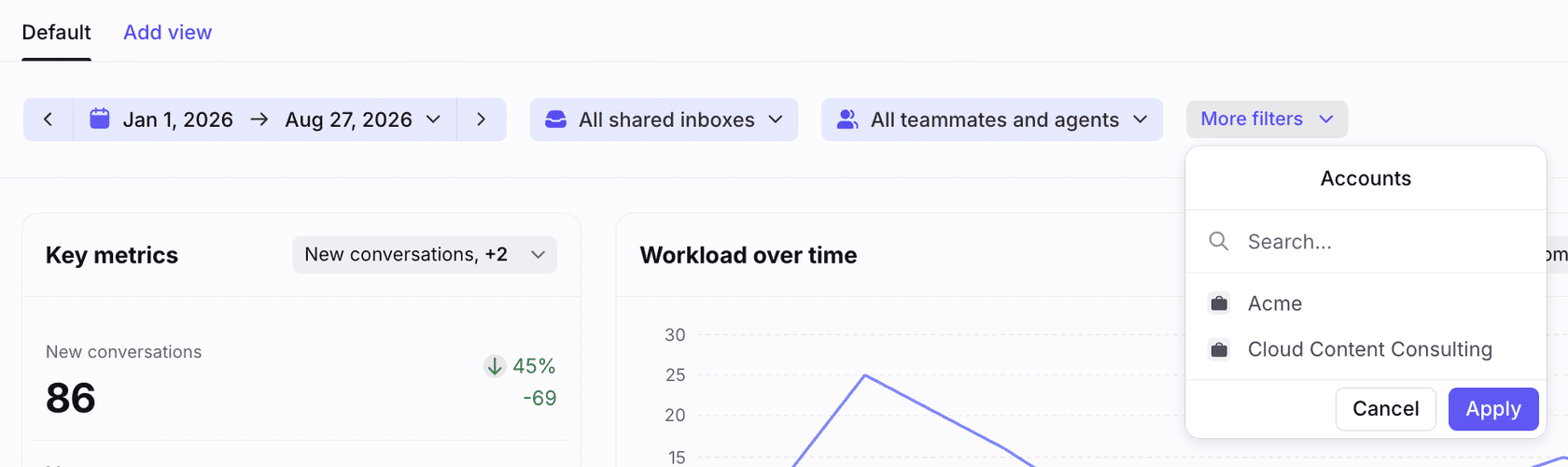
That filter picks individual accounts, though, not "all Gold accounts". To report by tier, you still want the rule that adds a tier tag. Two limits from the docs: account metrics are not retroactive, they start when the account is created, and an email domain can belong to only one account. If two business units share a domain, plan around that early. eesel's Front integration reads the same account tags when it drafts replies. Front is $25 (Starter, 10 rules), $65 (Professional, 20 rules) and $105 (Enterprise) per seat per month, billed annually; the Front pricing post has more detail.
Zoho Desk: segments built into contracts
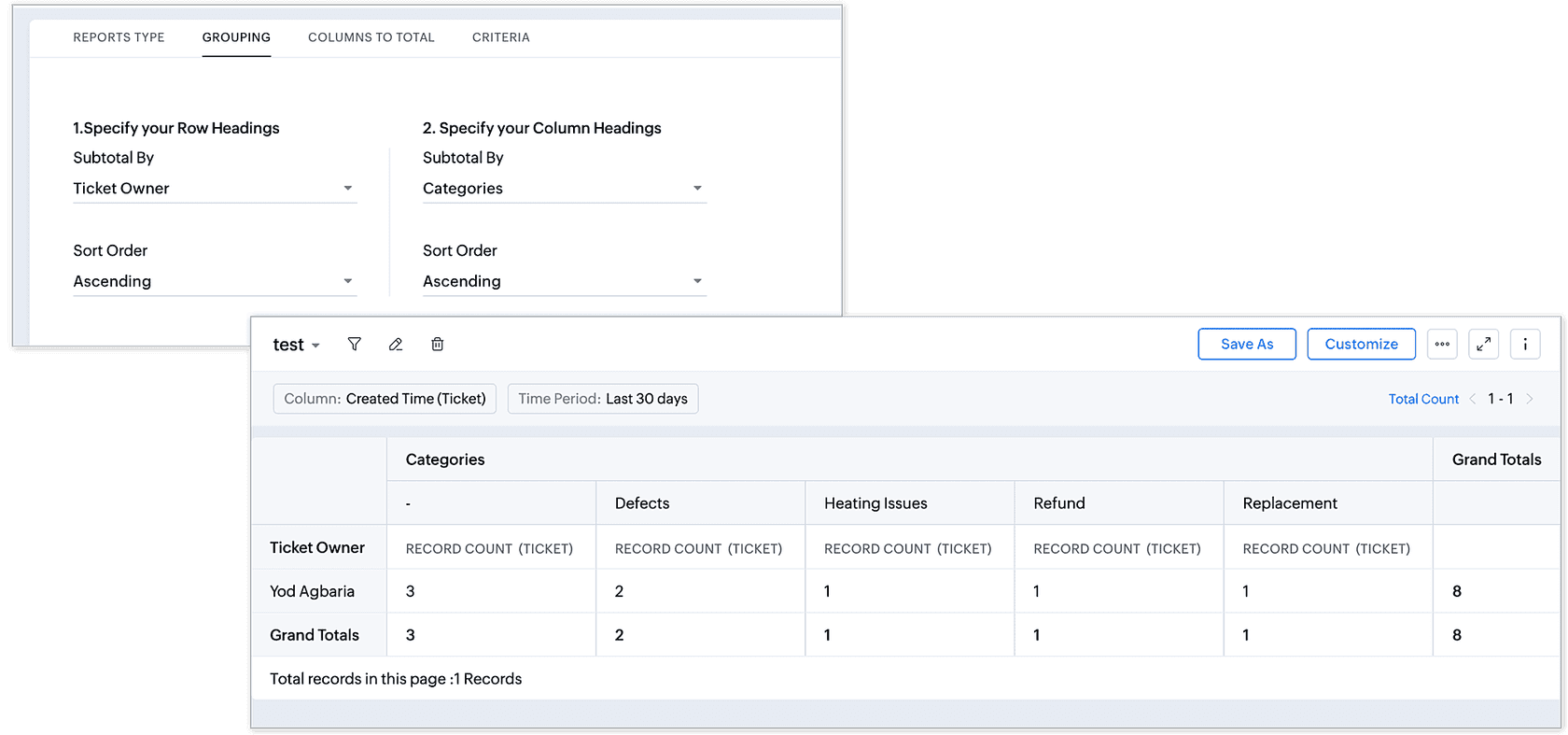
Zoho Desk is the most account-centric of the five. Tickets carry an Account Name lookup, accounts hold Industry and Annual Revenue out of the box, and custom reports can use Tickets as the primary module with Accounts as a related one.
Its strongest feature here is support plans. You group customers into plans, link each account to a plan through a contract, and attach an SLA. Zoho's own example sets a 3-hour response target for accounts with 50 to 100 licenses and a separate one above 500. Plans can also be credit-limited (say 5 tickets a month), and tickets past the credit drop out of the SLA. That makes the segment an entitlement, not just a label.
The trap is the CRM sync. The Zoho CRM integration imports only records created or modified in the last year on the first run. An enterprise account that has not changed in 18 months will not come over until someone touches it. Custom reports start on Standard ($14 per user per month, annual); round-robin assignment is Professional ($23) and skill-based assignment is Enterprise ($40).
How to set up support data segmentation in 5 steps
This order works in any of the five tools:
- Pick 3 to 5 segments you will act on. Tier, plan, region and maybe account owner. If no one will route, report or price differently on a segment, skip it. Gorgias's four-field cap is a good discipline even if your tool allows 50.
- Choose one source of truth. Usually your CRM for tier and owner, billing for plan. Sync it into the helpdesk (HubSpot, Salesforce and Zoho CRM all have native paths) instead of asking agents to fill it.
- Use fixed-value fields, not free text. A drop-down cannot be misspelled. Help Scout and Front both warn that field values and IDs are case sensitive in imports.
- Stamp the ticket on creation. One rule per segment that copies the value onto the ticket as a tag or field. This is what makes reporting by segment work and what routing rules read.
- Backfill on purpose. Front account metrics, Help Scout SLAs and Gorgias metafields are all forward-only. Decide whether you need history, and if you do, export it and tag old tickets in bulk before you trust the trend line.
Then add value in the order your team can absorb it:
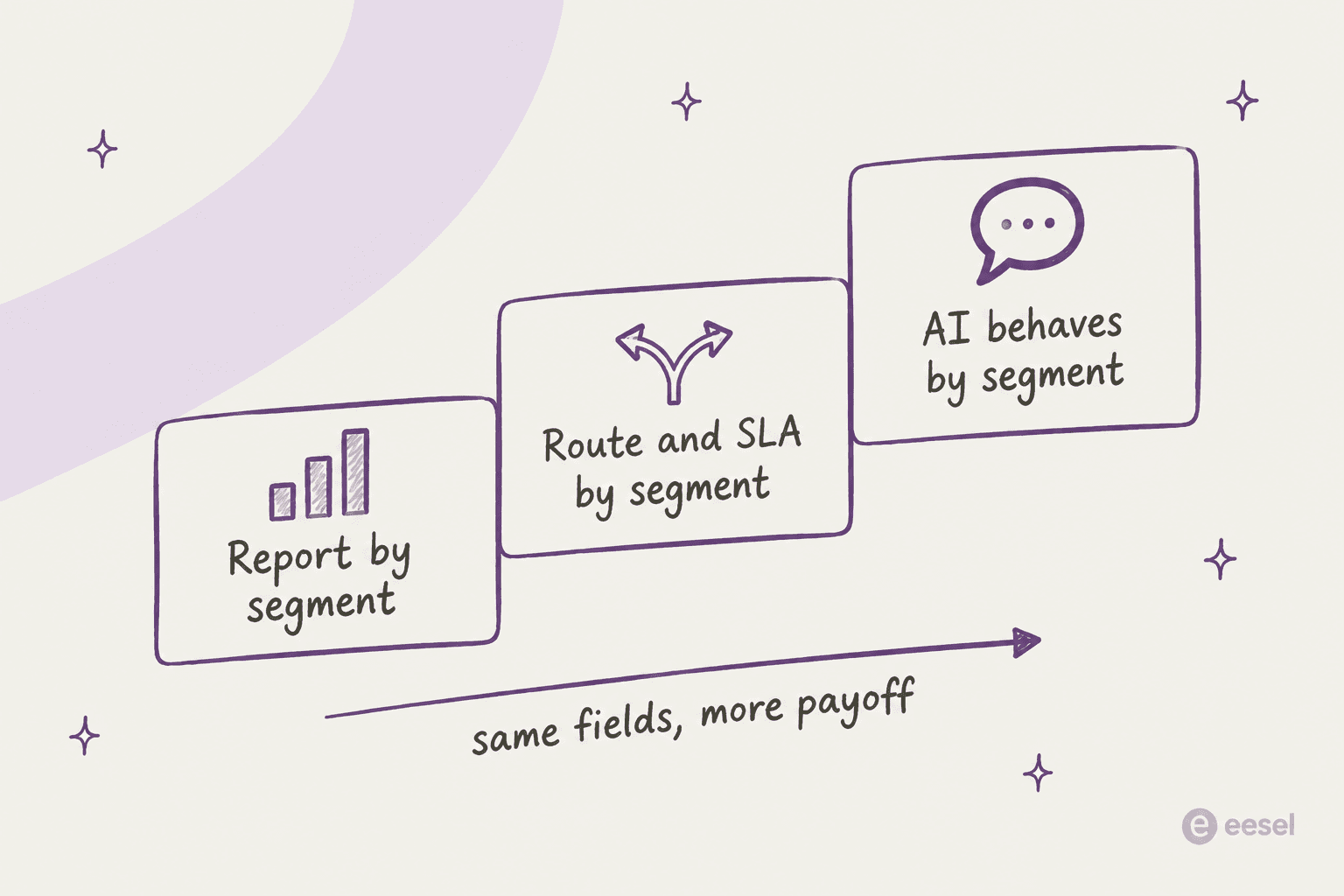
Reporting comes first because it shows you whether the segment is worth acting on. Routing and SLA targets come next, once you know the enterprise queue is slower. The third step, having your AI answer differently by segment, only works once the first two are clean.
Where AI fits, and where it should not
AI is good at one layer and the wrong tool for another.
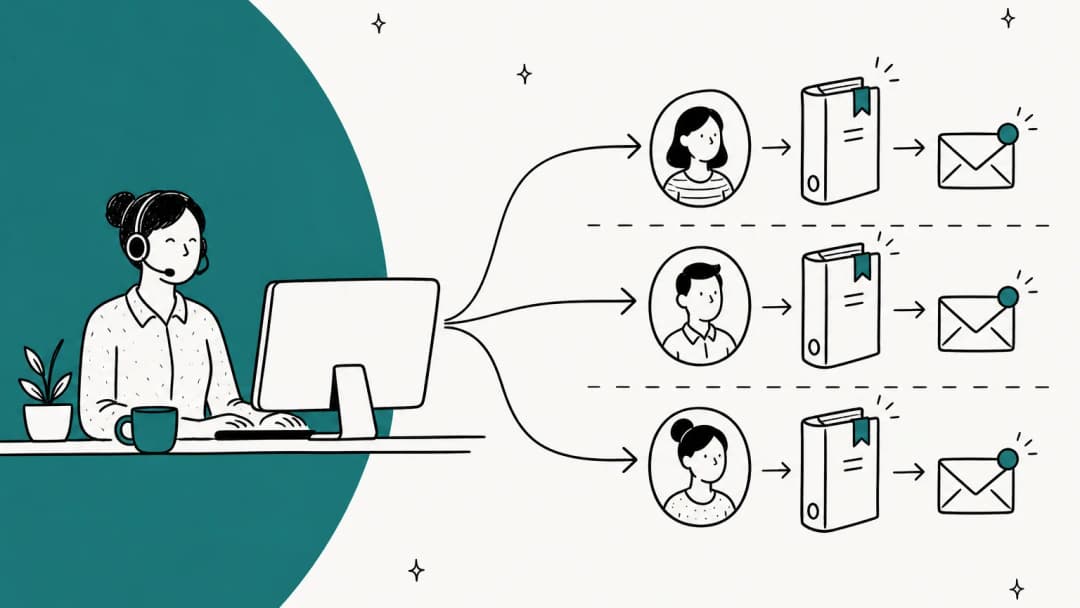
The "what" layer is a good fit. Reading a ticket and picking a topic from a fixed list is classification, and it beats asking six agents to agree on tags. The trick is the fixed list: AI tagging is only as consistent as the tag list you give it. My guides on classifying tickets with AI and reducing false positives go deeper, and ticket prioritization builds on the same tags.
The "who" layer is not. Tier, plan and region are facts about the customer. They should come from your CRM or billing, never from an AI guessing based on the email signature. If the data is not in the helpdesk, fix the sync first.
A helpdesk admin made the broader point well:
"Adding AI onto a badly designed system will not help at all - it will only make matters worse. Get the basics of support right first before trying to add AI - it will never be a magic fix."
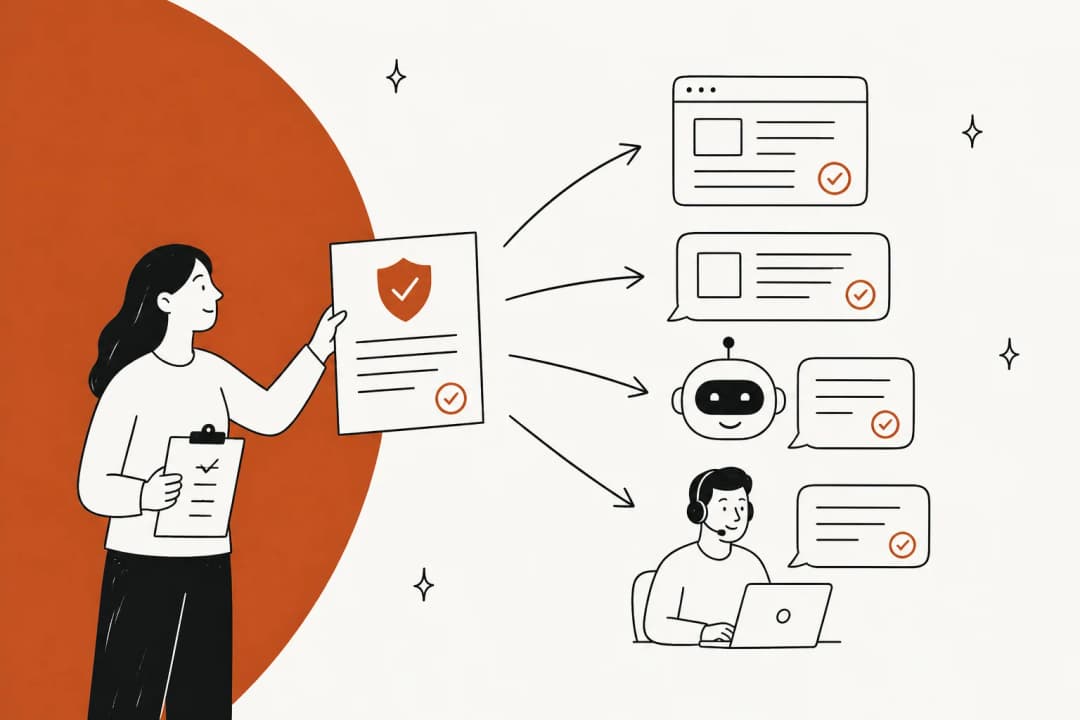
I agree with that, and it matches what I see when I build agents. When the segment fields are clean, the agent can read them before it answers: skip the self-serve article for an enterprise customer and hand off to the account manager, or quote the right plan limits to a Starter customer. When they are messy, the agent inherits the mess. The triage tools roundup compares how different AI tools handle this layer.
Common segmentation mistakes
- Too many segments. A 40-value tier list is not segmentation, it is noise. Agents forget or misapply tags most often when the tags are too specific.
- Segmenting in the report, not on the ticket. Exporting tickets and joining them to a CRM sheet every month works once, then nobody does it. Stamp at creation.
- Overwriting history. If your rule updates tier on every ticket update, a customer's upgrade rewrites the past. Stamp on create only.
- No owner for the list. Someone has to approve new tag values, or the list grows back. This is the same problem as knowledge base drift.
- Forgetting the plan gate. Price the plan you need for segment SLAs (Help Scout Plus, Zendesk Suite Growth and up, Front Professional for account analytics) before you design the workflow.
If you are segmenting because critical customers keep getting buried, the VIP organizations scenario and support overflow guides cover the routing side, and multi-brand support covers segmenting by brand instead of tier.
Try eesel to keep segments clean
If your team runs one of the helpdesks above, eesel's AI helpdesk teammate joins the queue you already run and handles the topic layer for you: it reads each new ticket, picks the tag from your fixed list and fills the ticket fields your reports depend on. Because it reads the tier your rules stamped, you can tell it in plain English how to treat each segment, like "for enterprise accounts, draft a reply and tag the account manager instead of sending".
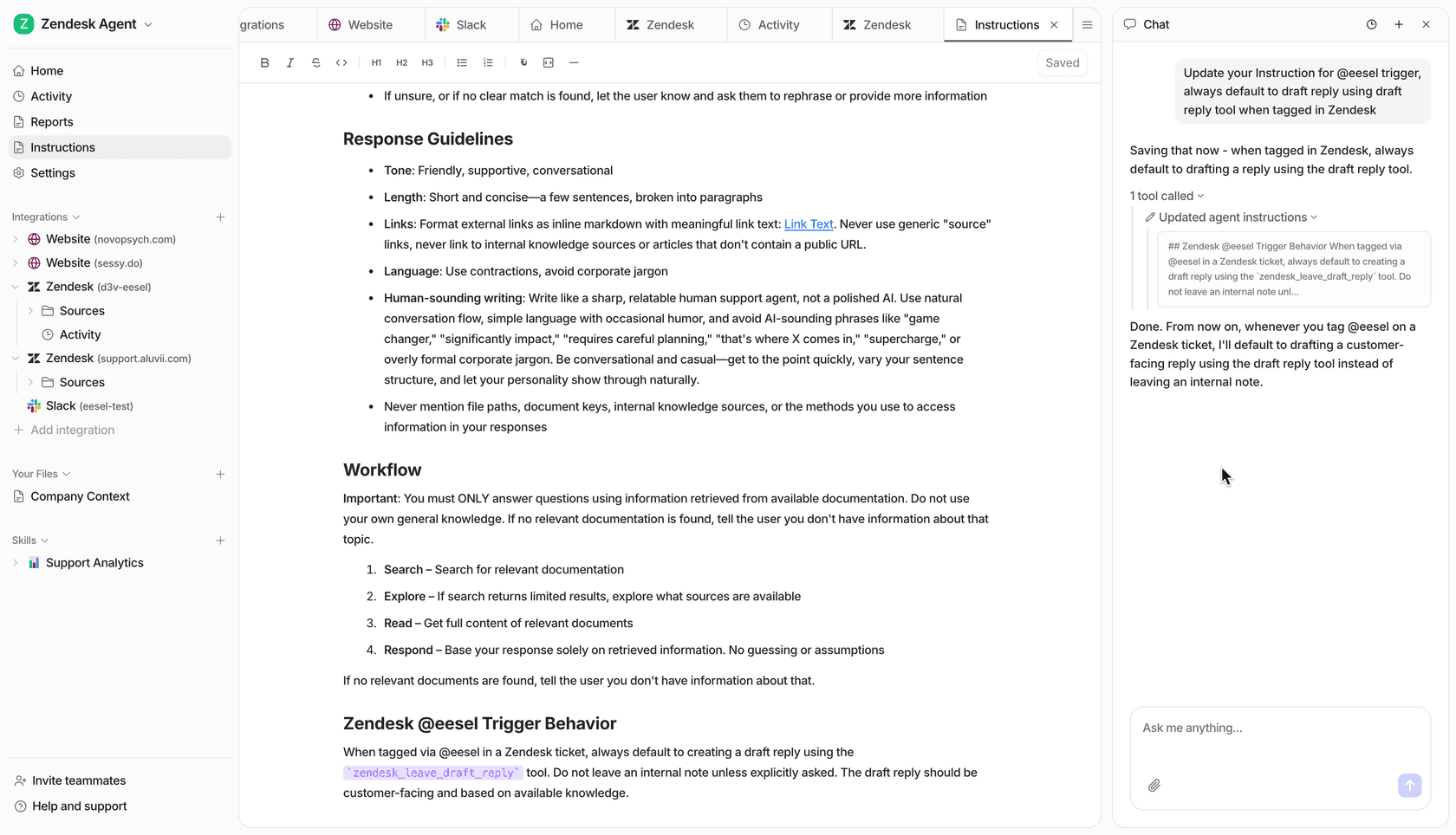
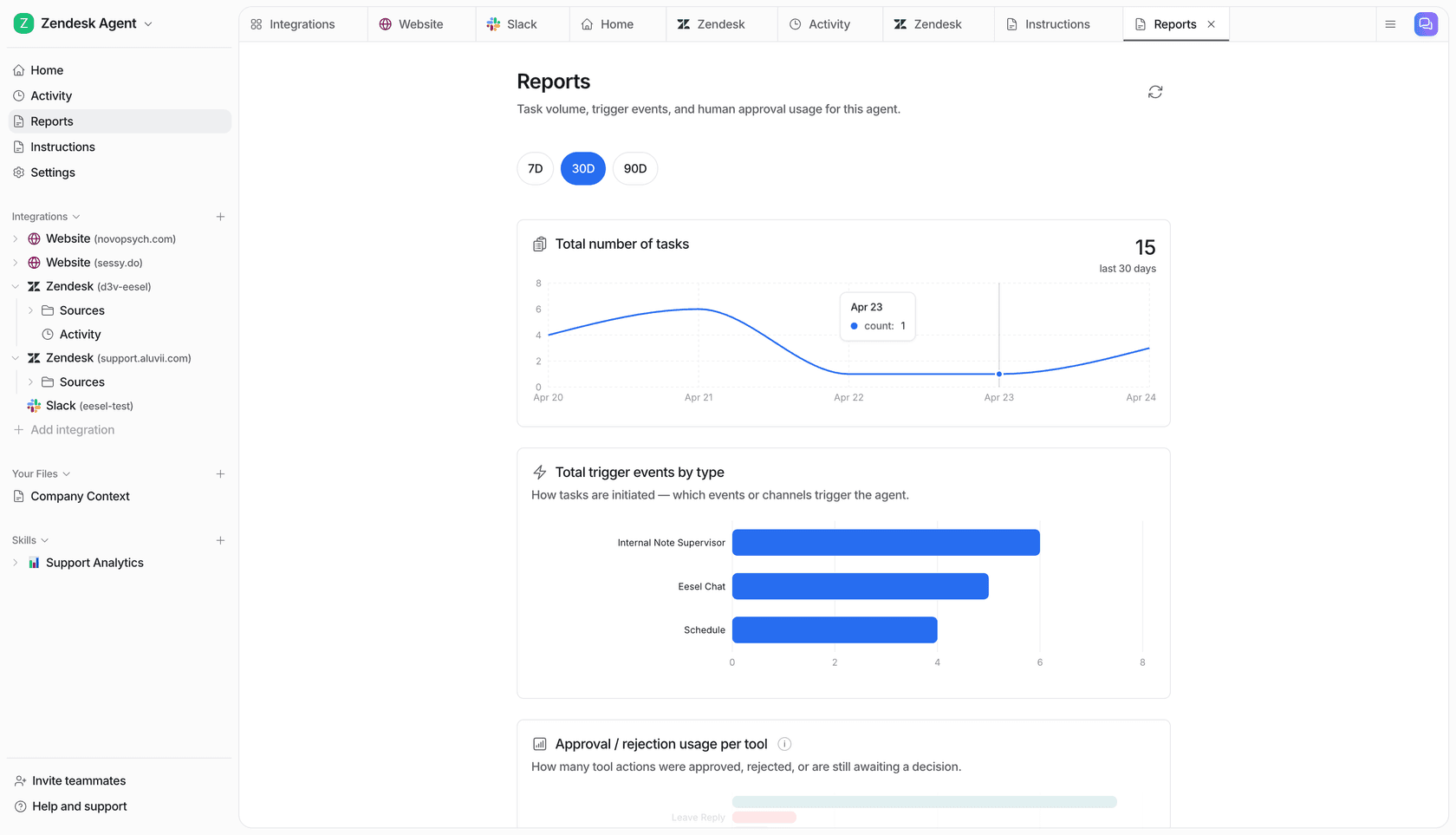
Before it goes live, eesel runs a simulation against your past tickets, so you can check its tags against what your team actually chose. The reports view then shows task volume and which actions were approved or rejected.
Pricing is a fixed monthly credit plan where a ticket or chat counts as 1 credit, with unlimited seats; the free plan includes 100 credits with no card. Try eesel on your own queue and see whether its tags match your agents'.
Frequently Asked Questions
What is support data segmentation?
How do I segment support tickets by customer tier?
Can I report on customer fields in Gorgias?
Which Help Scout plan supports SLAs by customer segment?
How do I set different SLAs for VIP customers in Zendesk?
Can AI segment support tickets automatically?


Article by
Kira
Kira is a writer at eesel AI with a Computer Science background and over a year of hands-on experience evaluating AI-powered customer service tools. She focuses on breaking down how helpdesk platforms and AI agents actually work so that support teams can make better buying decisions.