

We all know that some customers are, well, a bit more valuable than others. Giving them a premium support experience isn't just about being nice: it’s a smart business move. These VIPs are often a huge chunk of your revenue, and keeping them happy means keeping them around. The problem is, manually trying to spot and prioritize their tickets as they come in is a surefire way to let things slip through the cracks.
Thankfully, Freshdesk has some powerful built-in tools to help you automate this. This guide will walk you through practical, step-by-step Freshdesk scenarios to set priority for VIP organizations. We'll cover everything from how to define your VIPs to building automated workflows that give them the fast-track treatment they deserve. We’ll also look at how you can take things a step further with AI.
What you'll need to get started
Before we get our hands dirty, let's make sure you have a few things lined up:
-
Admin access to your Freshdesk account. You'll need the right permissions to create and manage automation rules and SLA policies.
-
A Freshdesk Pro or Enterprise plan. Some of the features we'll be using, like custom SLAs, are only on these plans, which offer excellent value for growing teams.
-
A clear idea of what a "VIP" is. How do you define them? Is it based on their subscription plan, how much they spend, or maybe their strategic importance? Get this clear first.
How to set priority for VIP organizations in Freshdesk
Let’s walk through a few different ways to get this done, from the basic setup to more advanced automation.
Step 1: Define and tag your VIP organizations in Freshdesk
Okay, first up: Freshdesk needs a way to know who your VIPs are. You can’t automate priority for them if they’re invisible in the system. The most straightforward way to do this is by using company fields.
-
Create a custom company field. Head over to Admin > General Settings > Customer Fields. Under the "Company" tab, add a new dropdown field. You could name it "Customer Tier" and give it options like "Standard," "Premium," and "VIP."
-
Update your company records. This next part is a bit manual, but it's essential. Go through your list of organizations in Freshdesk and assign the right tier to each one. This initial setup is what powers all the automation that comes next.
Step 2: Create a dedicated SLA policy for your VIPs
Think of an SLA (Service Level Agreement) as your promise to customers on how quickly you'll respond and solve their issues. Setting up a separate, faster SLA for your VIPs is a concrete way to show them they’re at the front of the line.
Based on the official Freshdesk documentation on multiple SLA policies, here’s how you can set one up:
-
Go to Admin > Team > SLA Policies.
-
Click Add new policy and give it a clear name, something like "VIP Customer SLA."
-
Under "This policy should apply to tickets that match ALL of these conditions," set the condition to Companies > Customer Tier > Is > VIP.
-
Now, define your SLA targets. For each priority level (Urgent, High, Medium, Low), set the response and resolution times. For VIPs, you'll want these to be much shorter than your standard SLA. For instance, an "Urgent" VIP ticket could have a 15-minute first response target and a 2-hour resolution time.
-
Save and enable the policy. The last, very important step is to drag this new policy to the top of your SLA list. Freshdesk applies the first policy that a ticket matches, so you want to make sure it checks for VIPs first.
Step 3: Build automation rules to instantly flag and route VIP tickets
With your VIPs tagged and their special SLA in place, it’s time to build the workflow that kicks into gear the second a VIP ticket lands in your queue. This automation rule is what makes sure the ticket gets flagged and sent to the right people immediately.
Drawing from Freshdesk's guide on ticket creation automations, here’s what to do:
-
Navigate to Admin > Workflows > Automations and click on the Ticket Creation tab.
-
Click New Rule and name it something obvious, like "VIP Ticket Triage."
-
Under On tickets with these properties, set the condition: Companies > Customer Tier > Is > VIP.
-
In the Perform these actions section, you can add a few useful actions:
- Set Priority as > High (or Urgent, your call).
- Assign to Group > Choose your senior support or dedicated VIP team.
- Add Tag > Pop on a "VIP" tag so you can easily filter and report on these tickets.
- Send notification to Slack or Teams > Give your VIP support channel an instant heads-up.
-
Save and enable the rule.
So, what does this all mean in practice? When a new ticket arrives, your workflow checks if the company is a VIP. If it is, the ticket is instantly assigned the faster VIP SLA, marked as high priority, sent to the right team, and tagged for visibility, while your team gets a notification. If the company isn't a VIP, the ticket just continues through your normal process. Simple as that.
graph TD A[New Ticket Arrives] --> B{Is Company Tier == VIP?}; B -- Yes --> C[Set Priority to High]; C --> D[Assign to VIP Team]; D --> E[Add 'VIP' Tag]; E --> F[Send Slack Notification]; F --> G[Apply VIP SLA]; B -- No --> H[Apply Standard SLA]; H --> I[Proceed with Normal Triage];
Step 4: Go beyond rules with AI-powered prioritization
The tools built into Freshdesk are incredibly powerful for standardizing processes. To handle even more nuanced customer interactions, many teams find that adding AI to the mix provides an extra level of intelligent support. While rule-based systems are excellent for consistency, AI can help pick up on specific context that might fall outside standard criteria.
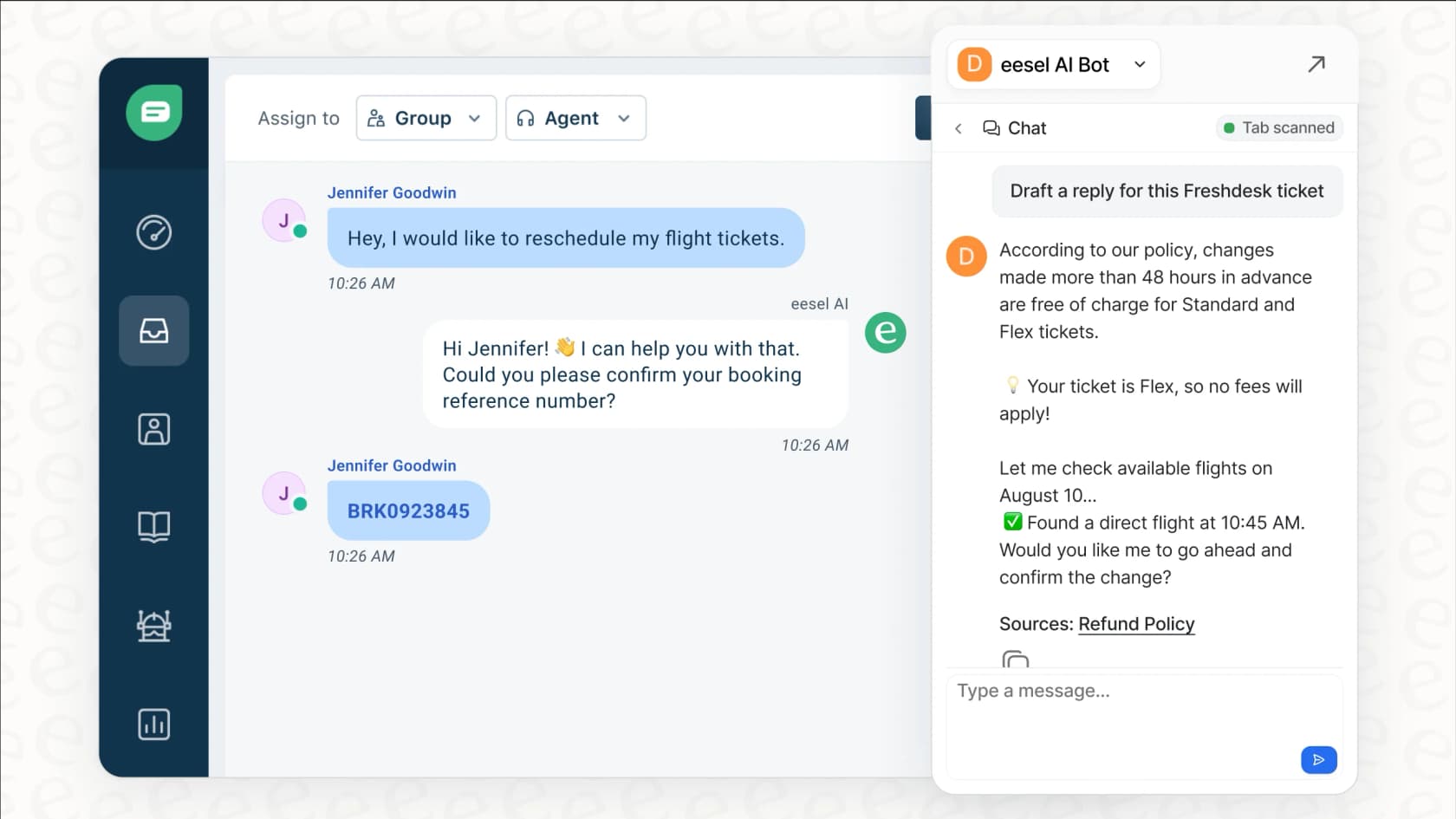
This is where adding a layer of AI can make a positive difference. An AI support agent like eesel AI works with your Freshdesk account to make these workflows even more dynamic.
-
It learns from your history. Instead of just following rules, eesel AI looks at your past tickets to understand what an urgent or high-value conversation looks like, providing a helpful layer of context.
-
It connects to your other tools. It works within the Freshdesk ecosystem and can link up with your CRM, billing system, or internal docs. This lets it check a customer's lifetime value on the fly to help decide how to tag and route the ticket for you.
-
You’re in complete control. Getting started is simple and self-serve, letting you connect Freshdesk with a click. From there, you use a simple workflow builder to decide exactly how the AI should assist your team, ensuring you remain in the driver's seat.
With an AI agent helping out, your prioritization becomes more intelligent, helping your team catch critical issues by understanding context alongside your existing Freshdesk rules.
Common mistakes to avoid
Putting your Freshdesk scenarios to set priority for VIP organizations into place is a great move, but here are a few common tripwires to keep in mind.
-
Promising the impossible with your SLAs. It's tempting to set a lightning-fast 15-minute response time for VIPs, but it is important to ensure you have the team capacity to back it up. Start with goals you know you can meet and tighten them up as your team gets more efficient.
-
Forgetting to maintain your VIP list. A customer's status can evolve. Make a habit of auditing your company records in Freshdesk to make sure your VIP list is current. This ensures you are always providing the right level of service to every organization.
-
Not communicating with your team. If your support agents don't understand the purpose of a VIP marker or what the SLA requires, they can't deliver the service you're promising. Ensure your VIP workflows are clearly documented and shared during training.
-
Relying only on manual updates. Manually tagging every VIP company can be time-consuming. Whenever possible, automate the identification part by syncing data from your CRM or using an intelligent tool to help flag high-value customers for you.
From reactive rules to proactive, intelligent support
Getting these automated workflows running in Freshdesk is a huge step toward giving your best customers the top-tier service they deserve. Using company fields, custom SLAs, and automation rules builds a solid system for flagging and routing VIP tickets automatically.
As you grow, you can enhance this system by adding intelligent layers to handle unique situations. This ensures that even the most nuanced tickets receive the prompt attention they require.
Adding an intelligent automation platform like eesel AI helps you complement your Freshdesk rules with proactive understanding. With its ability to learn from your data and integrate with your other tools, an AI agent can help ensure every high-value customer gets the attention they need.
Ready to see how it could work for you? eesel AI is a simple, self-serve platform you can get up and running in minutes. Simulate our AI on your past Freshdesk tickets and see your potential automation rate today.
Frequently asked questions
How do I get started with Freshdesk scenarios to set priority for VIP organizations if I'm new to Freshdesk automation?
Start by defining your VIP organizations clearly and creating a custom company field for them. Then, set up a dedicated SLA policy for these VIPs with shorter response and resolution times, and place it at the top of your SLA list. Finally, build an automation rule to instantly flag, prioritize, and route tickets from these VIP companies.
What are the essential prerequisites for implementing Freshdesk scenarios to set priority for VIP organizations?
You will need admin access to your Freshdesk account and a Freshdesk Pro or Enterprise plan to access features like custom SLAs. Crucially, you also need a clear definition of what constitutes a "VIP" for your business.
Can I integrate my CRM data to improve Freshdesk scenarios to set priority for VIP organizations?
Yes, integrating your CRM (like Salesforce or HubSpot) can significantly enhance accuracy by syncing VIP data directly into Freshdesk. This automation helps keep your VIP list current and reduces the need for manual updates, making your prioritization more reliable.
What are the key differences between rule-based and AI-powered Freshdesk scenarios to set priority for VIP organizations?
Rule-based scenarios follow defined conditions you define to ensure consistent ticket handling across your support desk. AI-powered scenarios, like those using eesel AI, learn from historical data and context to dynamically prioritize tickets, working alongside your standard rules to ensure no high-priority request is missed.
What common pitfalls should I avoid when setting up Freshdesk scenarios to set priority for VIP organizations?
Avoid setting unrealistic SLA targets that your team cannot consistently meet, as this can lead to customer dissatisfaction. Also, ensure your VIP list is regularly maintained and updated, and communicate clearly with your support team about the new VIP workflows and expectations.
How can I ensure my team is effectively using the Freshdesk scenarios to set priority for VIP organizations once they are set up?
Clear communication and comprehensive training for your support agents are vital. Ensure they understand the purpose of the VIP prioritization, the specific SLA requirements, and their responsibilities within the new workflows. Documenting these processes helps maintain consistency.
Is a specific Freshdesk plan required to implement Freshdesk scenarios to set priority for VIP organizations?
Yes, some key features necessary for comprehensive VIP prioritization, such as custom SLA policies, are typically available on Freshdesk's Pro or Enterprise plans. You'll need one of these plans to fully leverage the automation discussed.