
When customers reach out for help, they want to know when they'll hear back. Without clear expectations, a simple question can turn into a frustrating waiting game. That is where SLA policies come in. They set clear time commitments for your team and give customers confidence that their issues matter.
Zendesk's SLA policies let you define exactly how quickly your team should respond to and resolve tickets. When configured properly, they help you prioritize work, measure performance, and maintain the service standards your customers expect.

Let's walk through how to create effective SLA policies in Zendesk, from understanding the basics to setting up advanced configurations.
What You'll Need
Before you start creating SLA policies, make sure you have:
- Zendesk Support Professional or Enterprise plan, or a Suite Growth+ plan (SLAs are not available on Team plans)
- Admin access to your Zendesk instance
- A clear understanding of your team's actual response capabilities
- Basic familiarity with ticket fields like priority, group, and channel
If you are on an Enterprise plan, you will also have access to Group SLAs for measuring internal team handoffs.
Understanding Zendesk SLA Metrics
Zendesk offers seven metrics you can use to build your SLA policies. Each measures a different aspect of your support performance.
First Reply Time tracks how long customers wait for an initial response. This is often the most important metric for customer satisfaction because it sets expectations immediately.
Next Reply Time measures the time between a customer comment and your team's subsequent response. Use this for ongoing conversations where customers need follow-up.
Periodic Update Time tracks time between any agent comments. This is useful for tickets where you are actively working but do not have a final answer yet.
Requester Wait Time measures the total time a customer spends waiting for agent responses across the entire ticket lifecycle.
Agent Work Time tracks how much time agents actually spend on a ticket, excluding time spent waiting for customer replies.
Total Resolution Time measures the complete duration from ticket creation to final solve.
Pausable Update Time works like Periodic Update Time but can be paused when waiting for customer input.

Most teams start with First Reply Time and Next Reply Time. These two metrics cover the most common customer expectations: a quick acknowledgment and timely follow-up.
Step 1: Access the SLA Policies Section
To get started, navigate to Admin Center from your Zendesk sidebar. Click Objects and rules, then select Business rules followed by Service Level Agreements.
You will see a list of existing SLA policies if any have been created. Policies are evaluated from top to bottom, and the first policy that matches a ticket's conditions is the one that applies. This ordering matters, so keep it in mind as you create new policies.
Step 2: Create a New Policy
Click Add policy or Create policy to start building your SLA. Begin with a descriptive name that makes the policy's purpose obvious to other admins. Names like "Standard Support - Email" or "Premium SLA - VIP Customers" work well.
Add a brief description explaining when this policy applies. This helps other team members understand your logic when they review policies later.
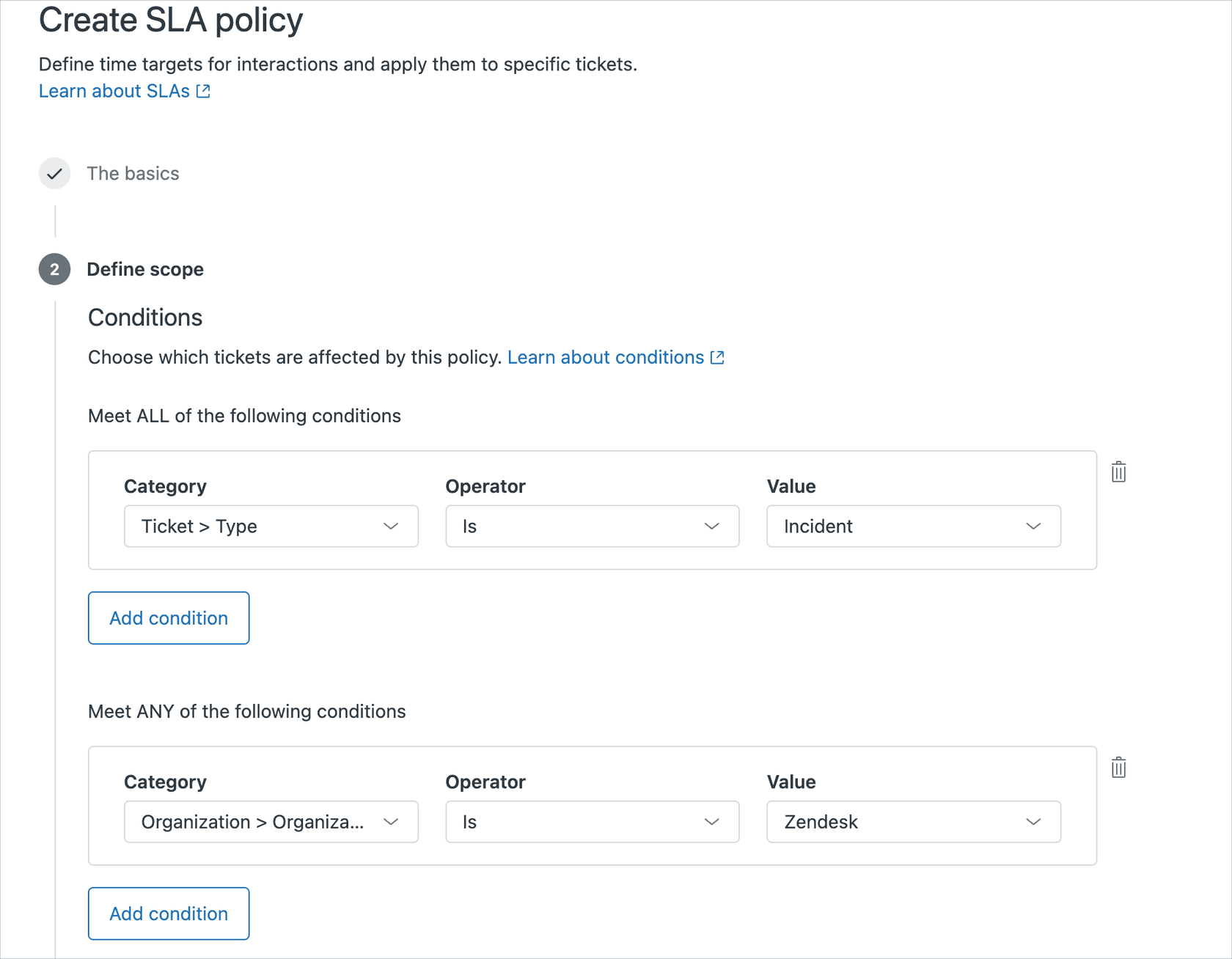
Step 3: Define Policy Conditions
Conditions determine which tickets your SLA policy applies to. Zendesk uses a simple logic system:
- All conditions must be met (AND logic)
- Any condition can be met (OR logic)
Common condition combinations include:
| Condition Type | Example Use Case |
|---|---|
| Group | Different SLAs for different teams (Support vs. Sales) |
| Channel | Different targets for email vs. chat vs. messaging |
| Priority | Faster targets for urgent tickets |
| Organization | Special handling for VIP customers |
| Tags | Custom categorization (e.g., "enterprise-plan") |
A practical approach is organizing policies by both channel and group. For example, you might create "Email - Support Team" and "Chat - Support Team" as separate policies since chat conversations typically need faster responses than email.
Step 4: Set Time Targets
Now configure the actual time targets. For each metric you enable, you will set targets for all four priority levels: Low, Normal, High, and Urgent.
A proven framework for First Reply Time targets is the 2-4-8-16 pattern:
| Priority | Target | Business Hours Equivalent |
|---|---|---|
| Urgent | 2 hours | Same day |
| High | 4 hours | Half day |
| Normal | 8 hours | Within 1 business day |
| Low | 16 hours | Within 2 business days |
For Next Reply Time, many teams use 4 hours for High/Urgent and 8 hours for Normal/Low priority. This gives agents time to research while keeping customers informed.
Start conservative. You can always tighten targets once you see how your team performs. Setting unrealistic goals just leads to constant breaches and frustrated agents.
Step 5: Choose Hours of Operation
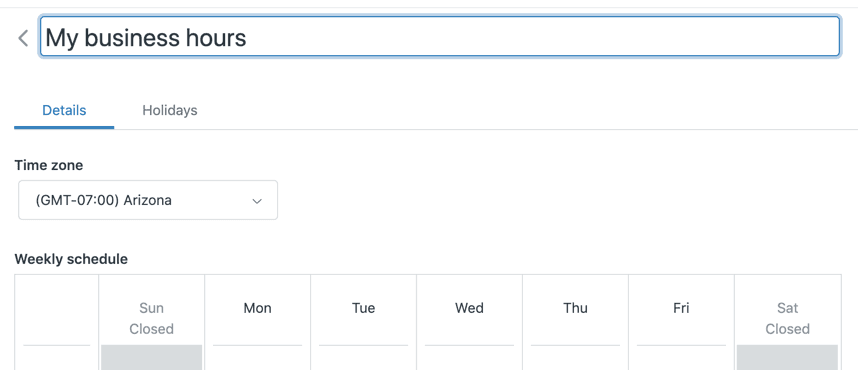
Decide whether to measure targets in business hours or calendar hours.
Business hours only count time during your defined working schedule. If your team works 9 AM to 5 PM and a ticket comes in at 4 PM with a 2-hour target, the SLA gives you until 10 AM the next day.
Calendar hours count all time continuously, including nights and weekends.
Most support teams should use business hours. It reflects when agents are actually available to work. Calendar hours make sense only if you provide true 24/7 coverage.
Step 6: Configure Advanced Settings (Optional)
For First Reply Time, Next Reply Time, and Periodic Update metrics, Zendesk offers advanced settings that change when timers start and stop.
Activation options let you customize when the SLA timer begins:
- Start when any ticket is created for an end user
- Start when tickets are created with internal notes
- Include voicemail tickets
Fulfillment options change what actions complete the target:
- Count internal notes as fulfilling the SLA (useful for internal escalation tracking)

These settings are particularly helpful if your workflow includes significant internal collaboration before customers see a response.
Step 7: Save and Order Your Policies
Click Save policy to activate your new SLA. Remember that policies are evaluated top-to-bottom, so position matters.
Put your most specific policies first. If you have a special SLA for VIP customers and a general one for everyone else, the VIP policy must appear above the general one. Otherwise, the general policy will match first and the VIP policy will never apply.
To reorder policies, drag them in the list or use the reorder controls in the admin interface.
After saving, test your policy by creating a sample ticket that matches its conditions. Check that the correct SLA appears and the target times calculate as expected.
Tips for Managing Your SLAs
Once your policies are live, a few practices will help you get the most value from them.
Automate priority assignment. Create triggers that set ticket priority based on criteria like customer type, subject line keywords, or request category. This ensures SLAs apply consistently without relying on agents to manually set priority.
Use business hours realistically. Do not set 1-hour targets if your team works standard business hours and tickets come in at 4:55 PM. Either extend coverage or adjust targets to account for overnight gaps.
Create SLA-based views. Help agents prioritize by adding SLA columns to their ticket views and sorting by time remaining. This surfaces tickets closest to breach first.
Review quarterly. Check your breach rates and adjust targets if needed. If you are consistently achieving 95%+ on a metric, you might be able to promise faster times. If you are constantly breaching, either add resources or relax targets.
Avoid common mistakes:
- Forgetting that tickets without priority get no SLA
- Creating overlapping conditions that cause wrong policies to apply
- Setting calendar hours when you meant business hours
- Building too many granular policies that become unmanageable
Meeting Your SLAs with eesel AI
Setting up SLA policies is just the first step. Actually hitting those targets consistently requires efficient workflows. That is where AI assistance can help.

With eesel AI, you can connect your Zendesk instance to an AI teammate that drafts responses in seconds. Instead of agents starting from scratch on every ticket, they get a ready-to-send draft based on your knowledge base and past responses. They review, edit if needed, and send. This cuts First Reply Time dramatically.
For teams struggling with Next Reply Time targets, eesel AI helps agents respond faster to follow-up questions by surfacing relevant information and suggesting replies. The AI learns your tone and policies from your existing tickets, so drafts sound like your team, not a generic chatbot.
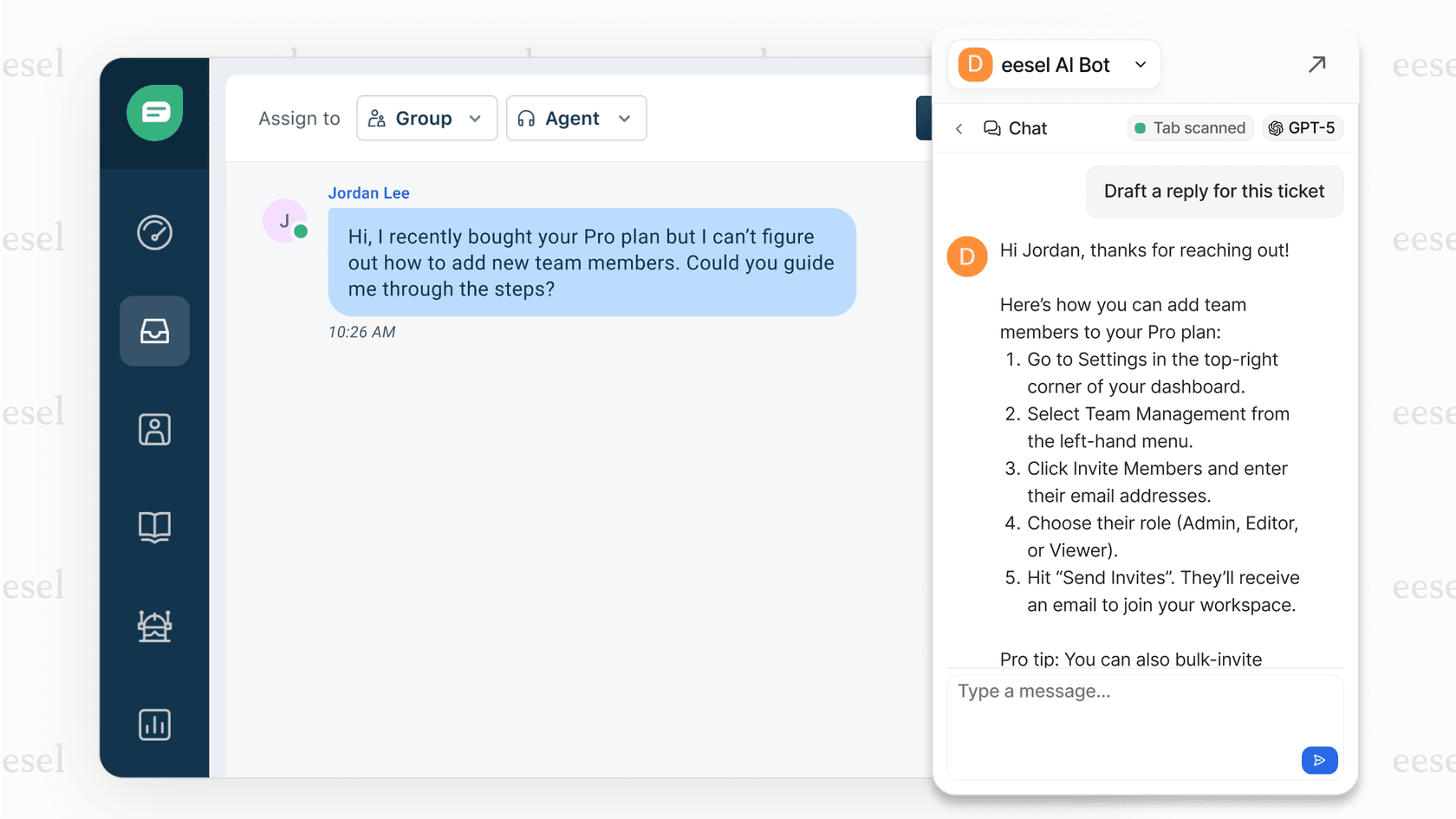
If you are interested in how AI can help you actually meet your SLA commitments rather than just track them, you can try eesel AI free or book a demo to see it in action.
Next Steps
Now that your SLA policies are configured, consider these follow-up actions:
Add SLA columns to agent views. Go to Views → Edit and add SLA or Group SLA columns. Sort by these columns so agents see the most urgent tickets first.
Set up breach alerts. Create automations that notify managers when tickets are approaching SLA breach. This gives you a chance to intervene before commitments are broken.
Build reporting dashboards. Use Zendesk Explore to track achievement rates by metric, priority, and group. Share these reports in team meetings to identify trends.
Document your escalation process. When an SLA is at risk of breaching, what happens? Make sure agents know when and how to escalate time-sensitive tickets.
Consider Group SLAs (Enterprise only). If tickets frequently pass between departments, Group SLAs measure how long each team owns the ticket. This helps identify internal bottlenecks.
Creating effective SLA policies takes some upfront planning, but the payoff is worth it. Your customers get clear expectations. Your team gets measurable goals. And you get visibility into where your support process needs attention.


