How to use Zendesk business rules schedule conditions

Stevia Putri
Last edited February 20, 2026
Schedule conditions in Zendesk business rules open up sophisticated workflow possibilities that go far beyond simple time-based actions. They let you account for actual working hours, holidays, and regional differences when automating your support operations.
If you're managing a support team that doesn't operate 24/7, or if you have multiple teams across different time zones, understanding how to leverage these conditions is essential. This guide walks you through everything you need to know about configuring and using schedule conditions across triggers, automations, and SLA policies in Zendesk.
While Zendesk provides the rule-based foundation, tools like eesel AI can work alongside these features to add intelligent intent-based routing and automation that complements your time-based workflows.

Understanding Zendesk business rules and schedules
Before diving into schedule conditions, it's important to clarify how the pieces fit together. Zendesk business rules are the automation engine of your help desk. They come in three flavors: triggers (event-based, fire immediately), automations (time-based, run hourly), and SLA policies (target-based, measure performance).
Schedules define when your team is actually working. Without schedules, Zendesk operates on calendar hours (24/7). Once you configure a schedule, you unlock business hours calculations that only count time during your defined working periods.
The distinction matters. Calendar hours include nights, weekends, and holidays. Business hours respect your actual availability. When a customer submits a ticket at 5 PM on Friday and your team doesn't work weekends, calendar hours would count Saturday and Sunday against your SLA targets. Business hours would pause the clock until Monday morning.
Schedules are configured in Admin Center under Objects and rules > Business rules > Schedules. You'll need a Professional plan or higher to use this feature. Enterprise plans allow multiple schedules, which becomes important if you have teams in different regions or departments with varying hours.
Setting up your Zendesk business hours and schedules
Creating a schedule is straightforward, but there are nuances that trip up even experienced admins. Here's how to get it right.
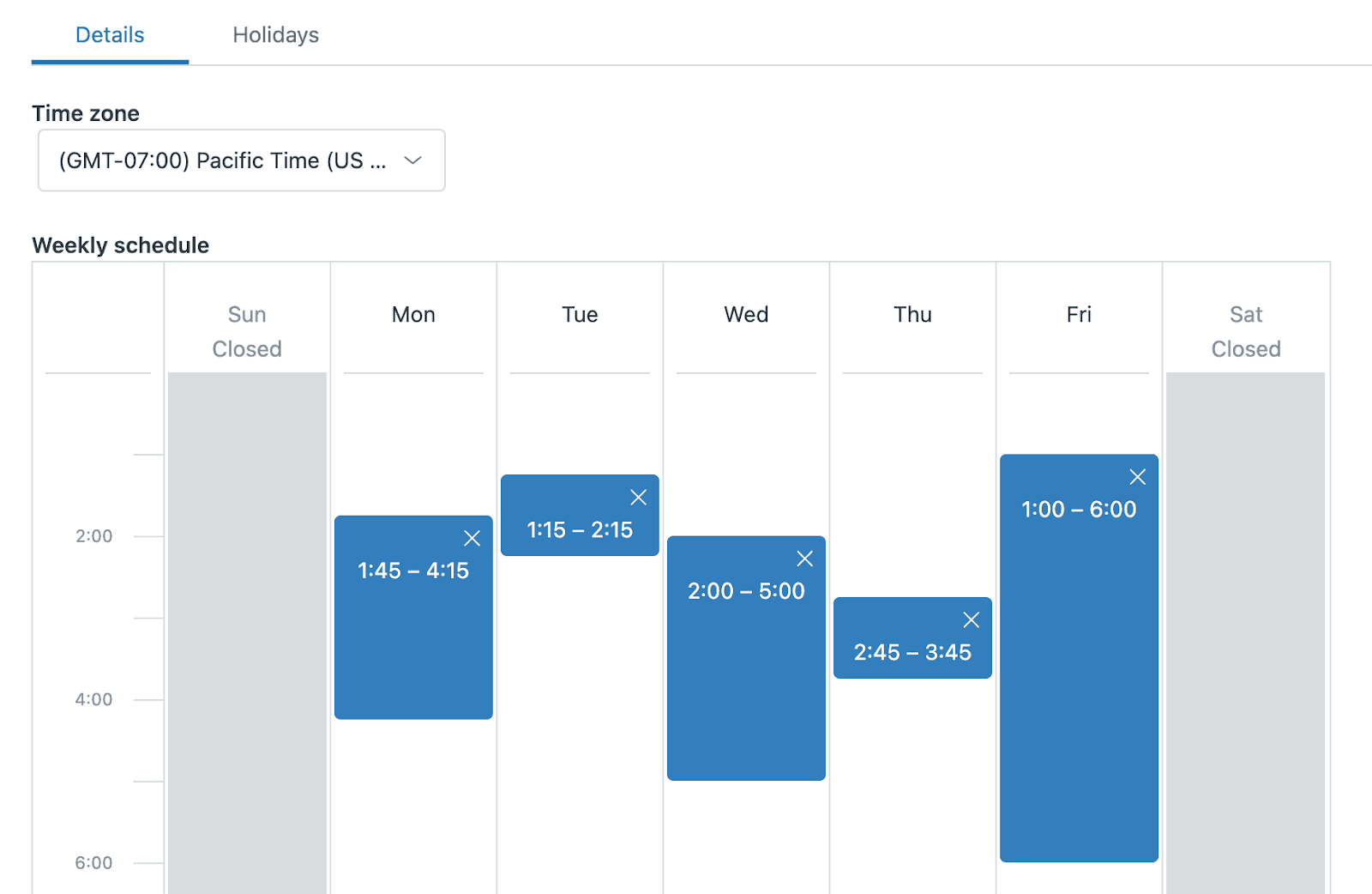
Start by navigating to Admin Center > Objects and rules > Business rules > Schedules. Click Add schedule, give it a name that makes sense to your team (like "Support Team - US East"), and select the appropriate time zone. This time zone setting is crucial; it determines when your business hours actually occur relative to your customers.
In the Weekly schedule section, you'll see a visual interface for setting your hours. You can drag time blocks to adjust start and end times in 15-minute increments. Each interval must be at least one hour long. If your business hours span midnight (say 10 PM to 6 AM), you'll need to create two separate intervals divided by the calendar day; Zendesk doesn't allow intervals that cross date boundaries.
To remove hours from a day, click the X on the time block. The day will display as Closed. To add hours to a closed day, simply click anywhere on that day row.
After setting your weekly hours, you can add holidays under the Holidays tab. Click Add holiday, give it a name, and select the start and end dates. You can schedule holidays up to two years in advance, and they can span multiple days if needed. Important limitation: holidays cover full calendar days, not just your business hours. If Monday is a holiday, it's considered a holiday for the entire day, not just during your 9-to-5 window.
On Enterprise plans, the first schedule in your list becomes the default for all tickets. You'll need to create triggers to apply different schedules to different tickets, which we'll cover in the next section.
Using Zendesk business rules schedule conditions in triggers
Triggers in Zendesk are event-based. They fire immediately when a ticket is created or updated. Schedule conditions in triggers let you build logic around whether an event occurred during business hours, on a holiday, or within a specific schedule.
The most commonly used condition is "Ticket: Within business hours?" This returns Yes or No based on when the ticket event occurred. A practical use case: escalating VIP tickets submitted after hours. You might create a trigger with conditions like "Ticket: Within business hours? is No" plus "Priority is Urgent" and an action to notify your on-call manager.
Another useful condition is "Ticket: On a holiday?" This is set to Yes for the full calendar day of any scheduled holiday. You could use this to send auto-replies explaining reduced staffing on holidays, or to route tickets differently when your primary team is off.
On Enterprise plans with multiple schedules, you get two additional conditions. "Ticket: Schedule" checks which schedule is currently applied to a ticket. "Ticket: Within (schedule)" lets you compare the ticket time against any schedule, not just the one applied to that ticket. This is powerful for global teams; you could check if a ticket was created during Sydney business hours even if the ticket itself is assigned to your London team.
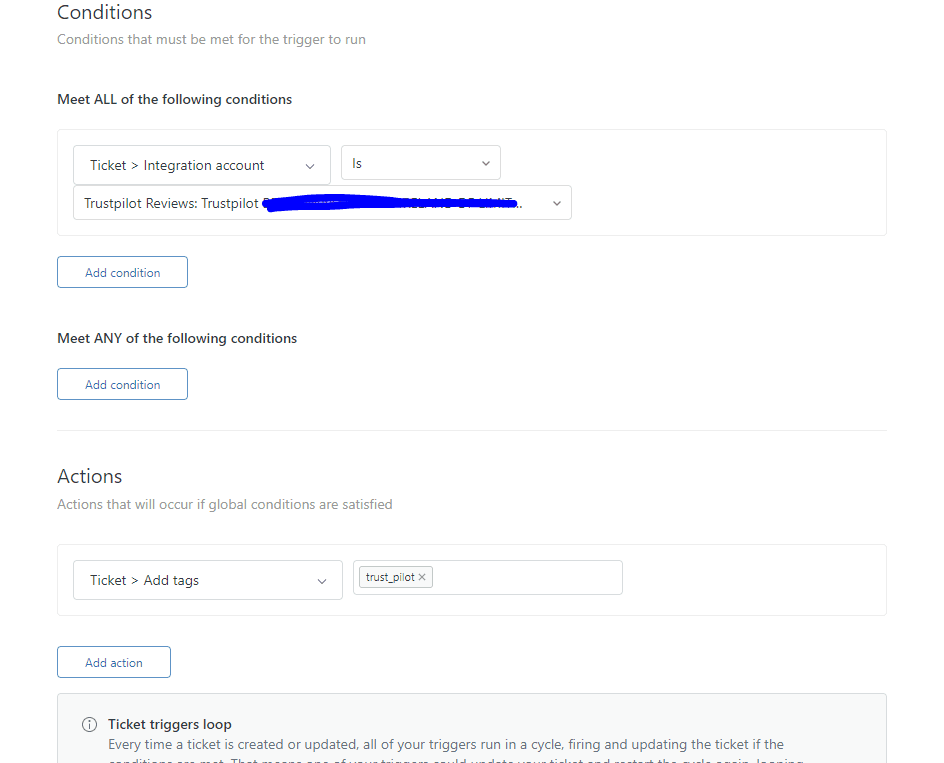
Here's a practical example for an auto-reply trigger:
- Conditions: Ticket is Created, Within business hours? is No
- Actions: Email user (requester) with a message like "Thanks for contacting us. You've reached us outside our business hours. Our team will respond when we're back online."
The key difference between trigger and automation schedule conditions is timing. Triggers evaluate the condition at the moment the ticket is created or updated. Automations check conditions periodically against the current time. For more details on trigger conditions, see Zendesk's trigger documentation.
Building time-based automations with Zendesk business rules schedule conditions
Automations are where schedule conditions really shine for ongoing ticket management. Unlike triggers, automations run on an hourly cycle, checking all your tickets against their conditions and executing actions when criteria are met.
Zendesk provides a suite of "Hours since..." conditions for automations. These include Hours since created, Hours since open, Hours since pending, Hours since solved, Hours since assigned, Hours since update, and several others. For each of these, you can choose a variant that calculates in business hours rather than calendar hours.
Here's the critical part that trips up many admins: automations run approximately once per hour. This means when you use an "is" condition like "Hours since solved is 24," there's a timing window issue. If the automation runs at 23.5 hours and then again at 24.5 hours, your condition might never evaluate as true. Zendesk officially recommends using "Greater than" conditions instead of "is" for reliable automation firing.
Another essential concept is nullifying conditions. When you use "Greater than 24," the condition remains true as long as the ticket status doesn't change. Without a nullifying condition, your automation would run every hour on the same ticket. The standard pattern is to add a tag condition like "Tags contains none of the following: reminder_sent" and then include "Add tags: reminder_sent" as an action. This ensures the automation only fires once per ticket.
A common automation use case is auto-solving pending tickets after customer inactivity:
- Conditions: Status is Pending, Hours since pending > 48 (business), Tags contains none of the following: auto_solve_pending
- Actions: Status is Solved, Add tags: auto_solve_pending
You can build on this with a companion automation that sends a reminder before the auto-solve happens:
- Conditions: Status is Pending, Hours since pending > 24 (business), Tags contains none of the following: pending_reminder_sent
- Actions: Email user (requester) with a gentle nudge, Add tags: pending_reminder_sent
Remember that "Hours since" conditions have a 28-day (672-hour) maximum lookback. Automations won't fire for tickets that exceed this window, which is a deliberate design choice to prevent ancient tickets from suddenly triggering actions.
Integrating schedules with Zendesk SLA policies
SLA policies are where business hours have the most direct impact on customer-facing commitments. When you create an SLA policy, you can set the "Hours of operation" to either Business hours or Calendar hours. For most teams, business hours is the right choice because it sets realistic expectations based on when you're actually working.
SLA policies evaluate priority alongside the schedule. You can set different target times for Urgent, High, Normal, and Low priority tickets. The schedule determines how those hours are counted. A ticket with a 4-hour first reply target created at 4 PM on Friday might breach Monday morning under calendar hours but be well within target under business hours that don't count the weekend.
On Enterprise plans with multiple schedules, SLA policies use whichever schedule is applied to the ticket. This enables regional SLAs; your European customers can have targets based on European business hours while your US customers follow US hours, even if both tickets are handled by the same team.
A best practice from experienced Zendesk consultants is to create SLA-based views sorted by breach time in ascending order. This ensures agents always see the ticket closest to breaching next, rather than just the newest or highest priority. It creates a fairer workflow where tickets are handled based on actual urgency relative to your commitments.
At eesel AI, we've seen teams combine SLA policies with AI-powered triage to intelligently route tickets before they even get assigned. Our AI Triage product can tag, route, and prioritize tickets based on content and intent, which works alongside your time-based SLA rules to ensure the right tickets get attention at the right time.

Common pitfalls when using Zendesk business rules schedule conditions
Even experienced admins run into issues with schedule conditions. Here are the most common problems and how to avoid them.
The "is" condition timing issue: Using "Hours since solved is 24" is unreliable because automations run on an hourly cycle and might miss the exact moment. Always use "Greater than" instead. If you need precise timing, build in a buffer (like "Greater than 23") rather than trying to hit exactly 24.
Missing nullifying conditions: Without a way to prevent repeated execution, your automation will run every hour on every matching ticket. Always include a tag-based nullifier and add that tag as an action.
Tickets without schedules on Enterprise: If you have multiple schedules but haven't created triggers to assign them, tickets may be created with no schedule at all. This breaks business hours calculations. Always ensure your tickets get assigned a schedule, even if it's just your default.
Holiday handling confusion: The "On a holiday?" condition evaluates to Yes for the full calendar day, not just during your business hours. If you have Monday business hours of 9 AM to 5 PM and Monday is a holiday, the condition is true at 10 PM Sunday and 6 AM Tuesday too.
The 28-day limitation: "Hours since" conditions can't look back more than 672 hours (28 days). If you're trying to automate on tickets that have been pending for months, the automation simply won't see them.
Closed ticket immutability: Once a ticket is Closed in Zendesk, it cannot be updated by automations. This is by design to preserve data integrity. If you need long-term follow-ups, structure your workflow to keep tickets in Solved until the follow-up period passes.
Enhancing Zendesk workflows with AI automation
Zendesk's rule-based automation is powerful but has natural limits. It follows the logic you explicitly define. It can't understand that a ticket about "refund request for order #12345" is a billing issue that should skip the first-line queue and go straight to finance.
This is where AI tools like eesel AI complement Zendesk's native functionality. Our AI Agent integrates directly with Zendesk to understand customer intent from message content, not just metadata fields.
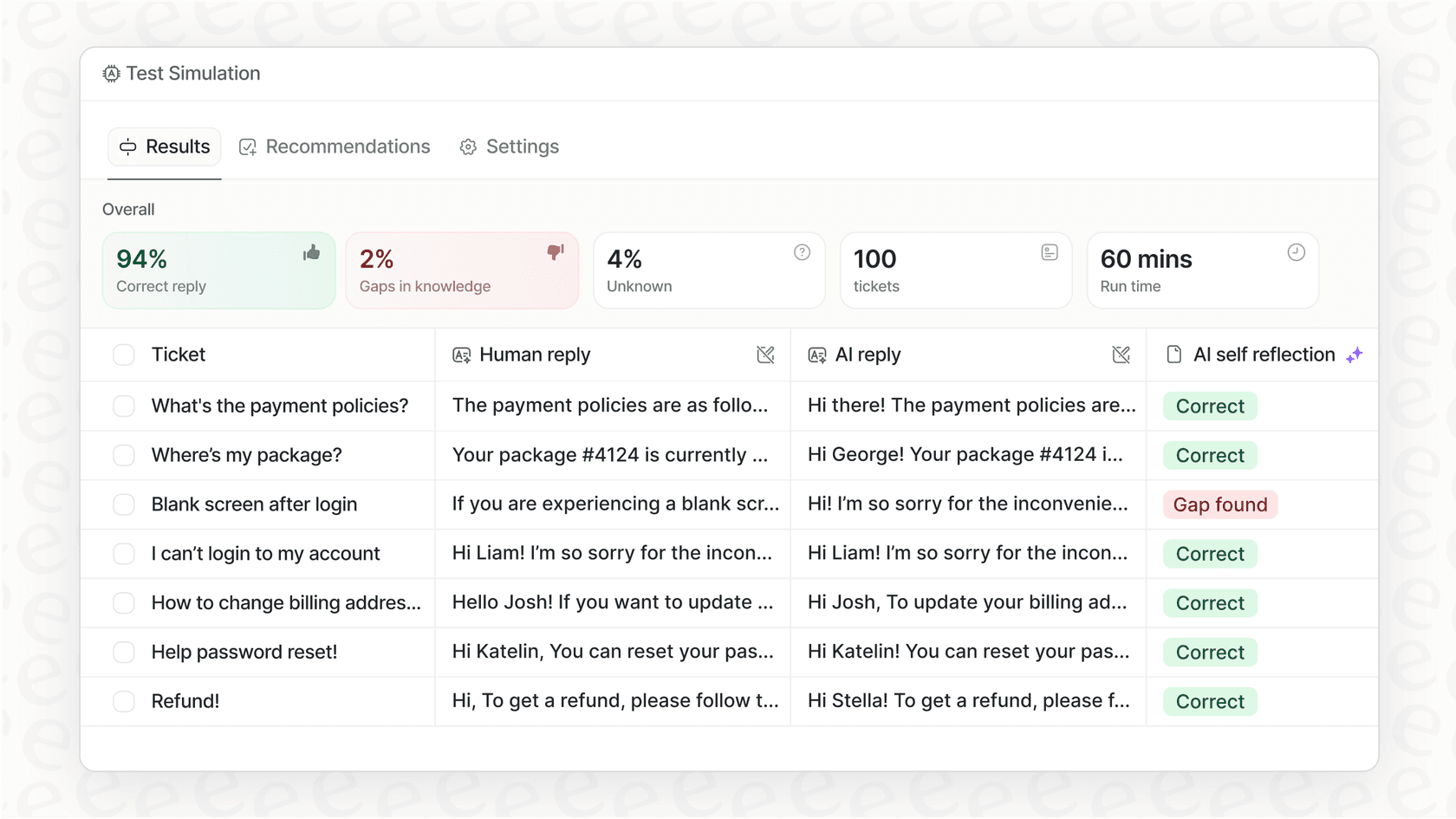
Here's how the combination works. Your Zendesk business rules handle the structured, time-based workflows: SLAs, after-hours routing, pending ticket cleanup. The AI layer handles the nuanced, content-based decisions: routing based on issue type, prioritizing based on sentiment, extracting order numbers and account details automatically.
For example, you might have a Zendesk trigger that routes all tickets created outside business hours to a "Next Day" queue. An AI agent can then review that queue and identify which tickets are actually urgent based on language and context, bumping those to your on-call team even though the rule-based logic would wait until morning.
Our platform learns from your historical tickets, so it understands your business-specific language and processes. You can define escalation rules in plain English like "If the refund request is over 30 days, politely decline and offer store credit" without building complex trigger conditions.
If you're already using Zendesk business rules schedule conditions, adding an AI layer can help you handle the edge cases and exceptions that rules alone can't address.

Frequently Asked Questions
Share this article

Article by
Stevia Putri
Stevia Putri is a marketing generalist at eesel AI, where she helps turn powerful AI tools into stories that resonate. She’s driven by curiosity, clarity, and the human side of technology.