Managing support tickets manually doesn't scale. As your customer base grows, you'll spend more time on repetitive tasks like routing tickets, sending status updates, and escalating urgent issues. That's where Zendesk business rules can help.
Business rules in Zendesk are automated workflows that handle ticket actions based on conditions you define. Think of them as your first line of support automation. They work 24/7 to ensure tickets reach the right people at the right time, without requiring constant manual intervention. According to Zendesk's documentation, these rules follow simple if-then logic that scales with your support volume.
This guide covers everything you need to know about Zendesk business rules ticket actions. You'll learn how triggers, automations, and macros work, plus how to set them up correctly the first time.

What are Zendesk business rules?
Business rules in Zendesk are predefined workflows that automatically modify tickets and send notifications when specific conditions are met. They follow a simple logic: if X is true, then do Y.
For example, if a ticket comes from a VIP customer (condition), automatically assign it to your senior support team and set priority to urgent (actions). Or if a ticket has been pending for 24 hours (time-based condition), send a reminder email to the requester (action).
The core components of every business rule are:
- Conditions: The qualifications a ticket must meet for the rule to apply
- Actions: What happens when conditions are met
- Operators: How conditions are evaluated (is, is not, less than, contains, etc.)
Only administrators can create and manage business rules. This restriction exists because these rules affect every ticket in your system, and poorly configured rules can disrupt your entire support workflow. You'll want to limit who can make changes to avoid unintended consequences.
Source: https://support.zendesk.com/hc/en-us/articles/4408885959066
Types of business rules in Zendesk
Zendesk offers four main types of business rules, each serving a different purpose in your support workflow.
Triggers
Triggers are event-based automations that fire immediately when a ticket is created or updated. They're your real-time responders and essential for any responsive support operation.
The key difference from other rule types is speed. Triggers run within seconds of a ticket change. This makes them ideal for time-sensitive actions like notifying customers that their request was received or routing urgent tickets to specialized teams.
Here's the critical detail about how triggers work: they run in a cycle. When a ticket is created or updated, Zendesk checks all your triggers in the order they appear on the Triggers page. If a trigger fires and updates the ticket, the cycle restarts. This means one ticket update can cause multiple triggers to fire in sequence.
Source: https://support.zendesk.com/hc/en-us/articles/4408822236058
Automations
Automations are time-based rules that execute after a specified period passes. While triggers respond to events, automations respond to time.
Common uses include escalating tickets that haven't been touched in X hours, reminding customers about pending tickets, or automatically closing solved tickets after a waiting period.
The time-based conditions available include:
- Hours since created/open/pending/solved
- Hours since last update
- Hours since assignee update
- Hours until next SLA breach
One crucial limitation: automations cannot modify closed tickets. Once a ticket is closed, it's locked and no further automated actions can apply.
Source: https://support.zendesk.com/hc/en-us/articles/4408832701850
Macros
Macros are pre-defined sets of actions that agents apply manually. Unlike triggers and automations, macros don't run automatically. Agents choose when to use them.
Think of macros as shortcuts for common tasks. Instead of typing the same response 50 times a day, an agent clicks a macro. Instead of manually updating five ticket fields for every escalation, one macro click handles it all. It's a simple way to boost agent productivity without complex configuration.
Macros can include formatted text, inline images, and up to five file attachments. This makes them perfect for standard responses that need visual elements or documentation.
Source: https://support.zendesk.com/hc/en-us/articles/4408844187034
Views
Views are organized ticket lists based on specific criteria. While not technically automation, they're essential for business rules because they help teams monitor what needs attention.
You might create views for "Unassigned tickets," "Urgent priority tickets," or "Tickets pending customer response for 3+ days."
Source: https://support.zendesk.com/hc/en-us/articles/4408888828570
Understanding conditions and actions
Before creating business rules, you need to understand how conditions and actions work together.
How conditions work
Every business rule has two condition sections: "All" and "Any."
All conditions must be true for the rule to fire. If you list five conditions here and four are met but one isn't, the rule won't apply.
Any conditions work differently. At least one must be true, but not all. This creates OR logic within your rule.
Here's a practical example. You want a trigger to fire for VIP customers who submit urgent tickets. Your conditions might look like this:
All:
- Ticket > Priority > Is > Urgent
- Ticket > Tags > Contains at least one of the following > vip
Any:
- Ticket > Is > Created
- Ticket > Is > Updated
This trigger fires when a ticket is urgent AND has the VIP tag, but only when the ticket is being created OR updated.
Common condition operators
The operator defines the relationship between the condition and the value:
| Operator | Use Case |
|---|---|
| Is / Is not | Exact matches |
| Less than / Greater than | Numeric comparisons, status ranges |
| Contains at least one of the following | Tags, keywords |
| Contains none of the following | Exclusions |
| Changed to / Changed from | Detecting field updates |
For status fields, "Less than" and "Greater than" work based on the status hierarchy: New < Open < Pending < On-hold < Solved < Closed. So "Status less than Solved" captures New, Open, and Pending tickets.
Source: https://support.zendesk.com/hc/en-us/articles/4408893545882
Available ticket actions
Actions define what happens when conditions are met. The available actions depend on the rule type, but common options include:
Ticket field updates:
- Status (New, Open, Pending, On-hold, Solved)
- Priority (Low, Normal, High, Urgent)
- Type (Question, Incident, Problem, Task)
- Group and Assignee
- Tags (Set, Add, Remove)
Notifications:
- Email user (requester, assignee, specific agents)
- Email group
- Tweet (for X/Twitter tickets)
- Notify webhook
- Notify external target
Advanced actions:
- Create side conversation via email
- Create child ticket
- Add follower
- Set routing channel
- Notify active webhook
Source: https://support.zendesk.com/hc/en-us/articles/4408893545882
Setting up your first ticket trigger
Let's walk through creating a practical trigger that you can use immediately.

Step 1: Access the trigger settings
Navigate to Admin Center > Objects and rules > Business rules > Triggers.
You'll see your existing triggers listed in the order they fire. Remember, order matters—triggers at the top run first.
Step 2: Define trigger conditions
Click Create trigger. Start with the conditions.
Let's build a trigger that notifies your team when a high-priority ticket arrives:
All conditions:
- Ticket > Priority > Is > High
- Ticket > Is > Created
The "Ticket > Is > Created" condition is crucial. Without it, this trigger would fire every time any high-priority ticket is updated, creating notification spam.
Step 3: Configure trigger actions
Now add the actions that occur when a high-priority ticket is created:
- Notifications > Email group > (select your urgent response team)
- Ticket > Add tags > high_priority_alert
The tag serves two purposes. It helps you identify tickets that triggered this rule, and you can use it to prevent duplicate notifications if you have related triggers.
Step 4: Test and activate
Click Create trigger. New triggers are automatically active.
Test it by creating a test ticket with High priority. Check that:
- The notification email arrives
- The tag is applied
- The trigger appears in the ticket's event log
If something doesn't work as expected, check the event log on your test ticket. It'll show exactly which triggers fired and what actions they took.
Source: https://support.zendesk.com/hc/en-us/articles/4408886797466
Common automation use cases
Automations excel at time-based workflows. Here are three essential automations every support team should consider.
Ticket escalation for unresolved tickets
This automation increases priority when tickets sit unresolved too long.
Conditions:
- Ticket > Status > Less than > Solved
- Ticket > Hours since created > Is > 24
- Ticket > Priority > Is not > Urgent
Actions:
- Ticket > Priority > Urgent
- Notifications > Email user > (assignee)
The condition "Status less than Solved" means New, Open, or Pending. The "Is not Urgent" condition prevents escalating already-urgent tickets.
Source: https://support.zendesk.com/hc/en-us/articles/4408883801626
Auto-close solved tickets
Zendesk includes this automation by default, but you should understand how it works.
Conditions:
- Ticket > Status > Is > Solved
- Ticket > Hours since solved > Is > 96 (4 days)
Actions:
- Ticket > Status > Closed
You can modify the 96-hour window to anywhere from 1 hour to 28 days. Most teams find 2-7 days works well. Shorter periods keep your ticket list clean. Longer periods give customers more time to reopen if needed.
Source: https://support.zendesk.com/hc/en-us/articles/4408835051546
Pending ticket reminders
This automation (disabled by default) reminds customers when their ticket has been pending.
Conditions:
- Ticket > Status > Is > Pending
- Ticket > Hours since pending > Is > 24
Actions:
- Notifications > Email user > (requester)
Consider the customer experience before enabling this. Some customers find reminder emails helpful. Others find them annoying, especially if they're genuinely gathering information before responding.
Source: https://support.zendesk.com/hc/en-us/articles/4408835051546
Best practices for business rules
Following these practices'll save you headaches as your rule library grows.
Keep rules organized
Use consistent naming conventions. Include the purpose and trigger event in names:
- Good: "VIP Created - Escalate to Senior Team"
- Bad: "Escalation trigger 1"
Use trigger categories to group related rules. Common categories include:
- Routing
- Notifications
- Escalations
- Tagging
Test before deploying
Enterprise plans include sandbox environments. You'll want to use them to test complex rules before activating them in production.
For all plans, test with sample tickets. Check the event log to confirm triggers fire as expected and actions apply correctly.
Document your rules
Maintain documentation for complex trigger logic. When you have triggers that work together or depend on specific conditions, document the relationships.
Include in your documentation:
- What the rule does
- Why it exists
- What other rules it interacts with
- When it was last updated
Monitor and refine
Schedule quarterly reviews of your business rules. Ask yourself:
- Is this rule still needed?
- Is it firing too often or not often enough?
- Are there conflicts with newer rules?
- Could this be simplified?
Source: https://support.zendesk.com/hc/en-us/articles/4408882237722
Advanced ticket actions
Once you've mastered the basics, these advanced actions can further streamline your workflow.
Side conversations
Side conversations allow agents to collaborate with people outside the ticket conversation without adding them as CCs.
Email side conversations can be created via triggers. This is useful for automatically looping in external vendors or partners when specific conditions are met.
Child ticket side conversations create linked tickets in other Zendesk accounts. This enables escalation workflows between teams or companies.
When using side conversation actions, you'll want to add a tag (like "triggered_sc") and include a "Tags > Contains none of the following > triggered_sc" condition. This prevents creating duplicate side conversations.
Source: https://support.zendesk.com/hc/en-us/articles/4408893545882
Webhook notifications
Webhooks let you send ticket data to external systems in real-time. Common uses include:
- Updating CRM records when tickets are solved
- Logging support interactions in analytics platforms
- Triggering custom workflows in other applications
To use webhooks, first create the webhook in Admin Center > Apps and integrations > Webhooks. Then use the "Notify by > Active webhook" action in your triggers.
Source: https://support.zendesk.com/hc/en-us/articles/4408839108378
Ticket sharing
Available on Enterprise plans, ticket sharing automatically shares tickets with other Zendesk accounts.
Use cases:
- Sharing specific ticket types with a vendor's support team
- Escalating tickets to a parent company's Zendesk instance
- Distributing work across multiple Zendesk accounts
You'll need a sharing agreement in place between accounts to use the "Share ticket with" action.
Source: https://support.zendesk.com/hc/en-us/articles/4408887148698
Taking automation further with AI
Business rules handle logic-based automation well. When X happens, do Y. But they can't understand context, sentiment, or intent.
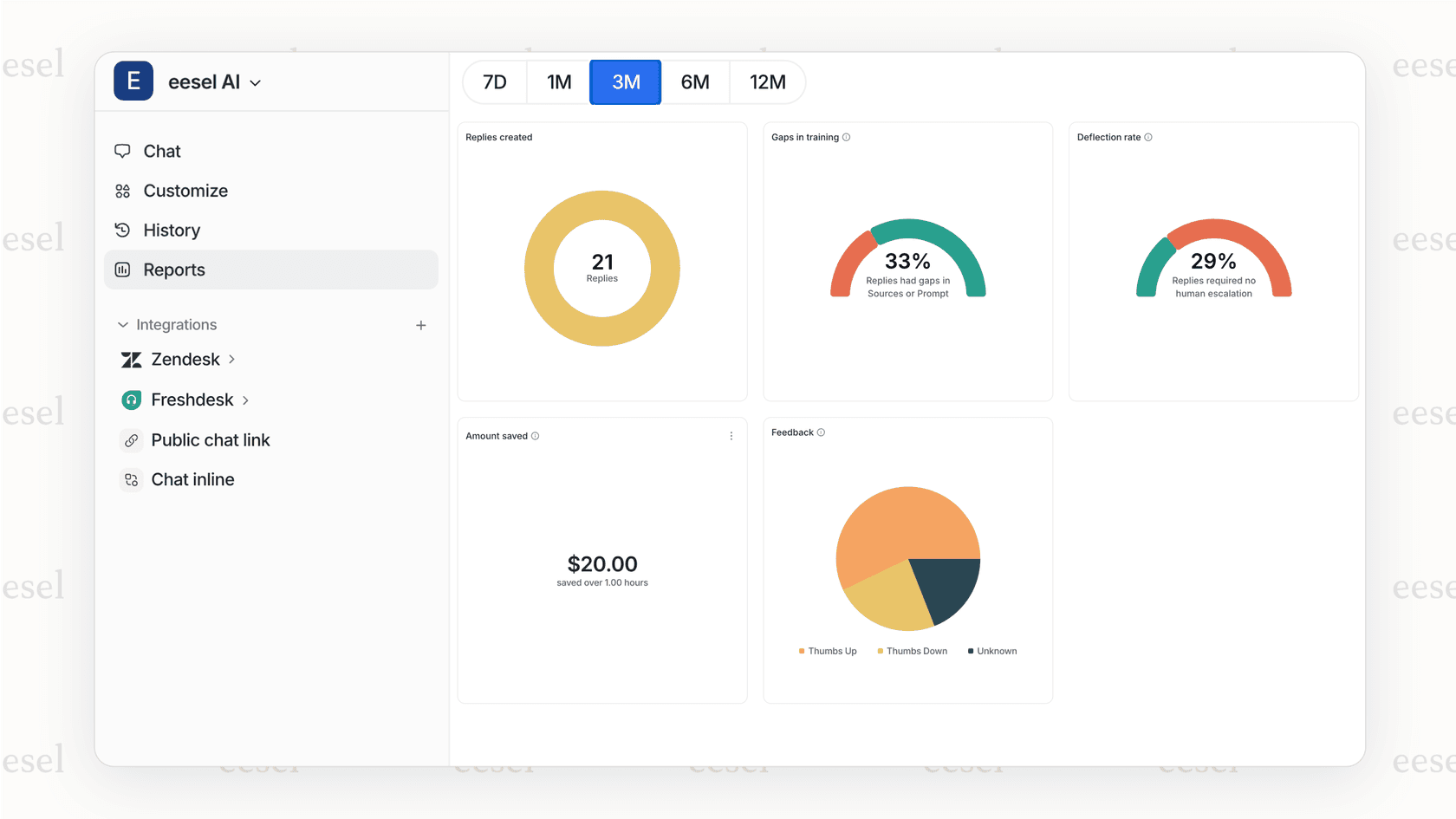
AI-powered tools fill this gap. While Zendesk offers some AI features (like intelligent triage with the Advanced AI add-on), dedicated AI solutions can provide more sophisticated automation.
For example, at eesel AI, we learn from your past tickets and help center content to handle tickets autonomously. Instead of just routing tickets based on keywords, we understand what customers are asking and respond with answers grounded in your knowledge base.
The difference is significant. Business rules follow "if this, then that" logic. AI learns patterns and improves over time. For teams drowning in ticket volume, AI can handle routine questions while your business rules manage workflow logistics. You don't have to choose between them—they work well together.
Start automating your Zendesk workflow today
Zendesk business rules give you powerful automation without writing code. Start simple. Create one trigger for a common scenario, like routing tickets based on channel or notifying agents of high-priority issues.
As you get comfortable, add automations for time-based workflows. Set up macros for your agents' most common responses. Gradually build a system that handles routine tasks automatically. You'll be surprised how much time this saves your team.
Remember that automation should support your team, not replace human judgment. The best support operations use business rules to handle repetitive work, freeing agents to focus on complex issues that need a human touch.
If you're finding that rule-based automation isn't enough and you need intelligent handling of routine tickets, consider exploring what we can do at eesel AI. We integrate with Zendesk to provide autonomous ticket resolution that learns from your existing content and improves over time.
Ready to take your support automation beyond rule-based workflows? Try eesel AI free to see how AI can handle routine tickets while your business rules manage workflow logistics.