Help Scout AI escalation to human: how Scout hands off and what it costs

Kira

Katelin Teen
Last edited November 22, 2026
Help Scout's AI agent, now called Scout, hands a conversation to your team when an Exclusion you wrote matches, when a customer asks for a person, or when it cannot find an answer. Handoffs are free: Help Scout bills only $0.75 per resolved conversation. In Beacon chat the customer sees your handoff message and contact buttons; in email Scout stays silent and the message lands in your Inbox, and I found no documented note, tag or status that travels with it. eesel can sit in the same mailbox and leave that note, and with the eesel CLI a coding agent can connect Help Scout and run a test conversation before anything goes live. Approving the connection still needs a Help Scout admin.
How does Help Scout's AI hand a conversation to a human?
If you last read about Help Scout's chatbot under the name AI Answers, the first thing to know is that it has been renamed. Help Scout's setup page says Scout is the new name for the AI agent and AI chat, and your old settings now live under Tools > Scout. Envoy is the product you subscribe to and the name on your invoices, and Scout is the agent that does the work.
The big change is the channel. Scout is built to resolve conversations in both Beacon and email, where AI Answers lived only in the chat widget. That makes the handoff question more interesting, because the same AI now has two very different places to give up. For the older picture, my posts on Help Scout AI ticket deflection and Beacon modes still explain the widget side.
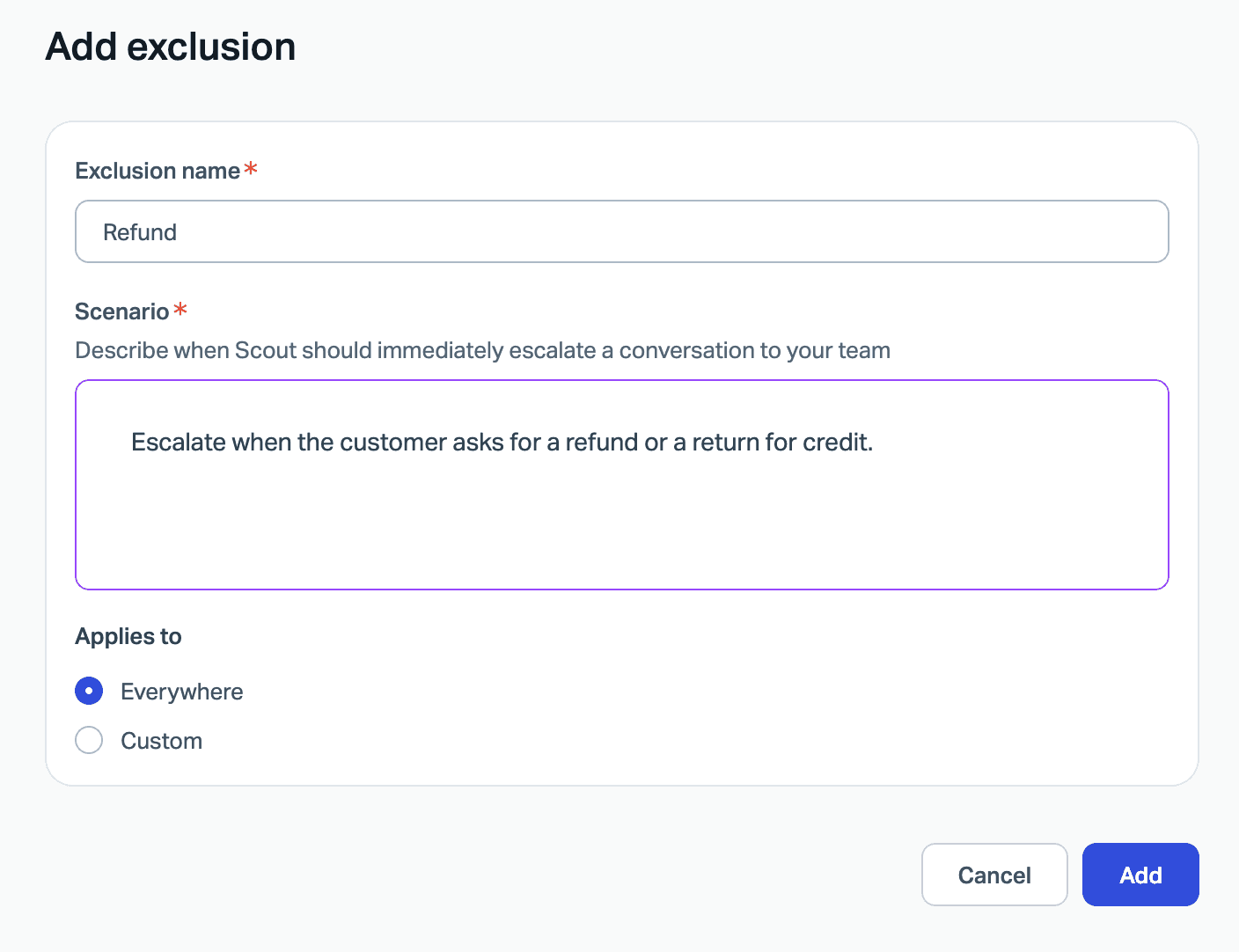
The screen above is the closest thing Scout has to an escalation switch. A handoff in Scout is a topic you chose in advance, written in plain language, that it is told not to answer. That is a different design from a human-in-the-loop review step, where the AI answers and a person checks it. Help Scout's own AI principles post says AI should never be the only way to get something done and that you can always route a customer straight to a human, and its product lead describes AI Answers as giving customers "a way to talk to a human when they need one".
I am only covering what Scout does. For the general theory of when an AI should stop, see AI agent handoff and AI escalation management. The sibling guides I wrote for Front and Zendesk show how different the same job looks in other helpdesks.
What triggers a handoff in Scout?
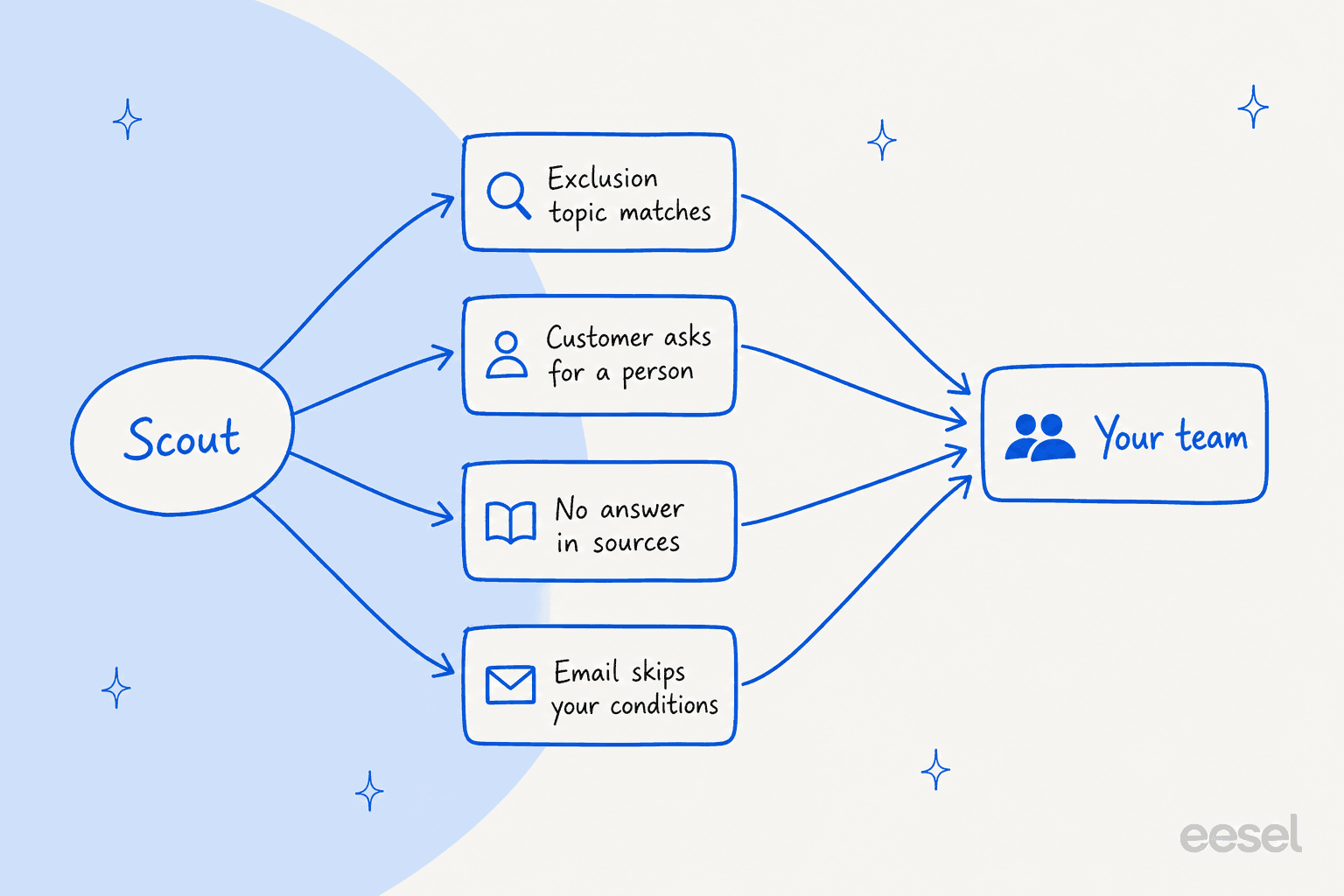
Scout has three documented ways to give a conversation to a person, and one setting that decides whether it gets involved in an email at all.
| Trigger | Where it lives | What Help Scout documents |
|---|---|---|
| Exclusion | Scout > Manage > Exclusions | A name (up to 100 characters), a scenario (up to 500) and an Applies to choice of Everywhere or Custom. Scout escalates right away when a conversation matches |
| Customer asks for a person | Beacon, Customize messages | A Human request message you can rewrite |
| No answer found | Beacon, Customize messages | A Cannot find an answer message you can rewrite |
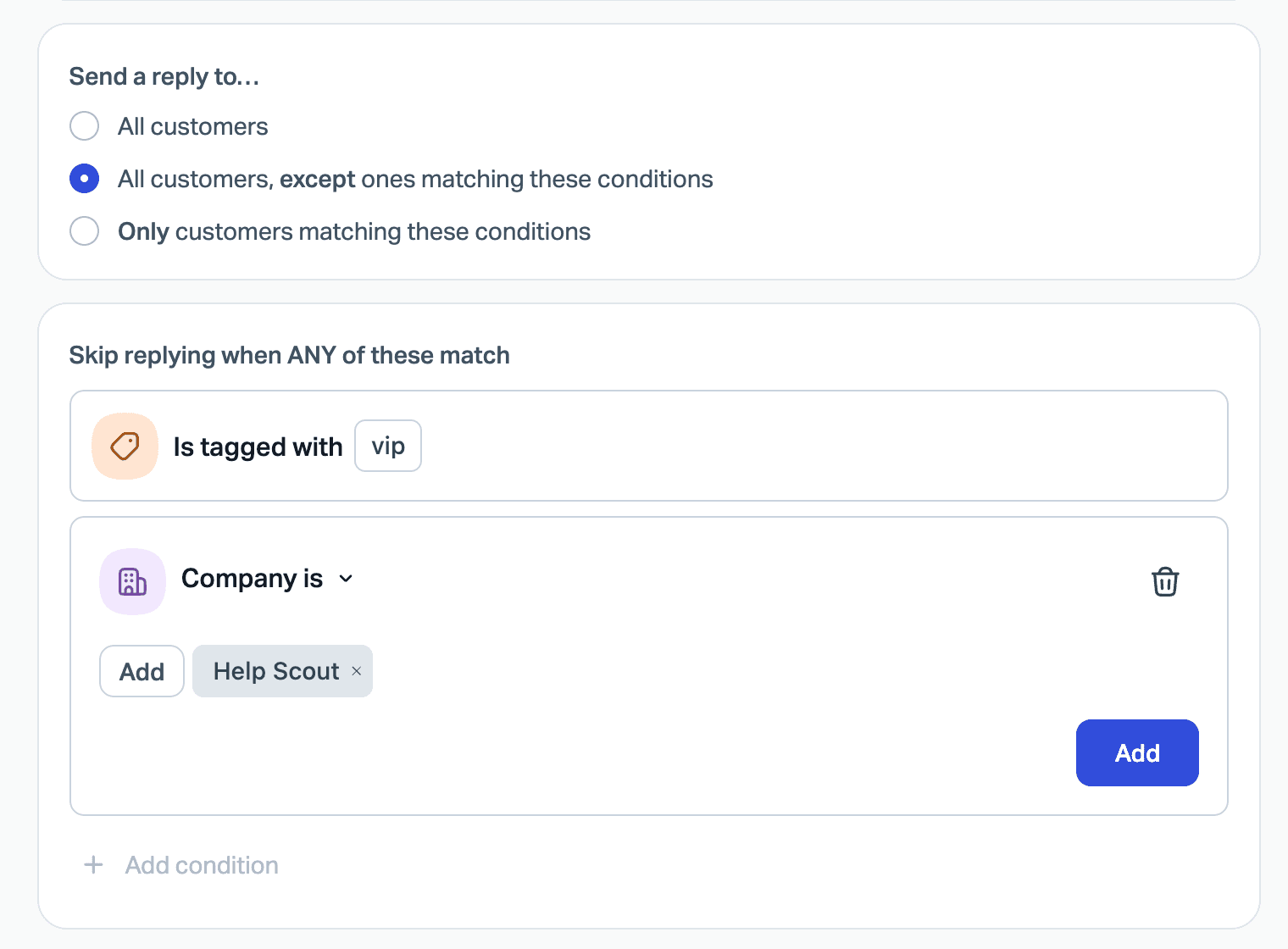
| Email conditions | Settings > Inboxes > Scout | Reply to all customers, all except matching ones, or only matching ones. Conditions use things like tags and company |
Everything in the table comes from Help Scout's pages on exclusions and setup.
Exclusions are where most of the design work goes, and Help Scout gives good advice on writing them. Cover one topic per exclusion, describe what the customer asks for rather than the category name, and include the words customers really use, so a scenario about refunds also mentions "money back", "return" or "credit". The docs list twelve starter examples: refunds and returns, cancellations, billing disputes, account security, privacy requests, legal matters, safety concerns, custom pricing, order changes, a request for a person, complaints, and media or partnership enquiries.
Two details I would not skip. First, Help Scout says that if Scout gives a wrong or incomplete answer on a topic it can still handle, you should add the correct information as a source and not an exclusion. An exclusion is for topics a person must own. Second, on a risky topic such as medical, legal or financial questions, the roles page says to create an exclusion as well as writing the rule into the role's instructions, because an exclusion is what sends the conversation straight to your team. If you want a rule that does not depend on the model reading a sentence well, that is the safer setting, and it echoes what I wrote in setting confidence thresholds.
Email adds a lever chat does not have. Once Scout is enabled on an inbox, Help Scout says it replies to all new conversations unless you say otherwise. The conditions screen lets you skip, for example, anyone tagged vip or from a named company, which is the Help Scout equivalent of a manual allowlist.
What does the customer see in chat versus email?
This is the part I found most useful to pin down, because the two channels behave differently.
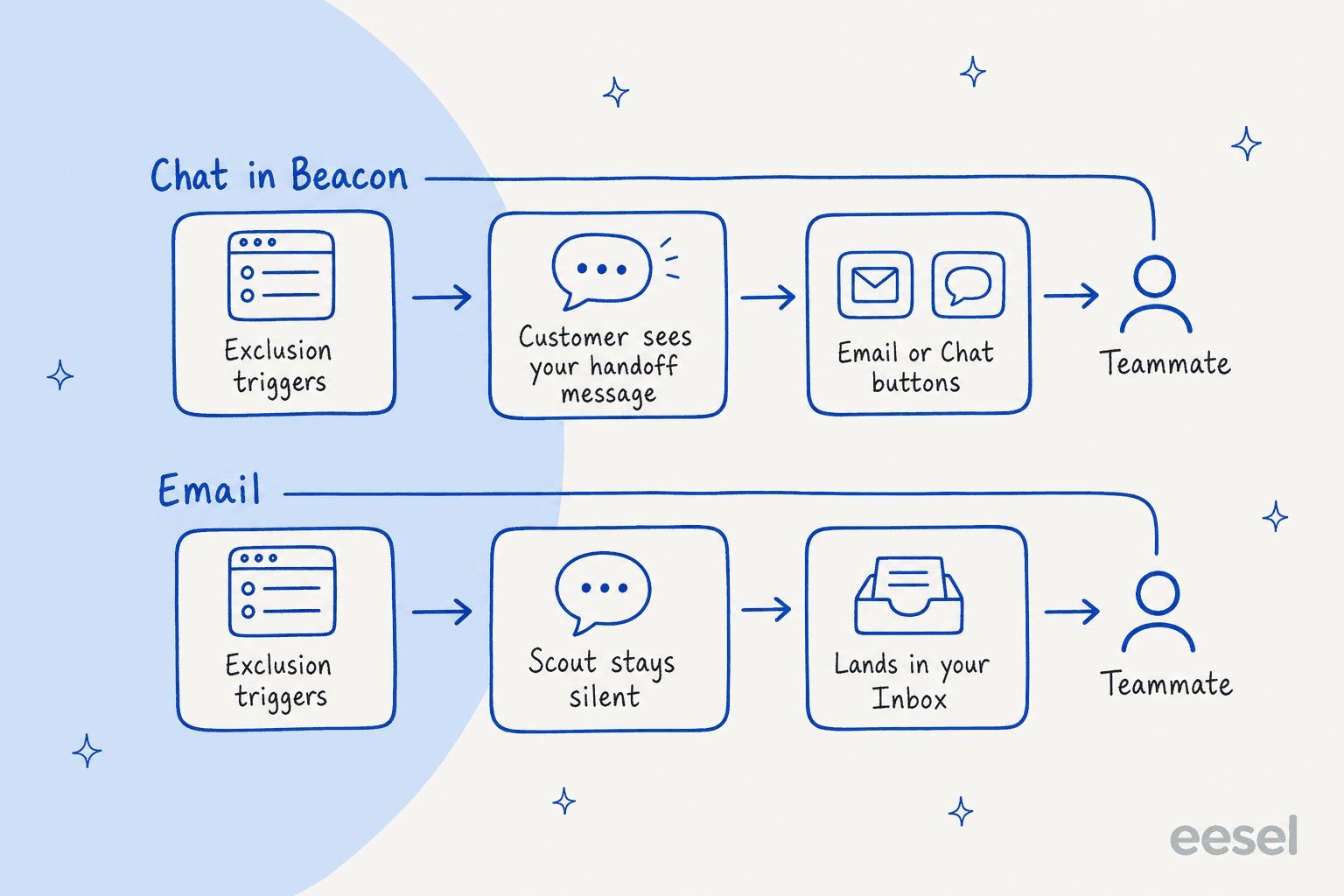
In Beacon chat, the customer gets a message you wrote, plus buttons to reach a person. Help Scout's exclusions page says a customer who triggers one by chat sees the message set in your Beacon settings, along with buttons to email or chat if those are available. You edit that text under Tools > Beacons > your Beacon > Scout > Customize messages, which has separate sections for greetings, "cannot find an answer", "human request" and exclusions, and the exclusions section has one version for when chat and email are both on offer and another for when only email is.
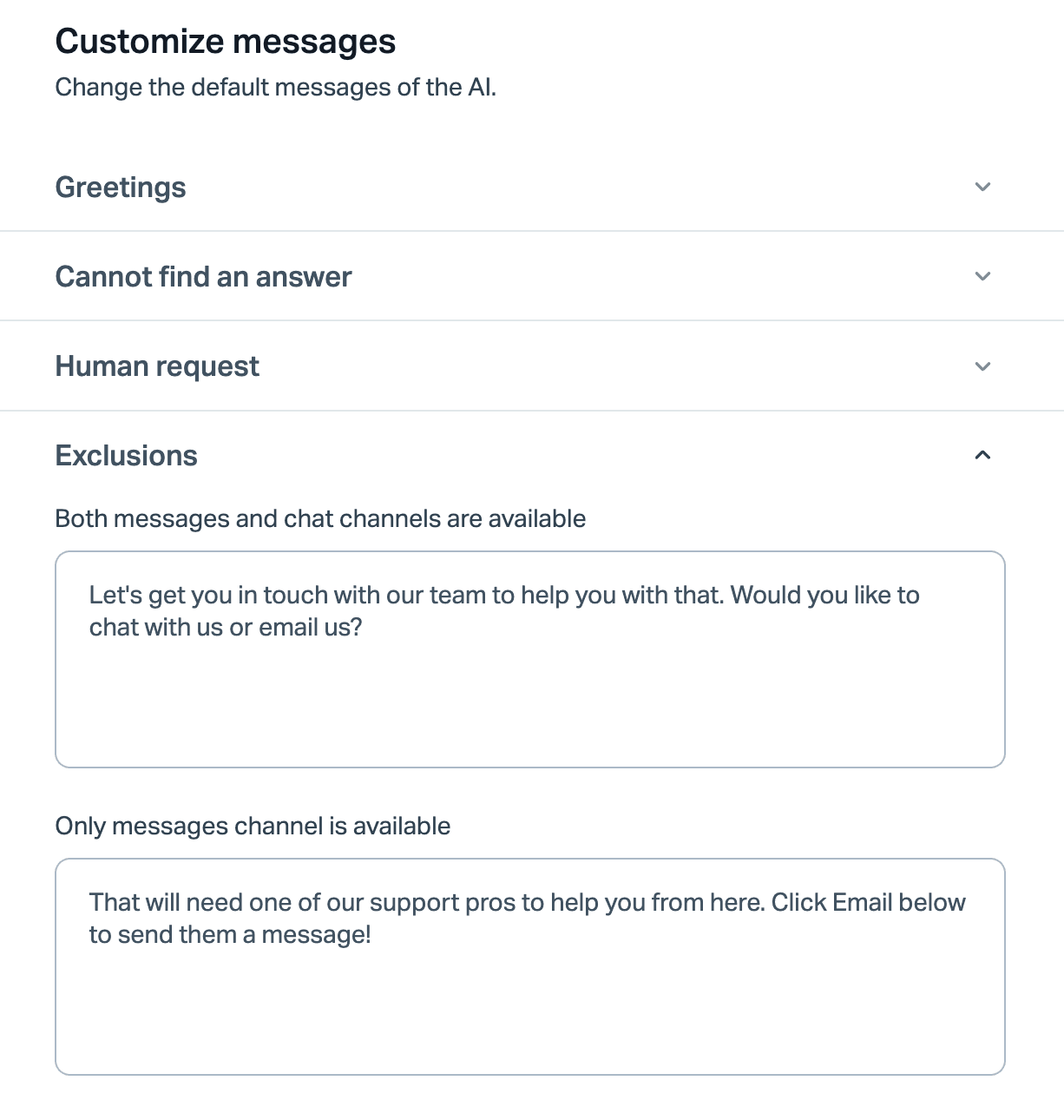
Whether the customer can actually reach a person live depends on your staffing. Help Scout's Beacon setup page notes that Beacon falls back to email when your team is not available to chat, so out of hours the handoff message points to email. My posts on inbox office hours and Beacon modes cover how to set those hours.
In email, the behaviour is blunter. Help Scout says that when an email triggers an exclusion, Scout does not respond and the email goes to your Inbox for your team to handle. The customer simply waits for a person, with no acknowledgement from Scout. That is clean if your team replies quickly, and it is something to plan around if your first-response time is long. If a silent handoff worries you, a chatbot escalation rule that sends a short holding reply is the usual fix, though Scout does not document an option for that.
What does the teammate see after a handoff?
Here is where I ran out of documentation. For chat, the conversation reaches your team through the channel the customer picks. For email, it is a normal conversation in the Inbox.
What I could not find in Help Scout's Scout pages:
- A standard summary note that Scout writes when it hands off an email.
- A tag, status or assignee that Scout sets on a handed-off conversation.
- A description of what a teammate sees about the sources Scout checked before it gave up.
There is one related detail. Help Scout says that when the AI fails to answer a question, the conversation record shows Account Owners and Administrators the sources it checked, which helps you decide whether to fix your Docs or add a text source. That is for reviewing, not for the teammate picking up the thread.
If you want a predictable handoff, build it from the tools Help Scout does give you. A workflow can assign new conversations, and my posts on tagging and routing and ticket prioritization show how to set a tag or field that a person reads first. A saved summary helps a teammate catch up once they open the thread. Help Scout's shared inbox model means a handoff is mostly a message arriving where your team already works, so the gap is context, not routing.
How do I test the handoff before customers see it?
Help Scout gives you a real test surface. Under Scout > Test you can try your configuration in a chat window, or pick actual email conversations to test against. Help Scout's setup page says to test the exclusions to make sure they catch every case you want.
I would test in this order:
- One plain question your Docs answer, to confirm Scout cites the right article.
- One message per exclusion, in the customer's words, not yours.
- A near miss: a refund-sounding question that should not escalate, such as "what is your refund policy".
- A request for a person in chat, to read the exact message the customer sees.
- An email that matches a skip condition, to confirm Scout does not reply.
Help Scout also warns that AI is probabilistic, so two similar questions can get slightly different answers. Its best-practices page says to test several phrasings of the same question after any change, not one. That matters most for exclusions, because the scenario is read by a model, not matched as a keyword. My AI support simulation testing guide goes deeper on running many versions of one case.
After launch, Reports > Scout is the monitor. The overview splits conversations into resolved, unresolved and human escalation, plus a happiness score out of 100. Open a single Beacon and the sessions table shows the first question, the resolution, and how the session ended, such as a timeout or a manual end.
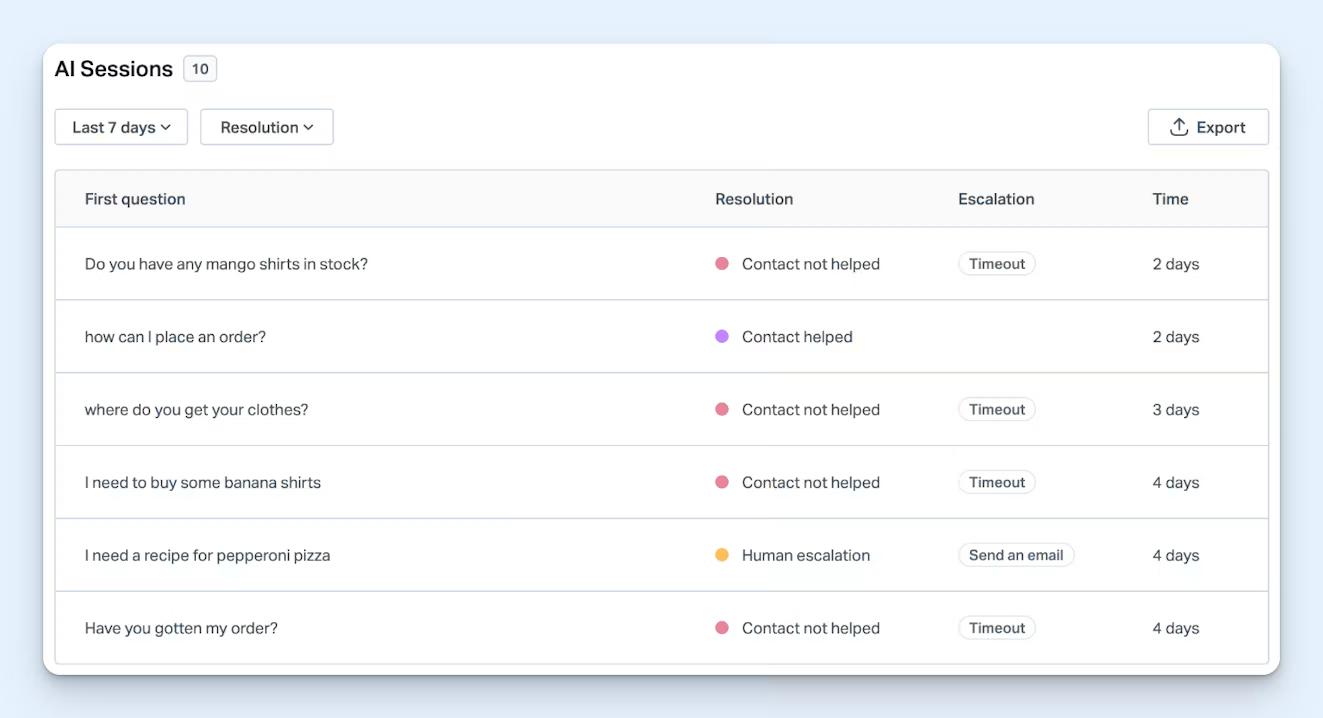
That screenshot is from Help Scout's older AI Answers blog post, so labels may differ slightly from today's reports, which describe the groups as resolved, unresolved and human escalation. Help Scout's advice is to sort by resolution, read the conversations where customers were not helped, and treat a high human escalation rate on one topic as a hint that it belongs in an exclusion. Plus and Pro customers can see all reporting data for all time, and other plans see a shorter window. For what to do with those numbers, I wrote about measuring containment and escalation, and the escalation rate and containment rate glossary pages define both.
What does a Help Scout AI handoff cost?
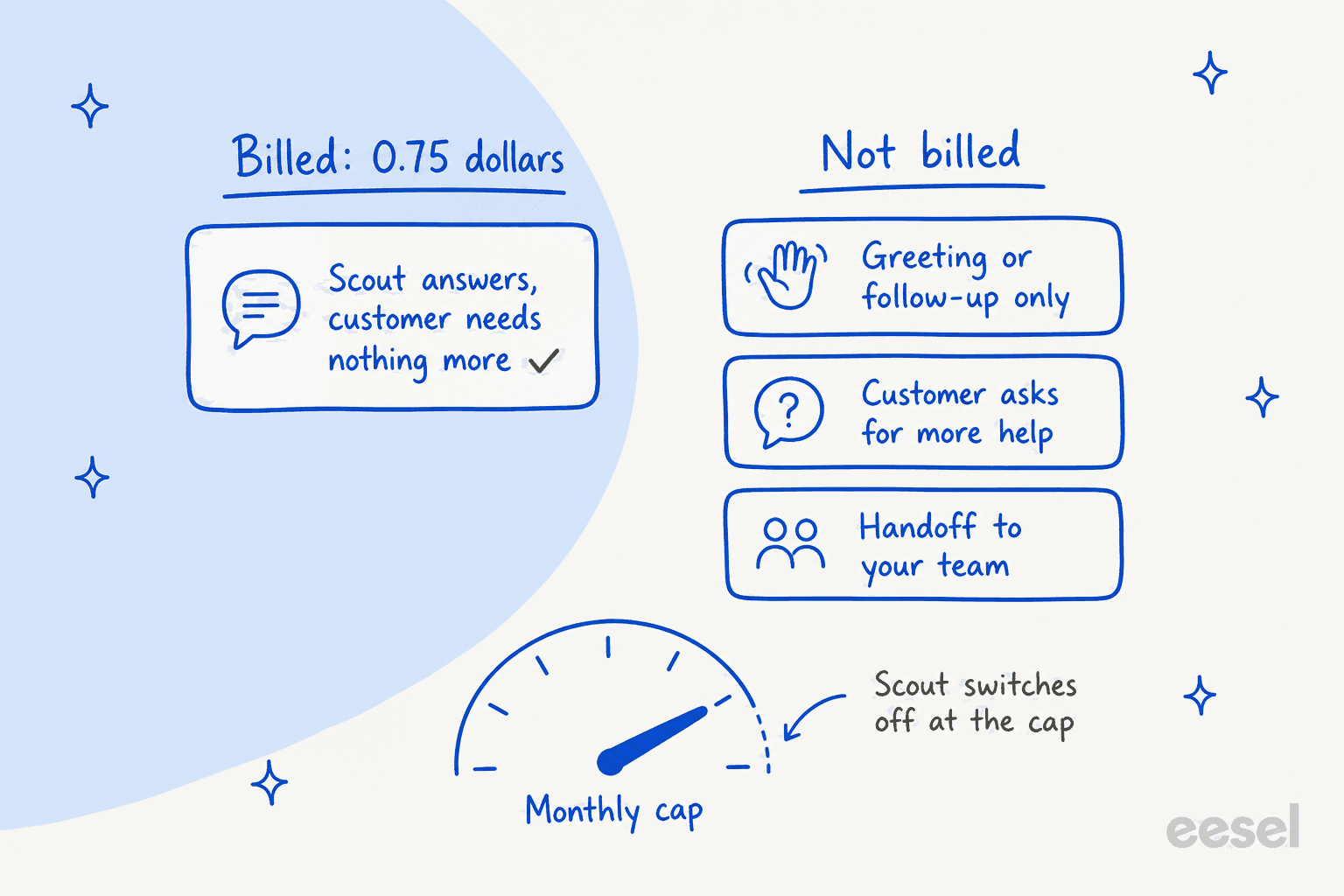
Handoffs cost nothing, and that shapes how you should think about exclusions. From Help Scout's AI resolutions pricing page and its pricing FAQ:
| Item | What Help Scout says |
|---|---|
| Price | $0.75 per resolution, billed monthly in arrears |
| What counts | Scout gives a response and the customer does not ask for more help |
| What does not | A greeting or follow-up without a full answer, or a customer asking for more help |
| Per conversation | One resolution at most, even if Scout answers several questions |
| Spending cap | Monthly cap set by Administrators and Account Owners |
| At the cap | Scout is disabled in Beacon until the next cycle or until you raise the limit |
| Trial | 3 months of free, unlimited resolutions for new Help Scout accounts, none for existing customers |
The pricing page adds a wrinkle in its FAQ: a resolution is counted only if the customer receives an AI response and does not use escalation, search the knowledge base, ask more questions, or say they need more help. That is a stricter test than "Scout replied", and it means a conversation that ends in a handoff does not bill as a resolution.
A worked example, using only published rates. Say 1,000 conversations a month reach Scout. Help Scout's own savings calculator assumes an average resolution rate of 73%, which is a vendor estimate, not a measured figure for your queue. At that rate Scout resolves 730 and bills 730 x $0.75, or $547.50, and the other 270 go to your team at no charge. At a more cautious 40%, it bills 400 x $0.75, or $300, and 600 land with people. Add seats on top: Standard is $25, Plus $45 and Pro $75 per user per month billed annually, or $30, $54 and $90 billed monthly, so five Plus seats are $225 a month before any Envoy usage. My Help Scout pricing guide goes deeper.
Two things follow from that billing model. A loose exclusion list costs you people's time, not dollars. And a tight one can raise your bill, because more conversations stay with Scout and more resolve. Neither is wrong, but you should know which direction you are pushing. The AI drafts on Plus and Pro are the other path: a person reviews and sends every reply, and Help Scout's pricing page lists unlimited AI Drafts on Plus without a per-resolution charge.
Where does Help Scout's documentation stop?
Most of these are things the docs do not say, not things they say are broken.
- No documented handoff note, tag or status for email, as covered above.
- No stated billing window for email. I did not find a rule like "no human reply within 24 hours" that decides when an email counts as resolved, only the conversation-level definition.
- Website sources need a manual re-sync. Help Scout says Scout does not pick up changes to a website source on its own, so a pricing page change will not reach Scout until someone re-syncs. A Help Scout Docs site stays in sync automatically.
- Exclusions are plain language. Scout reads the scenario to decide a match, so wording is the control, and it needs testing, not trust.
- The cap switches Scout off. Hitting the monthly limit disables Scout in Beacon until the next cycle, and Beacon falls back to the mode set for your Docs. Plan the cap so a busy week does not quietly remove your first line.
- Plan gating is light. Help Scout says Scout is available in all plans, but AI Drafts are listed under Plus and the long reporting history under Plus and Pro.
The balanced read: Scout is simple to set up, honest about what it does, and its exclusions are easy to write. What it leaves to you is the experience around the handoff. For a team with a fast first response and a short list of risky topics, that is plenty. For a team that wants every handoff to arrive with a summary, it is a gap you fill yourself. The Help Scout review and Help Scout alternatives posts cover when that matters enough to look elsewhere.
How does eesel handle handoffs inside Help Scout?
Here is how I would approach a handoff on any Help Scout queue: treat it as a defined act where the agent says what it found, what it could not do, and who should pick it up. At SE Ranking, an eesel agent answers live chat for three products, and refunds, trial extensions, a request for a person and anything it cannot answer go to the team with the customer's name and email. In the month from 8 August to 8 September 2026 it handed about 1,260 chats to the team and created about 400 tickets for Tier 2 and weekend cases. At Adverscale, the agent leaves an internal note saying what the ticket is and why it stopped, and assigns it to the right group; it left about 2,700 internal notes and assigned about 290 tickets to a group in the same month. Both run on Zendesk, not Help Scout, but the habit carries over.
In Help Scout, eesel joins the mailbox as an agent. Per the eesel docs, it can leave an internal note, save a draft reply for a teammate, add or remove tags, and change a conversation's status, assignee (a person or a team), mailbox or subject. For Beacon, it can hand a live chat back to the queue or to a named person with a note that sums up the chat, and a separate action can open a conversation so a website chat lands with your team. It starts each run with the conversation record and every customer message and team reply, and it reads your Docs site and past conversations as sources.
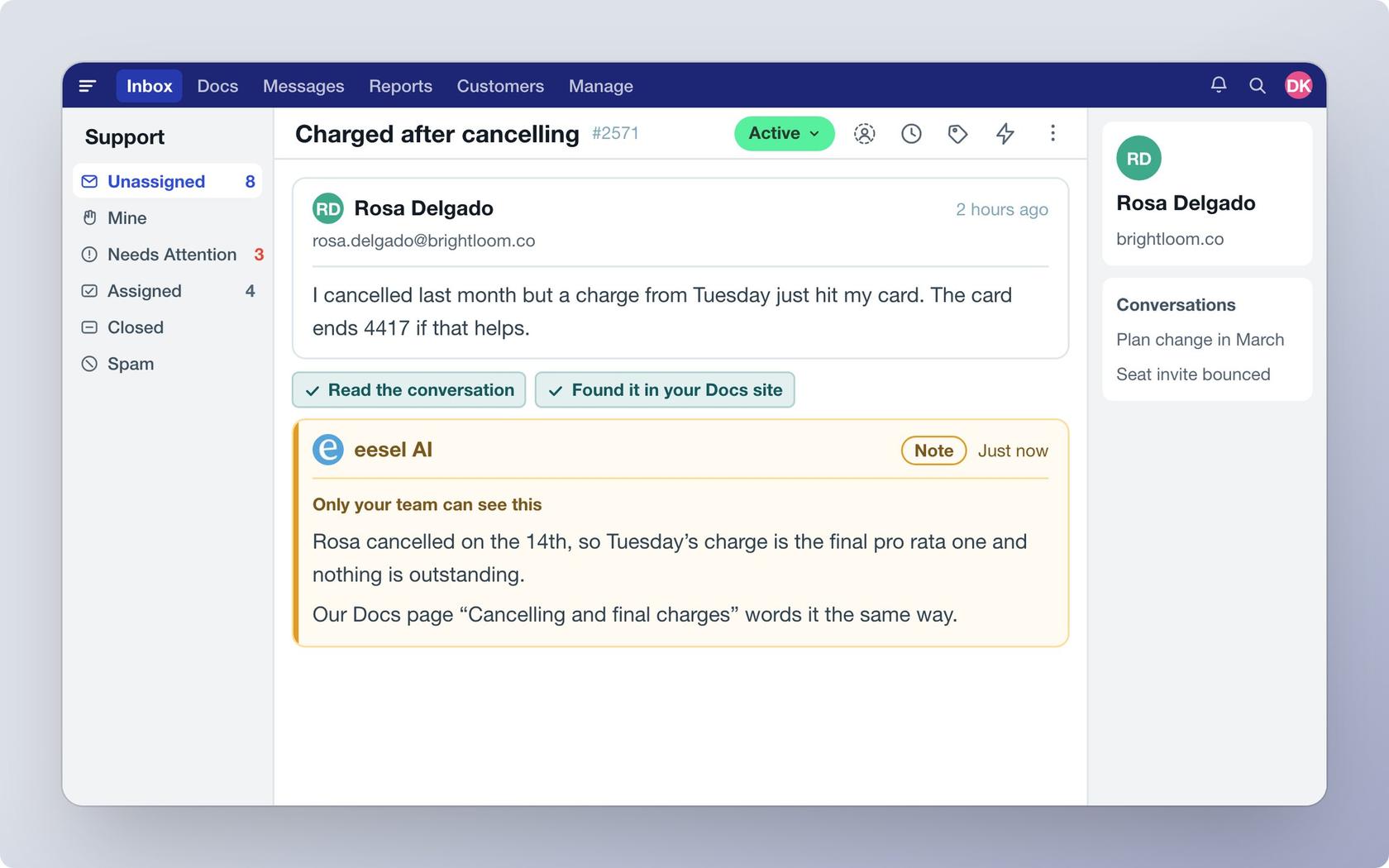
The limits matter as much as the actions. eesel's docs say it cannot run your Help Scout workflows or set custom fields, live chat runs only while someone on your team is Available, and one agent answers live chat per Help Scout account. Its replies show the name of the Help Scout user who connected it, so many teams create a separate user for it. Each action can run on its own, ask first, or stay off, and the Activity page shows the searches it ran, the actions it took and its reasoning. My guides to adding AI to Help Scout, Help Scout AI auto-reply and email-to-chat deflection cover the setup in more detail, and the chat escalation post explains how to word the handoff message.
Three habits I would copy from those customer setups into any Help Scout agent, Scout or ours:
- Name the handoff conditions in writing: refunds, security, a repeated question, a request for a person.
- Make the agent say what it will not promise, such as a live agent joining right now.
- Make every run end with an action, so a teammate can tell the agent looked. My posts on agent observability and handling escalations with AI go further.
Try eesel in your Help Scout inbox
If your open question is what happens on the conversation the agent should not finish, eesel is easy to try in Help Scout without rebuilding anything. It reads your Docs site and past conversations, leaves a drafted reply or a note for a teammate, tags the conversation from tags you already have, and assigns it or hands a Beacon chat to someone available. Start with drafts and notes only, read what it hands over for a week, then widen what it may send.
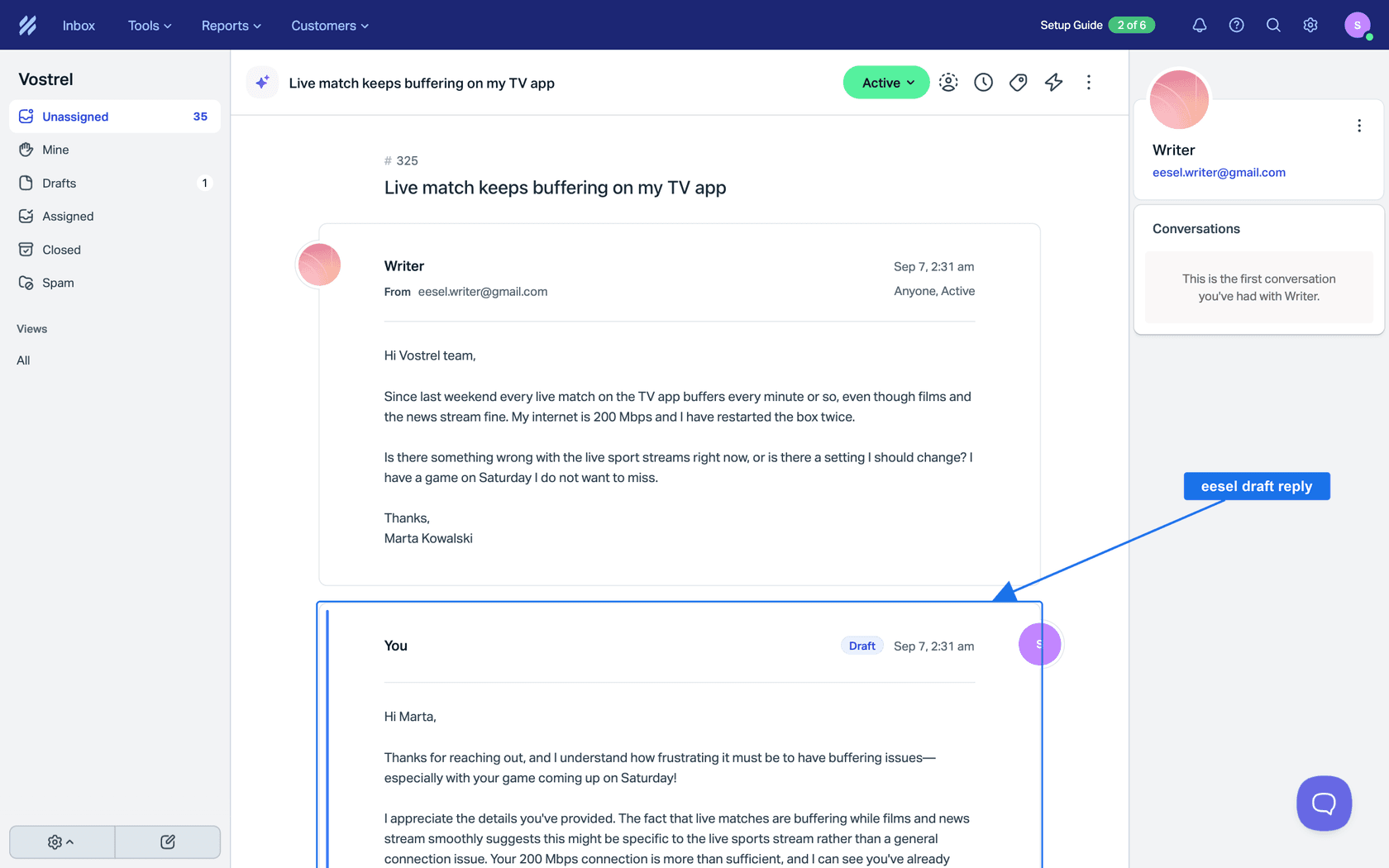
Tags have to exist in Help Scout already, and eesel does not see a customer's properties or organization in a live answer, so list what a teammate needs before you launch. See the AI helpdesk agent page for the wider picture, then Try eesel on a few real Help Scout conversations before deciding.
Frequently Asked Questions
How does Help Scout AI escalate a conversation to a human?
What triggers a handoff from Help Scout's Scout to a teammate?
Does Help Scout charge when its AI hands a conversation to a human?
$0.75 per resolution, and a conversation where the customer asks for more help does not count as one. Handoffs are free, but every resolved conversation is billed on top of your seats. My Help Scout pricing guide covers the seat plans.Can I force Help Scout's AI to escalate topics like refunds or billing disputes?
Which Help Scout plan do I need for AI escalation to a human?
$0.75 per resolution. Seats run $25 Standard, $45 Plus and $75 Pro per user per month billed annually. Reports history on Scout is limited by plan, and my Help Scout review covers the trade-offs.