ChatGPT for Help Scout: how to connect it, and what it can't do yet
Alicia Kirana Utomo
Katelin Teen
Last edited August 13, 2026

Will the thing you want actually work?
Most people arriving at this page have one specific job in mind. Pick it and find out before you spend twenty minutes on setup.
What do you want ChatGPT to do with Help Scout?
Answers below are from Help Scout's own connector documentation, updated 6 August 2026.
Conversation tools cover listing, searching, and summarising, including threads, tags, custom fields, and attachments. Help Scout's own example prompt is "Summarize conversation #12345, the opening question and the latest reply."
Works on Standard, Plus, and Pro. No extra key needed.
Report tools pull company, conversation, productivity, and happiness reports, and can drill into the underlying conversations. On Plus and Pro they cover all-time history.
Standard is out. The reporting API is not available there, so report tools return nothing while every other tool keeps working.
Docs tools search and read knowledge base articles, sites, and collections. They need a Docs API key pasted into the optional field on the Help Scout authorisation screen.
Miss the key and the rest of the connector still works, Docs tools just stay dark until you remove and re-add it.
The connector is read-only. Help Scout's wording is that AI agents "cannot create, send, edit, or delete data." No replies, from any client.
Write actions are on the roadmap with no date attached. For a reply today you need an agent inside the mailbox instead.
Same ceiling. ChatGPT can read a conversation's tags and status and tell you about them, but it cannot add a note, change a tag, or edit a Docs article.
A small number of accounts from the MCP beta kept their write tools when the connector went generally available. New connections did not.
What "ChatGPT for Help Scout" actually means in 2026
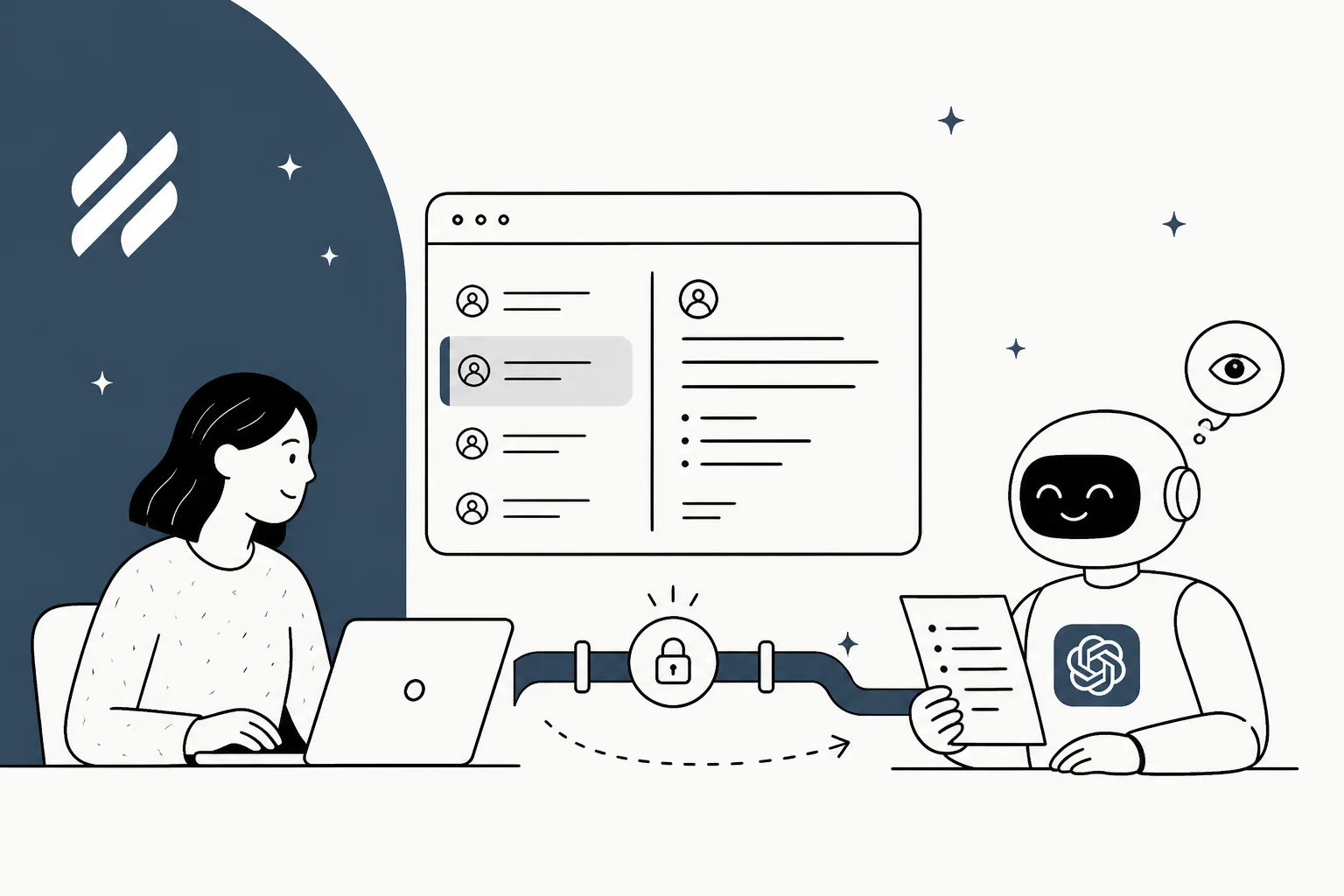
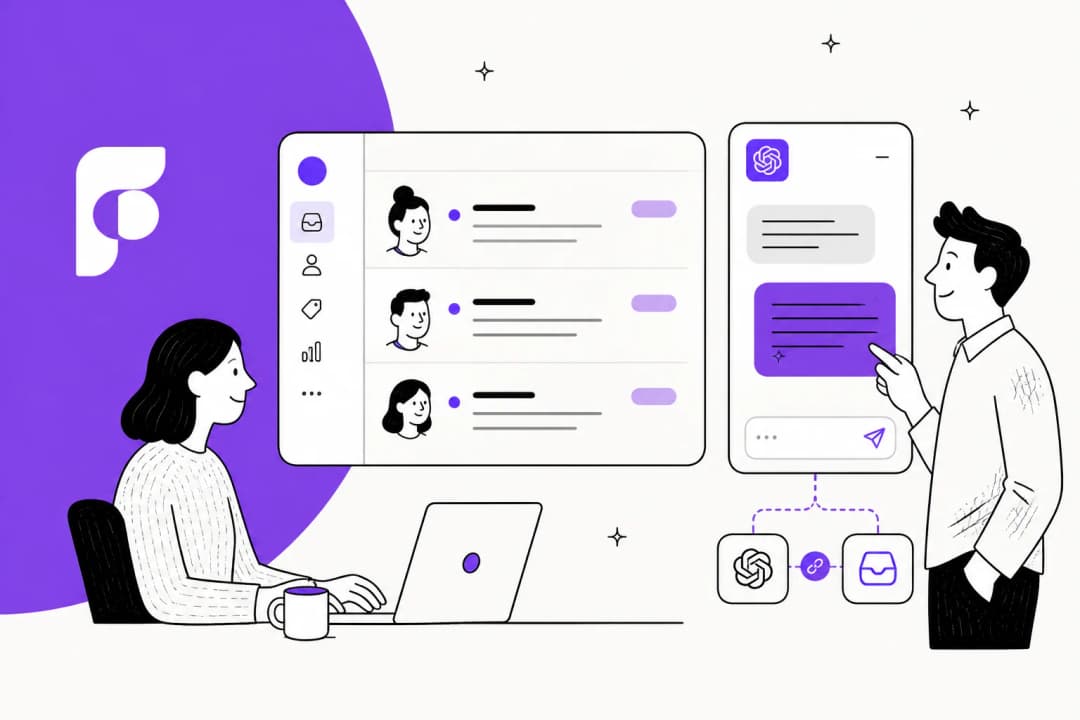
There is no ChatGPT app in a Help Scout marketplace, and no Help Scout app in ChatGPT's directory. What exists is a Model Context Protocol server that Help Scout runs itself, and a custom connector you point ChatGPT at.
MCP, if it is new to you, is just a shared protocol for letting an AI assistant call a service's tools. Help Scout wrote a server that speaks it, hosts it at one URL, and lets any compliant client authenticate against it. Its help center article opens by naming exactly four clients: "Claude, ChatGPT, Cursor, and your own internal AI tools." ChatGPT is the only one besides Claude that gets its own setup section. Cursor is named and then never mentioned again.
If you have wired up a ChatGPT connector before, say for Confluence, the shape will feel familiar. If you have only ever used the Zendesk route, note that this one is a custom connector rather than a listed app, which changes who is allowed to add it.
The endpoint, in full:
https://mcp.helpscout.net/mcp
Visiting it in a browser returns an authorisation error. That is expected, and Help Scout's docs pre-empt the support ticket: it "isn't a page to browse, it's an endpoint your AI client talks to."
The part worth internalising before you touch a settings page is the shape of what crosses that endpoint.

Seven capability areas are exposed, all of them retrieval: conversations, customers, inboxes and saved replies, users and teams, workflows, reports, and Docs. Notably, the docs list capability areas rather than tool names, so there is no published list of exact tools. Help Scout's own instruction is to "open the Help Scout connector in your AI client and review its tool list," which you can also use to switch individual tools off.
What it costs on both sides
Help Scout charges nothing for the connector. No add-on, no per-seat charge, no usage price appears anywhere on the page. It is framed as a capability of any plan that already includes API access, which is Standard, Plus, and Pro.
| Side | What you need | Price |
|---|---|---|
| Help Scout Standard | API access, conversations and customers and Docs tools | $25 / user / mo (annual) |
| Help Scout Plus | Adds working report tools, all-time history | $45 / user / mo (annual) |
| Help Scout Pro | Adds HIPAA support and a signed BAA | $75 / user / mo (annual), 10-user minimum |
| The MCP connector itself | Nothing | $0 |
| ChatGPT Plus | Developer mode, personal account | $20 / mo |
| ChatGPT Pro | Read and fetch custom MCP in developer mode | from $100 / mo |
| ChatGPT Business | Full MCP beta, admin publishing, RBAC-adjacent controls | $20 / user / mo annual, $25 monthly, 2-seat minimum |
The Help Scout Free plan is out, since it has no API access. And if you are on Standard purely to keep the bill down, know that the report tools, which are the single most impressive thing to demo, will quietly return nothing.
How to connect ChatGPT to Help Scout
Five minutes if you already have the permissions, considerably longer if you have to go find an admin. Do the permission check first.
Before you start
Two gates, one on each side, and they are easy to miss.
On the Help Scout side, your user needs Access API under Custom Permissions, the same permission that governs the wider Help Scout API. If it is missing, the connection fails with "Could not identify Help Scout user. Try again," which is not the world's most diagnostic error message. An admin fixes it under Manage, then Users, then the user, then Permissions.
On the ChatGPT side you need developer mode, and on Business, Enterprise, and Education workspaces an admin has to approve it before anyone can turn it on. Worth knowing that Help Scout's docs point out this admin gate is the only central control that exists here, a detail we will come back to.
Step 1: turn on developer mode
In ChatGPT, open Settings, then Security and login, then flip Developer mode.

You will get a warning. OpenAI badges the toggle ELEVATED RISK and describes it as letting you "add unverified connectors that could modify or erase data permanently." OpenAI's developer mode guide is blunter still: "It's powerful but dangerous."
Here is the reframe worth holding on to. That warning is about developer mode in general, not about anything Help Scout exposes. The Help Scout connector cannot modify or erase anything. You are accepting the risk surface of a feature whose dangerous half you are not using. That is not a reason to skip the warning, since the same toggle would happily accept a genuinely destructive server tomorrow, but it does mean the scariest sentence on the screen does not describe what you are about to install.
Note also that OpenAI treats read-only as an opt-in signal, not a default. Its docs say tools without a readOnlyHint annotation "are treated as write actions," and OpenAI is careful to add that "it is possible for write actions to occur even if the MCP server has tagged the action as read only." Help Scout's read-only guarantee is enforced on Help Scout's side, which is the side that matters, but the client is not verifying it for you.
The day developer mode shipped, Simon Willison put the general concern well:
"It comes with plenty of warnings, but we all know how much attention people pay to those. I'm confident that the majority of people messing around with things like MCP still don't fully understand how prompt injection attacks work and why they are such a significant threat."
Which is the honest reason to keep a mental note of what else you ever point this toggle at. For Help Scout specifically, the read-only ceiling means an injected instruction has nothing to actuate. That is not true of the next server you add.
Step 2: add the connector
Go to Plugins, or straight to chatgpt.com/plugins, and click the + button.

If that navigation looks different from what you remember, it changed. OpenAI migrated the app directory to a Plugin directory on 9 July 2026, and the vocabulary shifted with it: a plugin is the listing, an app is the MCP-backed integration underneath. "Connector" survives in the admin UI and in Help Scout's docs, so you will see all three words for roughly the same thing.
Step 3: fill in the form
Name it Help Scout, add a description (Help Scout suggests "Search Help Scout conversations, customers, and Docs"), and set the server URL to https://mcp.helpscout.net/mcp. Authentication is OAuth.

Leave the advanced OAuth settings alone. The connector registers itself, and Help Scout warns specifically against pasting an App ID or secret from My Apps into those fields, since those credentials are for the Help Scout API and will not work here. You will also have to tick a checkbox acknowledging that OpenAI has not reviewed the server. That is true of every custom MCP server, first-party or not.
Then click Create.
Step 4: authorise, and decide about Docs
Log in to Help Scout when prompted. You are authorising on Help Scout's own page, so the connector never sees your password, and the connection acts as your Help Scout user with your inbox permissions.
One optional field on that screen is worth a decision rather than a reflex.

Leave it blank and you skip Docs tools entirely. Paste a Docs API key and ChatGPT can search and read your knowledge base articles, sites, and collections. You get the key from Your Profile, then Security and Access. If nothing shows there, you are missing the "Docs: Create new, edit settings & Collections" permission and need an account owner or administrator to grant it.
Help Scout's own instructions describe pasting this key "during the Claude connection process," which reads oddly in an article that gives ChatGPT its own section. The field itself lives on Help Scout's authorisation page, which every client passes through, so the ChatGPT flow hits the same screen. Add it later and you have to remove and re-add the whole connector, because re-adding without removing errors with "a server with that URL already exists."
Step 5: check it works
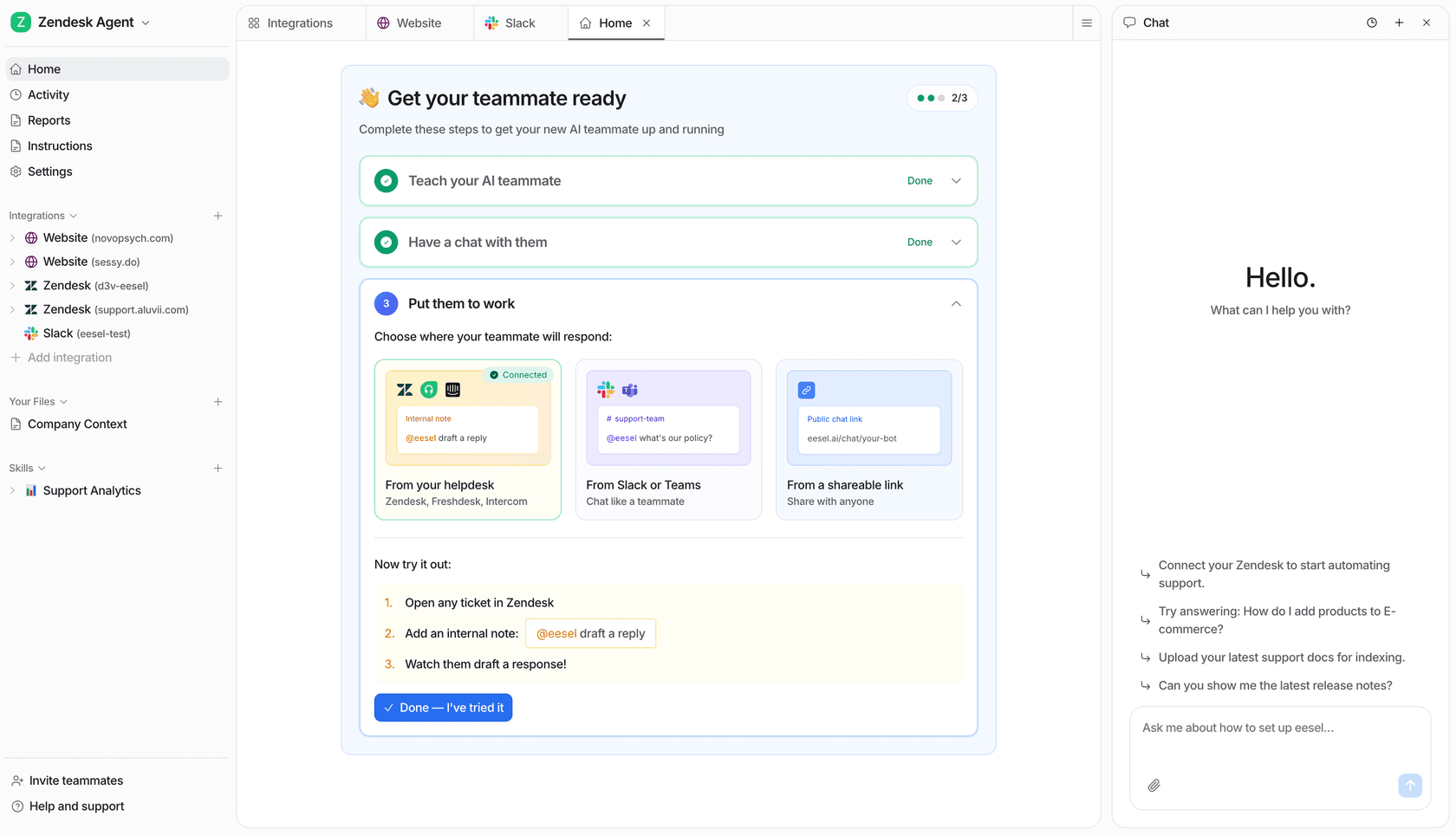
Ask ChatGPT: "Run the Help Scout health check." That is Help Scout's documented verification prompt, and it is the same string for every client.
Then try the real thing. Help Scout's example prompts are a decent first pass:
- "Show me all open conversations in the Support inbox"
- "What did customer@example.com last contact us about?"
- "Search for conversations mentioning 'refund request'"
- "Show me the happiness report for January 2026"
That last one is where reports earn their keep, and where the connector stops feeling like a toy. Thread summarisation is the other quiet win, and it works better here than most general-purpose summarisers because the model is reading the real thread rather than a paste of it.

Pulling that view into a chat where you can immediately ask "which of those popular searches has no Docs article" is genuinely a better workflow than clicking between report tabs. It is also, notably, the one thing here that gets worse on the cheapest plan.
If ChatGPT ignores the connector
This is common enough that OpenAI documents workarounds rather than pretending it does not happen. Its guide admits plainly that "you may need to explore different prompting techniques to call the correct tools," and suggests naming the app and tool explicitly ("Use the Help Scout app to...") and telling the model not to reach for alternatives ("Do not use built-in browsing; only use the Help Scout app").
Two hard limits will also bite if you do not know them. MCP apps are web only, so nothing here works in the ChatGPT mobile app. And agent mode will not use custom apps at all. Deep research can, but for read and fetch only, which happens to be everything Help Scout offers anyway.
The plan question, where the two vendors disagree
This is the murkiest part of the whole setup, and it is worth being straight about rather than papering over.
Help Scout names no minimum ChatGPT plan. Its only ChatGPT-side requirement is developer mode, plus workspace-admin approval on Business, Enterprise, and Education.
OpenAI's own pages do not fully agree with each other. The developer mode help article says full MCP support "including modify/write actions, is rolling out in beta to ChatGPT Business, Enterprise, and Edu plans," and its FAQ adds that "Pro users can connect MCPs with read/fetch permissions in developer mode." The platform guide's eligibility line instead lists "Pro, Plus, Business, Enterprise, and Education accounts on the web." Plus appears on one page and nowhere in the help center's plan-specific sections.
The practical read: because Help Scout's connector is read-only, the read and fetch tier is all you ever need. You are not waiting on the write beta, because there is nothing to write to. That is the rare case where a product limitation makes your licensing question easier. If you are on Business or Enterprise, note that apps are enabled by default on Business and disabled by default on Enterprise and Edu, and that on Business a published app cannot be updated at all, you recreate and republish.
One more operational trap that catches teams later: once an admin approves an MCP app, ChatGPT uses a frozen snapshot of its tools. OpenAI's FAQ is explicit that developer-side changes "are not applied until an admin reviews and publishes an update," and that a non-backward-compatible change makes tool calls error. So when Help Scout eventually ships write actions, somebody has to go and refresh the tool list.
Where it stops
Read-only is stated twice in Help Scout's docs, in almost the same words both times. AI agents "can find and summarize information in your account, but they cannot create, send, edit, or delete data." And in the limitations section: no replying to customers, no adding notes, no changing tags, no editing Docs articles.
A small number of accounts from the MCP beta programme kept write tools when the connector went generally available. Everyone else did not, and Help Scout's roadmap language is honest and unhelpful in equal measure: "Write actions for all accounts are on the roadmap. There's no date to share yet."
What that looks like in practice is visible in the one public account I could find of somebody actually running Help Scout over MCP. A developer describing their working setup on Reddit:
"it will get ticket from HelpScout, fetch all replies, fetch attachments, pull customer data from store, organize into a structured JSON output that the main agent then consumes in one call."
Look at the verbs. Get, fetch, fetch, pull, organize. That is a well-built pipeline and nothing in the chain answers the customer. Which is the honest shape of this thing even when it is working perfectly.
I don't read that as a gap so much as a category. Reading a queue and working a queue are two different jobs with two different failure modes, and they want to live in different places.

The top lane is what the connector does well. A question goes in, data comes out, the answer lands on your screen and stays there. Nobody is waiting on it, and if the model gets something wrong you notice immediately because you are the one reading it.
The bottom lane is customer-facing. A message arrives, something drafts a reply, a customer gets answered. Nobody is watching in real time, which is exactly why that lane needs escalation rules, clear handoff points, and a dry run before it goes anywhere near a real customer.
Having spent the last few years putting AI agents on live support queues, the failure I have watched most often is not a bot that refuses to answer, it is a confident bot answering wrongly to someone who never asked to be an AI test subject. That is why every eesel rollout simulates against historical tickets first, and why we treat a measured resolution rate as the only number worth arguing about. It is also why a read-only analyst is a perfectly reasonable place to start.
Help Scout's own AI Answers agent sits in the bottom lane, resolving customer conversations from your knowledge base, and it is priced separately at $0.75 per resolution as a usage add-on.

The agent-facing half of that is AI Drafts, which pre-writes a reply for a human to edit or discard. That is the closest native equivalent to "ChatGPT, but it can type," and it lives inside Help Scout rather than in a browser tab. It sits alongside the rest of Help Scout's copilot-style features.

Further down the same stack are automatic ticket tagging and the self-service side of Docs and Beacon, both of which do things the connector can only describe.
The security bits nobody reads until it matters
Read-only lowers the blast radius a lot. It does not make this a non-event, and three details in Help Scout's docs deserve a slower read than they usually get.
There is no account-wide off switch. Help Scout's wording: "There's no Help Scout setting to turn MCP off account-wide. Any user with a Help Scout login can connect their own AI Agent." Permissions still apply, so nobody sees more than their own login allows, but you cannot see or revoke these connections in Help Scout the way you can with installed apps. The only central control is on the AI client side, which is why the ChatGPT workspace-admin gate on developer mode matters more than it looks.
The inheritance model behind that is worth stating plainly, because a Hacker News commenter put it better than any vendor doc:
"In an organisation we can't limit MCP access. It's all or nothing. Everything the user can touch, the MCP can touch."
Help Scout says the same thing in gentler language: filtering a search by tag or folder "is just a query choice. A differently worded question can still reach conversations outside that filter." Inbox permissions are the only real boundary. So if an agent has broad mailbox access, so does their assistant.
Nothing is filtered on the way out. "The connector doesn't scan or filter content on the way out. Anything a customer pasted into a conversation, including credentials shared by mistake, comes back to your AI Agent as-is." Help Scout's own advice is the right one: treat anything shared in a support conversation as something to rotate, not something to keep secret from your own tools.
Disconnecting is not revoking. This is the one I would put in a runbook.

Help Scout's exact words: removing the connector from your AI client "doesn't reliably cancel the credential on Help Scout's side. Some clients send a revocation request when you disconnect. Some don't." Without one, an access token stays valid for up to 2 hours and its refresh token for up to 30 days. Deactivating the Help Scout user who authorised it is the reliable cut-off, and even that leaves a Docs API key working until you revoke it separately. For an urgent hard cut-off during an incident, Help Scout support can revoke server-side.
If you run a HIPAA-enabled account on Pro, one line matters above the rest: your BAA with Help Scout does not cover your AI provider. If protected health information could reach ChatGPT, you need a BAA with OpenAI too. On the reassuring side, the connector holds no AI provider credentials and makes no model calls of its own, and Help Scout stores nothing beyond your session tokens and Docs key, both encrypted at rest.
Is it worth setting up?
Yes, with a narrow expectation. Here is where I would and would not reach for it.
| You want to | Connector fits? | Why |
|---|---|---|
| Ask questions about your own queue | Yes | This is the whole point, and it is free |
| Pull a report without opening Explore-style tabs | Yes, on Plus or Pro | All-time history, drillable into conversations |
| Let a manager self-serve inbox questions | Yes | Each person connects with their own permissions |
| Draft replies for agents to send | No | Read-only. Use AI Drafts or an agent in the mailbox |
| Resolve tier-1 tickets automatically | No | Nothing here writes. See AI for Help Scout |
| Route and triage incoming mail | No | Reading tags is not changing them. See ticket triage |
| Centrally control who connects | No | No Help Scout-side switch, only the ChatGPT admin gate |
My take: set it up. It costs nothing, it takes five minutes, and a support lead who can ask "what did this customer contact us about in the last six months" in plain English is measurably faster than one clicking through search filters. Just do not confuse it with automating your helpdesk, or with the broader question of how to add AI to Help Scout. It is a very good pair of eyes with no hands.
Worth saying too: Help Scout's community has been sceptical of the company's direction lately, mostly around the pricing whiplash of moving to per-interaction billing and then reverting to per-seat.
"HelpScout changed back to user-based pricing. Guess too many people cancelled including me... I'll still stay with Freescout anyways. Helpscout lost all trust with this flip-flopping on pricing."
Against that backdrop, shipping a free, documented, standards-based connector that names three competing AI clients is a good-faith move, and it deserves the credit. It is the opposite of locking customers into a proprietary assistant, and it is more than most of the top helpdesk vendors have managed. If the pricing history is what has you looking around, that is a different post, and the alternatives roundup or the Front comparison is a better starting point than this one.
eesel for Help Scout
If you got this far because you actually wanted the reply sent, that is a different tool, and I would rather say so plainly than pretend the connector stretches.
eesel joins your Help Scout mailbox as a real AI agent rather than a widget or a second inbox. It authorises through the Help Scout API from the eesel dashboard, then imports your Docs articles, past conversations, and saved replies automatically, so there is no manual training step.
From there it drafts and sends from your own mailbox, adds internal notes, updates tags and status, and routes to teammates the way a human agent would, across email and Beacon chat alike. You can scope it to specific mailboxes, folders, or tags, run it in draft-only mode while you build trust, and simulate it against your historical conversations before a single customer sees it. That simulation is the part I would not skip, because it is also the cheapest quality check you will ever run.
Pricing is 40 cents per Help Scout conversation handled, with no platform fee, no per-seat charge, and no monthly minimum, so 500 conversations a month is $200 and you are never billed for tickets your humans handle. It starts with $50 of free usage and no credit card, which is enough to run a real simulation and see what your own resolution rate would be before you commit to anything.
Use the MCP connector to understand your queue. Use an agent in the mailbox to shrink it. They are not competing, and running both is the sensible end state.
Frequently Asked Questions
Is there an official ChatGPT integration for Help Scout?
mcp.helpscout.net/mcp, and its help center gives ChatGPT a dedicated setup section alongside Claude. It is not an app you install from a directory, it is a custom MCP connector you add by URL in developer mode. Our wider Help Scout AI breakdown covers the native features it sits next to.Can ChatGPT reply to customers in Help Scout?
How much does ChatGPT for Help Scout cost?
Which ChatGPT plan do I need for the Help Scout connector?
What happens if I disconnect the Help Scout connector from ChatGPT?

Article by
Alicia Kirana Utomo
Kira is a writer at eesel AI with a Computer Science background and over a year of hands-on experience evaluating AI-powered customer service tools. She focuses on breaking down how helpdesk platforms and AI agents actually work so that support teams can make better buying decisions.