Help Scout workflow auto assignment: workflows vs routing

Rama Adi

Katelin Teen
Last edited November 6, 2026

Help Scout gives you two separate ways to auto-assign. An automatic workflow with an Assign to User or Assign to Team action sends matching conversations to one fixed person or team, and it is on Standard, Plus and Pro. Routing rotates unassigned conversations through a pool, with round robin on Plus and a Balanced method on Pro. The two do not share rules: routing skips Away teammates and people at their limit, while workflow assignments ignore both. Pick the workflow for "this customer goes to this person," and routing for "whoever is next."
eesel can update a conversation's assignee and read a mailbox's routing, and with the eesel CLI a coding agent can set up and test that behavior before anything goes live, though a Help Scout admin still approves the connection.
What are the two ways Help Scout auto-assigns conversations?
Help Scout does not have one "auto-assign" switch. It has two features that both end with an assignee on a conversation, and they are built differently. Mixing them up is the most common reason teams say "assignment is broken."
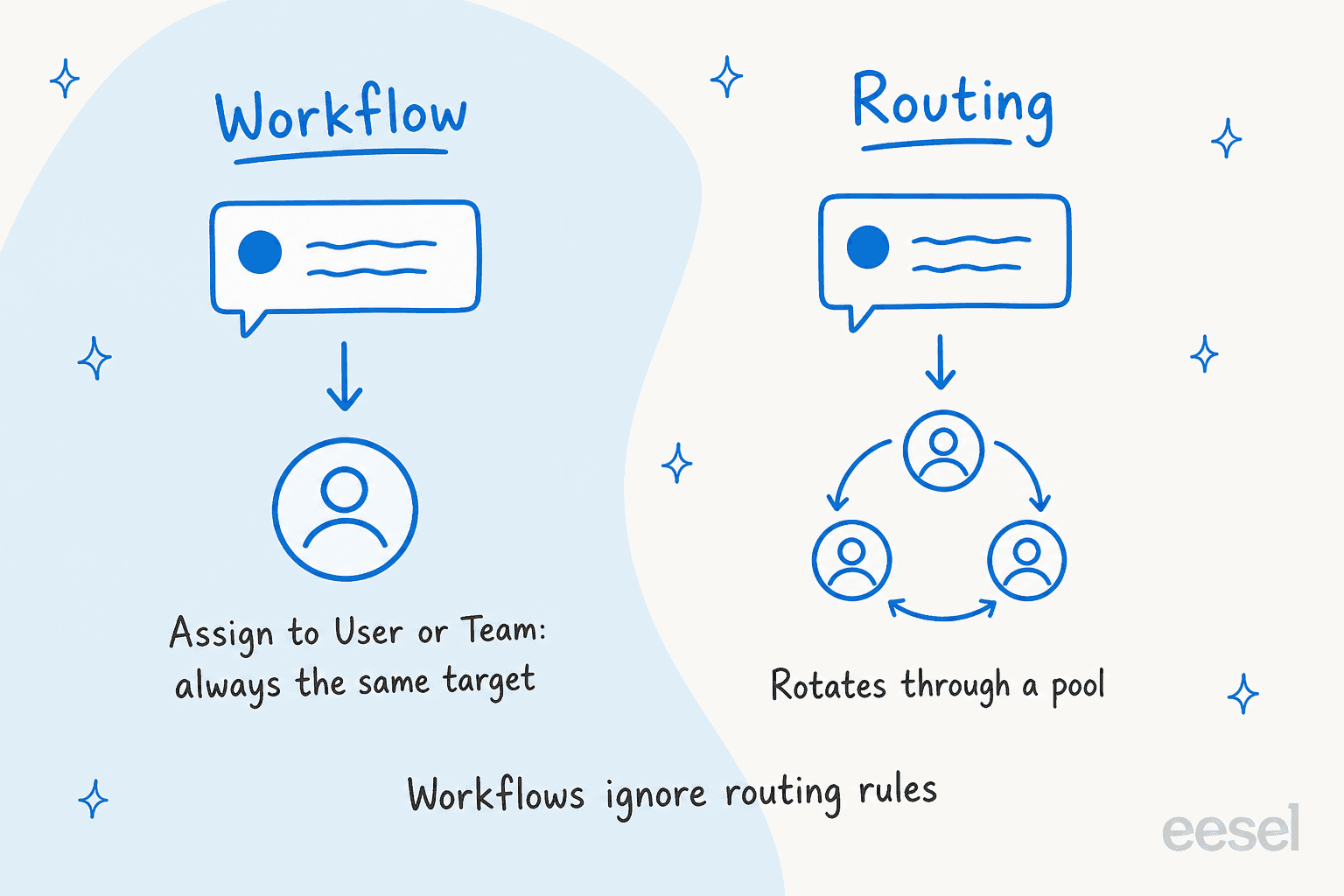
- Automatic workflows are if-then rules. Help Scout compares them to "Gmail filters or rules in other email clients," and the assign step is the Assign to User action, or Assign to Team if you have Teams (Help Scout Docs).
- Routing is a rotation. Per Help Scout it assigns "conversations that land in the Unassigned folder to available teammates" (Help Scout Docs).
I build AI agents for helpdesks at eesel, and I am the engineer who ships integrations rather than the person who answers tickets, so my habit is to ask the same two questions of any helpdesk: what fires the assignment, and what does it ignore? For Help Scout, the answers differ for each feature, which is why the rest of this post keeps them apart. If you are still sizing up the tool, my Help Scout review and Help Scout pricing guides give the wider picture.
How do workflows auto-assign a conversation?
A workflow is a set of conditions plus actions. Help Scout says workflows are either manual or automatic, and condition values are not case-sensitive (Help Scout Docs). For assignment you want an automatic workflow, which runs in the background on new and existing conversations.
The setup path is short:
- Go to Settings > Inboxes > your inbox > Workflows and click New Workflow.
- Name it and choose Automatic.
- Add conditions. You can use up to 30 per workflow, combined with AND and OR.
- Pick the Assign to User action (or Assign to Team) and choose the person.
- Toggle Apply to Previous if you want existing matching conversations assigned too, then Activate Workflow.
Two details matter more than the clicks. First, "an automatic workflow will only take action the first time a conversation matches the conditions," which Help Scout does to stop a workflow reacting to its own actions (Help Scout Docs). A workflow is a one-time sort, not a standing rule that re-fires. Second, by default only Administrators and Account Owners create and manage workflows, though a Company setting lets every User do it.
What can a workflow match on?
The condition list is long, and several are useful for assignment (Help Scout Docs):
- Customer Email and Customer Name, with contains, starts with, ends with or regex operators. This is how you send one customer or a whole domain to a named owner.
- To, for the original address on an email that is not the inbox address. If you forward
sales@into asupport@inbox, this lets you auto-assign sales mail to a specific teammate. - Subject and Body, where Body checks a customer message or a note.
- Tag(s), Type (email, chat or phone), Status and Assigned, so a workflow can act only on unassigned conversations.
- Company and Customer Property, which need a Plus or Pro plan. My Help Scout customer properties guide covers what those fields hold.
Help Scout's own examples include the two classics: sort by inbound address, and "auto-assign conversations from a specific email address or domain" to the person who works with that customer (Help Scout Docs). One trap from the docs is worth repeating: using OR with Does not contain is a logical double negative that matches everything you meant to exclude, so use AND there.
Does the order of workflows matter?
Yes. "Automatic workflows run in the order they appear" in the inbox's workflow list, new ones land at the bottom, and you reorder by dragging (Help Scout Docs). The docs do not say what happens when two workflows both match and both assign. I would not rely on a guess: build a test conversation, watch which assignee sticks, and keep your assign workflows mutually exclusive by adding an Assigned is unassigned condition to each.
How does Routing assign conversations?
Routing is switched on per inbox at Settings > Inboxes > your inbox > Routing, and anyone with the Inbox: Manage Routing permission can manage it (Help Scout Docs). The first screen is a plain "Enable Routing" card.
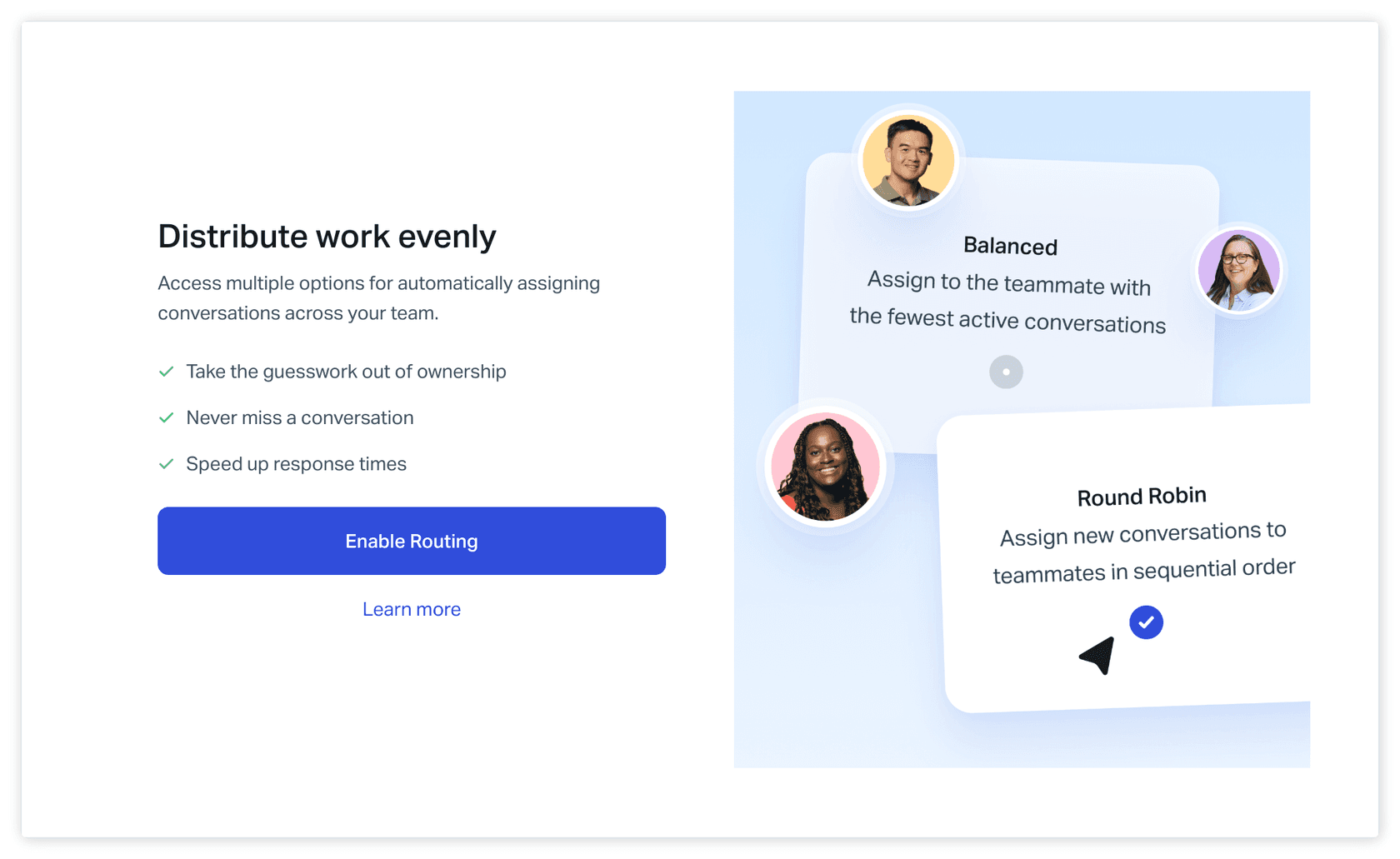
You then make three choices:
- Assignment method. Round Robin "assigns conversations one by one in alphabetical order." Balanced "assigns conversations to whoever has the fewest active assignments," and is Pro only.
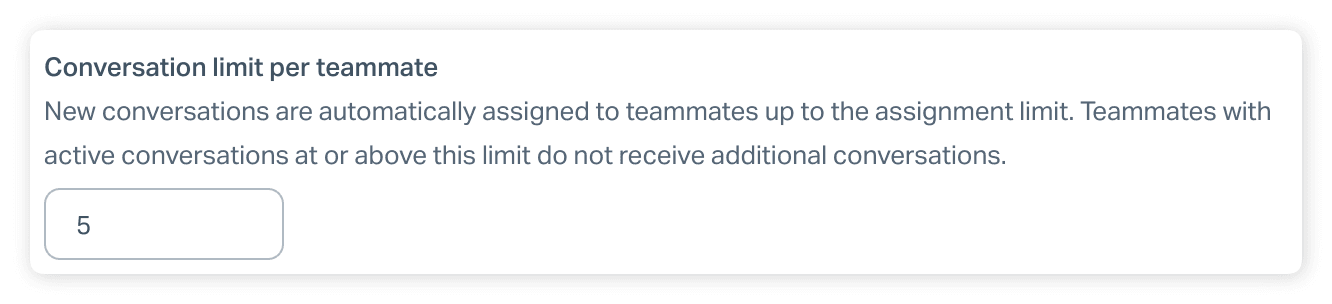
- Assignment limit, up to 100 per teammate.
- Who is in the pool. Add users and/or teams.
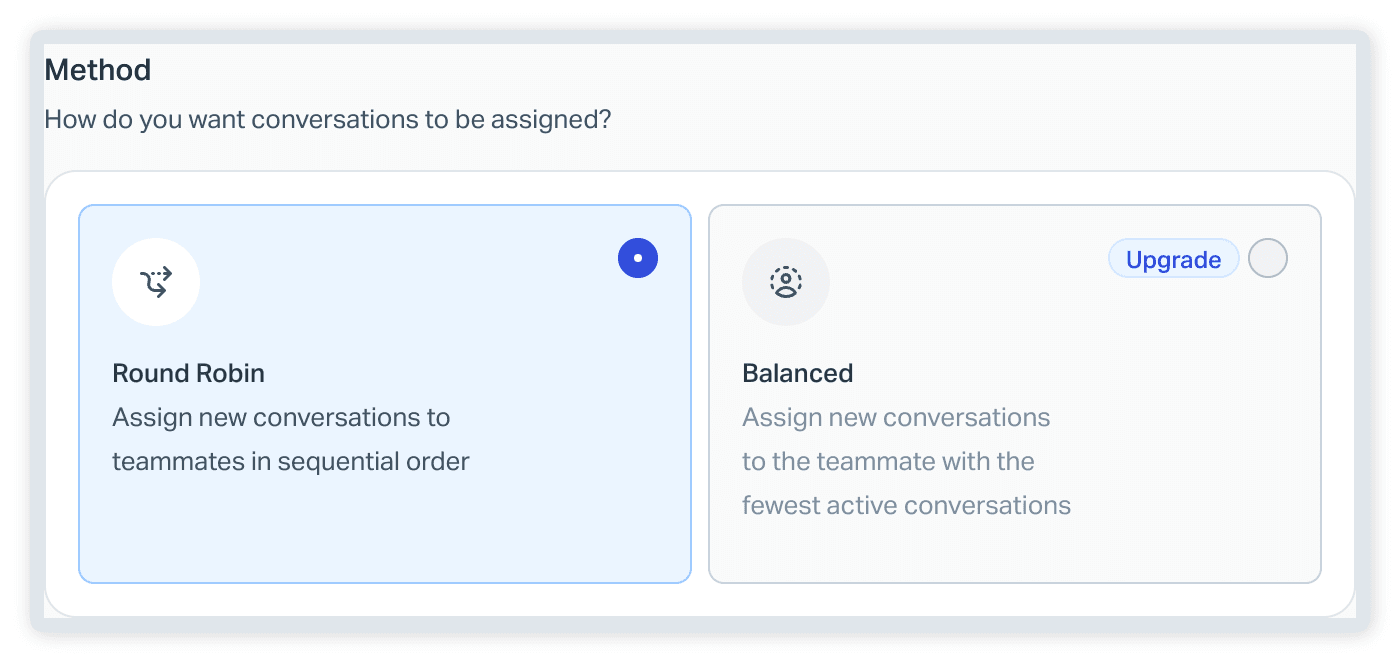
The assignment limit is the setting people underrate. The settings screen describes it as the point where teammates "with active conversations at or above this limit do not receive additional conversations." It is a cap on how much routing will push onto one person, so it is your protection against a Monday backlog landing on whoever is first alphabetically.
Which conversations and which teammates are eligible?
Routing assigns only when both sides are eligible. On the conversation side, it works through "all active, unassigned conversations in the Unassigned folder," not just new ones, so an existing backlog is fair game, and conversations go out longest-waiting first. On the teammate side, a person must be Active and below their assignment limit (Help Scout Docs).
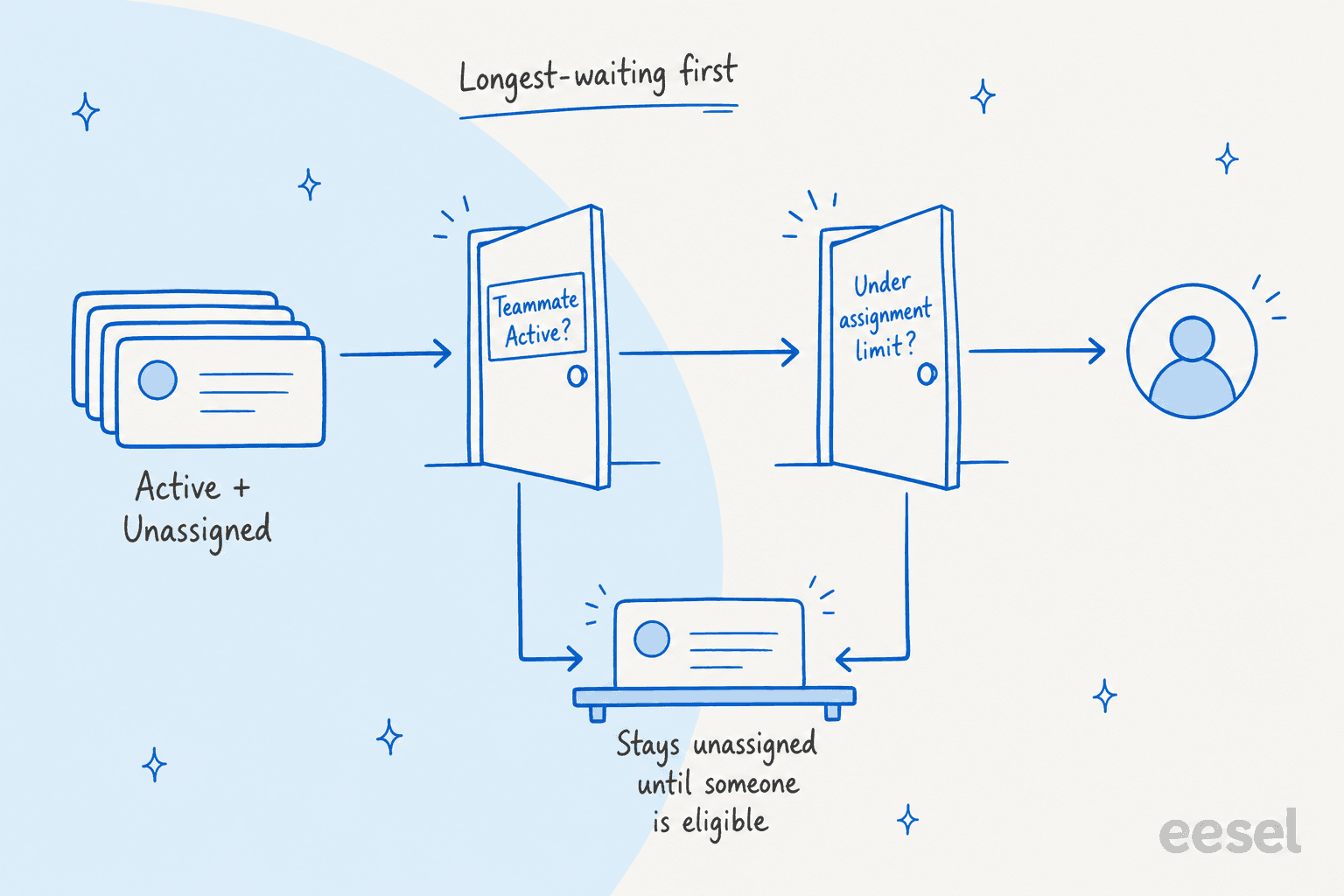
When no one passes both gates, conversations just sit in Unassigned until someone does. That is a reasonable default, but it means routing needs an owner for the Unassigned folder at the edges of your day. Light Users cannot be assigned conversations at all (Help Scout Docs), so keep them out of the rotation plan.
What happens when a teammate is Away?
Each non-Light user has a status, Active or Away. Help Scout keeps it current for you: "As long as you have Help Scout open in a browser tab, your status stays Active," and closing the tab sets you to Away within 10 minutes. The catch is the reverse case. "If you manually set yourself to Away," the system will not switch you back, so someone who toggled Away before a meeting and forgot is out of the rotation all afternoon. Account Owners and Admins can change another user's status from Settings > Users (Help Scout Docs).
The status rule is also where workflows and routing part ways. Help Scout states that routing skips Away teammates, and that status does not affect "manual conversation assignments" or "assignments made through Workflows." A workflow will assign to an Away person without hesitation. If a named owner is out, a workflow keeps sending them conversations, and nothing in the docs says it falls back to anyone else.
For a team that works across shifts, that is the argument for routing as the default and workflows only for named exceptions. My support shift handoff post covers the human side of the same problem.
Which plan do you need?
The feature split is clean once you line it up against the pricing page and the docs:
| Capability | Free | Standard | Plus | Pro |
|---|---|---|---|---|
| Automatic and manual workflows | No | Yes | Yes | Yes |
| Workflow limit (pricing page) | None | 150 basic | 500 advanced | Unlimited advanced |
| Conditions on Company or Customer Property | No | No | Yes | Yes |
| Assign to Team (needs Teams) | No | No | Yes | Yes |
| Routing: Round Robin | No | No | Yes | Yes |
| Routing: Balanced | No | No | No | Yes |
| List price per user per month, annual view | $0 | $25 | $45 | $75 |
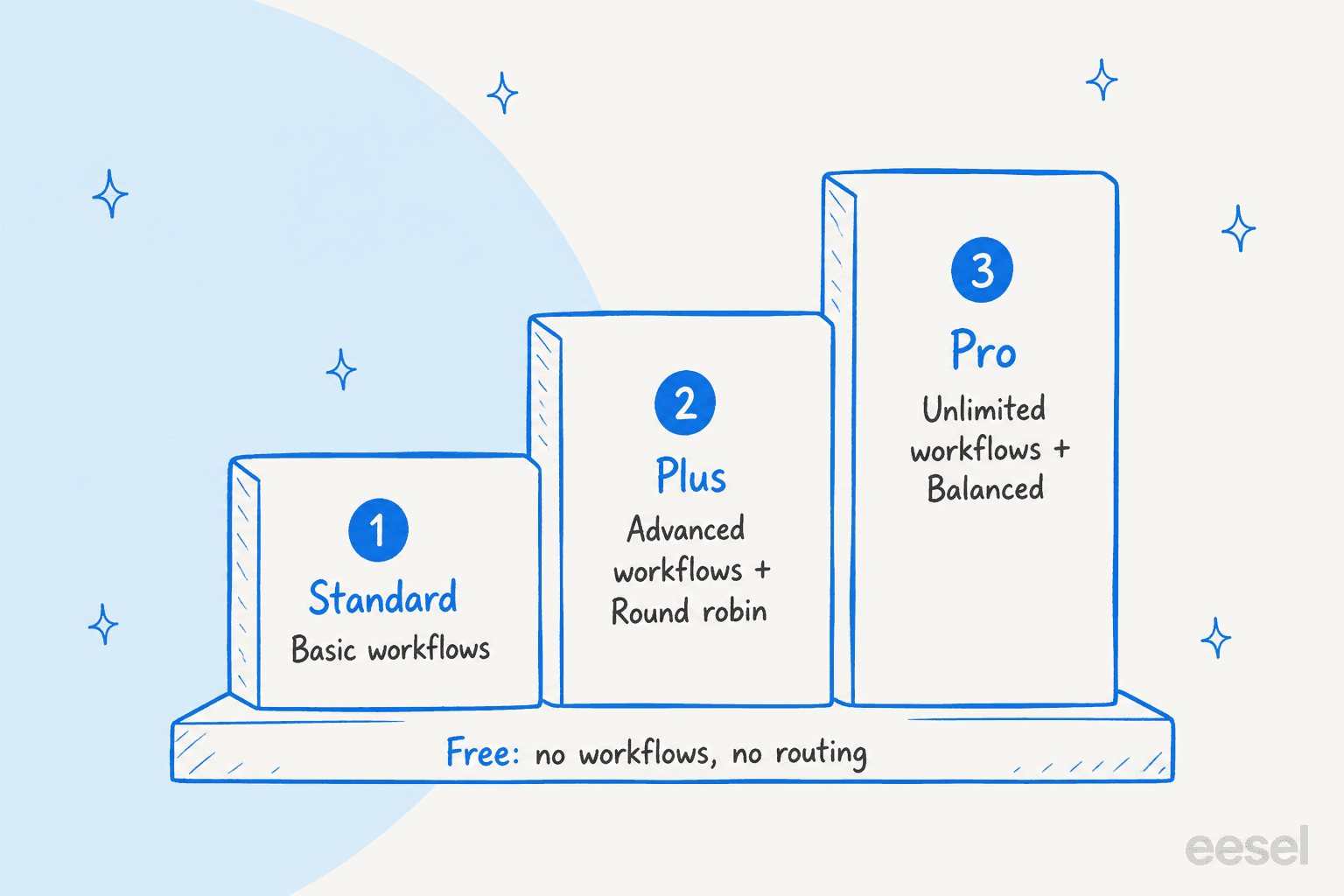
Sources: workflows are "included with Standard, Plus, and Pro plans" (Help Scout Docs); Teams is "available on the Plus or Pro plans" (Help Scout Docs); the limits and prices come from Help Scout's pricing page. The Free plan list in the docs mentions snooze and send later among its unrestricted features, but not workflows or routing. Per-user pricing also means a rotation of ten people on Plus is $450 a month before any add-ons, which is the number to weigh against a part-time person triaging manually.
How do the two features work together?
Here is the setup I would copy, based on how Help Scout describes each piece. It is my reading of the docs, not a Help Scout recommendation, so test it on a spare inbox first.
- Workflows for exceptions. Use Assign to User or Assign to Team for the narrow, deliberate cases: a key account to its owner, a
billing@alias to the finance team, conversations with a legal tag to one lead. Add an unassigned condition so a workflow never overrides a human. - Routing for everything else. Turn on round robin (or Balanced on Pro) for the inbox with a sensible limit. Routing picks up what is left in Unassigned.
- Teams as the pool, not the owner. Teams can be added to the routing rotation, and conversations assigned to a team appear in that team's folder as well as Assigned (Help Scout Docs). My Help Scout beacon modes post is a useful companion if chat is part of the mix.
The reason this split works: because workflow assignments are not affected by routing eligibility, a workflow-assigned conversation is not left unowned just because the owner is Away or full. The same property is its weakness. It also means nobody rebalances it.
What does assignment not do?
Assignment is not a lock. Help Scout's collision detection warns when someone else is viewing or replying, whoever owns the conversation, so ownership alone does not stop a double reply (my collision detection guide). It also does not change status: a snoozed conversation keeps its assignee when it wakes, per my snoozed conversations post. How routing treats a snoozed conversation is not described in the routing doc, which says only that it works on active, unassigned conversations.
Which setup fits your team?
If you want to sanity-check a choice, this small chooser maps the question to the Help Scout feature and plan.
Why do assignments not fire?
When a rule that looks right does nothing, I go down this list, in the order the docs make most likely:
- Wrong plan or permission. Routing needs Plus or Pro and the Inbox: Manage Routing permission. Workflows need Standard or higher, and Users cannot manage them unless your Company setting allows it (Help Scout Docs).
- The workflow already ran. Help Scout says a workflow runs only once on any given conversation, even if it matches again later, so a conversation that was edited after the first match will not be re-assigned by it.
- Incomplete badge. A workflow is flagged Incomplete if it references a deleted user, team, inbox or custom field, a condition type your plan does not support, or if it "is processing more conversations than your plan allows" (Help Scout Docs).
- Nobody eligible for routing. Everyone Away, or everyone at their limit, leaves the conversation in Unassigned.
- Conversation not eligible. Routing works on active, unassigned conversations.
If you want an AI to help with the first sort of the day, my Help Scout AI ticket deflection post covers cutting the queue before assignment matters.
What can eesel do with Help Scout assignment?
eesel has built and run AI on live support queues for years, so I care less about adding another rotation and more about what happens before and after one. eesel's Help Scout agent works inside your mailbox, and its documented Help Scout actions include Update conversation, which "changes a conversation's status, assignee, mailbox or subject," plus tagging, drafting and sending replies, and leaving internal notes (eesel docs). Two look-up actions are relevant here: Mailbox routing, which "shows how a mailbox hands out new conversations, and who is in the rotation," and User statuses, which shows who is available right now. A trigger fires when a customer opens a new conversation, and eesel's docs name "triage and routing" as a use for it.
Each action can run on its own, ask first, or stay off, and the docs say look-up actions run on their own by default while the rest ask first. That is the setting I would use for assignment: let it read routing and statuses freely, and keep assignment on ask first until you trust its calls.
A few honest limits, all from the same docs and Help Scout's:
- eesel acts as the Help Scout user who connected it, and its work shows that user's name. Many teams create a separate user for it.
- Help Scout's routing doc names manual and Workflow assignments as unaffected by routing eligibility. It does not describe assignments made through the API, so test what an eesel assignment does to your rotation before you rely on it.
- I found no eesel documentation saying it adjusts Help Scout routing settings or workflows. It reads them.
With the eesel CLI, a coding agent such as Claude Code, Codex or Cursor can connect Help Scout, review the automation settings and send test questions to check the agent's answers, while someone with admin access still approves the connection in Help Scout. For the cleaner path to a first install, see adding AI to Help Scout.
Is there a customer example of assignment as the signal?
Yes, and a named customer shows it. SamCart runs eesel on Freshdesk tickets (not Help Scout, which has no published eesel customer story yet), and its agent replies only when no person is assigned yet. Once a teammate takes the ticket, or a seller asks for a person, it steps back. That is the same "assignment as the signal" pattern: ownership decides who answers. If you are designing the same line in Help Scout, my AI agent handoff guide covers the rules worth writing down, and first contact resolution explains what to measure afterward.
How does this compare with other helpdesks?
Most helpdesks separate "rules that assign" from "rotations that spread work," as Help Scout does. Zendesk handles it with round robin ticket assignment and skills-based routing. Freshdesk has auto-assign tickets and Gorgias has auto-assign. Help Scout's version is simpler: two methods, one limit, no skills matching in what the docs describe. If your rules need to depend on what a message is actually about, that is where intelligent routing or ticket triage takes over. The tool-versus-tool pages are in Help Scout vs Front, Zendesk vs Help Scout and Freshdesk vs Help Scout, and Help Scout alternatives lists the broader field. For the rest of the Help Scout cluster, see Help Scout integrations, Help Scout self-service and saved replies.
Shared-inbox ownership has its own rules in each tool, as my Front shared inbox ownership post shows, and the shared inbox vs ticketing system and best shared inbox software pages help if you are still choosing.
Ready to put an AI teammate on your Help Scout queue?
If your Help Scout inbox is already sorted by workflows and routing, the next job is the first reply. Try eesel: it connects to Help Scout in a few minutes, learns from your Docs site and past conversations, and starts as drafts your team reviews. You can see current eesel pricing before you start, and read the Help Scout AI overview for what it does end to end.