Help Scout Beacon form fields: what lands on the conversation

Rama Adi

Katelin Teen
Last edited November 6, 2026

The Beacon contact form has four built-in inputs (name, email, subject, message), optional attachments, and up to five custom fields, and only the custom fields write structured data onto the conversation. Custom fields need Plus or Pro, must exist in the connected Inbox first, and prefill by field ID, not label. Make one dropdown a routing question so a workflow can tag and assign. The eesel CLI lets a coding agent connect eesel to Help Scout and send test questions first, though a Help Scout admin still approves the connection.
What fields does the Beacon contact form support?
Help Scout's Beacon contact settings give you six switches, and the form is smaller than most people expect. Email is always asked. Name and subject are optional toggles. Attachments and custom fields are optional too. Everything else the visitor types goes into the message body.
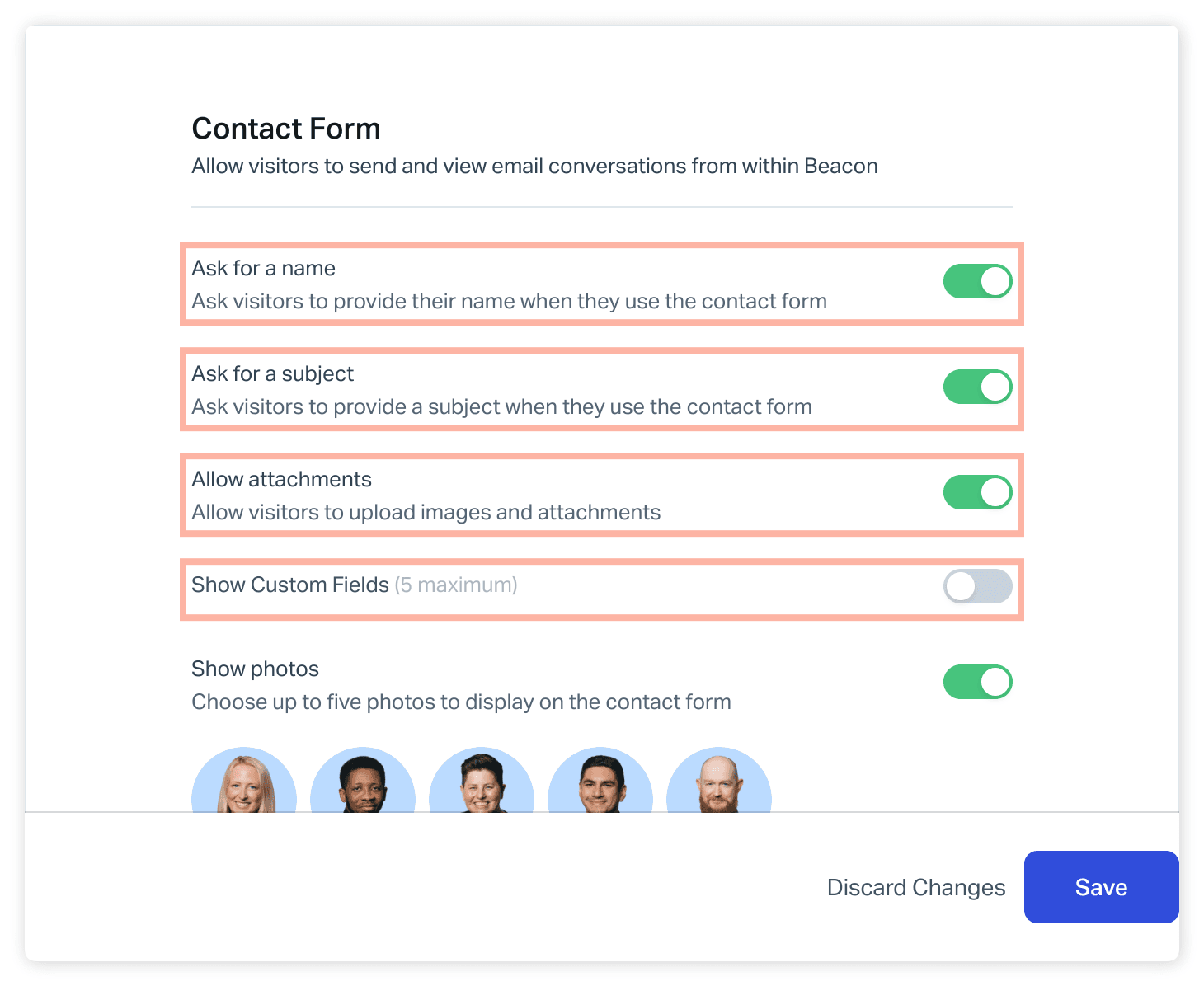
| Field | On by default? | Rule that bites | What it becomes in Help Scout |
|---|---|---|---|
| Always asked | Chat only skips it if you turn off Require email | The customer's email on the conversation | |
| Name | Toggle | Required when enabled; hidden if you call identify | Customer name |
| Subject | Toggle | Required when enabled; can be prefilled | Conversation subject |
| Message | Always | Free text, text in the prefill call | First thread |
| Attachments | Toggle | Up to 3 files per message, 10MB each | Attachments on the thread |
| Custom fields | Toggle | Up to 5 shown, same names as in the Inbox | Conversation custom fields |
Two details save a support lead real confusion. First, when you enable name or subject, Help Scout makes each one required, so a "optional subject" isn't a setting you can have. Second, a conversation started from the form lands in whichever Inbox the Beacon is connected to, so the Inbox you pick decides which custom fields are even available. If you are still choosing a tool, my Help Scout review and Help Scout features guide cover the rest of the product.
Which Help Scout plans allow custom fields in Beacon?
Custom fields are a Plus and Pro feature. Help Scout's custom fields guide says they are available on the Plus and Pro plans, and its smart contact form article repeats it for Beacon. The contact settings page adds that accounts with a Custom Fields add-on can show them too, which I could not match to an item on the current pricing page, so check with Help Scout if you are on Standard and want them.
| Plan | Price on the pricing page | Custom fields in Beacon |
|---|---|---|
| Free | 5 users, 1 Inbox, 1 Docs site | Not listed in the docs |
| Standard | $25 per user per month | Not listed in the docs |
| Plus | $45 per user per month | Yes, up to 5 on the form |
| Pro | $75 per user per month | Yes, up to 5 on the form |
Prices are the headline per-user rates on Help Scout's page, which shows a monthly and annual toggle, so confirm your own billing term. My Help Scout pricing breakdown prices a whole team. Plus is also where Help Scout puts advanced workflows, and that is the half of this setup that does the routing.
How do custom fields map to conversation fields?
One to one, by field. You create the field in the Inbox, then tick it in the Beacon, and the visitor's answer is stored in that same field on the conversation. There is no separate "form field" object, which is why the limits come from the Inbox side.
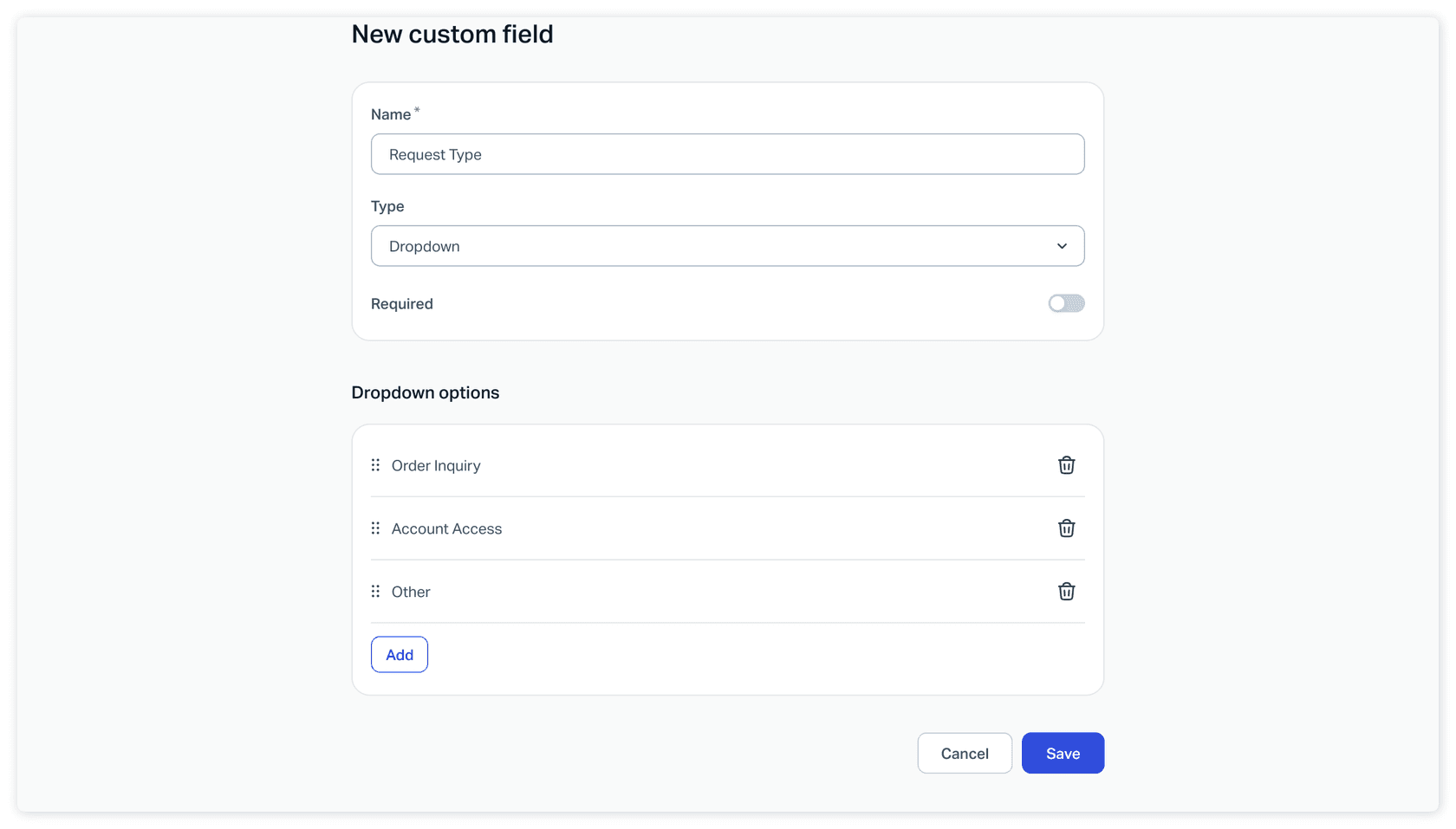
The facts that decide whether your data lands cleanly, all from Help Scout's custom fields guide:
- Ten fields per Inbox, five on the form. Each Inbox holds up to 10 custom fields, and Beacon can show up to 5 of them.
- Five types. Dropdown (up to 100 options), single line, multi line, number and date. Number and date fields validate the entry.
- Required follows the Inbox. If a field is required in the Inbox, it is required on the Beacon form too.
- Names are customer-facing. The field name is what visitors see, and the only special characters allowed in a name are
!,.and,. - Fields belong to one Inbox. Move a conversation to another Inbox and the custom field data does not carry over, even if a field there has the same name. Help Scout shows a data-loss warning first.
- The type cannot change, and deletion is permanent. You can rename a field or edit dropdown options, but not switch its type, and a deleted field loses its data on every conversation.
- Admins build them. Only Administrators and Account Owners can add or edit fields by default.
The Inbox-bound rule is the one I would put on a sticky note. A team that runs two brands in two Inboxes and merges one into the other will silently lose every "Product line" answer. If you are weighing whether one shared mailbox is enough, shared inbox vs ticketing system and the best shared inbox tools comparison help. Other helpdesks have the same concept under other names, as in Freshdesk ticket fields and Zendesk custom ticket fields.
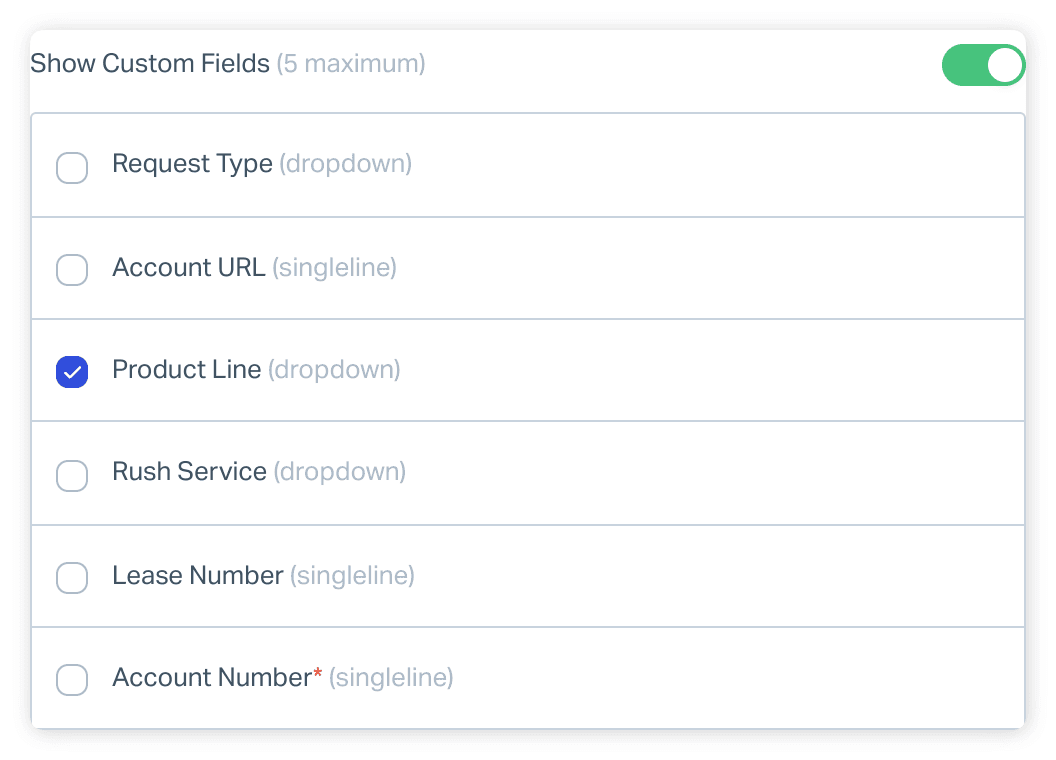
How do you route on form data instead of reading it?
A custom field on its own is just a label in the sidebar. The value comes from the second step in Help Scout's smart contact form article: a workflow that looks for the field and acts. Its example tags conversations where the customer picked the Ties product line, and the same article says a workflow can assign to a user or team, move to another Inbox, or send an automatic reply.
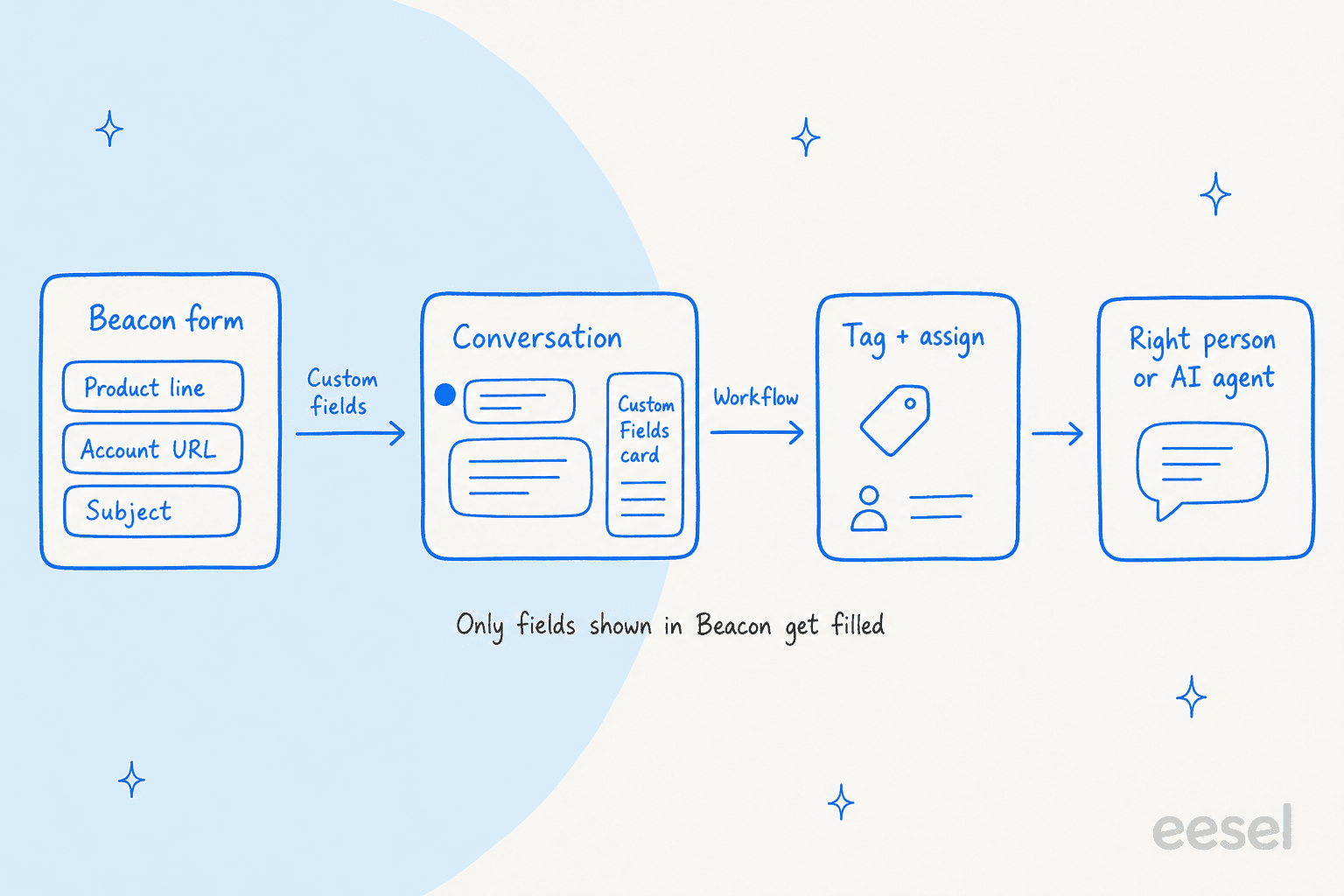
My rule is to make the first dropdown a routing question, not a curiosity question. "Request type: Order inquiry, Account access, Other" gives a workflow three clean branches. "How did you hear about us" gives it nothing to do. Pair that dropdown with a required field on the Inbox side and every submission arrives sorted. The automatic ticket assignment guide and intelligent routing overview cover what to do after the label exists, and ticket triage covers the judgment calls.
Free-text fields are different. A single-line "Account URL" is useful to a human reading the sidebar, but a workflow cannot reliably branch on it, so treat free text as context and dropdowns as routing.
How do you prefill the Beacon form with the JavaScript API?
Use Beacon('prefill', ...). Help Scout's developer docs say you can pre-populate name, email, subject, the message body (text) and custom fields (fields), and unlike identify, the name and email stay visible and editable.
Beacon('prefill', {
  name: 'Steve Aoki',
  email: 'steve@aoki.com',
  subject: 'Need help with invoice',
  text: 'Hello, I need some help with my invoice',
  fields: [
    { id: 5678, value: 1234 },      // dropdown: field ID, option ID
    { id: 5679, value: '2026-11-06' }, // date: YYYY-MM-DD
    { id: 5680, value: 'Question' }    // single, multi line or number: string
  ]
})
The gotchas, all from the same Beacon JavaScript API reference:
- Fields are matched by ID, not label. Find the field ID in the URL when you open the custom field in Help Scout. Help Scout says the manual mapping is tedious but "will stand the test of time" when labels change.
- Dropdowns need the option ID too. You get it by inspecting the page markup for
data-option-id, so a dropdown prefill is the fiddly one. - The field must already be ticked in the Beacon settings. Prefilling a field you did not add to the form does nothing.
- Prefilled custom fields are hidden by default. Set
showPrefilledCustomFields: trueinBeacon('config')if you want visitors to see and correct them. - Values clear after a message is sent. Re-run
prefillfor the next message. - Attachments can be prefilled too. Pass up to 3 JavaScript
Fileobjects. configcan add but not conjure.customFieldsEnabledandallowAttachmentscan only be turned on through the API if they are already enabled in the Beacon settings, andshowNameandshowSubjectcan only be switched from false to true.
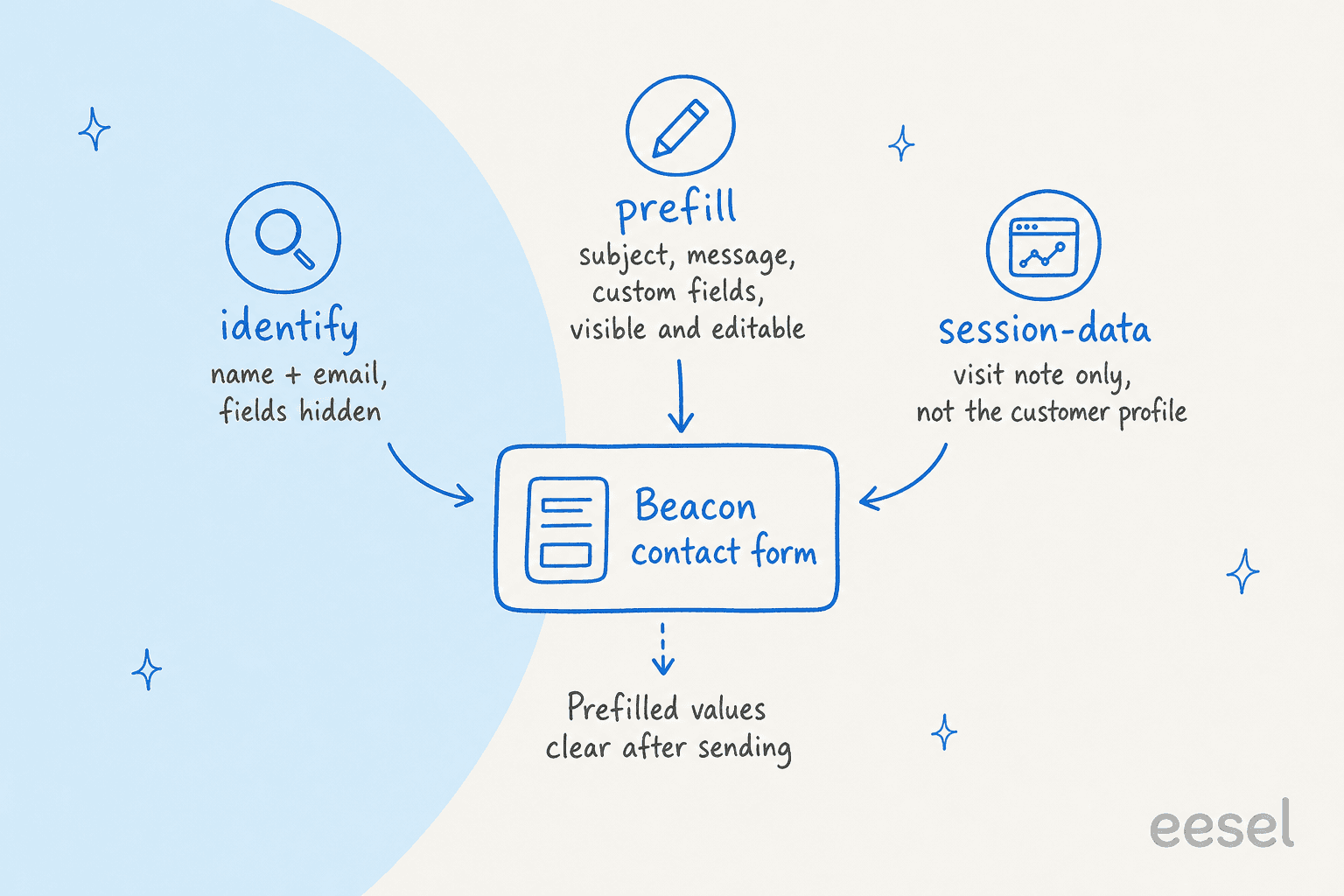
When should you use identify, prefill, or session-data?
They solve three different problems, and mixing them up is the most common reason form data goes missing. Pick the one that matches where the data should end up.
Which Beacon call should carry this data?
The widget follows Help Scout's JavaScript API reference and its advanced Beacon customization guide. The case I find most useful is the third one. A Standard-plan team cannot show custom fields, but it can pass plan: 'Pro' through identify into a Customer Property, which keeps the customer's tier on the profile for whoever picks up the conversation. If you need the whole conversation history across devices, Secure Mode signs the identify call with a server-side key, covered in the Beacon Secure Mode docs and my Help Scout API notes.
What limits and gotchas should a support lead know?
Most failures I would expect come from one of five places, and all of them are quiet.
- The field exists but was never ticked in the Beacon. The form looks fine to you and shows nothing to the visitor.
- A required Inbox field blocks submissions. Because required carries over to Beacon, a new required field on the Inbox can make the Beacon form harder to complete overnight.
- The Inbox changed. A conversation moved or an Inbox merged, and the custom field answers vanished.
- Labels were edited. Renaming a field is safe, but a prefill that guessed at option IDs is not, and a deleted option breaks the mapping.
- Free text was treated as structure. A workflow condition on a typed value matches only what the visitor happened to type.
The related areas of the product are worth knowing too. The Beacon modes decide whether visitors see the form first or Docs first, and my Help Scout self-service guide covers the Docs side. When live chat is on, the contact form becomes the fallback and cannot be turned off, per the contact settings guide. On a Beacon with chat and form together, a small chat bubble approach and good handoff practices matter as much as the field list.
Where does an AI agent fit with Beacon form data?
After the form has done its job, an agent can use what it produced. eesel is an AI helpdesk teammate that works inside the Help Scout mailbox, and its setup docs list the actions it can take: leave draft replies, send replies, leave internal notes, add or remove tags, and update a conversation's status, assignee, mailbox or subject. Its trigger "A customer opens a new conversation" fires in any mailbox. Help Scout says form messages land in the connected Inbox as conversations, so a form submission should arrive as an ordinary new conversation, but I would test one before trusting it.
Here is the honest limit. eesel's documented Help Scout actions do not include setting or editing custom fields. The practical pattern is the one in the routing section: let a Help Scout workflow turn the dropdown into a tag, and let the agent act on tags, notes and drafts. For a Beacon form that is a good split, because the workflow handles the deterministic part and the agent handles the reply. My AI triage and Help Scout AI posts expand on it.
The closest real example I have is on another helpdesk, so I will say so. Dokument 24, an online legal documents company, runs eesel on Zendesk. Email and contact-form enquiries land in Zendesk, and between 8 August and 8 September 2026 eesel prepared about 680 tickets for the team and tagged about 430 of them by product, with every reply left as an internal note for a person to send. That is the same shape as a Beacon form with a product dropdown. The same idea shows up in my data capture forms and web form channels posts for Zendesk, and Zendesk pre-chat forms are the equivalent of Beacon's identify and prefill.
For a coding agent, the eesel CLI can run npx @eesel/cli integrations connect helpscout_v2 to show the connection options and can manage automation settings, and eesel chat lets you ask test questions first. Connecting the mailbox still needs a Help Scout admin or account owner to click Authorize in the browser.
What mistakes should you avoid with Beacon forms?
- Asking for too much. Name and subject are required once on, so each extra toggle is a reason to abandon the form. Ask the one question your workflow uses.
- Showing internal names. Field names are customer-facing, so "Tier 2 bucket" becomes visitor-visible text.
- Skipping the test submission. Submit a real message on a staging page and check the Custom Fields card and the workflow result.
- Routing on free text. Dropdowns for routing, single-line for context.
- Forgetting that approvals matter. Start any agent on Leave draft reply and keep Send reply off until the answers hold up, as I argue in customer support approval workflows.
For related Help Scout setup, my notes on snoozed conversations, saved replies and ticket deflection are the next reads, and first contact resolution explains why sorted intake pays off.
Try eesel with your Help Scout mailbox
If your Beacon form already sorts conversations into tagged, assigned queues, eesel for Help Scout is the next layer I would add. It reads your Docs site and past conversations, drafts replies for each tagged queue, and keeps a person in the loop until you switch on sending. You can try eesel with 100 free credits for 7 days, then paid plans start at $299 a month for 500 credits, where a ticket or chat is one credit (eesel pricing). If you are comparing options, see my best AI for Help Scout roundup.
Frequently Asked Questions
What fields does the Help Scout Beacon contact form have?
Which Help Scout plans let you add custom fields to Beacon?
$45 per user per month on the pricing page. See my Help Scout pricing breakdown for the other tiers.How do I prefill the Help Scout Beacon contact form?
Beacon('prefill', {...}) with name, email, subject, text and fields. Custom fields are matched by field ID, and dropdowns also need the option ID. Prefilled values clear after a message is sent. My Help Scout API guide covers the developer side.Do Beacon custom fields show up on the Help Scout conversation?
What is the difference between Beacon identify and prefill?
identify creates or updates the customer profile and hides the name and email fields, while prefill fills form fields that stay visible and editable. session-data adds a note to one conversation only. A Zendesk pre-chat form works in a similar way.Can eesel read or set Help Scout custom fields from a Beacon form?
Why is my Beacon custom field not showing on the form?
showPrefilledCustomFields is true. My Help Scout AI overview covers the AI side of the setup.