Help Scout conversation list columns: what you can show and sort

Rama Adi

Katelin Teen
Last edited November 6, 2026

Help Scout lets you choose which columns appear in each list view: click Edit columns, add or remove columns, drag to reorder, and toggle customer photos and tags. Settings are kept per view, and Copy Columns to... pushes them to other views. Sorting is narrower: Waiting is the default, and you can switch to Last Updated. eesel cannot edit columns, but it drafts replies that move what the Waiting column shows, and the eesel CLI lets a coding agent test answers first.
What can I show in the conversation list?
A fixed menu of columns, plus two switches. The Help Scout docs list ten: Thread Count, Conversation Number, Waiting, Company, Email, Job Title, Last Updated, Next Event, Customer Properties and Custom Fields (Help Scout Docs). Next Event only shows on snoozed conversations.
The two switches are Show Customer Photo, which only shows an image for customers matched to a Gravatar, and Show Tags. I build eesel's integrations, so I read menus like this for what they let an agent or a teammate see at a glance, and this one is a deliberately small list.
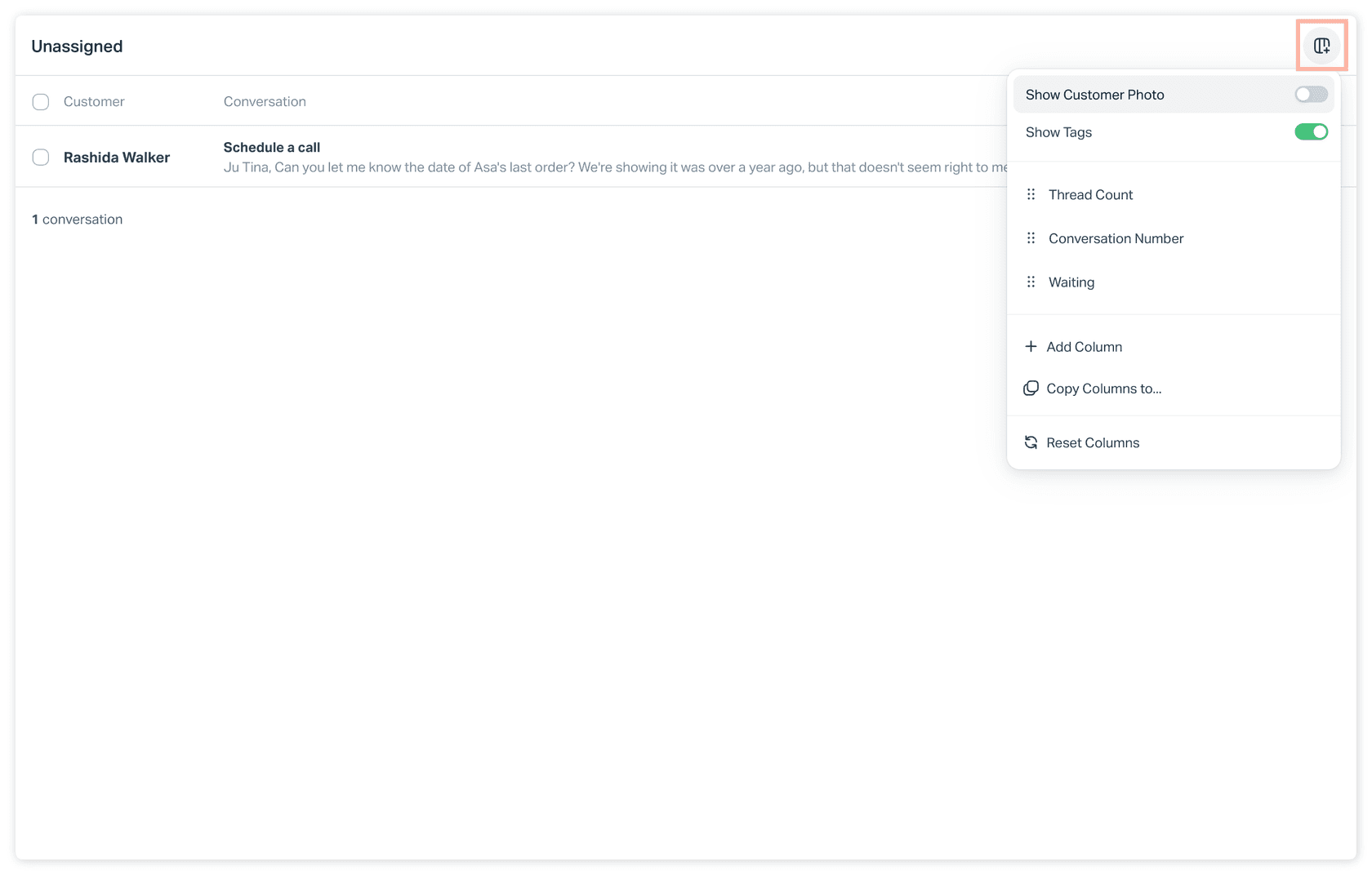
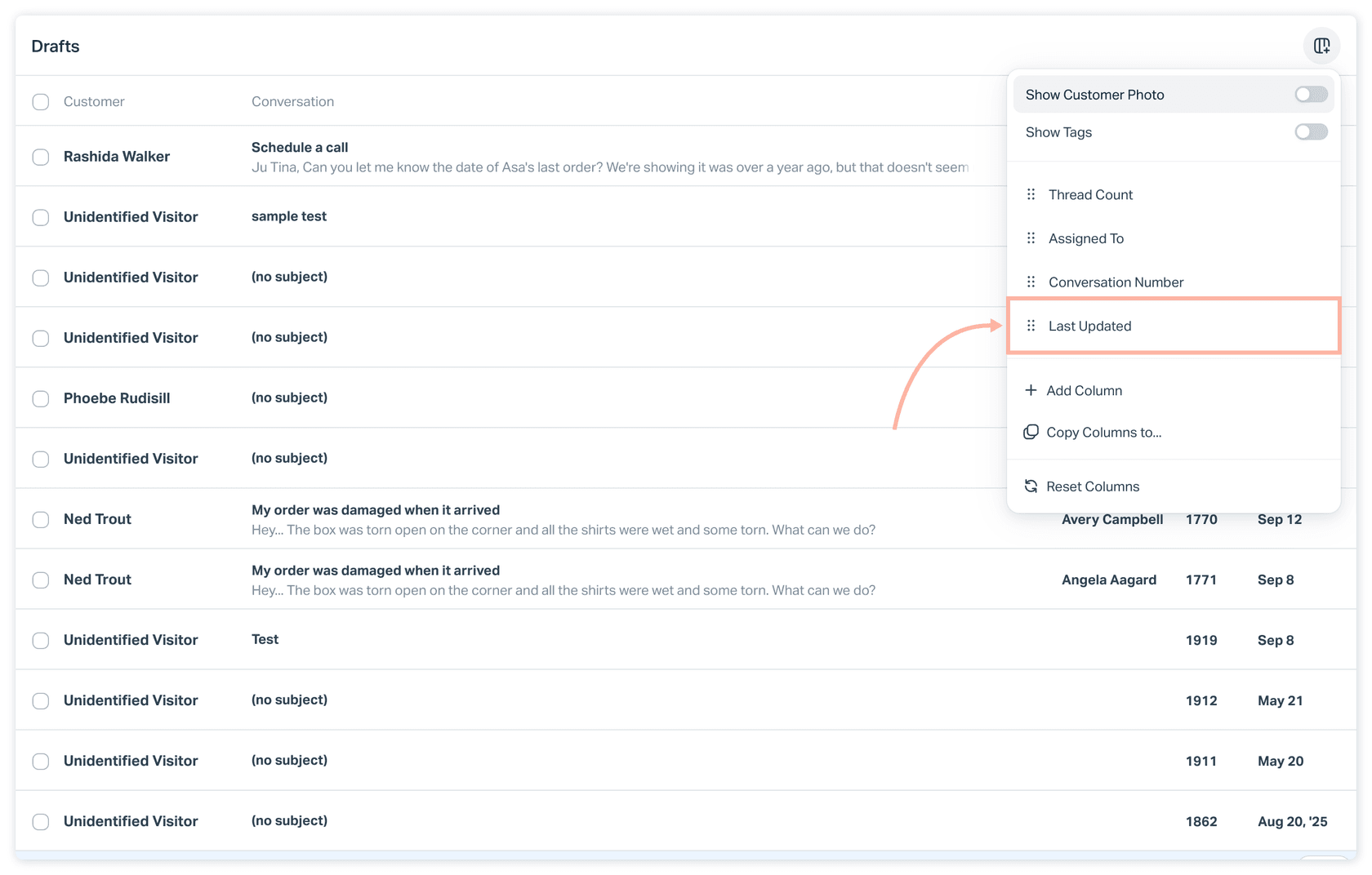
One gap: the docs' list does not include Assigned To, but the docs' own screenshots show it in the menu. I would trust the screenshot and check your own menu. The same screenshot shows a Reset Columns option the text never mentions.
For ideas on which fields earn a column, see my Help Scout customer properties guide and the customer service KPIs post.
How do I add, remove and reorder columns?
From the Edit columns button at the top right of the list (Help Scout Docs):
- Click Edit columns.
- Click Add Column and choose one.
- Hover over a showing column and click the X to remove it.
- Drag any column name to reorder.
That is the whole workflow. There is no mention of resizing columns, pinning one, or saving a named layout, so I would assume those are not available until Help Scout says otherwise.
Is the setup per view, per user or per mailbox?
Per view is documented, the rest is not. The docs say "each view has its own individual column settings", covering the default folders, Team folders and custom Inbox Views. They do not say whether those settings are personal or shared.
What the docs do say about neighbouring settings points to personal. You can add up to 30 Views to your sidebar and "this is customizable for every user", and each user sets their own default redirect after replying (Help Scout Docs). That is my inference, not a stated rule. A two-minute test with a second login settles it before you roll a layout out to a team.
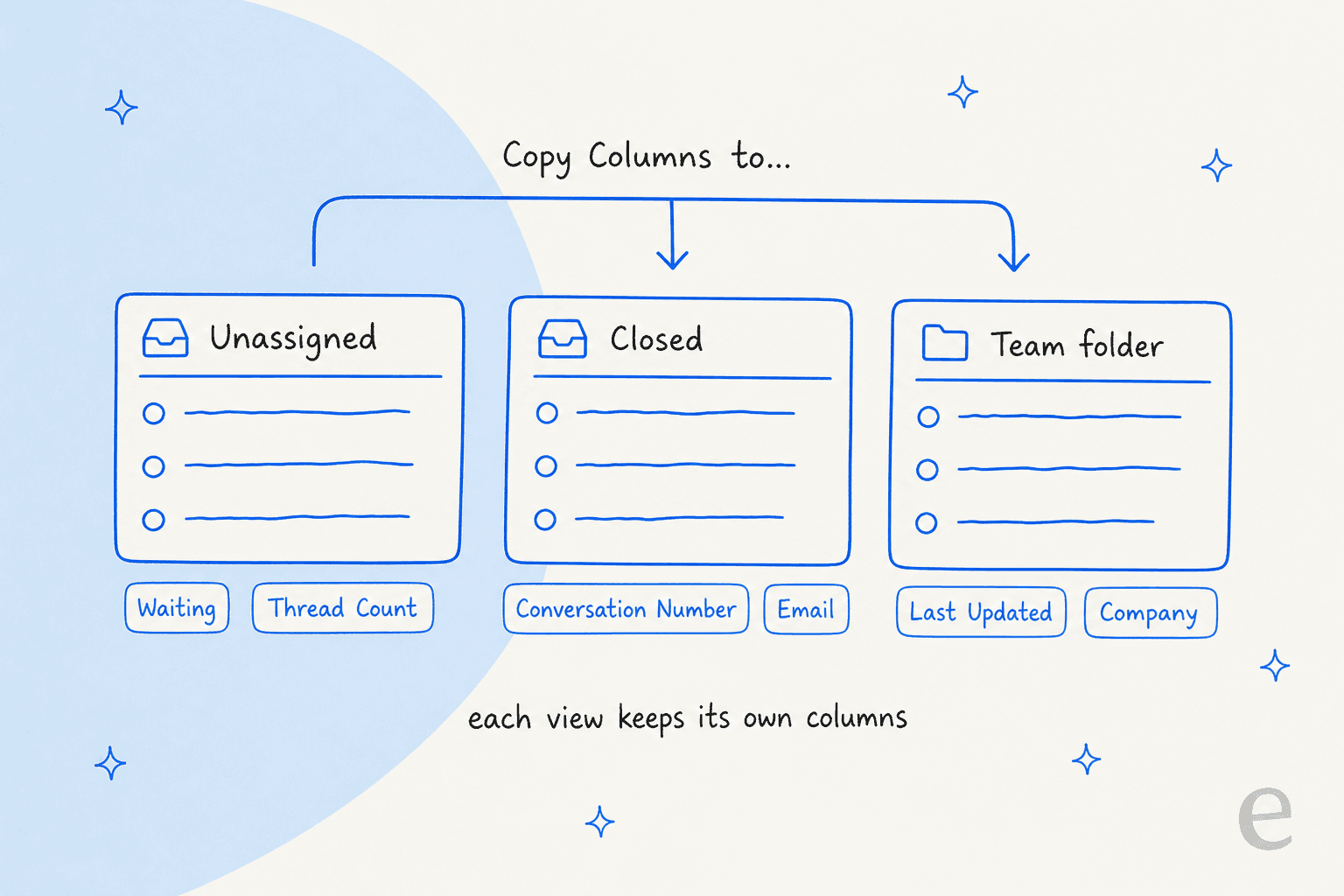
The shortcut for consistency is Copy Columns to..., which copies the current view's columns to any other views in the inbox. If your team lives in a few views, set one up properly and copy it. My shared inbox vs ticketing system post explains why Help Scout teams end up with many views.
How do Waiting and Last Updated sorting work?
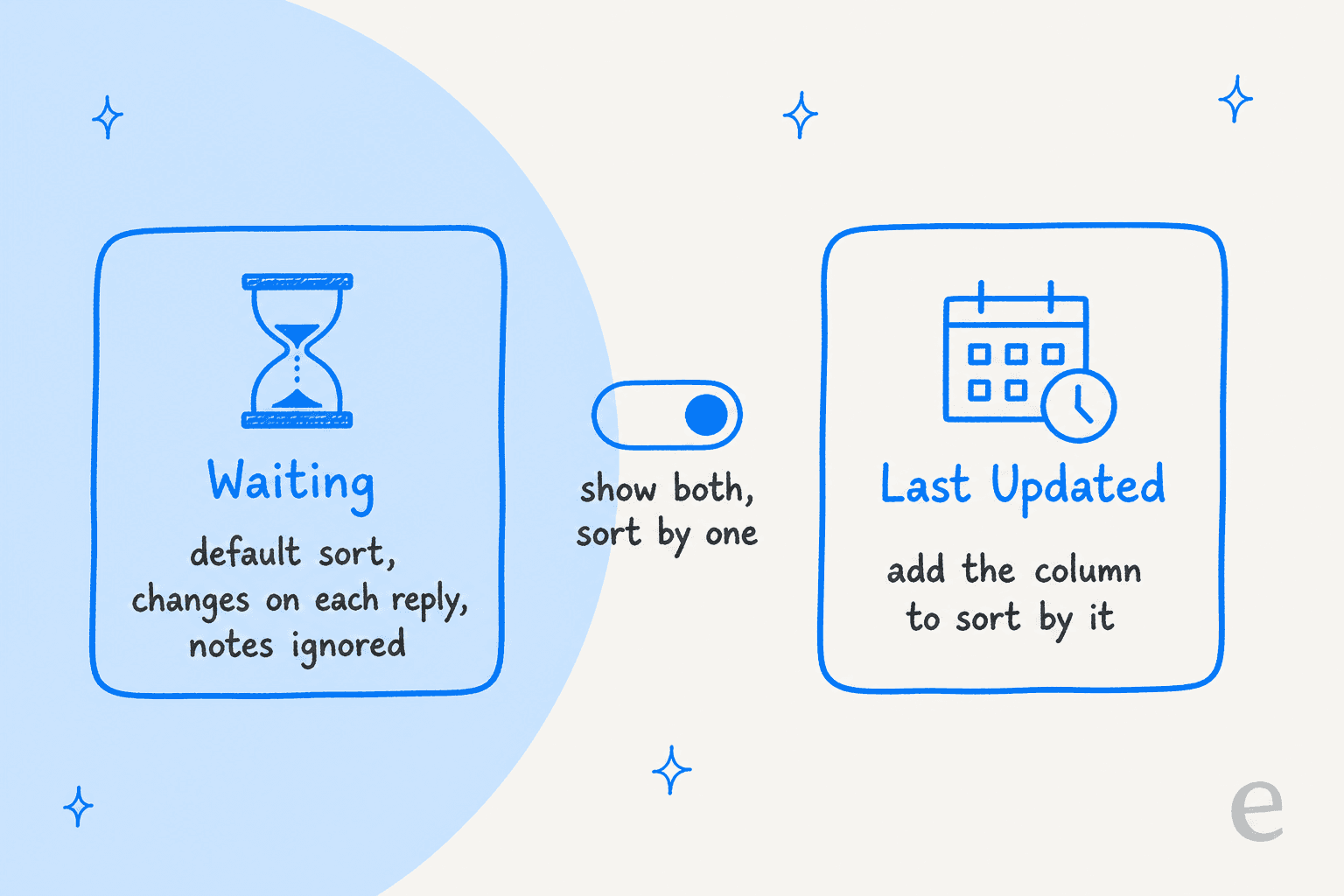
Waiting is the default, and it behaves differently from most tools. The Waiting timestamp only changes when a new thread, meaning a customer or user reply, is added. Notes do not change it, and it only applies to Active and Pending conversations (Help Scout Docs).
- If a customer sends several messages in a row, Waiting shows the oldest one.
- A new conversation with no reply shows when it was created.
- Workflows that email the customer update the Waiting time.
- In the Closed folder, the column becomes Closed, showing the close time.
- The Drafts folder uses Last Updated, and Waiting is not shown there.
To sort by recency instead, add Last Updated. The docs say you can display both columns but only sort by one. That is the only sort choice the column docs describe, so I would not plan around sorting by Company, Email or a custom field.
Waiting is the number to watch for first response time and SLA work.
My SLA best practices and Help Scout SLA policy order posts go further.
Which columns need Plus or Pro?
The column article names no plan. The data behind some columns does. Custom fields are a Plus and Pro feature, with up to 10 per inbox and five types: dropdown, single line, multi line, number and date (Help Scout Docs). Customer and company properties are available on all paid plans, with up to 50 of each (Help Scout Docs).
| Column | What the docs say it shows | Plan note |
|---|---|---|
| Waiting | Time since a user last owed a reply | Not stated |
| Last Updated | Last update by anyone | Not stated |
| Customer Properties | Fields your team defines on profiles | Properties: all paid plans |
| Custom Fields | Fields set on conversations | Fields: Plus and Pro |
| Company, Email, Job Title | Profile details | Not stated |
The pricing page lists $25 Standard, $45 Plus and $75 Pro per user per month (Help Scout). For a plan-by-plan view, see Help Scout pricing and the Help Scout review.
My comparisons with Zendesk, Freshdesk and Gorgias cover the alternatives.
How are columns different from Views?
Columns choose what you see per row, Views choose which rows appear. Inbox Views are saved conditions that act like custom folders, created by Administrators and Account Owners, with up to 30 on your sidebar (Help Scout Docs). Conditions include status, assignee, snooze, SLA, rating, tag, custom field, company, customer property, dates and Waiting. Custom Field, Company and Customer Property conditions are Plus and Pro.
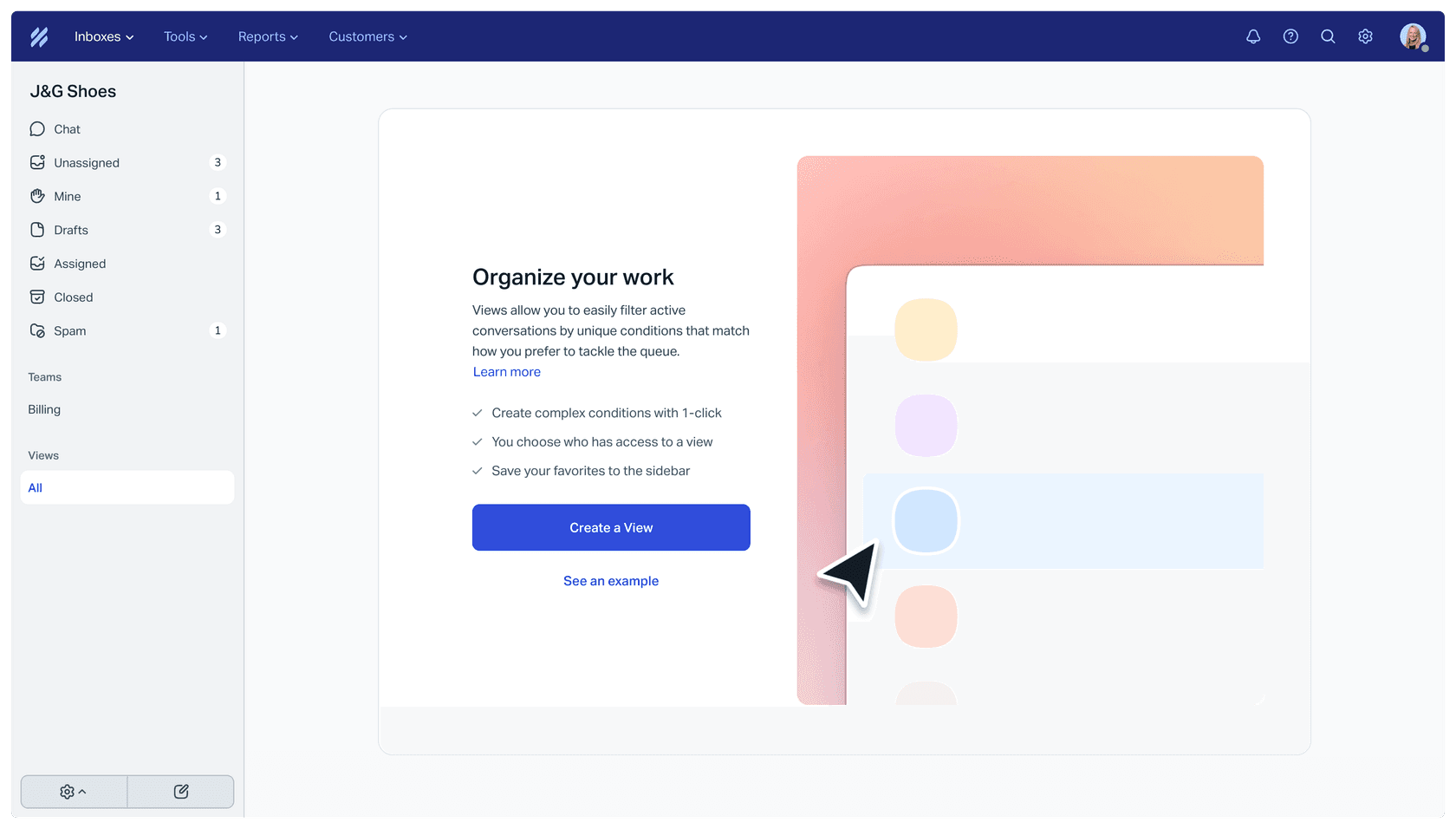
Two limits are worth knowing. Views become inaccessible if an inbox has more than 10,000 active or pending conversations, and the Send and next active redirect is unavailable for folders with more than 5,000 active conversations. A pairing I like: a View for "waiting longer than 24 hours" with Waiting and Assigned To columns copied in. My ticket triage and automatic ticket assignment posts cover routing choices.
What do the Help Scout docs not say?
Several things you would want before standardising a layout. The column management page was updated on November 5, 2026, so it is current, and it still leaves these open:
- Whether column settings are per user or shared.
- Which plans include column management.
- Whether you can sort by columns other than Waiting and Last Updated.
- Whether there is a limit on how many columns a view can hold.
- Whether Assigned To is a supported column, given the screenshot.
I would not assume answers. Test each on a quiet inbox or ask Help Scout support. The Help Scout alternatives and Front comparison posts show how other tools handle list layouts.
Where does AI fit next to the list columns?
On the rows, not the layout. eesel works inside the Help Scout mailbox, and its documentation lists actions such as replying, adding notes, tagging, and changing status, assignee, mailbox or subject. None of those edit column settings. What eesel changes is what the columns show: a sent reply resets Waiting, an added tag appears under Show Tags, and an assignment shows in Assigned To.
SamCart is the closest proof I have, and it runs on Freshdesk, not Help Scout. It uses one eesel agent on Freshdesk tickets and another on its website chat, both answering from about 280 help center articles. The agent replies only while no person is assigned, and tags the ticket for handoff when a seller asks for a person. That is the shape I would copy in Help Scout: let the agent clear routine questions, so a Waiting column sorted oldest first surfaces the conversations that need a person. Help Scout has no published eesel customer story yet.
With the eesel CLI, an AI coding agent can upload approved knowledge, like exported Docs articles and saved replies, then ask test questions and check the answers before anything goes live. Connecting the Help Scout mailbox itself still needs someone with admin access to approve it.
My Help Scout AI agent, ticket triage for Help Scout and AI tagging guides go further.
For results, see AI resolution rate, reducing backlog and AI handoff practices.
Try eesel for Help Scout
If your Waiting column is full of questions your Docs already answer, eesel is built for that gap. It reads your Docs site and past Help Scout conversations, then drafts or sends replies in the same mailbox, with each action set to run on its own, ask first or stay off. See best AI for Help Scout and Help Scout AI alternatives if you are still choosing.