Help Scout snoozed conversations: what snooze does and doesn't do

Kira

Katelin Teen
Last edited November 6, 2026

Snoozing in Help Scout is a timer and a reminder, not a status. It leaves the status and the assignee alone, moves the conversation into the Later folder, and brings it back as Active when the date arrives or the customer replies. The one setting that changes behavior is the dropdown beside the date: If no reply (the default) clears the snooze on a reply, while Regardless keeps it. Help Scout's own docs never tie snooze to SLA timers, so the real risk is the forgotten snooze, and a saved view is the fix.
eesel can look up Help Scout conversations by status and last update and leave a note or draft, and with the eesel CLI a coding agent can run the setup and send test questions before anything goes live, though a Help Scout admin still has to approve the connection.
What does snooze actually do to a Help Scout conversation?
Snooze puts a date and time on a conversation, and when that moment arrives the conversation "reappears with an Active status if not already Active" (Help Scout Docs). That sentence hides the useful part: snoozing itself changes nothing about the conversation. The docs say "setting a snooze on a conversation does not change the status," and when the time comes, "the conversation assignment does not change."
I build AI agents for helpdesks at eesel, and the first thing I check in any helpdesk is which fields an action touches, because an automation that assumes snooze closes or reassigns something will get the wrong answer. Here is what I found when I read the docs and the API reference side by side:
- Status: unchanged when you snooze. A Pending conversation stays Pending while it is snoozed, and you can change the status during the snooze. It becomes Active at the snooze time if it is not Active already.
- Assignment: unchanged, on snooze and on wake-up.
- Location: a snoozed conversation shows up in the Later folder. Whether it also stays in your other folders depends on the snooze mode (more on that below).
- Plan: snooze is "available for all users on all current plans," and the Free plan lists it among the features you get unrestricted. My Help Scout pricing breakdown covers what the paid tiers add.
If you are still sizing up the tool as a whole, my Help Scout review and the Help Scout features guide cover the wider picture.
How do you snooze a conversation in Help Scout?
There are three entry points in the browser, plus the mobile app (Help Scout Docs):
- Click Snooze in the conversation header, or press B.
- Click Snooze from the reply editor, so you can write a holding reply and snooze in the same move.
- Select one or more conversations in any inbox list, then click Snooze or press B. This is the bulk route for Monday-morning cleanups.
- On mobile, snooze sits under More actions in a conversation, and long-pressing a list lets you snooze several at once (Help Scout mobile app guide).
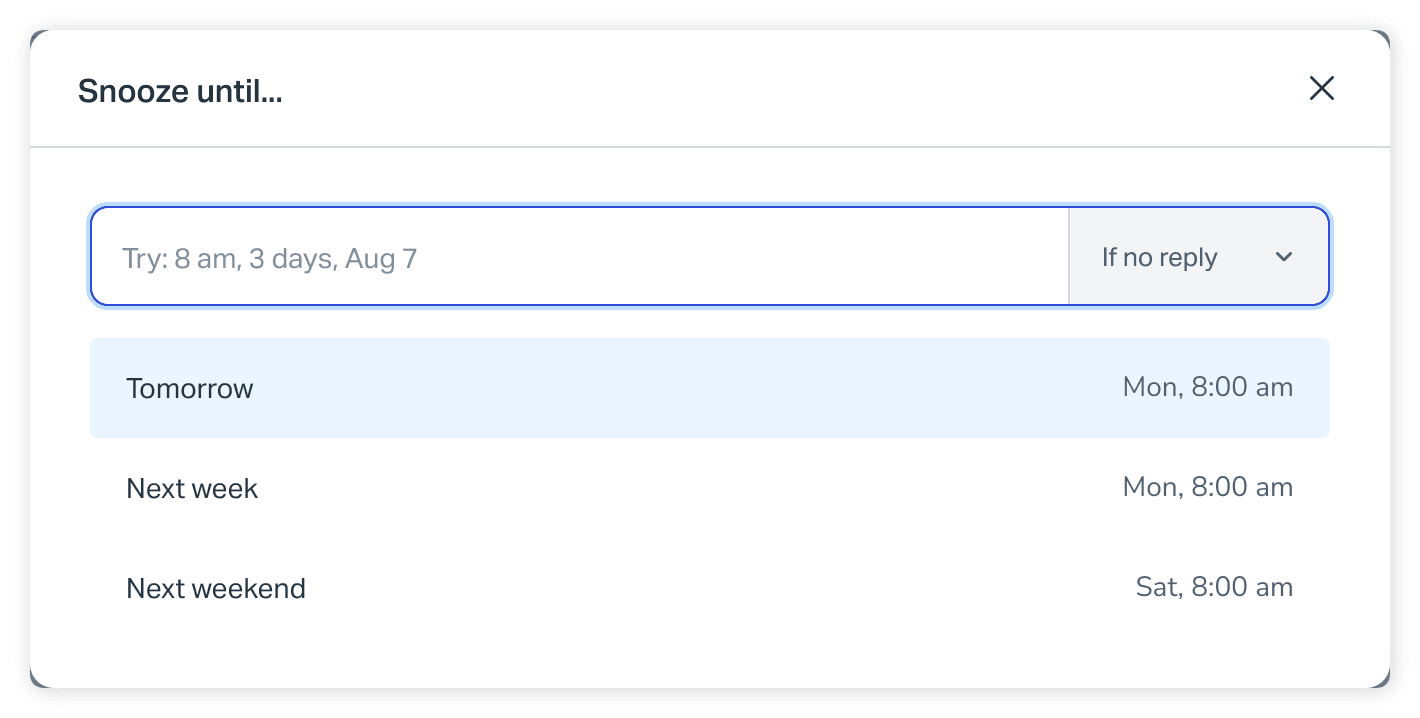
The date box takes plain language. The placeholder reads "Try: 8 am, 3 days, Aug 7," and Help Scout says phrases like "Tomorrow," "Next Week," or "This Friday" get calculated for you. The preset buttons in the docs screenshot are Tomorrow, Next week, and Next weekend.
Help Scout's two tips for snoozing well are short and worth stealing. First, add a note when you snooze, so a teammate knows why and what the follow-up looks like, and tag them if you need their help. Second, assign the conversation to whoever owns the follow-up, choosing Me if that is you. I would go one step further and treat both as required: a snooze with no note and no owner is the one that gets forgotten.
One more small thing: the snooze button turns purple when a snooze is set, which is the fastest way to spot a snoozed conversation when you open it.
Should you pick "If no reply" or "Regardless"?
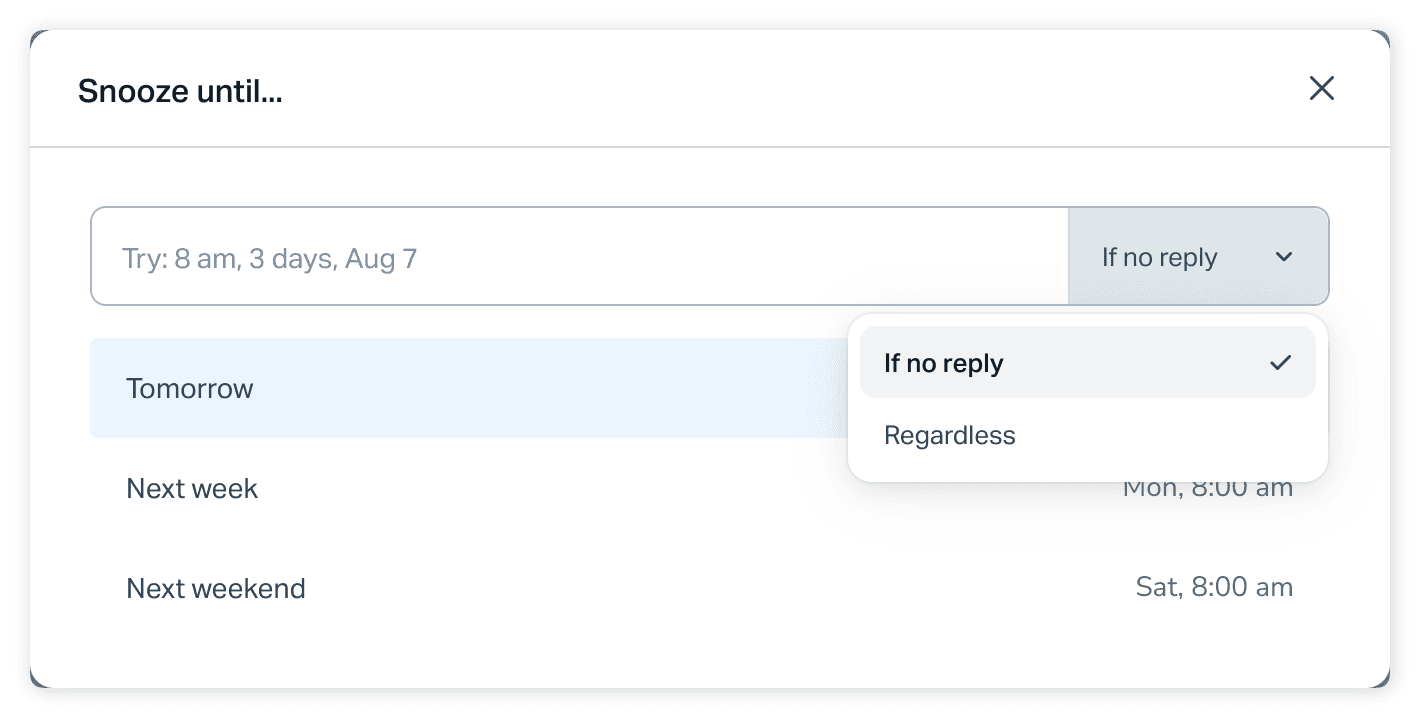
This is the decision most teams skip, because the default quietly makes it for them. The dropdown next to the date has two options (Help Scout Docs):
- If no reply: "if a customer replies, the snooze is cleared. This is the default setting."
- Regardless: "regardless of whether a customer replied, the snooze persists on the conversation."
In both cases a customer reply changes the status to Active if it is not Active already.
The mode also decides where the conversation is visible, and this is the part that surprised me. Per Help Scout's explanation of the Later folder, a conversation snoozed until a specific time regardless of reply "will still appear in its other views and folders while it's snoozed," for example in Mine for the assignee and Assigned for everyone else. A conversation snoozed with If no reply "will only appear in the Later folder while it's snoozed."
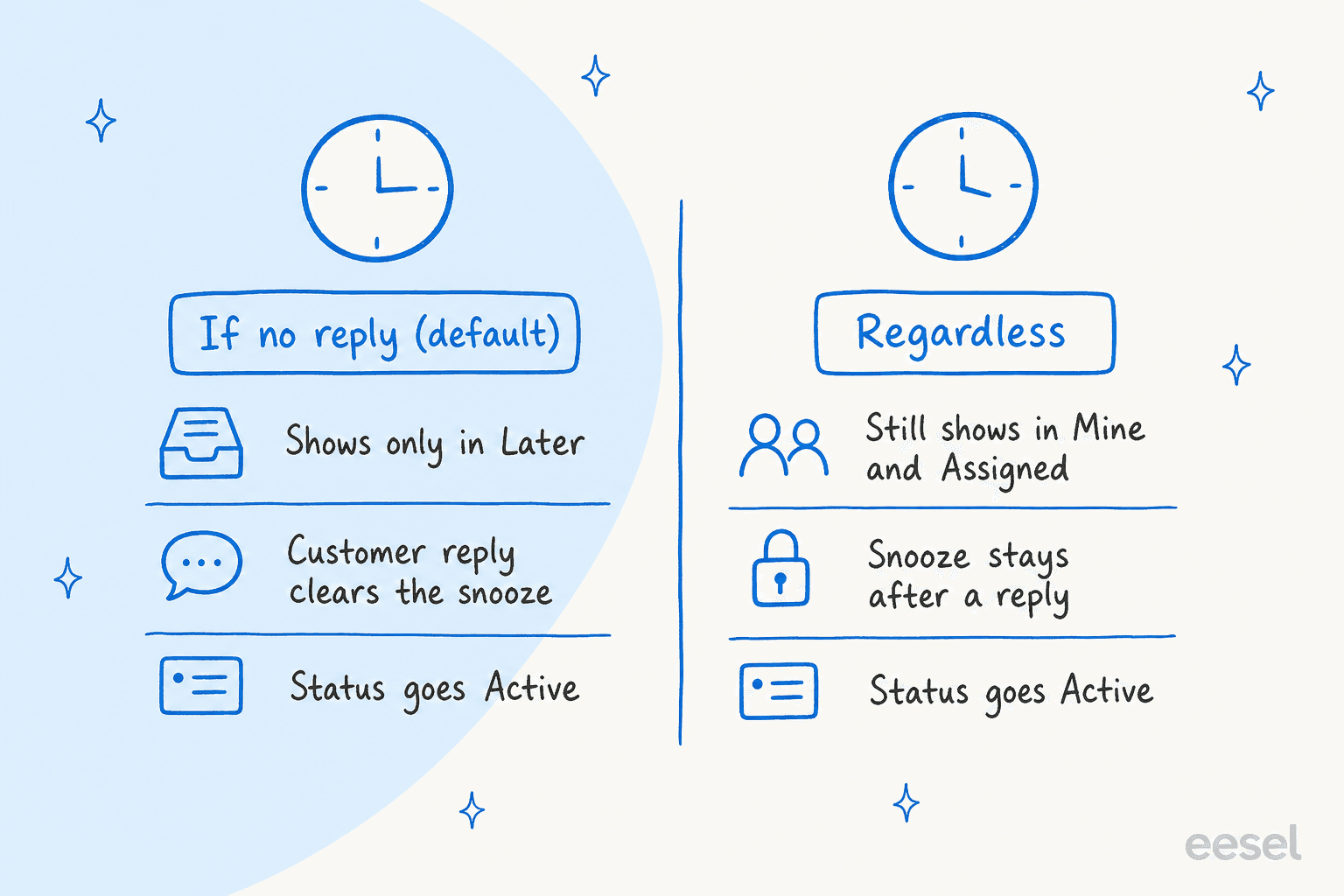
So the default hides the conversation from your daily lists. If your day starts in Mine, an If no reply snooze is out of sight until the timer fires. That is fine for "check back Thursday," and risky for anything with a promise attached. My rule of thumb: use Regardless when you owe the customer something on a date, and If no reply when you are waiting on them and a reply makes the snooze pointless. It is the same pair of options Help Scout offers when you schedule a reply to send later, where If no reply only sends if the customer stays quiet.
Where do snoozed conversations live?
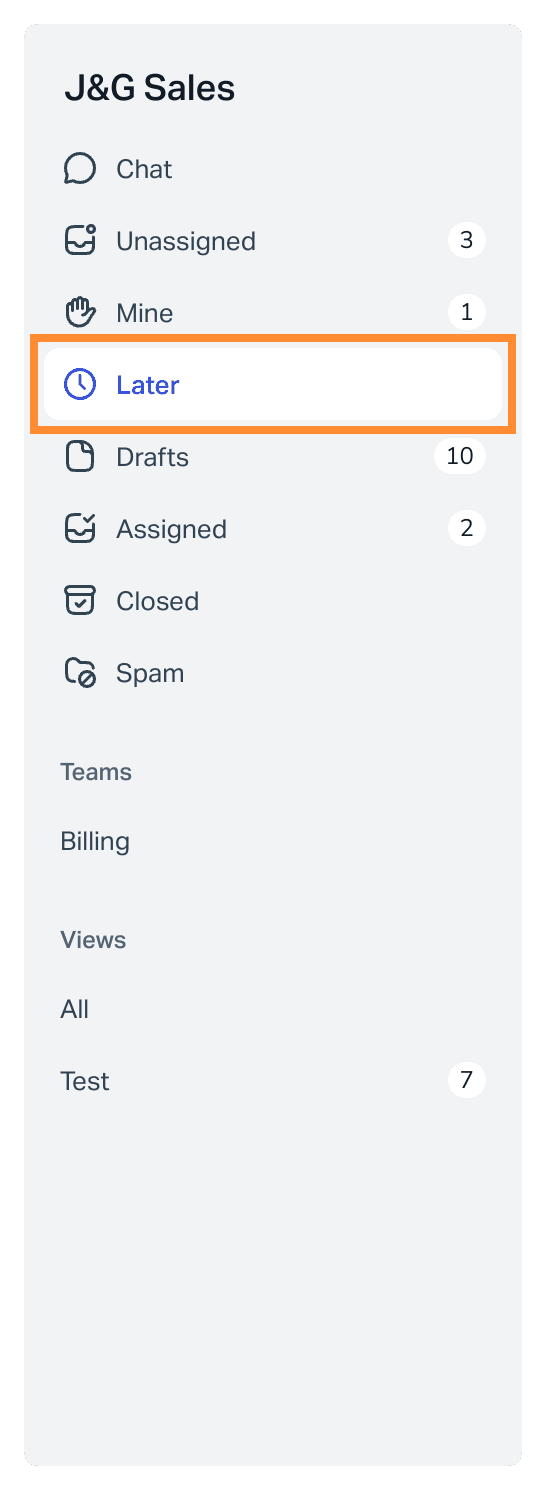
In the Later folder in the inbox sidebar. Help Scout calls it dynamic: it "only appears when you have at least one snoozed conversation or scheduled thread." Scheduled replies from Send Later land there too, so Later is a mix of "come back to this" and "send this later."
Two consequences follow from that design:
- Because the folder disappears when empty, a clean sidebar tells you nothing is snoozed. A folder that has been there for weeks tells you the opposite.
- In Help Scout's screenshot, Later sits inside one inbox's folder list. If your team runs several inboxes, as many teams in my shared inbox software comparison do, a snooze in a quiet inbox is easy to overlook.
If you want a bird's-eye list that is not tied to one folder, build a view. Help Scout's Inbox Views have a Snooze condition ("is set" or "is not set"), which I use in the checklist further down.
What ends a snooze?
Four things can end one, and only one of them is the date (Help Scout Docs):
- The date and time arrive. The conversation comes back Active if it was not Active, with the same assignee.
- The customer replies. The status changes to Active if it is not already. With If no reply the snooze is cleared; with Regardless it persists.
- The conversation moves to another inbox. "The snooze state is automatically removed." This one catches teams that route by inbox, because a move done by a person or by a workflow silently drops the snooze.
- Someone clicks Remove snooze. Click Snooze (or press B), then Remove snooze.
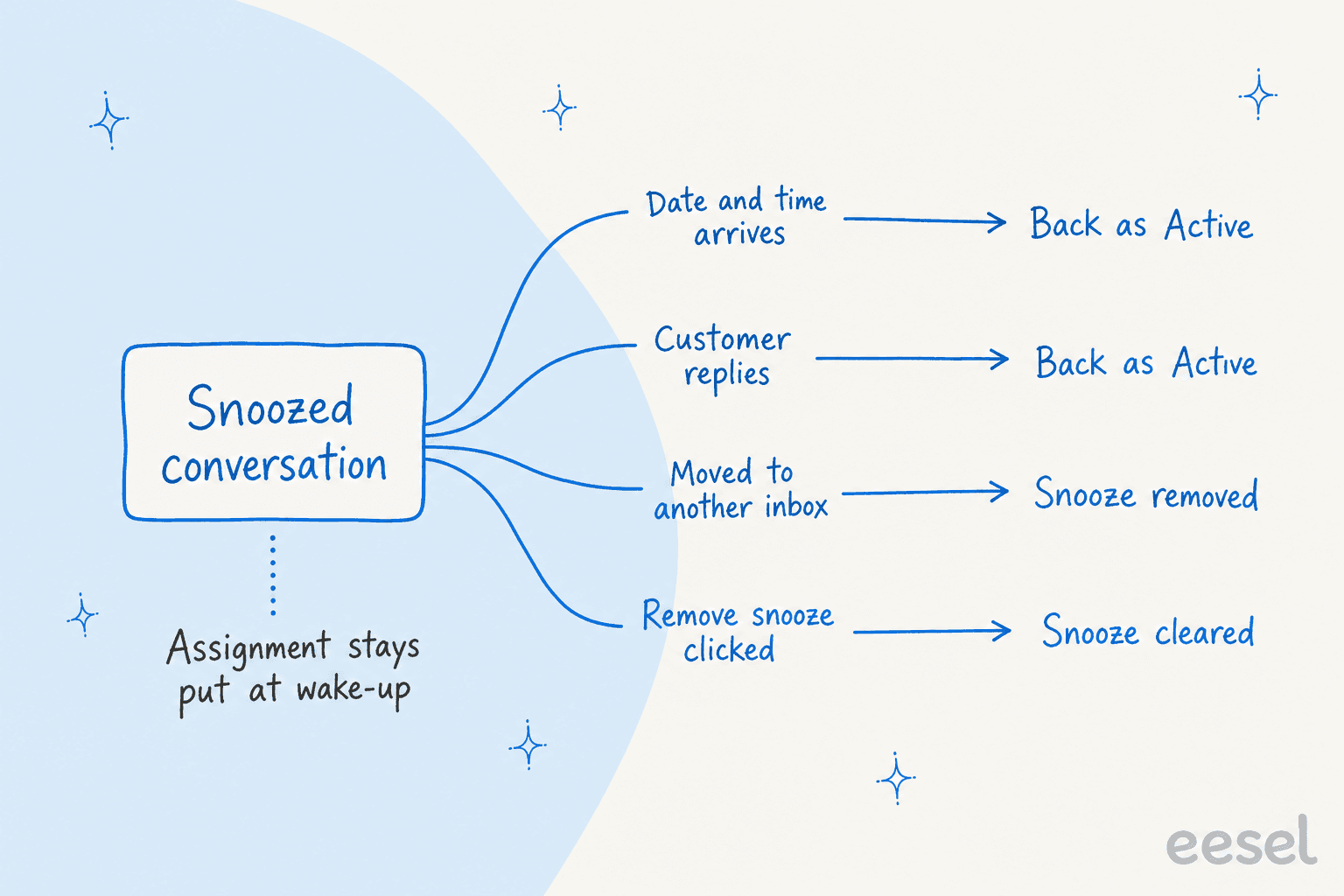
Pick a setting and an event below to see exactly what Help Scout's docs say happens.
What happens to this snoozed conversation?
1. Snooze setting 2. What happens nextThe widget's answers come straight from Help Scout's snooze guide; where the docs are silent, it says so instead of guessing.
How is snooze different from Pending, Closed, and Send Later?
Snooze is the only one with a clock. Help Scout has three statuses (Help Scout Docs):
- Active: the conversation is waiting for action.
- Pending: "waiting on something," such as a customer reply or more information.
- Closed: solved.
A reply from the customer on a Pending or Closed conversation flips it to Active. You cannot add custom statuses; Help Scout suggests tags for that.
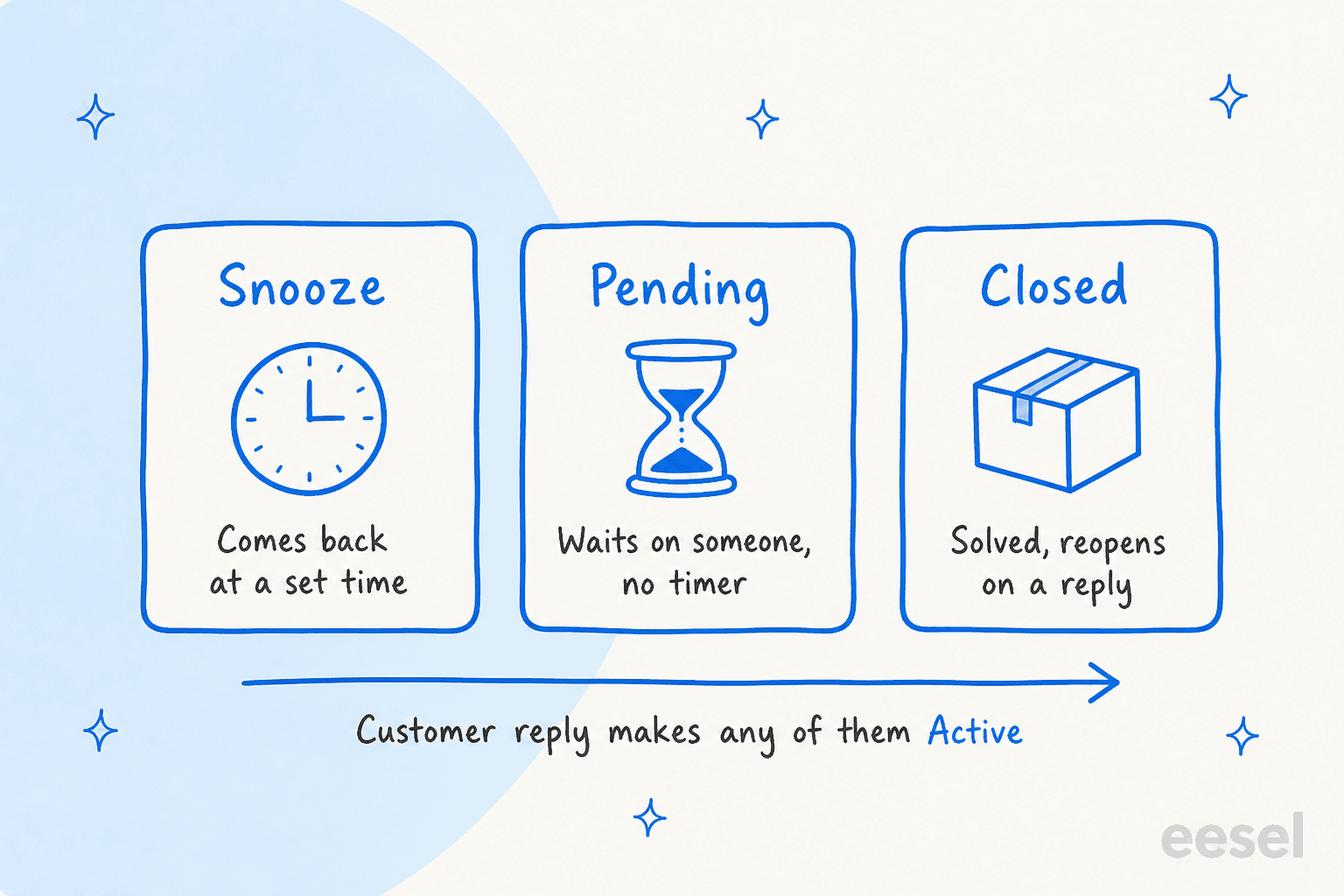
| Tool | Job | Has a timer? | What a customer reply does |
|---|---|---|---|
| Snooze | Come back to this at a set time | Yes | Sets Active; clears the snooze only with If no reply |
| Pending | Waiting on the customer or more info | No | Sets Active |
| Closed | Solved | No | Sets Active |
| Send Later | Send a written reply at a set time | Yes | With If no reply the schedule is cleared and the reply becomes an unscheduled draft |
Because they combine, I would use them as a pair: Pending plus Snooze for "I asked a question, chase me if they go quiet," and Active plus Snooze for "I owe them something on Thursday." Under default sorting, Active conversations appear in bold at the top and Pending ones appear after them, which means a Pending conversation with no snooze sinks quietly, and the snooze is what gives it a way back up.
Before built-in snooze, Help Scout pointed people to FollowUpThen, where you Bcc an address like 2d@followupthen.com for a two-day reminder. The doc now notes there is a built-in snooze that works "without a third-party service."
If you are weighing other helpdesks, the same reminder job shows up as Freshdesk reminders on pending tickets, and Freshdesk's ticket status codes are its version of the three statuses above. My Help Scout vs Front post compares how each tool handles waiting.
Does snooze pause response times or SLAs?
I could not find a Help Scout page that says it does. Here is what the relevant docs do say, so you can judge for yourself:
- In the Email report, response time "is only counted if/when you reply to the customer," and the doc lists what does not affect it: "Assigning, status changes, updating tags or adding notes." Snooze is not on that list (Reports: Email).
- A conversation counts as resolved only with "at least one User reply and a Closed status." Snoozing changes neither, so a snoozed conversation cannot count as resolved (Reports: Email). That matters if you track first contact resolution.
- SLA policies set two possible targets, First Response Time and Time to Resolution, measured in calendar hours or office hours (SLAs). The SLA guide and the SLA report do not mention snooze.
My reading: a docs page that is silent is not a promise. If a snooze sits on a conversation that carries an SLA, I would test it on one real conversation and watch the SLA column before I rely on it. The honest version for your policy document is "snooze is a reminder, not an SLA pause." For wider thinking on targets, my SLA best practices guide goes further. If you want a tool that pauses SLAs when a customer replies, see how Freshdesk pauses and resumes an SLA.
Can workflows, views, and the API see a snooze?
They can read it. Writing it is a different story. This is the table I wish I had when I first mapped Help Scout for an agent:
| Surface | What it can do with snooze | Source |
|---|---|---|
| Workflow conditions | Match on "Conversation is or is not snoozed" | Workflow conditions and actions |
| Workflow actions | No snooze action in the list (Change Status, Assign, Add Tag, Move to Inbox, and others) | Workflow conditions and actions |
| Inbox Views | Filter on Snooze "is set" or "is not set" | Inbox Views |
| API: get conversation | Returns a snooze object with snoozedBy, snoozedUntil, and unsnoozeOnCustomerReply, plus a nextEvent with eventType of snooze or scheduled | Get Conversation |
| API: update conversation | Valid paths are /assignTo, /draft, /mailboxId, /primaryCustomer.id, /status, /subject, so no snooze path | Update Conversation |
| API: list conversations | The status filter takes active, all, closed, open, pending, or spam, so there is no "snoozed" value | List Conversations |
| Webhooks | Events include status updated, customer reply, and agent reply; I found no snooze-specific event | Webhooks |
Three things I take from that. The API's unsnoozeOnCustomerReply flag is the machine version of the If no reply dropdown, so any tool that reads conversations can tell which mode a snooze is in. A script cannot set a snooze through the documented update paths, so snoozing stays a human action. And a workflow that moves a conversation to another inbox will clear its snooze, as noted above. Help Scout also states that workflows run only once on any given conversation, which is worth remembering before you build a "snoozed too long" workflow; a saved view is the better fit. For the developer side, my Help Scout API guide goes deeper, and the Help Scout integrations list shows what connects.
How do you stop conversations from getting snoozed and forgotten?
Nothing in the docs describes a reminder for a snooze that nobody picks up after it fires, and a long If no reply snooze hides the conversation from Mine until then. These habits close the gap. Set them up once and the folder stays honest.
- Pick the mode on purpose. Default to Regardless when you owe the customer a follow-up. Keep If no reply for "chase if quiet."
- Write the note and set the owner every time. It takes ten seconds and answers "why is this here?" six weeks later.
- Build one view for snoozed work. A view needs an Administrator or Account Owner. Create "Snoozed, quiet" with Snooze is set, status Active or Pending, and a Last Updated or Waiting condition set to something like 7 days. Help Scout's view conditions include Last Updated, Waiting, Last User Reply, Last Customer Reply, and Waiting on Customer (Inbox Views). Views become inaccessible if an inbox has more than 10,000 active or pending conversations, so keep the queue lean.
- Review Later once a week. Open the folder, remove every snooze that no longer has a reason, and re-snooze the rest with a shorter date.
- Cap the horizon. I would not snooze past two weeks without a note that says what changes on that day. Anything longer belongs in a task tool, a tag, or an escalation process. Zendesk teams do the same with multi-step reminders before closing stale tickets.
- Watch the wake-up, not just the sleep. The conversation returns as Active and can land back at the bottom of a busy queue. Assign it and tag teammates in the snooze note so the follow-up has a name on it. My support shift handoff guide covers the same idea for changes of shift.
A few of these overlap with how I think about backlog in general, which I wrote up in reducing a ticket backlog. If your snoozes pile up because every conversation needs a person, the better question is which ones need a person at all.
What do Help Scout users say about snooze?
Reviews mention snooze in passing, which says something about how routine it is. A Verified user on G2 listed it alongside assignment and scheduled messages:
"The snooze option also helps with following up with the client, and we can schedule messages as well. We can keep the conversation marked as active, pending, or closed to keep track of issues."
Verified user, G2, computer software, January 2026

That matches the way the feature is built: snooze handles the "when," and status handles the "who is waiting." They work as a pair, which is why I would document both in your team's playbook instead of teaching one.
How can eesel work with snoozed conversations in Help Scout?
eesel is an AI helpdesk teammate that works inside the Help Scout mailbox. It reads your Docs site and past conversations, then drafts replies, leaves internal notes, adds tags, or updates a conversation's status, assignee, mailbox, or subject (eesel Help Scout docs). Help Scout's own AI features are covered in my Help Scout AI overview. What I want to be plain about here is what eesel does not do around snooze:
- It has no snooze action. The documented Help Scout actions include Leave draft reply, Send reply, Leave internal note, Update conversation, Add or Remove tags, and several look-ups, but nothing that sets or removes a snooze. That matches the Help Scout API, where the update paths do not include one.
- A customer reply on a snoozed conversation is a normal trigger. The "customer sends a message" trigger fires when a customer replies on a conversation in any mailbox, and the docs do not carve out snoozed ones. I would confirm this on one test conversation.
- Moving a conversation has a side effect. Update conversation can change a conversation's mailbox, and Help Scout removes a snooze when a conversation changes inbox. If an automation moves things around, keep that in mind.
- Look-ups can find quiet conversations. eesel's List conversations action searches by mailbox, folder, status, tag, assignee, search text, and creation or update date. The docs do not list a snooze filter, so a sweep would key on status, tag, and last update.
The closest real example I have is on a different helpdesk, so I will say so. Cape Coffee Beans runs eesel on Zendesk, and every morning it sweeps for the same kind of dropped ball this post is about: "pending tickets with no follow-up date set," along with tickets missing a group and enquiries on the wrong form. It emails the founder a short list with a link to each ticket, and the sweeps are read-only. In the month from 8 August to 8 September 2026 eesel ran about 160 scheduled checks for them, and the team called it into 23 Zendesk tickets by hand. That setup is the pattern I would copy for a Help Scout mailbox: a scheduled automation that lists Pending and quiet conversations by last update and leaves a note or emails you the list. eesel's automations support time-based triggers, and the Help Scout look-ups above are documented, but I have not seen a Help Scout customer run exactly this sweep, so test it in the trial first.
Pricing is simple enough to check before you start. A ticket or chat is 1 credit, plans begin at $299 a month for 500 credits, and the free trial gives you 100 credits for 7 days (eesel pricing). If you are comparing options for Help Scout, my best AI for Help Scout roundup lays out the choices.
For the sorting side, see AI triage for Help Scout, and for setup, adding AI to Help Scout.
Common mistakes with Help Scout snooze
- Leaving the default on for promised follow-ups. If no reply hides the conversation from Mine and Assigned. Use Regardless when you owe the customer something on a date.
- Snoozing without a note or an owner. The note is the only memory the conversation has of why it was parked.
- Assuming a snooze pauses an SLA. The docs do not say it does. Test before you promise it.
- Moving a snoozed conversation and expecting the timer to survive. A move to another inbox removes the snooze.
- Treating Pending as a reminder. Pending has no timer. Add a snooze if you need the conversation to come back, or borrow the no-reply pattern from Gorgias follow-up automations.
- Expecting an automation to set snoozes. Neither workflows nor the documented API update paths set one, so snoozing is manual.
- Letting Later grow forever. A weekly review takes ten minutes and keeps the folder meaningful. If your team is outgrowing this kind of manual upkeep, my Help Scout alternatives list shows how other tools handle waiting conversations.
Try eesel with your Help Scout mailbox
If your snoozes pile up because every conversation waits on a person, eesel for Help Scout is the helpdesk teammate I would try first. It joins your mailbox, learns from your past conversations and Docs site, and leaves drafts for your team to send, so fewer conversations need parking in the first place, which is the idea behind ticket deflection. Start with Leave draft reply and keep Send reply off until you trust the answers.
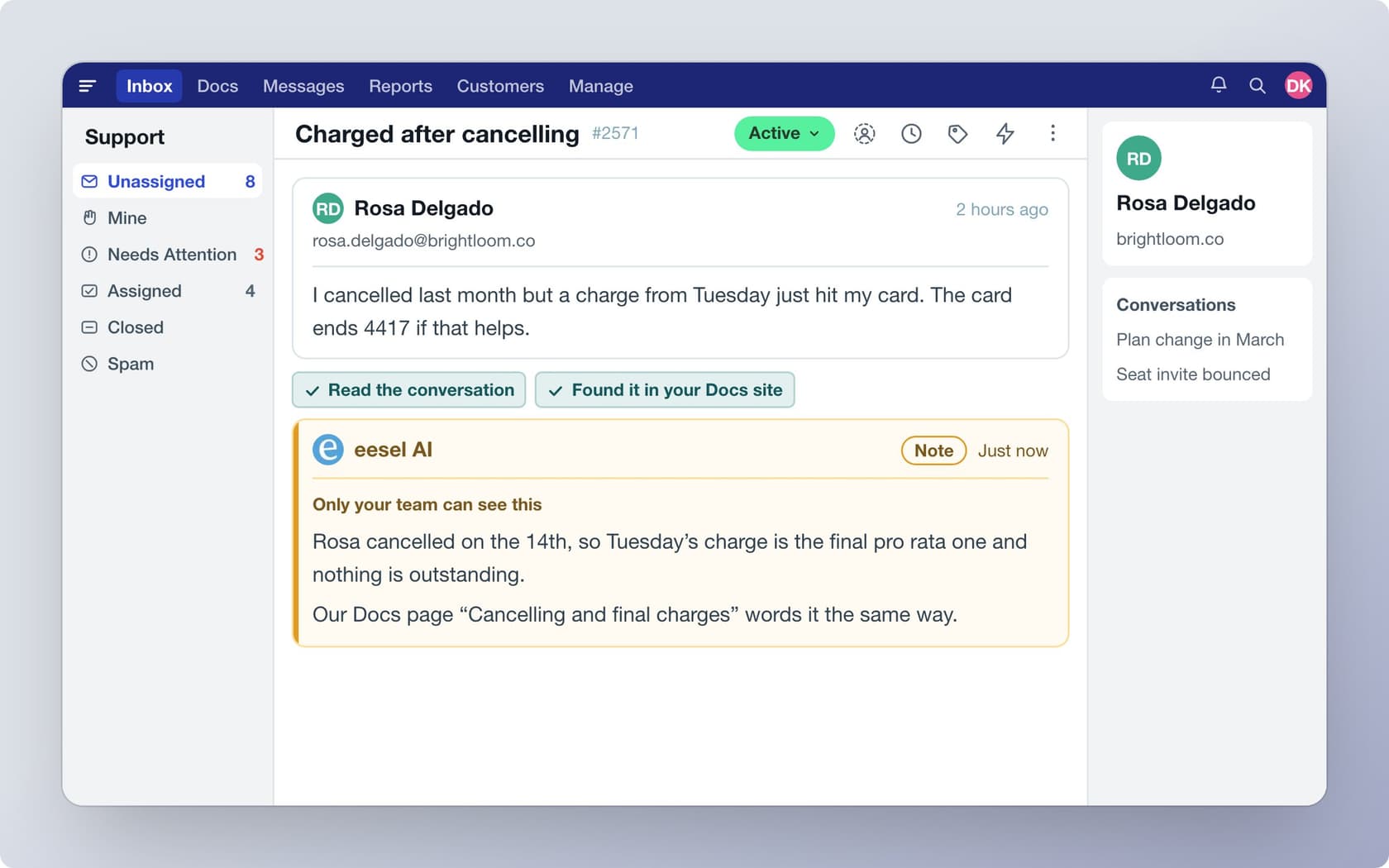
Connecting the mailbox needs a Help Scout admin or account owner to click Authorize in the browser, and eesel's work shows under the name of the user who connected it, so many teams create a separate user for it. You can try eesel with 100 free credits and run it against your own past conversations before you decide. For the rest of the toolkit, see my notes on saved replies management and AI auto replies.
Frequently Asked Questions
How do I snooze a conversation in Help Scout?
Does snoozing change the status of a Help Scout conversation?
What happens when a customer replies to a snoozed Help Scout conversation?
Where do snoozed conversations go in Help Scout?
Can I snooze Help Scout conversations with a workflow or the API?
snooze object while its update endpoint lists no snooze path. My Help Scout API guide covers what the API can do, and ticket deflection covers reducing the queue instead.