Help Scout collision detection: how it stops double replies

Riellvriany Indriawan

Katelin Teen
Last edited November 6, 2026

Help Scout collision detection shows a yellow dot when a teammate is viewing a conversation and a red one when they are replying or adding a note, and it pauses your reply if someone else posted, or the customer wrote back, since you opened it. It is automatic on every plan, and it is a warning with a Send option, not a lock. To keep an AI teammate from racing your team, I would run eesel for Help Scout on Leave draft reply, so its drafts wait for a person.
If you work a shared queue, you know the sinking feeling of seeing a second reply land under yours. I take support questions most days, and eesel has spent years putting AI on live support queues, where "who answers this?" is the question everything else depends on. This guide walks through what Help Scout's own collision detection doc says, where it stops, and how to close the gaps. If you drive eesel from Claude Code, Codex or Cursor, the eesel CLI can upload approved knowledge and run test questions before an AI teammate touches a real conversation, though connecting the mailbox still needs a Help Scout admin to approve it.
What does Help Scout collision detection show?
It shows who else is in a conversation, in real time, in two places. In a folder view, a small corner icon appears on a conversation when a teammate is viewing it (yellow) or actively replying or adding a note (red), and hovering shows their name. Inside the conversation, avatars of everyone present sit across the top, with a red circle around the person replying or leaving a note.
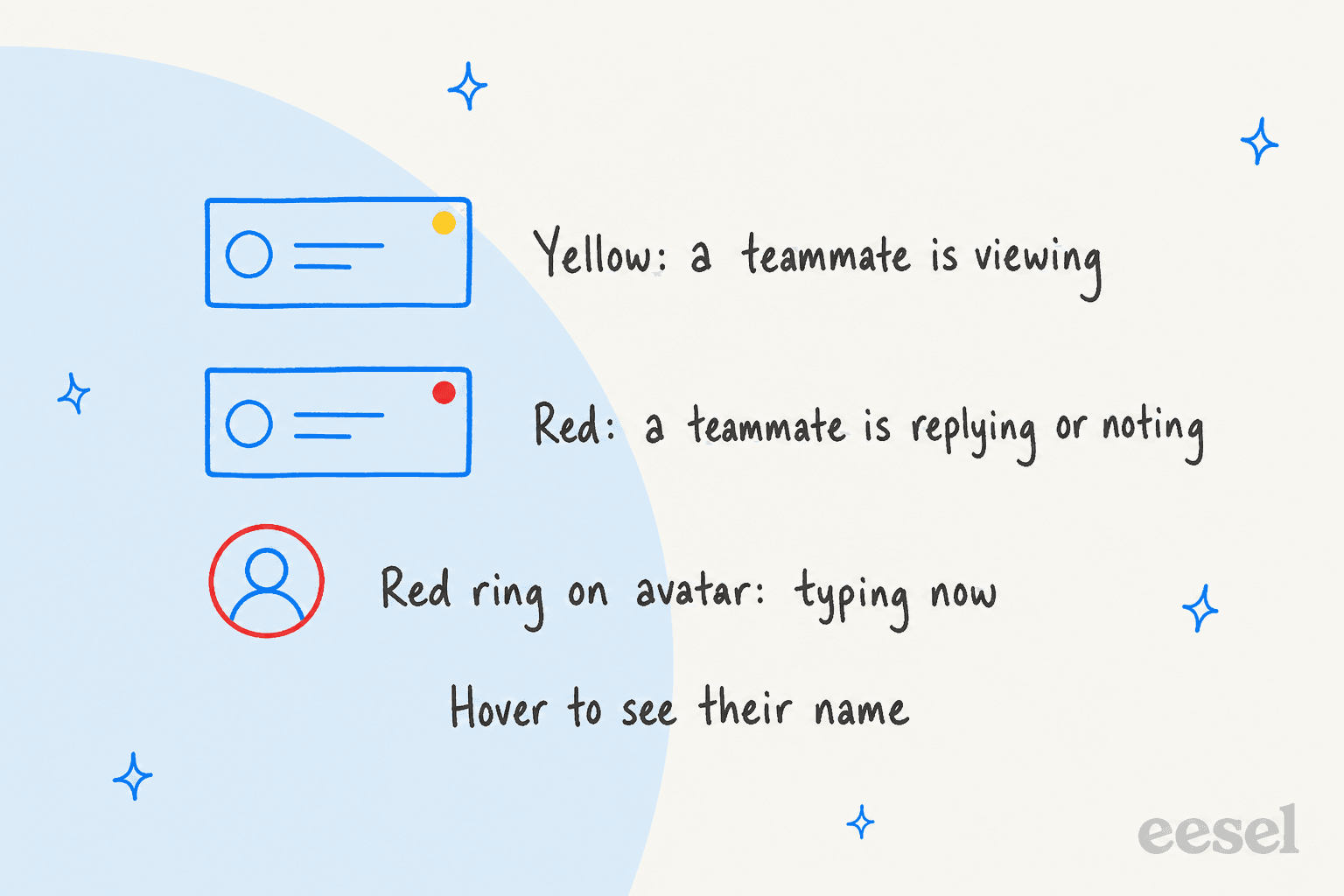
Help Scout's guide to collaborating in the inbox adds one detail that matters: the drafted reply of the teammate who is typing is visible to you. So you can see not only that someone is on it, but what they are about to say.

What stops two replies from going out?
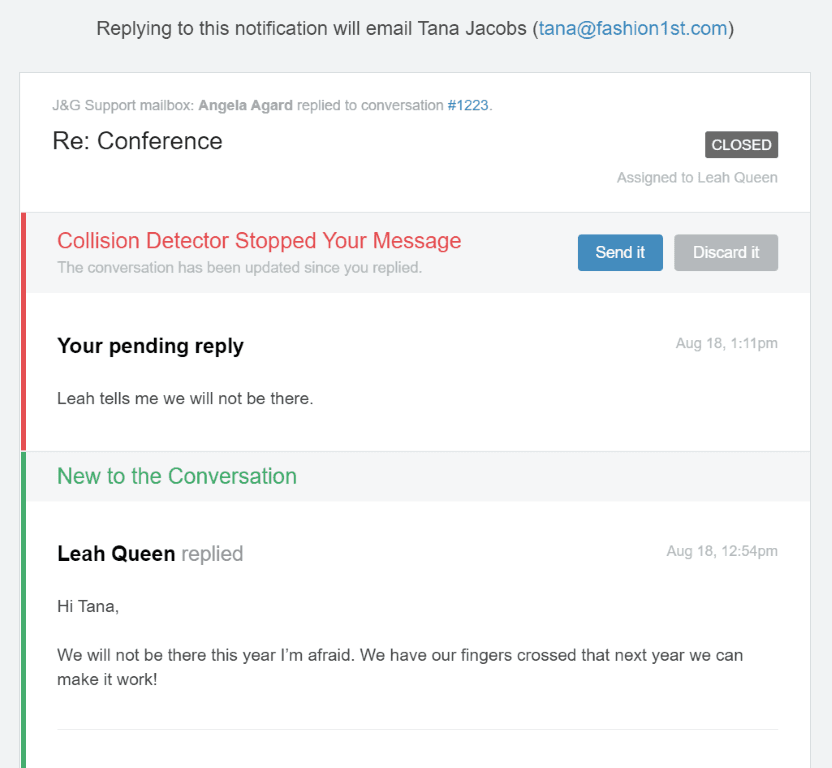
A check at send time. Help Scout stops a reply from going out when another reply or note was added by another user, or a new customer reply arrived that you have not seen. The doc names two cases: a reply sent from the web app without refreshing to see the latest, and a reply to an email notification generated before the latest reply or note.
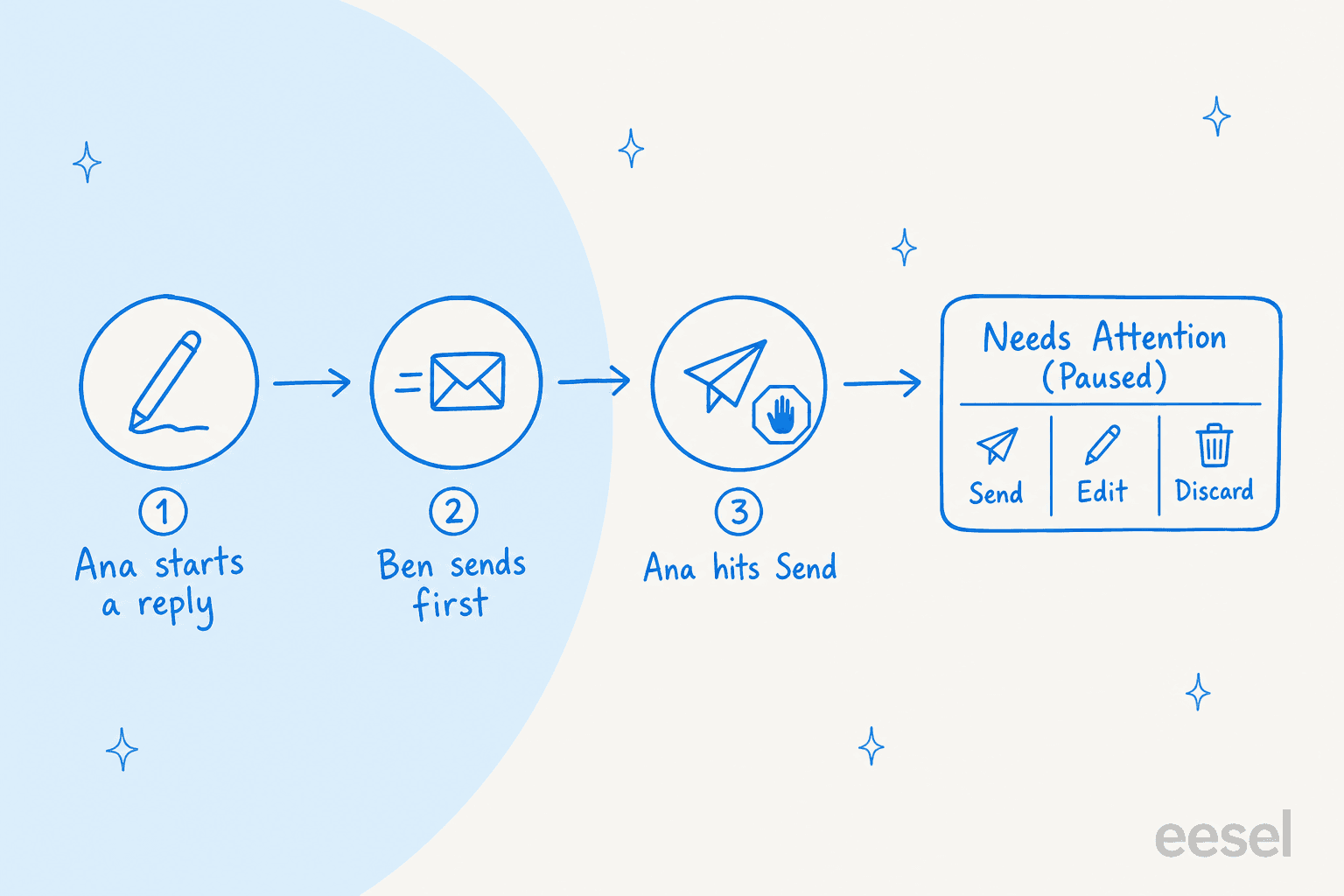
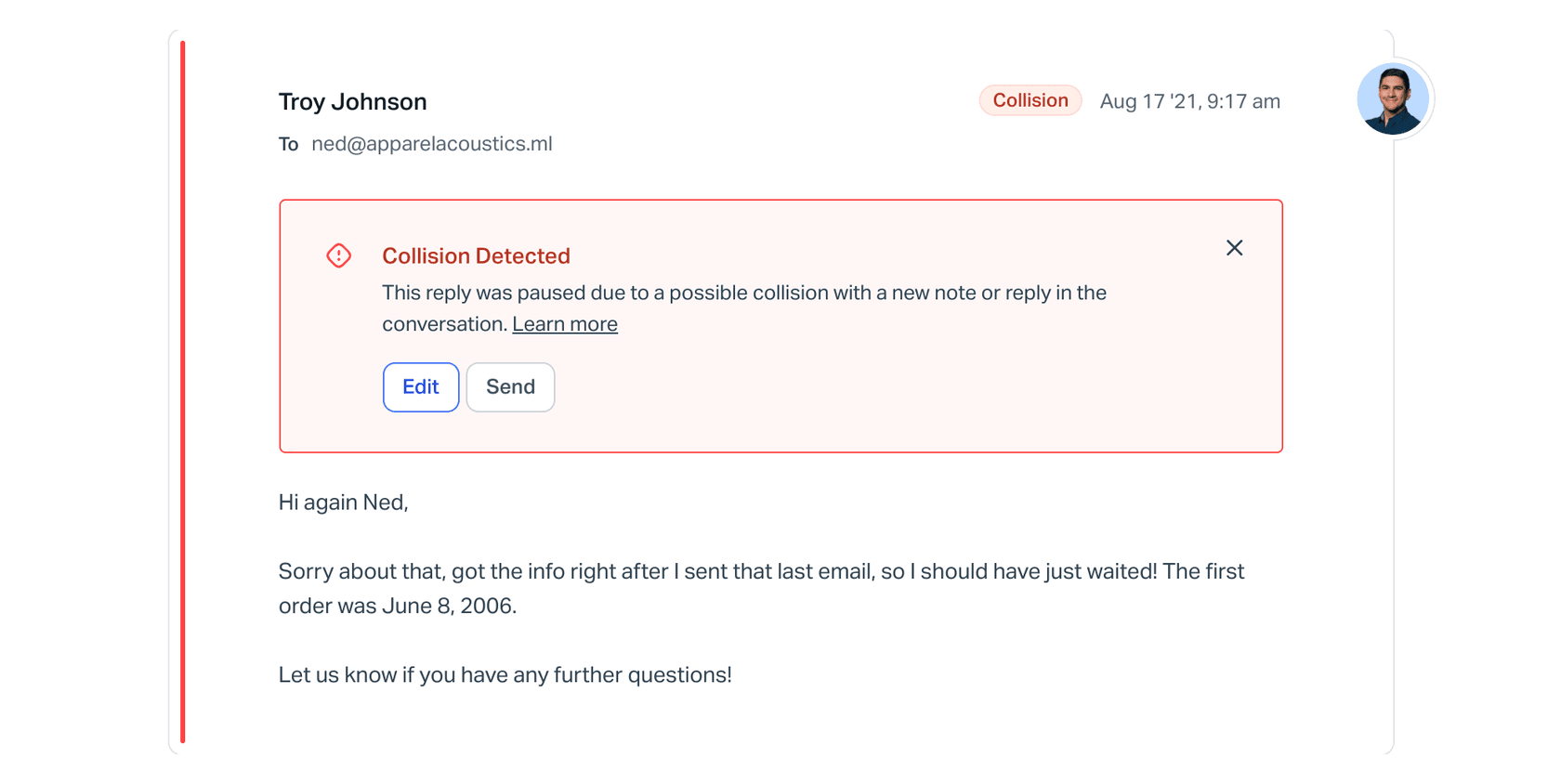
The stopped reply is copied to the Needs Attention folder with a status of Paused. Open it and the thread has a red border and a notice that the reply was paused due to a possible collision. You then click Send to send it as is, Edit to change it, or the X to delete it.

If you were replying to an email notification, Help Scout emails you the new reply and offers Send it or Discard it right from the message.
Is Help Scout collision detection the same as a lock?
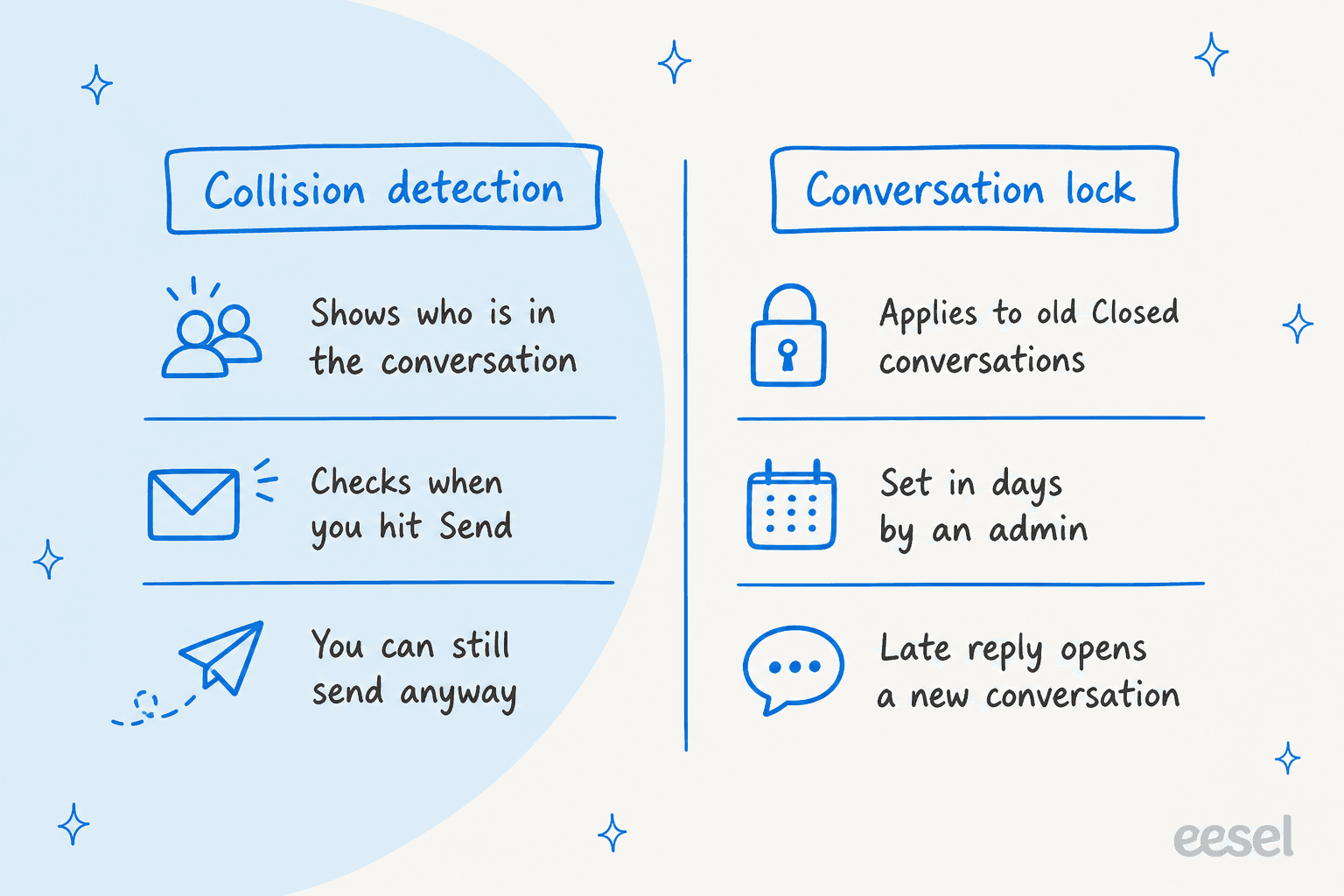
No, and this is the distinction I would put on your onboarding sheet. Collision detection is a visible warning plus a send-time check, and a paused reply can still be sent. Nothing prevents a second person from opening the conversation and typing. Help Scout also has a feature literally called Conversation Lock, but it does something else: an admin sets a number of days, and a customer reply to an older Closed conversation after that opens a brand new conversation. Setting it to 0 turns it off.
| Question | Collision detection | Conversation Lock |
|---|---|---|
| What does it do? | Shows who is viewing or replying, pauses a stale reply | Opens a new conversation when a customer replies to an old Closed one |
| Who controls it? | Automatic on all plans; Help Scout support can disable it on request | Admins, under Settings > Company |
| Does it block a person? | No, the paused reply can be sent | Not a person; it only redirects a late customer reply |
| Source | Collision detection | Conversation lock |
One more fair note from the lock doc: Help Scout automatically locks conversations with more than 100 threads, and you continue on a new conversation after that.
Do assignment and status change how collision detection works?
Not in anything Help Scout documents. The assignment guide says conversations can be assigned to every role except Light Users, and that you cannot restrict users to viewing only their own: every user can view all conversations in inboxes they have access to, including ones assigned to others. You can assign right as you send a reply or add a note, and the assignee updates at the same time.
So assignment is a social signal, not a gate. The collision doc lists replies, notes and unseen customer replies as the triggers. It does not list a status change, a tag, or an assignment change, so I would not count on those being caught. If you want a firmer claim than a yellow dot, assign the conversation to yourself first. For routing that does it for you, see my notes on automatic ticket assignment and ticket triage.
What about the mobile app and email notifications?
Email notifications are covered in the docs: replying to a notification generated before the latest update gets stopped, and Help Scout notes that only the person who received a notification can reply to it. The mobile app guide lists replying, notes, assigning and snoozing, but it does not describe the collision indicators, so I cannot tell you how they look on a phone. Treat the desktop behavior as the documented one. Notes also have a limit worth knowing: the reply editor keeps drafts, but there is no draft option for notes.
Who should reply? A quick decision tree
Most collisions are a judgment call at the moment you see an indicator. I built this from Help Scout's docs so a new agent can walk it in ten seconds; where the docs are silent, it says so instead of guessing.
What do Help Scout users say about it?
The praise is practical. One G2 reviewer scoring Help Scout 5 out of 5 singles it out among the day-to-day basics:
"There is also collision detection to help prevent double replies by alerting if another agent is typing."

That matches the design: it alerts, it does not block. It is a good fit for small and mid-size teams who want an email-like shared inbox, as I cover in my Help Scout review, and a reason some teams compare it with Front or Zendesk.
How do you reduce collisions in practice?
Four habits do most of the work, and none needs an admin.
- Look before you open. Scan the folder view for yellow and red dots, and hover to see who it is.
- Claim by assigning. Assign to yourself, or use the assign option in the reply box, so the claim is visible in the Assigned and Mine folders.
- Use notes for extra facts. If a teammate is replying, add an internal note rather than a second reply.
- Refresh before you send on a long-running draft, since the stale-reply case is exactly what the check catches.
For handoffs between shifts, my notes on shift handover and SLA management go further, and the snooze guide covers conversations parked out of sight.
How does an AI teammate fit with collision detection?
An AI agent is one more "person" who could reply, and the doc's examples are about people on the web app and email notifications. I would not assume an AI action is protected by the same check, because the doc does not say. The safe design is to remove the race: have the AI leave a draft, and let a person send.
That is how eesel for Help Scout is built. Per eesel's Help Scout docs, Leave draft reply saves an unsent reply in the conversation's reply box for a teammate to review, edit and send, Send reply always sends and cannot be recalled, and the draft shows under the name of the user who connected eesel, so many teams create a separate user for it. I cannot confirm how a saved draft appears in Help Scout's viewing indicators, so test that on your own mailbox.
The same pattern works outside Help Scout. Cape Coffee Beans runs eesel on Zendesk, not Help Scout, and the team calls it into tickets with an @mention. Over one month it was called into 23 tickets and answered as an internal note, not a customer reply. The point carries over: an AI that writes notes or drafts cannot double-reply.
For more on why, read my guides to AI agent handoffs, approval workflows and AI draft replies in Zendesk.
Common mistakes with Help Scout collision detection
- Treating a yellow dot as a claim. Yellow only means viewing. Red, or an assignment, is the claim.
- Hitting Send on a Paused reply without reading the new one. Read the other reply first. Sometimes the right move is the X.
- Assuming a lock exists. There isn't one, and Conversation Lock is a different feature.
- Disabling it to stop nuisance pauses. Help Scout recommends keeping it on; fix the habit instead.
- Letting automation send directly. Start with drafts, and compare with other tools, for example Freshdesk's version or AI agent assist tools.
Try eesel with your Help Scout mailbox
If your team keeps colliding, the fix is fewer people racing for the same easy conversation. eesel for Help Scout joins your mailbox as an AI helpdesk teammate, learns from your Docs site and past conversations, and leaves drafts your team reviews and sends, so it adds speed without adding a second voice. See what AI for Help Scout and the best AI options look like, then start with Leave draft reply and keep Send reply off until you trust the answers.
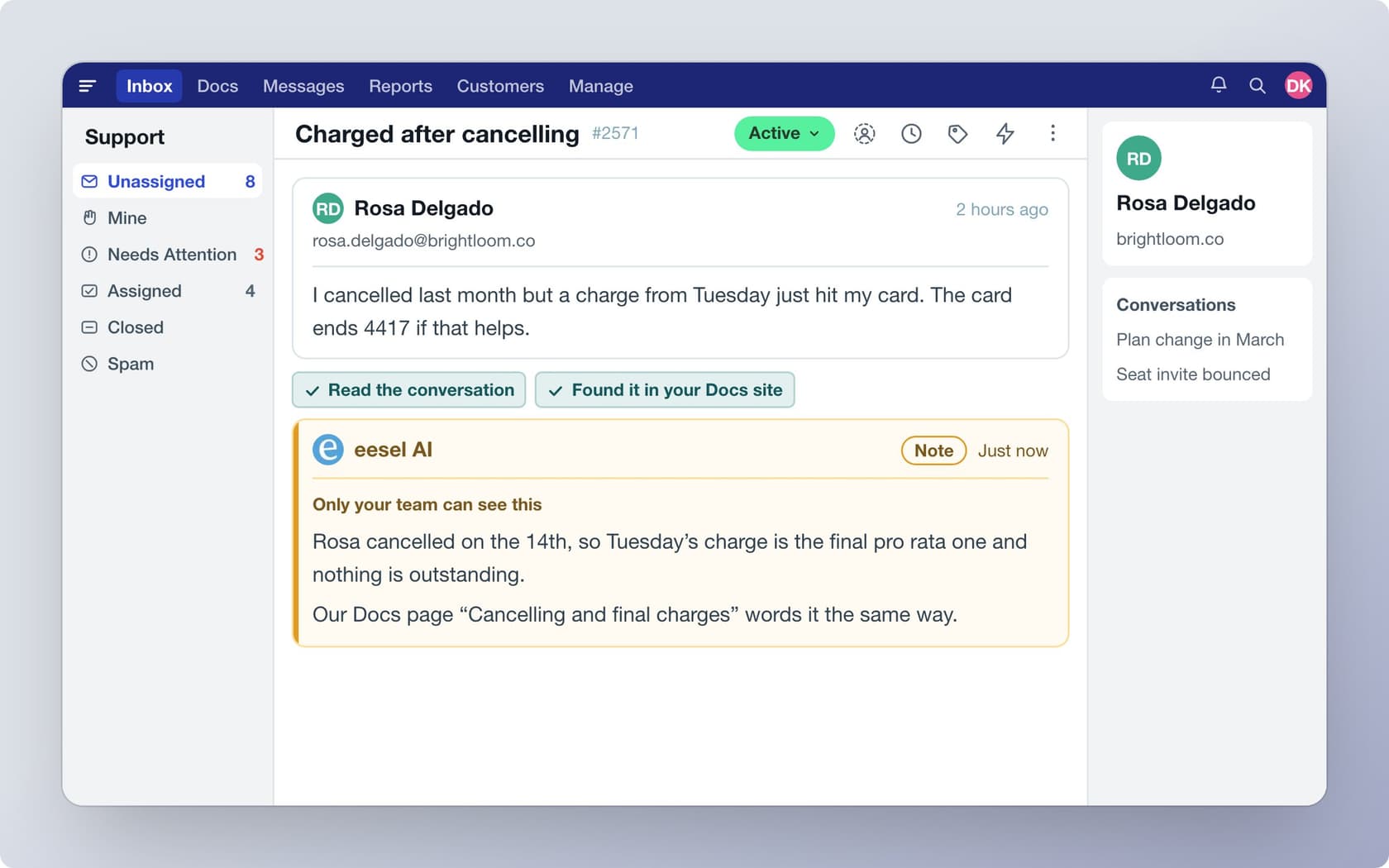
Connecting needs a Help Scout admin or account owner to click Authorize, and you can try eesel with free credits to run it on your own past conversations first.
Related reading: chatbot for Help Scout, deflection and saved replies.