Help Scout saved replies management: create, organize, and audit them

Riellvriany Indriawan

Katelin Teen
Last edited November 5, 2026

Good Help Scout saved replies management is less about writing replies and more about keeping them true. Help Scout has no folders, no shared library across inboxes, and no usage view inside the saved replies page, so three habits do the work: a numbered name prefix that acts as your folder, one owner for every reply copied between inboxes, and a quarterly audit built from the report export that lists which saved replies each conversation used. When a reply changes, change the matching Docs article too, because Scout answers from Docs, not saved replies. eesel drafts in Help Scout from your past conversations and Docs, and the eesel CLI lets a coding agent upload an exported saved-reply file and test answers before launch.
What are saved replies in Help Scout?
A saved reply is a snippet of text your team drops into the editor instead of typing the same answer again. Help Scout's own definition: a reply for issues that "require a standard or simple response" (Help Scout Docs). Other helpdesks call the same thing macros or canned responses.
I work eesel's support queue every day, and the pattern I see with canned answers is always the same: writing them is easy, and keeping them accurate is the actual job. A refund window changes, a shipping partner changes, and the saved reply keeps quietly sending the old version. On a sales call, one direct-to-consumer brand handling about 7,000 tickets a month told our team its knowledge lived in SOP docs, unrecorded videos, and "many outdated macros". That is the normal state of a library nobody owns.
A few facts set the rules for everything that follows:
- Who can create them: every user can save a reply from the conversation editor (Help Scout Docs).
- Who can edit or delete them: Account Owners and Administrators by default. Regular Users "cannot manage workflows, custom fields, or saved replies" unless an admin grants the Manage saved replies permission (user roles and permissions).
- Where they live: inside each inbox's settings, under Saved Replies.
- Free plan limit: up to
10saved replies on the Free plan. Paid plans start at$25per user per month on Standard (Help Scout pricing), and my Help Scout pricing post walks through the tiers. - Attachments: images only. Other files have to be links, and "that will be the same link that goes out to everyone that gets that saved reply" (Help Scout Docs).
That permission split matters. Anyone can add to the library, but only a few people can clean it up. Without an owner, the list only grows. If you are still deciding whether Help Scout fits your team, my Help Scout review and the Help Scout vs Front comparison cover the bigger picture.
How do you create a saved reply in Help Scout?
There are two ways in. The editor route is fastest for capturing a good answer while it is fresh. The settings route is the one to use for anything you want reviewed first.
From a conversation (any user):
- Write the reply in the editor.
- Type
/or click Insert to open the shortcut menu. - Choose Saved Reply > Save this reply.
- Name it, edit if needed, and click Save Reply.
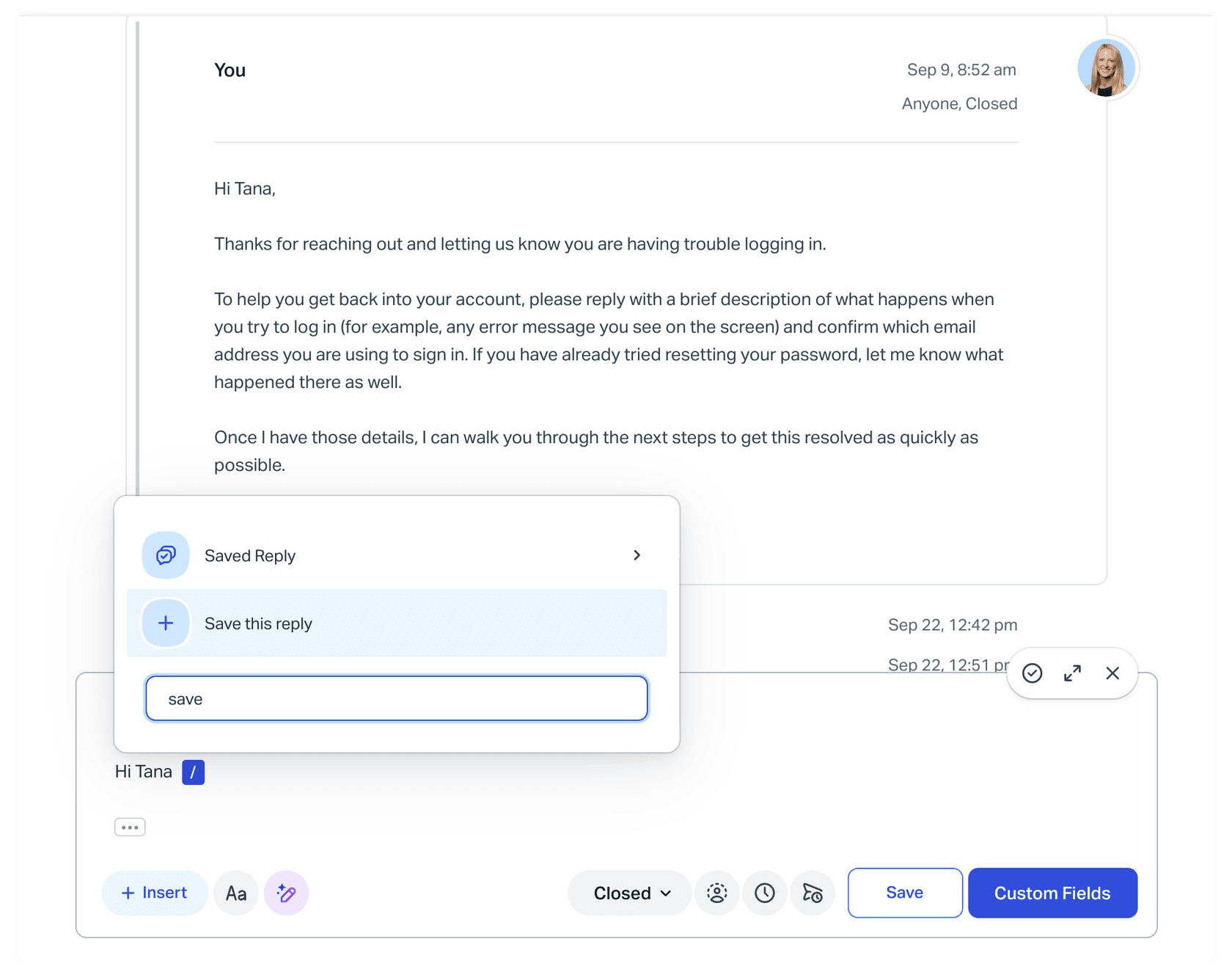
From inbox settings (admins and users with permission):
- Go to Settings (gear icon) > Inboxes, pick the inbox, and click Saved Replies in the sidebar.
- Click New Saved Reply.
- Give it a name, write the email version, and add a chat version if chat is on for that inbox.
- Click Save Reply.
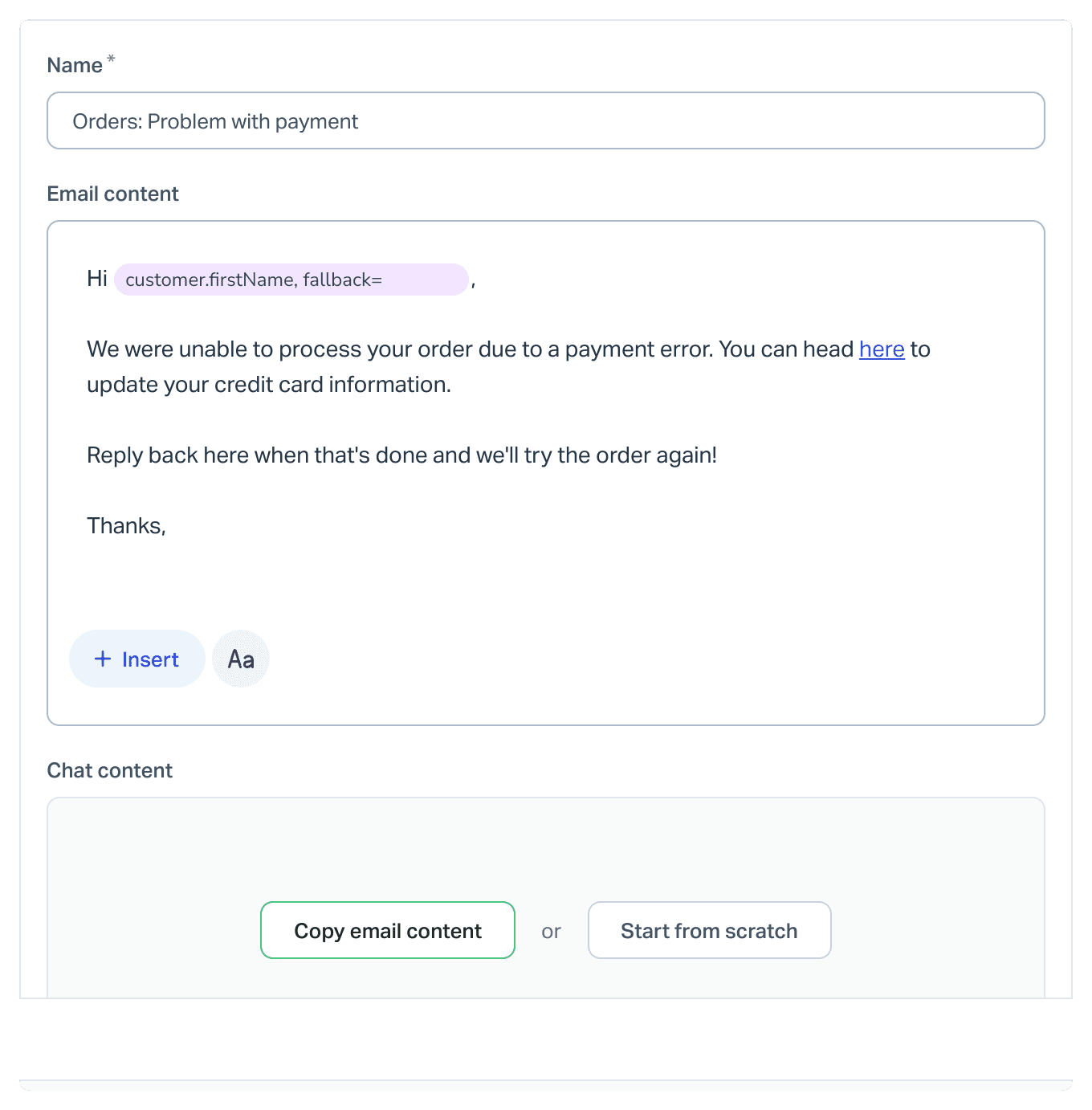
The chat version is a separate field, and it is plain text only. Clicking Copy email content keeps variables and line breaks, but "HTML, pre-formatted code, and inline images will be removed, and any URLs will be shown in full" (Saved Replies for Chat). So a reply with a neat "click here" link turns into a raw URL in chat. Read both versions before you save. AI Assist can also fix spelling, change tone or length, or translate a reply you save from a conversation on Plus and Pro (Help Scout Docs), and my Help Scout translation guide covers multilingual inboxes.
On formatting, the settings editor supports a short list of Markdown (bold, italics, strikethrough, inline code, quotes, and lists), plus the slash menu for images, tables, and variables. Help Scout says plainly that "no other Markdown is supported at this time" (Help Scout Docs). If your team also writes customer service email templates in a doc somewhere, strip the headings before pasting them in.
How do variables keep a saved reply from going wrong?
Variables fill in customer, user, and inbox details when the reply is sent. They sit between {% and %}, like {%customer.firstName%} (Work With Variables).
The one habit that saves you from embarrassing emails is the fallback. Some customer profiles only have an email address, so Hi {%customer.firstName%}, becomes Hi ,. Write it as {%customer.firstName,fallback=there%} and the customer with no name on file gets "Hi there," instead.
Not every variable works in saved replies. Here is what Help Scout's table allows:
| Variable | Works in saved replies? |
|---|---|
customer.firstName, customer.lastName, customer.fullName, customer.email | Yes |
customer.id | No (auto reply only) |
user.firstName, user.fullName, user.email, user.jobTitle, user.phone, user.pronouns | Yes |
conversation.number | Yes |
conversation.subject | No (auto reply only) |
mailbox.name, mailbox.email | Yes |
| Ratings variables | No (ratings only) |
Source: Help Scout's variable list.
Variables print the field exactly as stored. If a teammate's phone number is saved as 555.658.4555, that is what goes out, and there is "no method to alter the text within the variable using the templates" (Help Scout Docs). Fix the profile field, not the reply. The same placeholder logic shows up in Freshdesk dynamic fields, so this habit carries over if you ever switch tools.
How should you organize saved replies without folders?
Help Scout shows saved replies "in alphanumeric order, both in the saved reply menu in the conversation editor and the settings page," and "there's no option to manually rearrange replies" (Help Scout Docs). So the name is your only folder. Help Scout's own advice is to use numbers to control order and a shared group name so searching the prefix returns just that group.
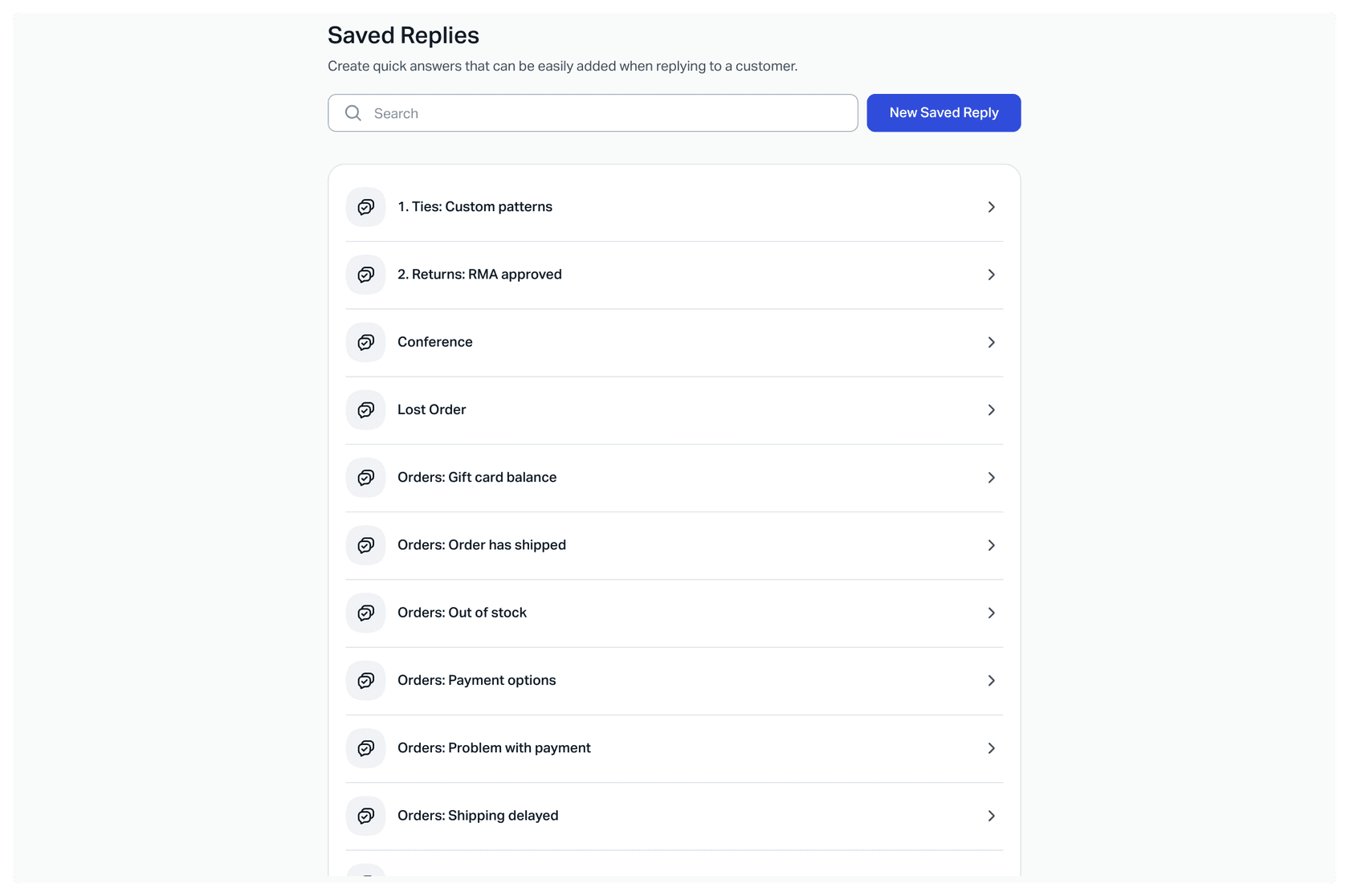
The naming scheme I'd set on day one:
- Two-digit topic number, topic, dash, case.
01 Billing - Refund window,02 Shipping - Damaged item. The number keeps your most-used topics at the top, and two digits stop10sorting before2. - One topic list for every inbox. If
02means Shipping in one inbox, it means Shipping everywhere. - A parking prefix instead of instant deletes. Rename a reply you think is dead to
zz OLD - .... It drops to the bottom, agents stop picking it, and you can still restore the wording if someone asks for it next week. - Say the situation, not the answer. "Refund window" ages better than "Refund within 30 days", because the number lives in the body where you will update it.
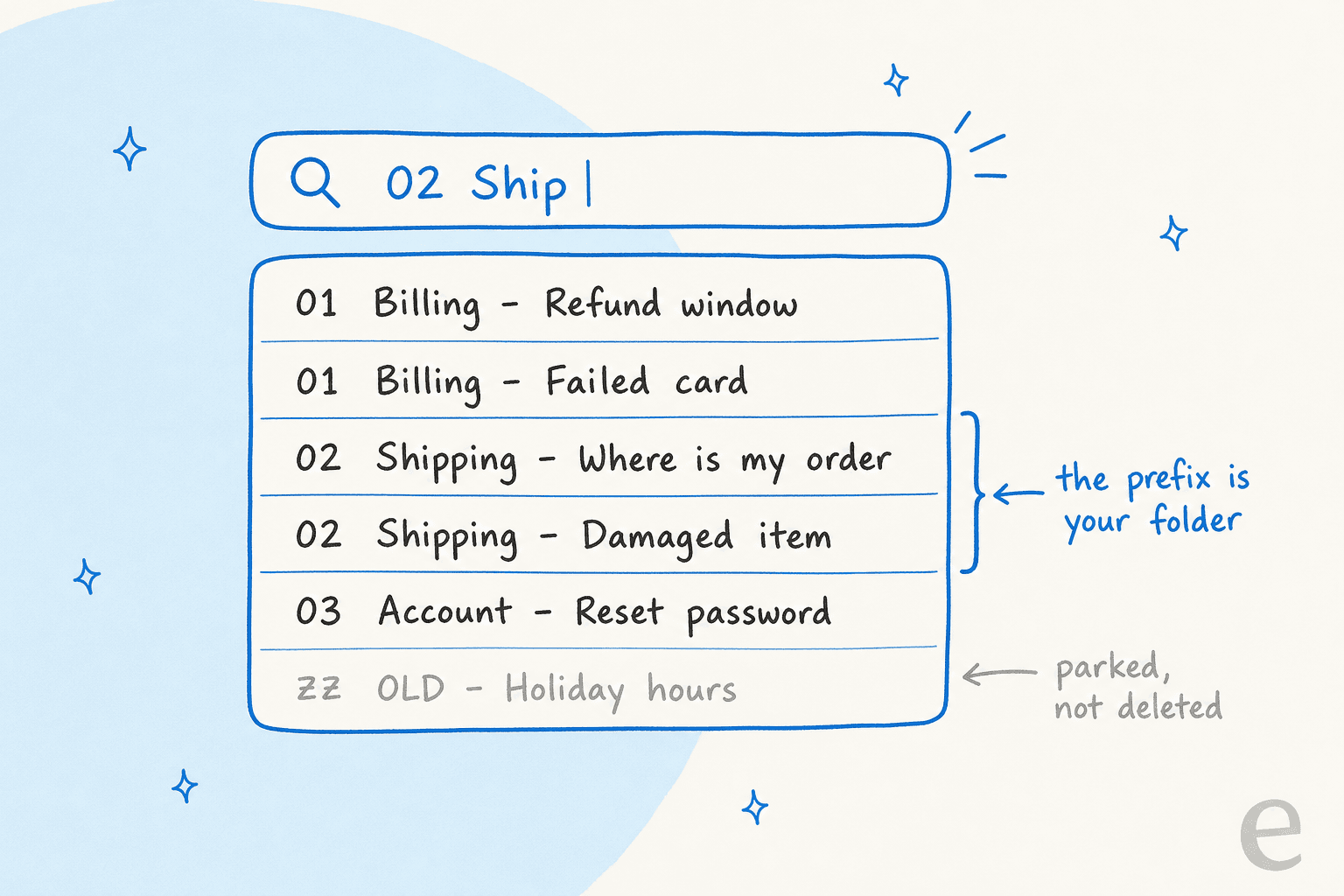
Agents get to the list faster with keyboard shortcuts: Cmd + Shift + S toggles saved replies in the editor, and the arrow keys select from search results (Keyboard Navigation). A prefix scheme pays off most here, because typing 02 and two arrow presses beats scrolling, and it is one of the cheapest ways to reduce handle time.
What happens when you copy saved replies across inboxes?
Saved replies belong to one inbox. To reuse one, you open it, click Copy in the bottom right corner, and choose the target inbox (Help Scout Docs).
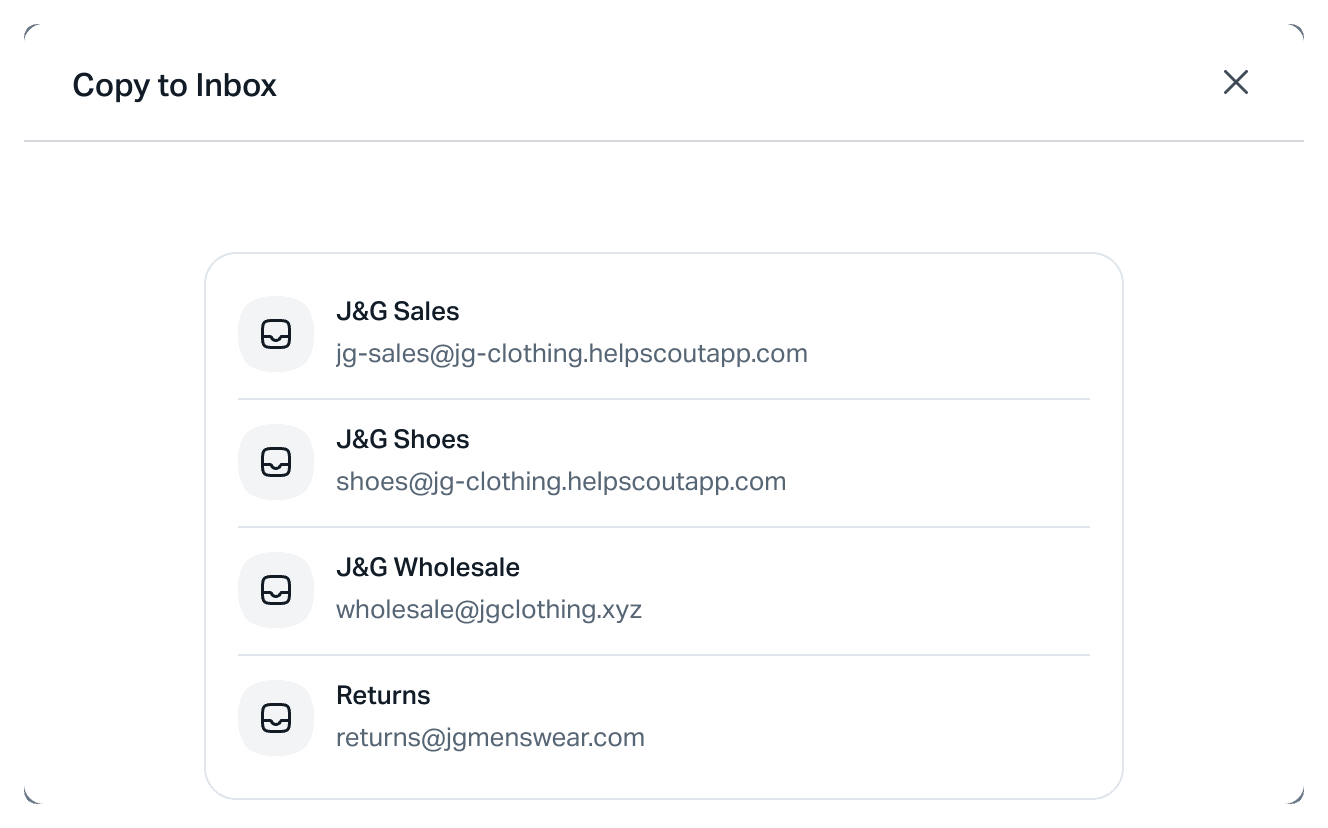
That creates a second, separate reply. Help Scout's docs describe copying, not syncing, and nothing in them links the two copies afterwards. So when the refund policy changes and someone edits the Billing inbox version, the Sales inbox version keeps the old answer until somebody remembers it exists.
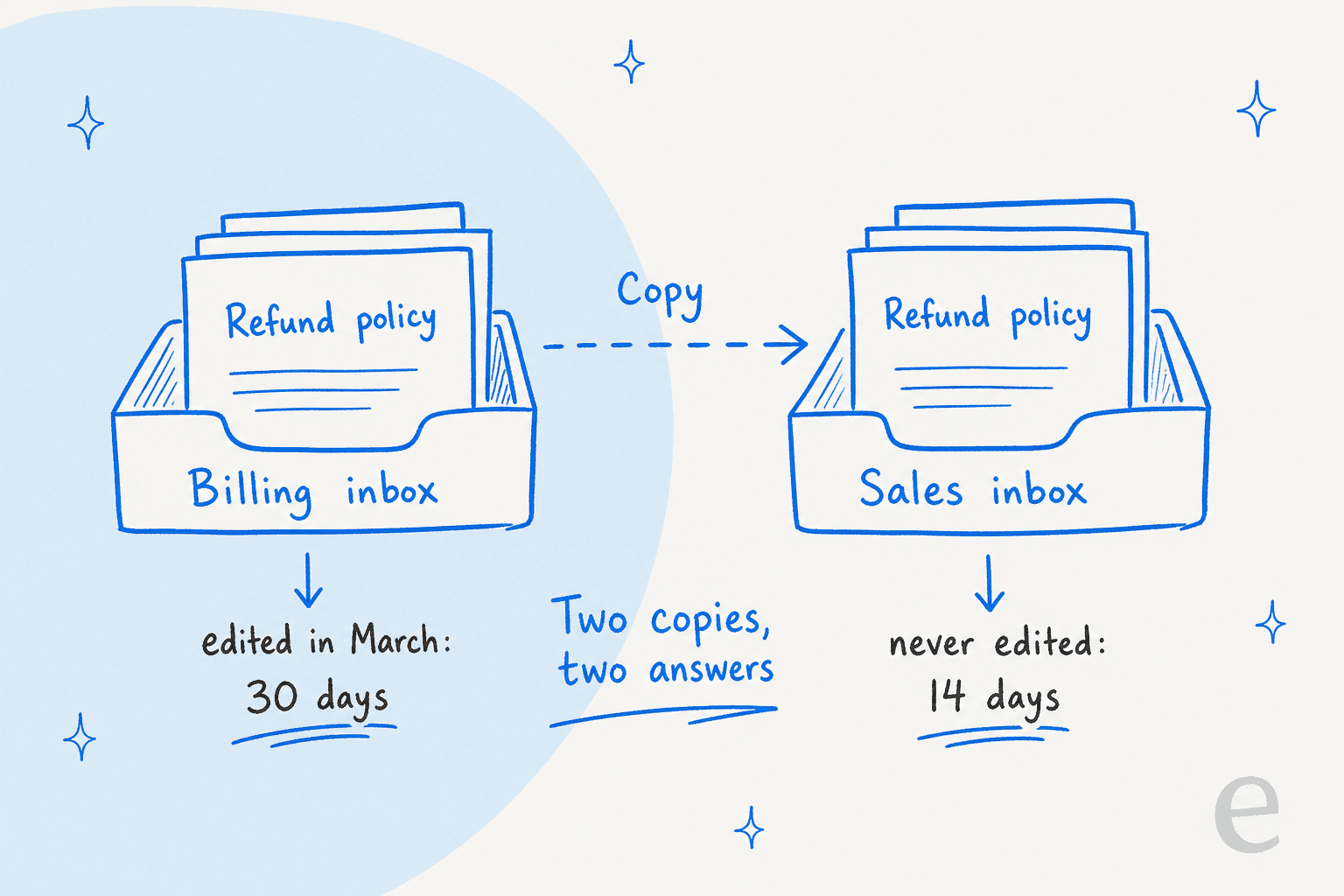
Three fixes that hold up:
- Keep shared replies in a home inbox. Pick one inbox as the source of truth for any reply used in more than one place, and only edit it there.
- Track the copies. A plain sheet with reply name, home inbox, copied-to inboxes, owner, and last review date is enough. When the home version changes, the owner re-copies it and deletes the stale ones.
- Question whether you need two inboxes at all. If two inboxes share most of their saved replies, Help Scout's guide to consolidating inboxes tells you to copy over the workflows and saved replies you want to keep, then point the old address at the inbox you are keeping. My shared inbox vs ticketing system piece covers when separate inboxes earn their keep.
How do you audit a Help Scout saved reply library?
Help Scout's saved replies page has no "last used" column. The data exists elsewhere, though, and it is enough for a proper audit.
Step 1: Export usage. From Reports, open All Channels or Email, set a date range, and export as CSV or XLSX. The export's conversation properties include a Saved replies column (Export Reporting Data). You need the Reports: Export reporting data permission, and the file arrives by email.
Step 2: Count uses per reply. Split the saved replies column and count each name. Ninety days is a reasonable window for most teams.
Step 3: Sort into four piles.
| Pile | What it means | What to do |
|---|---|---|
| High use, still accurate | The core of your library | Review wording once a quarter |
| High use, outdated facts | The dangerous one | Fix today, then fix every inbox copy |
| Zero use in 90 days | Dead weight in search | Rename to zz OLD - and delete next quarter |
| Near-duplicates | Two replies doing one job | Merge and keep the better-named one |
Step 4: Check the facts in the top 20. Read every number, date, link, and policy in your most-used replies against the current Docs article or policy page.
If you would rather ask questions than build pivot tables, Help Scout's MCP connector lets an assistant like Claude or ChatGPT browse inboxes and saved replies on Standard, Plus, and Pro. It is read-only for new connections, which is fine for an audit: the assistant can list replies that mention an old price, and a person makes the edits. My Help Scout API and Help Scout integrations guides cover the wider developer side.
Is the audit worth the hour? Help Scout's Email report docs point to saved replies as one way to cut handle time, with an example team averaging 5 minutes 21 seconds from opening the editor to sending (Email report). A fast reply with a wrong fact just moves the work into a second conversation (and can break an SLA on the follow-up), so an outdated reply can push first contact resolution down while the handle time looks great.
Do Help Scout's AI features read your saved replies?
This is the part most saved reply guides skip, and it changes how you maintain them in 2026.
Scout, the new name for Help Scout's AI agent, answers customers in Beacon and email from the knowledge sources you add: a Help Scout Docs site, website pages and files, and short Text sources (Manage Scout Sources). Saved replies are not one of the source types.
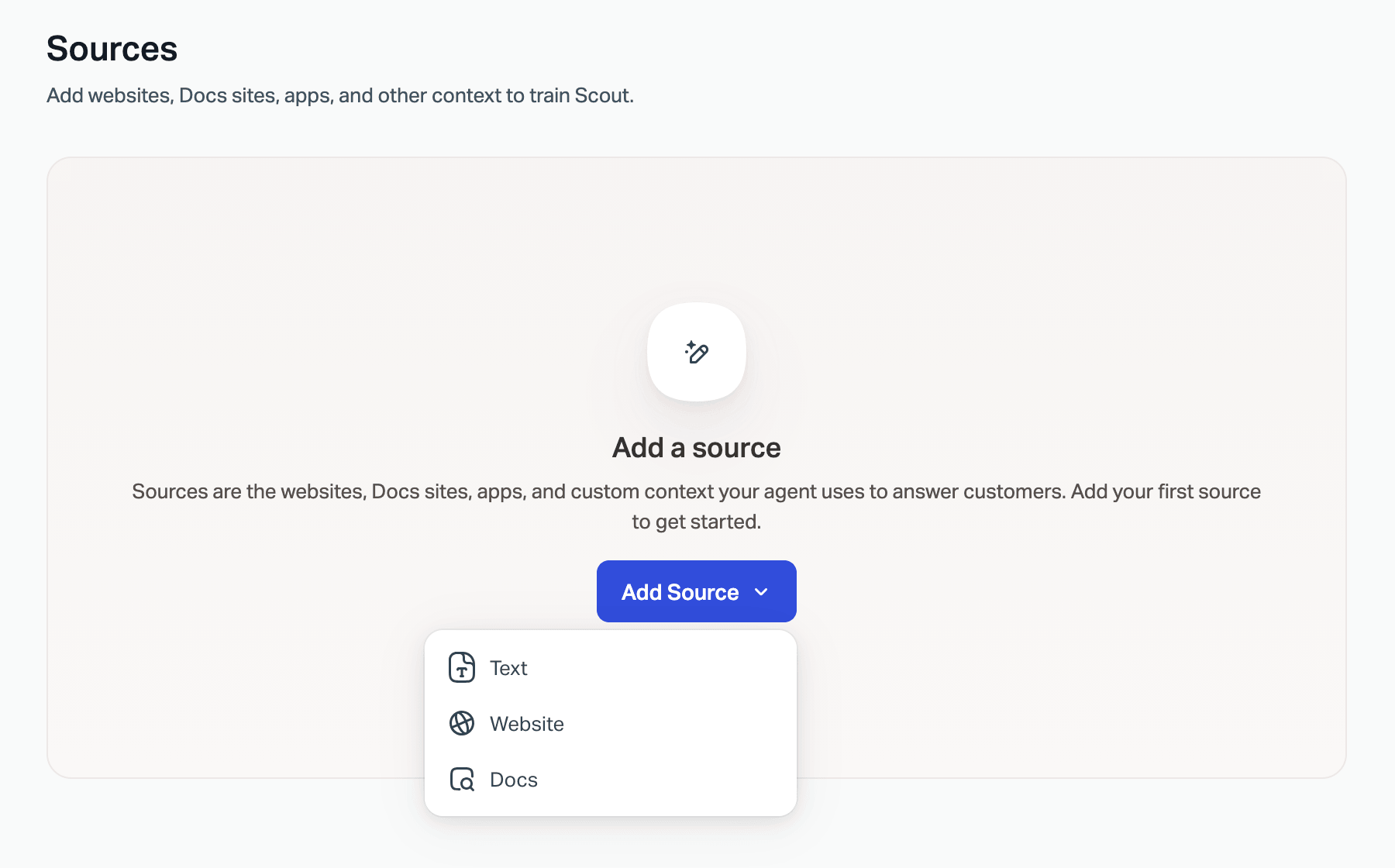
If you use Scout for ticket deflection, that gap decides which answer a customer sees.
AI Drafts writes reply drafts for your team and learns "from previous conversations and Docs articles" in your account (AI Drafts). It is unlimited on Plus and Pro (Help Scout pricing).
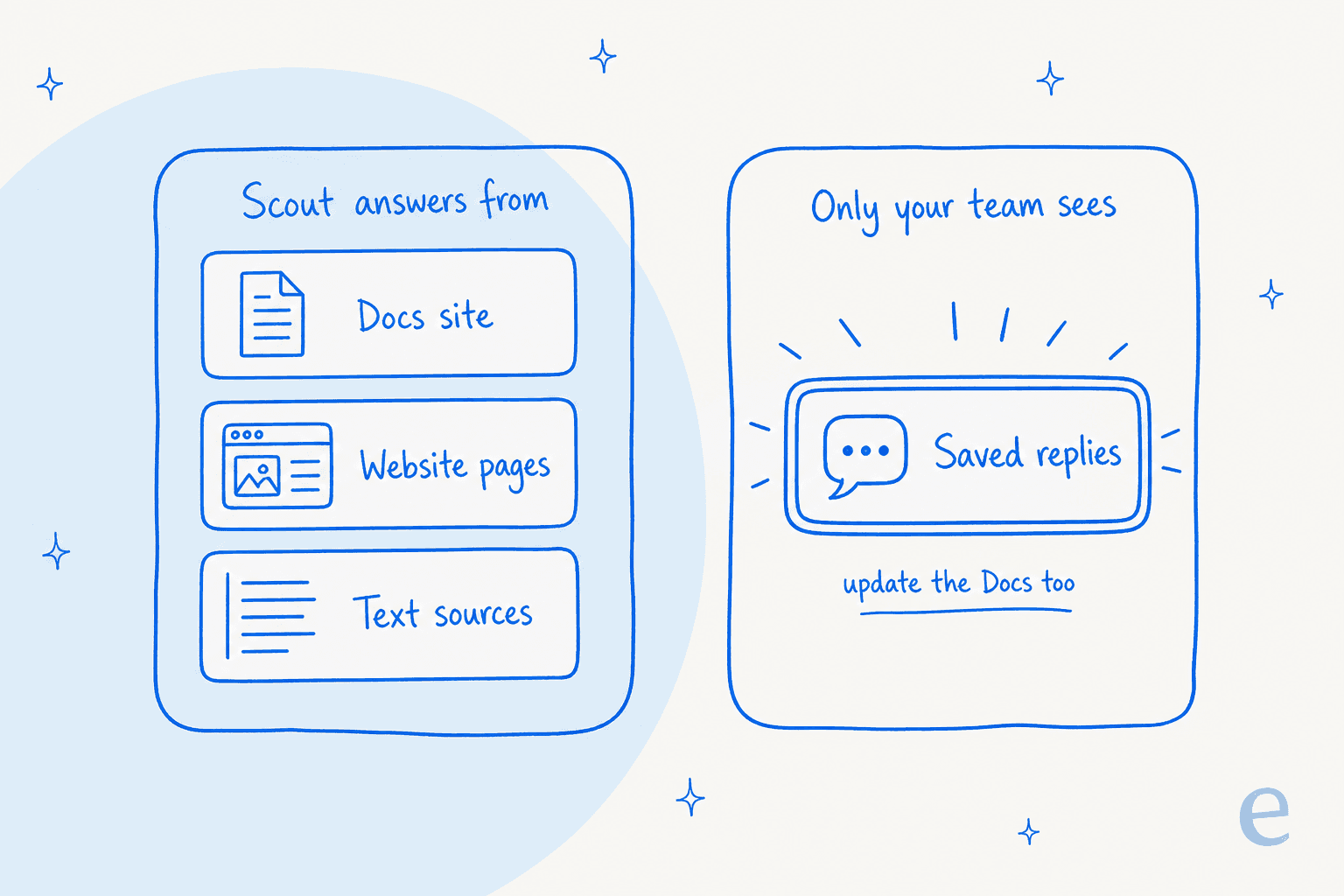
So if you fix a refund saved reply but leave the refund Docs article alone, your agents send the new policy while Scout keeps quoting the old one. The rule I'd add to every saved reply change: update the matching Docs article in the same sitting, or add a Scout Text source if the answer is too narrow for a full article. Scout picks up Docs changes straight away, while website sources need a manual re-sync (Manage Scout Sources). My Help Scout AI overview goes further into Scout and AI Drafts, and the Help Scout self-service guide covers the Docs side.
What do Help Scout users say about saved replies?
Users like saved replies, and they usually mention them alongside the newer AI features, not instead of them:
"Saved replies are a giant help! Reports help keep tabs on productivity and quality assurance. The new AI features takes a lot of the anxiety out of how to respond in a respectful and professional manner."

"Saved replies are useful, the automated AI is very helpful, and the integration with Jira is seamless."

That pairing is the useful signal. Teams are not replacing saved replies with AI. They are running both, which is exactly why the two need to say the same thing, in the same brand voice. If saved replies are part of why you are shopping around, my Help Scout alternatives list compares the options.
Common mistakes with Help Scout saved replies
- Letting AI rewrite approved wording. Gorgias macros and Help Scout saved replies share this trap. Where the exact wording matters, such as legal or refund terms, keep it as written. My take on AI canned responses covers where static text still wins.
- Hard-coding facts in the name.
Refund within 14 daysbecomes a lie the day the policy changes, even if someone fixes the body. - Skipping the fallback. One
Hi ,email to a customer with no first name on file is enough to make a team distrust the whole library. - Editing one inbox copy. Every copy is separate. Fix the home version, then re-copy.
- Letting everyone manage the library. Keep Manage saved replies with one or two owners, and let everyone else suggest changes through an internal note or Slack thread.
- Forgetting the chat version. Chat is plain text, so check that links and formatting still make sense there.
- Treating saved replies as the knowledge base. Customers and Scout read Docs, not saved replies. Anything a customer could answer for themselves belongs in an article, as my AI knowledge base guide explains.
Try eesel with your Help Scout saved replies
The last step past a tidy library is a teammate who reaches for the right answer before anyone opens the saved replies menu. eesel's AI agent for Help Scout works inside your mailbox: it reads your past conversations, which already carry every saved reply your team has sent, plus your Docs site, then leaves a draft in the reply box or answers routine conversations itself (eesel Help Scout docs).
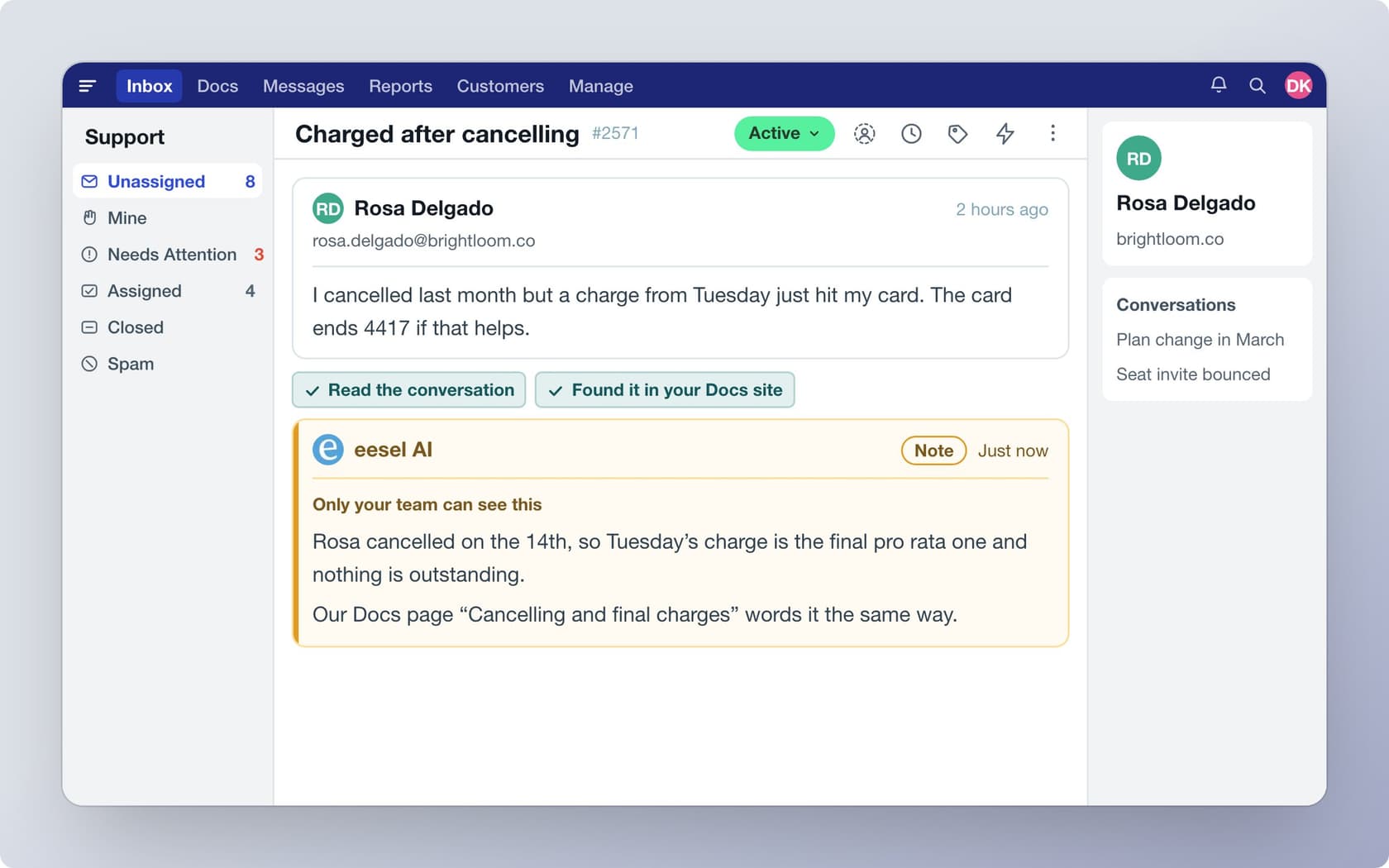
The closest proof is on other helpdesks with the same kind of library. At smava, eesel works from about 820 macros and help center articles across 27,000 Zendesk tickets a month, drafting the matching macro word for word with placeholders filled. Koffer.ch has it check a matching Freshdesk macro first and translate it into the customer's language. XAP drafts referral replies from its own canned responses, written out in full for a person to send. And one UK team on an eesel sales call had resolved 56 tasks from just 9 synced macros, which says a short, accurate library beats a long, stale one.
If you want your approved wording treated as fixed text, export it and upload it with the eesel CLI (eesel files upload), or have Claude Code or Cursor do it, then ask test questions and check the answers before anything goes live. Connecting the Help Scout mailbox itself still needs a Help Scout admin or account owner to click Authorize in the browser. You can try eesel and run it against your past Help Scout conversations first, and compare options in my best AI for Help Scout roundup.