How to customize Zendesk pre-chat forms: Complete 2026 guide
Zendesk pre-chat forms collect visitor information before a live chat begins. They let you capture names, emails, phone numbers, and route conversations to the right department. When configured correctly, they reduce back-and-forth and give agents context from the first message.
The challenge? Zendesk's documentation is scattered across multiple pages, covering admin settings, JavaScript API, and mobile SDK configuration separately. This guide consolidates everything into one place.
You'll learn how to customize the five core pre-chat form elements (greeting, visitor profile, phone number, department selection, and message field) using three methods: the admin dashboard, JavaScript API, and iOS SDK. We also cover common troubleshooting issues and when it makes sense to consider AI-powered alternatives that eliminate configuration complexity entirely.
What is a Zendesk pre-chat form?
A pre-chat form is a dialog that appears before visitors start a live chat session. It collects information that helps your support team respond faster and more effectively.
The pre-chat form's only available in Zendesk Web Widget (Classic), not the newer Messaging widget, as confirmed in Zendesk's pre-chat form documentation. This distinction matters because the configuration options differ significantly between the two.
Pre-chat forms serve three primary purposes:
- Reducing back-and-forth: Agents already know the customer's name, email, and initial question before the chat begins
- Routing to the right team: Department selection ensures conversations reach the appropriate group (sales, technical support, billing)
- Capturing contact information: Even if the chat disconnects, you have the visitor's email for follow-up
The form includes five customizable elements:
| Element | Purpose | Default State |
|---|---|---|
| Greeting message | Welcome text shown at the top of the form | Enabled |
| Visitor profile (Name, Email) | Basic identity fields | Enabled |
| Phone number | Optional contact field | Disabled |
| Department selection | Dropdown for routing | Shows if departments exist |
| Message field | Initial question or request | Enabled |
Understanding the Zendesk ticketing system and how pre-chat forms feed into it helps you design forms that capture the right data. For teams running omnichannel support, the pre-chat form is often the first touchpoint in the customer journey.
An alternative to pre-chat forms: eesel AI
Before diving into JavaScript configuration, consider whether you need a static form at all. eesel AI offers an alternative approach that gathers customer context conversationally rather than through form fields.
Here's how it works: eesel AI connects to your Zendesk account and immediately learns from your past tickets, macros, help center articles, and any connected documentation. Instead of presenting visitors with a form to fill out, the AI chatbot engages them in natural conversation and extracts the same information dynamically.

The setup process takes minutes:
- Connect eesel AI to your Zendesk account (one-click integration)
- Train on your existing knowledge sources (help center, past tickets, internal docs)
- Deploy as a chat bubble on your website or integrate directly with Zendesk Chat
Key advantages over traditional pre-chat forms:
- No JavaScript configuration: We handle context gathering automatically
- Conversational data collection: Visitors answer questions naturally, not through rigid form fields
- Intelligent routing: Our AI determines the right department based on conversation content
- Continuous learning: The system improves based on agent corrections and new tickets
This approach works well for teams that want to reduce development overhead while still capturing the information they need. You can start with AI supervision (drafts for human review) and gradually level up to autonomous ticket handling as confidence grows.
For teams that prefer or require traditional pre-chat forms, the following sections cover Zendesk's native customization options.
How to customize the Zendesk pre-chat form in Zendesk admin
The admin dashboard provides basic customization without any code. This covers most common use cases.
Step 1: Access pre-chat form settings
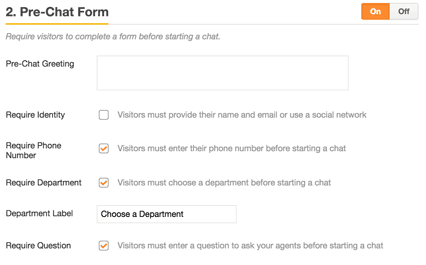
Navigate to Admin Center > Chat Dashboard > Settings > Widget > Forms > Pre-chat form.
For older Chat accounts, the path may be Dashboard > Settings > Widget.
Step 2: Configure the greeting message
The greeting appears at the top of the pre-chat form. Keep it concise, as visitors want to start chatting, not reading paragraphs.
The greeting field accepts plain text only (no HTML formatting). Use it for:
- Welcome messages ("Hi! We're here to help.")
- Instructions ("Please fill out the form below so we can assist you faster.")
- Business hours notices ("Our team is available Monday through Friday, 9am to 6pm EST.")
Step 3: Set up visitor identity fields
Toggle Visitor profile to enable or disable the Name and Email fields. These are essential for follow-up communication.
Additional options include:
- Allow social login: Lets visitors sign in with Facebook or Google instead of typing their information
- Require email: Makes the email field mandatory
A warning here: disabling the Visitor Profile entirely means you lose the ability to follow up with visitors after the chat ends. Only disable it if you're certain you won't need contact information.
Step 4: Add phone number field (optional)
Enable phone collection under Allow phone number in the Visitor Profile section.
To make the phone field required, check Require phone number under the Pre-chat form settings.
Phone collection is useful for:
- Callback scenarios where phone support may be needed
- Collecting alternate contact information
- High-value customer identification
Step 5: Configure department selection
The department dropdown automatically appears if you have departments set up in Zendesk Chat. If you don't see it, create departments first under Settings > Departments.
You can customize the dropdown label (for example, changing "Department" to "Select your team" or "How can we help?").
Note that you cannot hide specific departments from the admin dashboard. To filter which departments appear, you'll need the JavaScript API covered in the next section.
Advanced Zendesk pre-chat form customization with JavaScript API
For more control over the pre-chat form, use the Web Widget JavaScript API. This allows you to customize greetings by language, filter departments, pre-fill visitor information, and more.
The zESettings object
The zESettings object is where you define widget configuration. The critical rule: place it BEFORE the Zendesk widget script in your HTML.
window.zESettings = {
  webWidget: {
    chat: {
      prechatForm: {
        greeting: { '*': 'Welcome! How can we help today?' },
        departmentLabel: { '*': 'Choose your team' }
      }
    }
  }
};
If you place zESettings after the widget script loads, your settings won't apply. This is the most common mistake when customizing the pre-chat form.
Customizing the greeting and department label
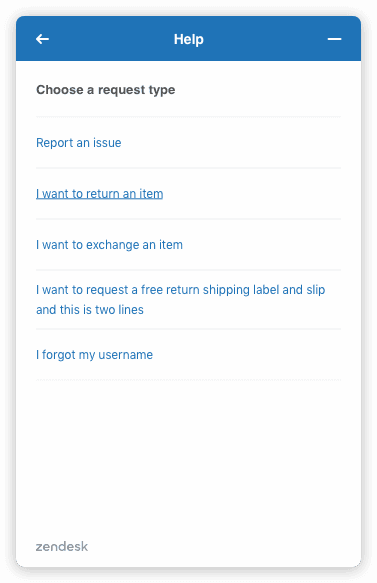
Both greeting and departmentLabel support locale-specific values. Use the wildcard '*' for all languages, or specify locale codes for multi-language support:
prechatForm: {
  greeting: {
    'en-US': 'Welcome! How can we help?',
    'fr': 'Bienvenue! Comment pouvons-nous vous aider?',
    'de': 'Willkommen! Wie können wir Ihnen helfen?',
    '*': 'Hello!'
  },
  departmentLabel: {
    'en-US': 'Select your team',
    'fr': 'Sélectionnez votre équipe',
    '*': 'Department'
  }
}
The widget detects the visitor's browser language and shows the appropriate message. The '*' wildcard serves as the fallback for any language not explicitly defined.
Filtering which departments appear
Use the departments object to control which departments show in the dropdown:
chat: {
  departments: {
    enabled: ['Sales', 'Technical Support'],
    select: 'Sales'
  }
}
| Property | Type | Description |
|---|---|---|
enabled | Array | Whitelist of department names to display |
select | String | Pre-selected default department |
Important: Department names must match exactly (case-sensitive). If a department name doesn't exist, the dropdown may be hidden entirely with no error message.
Pre-filling visitor information
For logged-in users, you can pre-fill the form with information you already have. The Core API provides two commands for this:
The identify command sets name and email:
zE('webWidget', 'identify', {
  name: 'John Smith',
  email: 'john@example.com'
});
The prefill command offers more control, including read-only fields:
zE('webWidget', 'prefill', {
  name: {
    value: 'John Smith',
    readOnly: true
  },
  email: {
    value: 'john@example.com',
    readOnly: true
  },
  phone: {
    value: '555-1234',
    readOnly: false
  }
});
Setting readOnly: true prevents visitors from editing pre-filled values. This is useful when you've already verified the user's identity.
Mobile SDK Zendesk pre-chat form configuration
For native iOS apps, the Zendesk Chat SDK provides equivalent customization through Swift classes.
iOS configuration with ChatConfiguration
The ChatFormConfiguration class lets you set requirements for each form field. Each field has three possible states:
| State | Description |
|---|---|
.required | User must fill the field to continue |
.optional | User can skip the field |
.hidden | Field is not shown |
Here's how to configure a pre-chat form with required name and department, optional email, and hidden phone:
let formConfiguration = ChatFormConfiguration(
    name: .required,
    email: .optional,
    phoneNumber: .hidden,
    department: .required
)

let chatConfiguration = ChatConfiguration()
chatConfiguration.isPreChatFormEnabled = true
chatConfiguration.preChatFormConfiguration = formConfiguration
For Objective-C:
ZDKChatFormConfiguration *formConfiguration = [[ZDKChatFormConfiguration alloc]
    initWithName:ZDKFormFieldStatusRequired
    email:ZDKFormFieldStatusOptional
    phoneNumber:ZDKFormFieldStatusHidden
    department:ZDKFormFieldStatusRequired];

ZDKChatConfiguration *chatConfiguration = [[ZDKChatConfiguration alloc] init];
chatConfiguration.isPreChatFormEnabled = YES;
chatConfiguration.preChatFormConfiguration = formConfiguration;
Key configuration flags
The ChatConfiguration class includes several useful flags:
| Flag | Default | Description |
|---|---|---|
isPreChatFormEnabled | true | Toggle the entire form on or off |
isAgentAvailabilityEnabled | true | Shows message when no agents are online |
isOfflineFormEnabled | true | Allows visitors to leave a message when offline |
isChatTranscriptPromptEnabled | true | Offers email transcript at chat end |
Pre-populating user info with ChatAPIConfiguration
If you set visitorInfo properties on Chat.instance.configuration, the corresponding form fields are automatically hidden:
Chat.instance?.configuration.visitorInfo = VisitorInfo(
    name: "John Smith",
    email: "john@example.com",
    phoneNumber: "555-1234"
)
When all visitorInfo properties are populated, the pre-chat form is skipped entirely. The user can start chatting immediately.
Troubleshooting common Zendesk pre-chat form issues
Even with correct configuration, several issues commonly arise. Here are the fixes.
Department dropdown not showing
Cause: All agents for that department are offline.
Fix: Ensure at least one agent is online for each department you want to display. Alternatively, use departments.enabled in your JavaScript settings with valid department names. If you're testing, set your status to "Online" in the Chat dashboard.
Custom departmentLabel not applying
Cause: The property is placed at the wrong nesting level.
Fix: Move departmentLabel INSIDE the prechatForm object, not at the chat level:
// WRONG - won't work
chat: {
  departmentLabel: { '*': 'Select' }
}

// CORRECT
chat: {
  prechatForm: {
    departmentLabel: { '*': 'Select your team' }
  }
}
This nested structure is a common source of confusion in the Zendesk API.
Settings not applying at all
Cause: The zESettings object is placed after the widget script.
Fix: Ensure window.zESettings appears BEFORE the Zendesk widget snippet in your HTML:
<!-- Settings FIRST -->
<script>
  window.zESettings = {
    webWidget: {
      chat: {
        prechatForm: {
          greeting: { '*': 'Hello!' }
        }
      }
    }
  };
</script>

<!-- Widget script SECOND -->
<script id="ze-snippet" src="https://static.zdassets.com/ekr/snippet.js?key=YOUR_KEY"></script>
Form bypassed on proactive triggers
Cause: Proactive chat triggers are designed to start conversations without requiring the pre-chat form.
Fix: This is expected behavior, not a bug. If you need visitor information when proactive triggers fire, use the identify API to capture data after the chat starts:
zE('webWidget:on', 'chat:start', function() {
  // Prompt for information after chat begins
});
Widget showing wrong language
Cause: The widget uses the browser's language setting by default.
Fix: Force a specific language with the setLocale command:
zE('webWidget', 'setLocale', 'en-US');
This overrides browser detection and displays the widget in your specified language.
Simplify Zendesk chat setup with eesel AI
Configuring Zendesk pre-chat forms involves navigating admin settings, writing JavaScript, and potentially modifying mobile app code. For teams without dedicated development resources, this complexity can slow down deployment.
eesel AI offers a different approach. Instead of configuring static forms, you deploy an AI agent that:
- Learns from your Zendesk data: Past tickets, macros, help center articles
- Gathers context conversationally: No rigid form fields, just natural conversation
- Routes intelligently: Determines the right department based on conversation content
- Handles tickets autonomously: Resolves common issues without human intervention
The setup takes minutes rather than hours. Connect your Zendesk account, train on your existing knowledge, and deploy. You can start with the AI drafting responses for agents to review, then level up to autonomous handling as confidence grows.

For teams already using Zendesk, eesel AI works alongside your existing setup. You don't need to replace anything, just add an intelligent layer that handles routine conversations.
Pricing starts at $299/month for the Team plan, which includes 1,000 AI interactions. Check out our best AI chatbots for Zendesk guide for a detailed comparison of options.
Ready to simplify your chat setup? Start a free trial and see how eesel AI can reduce configuration complexity while improving customer response times.