Zendesk rich message templates and carousels: A complete guide for 2026
Your customers expect more than plain text responses. They want product carousels they can swipe through, quick reply buttons that speed up conversations, and visual elements that make support interactions feel modern. Zendesk's rich message templates deliver exactly that, but the implementation paths can get confusing fast.
This guide consolidates Zendesk's scattered documentation into one practical resource. We'll cover every structured message type, compare the four main implementation methods, and walk through creating your first carousel template. For teams that want rich messaging without the complexity, we'll also look at how eesel AI simplifies the process by handling customer interactions autonomously. If you want to go further with automation, eesel's AI agent for Zendesk can resolve conversations end-to-end without requiring template configurations at all.
What are Zendesk rich messages?
Zendesk rich messages (also called structured messages) are interactive message types that go beyond plain text. Instead of typing out descriptions, you can show customers a carousel of product options. Rather than listing steps, you can present quick reply buttons that guide conversations.
Here's why they matter for support teams:
- Higher engagement: Visual elements and interactive buttons keep customers in the conversation
- Faster resolutions: Quick replies eliminate typing and reduce back-and-forth
- Better self-service: Forms and carousels let customers help themselves
- Professional appearance: Rich media makes your support feel modern and polished
The catch is that Zendesk offers multiple ways to implement rich messages, and the documentation is spread across developer docs, help center articles, and marketplace apps. Let's break down what's available.
Types of Zendesk structured messages
Zendesk supports several structured message types, each with specific limits and use cases. Understanding these constraints upfront saves troubleshooting time later.
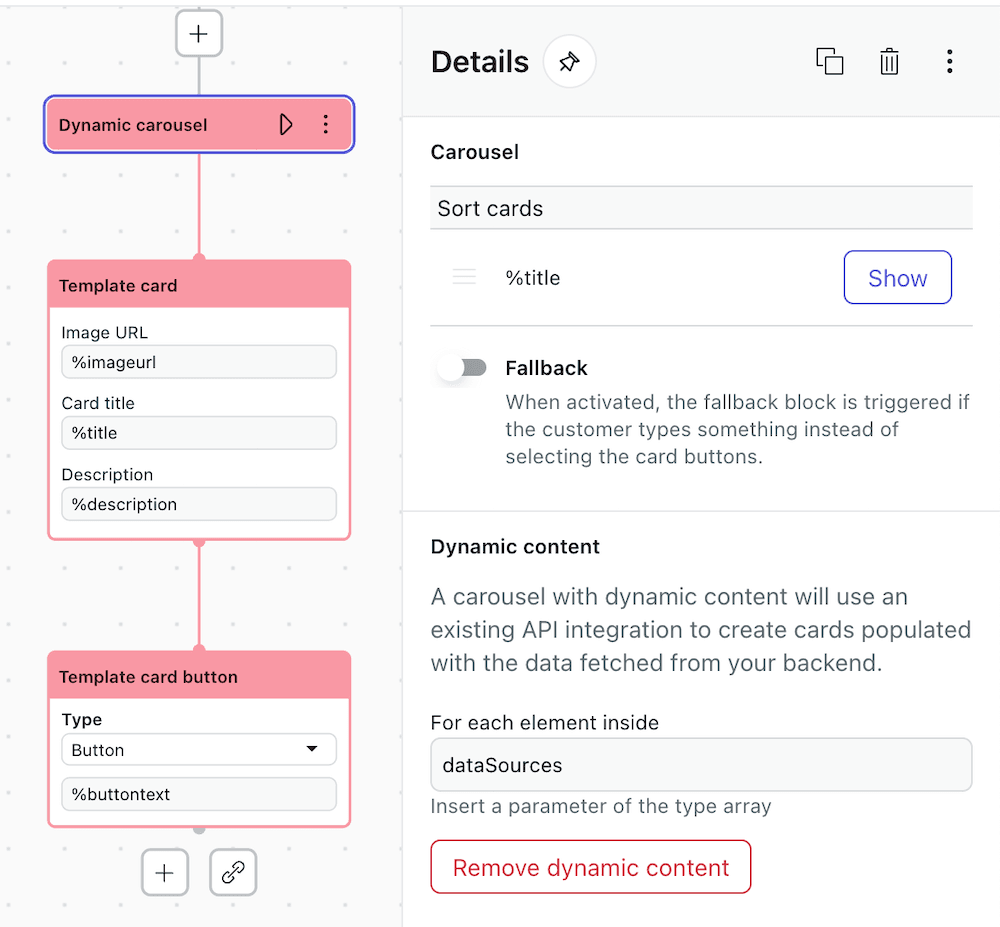
Carousels
Carousels display a horizontally scrollable set of up to 10 items. Each item (called a card) includes an image, title, description, and up to 3 action buttons.
| Platform | Max Cards | Title Limit | Description Limit | Button Text Limit |
|---|---|---|---|---|
| Sunshine Conversations | 10 | 128 characters | 128 characters | 35 characters |
| Zendesk Chat | 10 | 150 characters | 150 characters | 20 characters |
Best for: Product showcases, multi-option displays, appointment booking, FAQ navigation.
Quick replies and buttons
Quick replies present up to 11 pre-defined response buttons that customers tap instead of typing. Button templates show 1-3 clickable buttons with link or postback actions.
The difference is that quick replies insert text into the conversation, while button templates trigger actions or open URLs.
Best for: Guided conversations, common FAQs, routing customers to the right department, collecting simple choices.
Panel and list templates
Panel templates combine an image, title, subtitle, and buttons in a single visual block. List templates display 2-4 items with an optional button per item.
Best for: Organized information display, service menus, product summaries, account information.
Forms and rich text
Forms collect structured data through email fields, text inputs, and dropdown selects. Rich text supports HTML and markdown formatting (bold, italic, lists, headings, code blocks) up to 4,096 characters.
Best for: Lead capture, data collection, formatted responses with visual hierarchy.
Quick reference table
| Message Type | Max Items | Max Buttons | Best Use Case |
|---|---|---|---|
| Carousel | 10 | 3 per item | Product displays |
| Quick Replies | 11 | N/A | Guided flows |
| Button Template | 1 | 3 | CTAs |
| Panel Template | 1 | 3 | Visual info |
| List Template | 4 | 1 per item | Item lists |
| Forms | Multiple fields | N/A | Data collection |
| Rich Text | 4,096 chars | N/A | Formatted responses |
How to implement Zendesk rich message templates
Zendesk offers four main implementation methods, each with different complexity levels and requirements. Here's how they compare:
| Method | Coding Required | Plan Required | Flexibility | Best For |
|---|---|---|---|---|
| Sunshine Conversations API | Yes | Suite Professional+ | Highest | Development teams |
| AI Agents - Advanced | Minimal (JSON) | AI Agents add-on | Medium-High | Admin-managed templates |
| Bot Builder (Legacy) | No | Suite Team+ | Medium | Simple bot flows |
| Third-party Apps | No | Sunshine Conversations | Medium | Agent-facing tools |
Method 1: Sunshine Conversations API
The Sunshine Conversations API provides the most flexibility for developers. You can create any message type programmatically and integrate with external systems.
Template shorthand syntax: Use %((template:template_name))% or %{{template:template_name}}% to reference templates in messages.
Key syntax elements:
- Link buttons:
%[Label](URL) - Reply buttons:
%[Label](reply:PAYLOAD) - Postback buttons:
%[Label](postback:PAYLOAD) - Images:


Sample templates for testing:
%((template:smooch_tmpl_things_to_do))%displays a carousel%((template:smooch_tmpl_lead_capture))%shows a form%((template:smooch_tmpl_rate_conversation))%presents quick replies
Requirements: Suite Professional ($115/agent/month) or higher, or a separate Sunshine Conversations license.
Method 2: AI Agents - Advanced
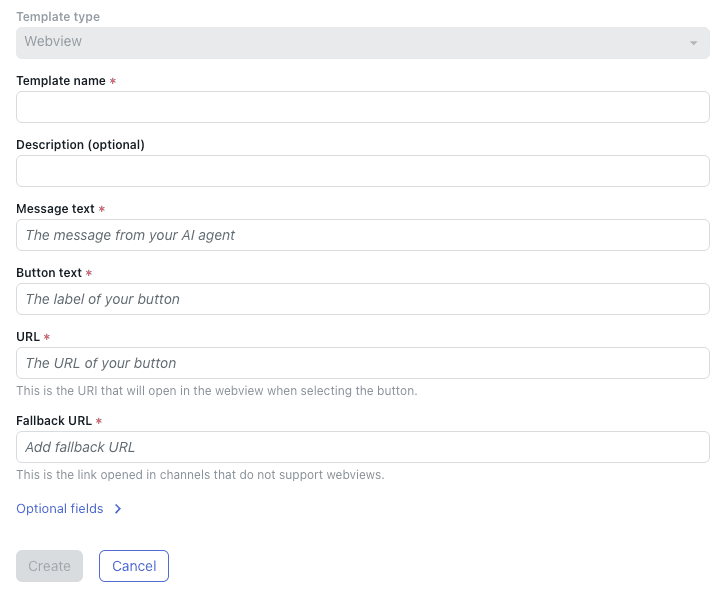
For teams without developers, AI Agents - Advanced offers a visual template builder. You can create three template types: Forms, Webviews, and Custom (JSON).
Setup location: Admin Center > Channels > AI agents > Settings > CRM Integration > Templates
This method uses the same shorthand syntax as the API but lets admins create templates through a web interface. You can then insert templates into dialogue flows using the dialogue builder.
Requirements: Suite Team ($55/agent/month) or higher, plus AI Agents - Advanced add-on.
Method 3: Bot Builder (Legacy)
Bot Builder provides a no-code interface for adding images, buttons, GIFs, and carousels to conversation flows. It's the simplest option but is being phased out in favor of AI Agents - Advanced.
Limitations:
- Up to 10 button links per message
- Images must be publicly accessible URLs
- Maximum image size: 10MB
- Not supported on mobile SDKs

Method 4: Third-party marketplace apps
Third-party marketplace apps provide agent-facing template pickers without requiring API development. Apps like Interactive Messaging Templates by Zenplates offer no-code template creation for teams that want simpler workflows.
Pricing: Typical marketplace apps cost around $1/agent/month.
Trade-off: Most still require a Sunshine Conversations license, adding to the total cost.
Creating your first Zendesk carousel template
Let's walk through creating a carousel using AI Agents - Advanced, since it balances flexibility with ease of use.
Step 1: Access structured message templates
Navigate to Admin Center in your Zendesk instance. Go to Channels > AI agents and select your advanced AI agent. Click Settings, then CRM integration, then Templates.
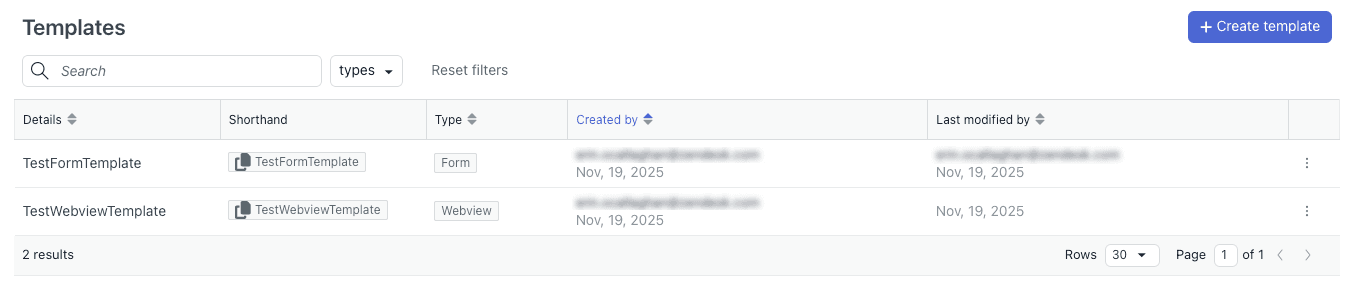
Step 2: Create a custom JSON template
Click Create template and select Custom (JSON). Enter a template name using hyphens or underscores (no spaces). The name becomes part of your shorthand reference.
For a product carousel, your JSON structure includes an items array where each item contains:
mediaUrl: URL to the card imagetitle: Card heading (128 characters max)description: Card description (128 characters max)actions: Array of up to 3 buttons with type, text, and URI/payload
Step 3: Add the carousel to your conversation flow
Copy the template shorthand from the Templates list (it looks like %((template:your_template_name))%). Open the dialogue builder for your AI agent and paste the shorthand into a message block where you want the carousel to appear.
Step 4: Test and publish
Use the messaging preview to verify your carousel renders correctly. Check that button actions work as expected. Once you're satisfied, publish your AI agent to make the carousel live.
Pro tip: Start with Zendesk's sample templates to understand the JSON structure before building custom carousels.
Channel support and fallback behaviors for Zendesk rich messages
Not all channels support all message types. Understanding fallback behaviors prevents surprises when customers use different channels.
| Channel | Full Support | Fallback Behavior |
|---|---|---|
| Web Widget | All types | N/A |
| Mobile SDK (v2.30.0+) | Most types | Older versions: plain text |
| Partial | Forms become hosted web form links | |
| Social channels | Partial | Rich text becomes plain text |
| Unity SDK | None | Plain text only |
Zendesk automatically applies fallbacks for unsupported channels. However, this can create inconsistent experiences. A beautifully designed carousel in your web widget might become a clunky text list on WhatsApp.
Testing recommendation: Before launching rich messages, test across every channel your customers use. Identify where fallbacks kick in and decide if the degraded experience is acceptable.
eesel AI: A simpler approach to Zendesk rich messaging
If the implementation complexity above feels daunting, you're not alone. Many teams want rich customer experiences without the licensing costs, JSON configurations, and channel compatibility headaches.
eesel AI takes a different approach. Instead of building templates that customers navigate, we train AI that understands your business and handles conversations autonomously.
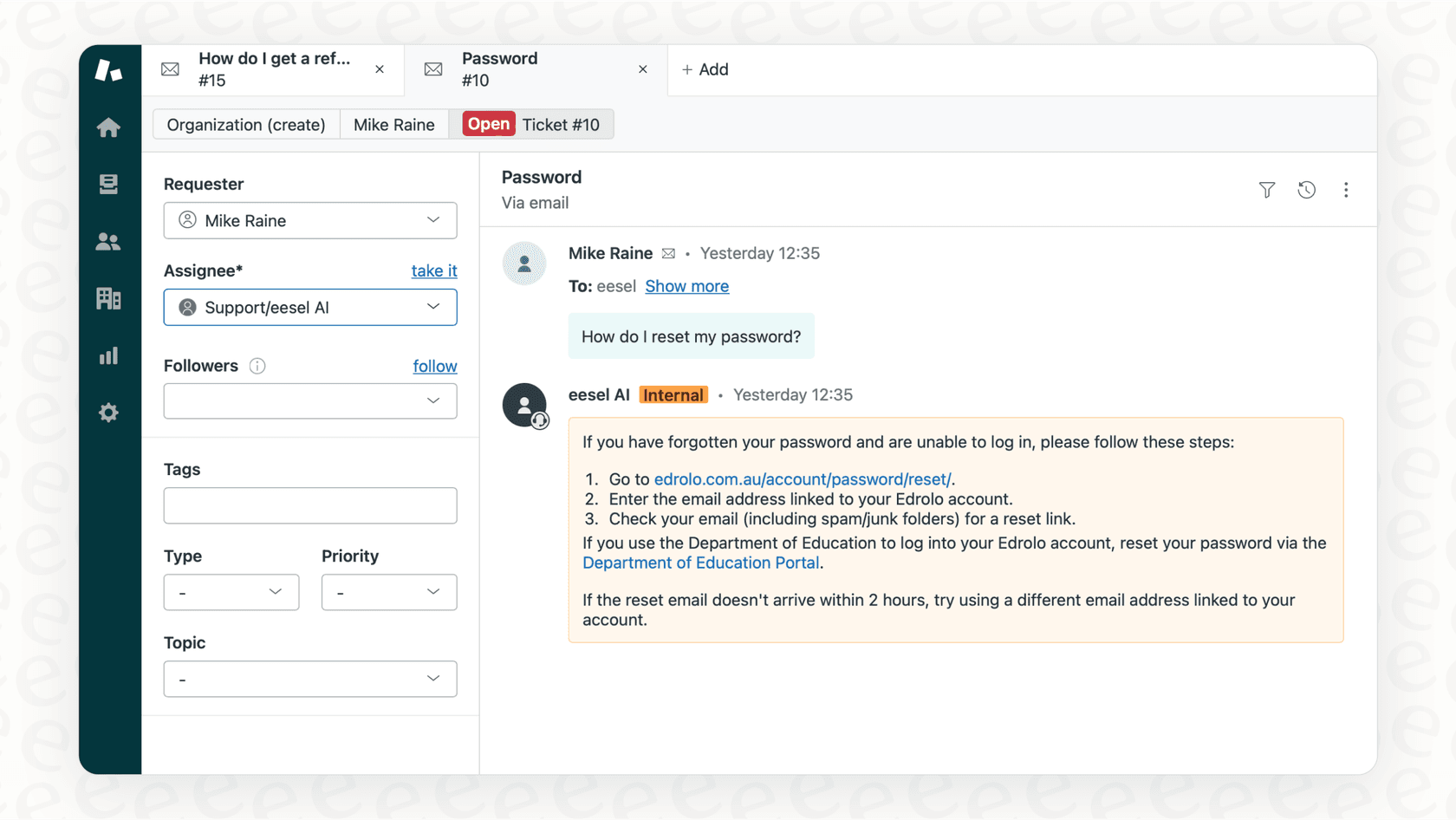
How we simplify Zendesk messaging
Our Zendesk integration works alongside your existing setup:
- No Sunshine Conversations license required: We integrate directly with Zendesk Agent Workspace
- No template configuration: Our AI learns from your help center, past tickets, and macros
- No developer resources needed: Connect in minutes, not days
- Works across all channels: Email, chat, social messaging with consistent quality
What makes our approach different
| Capability | Zendesk Templates | eesel AI |
|---|---|---|
| Setup time | Hours to days | Minutes |
| Developer required | Often yes | No |
| Additional licensing | Sunshine Conversations ($50+/month for MAUs) | Included |
| Learning curve | Steep (shorthand syntax, JSON) | Minimal (plain-text prompts) |
| Autonomous resolution | Template-based, predefined flows | AI-driven, learns from content |
| Simulation/testing | Sandbox (Enterprise only) | Included in Business plan |
Results you can expect
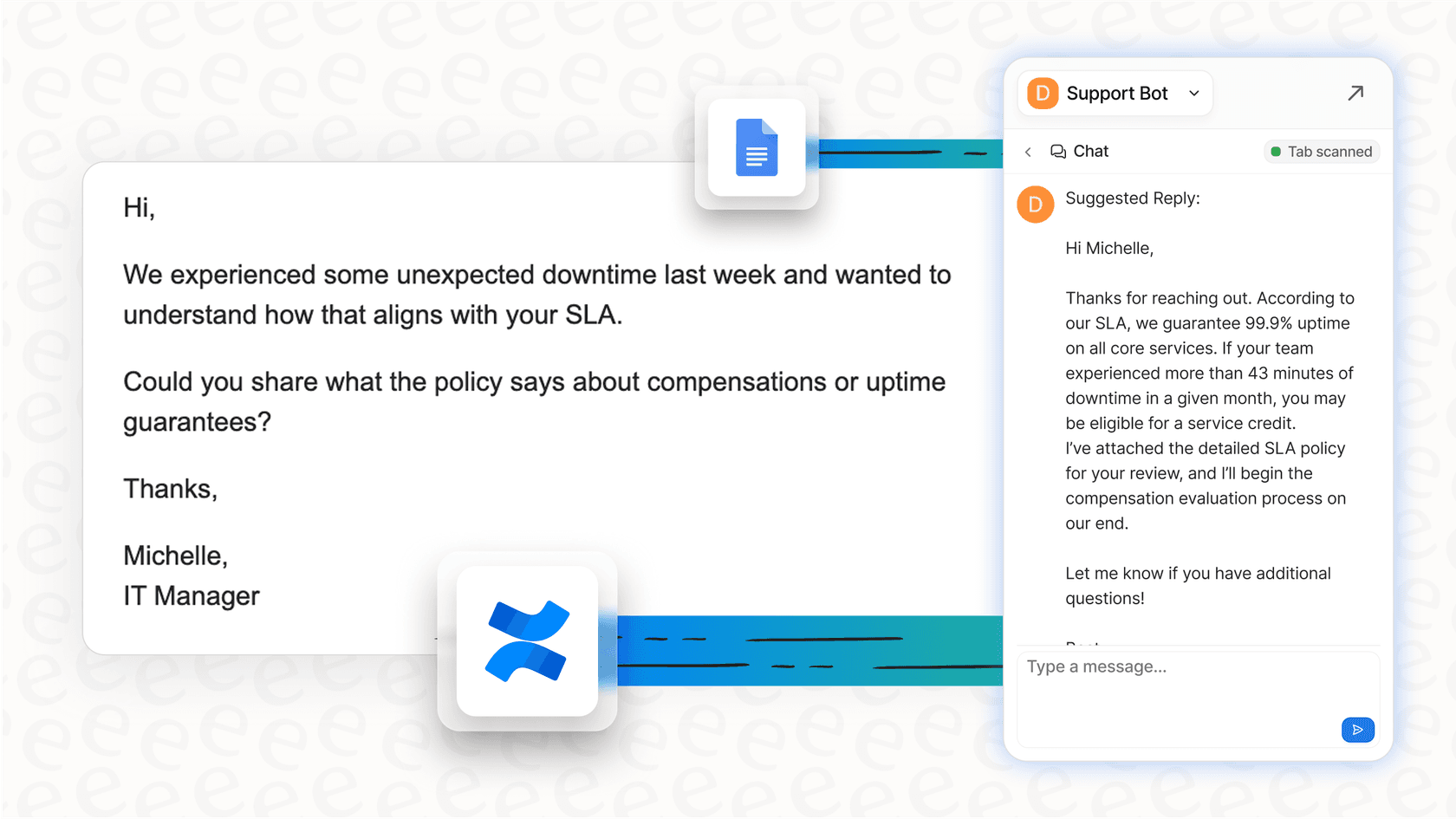
Teams using our AI agents for Zendesk see up to 81% autonomous resolution rates in mature deployments. The typical payback period is under 2 months.
Our pricing model
Instead of per-agent fees that scale with your team size, we charge based on AI interactions:
| Plan | Monthly Price | Interactions | Key Features |
|---|---|---|---|
| Team | $239 | 1,000/month | AI Copilot, Slack integration, up to 3 bots |
| Business | $639 | 3,000/month | AI Agent, past ticket training, bulk simulation |
| Custom | Contact us | Unlimited | Multi-agent orchestration, custom integrations |
For a team of 10 agents, Zendesk Suite Professional alone costs $1,150/month before any add-ons. Our Business plan covers the whole team for $639/month with AI capabilities included.
Start a free trial to see how we handle your actual support conversations.
Getting started with Zendesk rich messages
Rich messages can transform your customer experience when implemented thoughtfully. Here's your action plan:
Quick start checklist:
- Verify you have Suite Professional+ or the required Sunshine Conversations license
- Decide on implementation method based on your team's technical skills
- Start simple: test quick replies before building complex carousels
- Test across all customer channels before going live
- Monitor engagement metrics after launch
For teams wanting faster time to value:
- Consider eesel AI for autonomous messaging without template complexity
- Evaluate the total cost: Zendesk licensing + development time vs. all-inclusive AI solutions
Resources:
- Zendesk Developer Docs: Structured messages
- Zendesk Help Center: Creating carousel templates
- Our Zendesk AI guide
The bottom line is that Zendesk rich messages are powerful, but the implementation overhead is real. Choose the method that matches your team's resources, and don't hesitate to explore alternatives that might get you to the same destination faster.