Webhooks turn your Zendesk into a real-time notification engine. Instead of manually checking for updates, webhooks push data to external systems the moment something happens, whether a ticket gets created, a message arrives, or a user updates their profile.
The practical applications range from Slack alerts for urgent tickets to feeding AI tools like eesel AI with live customer data. This guide walks through both types of Zendesk webhooks (event-based and trigger-based), covers the messaging-specific setup via the Conversations API, and explains authentication methods so your integrations stay secure.
By the end, you'll have working webhooks connected to your support workflows.
What are Zendesk webhooks and how do they work?
A webhook sends an HTTP request to a specified URL whenever something happens in Zendesk Support, Guide, Gather, or Messaging. Think of it as a real-time push notification for your systems. When a user gets deleted or a new ticket arrives, Zendesk pings your endpoint with the relevant data.
Common use cases include:
- Slack or Teams alerts for high-priority tickets
- CRM synchronization to keep customer records updated
- SMS notifications via services like Twilio or 8x8
- AI integrations where tools process incoming messages and generate responses
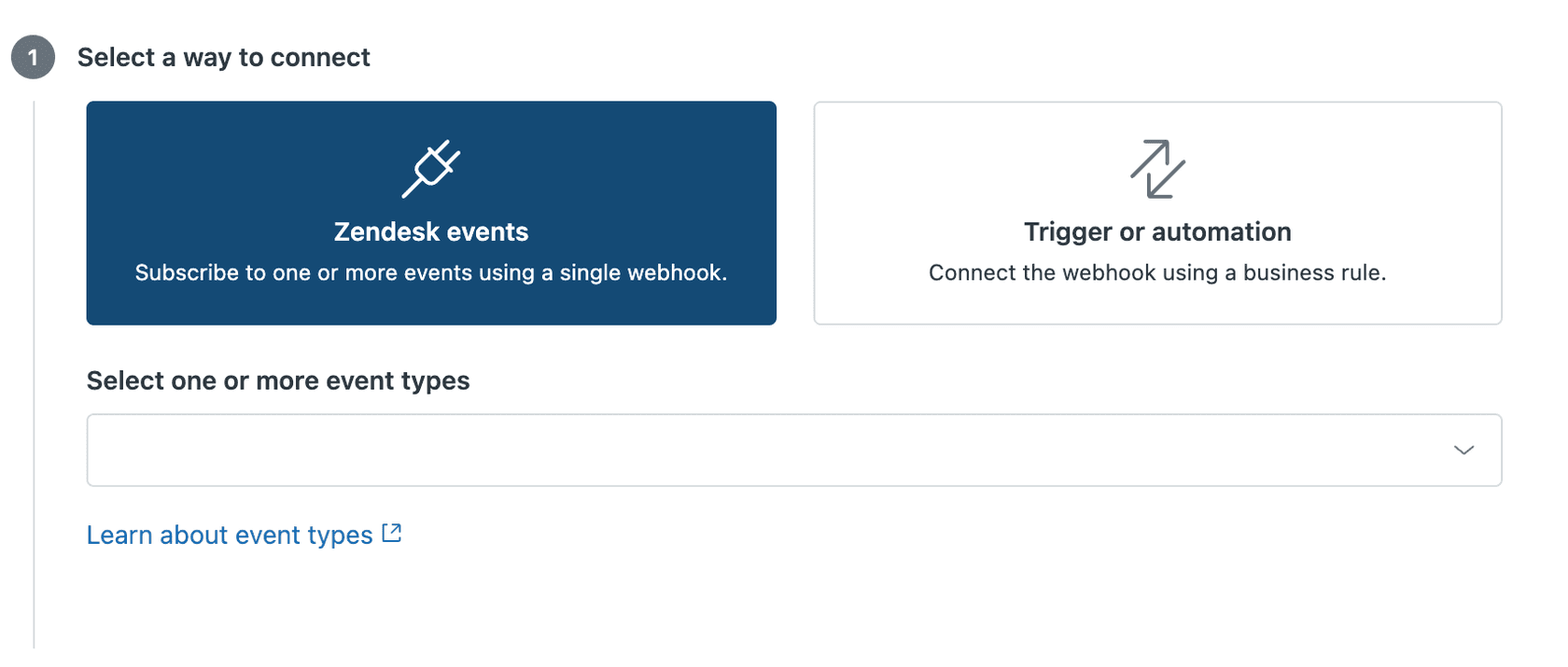
Two webhook connection methods
This distinction matters because you can't mix them. Once you create a webhook with one method, you can't change it.
Event-subscribed webhooks respond to Zendesk events like user creation, organization updates, help center article publishing, or messaging activity. These always use POST with a JSON payload, and Zendesk controls the payload structure.
Trigger or automation webhooks connect to your Support business rules. When a ticket meets certain conditions, the webhook fires. You get full control over the HTTP method (GET, POST, PUT, PATCH, DELETE) and can customize the request format (JSON, XML, or form-encoded). The payload uses placeholders like {{ticket.id}} that Zendesk fills in at runtime.
| Connection Type | Triggered By | HTTP Methods | Payload Control |
|---|---|---|---|
| Zendesk Events | User, org, messaging, help center activity | POST only | Zendesk-defined |
| Trigger/Automation | Ticket conditions | All methods | User-defined with placeholders |
How to set up Zendesk webhooks for messaging and triggers
Setting up webhooks requires admin access or a custom role with webhook permissions. Here's the step-by-step process.
Step 1: Access the webhooks section in Admin Center
Navigate to Admin Center, then click Apps and integrations in the sidebar. Select Webhooks from the submenu. You'll see a list of existing webhooks (if any) and a button to create new ones.
Trial accounts have limits: maximum 10 webhooks and 60 invocations per minute. Paid plans remove these restrictions.
Step 2: Create a new webhook
Click "Create webhook" and choose your connection method:
- Zendesk events: Select this for messaging, user, organization, or help center activity. You'll pick specific events to subscribe to.
- Trigger or Automation: Select this for ticket-based activity where you want custom payloads.
The choice here's permanent. You can't convert a trigger webhook to an event-subscribed webhook later, so pick the right one upfront.
Step 3: Configure webhook settings
Fill in the basic configuration:
- Name and Description: Use descriptive names like "Slack urgent ticket alerts" or "CRM customer sync" so your team knows what each webhook does.
- Endpoint URL: The URL of your receiving server. HTTPS is strongly recommended for security.
- Request method: For event-subscribed webhooks, this is always POST. For trigger webhooks, choose based on what your endpoint expects.
- Request format: JSON, XML, or form-encoded (trigger webhooks only).
You can also add up to 5 custom headers for HTTPS endpoints. Header names support alphanumeric characters and some symbols, with a 128-character limit. Values can go up to 1,000 characters.
Step 4: Set up authentication
Choose the authentication method your endpoint requires:
| Method | When to Use | Configuration |
|---|---|---|
| None | Testing or endpoints with IP allowlisting | No credentials needed |
| API Key | Third-party services with header auth | Name/value pair in header |
| Basic Auth | Internal services or Zendesk API calls | Username and password (use {email}/token:{api_token} format for Zendesk) |
| Bearer Token | OAuth-enabled services | Access token in Authorization header |
All authentication methods should use HTTPS. Never put sensitive credentials in custom headers—use the built-in authentication options instead.
Step 5: Connect to a trigger or automation
For trigger-based webhooks, you need to connect them to a business rule:
- Go to Admin Center, then Objects and rules, then Business rules, then Triggers.
- Create a new trigger or edit an existing one.
- Under Actions, click "Add action."
- Select "Notify webhook" and choose your webhook from the dropdown.
- Define the JSON payload using placeholders. For example:
{
  "ticket_id": "{{ticket.id}}",
  "subject": "{{ticket.title}}",
  "status": "{{ticket.status}}",
  "requester_email": "{{ticket.requester.email}}"
}
Zendesk replaces these placeholders with actual values before sending the request. The payload must be under 256 KB.
Step 6: Test your webhook
Before going live, use the built-in test feature:
- Open your webhook from the Webhooks page.
- Click "Test webhook."
- Select a sample event or enter test data.
- Click "Send test" and check the response.
A 200 status code means success. If you get errors, check your endpoint logs. Common issues include wrong URLs, invalid authentication, or malformed payloads.
For local development, tools like ngrok or Hookdeck create public URLs that tunnel to your local server. This lets you test webhooks without deploying to production.
Setting up Zendesk messaging webhooks with the Conversations API
Zendesk's messaging platform (Sunshine Conversations) has its own webhook system for real-time messaging. This is separate from the standard webhooks and designed specifically for chat interactions.
Creating a messaging webhook
Messaging webhooks belong to an integration. You can create one through Admin Center or the API:
- Create a custom integration in Admin Center under Apps and integrations.
- Register your webhook target URL.
- Configure which events to receive (like
conversation:message). - Set additional options like
includeFullUserandincludeFullSourcefor more detailed payloads.
Key webhook events for messaging
The messaging platform supports several event types:
| Event | Description |
|---|---|
conversation:message | Any message sent by user or business |
conversation:read | User read messages |
conversation:postback | User clicked a postback button |
passthrough:messaging | Channel-specific passthrough data |
Understanding the webhook payload
When a message arrives, the webhook payload includes everything you need to respond appropriately:
{
  "account_id": 21825834,
  "detail": {
    "id": "141"
  },
  "event": {
    "actor": {
      "id": "zd:answerBot",
      "name": "Support Bot",
      "type": "system"
    },
    "conversation_id": "67ab5f53a96f98663935c3f2",
    "message": {
      "body": "Hi there. How can I help you today?",
      "id": "67ab5f55155becd183e284cb"
    }
  },
  "type": "zen:event-type:messaging_ticket.message_added"
}
Key fields include the conversation ID (for tracking the thread), the message content, and the actor information (whether the message came from a user, agent, or system). This data enables AI tools to analyze incoming messages and generate contextual responses automatically.
Authentication methods and security best practices for Zendesk messaging webhooks setup
Security matters. An unsecured webhook endpoint can leak customer data or allow malicious actors to inject fake requests.
Choosing the right authentication method
| Method | Best For | Notes |
|---|---|---|
| API Key | Third-party services | Simple header-based auth |
| Basic Auth | Internal services, Zendesk API calls | Use {email}/token:{token} format |
| Bearer Token | OAuth-enabled services | Standard for modern APIs |
| None | Testing only | Never use in production |
Verifying webhook signatures
For security-critical integrations, Zendesk provides signature verification. Each request includes two headers:
X-Zendesk-Webhook-Signature: The main signatureX-Zendesk-Webhook-Signature-Timestamp: Timestamp for verification
To verify:
- Extract both headers from the incoming request.
- Concatenate the timestamp and request body.
- Create an HMAC SHA256 hash using your webhook's signing secret.
- Base64 encode the result.
- Compare to the signature header.
The algorithm looks like this: base64(HMACSHA256(TIMESTAMP + BODY))
If the signatures match, the request's genuine. If not, reject it.
You can find your signing secret in Admin Center under your webhook's settings (click "Reveal secret"). For testing before webhook creation, use the static test secret: dGhpc19zZWNyZXRfaXNfZm9yX3Rlc3Rpbmdfb25seQ==
Security recommendations
- Always use HTTPS endpoints
- Implement signature verification for production webhooks
- Make webhook handlers idempotent (Zendesk may retry or send duplicates)
- Monitor webhook activity logs for failed deliveries
- Use secrets management, not hardcoded credentials
Troubleshooting common Zendesk messaging webhooks setup issues
Even well-configured webhooks can fail. Here's how to diagnose and fix the most common problems.
Connection errors
| Error | Cause | Solution |
|---|---|---|
| 401/403 | Invalid credentials | Verify API key or token, check auth method matches endpoint expectations |
| 404 | Wrong endpoint URL | Confirm URL path and domain are correct |
| Timeout | Endpoint too slow | Respond within 12 seconds, process data asynchronously |
| SSL error | Certificate issue | Use a valid CA-signed certificate (Let's Encrypt works fine) |
Circuit breaker activation
Zendesk protects endpoints from being overwhelmed. The circuit breaker triggers when:
- 70% of requests fail within 5 minutes, OR
- 1,000+ errors occur within 5 minutes
When triggered, webhooks pause for 5 seconds. After the pause, Zendesk tries again. A successful request resets the circuit—a failure triggers another 5-second pause. This cycle continues until your endpoint recovers.
The circuit breaker won't trigger if fewer than 100 requests occur within 5 minutes, so low-volume webhooks are generally safe from accidental lockouts.
Debugging tips
- Check Admin Center under Webhooks for activity logs (retained for 7 days)
- Filter logs by status:
filter[status]=failed - Use request monitoring tools to inspect actual payloads
- Verify payload format matches what your endpoint expects
- Test with tools like Postman or curl to isolate issues
Retry behavior
| Response | Behavior |
|---|---|
| HTTP 409 | Retries up to 3 times |
HTTP 429/503 with retry-after < 60s | Retries per header |
| Timeout (>12 seconds) | Retries up to 5 times |
| Other errors | No automatic retry |
Zendesk makes a best effort to deliver webhooks once, but duplicates or missed events are possible. Design your handlers to be idempotent.
Streamline webhook integrations with eesel AI
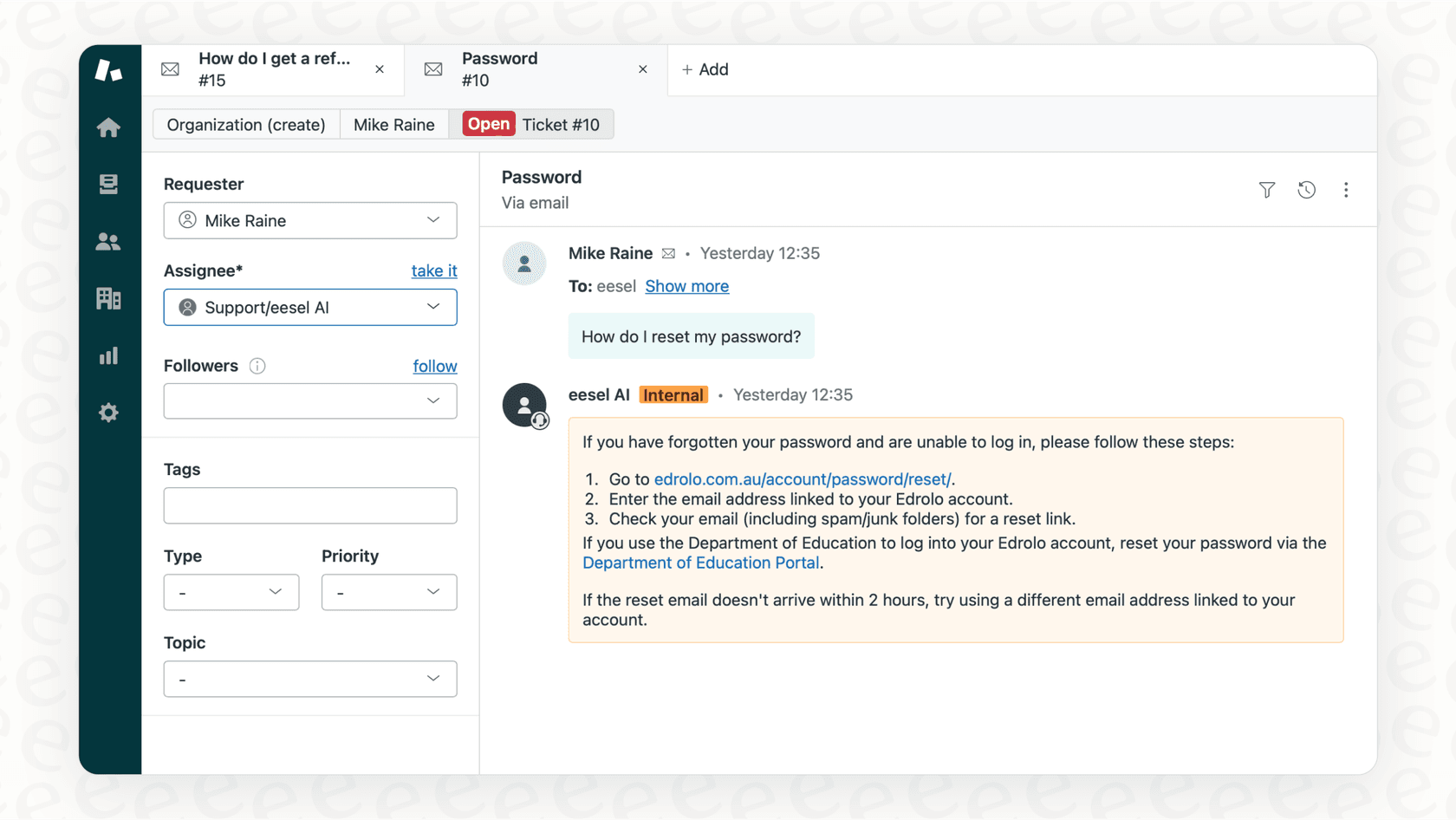
Setting up webhooks is just the first step. Building intelligent responses requires additional development: parsing payloads, integrating with your knowledge base, crafting contextual replies, and handling edge cases. That's where we come in.
eesel AI connects to your Zendesk and handles the complexity for you:
- Real-time processing: We ingest ticket and messaging events as they happen—no webhook development required on your end.
- Contextual responses: Our AI uses your knowledge base, past tickets, and help center to generate replies that match your brand voice.
- Actions beyond replies: Look up orders in Shopify, process refunds, update ticket fields, and more—all configured without code.
- Gradual rollout: Start with copilot mode (draft for review) before moving to autonomous responses.
Getting started with eesel AI for Zendesk
The setup takes minutes:
- Connect your Zendesk account through our dashboard.
- Train on your existing data (past tickets, help center articles, macros, connected docs).
- Choose your mode: copilot (agents review AI drafts) or autonomous (AI responds directly).
- Run simulations on past tickets to verify quality before going live.
This eliminates the need to build custom webhook handlers while delivering AI-powered support automation. Mature deployments achieve up to 81% autonomous resolution with payback periods under 2 months.
| Plan | Monthly | Annual | Interactions/mo |
|---|---|---|---|
| Team | $299 | $239/mo | 1,000 |
| Business | $799 | $639/mo | 3,000 |
| Custom | Contact us | Custom | Unlimited |
The Business plan includes AI Agent for autonomous responses, past ticket training, and bulk simulation capabilities. Try eesel AI free for 7 days.