
Begin with a one-line service promise
Before choosing a field type, write one sentence that connects the form to an outcome. “Enter your order reference so I can check its delivery status” is a useful promise. “Provide your information” is not. It does not tell the customer why the field exists or what happens next.
That sentence exposes unnecessary fields quickly. A delivery lookup might need an order reference. It does not automatically need a phone number, full address, or a customer’s explanation of the issue. If a human later needs more information, let them ask with the context from the ticket.
Channel support comes before form design
Zendesk form behavior is not identical across every agent type and channel. The current structured-message guide applies to messaging agents. Its form editor documents Email, Text, and Select inputs. Zendesk's older form-message announcement discusses social-channel support and integer/decimal types, but also uses the former Essential/Advanced packaging. Do not assume every capability in that announcement appears in the same editor.
Treat that as a prompt to check the current product documentation for your particular channel, not a blanket promise that every form layout is available everywhere. A desktop test can pass while the social or mobile channel your customers use exposes a different path.
Create and insert a messaging form
In the AI agents workspace, select your agent and open Settings > CRM integration > Templates. Create a template, choose Forms, and give it an internal name. Add the customer-facing label separately from the input's variable name: a useful label might be “Order reference,” while the saved variable is order_reference. Zendesk recommends five fields or fewer.
After creating the template, copy its Shorthand from the Templates list and paste it into the AI agent message block that should present the form. A customer-message block and a structured form are different mechanisms; do not expect adding the former to create the latter. Check Block messaging input deliberately: enabling it prevents customers from continuing until they complete the form, which may conflict with a promised route to a person. These steps follow the form-template documentation.
Build the form into the conversation, not beside it
Zendesk's dialogue builder starts a new dialogue with an AI agent message. A customer message cannot be first and two customer-message blocks cannot be consecutive. That design constraint is also a good customer-experience rule: introduce the request, collect a value, tell the customer what you are doing with it, then ask the next question only if it is necessary.
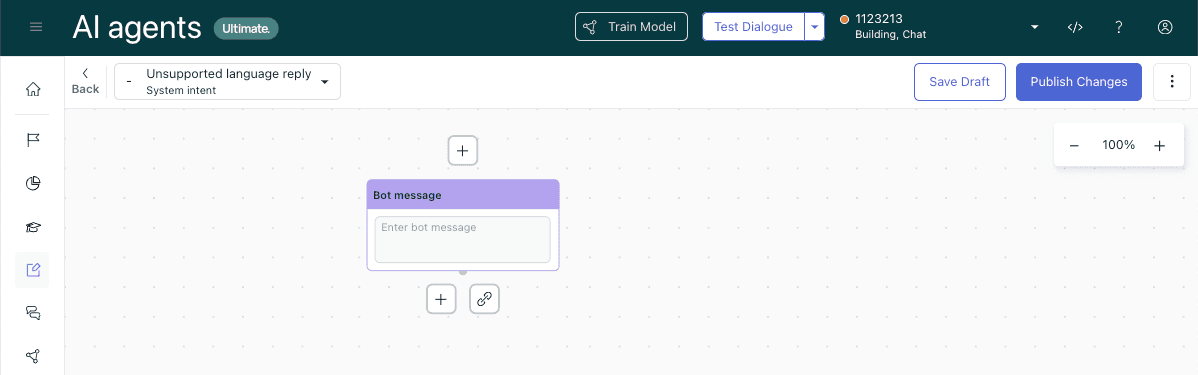
Zendesk's dialogue editor showing an initial message block, not a completed form. Source: Zendesk documentation.
For a returns form, a useful order is:
- Explain that the agent needs an order reference to check return eligibility.
- Capture the reference in the appropriate channel-supported field.
- Call the implemented integration or continue to the verified eligibility path.
- Explain the result in plain language.
- Escalate when the customer does not have the reference, the record is not found, or the result needs a person.
This avoids the common failure mode where a customer is repeatedly asked for a number they cannot access.
Make missing and malformed data first-class paths
A form is not finished when the normal example works. Use a small test matrix:
| Case | What the customer sees | What the workflow should do |
|---|---|---|
| Valid reference | A clear confirmation of the next step | Retrieve only the data required for the request. |
| Blank submission | A brief reason the field matters | Offer one retry or an alternate handoff. |
| Invalid format | An example of the expected format | Keep the customer in a limited retry path. |
| Record not found | A non-accusatory explanation | Escalate or provide the approved next option. |
| Customer requests a person | An immediate handoff message | Do not force form completion before transfer. |
Zendesk offers Validate dialogue and Test dialogue in the builder. Save is a draft, while publish runs a logic check. Run the test on each target channel, then check the eventual ticket and routing. A form that renders is not necessarily a form that gives the next agent the context they need.
Keep action and data access narrow
If a completed form triggers a back-end lookup, review the fields passed to the integration, the returned values exposed in the conversation, its error behavior, and the people or systems allowed to use the action. Zendesk's conversation logs can show supported API request details, including request and session parameters, response data, and errors. That is useful for a controlled post-launch review; it does not remove the need to approve the integration and its permissions before launch.
Review the missing-field response with eesel CLI
The eesel CLI lets a support lead work with Claude Code, Codex, Cursor, or a script to review how an eesel teammate responds when an intake field is unavailable. It operates the same teammate and workspace as the eesel dashboard and returns JSON. This is useful for improving the conversation around missing information; build and publish the native Zendesk form separately in Zendesk.
For a form-fallback review, keep the conversation fresh so a prior test does not provide hidden context. Node.js 18.17+ is required, and npx @eesel/cli is equivalent to a global eesel command:
Before this test, review connected actions and restrict those outside the approved scope. A new session clears conversation context but does not remove permissions.
npx @eesel/cli --agent "Support" new --name "return-form-missing-reference"
npx @eesel/cli --agent "Support" chat "I need to return something, but I do not have my order reference."
npx @eesel/cli --agent "Support" sessions show
npx @eesel/cli --agent "Support" instructions
The coding agent can compare the answer with the rule: does it offer a useful way to find the reference, or ask for the same impossible field again? Have it propose a clearer instruction, then let the support owner approve the change. Use --dry-run to preview writes and repeat the case in another fresh session. sessions show keeps the evidence tied to the right test. Check the actual Zendesk form and ticket separately: a better eesel response does not establish that the form renders or saves its values correctly.
Test a missing-detail case with eesel
The best support form is usually shorter than the internal team first expects. It tells customers why it needs each answer, handles missing data politely, and leaves a person in control when automation cannot safely continue.
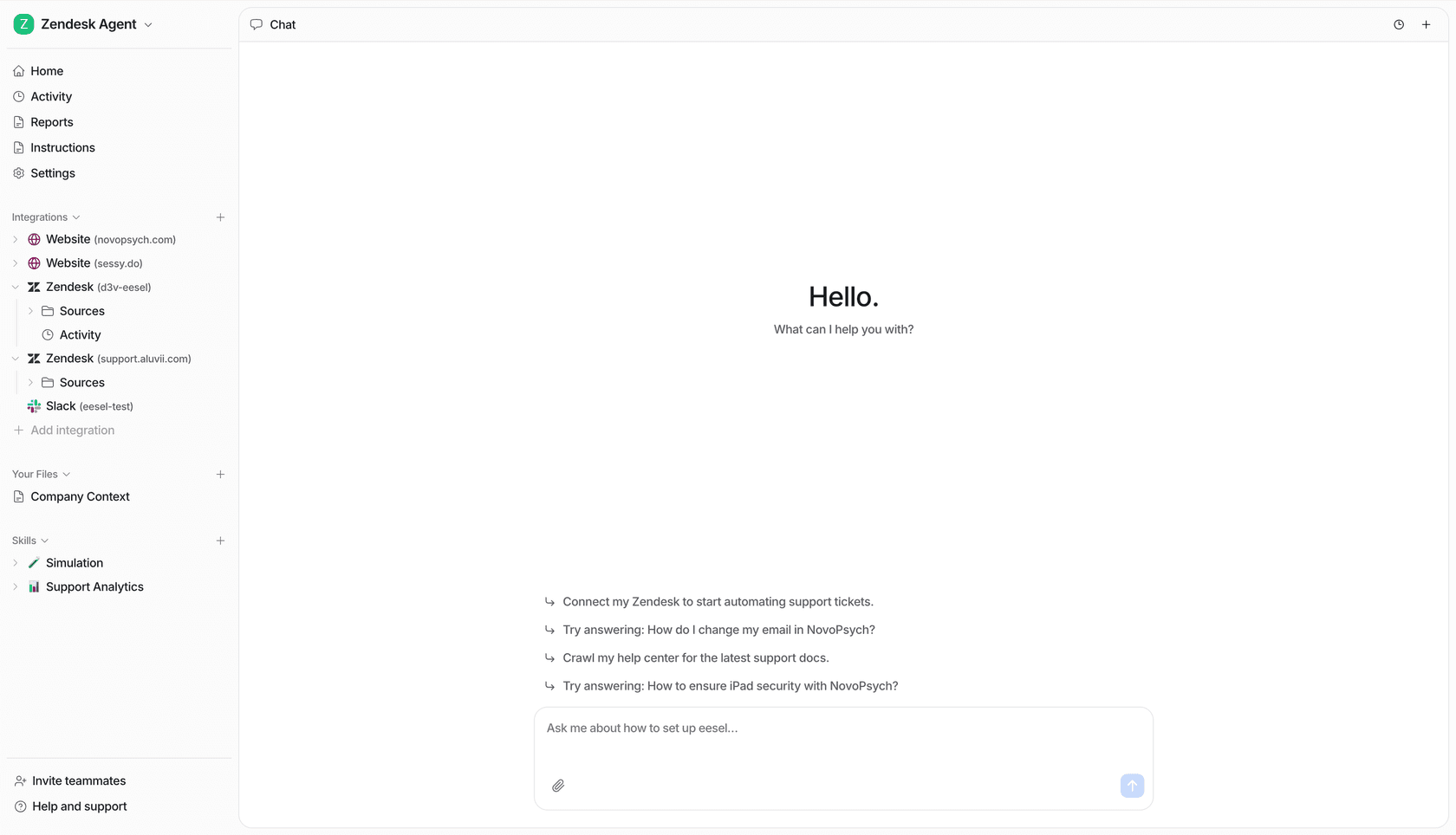
The eesel chat home has suggested prompts and a message composer; this is not a form-submission result.
To test an eesel support teammate next to Zendesk, Try eesel. Begin with a de-identified missing-data case, inspect the fresh session, and verify the native Zendesk experience on the channel that customers use.
Frequently asked questions
What should a Zendesk AI agent form collect?
Collect only information needed for the next support step, such as an order reference for an order lookup or a category for routing. Explain why the customer is being asked.
Are all field types available everywhere?
No. Zendesk documents availability differences by CRM, channel, and AI-agent experience. A form should be tested on the actual channel where customers will use it.
What happens when a customer skips a required detail?
Give a short explanation, offer a safe retry, and provide a human-handoff path when the request cannot proceed without the detail. Do not make the customer loop through the same prompt indefinitely.