How to configure Zendesk AI agent brand and channels: A complete guide

Stevia Putri

Stanley Nicholas
Last edited February 26, 2026
Expert Verified
Getting your Zendesk AI agent to respond to customers in the right places with the right knowledge starts with two key configuration steps: setting the brand and selecting the channels. These settings determine which help center content your AI pulls from and where customers can actually interact with it.
If you're setting up your first AI agent or reconfiguring an existing one, this guide walks you through the process step by step. We'll also look at how eesel AI approaches brand and channel configuration differently for teams that need more flexibility. For a broader overview of Zendesk AI options, check out our complete guide to Zendesk AI agents.

What you'll need
Before you start configuring brand and channel settings, make sure you have:
- A Zendesk Suite or Support plan (Team level or higher)
- Admin permissions in your Zendesk account
- An AI agent already created (if not, create one first)
- Clarity on your brand structure (single brand vs. multi-brand setup)
- Channels already configured in Zendesk (messaging, email, or web form)
Understanding Zendesk AI agent brand and channel configuration
Brand and channel configuration might sound technical, but it boils down to two simple questions: what knowledge should your AI use, and where should it talk to customers?
Brand determines which help center your AI agent pulls knowledge from. If you run multiple brands in Zendesk, each with its own help center, the brand setting tells the AI which knowledge base to reference when generating replies.
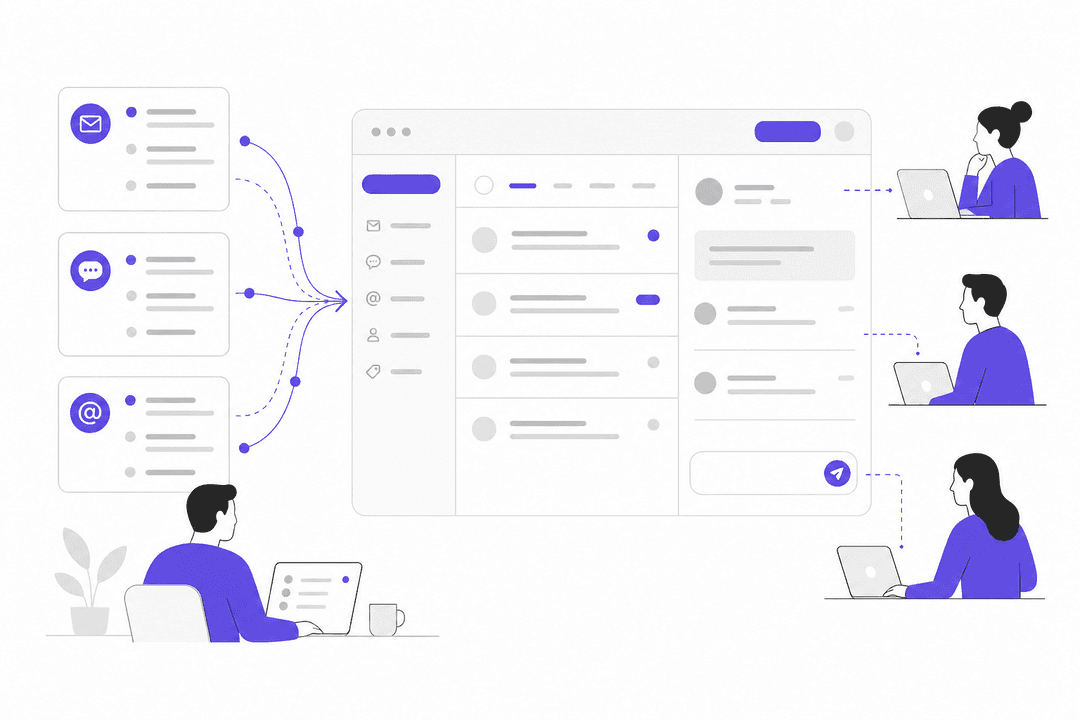
Channels control where the AI agent can interact with customers. Zendesk supports several channel types:
- Messaging: Web widgets, mobile apps, and social messaging
- Email: Support email addresses
- Web form: Ticket submission forms
- API: Programmatic access (auto-enabled with email/web form)
The brand and channel settings work together. The channels available for selection depend on which brand you choose, since channels are associated with specific brands in Zendesk.
Zendesk offers two AI agent tiers. AI Agent Essentials comes included with all Suite plans and handles basic generative replies from a single help center. AI Agent Advanced is a paid add-on ($50 per agent monthly, annual billing) that unlocks multiple content sources, custom instructions, and conversation flows.
One important concept: changes auto-save but don't go live until you publish. This lets you configure everything, test it, and then push updates when you're ready.
Step 1: Access your AI agent settings
Start by opening Admin Center in Zendesk. Click AI in the left sidebar, then select AI agents > AI agents to see your list of configured AI agents.
Click the name of the AI agent you want to configure. This opens the agent details page where you can manage all settings.

Once you're on the AI agent details page, click the Settings tab. You'll see several expandable sections including Identity, Persona, Language, and the one we need: Brand and channels.
Step 2: Configure the AI agent brand
Click the Brand and channels section to expand it. You'll see a Brand dropdown that lists all available brands in your Zendesk account.
Select the brand you want this AI agent associated with. Remember, this determines which help center the AI uses to generate replies. If you have multiple brands with different help centers, choose the one whose knowledge base matches what this AI agent should know about.

You'll also see an optional checkbox: Always show title and preview for restricted articles. When enabled, unauthenticated users see a title and short snippet of restricted help center articles, even if they can't access the full content. This can help surface relevant content while maintaining access controls.
For multi-brand setups, you might create separate AI agents for each brand, each pulling from its respective help center. This keeps responses brand-appropriate and knowledge-base-specific.
Your brand selection auto-saves, but it won't affect customer interactions until you publish the AI agent (covered in Step 5).
Step 3: Configure messaging channels
Still in the Brand and channels section, look for the Messaging subsection. Here you'll see all messaging channels associated with the brand you selected.
Check the boxes for each messaging channel where you want this AI agent available. Common options include:
- Web widget (your website chat)
- Mobile SDK channels
- Social messaging (Facebook Messenger, WhatsApp, etc.)

If you're using AI Agent Advanced (formerly Ultimate), channel configuration works differently. Advanced AI agents connect through Sunshine Conversations, and you'll manage channel assignments through the Channel Manager or the Ultimate dashboard rather than directly in these settings.
Only channels associated with your selected brand appear here. If you don't see a channel you expect, verify it's connected to the right brand in your Zendesk channel settings.
Step 4: Configure email and web form channels
Below the messaging section, you'll find Email and web form settings. This is where you enable the AI agent for traditional ticket channels.
Check the boxes for:
- Email channels where the AI should respond
- Web form channels for ticket submissions

Important note: When you enable an email or web form channel for a brand, the API channel automatically enables as well. This allows programmatic access to the AI agent for that brand.
For AI Agent Advanced users, email channel configuration happens through the Advanced AI agent dashboard rather than these standard settings. The Advanced tier also supports more sophisticated email automation including delayed responses and custom triggers.
Step 5: Publish your changes
Here's where many people get tripped up. All your configuration changes auto-save, but they don't go live until you publish the AI agent.

To publish, look for the Publish button (usually in the top-right of the AI agent settings page). Click it, confirm your changes, and the updates take effect immediately.
What happens when you publish:
- The AI agent starts using the new brand's help center for replies
- It becomes available on all selected channels
- Customers interacting with those channels will now encounter the AI
Before publishing, consider testing. Zendesk doesn't offer a built-in simulation mode for Essentials AI agents, so many teams publish during low-traffic periods or start with a limited channel set and expand gradually.
Best practices for Zendesk AI agent brand and channel configuration
Getting the configuration right is just the start. Here are some practices that help teams get better results:
-
Match brand to customer expectations: Make sure the AI agent's brand aligns with where customers are reaching out. If someone emails support@brandA.com, they should get replies based on Brand A's knowledge, not Brand B's.
-
Start narrow, expand gradually: Begin with one or two channels, verify the AI performs well, then add more. This limits risk while you're learning.
-
Test restricted article previews: The "show title and preview" option can increase deflection by surfacing relevant content, but test how it looks for unauthenticated users.
-
Monitor per-channel performance: AI agents often perform differently across channels. Messaging conversations tend to be shorter and more casual than email tickets. Track resolution rates by channel and adjust accordingly.
-
Keep help centers updated: Your AI is only as good as the knowledge it references. Outdated help center content leads to outdated AI responses.
Common configuration mistakes to avoid
After working with dozens of teams on AI agent setup, we've seen a few patterns worth avoiding:
-
Forgetting to publish: You'd be surprised how often teams configure everything, close the tab, and wonder why nothing changed. Remember: configure, then publish.
-
Selecting channels from the wrong brand: The interface only shows channels associated with your selected brand, but if you change brands after selecting channels, those channel selections may reset.
-
Mixing up Essentials and Advanced paths: If you have Advanced AI, don't waste time in the standard AI agent settings. Go directly to the Advanced AI dashboard for channel configuration.
-
Skipping testing: Without testing, you discover problems through customer complaints. For teams wanting more control over testing, our AI agent simulation lets you run through past tickets before going live.
-
Ignoring restricted article settings: The default restricted article behavior might not match your security needs. Review this setting intentionally rather than accepting the default.
An alternative approach: eesel AI for brand and channel flexibility
Zendesk's native AI agent configuration works well for straightforward setups, but some teams need more flexibility. That's where we come in.
eesel AI integrates directly with Zendesk but takes a different approach to brand and channel configuration:

Multi-source knowledge: Instead of limiting the AI to one help center per brand, eesel trains on past tickets, help center articles, Confluence docs, Google Docs, Notion pages, and PDFs simultaneously. Your AI isn't constrained by brand boundaries when those boundaries don't match how your knowledge actually lives.
Interaction-based pricing: Rather than paying per agent (Zendesk Advanced AI is $50/agent monthly), eesel starts at $299/month for up to 1,000 interactions across unlimited agents. For teams with high ticket volume but fewer agents, this can be significantly more cost-effective.
Simulation before deployment: Unlike Zendesk's live-only testing, we let you run simulations on historical tickets before customers ever see the AI. See exactly how it would have handled past conversations, measure deflection rates, and refine responses before going live.

Plain-English instructions: Define escalation rules and behavior guidelines in natural language. No complex configuration trees or decision logic. Just tell the AI what to do in plain English.
For teams already using Zendesk AI, eesel often works as a complement rather than a replacement. Some use Zendesk AI for simple FAQ handling while deploying eesel for complex tickets that need broader knowledge sources.
Configuring your AI agent for success
Brand and channel configuration sets the foundation for how your AI agent interacts with customers. Get it right, and you have an AI that knows what to say and where to say it. Get it wrong, and customers get confused responses in the wrong places.
The key steps are straightforward: choose your brand (which determines knowledge sources), select your channels (where customers interact), and publish when ready. But the strategic decisions matter more than the clicks. Which brand knowledge best serves your customers? Which channels are ready for AI handling? Start conservative, measure results, and expand from there.
If you're finding Zendesk's native AI limitations frustrating, whether it's the single-source knowledge constraint, the per-agent pricing model, or the lack of pre-deployment testing, our Zendesk integration might be worth exploring. We designed eesel AI specifically for teams that want more flexibility in how they deploy AI across their support operations.
Ready to get started? Configure your brand and channels in Zendesk, publish when you're confident, and start measuring results. The best AI deployments are the ones that improve over time based on real customer interactions.
Frequently Asked Questions
Share this post

Article by
Stevia Putri
Stevia Putri is a marketing generalist at eesel AI, where she helps turn powerful AI tools into stories that resonate. She’s driven by curiosity, clarity, and the human side of technology.