How to train and tune Zendesk Answer Bot intents: A complete guide

Stevia Putri
Last edited February 26, 2026
Getting your AI support bot to actually understand what customers are asking feels like teaching a new hire to read between the lines. You know what you want it to do, but translating that into something a machine can handle takes some work.
This guide walks you through training and tuning Zendesk Answer Bot intents so your bot can handle more conversations without escalating to human agents. We'll cover the two different AI agent versions Zendesk offers, how to set up training phrases, use pre-trained intents, and optimize performance over time.
If you're looking for a way to enhance Zendesk's native capabilities, we also offer a Zendesk integration that adds simulation testing and connects to additional knowledge sources beyond your help center.

What you'll need
Before you start training intents, make sure you have:
- A Zendesk Suite subscription (Team, Professional, or Enterprise)
- Admin access to the Admin Center
- An active help center with published articles
- A list of your most common customer questions
- Optional: Advanced AI add-on for intelligent triage features
The quality of your knowledge base directly impacts how well your bot performs. If your help center articles are outdated or poorly organized, even the best intent training won't save you.
Step 1: Understanding Zendesk's two AI agent versions
Here's where things get confusing. Zendesk currently has two different AI agent systems, and which one you can use depends on when you started with Zendesk.
AI Agent for Messaging (Legacy) is available if you had a drafted or published AI agent before February 2, 2025. This version uses Flow Builder, training phrases, and pre-trained intents. It gives you granular control over conversation flows.
AI Agent - Essential is what new customers get after February 2, 2025. Instead of training phrases and flows, you write "Instructions" that guide the AI's behavior. It's simpler to set up but offers less control over specific conversation paths.
To check which version you have, go to Admin Center > AI > AI agents. If you see an "Answers" tab with Flow Builder, you're on Legacy. If you only see basic settings and instructions, you're on Essential.
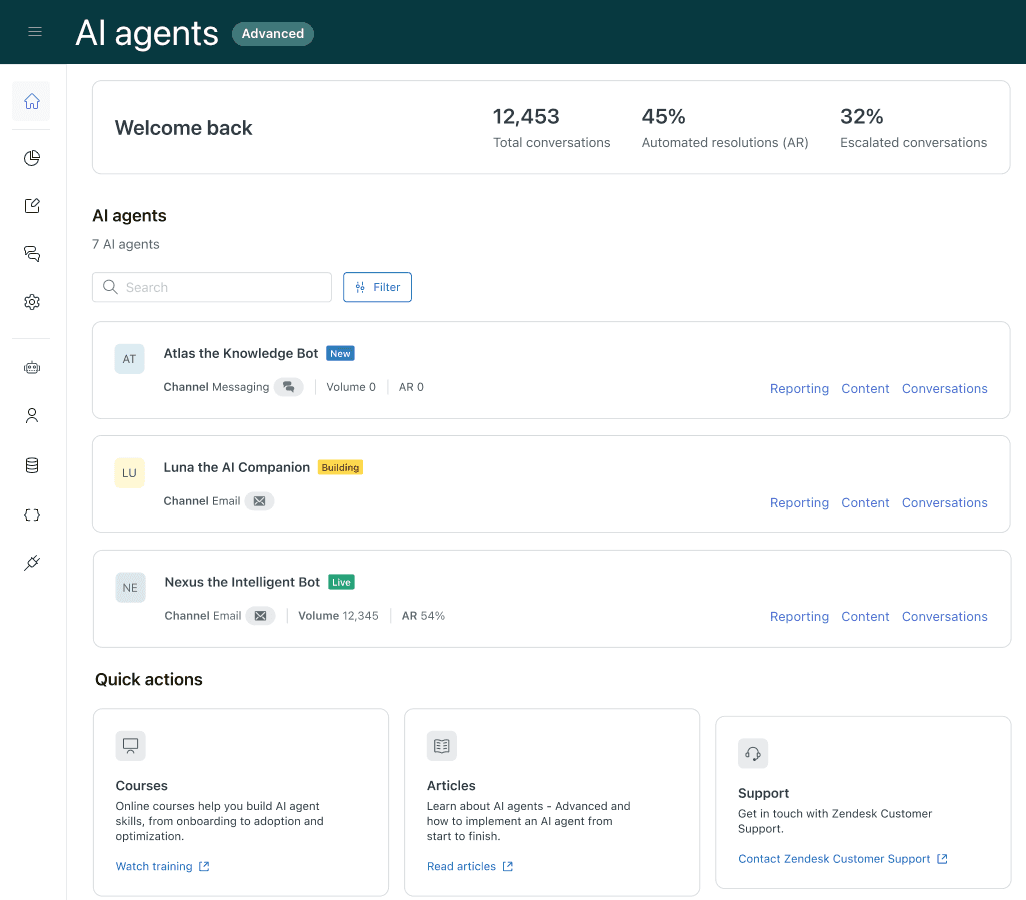
Most of this guide focuses on the Legacy version since that's where intent training and tuning really matters. The Essential version handles intent detection automatically behind the scenes.
Step 2: Preparing your knowledge base
Your bot can only answer questions if it has source material to work with. Before diving into intent training, optimize your help center:
- Ensure articles are publicly accessible (or properly configured for authenticated users)
- Add key phrases to the first 75 words of each article
- Use labels on help center articles to improve discoverability
- Structure articles with formatted headings (H2, H3)
- Merge similar articles to avoid confusing the bot with duplicate content
Think of it this way: if a human agent couldn't find the answer in your help center, your AI agent won't either. The bot uses your articles as its primary knowledge source.
For teams struggling with knowledge base organization, our guide on mastering AI and automation in customer support covers knowledge management strategies that work across platforms.
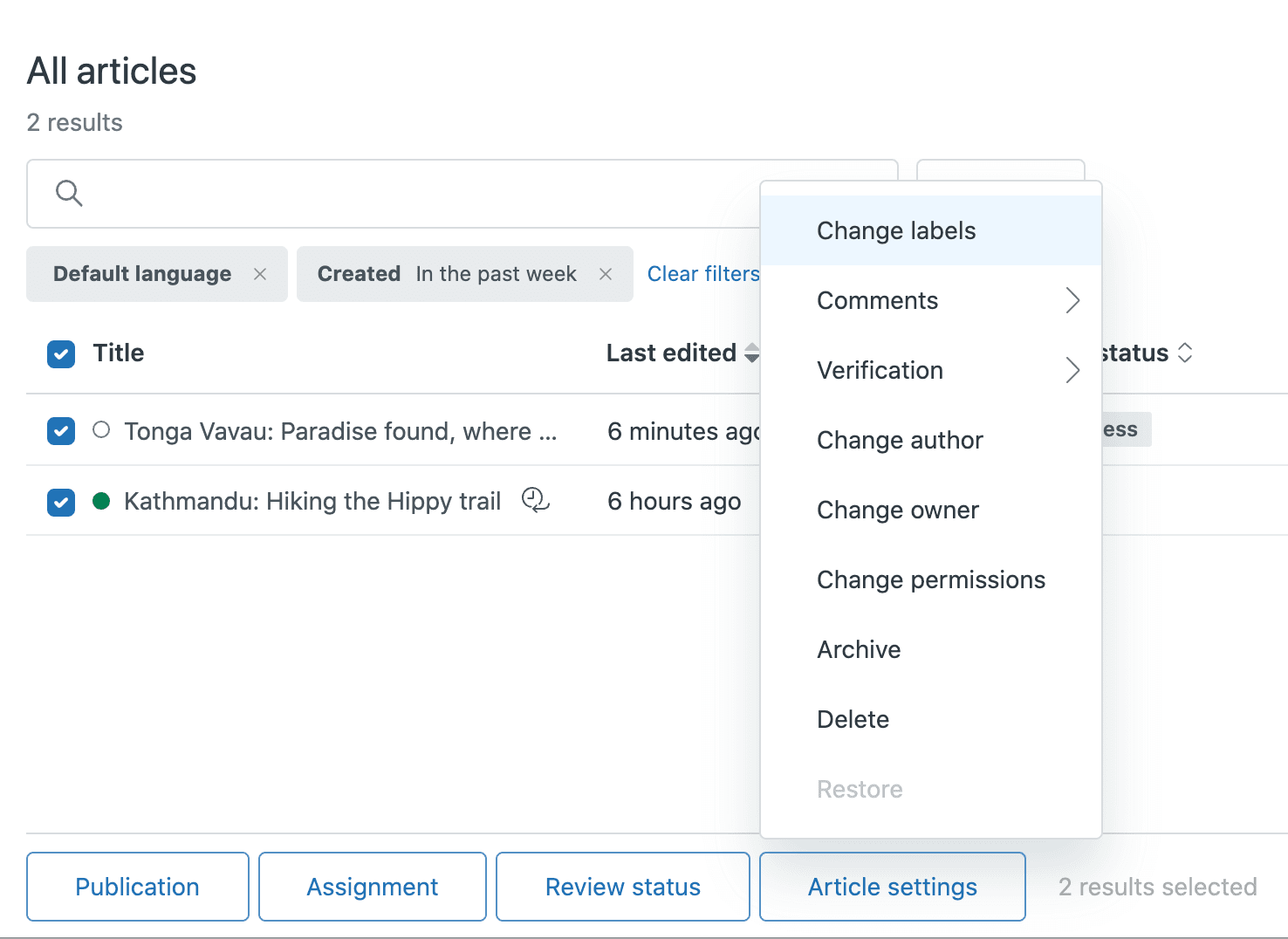
Step 3: Setting up training phrases (Legacy version)
Training phrases are example questions customers might ask that should trigger a specific answer. Here's how to set them up effectively.
Navigate to Admin Center > Channels > Bot Builder > Answers. Select an existing answer or create a new one. In the Training phrases section, add examples of how customers might phrase their question.
Follow these best practices:
- Aim for 3-5 training phrases minimum per answer
- Use short, multiple-word phrases instead of single words
- Include variations in how customers might ask ("reset password" vs "forgot my login")
- Avoid generic phrases like "Hi" or "I want to" that could match everything
- Take advantage of semantic matching: the model understands related concepts like "solar power" and "renewable energy"
Good training phrases:
- "reset my password"
- "can't log into my account"
- "forgot login credentials"
Bad training phrases:
- "Hi"
- "I need help"
- "How do I" (too generic)
If you have auto-translation enabled, training phrases will automatically translate to match your customer's language.
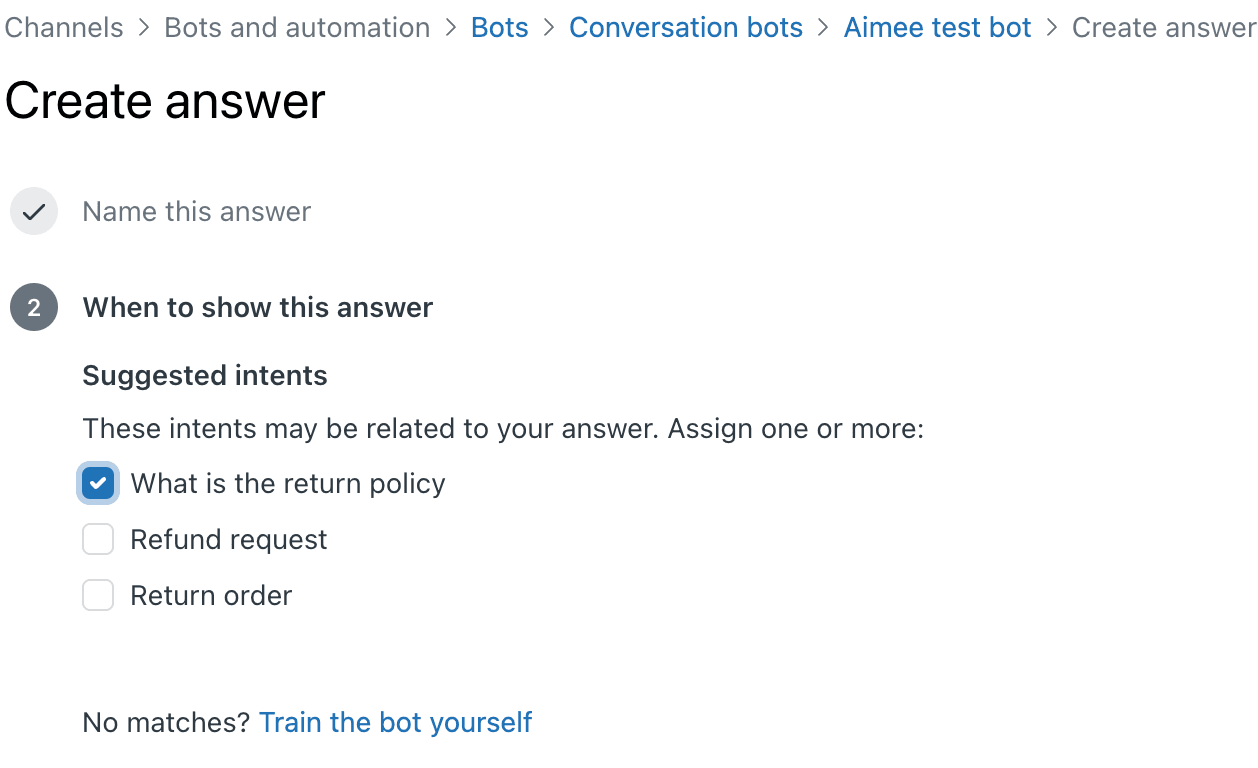
Step 4: Using pre-trained intents (Legacy version)
Pre-trained intents save considerable time when setting up Zendesk AI agents. Instead of manually adding training phrases, you can assign pre-built intents that Zendesk's machine learning model has already trained on thousands of similar conversations.
To access pre-trained intents, go to Admin Center > AI > AI agents > Intents. You'll see the Taxonomy tab which shows all available intent categories.
When you assign a pre-trained intent to an answer, the AI matches customer questions to the right response more accurately. The model recognizes patterns across similar phrasings you might not think to add manually.
Intent confidence comes in three levels:
- High: The model is very confident this matches the intent
- Medium: Reasonable confidence, but consider adding clarification
- Low: The model isn't sure; escalate or ask for rephrasing
You can also enable generative replies for frequently asked intents, which lets the AI compose natural responses based on your help center content rather than using rigid scripted answers.
When should you use pre-trained intents versus manual training phrases? Use pre-trained intents for common support scenarios (password resets, refund requests, order status). Use manual training phrases for company-specific questions that Zendesk's model wouldn't know about.
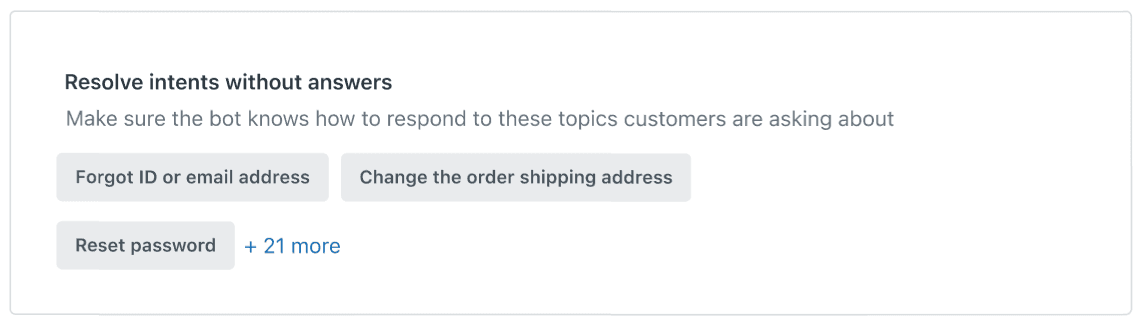
Step 5: Tuning and optimizing performance
Training your bot isn't a one-time task. You need to monitor performance and iterate based on real customer interactions.
The Answer Bot dashboard shows key metrics:
| Metric | What it measures | Target |
|---|---|---|
| Resolution rate | % of enquiries resolved from suggestions | 40-60% |
| Suggestion rate | % of enquiries where bot offered help | 70%+ |
| Click-through rate | % of suggestions clicked | 30%+ |
| Rejection rate | % marked unhelpful | Under 20% |
Review the "unsuccessful attempts" and "unanswered tickets" sections weekly. These show where your bot failed to match questions to answers.
When you see patterns in failed matches:
- Add training phrases for the specific phrasings customers used
- Check if you need a new answer for that topic
- Review whether existing articles cover the question clearly
- Consider assigning a pre-trained intent if one exists
Enable the "Ask if question was resolved" feature to collect direct feedback. When customers mark responses as unhelpful, that data feeds back into your improvement cycle.
Also review your fallback responses. If customers are hitting fallback too often, either your training phrases need work or you're missing answers for common questions.
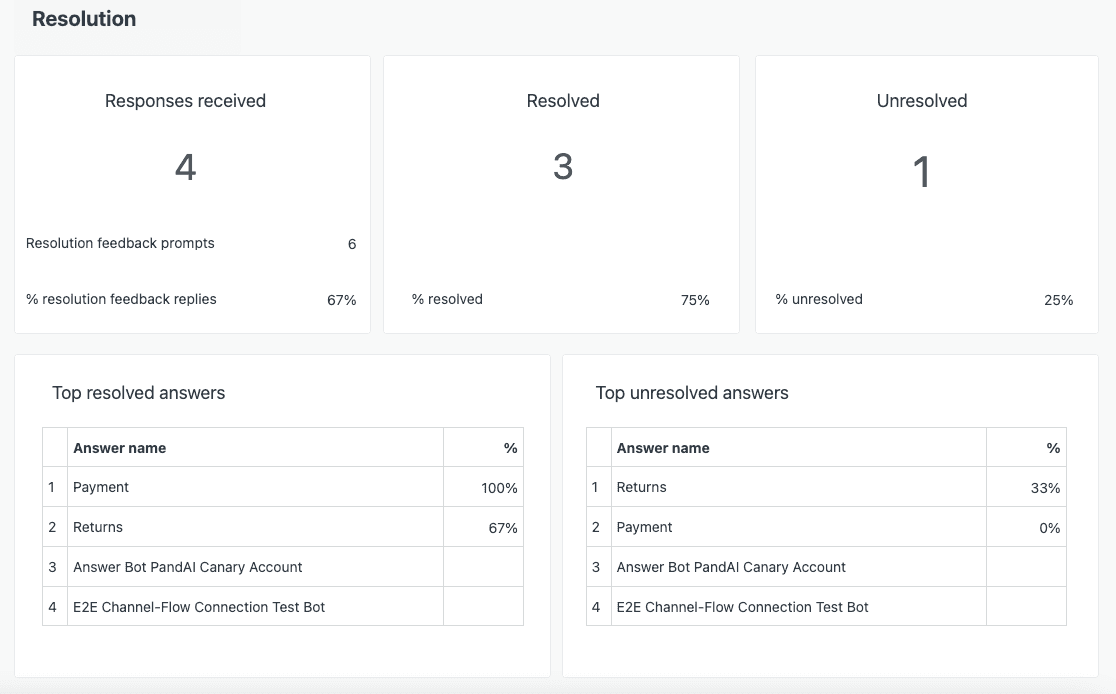
The iterative cycle of reviewing failed matches, adding training phrases, and monitoring metrics ensures your AI agent stays accurate over time. This continuous improvement approach turns failed customer interactions into better training data.
Step 6: Troubleshooting common intent issues
Even with good training, you'll hit issues. Here's how to fix the most common ones:
Bot not understanding questions Check your training phrase variety. Are you covering different ways customers might phrase the same question? Also verify your knowledge base actually has content on that topic.
Low intent confidence scores Add more specific training phrases or switch to pre-trained intents if available. Low confidence usually means the model sees the question as ambiguous.
Wrong answer matching Review similar articles in your help center. If two articles cover related topics, the bot might confuse them. Consider merging articles or making their scopes more distinct.
High escalation rate Analyze where conversations transfer to agents. Are there specific topics the bot can't handle? Create answers for those gaps, or improve handoff flows so escalation feels smooth rather than frustrating.
Generic responses triggering too often Remove overly broad training phrases. If "help" triggers a specific answer, that answer will fire constantly. Make your training phrases specific enough to match real questions.
When should you escalate to Zendesk support versus fixing it yourself? Contact support for technical issues (intents not appearing, features not working). Handle training and content issues internally.
Tips for better Zendesk Answer Bot intent training and tuning
Here are practical ways to improve your bot's performance:
- Start with your 20 most common questions. Get these working perfectly before expanding.
- Group related topics in single answers rather than creating dozens of micro-answers.
- Test with real customer queries before going live. Ask your agents for examples of how customers actually phrase questions.
- Use customer feedback to continuously improve. The "Was this helpful?" buttons aren't just decoration.
- Keep training phrases updated as language evolves. Customer phrasing changes over time.
- Document your intent taxonomy so your team understands what each answer covers.
- Consider the Advanced AI add-on for intelligent triage, which adds automatic intent detection on tickets across all channels.
For more automation strategies, check out our practical guide to mastering AI in customer support.
When to consider eesel AI for enhanced intent handling
Zendesk's native AI agent works well for straightforward help center deflection. But you might hit limitations if you need:
- Testing before going live: Zendesk doesn't offer simulation mode. You test with real customers or not at all.
- Knowledge beyond help center: We connect to Google Docs, Confluence, Notion, PDFs, and past tickets, not just published articles.
- Granular tone control: While Zendesk offers three preset tones, we let you define personality in plain English.
- Custom actions: Our AI agents can look up orders, process refunds, and take real actions via API, not just provide information.

Our Zendesk integration works alongside your existing setup. You can start with eesel AI drafting responses for agent review, then expand to full automation as confidence grows.
We also offer AI agent capabilities that handle complex multi-step workflows and integrate with your existing tools beyond what Zendesk's native options support.
If you're evaluating customer support automation solutions, it makes sense to compare how different platforms handle intent detection, testing, and ongoing tuning.


Frequently Asked Questions
Share this article

Article by
Stevia Putri
Stevia Putri is a marketing generalist at eesel AI, where she helps turn powerful AI tools into stories that resonate. She’s driven by curiosity, clarity, and the human side of technology.