
Custom ticket fields are one of the most powerful features in Zendesk that often go underutilized. They let you capture specific information about support issues, customers, or products, turning generic tickets into structured data that drives better decisions.
Think of custom fields as the questions you wish you could ask every customer who submits a request. What product are they asking about? What's their account type? Which department should handle this? Instead of hunting through email threads or asking agents to remember details, custom fields put that information right where you need it.
This guide walks you through creating custom ticket fields in Zendesk, from the basics of field types to advanced configurations that automate your workflow. We'll also cover how modern AI agents can leverage these fields to handle tickets autonomously.
What you'll need
Before you start creating custom fields, make sure you have:
- Administrator access to your Zendesk account (custom fields can only be created by admins)
- A clear understanding of what information you need to capture (creating fields without a plan leads to clutter)
- Optional: API credentials if you plan to create fields programmatically or integrate with external systems
If you're new to Zendesk's ticketing system, you might want to review how the Zendesk ticketing process works before diving into customizations.
Step 1: Navigate to the ticket fields settings
To create custom fields, you'll need to access the Admin Center. Here's how:
- Log into your Zendesk account
- Click the Admin Center icon in the top navigation bar
- In the left sidebar, select Objects and rules
- Click Tickets, then select Fields
You'll see a list of all existing ticket fields, including system fields (like Subject and Description) and any custom fields already created. The interface shows each field's type, visibility settings, and whether it's active.
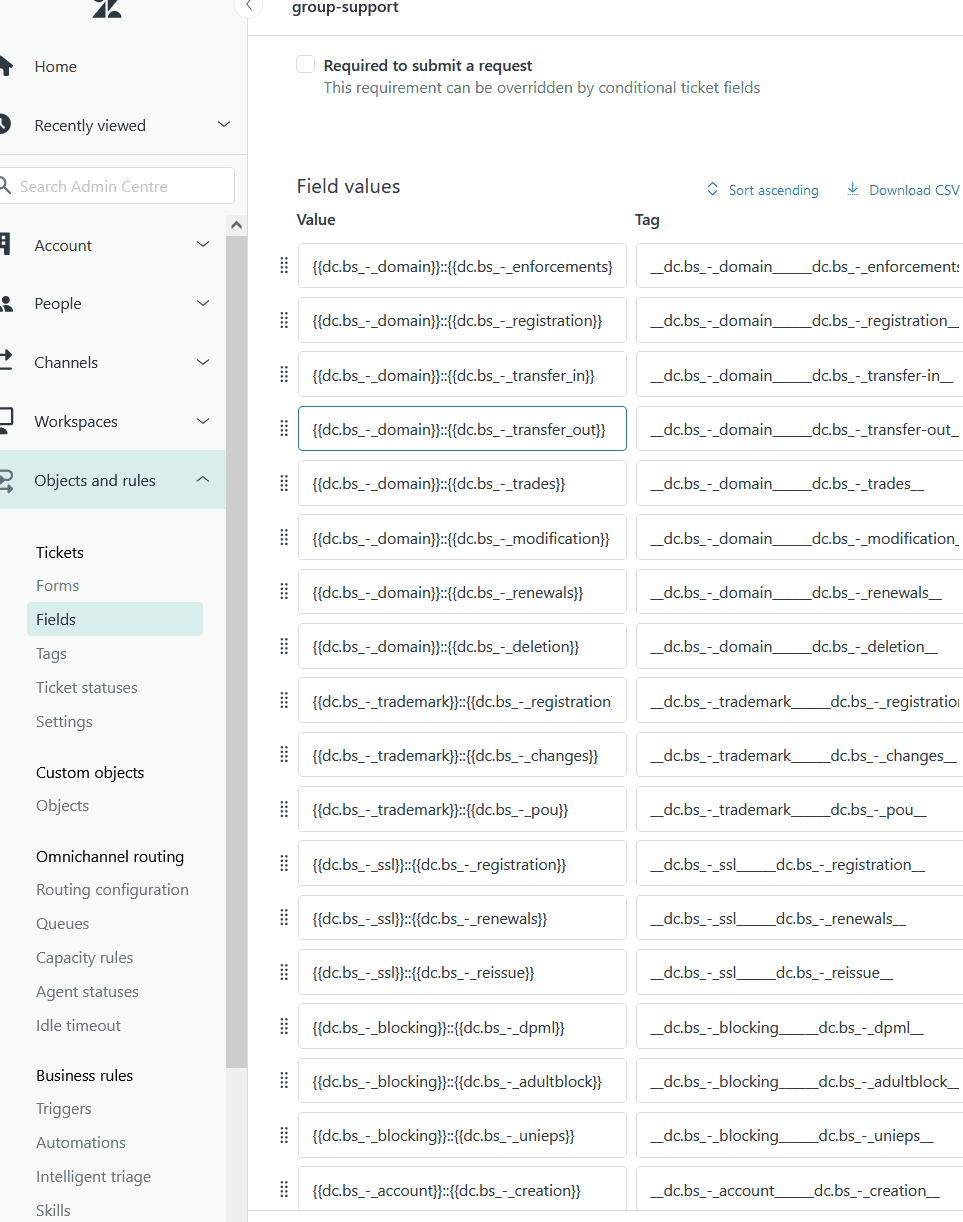
Take a moment to review existing fields before adding new ones. Many teams create duplicate fields because they didn't check what was already there.
Step 2: Add a new custom field
Once you're in the Fields section, click the Add field button. Zendesk will present you with a list of field types to choose from.
Here's a breakdown of each field type and when to use it:
| Field Type | Best For | Example Use Cases |
|---|---|---|
| Drop-down | Single selection from predefined options | Product category, priority level, issue type |
| Multi-select | Multiple selections from a list | Affected features, product lines, tags |
| Text | Short single-line entries | Order number, account ID, reference code |
| Multi-line | Longer text responses | Detailed issue description, troubleshooting notes |
| Checkbox | Yes/No or true/false values | VIP customer, urgent flag, escalation needed |
| Numeric | Whole numbers only | Ticket age in days, quantity affected |
| Decimal | Numbers with decimal points | Price, percentage, measurements |
| Date | Calendar date selection | Follow-up date, renewal date, incident date |
| Regex | Validated text patterns | Phone numbers, zip codes, serial numbers |
| Credit card | Secure payment info capture | Last 4 digits only, visible to agents |
| Lookup relationship | Linking to other records | Related ticket, parent organization |
Pro tip: Drop-down and multi-select fields automatically generate tags for each option. These tags become incredibly powerful when you start building automations. For example, if you have a "Product" drop-down with options for each product you support, Zendesk creates a tag for each selection that you can use in triggers and views.

Select the field type that best matches the data you want to capture. You can always change your mind later, though switching field types may affect existing data.
Step 3: Configure field properties
After selecting a field type, you'll configure the field's properties. This is where you define how the field behaves and who can see it.
Display name and description
Start with a clear, descriptive Display name. This is what agents and customers will see. Avoid abbreviations or internal jargon that might confuse new team members.
The Description field is optional but highly recommended. Use it to explain what information should go in this field. This helps agents fill it out correctly and reminds you why you created it six months later.
Permissions and visibility
This is where you control who sees the field:
- Agent-only: Only visible to your support team in the agent interface
- Visible to end users: Customers can see the field in Help Center
- Editable by end users: Customers can fill in the field when submitting requests
Important: Required fields for agents can be bypassed by triggers, automations, and API updates when solving tickets. If you need to ensure data is captured before closure, use a combination of tags and business rules rather than relying solely on the required field setting.
Tags for automation
For drop-down, multi-select, and checkbox fields, Zendesk automatically generates tags based on your field options. You can customize these tags or accept the defaults.
Here's why tags matter: they let you build powerful automations. For example, if you have a "Product" drop-down that generates tags like "product_premium" and "product_basic," you can create triggers that automatically route tickets to specialized teams based on the product selected.
Once you've configured all properties, click Save to create the field.
Step 4: Add the field to ticket forms
Creating a field doesn't automatically make it appear on tickets. You need to add it to a ticket form.
Understanding the difference: Fields are the data containers. Forms are the layouts that determine which fields appear and in what order. One field can appear on multiple forms, and forms can contain many fields.
To add your custom field to a form:
- In Admin Center, go to Objects and rules > Tickets > Forms
- Select the form you want to edit (or create a new one)
- Drag your custom field from the available fields list to the form
- Use the drag handles to reorder fields as needed
- Click Save
Think about field order from the agent's perspective. Put the most important fields at the top. Group related fields together. If you have multiple forms for different types of requests (like technical support vs. billing), add relevant custom fields to each appropriate form.

Using custom fields in business rules
Now that you have custom fields set up, the real power comes from using them in business rules. Here's how to leverage them:
Triggers
Triggers fire when tickets are created or updated. Use custom fields in trigger conditions to automatically:
- Route tickets to specific groups based on product selection
- Set priority based on customer tier
- Add tags for reporting purposes
- Send notifications to specialized teams
Example: Create a trigger that assigns all tickets with "Product: Enterprise" to your premium support team immediately upon creation.
Automations
Automations run on a schedule and check ticket conditions. They're perfect for:
- Escalating tickets that have been open too long
- Reminding agents to update stale tickets
- Closing resolved tickets after a waiting period
Important note: If you have automations that set ticket status to Solved, the ticket will be solved even if required custom fields are blank. Automations check their own conditions, not field requirements.
Views
Views are filtered ticket lists. Add custom fields as columns to:
- Sort tickets by product line
- Group tickets by priority or severity
- Create specialized queues for different teams
Note: Multi-select fields cannot be used as columns in table views, though they work fine as filter conditions.
For more advanced automation ideas, check out how the Zendesk ticket API can interact with custom fields programmatically.
Best practices for custom ticket fields
After working with hundreds of Zendesk instances, here are the practices that separate organized teams from chaotic ones:
Use consistent naming conventions. Decide on a format and stick to it. For example: "Product - [Product Name]" or "[Category]: [Field Name]". This keeps fields organized alphabetically and makes scanning easier.
Limit the total number of fields. Agents can only process so much information. If you have 50 custom fields, agents will start ignoring them. Aim for 10-15 well-chosen fields rather than 30 mediocre ones.
Group related fields logically. If you have multiple fields about a customer's account (plan type, renewal date, MRR), keep them together in your form layout.
Audit fields regularly. Every quarter, review which fields are actually being used. Deactivate fields that haven't been filled in recently. Fields that capture stale data are worse than no fields at all.
Document your fields. Create an internal wiki page or shared doc explaining what each field means, when to use it, and what the options represent. This is especially important for drop-down fields where option meanings might not be obvious.
Train agents on field importance. Fields only work if agents fill them out consistently. Explain why each field matters and how the data gets used (reporting, routing, etc.).
Common mistakes to avoid
Even experienced admins fall into these traps:
Creating fields for temporary needs. That field for "Holiday 2024 Issues" seemed like a good idea in December, but now it's January and you have a useless field cluttering your interface. Use tags for temporary categorization instead.
Using unclear field names. "Type" could mean issue type, customer type, ticket type, or product type. Be specific: "Issue Category" or "Customer Tier."
Forgetting about permissions. Making sensitive fields visible to end users accidentally exposes internal data. Double-check your visibility settings, especially for fields containing financial or personal information.
Ignoring tag generation. Those auto-generated tags are incredibly useful for automation. Don't delete them or make them cryptic. A tag like "product_enterprise" is much more useful than "opt_3."
Setting everything as required. Required fields slow down ticket creation and frustrate agents. Only require fields that are absolutely essential for handling the ticket.
Never updating fields as processes change. Your business evolves, but your fields might not. That "Legacy Product" drop-down option hasn't been relevant since 2022. Keep fields current.
Leveraging custom fields with AI
Custom fields become even more powerful when combined with AI. Modern AI support agents can read custom field values to make intelligent decisions about ticket handling.
Here's what that looks like in practice:
An AI agent can check a "Customer Tier" field and automatically apply different response templates for VIP customers. It can read a "Product" field and pull relevant troubleshooting steps from your knowledge base. It can even update fields based on conversation content, like setting an "Escalation Reason" after detecting frustration in a customer's message.
At eesel AI, we integrate deeply with Zendesk custom fields. Our AI agents can:
- Read any custom field value to personalize responses
- Update fields based on conversation context
- Use field data to make routing decisions
- Generate reports showing resolution rates by field value

This means your custom fields aren't just data capture tools, they're decision-making inputs for autonomous support. The structured data you've built becomes the intelligence layer that lets AI handle routine tickets while escalating complex issues to your team.
If you're interested in how AI can work with your existing Zendesk setup, explore our Zendesk AI integration.
Start optimizing your Zendesk ticket fields today
Custom ticket fields transform Zendesk from a generic inbox into a structured support operation. By capturing the right information at the right time, you enable better routing, smarter automation, and more insightful reporting.
Start small. Pick 3-5 fields that would make the biggest difference in your workflow. Create them, add them to your forms, and train your team on their use. Once those are working smoothly, expand from there.
And remember: fields are only useful if they get filled out. Focus on making data entry easy for agents and customers. The best field setup is the one that actually gets used.
If you're ready to take your Zendesk automation to the next level, consider how an AI agent could leverage your custom fields to handle routine tickets autonomously. The structured data you've built becomes the foundation for intelligent automation that scales with your business. You can see how this works in practice with eesel's AI agent for Zendesk, which reads and updates your custom fields to make smarter routing and resolution decisions.


