Help Scout AI ticket prioritization: no priority field, so build one

Rama Adi

Katelin Teen
Last edited November 22, 2026

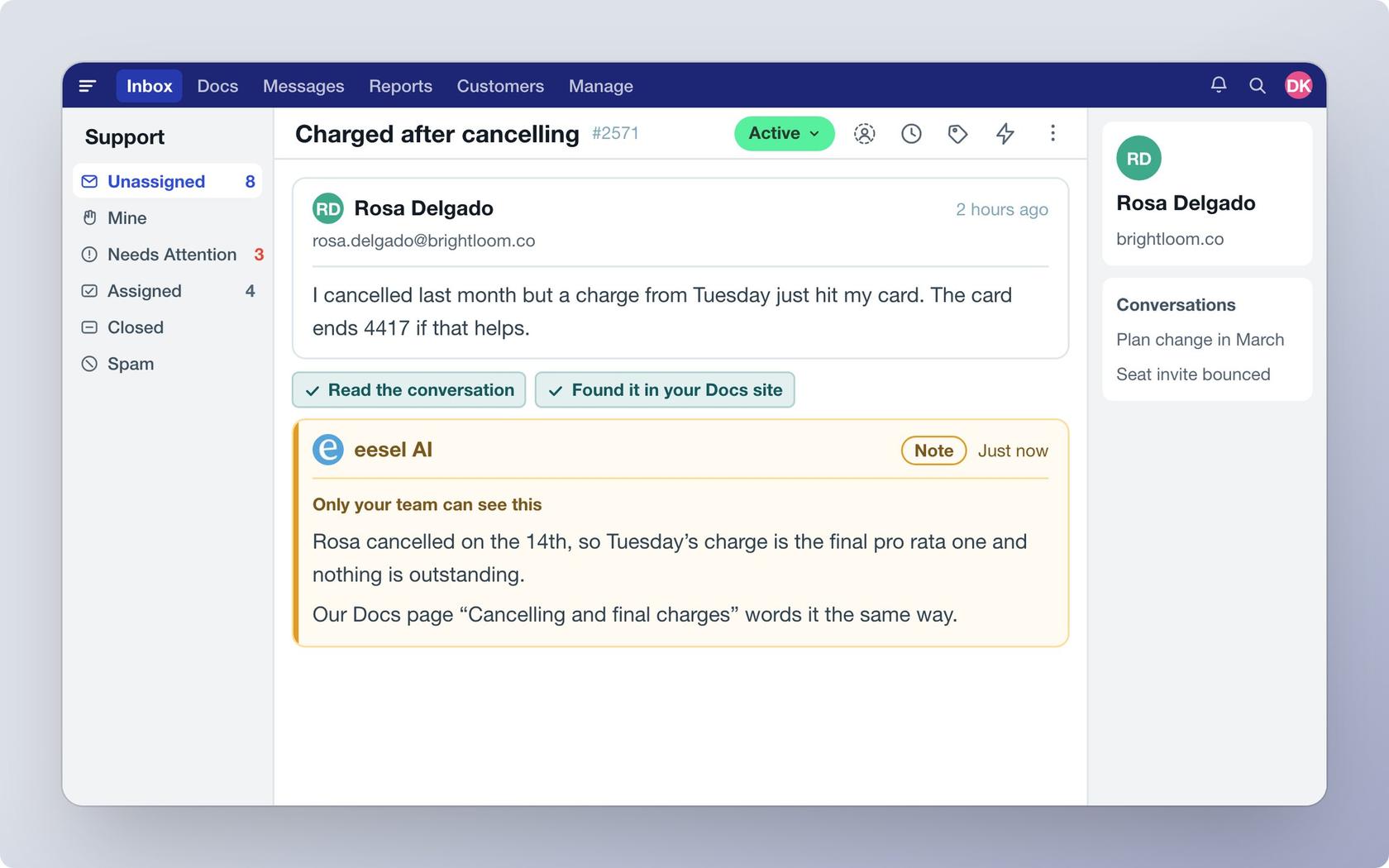
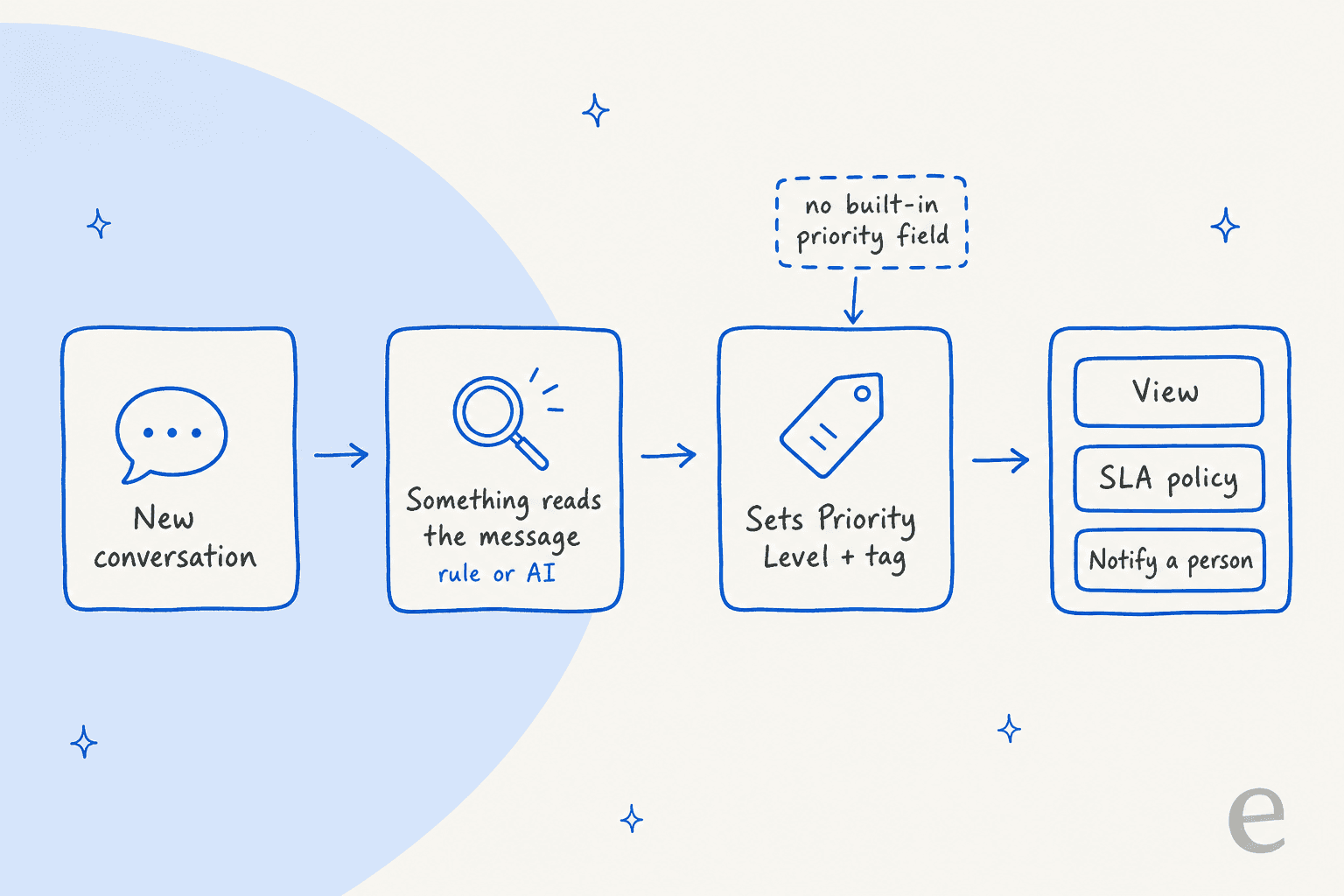
Help Scout has no built-in priority field, so priority is something you build: a Priority Level custom field (Plus and Pro), tags, views and SLA policies, filled in by workflows. AI's only job is the first step, reading the message so the right value gets set. Help Scout's own AI, Topics, labels the theme rather than the urgency. eesel fits that gap: on each new conversation it can set the field and tags and leave a note saying why, and I would start in one mailbox with the action set to ask first.
With the eesel CLI, an AI coding agent can upload your approved escalation rules as a file, then ask test questions like "a customer says they were charged twice, what priority is that?" and check the answers before anything touches a live mailbox. Connecting the Help Scout mailbox itself still needs someone with admin access to approve it.
Does Help Scout have a priority field?
No. I searched the docs for it, and the closest thing is a template. Help Scout's custom field scenarios page lists "Priority Level" as an example field you create yourself, so your team can flag conversations that need attention now versus later. It even suggests a workflow that sets the field automatically for a specific customer or domain.
I work on eesel's integrations, so I read helpdesk docs with one question in mind: which field can an automation actually write to? In Help Scout the answer for priority is a custom field, and that field costs you a plan tier.
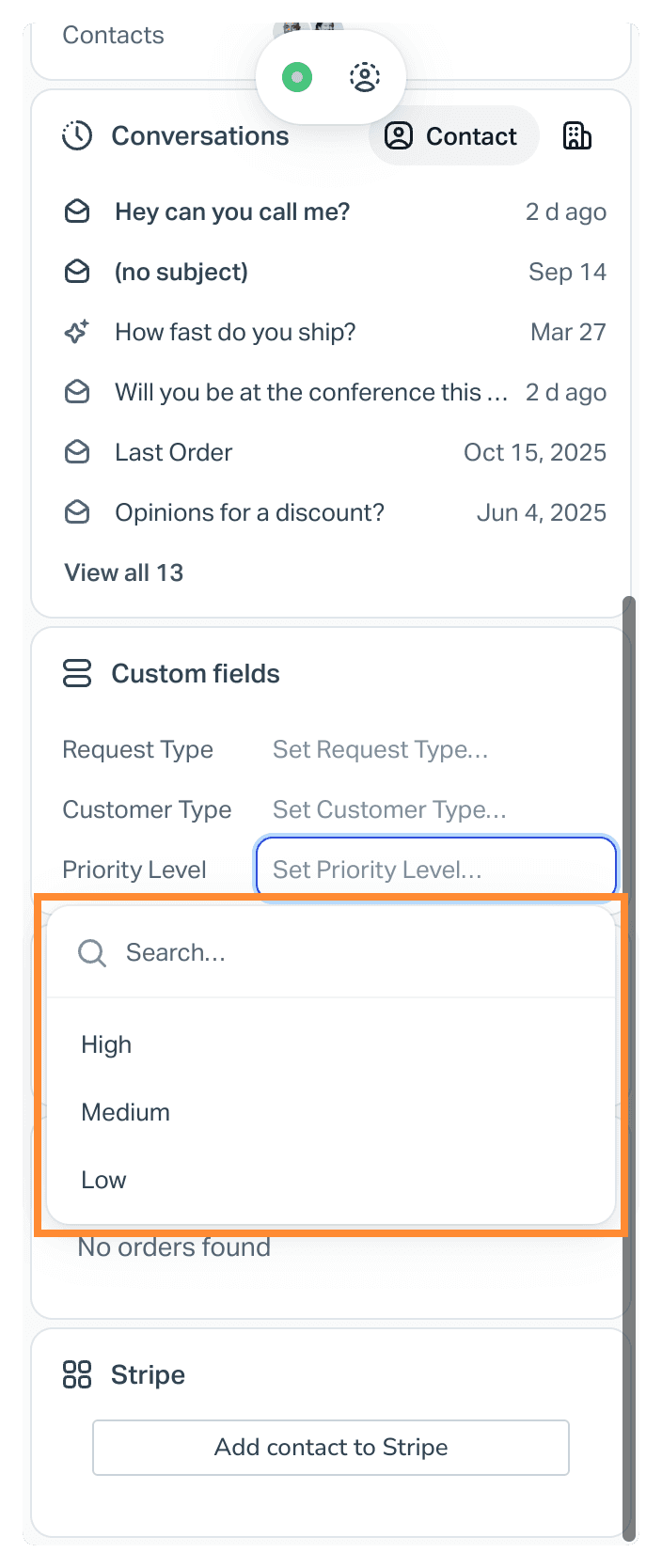
The custom fields article sets the limits: each inbox gets up to 10 custom fields in 5 types (dropdown, single line, multi line, number, date), a dropdown holds up to 100 options, and the feature is Plus and Pro only. A field can be required, so an agent must fill it in before sending a reply. Everything else on a Standard plan, tags and views included, has to carry priority on its own.
| Part | Is it AI? | Job in a priority setup | Plans |
|---|---|---|---|
| Custom field (Priority Level) | No | Stores High, Medium or Low | Plus and Pro |
Tags such as urgent and vip | No | Visible label, filter and report | All paid plans (unlimited tags) |
| Views | No | A sidebar queue for each priority | Custom field conditions on Plus and Pro |
| SLA policies | No | Response and resolution time targets | 1 basic on Standard, 2 on Plus, unlimited on Pro |
| Workflows | No | Set the field, add tags, assign, notify | Basic on Standard, advanced on Plus, unlimited on Pro |
| Topics | Yes | Labels the theme of a conversation | Plus and Pro |
Plans and prices come from the Help Scout pricing page, checked on 2026-11-22. Standard is $25, Plus is $45 and Pro is $75 per user per month billed annually ($30, $54 and $90 billed monthly). For a 10-person team that is $250, $450 and $750 a month on annual billing, so the Priority Level field and a second SLA policy cost that team $200 a month more than Standard. My Help Scout pricing breakdown covers the rest of what each tier unlocks.
The thing that shifted for me: of the six parts that touch priority, only one is AI, and it is the one that cannot set a priority. The other five are rules that wait for you to tell them what is urgent.
How do workflows turn a signal into a priority?
A workflow pairs conditions with actions. The conditions include customer name and email, subject, body, tags, status, assignee, rating, waiting time, custom field, and (on Plus and Pro) company and customer property. The actions that matter here are Set Custom Field, Add Tag(s), Assign to User or Team, Notify Help Scout User(s), Add a Note and Move to Inbox. Text conditions take contains, starts with, ends with or a regex, and one workflow can hold up to 30 conditions.
Three builds cover most teams:
- Named accounts. Customer Email, Company or a customer property matches, then Set Custom Field to High and add
vip. Help Scout suggests exactly this for white-glove customers. If you keep plan tier on the contact, my guide to Help Scout customer properties shows how to store it. - Warning words. Subject or Body contains a whole word from your list, such as "outage" or "chargeback", then tag
urgent. The docs advise whole words and several conditions, because a partial match on "end" also catches "friend" and "weekend". - Waiting too long. Waiting Since is longer than a set number of hours, then assign to a team lead or notify them. Pair it with your SLA policy order so the two do not fight.
Two behaviours shape the design. Automatic workflows run in list order, and each one only acts the first time a conversation matches, which prevents loops. And Apply to Previous can retroactively run a new workflow over existing conversations, so you can backfill a priority field the day you create it.
A G2 reviewer put the ceiling this way:
"It also lacks some of the heavy-duty, enterprise-level routing logic you'd find in a tool like Zendesk."

That is the honest trade. Rules are dependable and cheap, and the work of deciding what counts as urgent is yours. My posts on workflow auto-assignment and AI tagging and routing walk through the same rule layer from the assignment side.
What do views and SLAs add to a priority setup?
Views turn a priority into a queue. A view can filter by tag, custom field, assignee, waiting time and SLA, and you can pin up to 30 views to your sidebar. Two conditions are worth knowing: SLA Status can be Missed or "Misses In" a set time, and Waiting can be longer than, less than or between values. Only Administrators and Account Owners can create views, and the docs warn that views become inaccessible if an inbox holds more than 10,000 active or pending conversations.
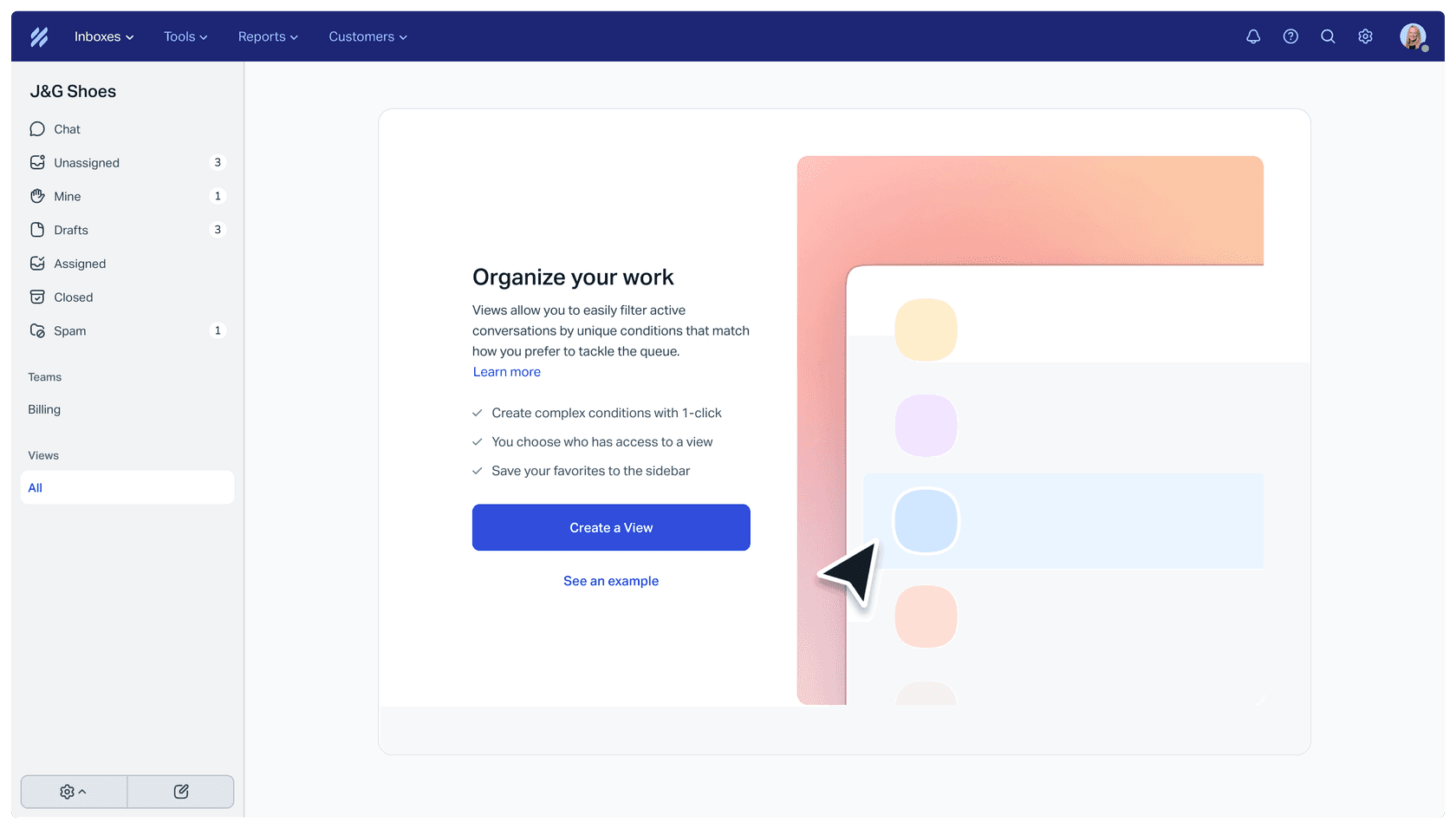
Sorting is the narrow part. The default sort is Waiting, which only changes when a customer or user reply is added, and the column management article says you can switch to Last Updated instead. You can add an SLA Target column and click its header to sort by it. I did not find a documented sort by custom field, so a priority view works as a filter, not as a ranked list. My conversation list columns guide covers the rest of the column options.
SLA policies add the clock. Per the SLA article, a policy can match on Company, Email address, Custom field or Customer property, and you set a First Response Time, a Time to Resolution, or both, measured in calendar or office hours. "Resolved" means closed with at least one user response. The first matching policy in your list wins, so the narrowest policy goes first.
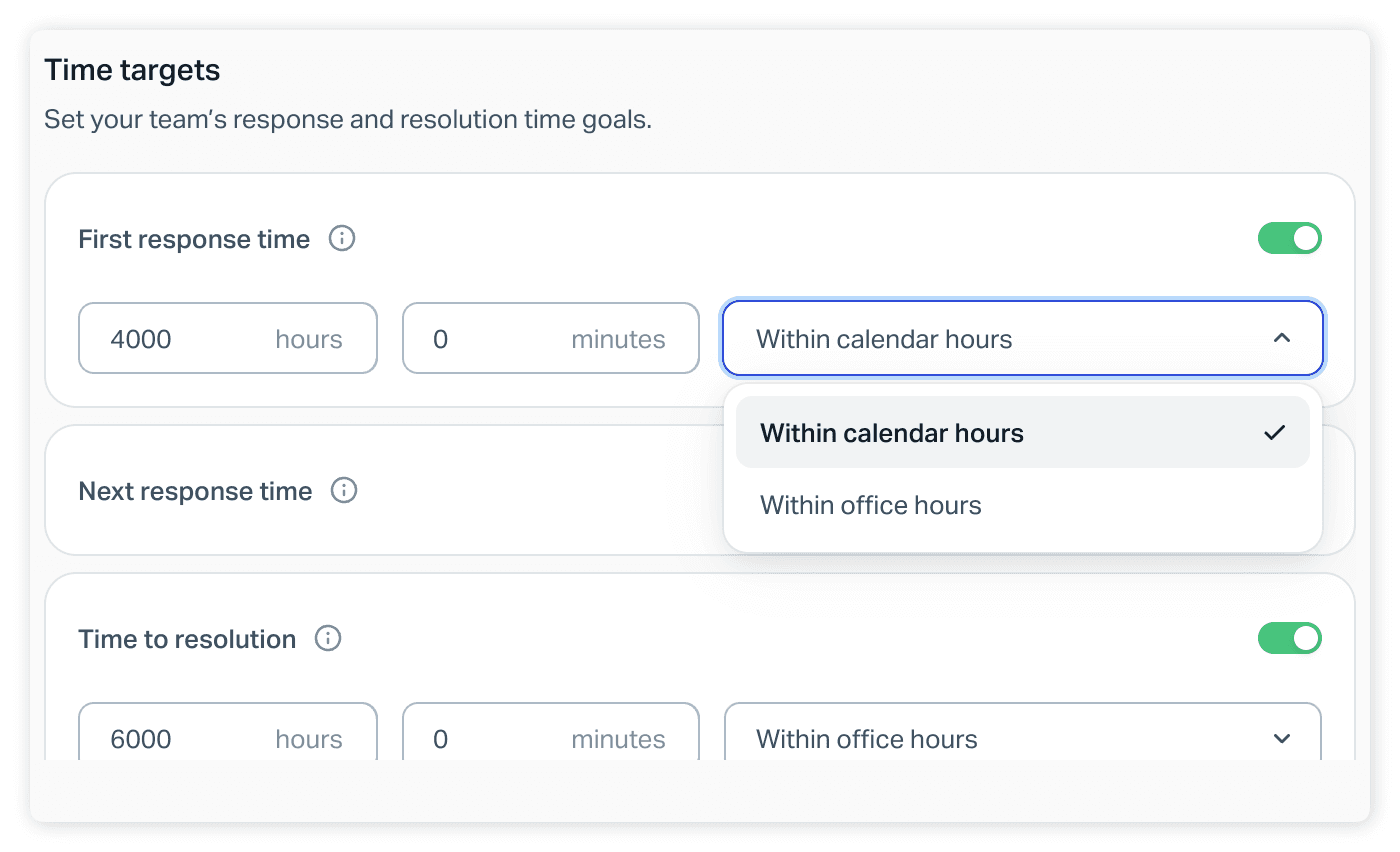
That is where Priority Level earns its keep: a policy whose condition is Priority Level is High can carry a one-hour target, and a catch-all carries the rest. One caveat from the docs: a policy only applies to conversations created after the policy exists. The docs do not say whether a conversation re-matches a policy after its custom field changes later, so test that on one conversation before you rely on it. The SLA reports then show compliance by policy, and my SLA best practices guide covers target-setting.
Can Help Scout's AI score urgency?
Not in the docs I read. Here is what each AI feature does:
- Topics assigns one theme per conversation, such as billing or refund request. It builds 8 to 15 topics per inbox from recent history, and shows Uncategorized when it is not confident. You can use a topic as a workflow condition, view filter or search term, but the Topics article says that during the beta it can only be a condition, not an action. A "Billing" topic tells you what the message is about, not whether the customer was charged twice.
- AI Drafts, AI Summarize and AI Assist write, recap and edit. None of them sets a field or tag. I covered the first two in Help Scout AI draft replies and conversation summaries.
- The MCP server lets Claude or ChatGPT read your conversations, but access is read-only, so it supports a weekly review rather than a live priority.
- Envoy, the add-on at $0.75 per resolution, answers customers instead of ranking them.
One more check for anyone planning to use Topics in a priority workflow: the conditions reference page I read does not list Topic as a condition yet, while the Topics article says you can. Confirm it in your own workflow builder before you build around it. For tone-based escalation, see what Help Scout does and does not have in my AI sentiment analysis post.
Which signal fits your situation?
Not every conversation needs AI. Rules see who sent it, which words are in the subject, how long it has waited and what rating it got. They cannot see that "I was billed again" is a money problem without the word billing in it. Pick the situation closest to yours.
Pick the situation closest to yours to see which Help Scout part handles it and where a rule stops being enough.
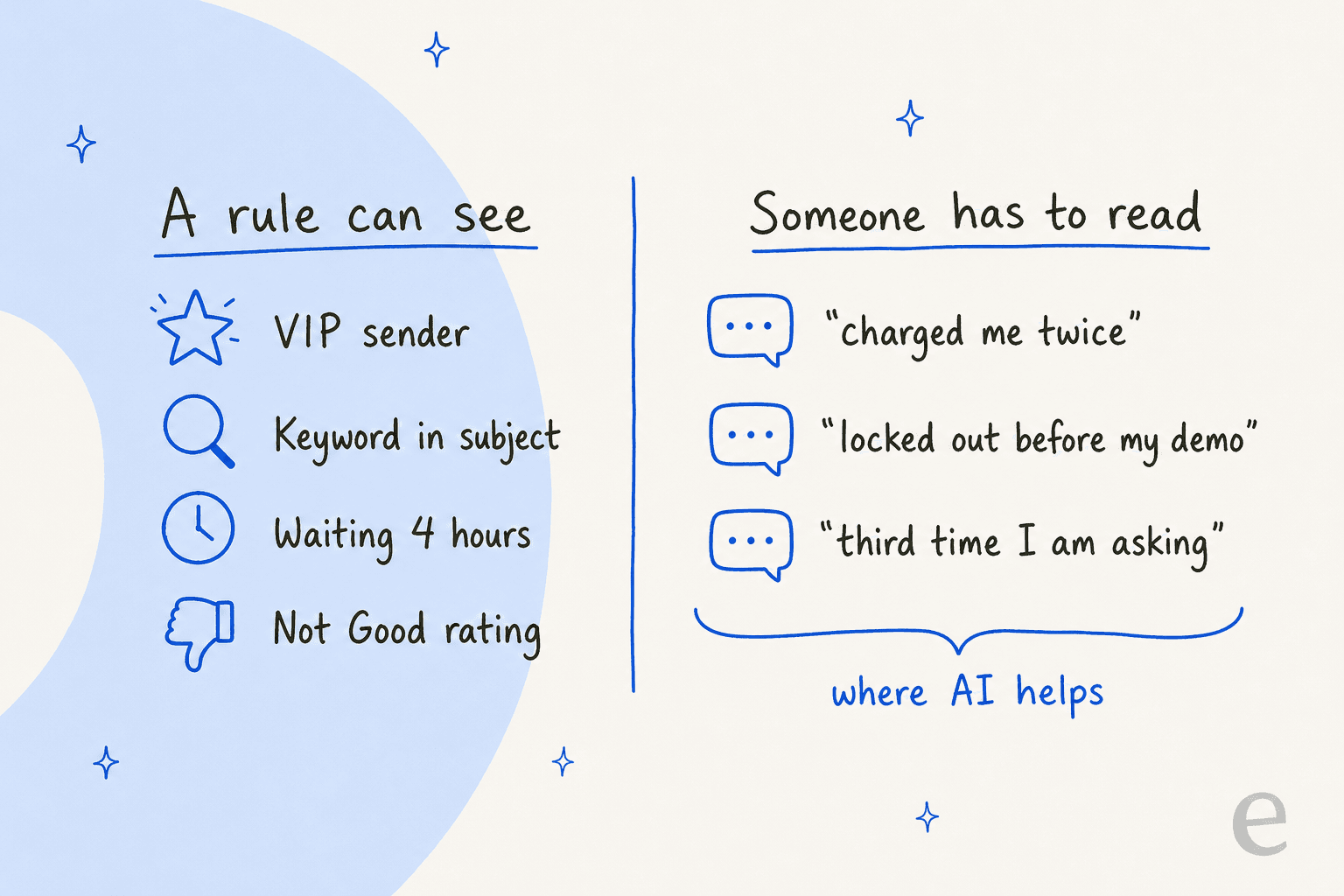
The pattern across all five: rules are strong where the signal is a fact (sender, clock, rating) and weak where it is meaning. That is also the dividing line for AI ticket prioritization on any helpdesk, which I would read alongside prioritizing tickets with AI if you want the helpdesk-neutral version.
How does eesel set priority in Help Scout?
eesel is an AI teammate platform, and its ready-to-work helpdesk teammate joins your Help Scout mailbox. I will stick to what the eesel Help Scout documentation says.
An automation is a Help Scout trigger plus plain-language instructions. Two triggers matter: A customer opens a new conversation (listed as best for first replies, triage and routing) and A customer sends a message (fires on customer replies, not on team replies or notes). The second one fixes a real gap. A Help Scout workflow only acts the first time a conversation matches, but a reply from a frustrated customer on day three still wakes the eesel automation, so priority can be raised when a conversation turns.
The actions that make priority work:
- Set custom fields sets or clears a custom field by name, and a dropdown takes one of its options. That is your Priority Level.
- Add tags and Remove tags handle
urgent,vipand the like. - Update conversation changes status, assignee (a person or a team), mailbox or subject.
- Leave internal note writes why, so a person sees the reasoning next to the priority.
Each action can run on its own, ask first, or stay off. Reading the docs closely, the agent starts with the conversation record (subject, status, mailbox, assignee, tags and custom field values), every customer message and team reply, and up to 5 images or PDFs the customer sent. It does not see customer properties such as plan, so a VIP list belongs in the instructions, or in a Help Scout workflow on Company or customer property. It also acts as the Help Scout user who approved the connection, so many teams create a dedicated user to tell its work apart.
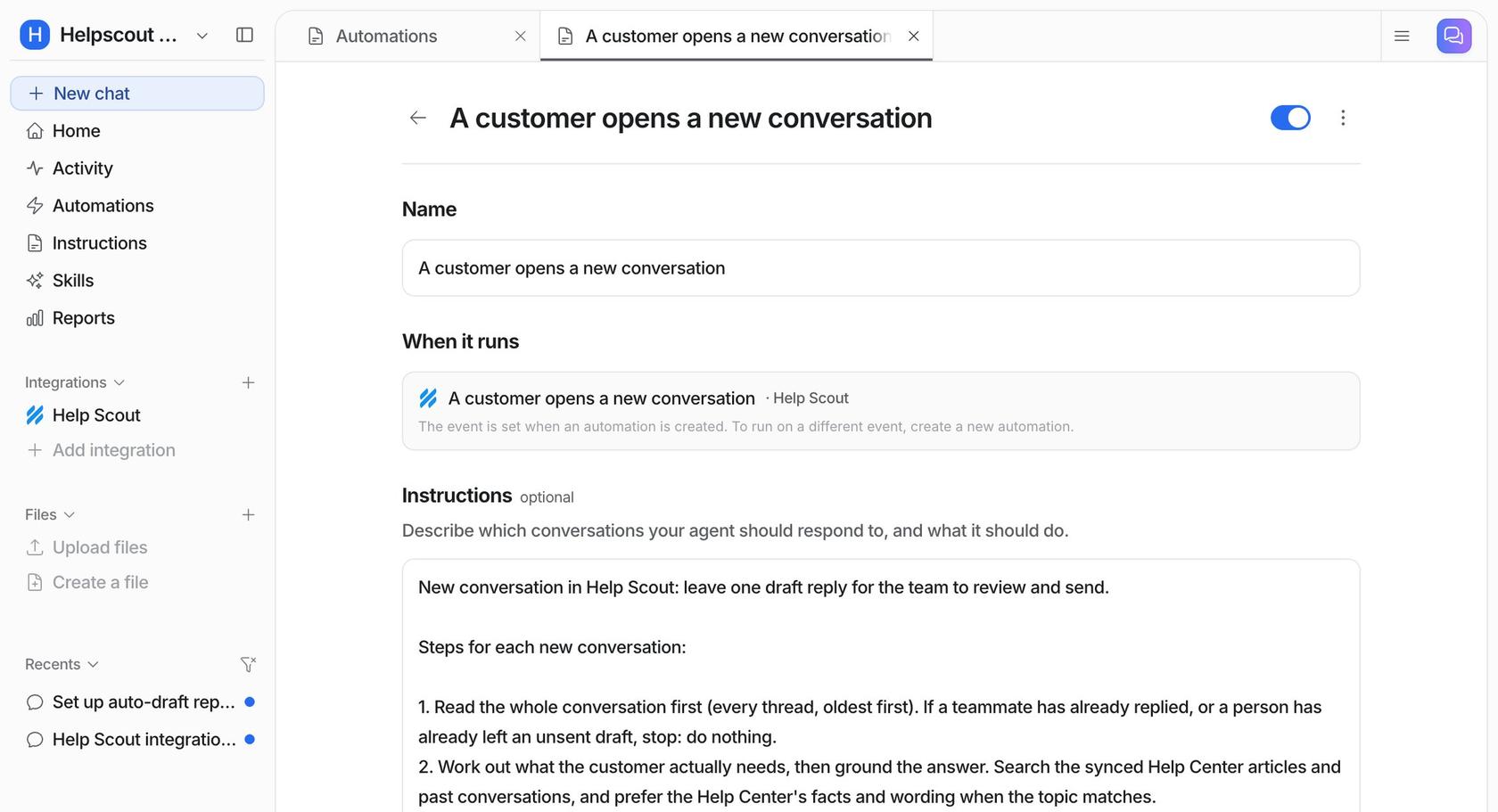
The instruction text carries the policy, and it should read like a policy you would hand a new hire. For example: "Set Priority Level to High if the customer reports being charged twice, cannot log in before a deadline they name, or says this is their third message. Set Medium for anything blocking a purchase. Otherwise set Low. Add the vip tag if the sender's domain is on this list. If you are unsure, leave Priority Level empty and add a note." The Activity page lists every conversation handled with each action and its reasoning, which is how I would review a week of its calls using my AI conversation review routine.
I would not describe this as a priority engine with a score. It follows the rules you write and records why, and a human in the loop stays in charge of anything it is unsure of. If your rules include a confidence score style check, put it in words: "if unsure, leave it empty and add a note."
What does a priority rule look like at real volume?
None of the named customers below run Help Scout, so treat them as the same idea on other helpdesks. All three come from eesel's published stories, with numbers for 8 August to 8 September 2026.
Rúngne, a Norwegian climbing apparel brand on Gorgias, runs a triage agent that tags from a fixed list. It adds a VIP tag if a customer has spent 300 or more or ordered twice, tags human_review_required when a person must look, and sends a B2B partner's ticket to a named teammate. The triage agent ran on about 1,050 of roughly 2,100 tickets and set about 880 tags, and nothing outside the list was invented.
Cactus Club Cafe shows the opposite instinct. Its internal IT desk on Zendesk gives the agent an emergency policy to read first: if a ticket is an emergency, the policy's response goes out and the agent stops. Outside that, the agent never changes tags, status, priority, group or assignee unless a document says to. Across about 750 tickets it tagged 82 and routed 39. Qontro on Freshdesk sends outages, data loss and billing questions straight to a person and leaves the rest to a draft.
Priority is a policy before it is a field. Each team wrote down which cases jump the queue, and the agent applied that list. I would copy that order of work: write the five cases, then pick the Help Scout part that stores them. My posts on the ticket escalation process and AI agent handoff best practices cover how to write them.
Which setup should I start with in Help Scout?
Pick by plan and by how many of your urgent cases carry a keyword.
| If you are on | And your urgent cases are | Start with | Add AI when |
|---|---|---|---|
| Standard | Named senders and obvious words | Workflows that add urgent and vip tags, plus a tag view | The keyword list keeps growing |
| Plus | Mixed, with some account tiers | Priority Level field, workflows, views, two SLA policies | Missed urgent cases come from wording, not senders |
| Pro | Many segments and targets | Unlimited SLA policies keyed on Priority Level | You want the field set from meaning, not keywords |
| Any plan | Hard to spot without reading | An AI teammate on the new conversation trigger | Start with ask first and review a week |
My default for a team under 15 agents is workflows plus one tag view for a month. They cost nothing beyond the plan you hold, and they show which phrases actually predict a bad outcome. Add an AI teammate when someone is manually re-tagging the same missed cases every week.
For the wider picture, my AI for Help Scout guide, best AI for Help Scout and Help Scout AI alternatives are the next reads.
If you want the same job on another helpdesk, see Zendesk AI ticket triage and Front AI email triage.
For VIP rules specifically, there are Gorgias VIP priority rules and Freshdesk VIP priority scenarios.
Related Help Scout reads are Help Scout ticket triage and collision detection, so two people do not grab the same urgent thread.
Glossary entries for auto-triage, escalation and SLA fill in the vocabulary, and a clean support queue is what the whole setup is for.
Try eesel for Help Scout
If you would rather not write a keyword rule for every way a customer says "this is urgent", try eesel on one mailbox. Connect Help Scout, create a Priority Level dropdown, paste your five urgent cases into the new conversation automation, set Set custom fields to ask first, and read the Activity page for a week. eesel has no per-seat fee, a ticket is 1 credit, and the free plan gives 100 credits for 7 days with no card; the security overview covers data handling.