Help Scout AI ticket tagging and routing: what is AI and what is rules

Kira

Katelin Teen
Last edited November 21, 2026
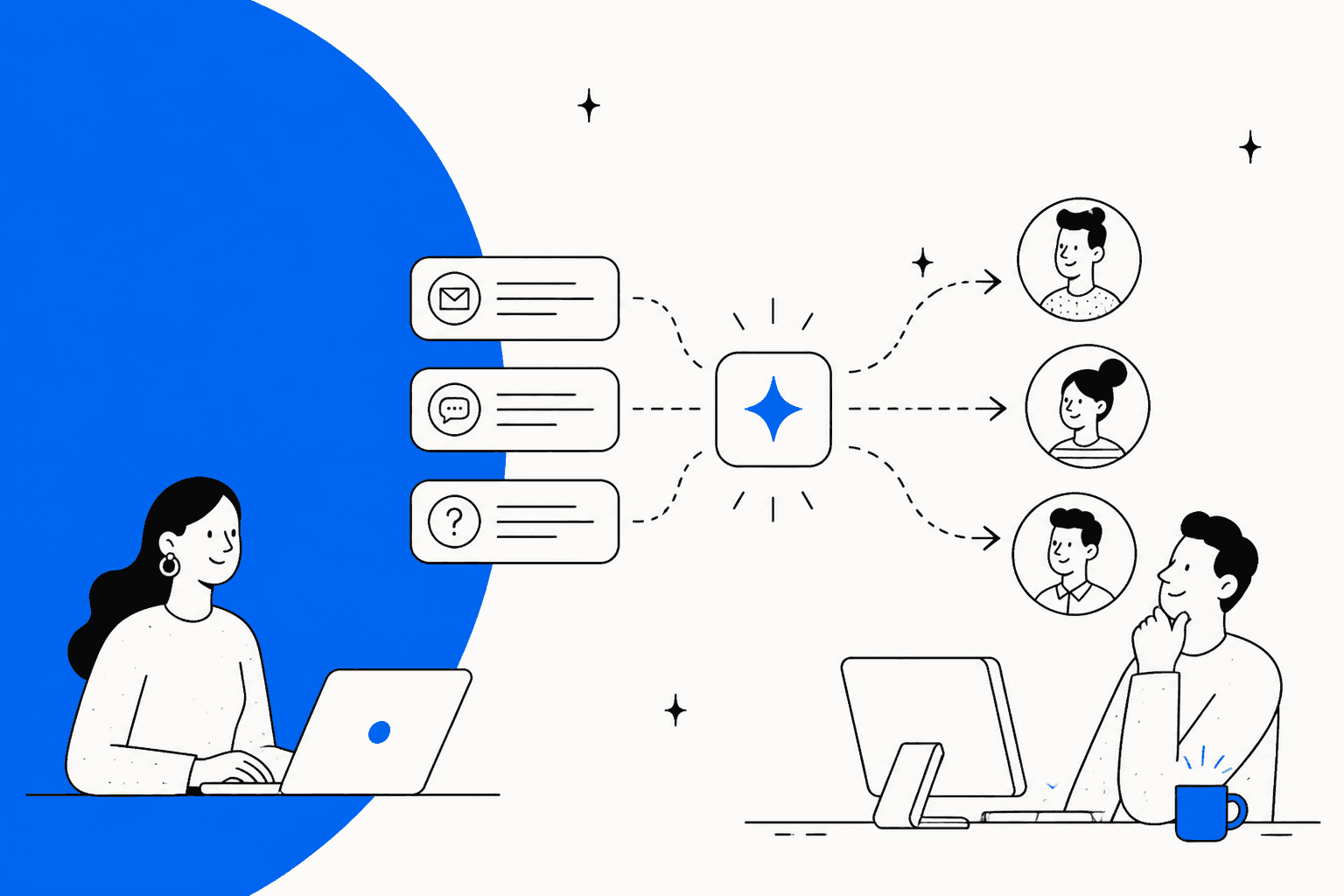
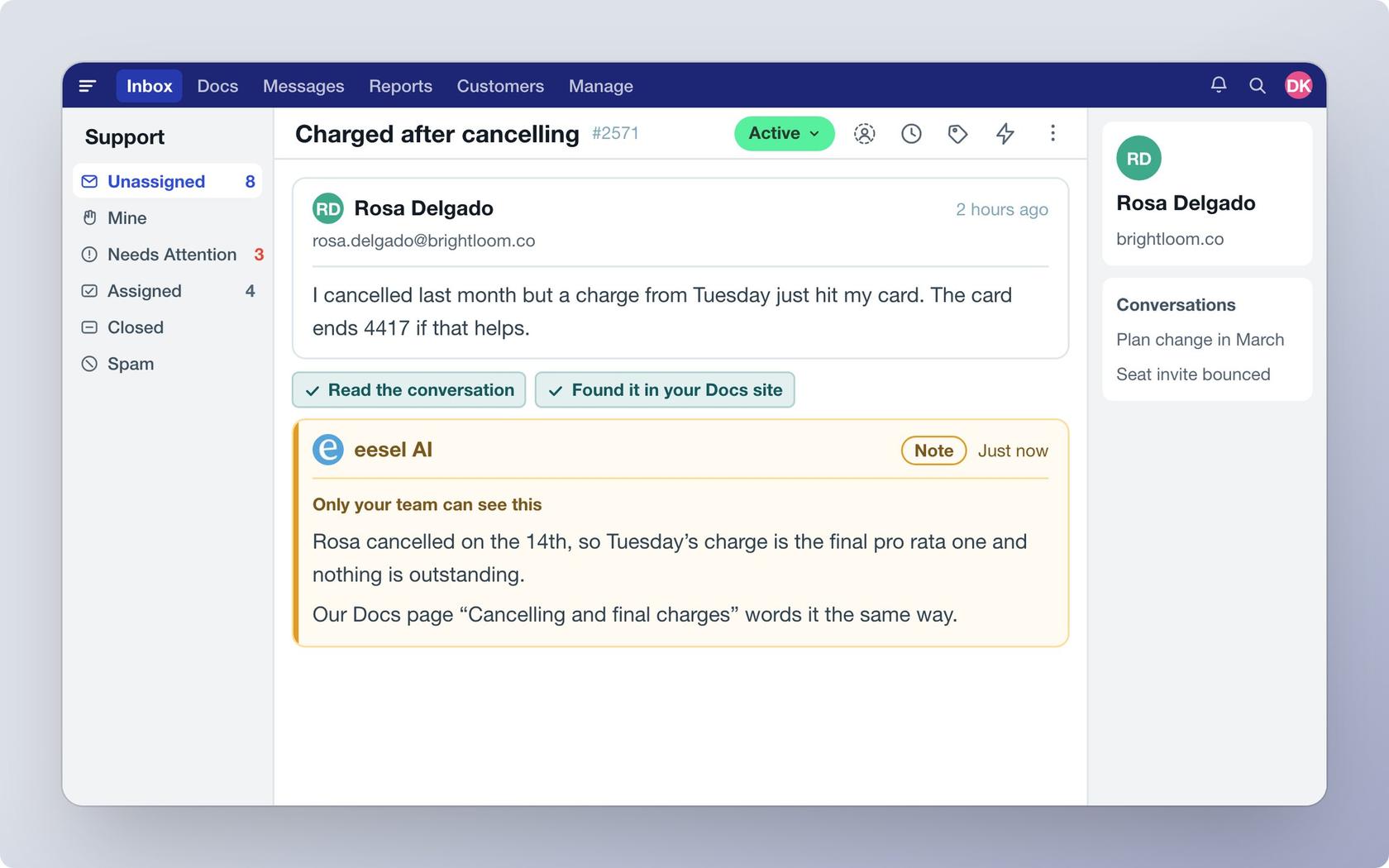
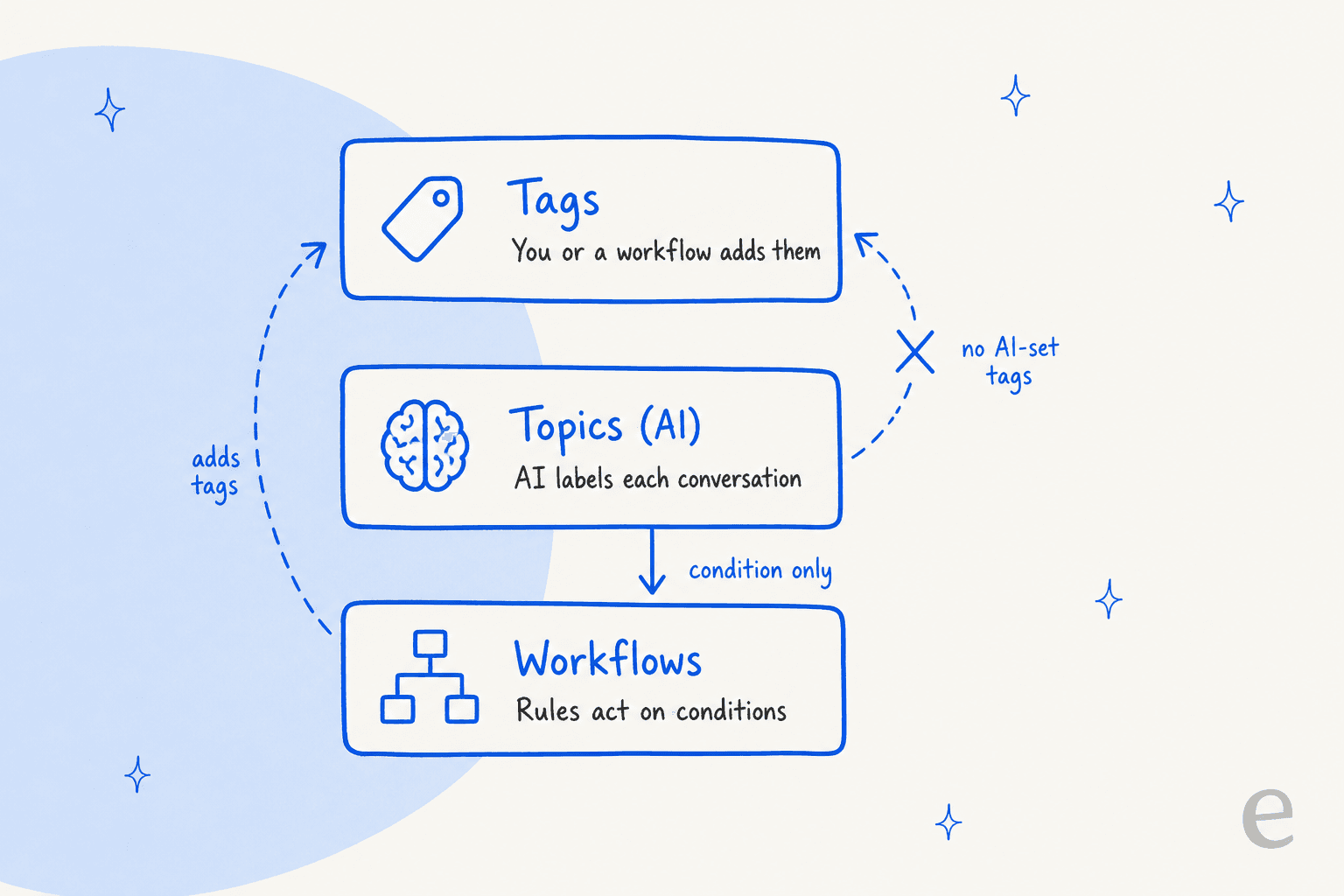
Help Scout's AI labels conversations but does not tag or assign them. Topics (Plus and Pro, beta) gives each conversation one AI theme, while tags and assignment run on workflows built from keyword and field rules. Topics can be a workflow condition but not an action, so the AI never writes a tag or picks an assignee. If you want one step that reads the message, applies tags from your own list and routes it, an AI teammate like eesel does that on the new conversation, and you can leave a note or ask first.
With the eesel CLI, an AI coding agent can upload your approved tag list and routing rules as a file, then ask test questions and check the answers before anything touches a live mailbox. Connecting the Help Scout mailbox itself still needs someone with admin access to approve it.
What does AI actually do in Help Scout tagging and routing?
I build and debug how eesel's agents act on helpdesk tickets, so I read Help Scout's docs the way you read a wiring diagram: what reads the message, and what actually changes the conversation? In Help Scout those are two different parts.
Three features matter here. They are easy to blur together because the marketing page lumps them under automation.
| Part | Is it AI? | What it does | Plans |
|---|---|---|---|
| Tags | No | Labels added by people or by a workflow's Add Tag(s) action | All plans |
| Topics | Yes | Assigns one theme per conversation, per inbox | Plus and Pro |
| Workflows | No | If-then rules that tag, assign, move, notify or reply | Basic on Standard, advanced on Plus and Pro |
| Routing | No | Hands unassigned conversations to available teammates | Round robin on Plus, plus balanced on Pro |
Plan names and prices come from the Help Scout pricing page: Standard $25, Plus $45 and Pro $75 per user per month billed annually. My Help Scout pricing breakdown covers what each seat tier unlocks.
The shift for me, reading it end to end: only one of the four is AI, and it is the one that cannot act. That is not a flaw. It is a clear design, and it tells you exactly where the work still lands on your team.
How do Help Scout Topics categorize conversations?
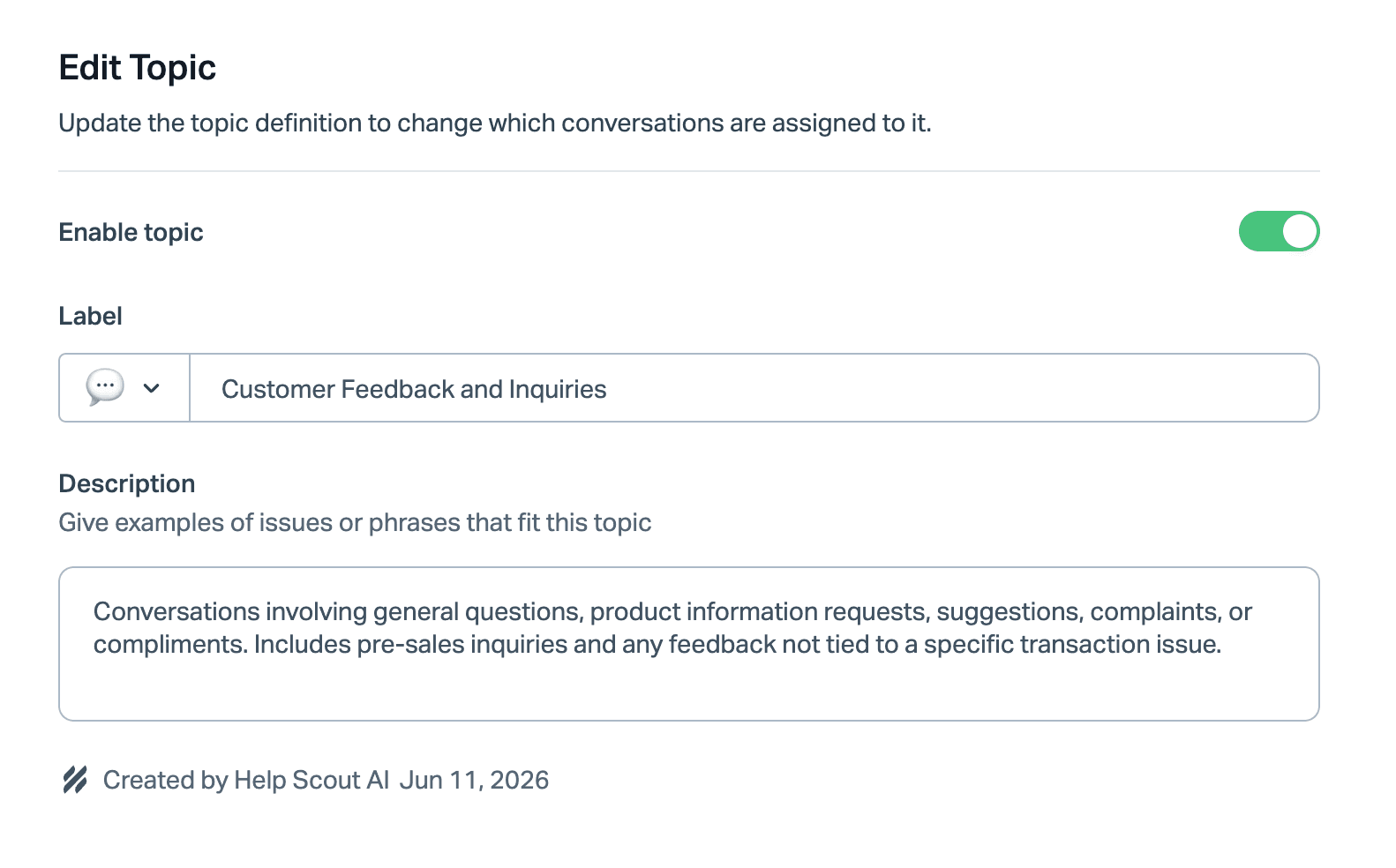
Topics is the AI part. Per the docs, it is configured per inbox, turns on once an inbox has at least 5 conversations in the last 30 days, and creates about 8 to 15 topics from that history. It uses conversations started by customers and looks back 30 days, or 90 days if the inbox has fewer than 30 conversations. You can add, edit or disable topics, and a conversation shows Uncategorized when the AI is not confident enough to pick one.
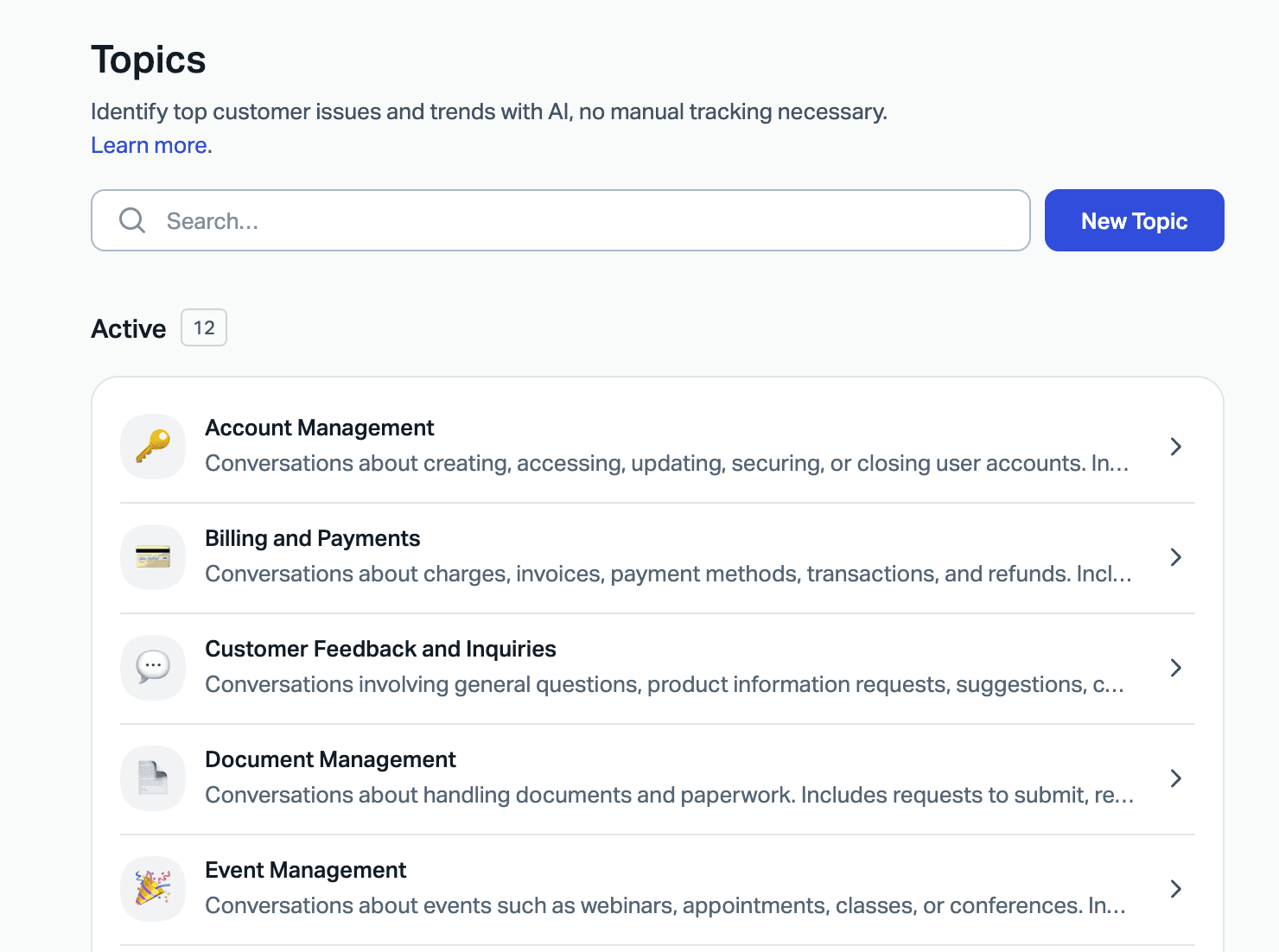
Help Scout's own AI features post is direct that Topics is "not meant to replace tags". It is an extra layer for understanding why customers write in. You can show it as a column in the conversation list, filter views by it, search it with the ~topic@InboxName:TopicValue operator, and open Reports then Topics for volume over time.
The part I would underline for anyone planning around it is the topic description. The docs recommend three things: define what the topic covers in one plain sentence, give two or three examples, and say what does not belong. That is the whole control surface. You steer the AI by editing text, not by setting rules.
Can Help Scout workflows tag and assign on their own?
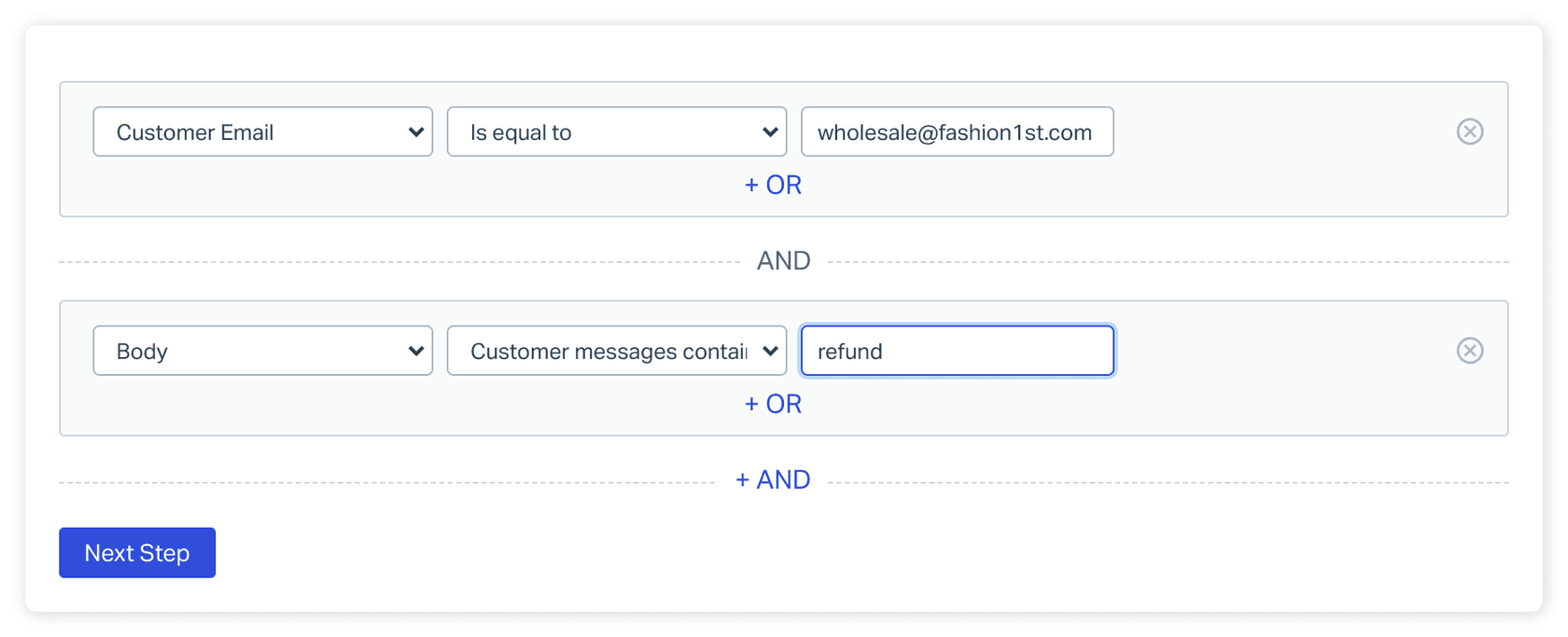
Yes, with rules. A workflow pairs conditions with actions, and the conditions list covers customer name and email, subject, body, tags, status, assignee, attachments, rating, waiting time, custom fields and customer properties. Text conditions support contains, starts with, ends with and regex. A single workflow can have up to 30 conditions.
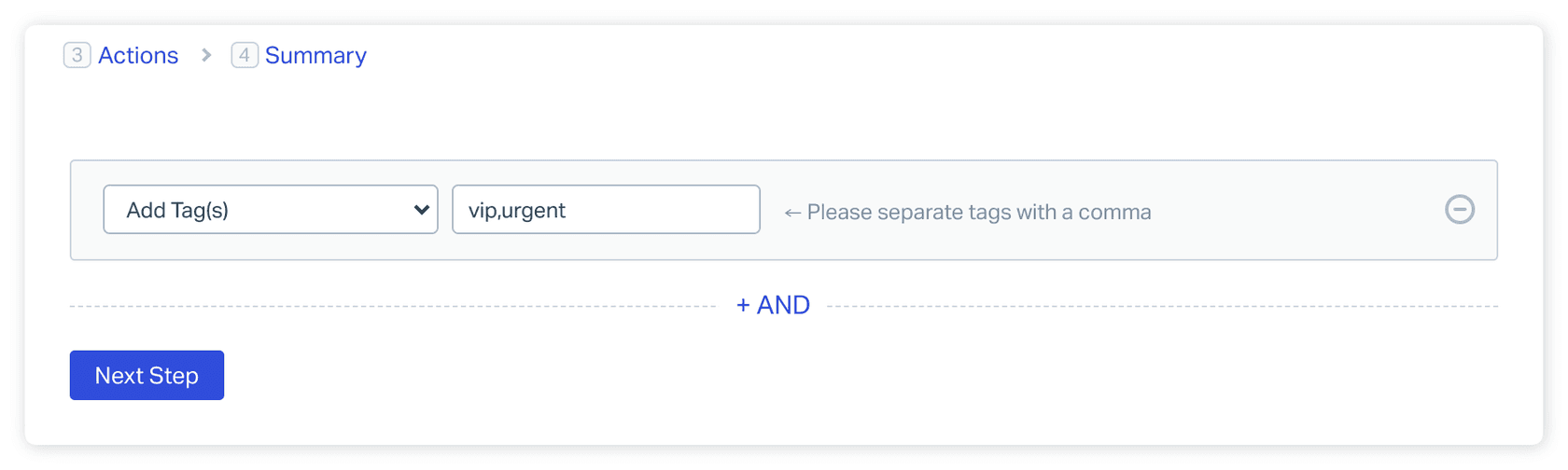
On the action side the same page lists: reply to the customer, notify users, forward, add a note, change status, assign to a user, assign to a team, add tags, remove tags, move to another inbox, delete, and set a custom field.
Two behaviours shape how you design them. Automatic workflows run in list order, and they only act the first time a conversation matches, which avoids loops. And the docs recommend whole-word terms with several conditions to cover variations, since partial matches catch words like "friend" or "weekend" when you meant "end".
This is solid for anything with a hard signal: a sender, a form field in the body, a mailbox alias. My workflow auto-assignment guide walks through those builds. Where it stretches is a message that never says the keyword. "Why did my card get hit twice" is a billing question without the word billing in it. A reviewer on G2 put the ceiling this way:
"It also lacks some of the heavy-duty, enterprise-level routing logic you'd find in a tool like Zendesk."

Another G2 reviewer praised the other side of the same coin. Both are true: the rules are dependable, and the work of writing them is yours.
"Collaborative inbox for customer support with robust tagging, team features, and workflow automations."
How does Help Scout routing decide who gets a conversation?
Routing is the third rule-based layer, and it is about fairness rather than fit. Round robin assigns one by one in alphabetical order. Balanced assigns to whoever has the fewest active assignments and is only on Pro. You set an assignment limit up to 100 and pick the teammates or teams in the rotation.
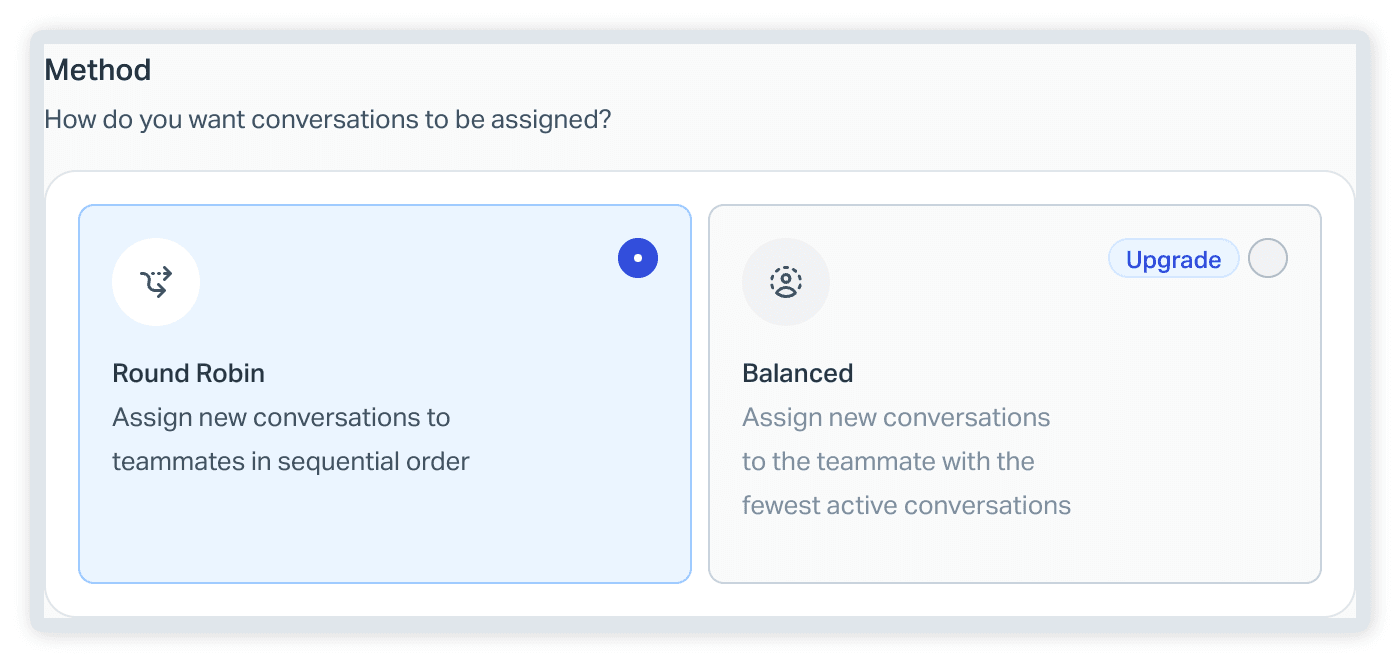
The eligibility rules matter more than the method. Routing works through the Unassigned folder, longest-waiting first, and skips teammates who are Away or at their limit. And the docs state that routing rules only apply to automatic assignments: manual assignments and assignments made through workflows are not affected by them.
So the practical pattern is two stacked rules. A workflow assigns the conversations that have a clear owner, and routing spreads the leftovers. Neither asks who knows the answer. If you work with skills-based routing in mind, that decision is still a person's, or a workflow you wrote.
Where do the gaps show up in a real queue?
I count four, and they are the same four every time I look at a helpdesk's queue.
- The AI label cannot act. Per the Topics article, during the beta Topics can only be used as a condition, not as an action. A workflow can read "Billing" and assign the billing team. It cannot set the topic. One thing to check in a trial: the conditions reference page I read does not list Topic yet, while the Topics article does, so confirm it in your own workflow builder.
- One AI label, not your tag set. Topics generates its own 8 to 15 themes. If your reports run on tags such as
vip,refundorshipping-delay, those still need someone or something to apply them. - Rules need the keyword. Regex helps, but each variation is a condition you write and maintain.
- Routing ignores the message. Round robin and balanced split work by load, not by who can resolve it.
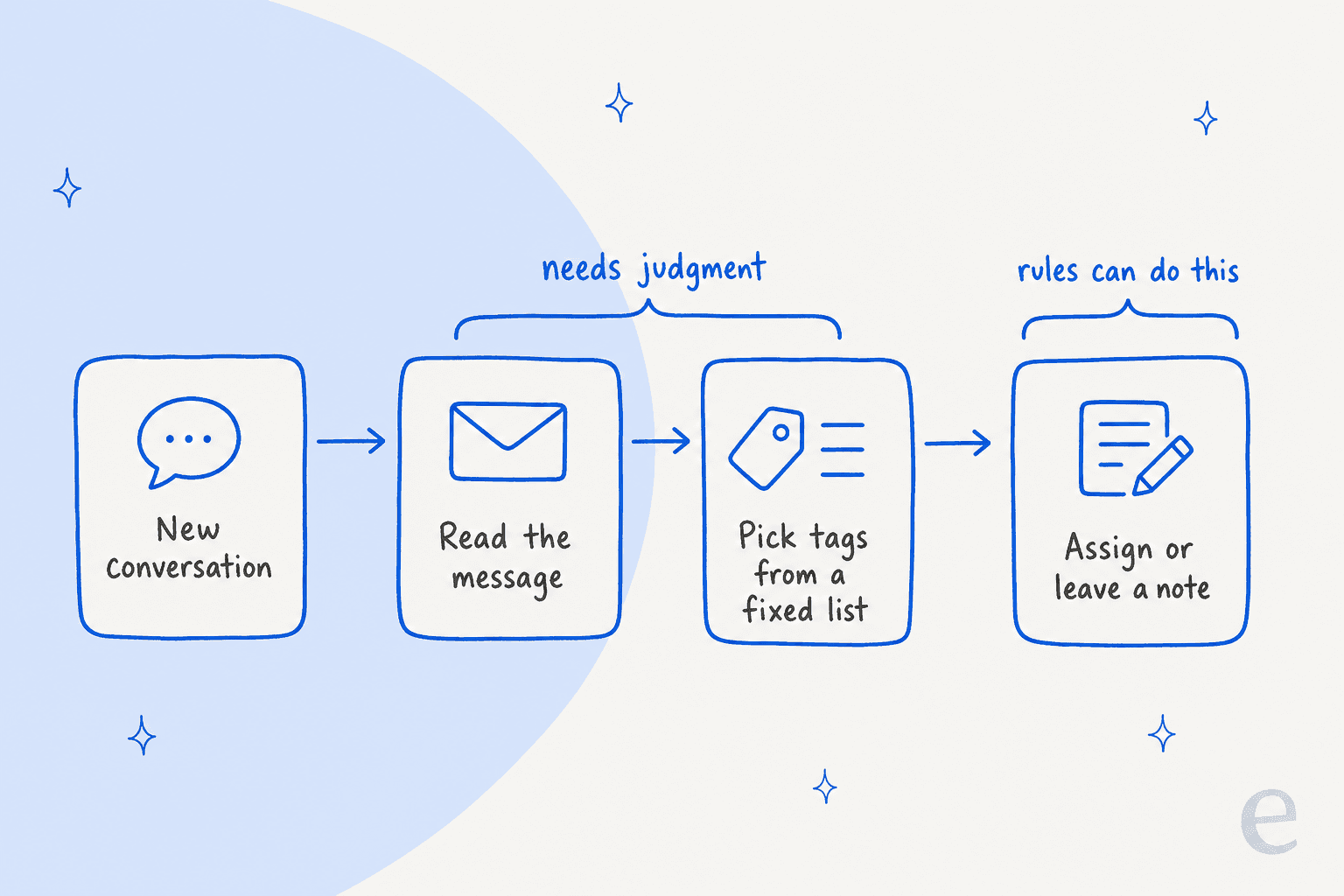
That picture is the one I keep drawing. The judgment steps, reading and picking from a list, are where a model helps. The last step, assigning or leaving a note, is already something Help Scout rules do well. An AI teammate earns its place by doing the first half and handing the second half to the same queue.
How does an AI teammate like eesel tag and route in Help Scout?
eesel is an AI teammate platform, and its ready-to-work helpdesk teammate joins your Help Scout mailbox. I will stick to what eesel's Help Scout documentation says.
An automation is a Help Scout trigger plus plain-language instructions. The trigger that fits triage is A customer opens a new conversation, which the docs list as best for drafting a first reply, triage and routing. It fires on conversations opened by a customer in any mailbox, not on ones your team or eesel starts.
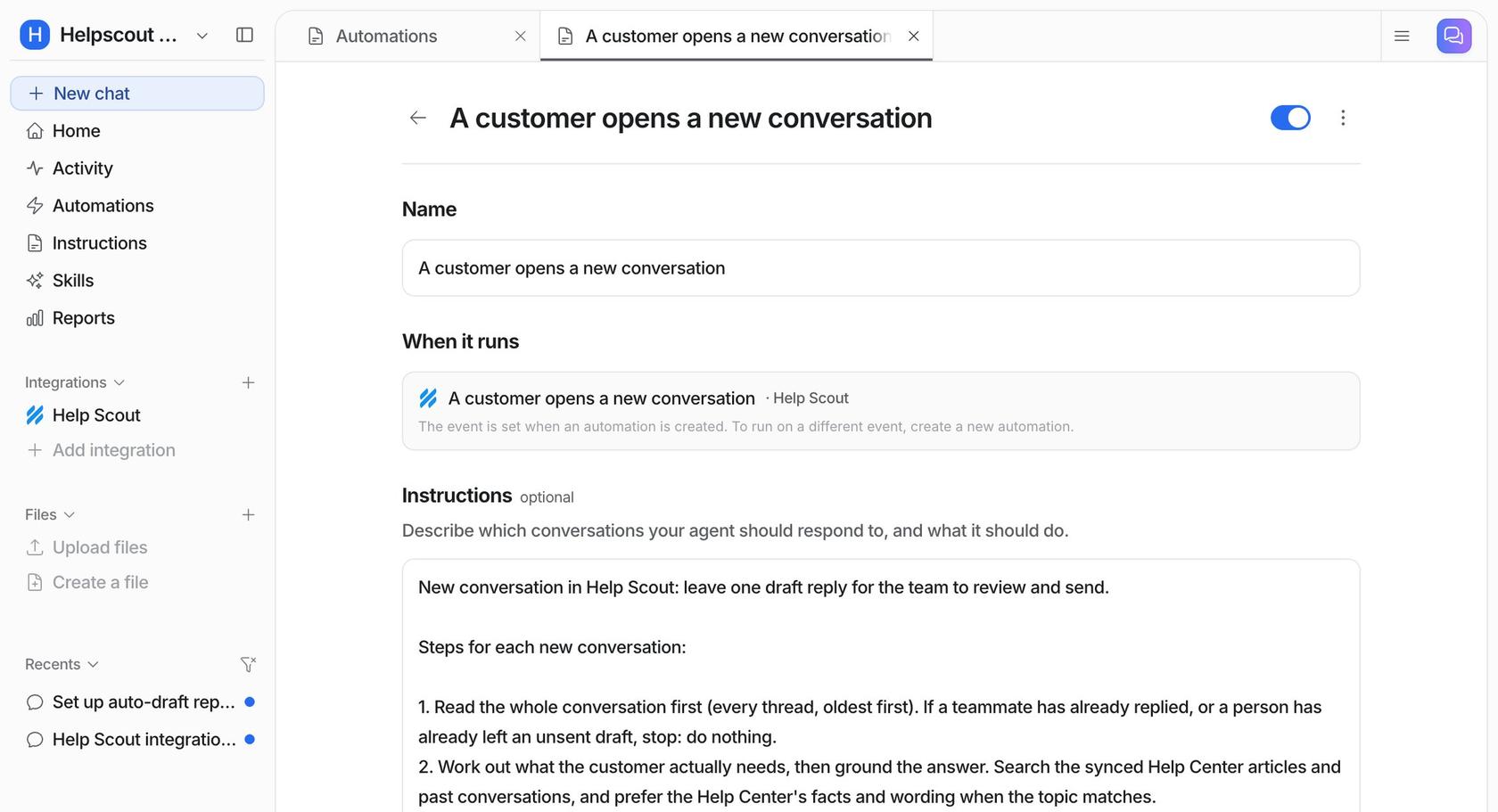
What it can do on the conversation, from the docs' actions list:
- Add tags and Remove tags change tags on a conversation.
- Update conversation changes status, assignee (a person or a team), mailbox or subject.
- Leave internal note adds a private note for the team, and Leave draft reply saves an unsent reply for a person to send.
- User statuses and Mailbox routing let it look up who is Available and how a mailbox hands out new conversations.
Each action can run on its own, ask you first, or stay off, and the docs note that a risky call is held for a person by eesel's safety check. It reads the conversation record (subject, status, mailbox, assignee, tags, custom fields) and every customer message and reply. It does not see customer properties such as plan, which is one place a Help Scout workflow on customer properties still wins. And it acts as the Help Scout user who approves the connection, so many teams create a dedicated user to make its work easy to tell apart.
The instruction text carries the policy. That is where you paste the tag list and the rules: "tag from this list only", "if the sender is on the partner list, assign to the partnerships team", "if nothing fits, leave it untagged and add a note". The Activity page lists every conversation handled with each action and its reasoning, and skipped conversations show the reason, which is how I would review its calls each week using my AI conversation review routine.
What does tagging and routing look like at real volume?
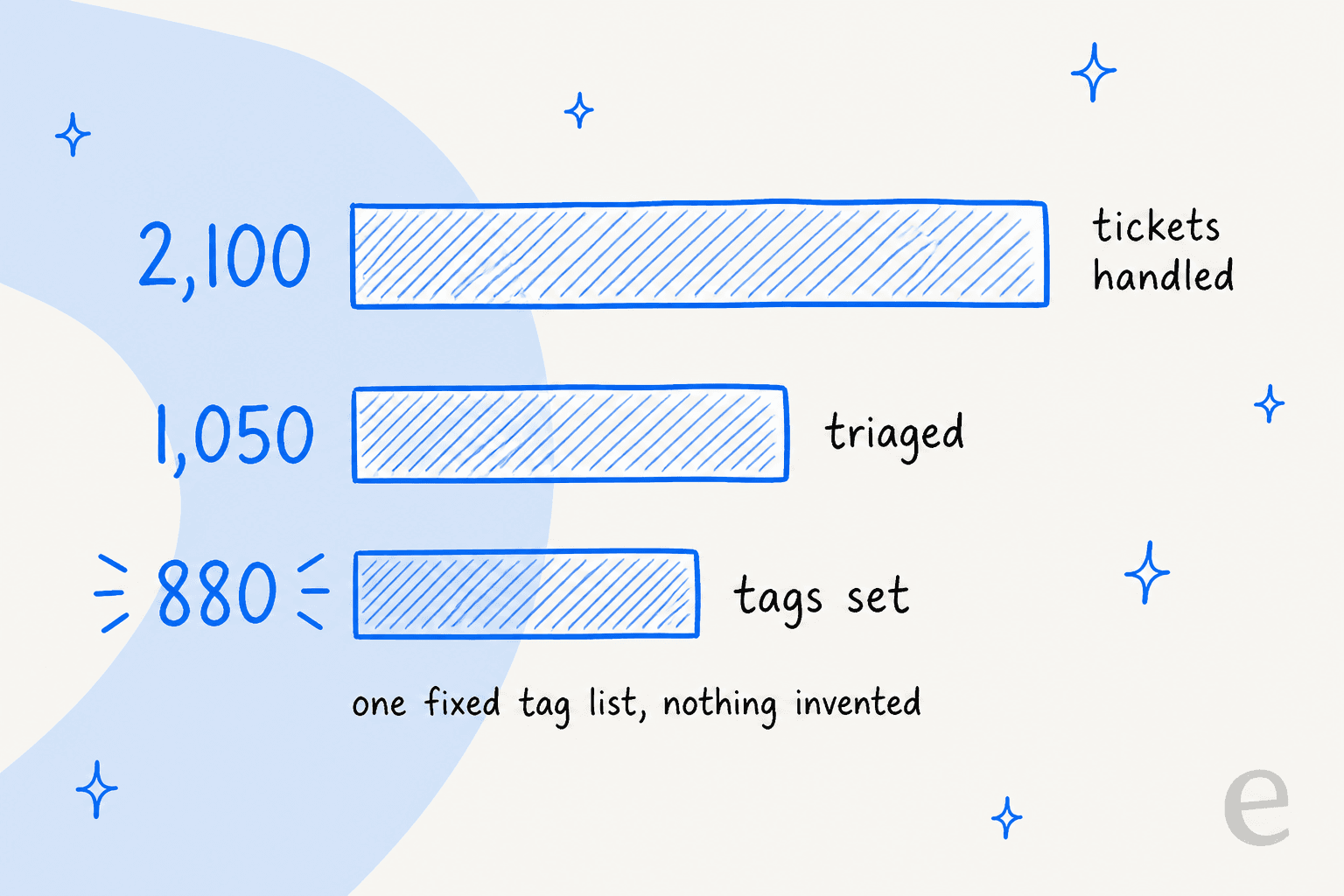
I do not have a published Help Scout customer story, so here are the closest matches from named eesel customers. Rúngne, a Norwegian climbing apparel brand on Gorgias, runs a triage agent that tags from a fixed list (return, order status, customs, VIP, B2B and a few more) and routes a B2B partner's ticket to a named person. From 8 August to 8 September 2026, eesel handled about 2,100 of its tickets, the triage agent ran on about 1,050 and set about 880 tags.
Dokument 24 on Zendesk shows the same idea with one tag family: of about 680 tickets prepared in the same month, about 430 were tagged by product (future power of attorney, will, prenuptial agreement or company formation), with a Danish draft left as an internal note. Cactus Club Cafe on Zendesk tagged 82 of about 750 tickets and routed 39, using a routing matrix its team wrote.
Two things carry over to Help Scout. A fixed tag list keeps the report clean, and a person still owns anything unclear. Rúngne's rule is "when in doubt it treats the sender as a real customer and leaves the ticket open", which I would copy line for line. For the same triage job on other helpdesks, see my posts on Zendesk AI ticket triage, Front AI email triage and Gladly AI conversation routing.
Which setup fits your Help Scout team?
- Standard plan, a handful of clear categories: rules only. Basic workflows and unlimited tags cover sender, form-field and alias cases without any AI.
- Plus or Pro, you want a trend report: switch on Topics and use Reports then Topics. Add workflows that read a topic to route the obvious ones.
- You want tags and assignment to follow what the message says: put an AI teammate on the new conversation trigger, start in one mailbox, set Update conversation to ask first, and review a week of its calls before letting it act alone. It is not exclusive with Topics.
- You want a first reply as well: pair triage with AI Drafts, and see the AI response options and conversation summaries posts.
Keep a human in the loop for anything the confidence score would flag, and set escalation rules for the cases that must go to a person.
For the bigger picture of what Help Scout's AI covers, my AI for Help Scout guide, the Help Scout AI agent options and the ticket tagging guide are the next reads. If you plan to build against it yourself, there is also the Help Scout API guide.
Try eesel for Help Scout
If you would rather not write a rule for every phrase a customer might use, try eesel on one mailbox. Connect Help Scout, paste your tag list and routing rules into the new conversation automation, set Update conversation to ask first, and read the Activity page for a week before you let it act on its own. The trial needs no card, and the security overview covers how data is handled.