

Front splits one customer request into pieces with two tools. A linked conversation is a message you send to someone else that stays grouped with the original, and a linked task is an internal action item with an assignee and an optional due date, both created from the plus menu under Linking. Mass linking caps at 20 conversations, a related item cannot become a parent, and tasks work on all plans.
eesel fits at the step before the split: reading the conversation and noticing the second action item. With the eesel CLI, a coding agent can connect Front and test an internal-comment draft on a test conversation before anything goes live. Front's docs list no linked-task action for eesel, so a rule creates the task. Approving the connection still needs someone with admin access.
What are linked conversations and tasks in Front?
They are how Front keeps one request together while several people work on its parts. Front's help center describes linked conversations as separate conversations that relate back to an original inbound message, grouped so you can track "all sub-tasks needed to resolve the overall request." Tasks, covered in Front's tasks article, are the internal version: action items you create from a conversation or on their own.
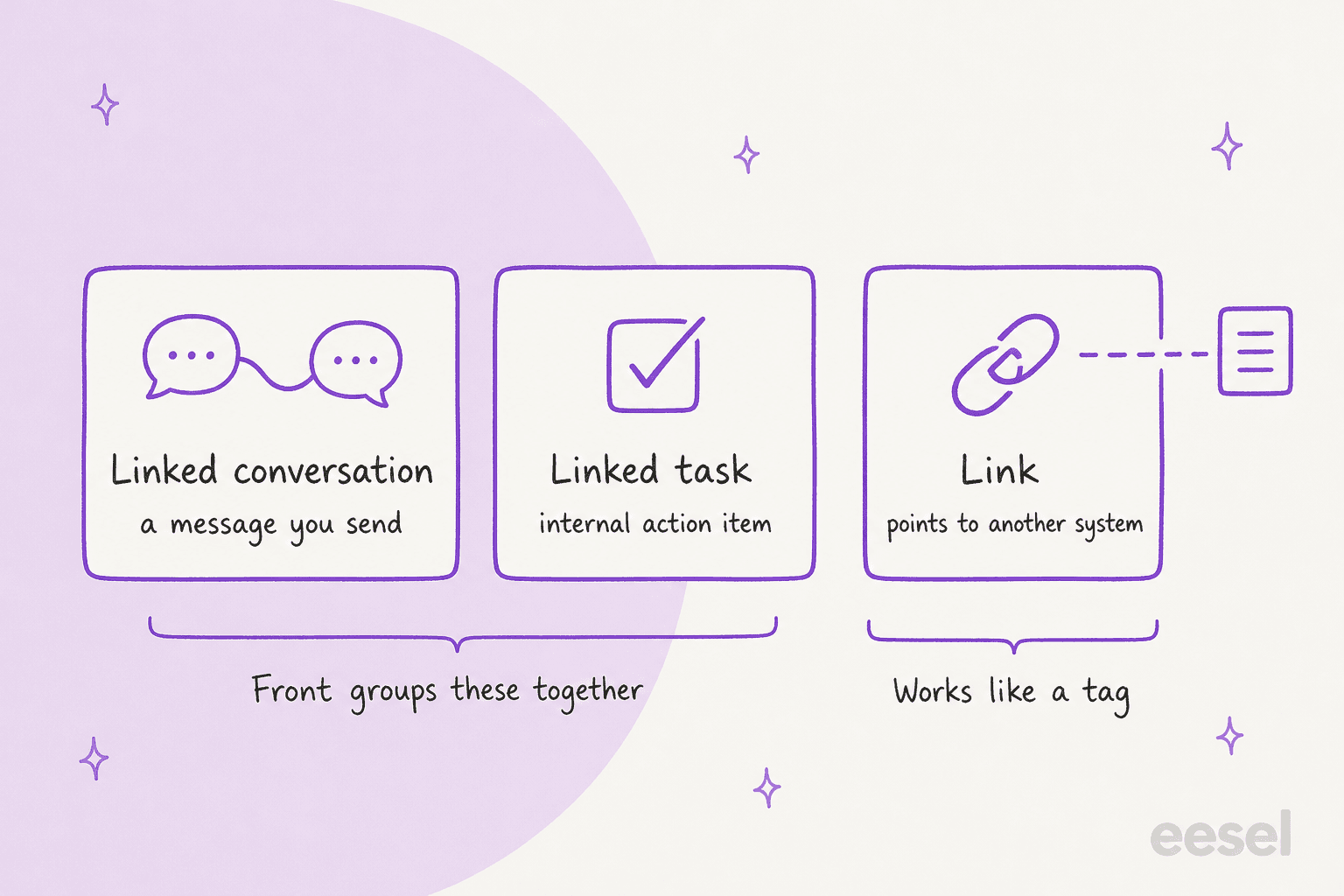
I build helpdesk integrations at eesel, Front's included, and the part that trips teams up is the vocabulary. Front uses the word "link" for three different things, so I drew them side by side.
The first two are grouped by Front under the linked conversations icon. The third, Front's Links, works like a tag: it has a name and an external URL, and it connects a conversation to an order, bug or shipment in another system. Front has direct Link integrations for Jira, Asana, Trello and GitHub, and you can build your own through the API. If your goal is to point at another tool, that is the one you want, and the rest of this post is about the first two.
When should I use a linked conversation, and when a task?
Use a linked conversation when the next step is a message to another person, and a task when the next step is work inside your team. That is my reading of the two articles, and the examples Front gives line up with it. A logistics company gets a changed shipment date and opens linked conversations for the carrier, requoting and rescheduling. A travel agency sends separate messages about a flight, hotel and rental car. For tasks Front's examples are manager approval, legal and finance review, and a follow-up call.
Pick the situation that looks like yours.
Both can hang off one original. Front's tasks article says the linked conversations icon shows "a list of all linked tasks and conversations linked to the original conversation", and its FAQ says tasks and discussions can be the original or the related item.
On plans: Front says linked conversations are on all of its latest plans and tasks are on all plans, so neither needs an upgrade. Front's pricing page lists Starter at $25, Professional at $65 and Enterprise at $105 per seat per month, billed annually.
How do I create a linked conversation?
Start from the message that triggered the work. Front's steps:
- Open the conversation and click the message you want to branch from.
- Click the plus icon, hover over Linking, then choose New conversation.
- Fill in the composer. It shows a link to the original at the top. Write and send a message to another recipient.
- Look for it in the original. Once sent, it appears linked there, and you can move, assign or tag it independently.
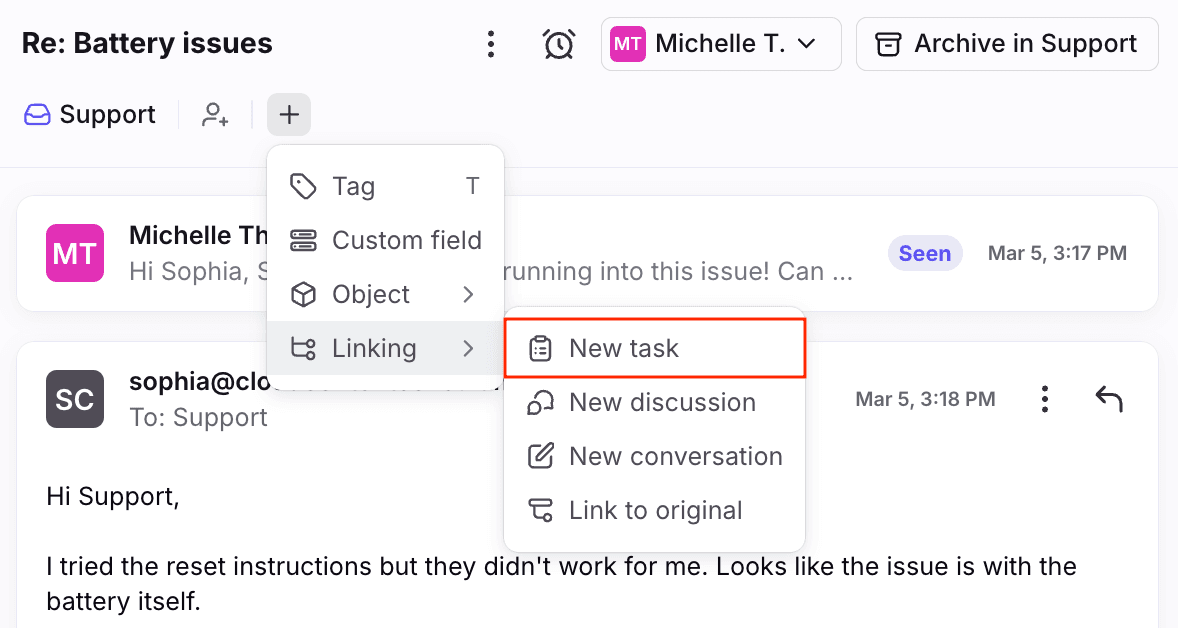
That one submenu holds all four entry points. It is the thing I would show a new agent first, because a linked conversation is an outbound message. It is not a note to yourself, and that is the line between it and a task.
To see the group later, click the linked conversations icon in the header. From the original you get the whole set. From a related conversation you see the original, highlighted, and its siblings.
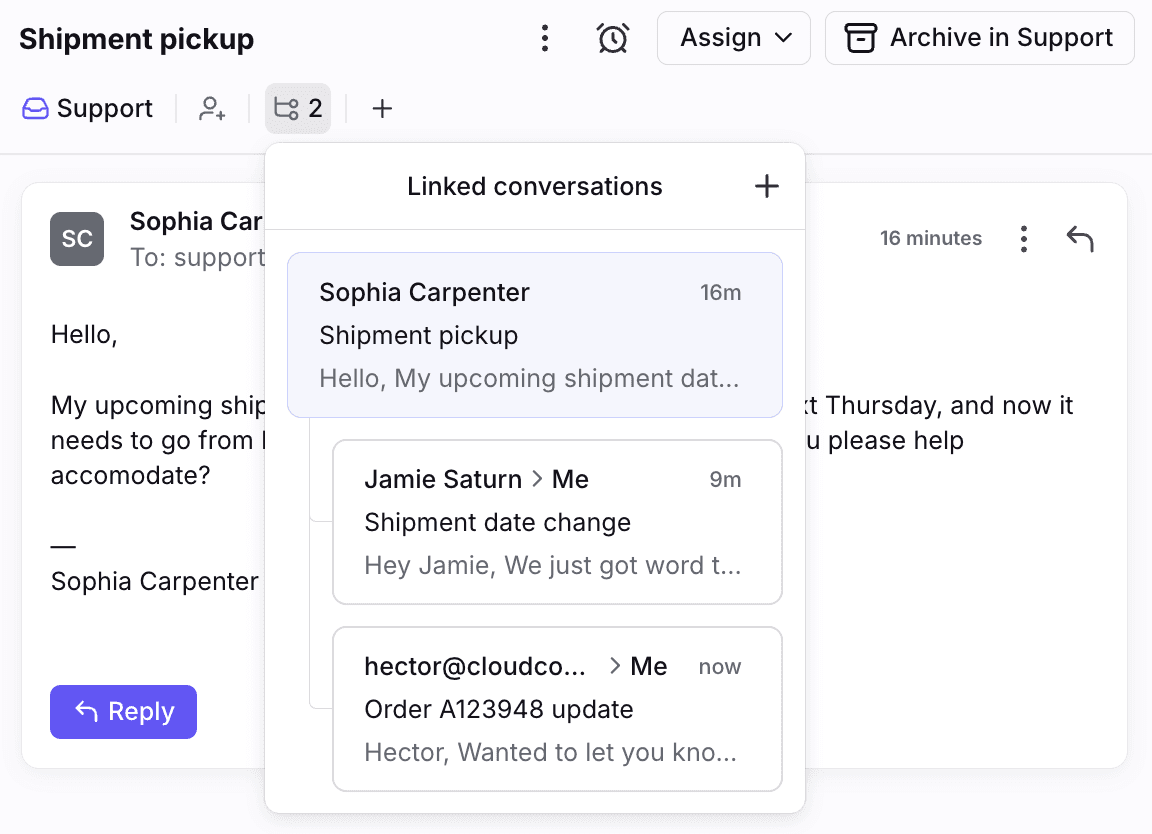
Front's conversation summary also has a Linked conversations section, listing everything linked to the current thread, next to pinned comments, attachments and custom fields.
How do I create a linked task from a conversation?
You can create a task from the same menu, and Front adds a short permissions step. Front's tasks article walks through it:
- Open the conversation and go to the message you want a task for.
- Click the plus icon, hover over Linking, then choose New task.
- Click Continue on the pop-up that acknowledges access permissions.
- Fill in the New task form, then click Create.
- Check the original. The task shows as linked there, and you are added as a subscriber.
The form has a task title (type / to insert a task template), a description with optional attachments, an inbox, and three optional fields: assignee, due date and additional fields. The additional fields take tags, objects, conversation custom fields, or other conversations.
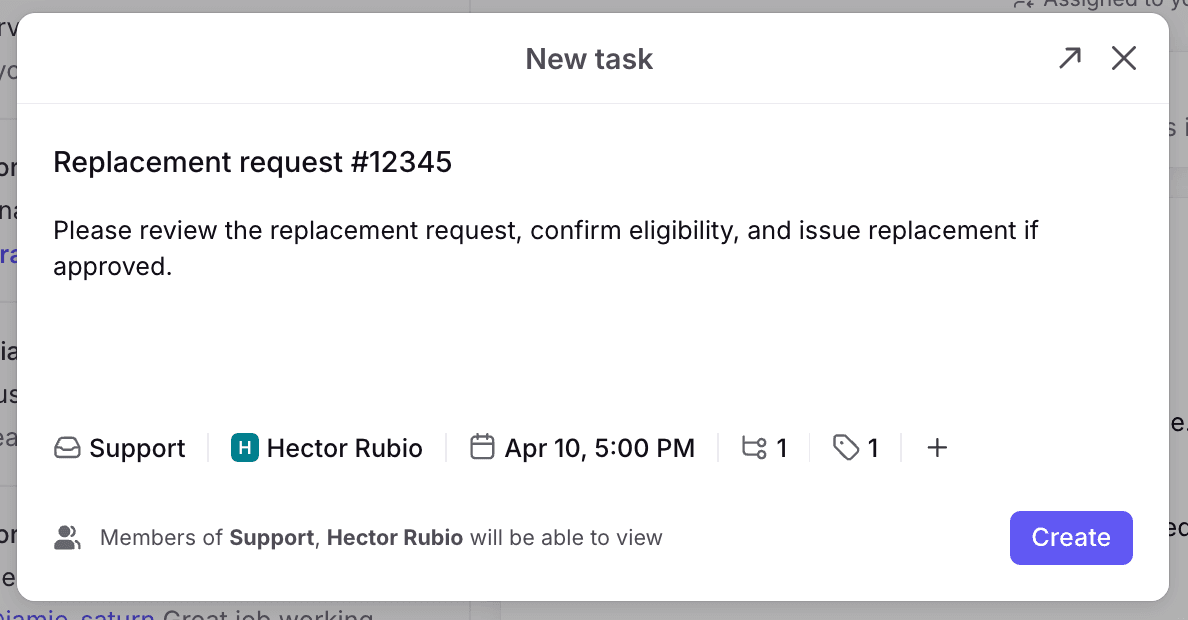
Two defaults matter. For a linked task, Front picks the inbox of the original conversation, and if you leave the assignee blank it follows any auto-assign rules in that inbox. The footer line in the screenshot, "Members of Support, Hector Rubio will be able to view", is the access note behind the Continue pop-up. It names who will be able to view the task, so read it before you create one.
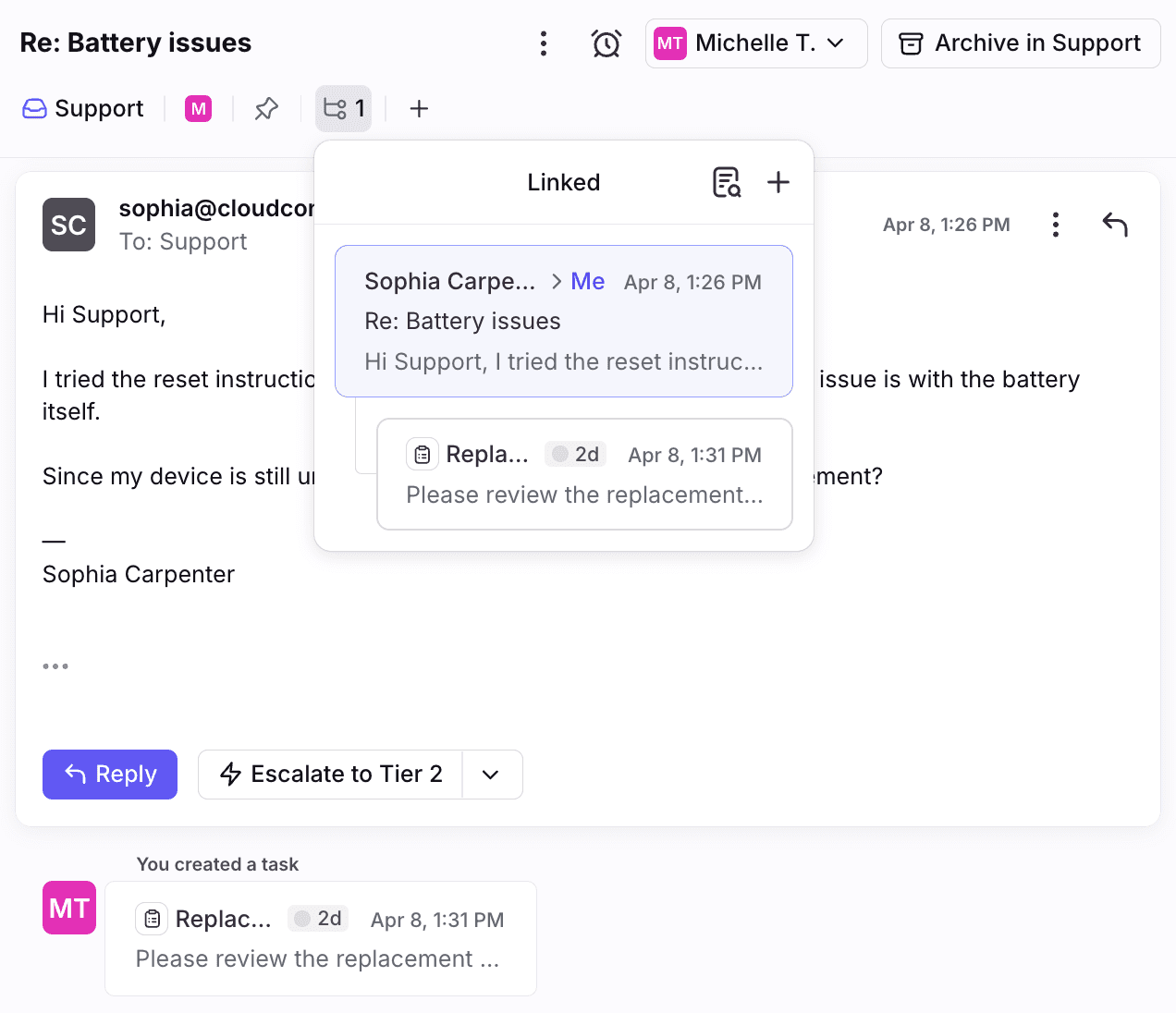
Look at the nesting here. The original sits on top and the task is indented under it, and a small card in the timeline reads "You created a task". That is the parent and child model in one picture.
What happens while the task is open?
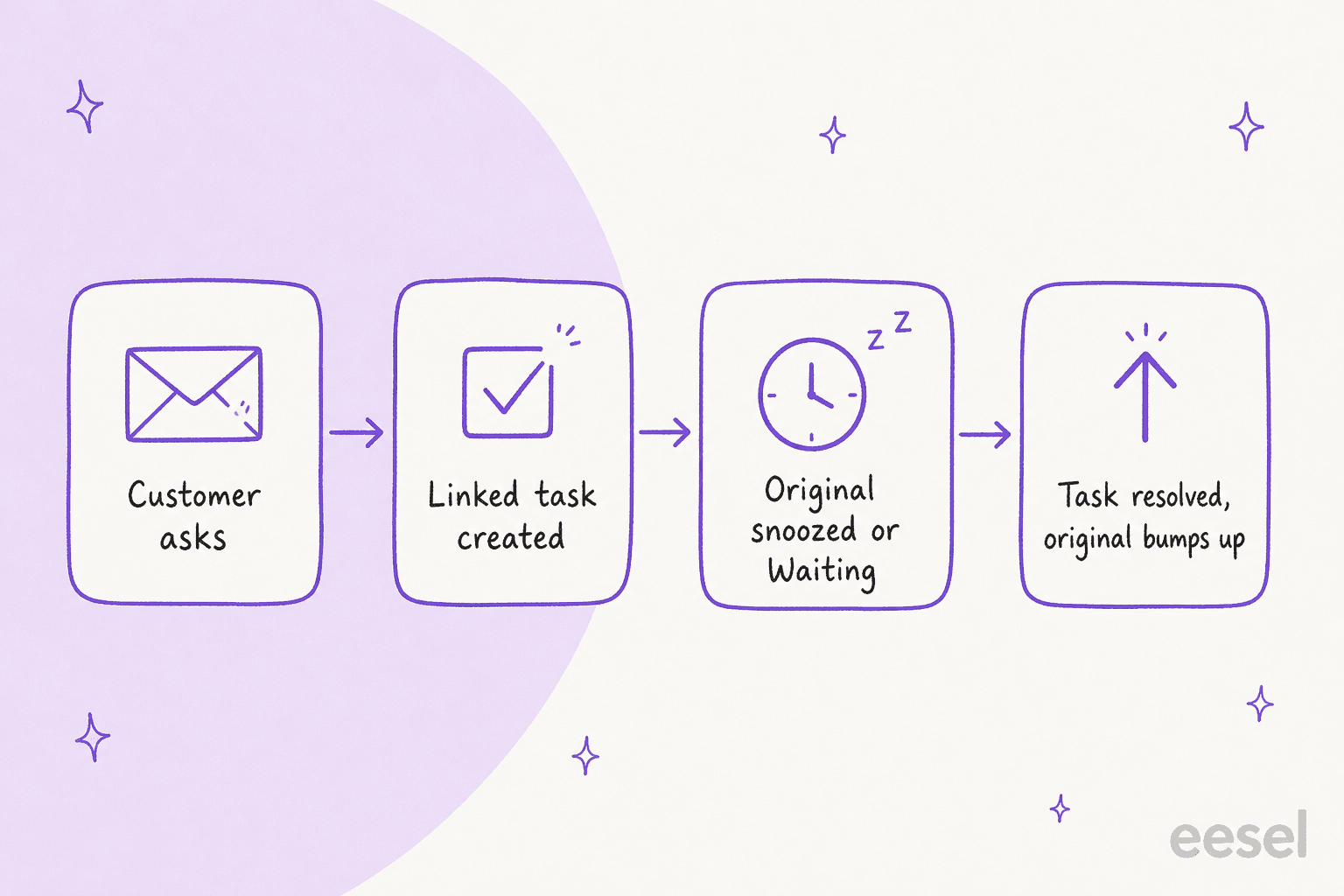
Front gives you a way to park the original and a signal for when to come back. Step six of the help article says to snooze the conversation, or use the Waiting ticket status, to move it out of your Open tab. When the linked task is resolved, the original conversation bumps up in the appropriate inbox sections.
That bump is the one automatic signal between a child and its parent. It is also a company setting. Front's bump settings article lets admins choose whether replies, comments, both, or never move a conversation to the top of shared inboxes. The docs do not say whether the task-resolved bump follows that setting, so if your team sets bumps to Never, test what happens before you rely on it.
Due dates add a second signal. The due date timer shows in the conversation list and header, and Front says it replaces any time goal rule timer applied at the inbox level. If the due date passes, the indicators turn red, and if the task was snoozed the snooze is cancelled and the task reopens. Archiving before the date shows a "met" indicator. For how time goals sit alongside SLAs, my notes on SLA best practices and Help Scout SLA policy order are useful comparisons.
How do I link conversations that already exist?
Use Link to original for one, or the list view for many. For one: open the conversation, click plus, hover over Linking, choose Link to original, pick the original (hover to preview) and click it. Front adds the original to the conversation you are viewing.
For many, select conversations in the list and open More. If your selection includes conversations that haven't been linked before, a menu asks you to pick the original. If it already includes an original, Front fills it in and shows Link conversations to [subject].
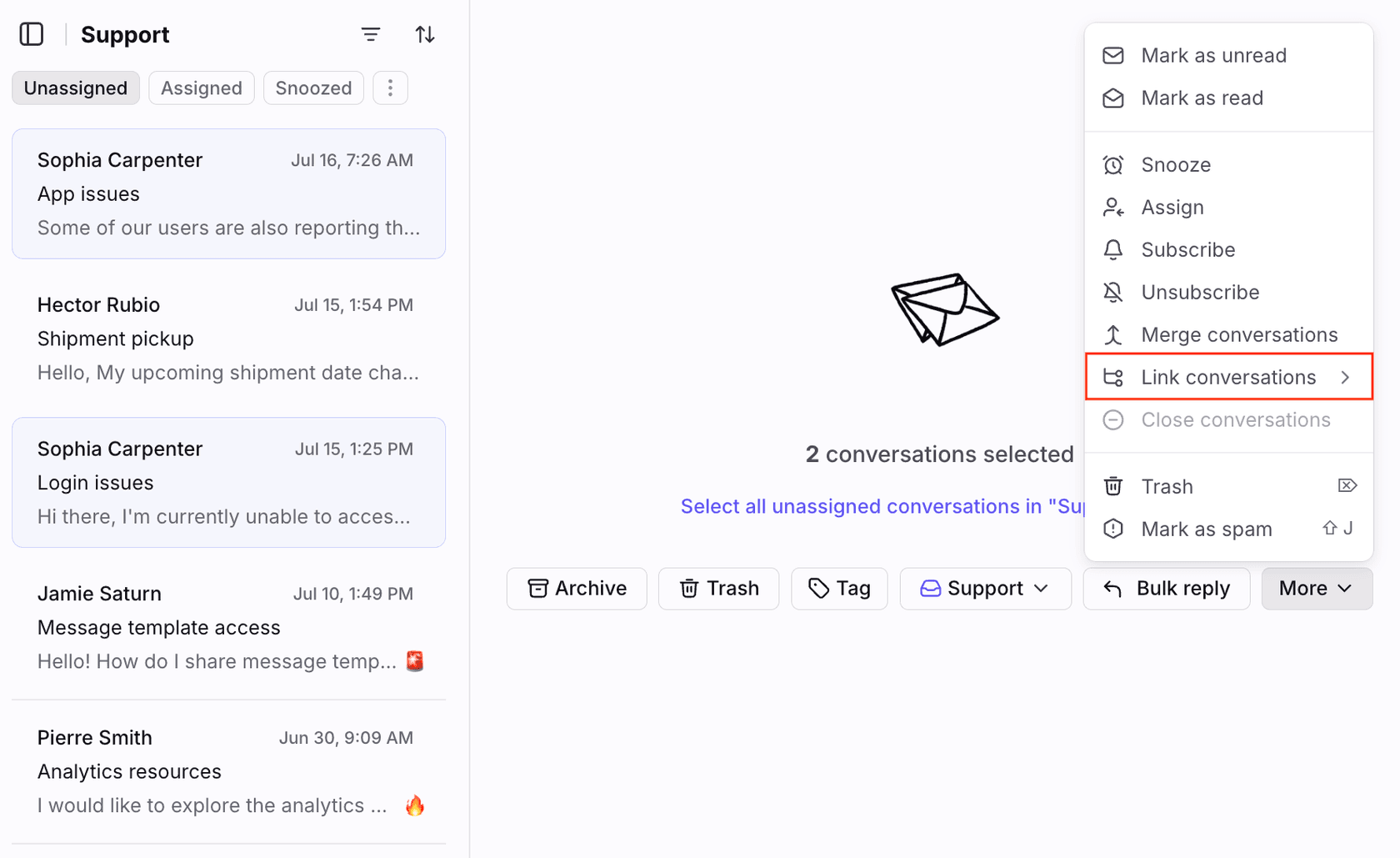
An Undo button appears at the bottom left after the action. The same menu also has Merge conversations, which is a different action I did not test. If you want a refresher on merging versus grouping, my Freshdesk parent-child tickets post shows how another helpdesk models the same idea.
What are the limits of linking?
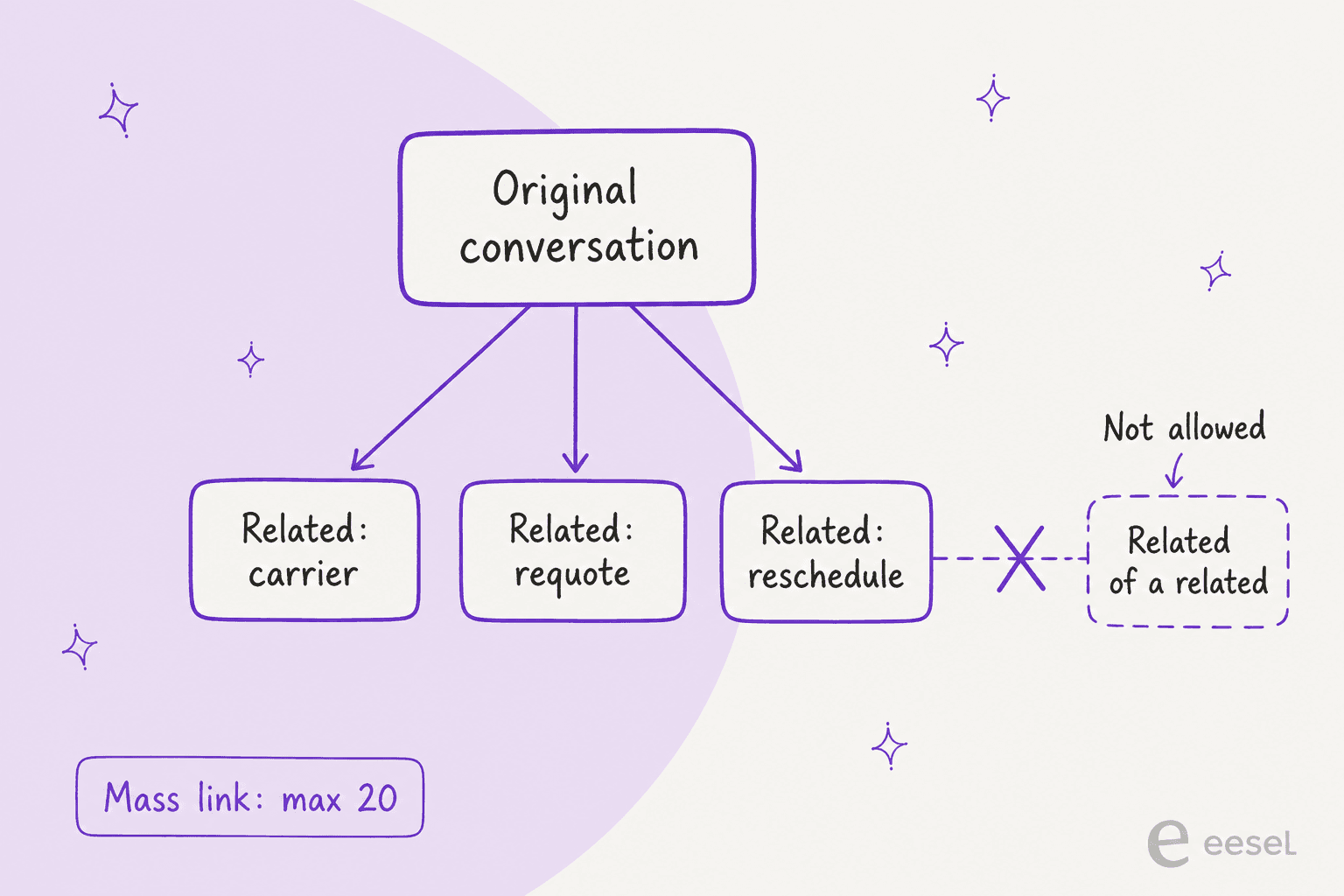
Front's FAQ lists rules that all follow from one idea: a group is a single original with related items under it. I drew them as a tree.
Mass linking fails when any of these is true:
- More than 20 conversations are selected.
- Two or more selected conversations are originals that already have related conversations, because parents cannot be linked together.
- Two or more selected conversations are related to different originals, because a related conversation can only link to one original.
- The selection mixes already-linked and regular conversations, since a child cannot be used to pull a regular conversation into its parent's group.
Deletion has its own rule. Permanently deleting a related conversation unlinks it, and permanently deleting the original unlinks all the related ones. A soft delete keeps the links in both cases. Unlinking itself leaves both conversations in place, though only teammates who subscribed to the related conversation or have access to its inbox keep access to it.
The practical effect is that you plan a case as a tree with one level. If a carrier thread spawns its own sub-thread, it goes back under the original, not under the carrier thread.
What can rules, macros and templates do?
They can create the task for you. Front's tasks article says existing rule triggers and conditions work with tasks (for example Conversation is archived or Conversation has specific tags), and adds two task-specific ones: the New task is created trigger and the Conversation type is [task] condition.
The action to know is Create linked task, available in rules and macros, which fills the task from a template. Three details from the article:
- Linked only. The action creates tasks linked to conversations. Creating standalone tasks through rules or macros is not supported at this time.
- Workspace rules use the shared inbox set in the template, or the shared inbox of the linked conversation if the template names none.
- Personal rules use the individual inbox set in the template, or your Tasks section.
Task templates are personal or workspace level, and a workspace template can be made available to selected shared inboxes. They hold a name, optional subject, body, and optional inbox, assignee, due date, tags, objects or custom fields. This is where the work pays off: a "Legal review" template with the Legal inbox preset turns a four-click manual task into a macro. My Front message template variables post covers the reply-template side.
Where do tasks show up, and do they count in reports?
Tasks appear in several sidebar sections: Subscribed and Tasks if you created or subscribed to one, Assigned to me if it is yours, and the shared inbox if it lives there. They count in some analytics, with a condition. Front says tasks must be in a shared inbox with ticket statuses enabled for some metrics, and names three reports that include them: the Resolution report, Team performance report and Workload report.
If you run reports to judge handling speed, that matters. A task that never reaches a shared inbox with ticket statuses may not appear in the numbers you expect, and Front's docs do not list which metrics are affected. For the AI side of those measures see AI for support reporting and my AI resolution rate post, and for the status model itself, Front ticket status rules.
Tasks also work across workspaces. Front says that as long as you have access, a conversation in inbox A in workspace A can have a linked task in inbox B in workspace B. All channel types are supported, so it is not an email-only feature.
What does the API let me do?
You can create a task as a conversation, and the link is the part to check. Front's create discussion/task conversation call takes a type of discussion or task, either an inbox_id or teammate_ids (not both), a subject that becomes the task title, an optional comment, plus description and due_at that are only allowed for tasks. due_at is a Unix timestamp in seconds, in the future and within 50 years.
The parameters on that page include no source conversation. Front's MCP server docs do: the create_task tool takes a sourceConversationId that "links the task to that conversation", and the docs say task IDs are conversation IDs, which is why read_conversation can read a task. update_task is the only tool that manages task state. Its status of resolved archives the task and open reopens it, and it can set a snooze time.
I could not find a documented endpoint that lists the related conversations of an original. If you plan to build a dashboard on the family tree, check that before promising it. Front's separate Links API is for external-system links, not for this.
Who should skip linked conversations?
Teams where one person can finish the request alone. A linked task is overhead if the "action item" is a note you could write in a comment, and Front's comments versus discussions guidance already covers that case. I would also skip it if your agents work in a queue measured on first reply, because a task is a promise someone else will do something, and nobody is timing that promise by default.
Two mismatches I would watch for:
- Chains. Because related items cannot become parents, workflows that nest (carrier, then a sub-carrier) flatten into one level.
- Parent blindness. The docs describe the bump when a task resolves. They do not describe a count of open children on the parent, so a parent with five related items can look finished when only one is.
If your team wants lighter coordination, my Front shared inbox ownership and Front load balancing assignment posts cover assignment without splitting. For the cross-team handoff problem in general, see cross-team support escalation and ticket escalation process, and for the other helpdesk worlds, Zendesk side conversations is the closest cousin.
What do Front's docs not say?
Here is the list I went looking for. I would test each in a sandbox inbox before a live queue depends on it.
- Open-children indicator. No statement that the parent shows how many related items are still open.
- Related conversation resolved. The bump on resolve is described for tasks. The linked conversations article does not say a resolved related conversation bumps the original.
- Notifications beyond the creator. The task article says the creator is subscribed. It does not list what an assignee is notified of.
- Bump setting interaction. No statement on whether the task-resolved bump follows the company bump setting.
- Limit on related items. The 20 is stated for mass linking only. No cap on a group's total size is documented.
- Reports. Three reports are named, but not which metrics count tasks.
- API listing. I found no documented call that lists an original's related conversations.
- Rule-created tasks from AI actions. Nothing says a rule fires when an integration adds a tag. Test it.
None of this is a flaw so much as an edge. The feature is simple, and the docs are clear where they speak.
How do AI agents fit with linked tasks?
They are good at noticing the second action item, which is the step people skip. Front's logistics example, a changed shipment date that needs carrier, requote and reschedule work, is a case where one sentence in an email hides three jobs. An agent can read the thread and name them. I would keep a teammate as the one who opens the task, since a wrong task is a small silent error that lands on someone's list.
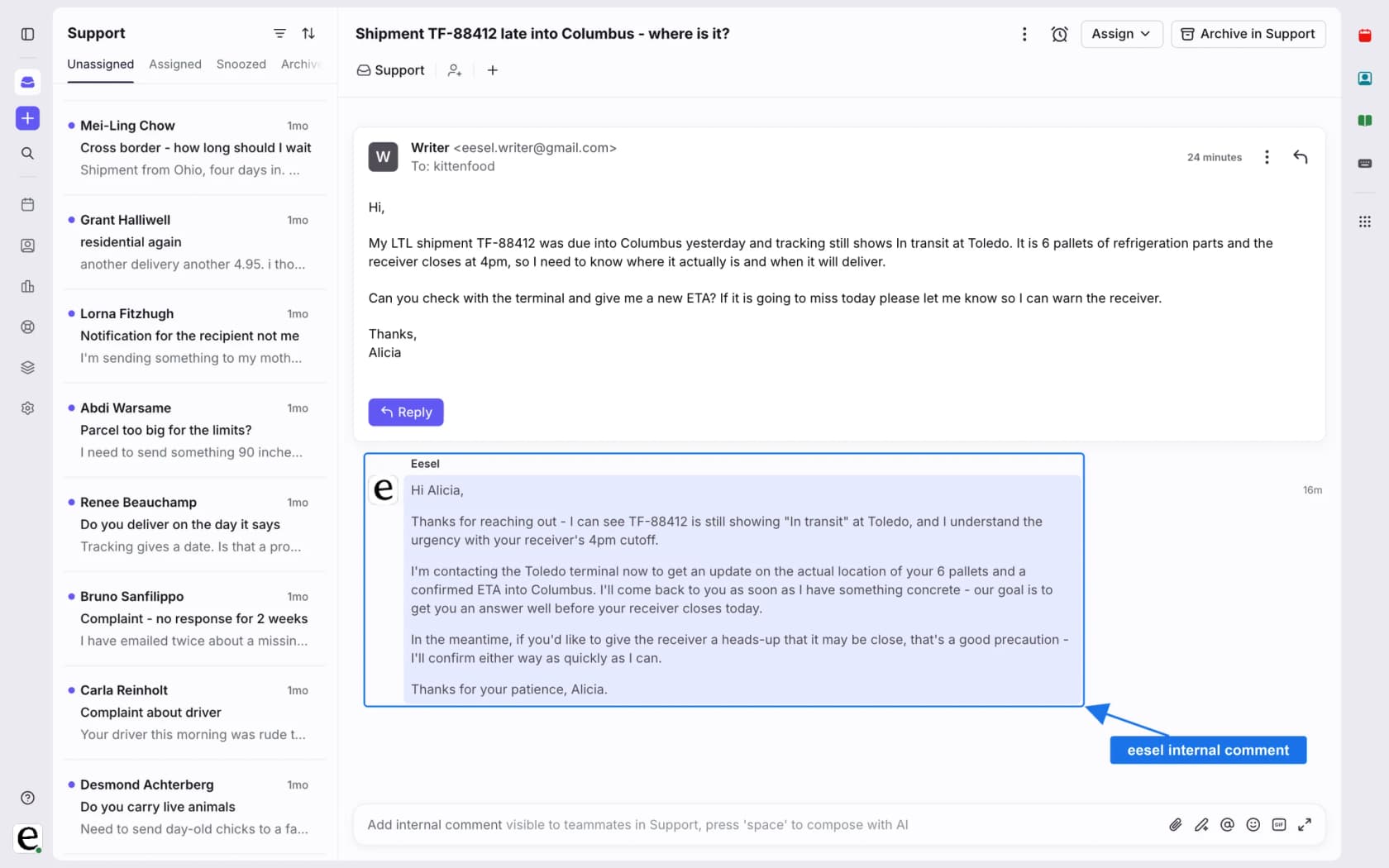
eesel's Front docs list these actions: leave an internal comment, add tags, assign to a teammate, update conversation fields, and close (archive) a conversation. They list no linked-task action, and I would not claim one. The pattern I would use is:
- eesel reads the conversation and adds a tag you already have, such as
needs-finance. The agent never creates a new tag. - A Front rule with Conversation has specific tags and the Create linked task action opens the task from your template.
- eesel leaves an internal comment summarizing what the task needs, and a teammate confirms it.
Whether a rule fires when a tag is added by an integration is not something Front's rules article answers, so run that on a test conversation first. My Front AI email triage and Front AI analyze topics posts cover the tagging side, and AI ticket tagging goes deeper.
XAP shows the shape of the work, on Freshdesk rather than Front. When a student writes to its support team about something a college or state agency handles, an agent finds the right case and drafts the full referral reply as an internal note, and a person sends it. Between 8 August and 8 September 2026, eesel worked about 40 of its tickets, left about 30 internal notes and wrote 13 draft replies, and XAP calls it early days. Front has no equivalent customer story I can cite, so treat that as the same handoff on a different helpdesk, not proof for Front. It is human in the loop in practice, and it helps the escalation decision, not the escalation itself.
For the broader view of handing work to people, see AI agent handoff best practices, AI escalation management and handling escalations with AI. Ticket routing and workflow automation are the glossary entries behind it.
How do I roll this out without a mess?
Start with two task templates and one rule, not a policy document. The sequence I would use:
- Pick the two splits you already do by hand. Front's own examples are legal review and finance review.
- Build a task template for each with the target inbox preset, and make it available to the shared inboxes that need it.
- Add a macro with Create linked task so an agent can open it in one click.
- Train the Waiting habit. A task without a snooze or Waiting status leaves the parent in someone's Open tab.
- Review after two weeks. Count tasks created, tasks past due and parents with no reply after the task closed.
For the review, pair task data with first response time and resolution time, and watch the ticket backlog for parents that stall. AI support quality assurance covers sampling conversations, and AI ticket prioritization and AI ticket summarization help the person picking up the task. If the gaps above are a dealbreaker, Front alternatives is worth a look.
Try eesel in your Front inbox
If the work you split off is the work nobody has time to notice, eesel is built for that gap in Front. It reads your help center and past Front conversations, drafts a reply as an internal comment, and can tag a conversation from the list you already use, so a rule or a teammate opens the right task with the details ready. Start with comments only, keep the task creation in your hands, and widen it once the tags match what a person would have chosen.
For setup, see my guide to adding AI to Front, the Front AI overview, AI for Front, and the Front vs eesel comparison. Try eesel on a few real conversations before deciding.