
Customer support rarely happens in isolation. A support agent might need input from engineering on a bug, legal approval on a policy exception, or information from a vendor to resolve a ticket. The challenge is keeping these internal discussions organized without cluttering the main conversation with the customer.
Zendesk side conversations solve this problem. They're dedicated spaces within a ticket where agents can collaborate with specific people or teams, separate from the main customer thread. When used well, they keep support workflows clean and efficient.
This guide covers everything you need to know about Zendesk side conversations: what they are, how to set them up, practical use cases, and how to get the most from them. We'll also look at how AI tools like eesel AI's Zendesk integration can complement your Zendesk workflow.
What are Zendesk side conversations?
A side conversation is essentially a separate discussion thread tied to a support ticket. Think of it as a private room attached to the customer's case where agents can talk with colleagues, other departments, or external contacts without the customer seeing any of it.
Here's how they differ from other collaboration methods in Zendesk:
- Internal notes are quick comments visible only to agents, but they get buried in the main ticket history and aren't designed for back-and-forth discussions
- Side conversations create standalone threads that can include people outside Zendesk, with their own subject lines and organized history
- Child tickets (a type of side conversation) create entirely separate tickets linked to the parent
The key benefit is organization. Instead of forwarding emails or copying people on messages, you have a dedicated space for each collaboration thread. All the context stays with the ticket, but the customer only sees what they're supposed to see.
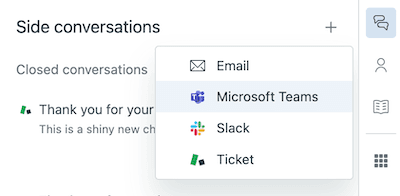
Side conversations are available through multiple channels: email, Slack, Microsoft Teams, and as child tickets. Each channel serves different collaboration needs. According to a TechValidate survey conducted by Zendesk, 80% of beta customers said side conversations helped streamline communication between teams.
How to set up and activate side conversations
Before agents can use side conversations, an administrator needs to activate them. Here's what you need to know about getting started.
Plan requirements
Side conversations are only available on Zendesk Suite plans: Professional, Enterprise, or Enterprise Plus. They aren't included in standalone Support plans. If you're on a lower tier, you'll need to upgrade to access this feature.
Activation steps
To turn on side conversations:
- Go to Admin Center in Zendesk
- Click Workspaces in the sidebar
- Select Agent tools > Side conversations
- Toggle on the channels you want to enable:
- Child tickets: For creating linked sub-tickets
- Emails outside the main conversation: For email-based side conversations
- Microsoft Teams: For Teams integration (requires the Zendesk for Microsoft Teams app)
- Slack: For Slack integration (requires the Slack for Zendesk Support app)
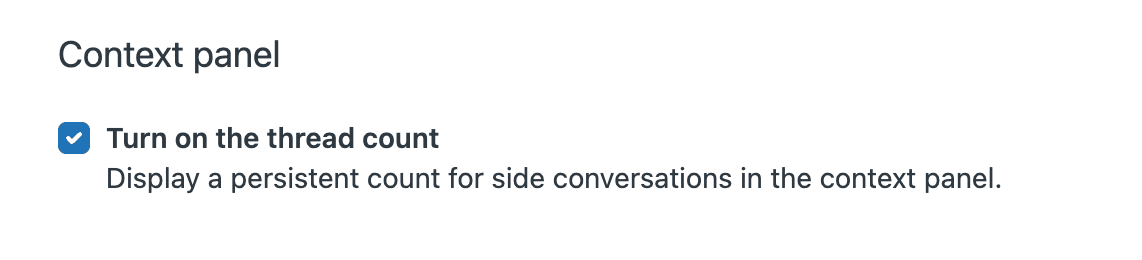
You can also configure whether to show agent email addresses only, enable signatures, and display the side conversation count in the context panel.
Setting up triggers
Zendesk recommends creating triggers for side conversation events so agents stay informed. You can set up notifications for when side conversations are created, replied to, closed, or reopened. Without these triggers, the assigned agent might miss activity in a side conversation they're managing.
Creating and managing side conversations
Once activated, agents can create side conversations from any open or closed ticket. Here's how the process works.
Creating an email side conversation
Email is the most commonly used channel. To create one:
- Open a ticket and click the Side conversations icon in the context panel
- Click the plus sign (+) and select Email
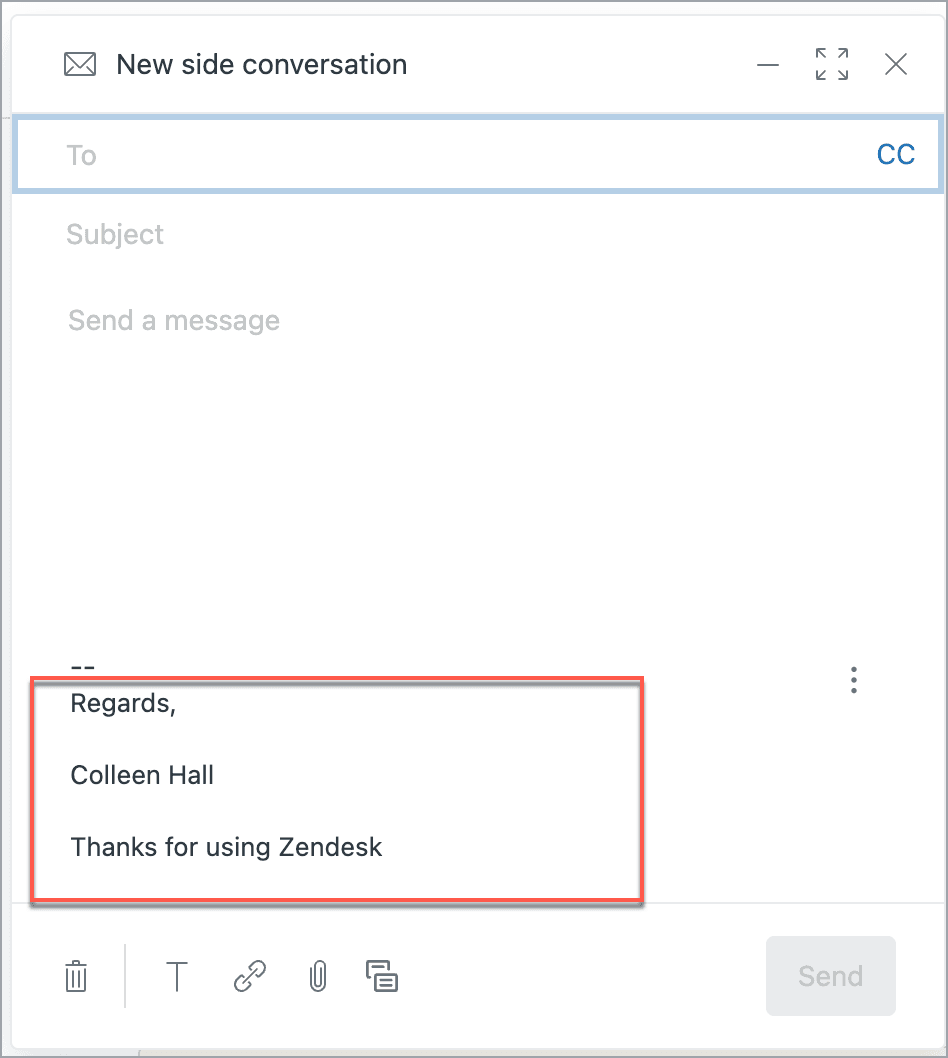
- Add recipients in the To field (agents, light agents, or external email addresses)
- Write a subject line and message
- Add attachments if needed (from your computer or from the ticket)
- Click Send
Email side conversations can include up to 100 recipients, with a maximum of 48 being non-agents. You can also CC or BCC recipients. Note that BCC recipients aren't visible to other email recipients, but anyone who can view the side conversation in Zendesk will see them.
Forwarding ticket comments
You can include existing ticket comments in a side conversation without copying and pasting. Hover over any comment in the ticket, click the three dots menu, and select Forward via email. This creates a side conversation with the comment already included.
Alternatively, when composing a side conversation, click the comments icon at the bottom of the message to select which ticket comments to include.
Managing multiple side conversations
A single ticket can have multiple side conversations running simultaneously. They're all listed in the context panel, and you can open any thread to see the full history. When a side conversation is complete, you can mark it as Done to keep things organized.
Mobile limitations
The Zendesk Support mobile app lets you view and reply to side conversations, but you cannot create new ones from mobile. For full functionality, you'll need to use the desktop interface.
Practical use cases for side conversations
Knowing when to use a side conversation is just as important as knowing how. Here are common scenarios where they add value.
Consulting other departments
When a ticket needs input from engineering, legal, finance, or another department, a side conversation keeps that discussion separate from the customer thread. For example:
- An agent receives a bug report and starts a Slack side conversation with the engineering team to verify the issue
- A customer asks about a policy exception, so the agent creates an email side conversation with legal for approval
- A billing question requires finance team input, handled via a side conversation
Collaborating with external vendors
Sometimes resolving a ticket requires information from a third-party vendor or partner. Side conversations let you email external contacts directly from the ticket without giving them Zendesk access. The entire exchange is recorded and visible to your team.
Creating child tickets for specific tasks
Child tickets are useful when part of a ticket needs to be handled by a different team or agent. For example:
- A customer requests a refund: the main agent handles the communication while a child ticket routes the actual refund processing to the finance team
- A technical issue requires data recovery: a child ticket assigns this specific task to the infrastructure team
- A VIP customer needs account research: a child ticket goes to the account management team for background information
Internal coordination before customer responses
For complex or sensitive issues, agents might need to discuss the best approach internally before replying to the customer. A side conversation provides a space for this discussion without cluttering the main ticket with internal debate.
Getting context from sales or account management
Before responding to an important customer, an agent might start a side conversation with the sales team to understand the customer's history, contract details, or relationship context. This leads to more informed and personalized responses.
Integration channels: Email, Slack, and Microsoft Teams
Each side conversation channel has its strengths. Here's when to use which.
Email is the most flexible option. It works with anyone who has an email address, inside or outside your organization. Use email side conversations when:
- You need to involve external contacts (vendors, partners, customers' IT teams)
- The recipient doesn't use Slack or Teams
- You need a formal, documented thread
- The discussion might be lengthy or require attachments
Slack
Slack side conversations work well for quick internal questions with teams that are active in Slack. They're ideal when:
- You need a fast response from a team that lives in Slack
- The question is straightforward and doesn't need formal documentation
- You want real-time back-and-forth without email delays
To use Slack side conversations, you need the Slack for Zendesk Support app installed and configured.
Microsoft Teams
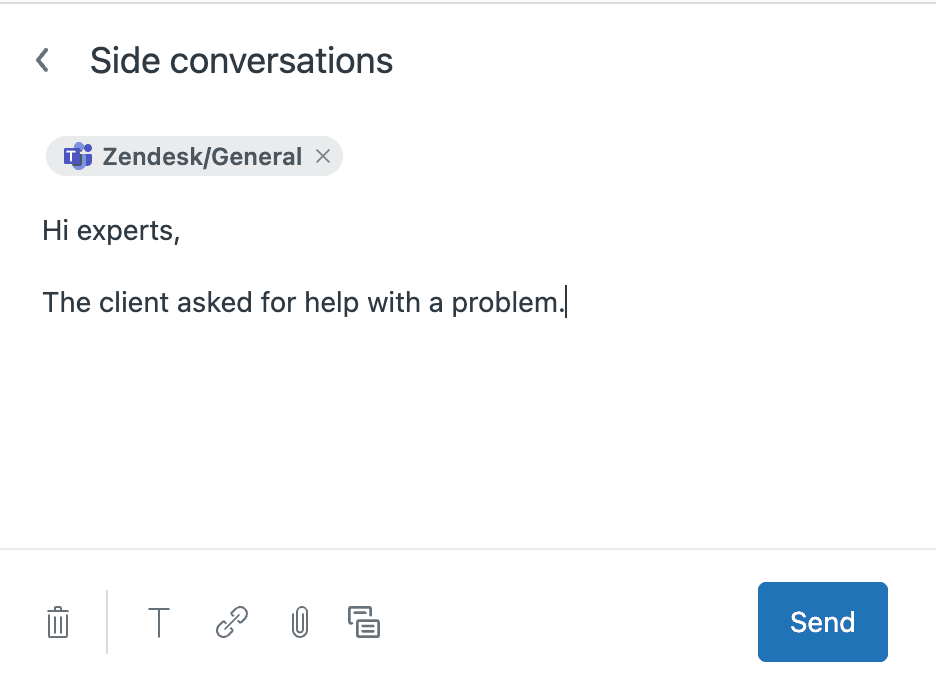
Teams integration serves similar purposes to Slack but for organizations using Microsoft's ecosystem. Note that the Zendesk for Microsoft Teams app is developed by a third party, not Zendesk directly.
Some limitations to be aware of:
- Direct messages aren't supported (only channel conversations)
- @mentions don't work in Teams side conversations
- Attachments sent directly in Teams don't appear in Zendesk (and vice versa)
- Emoji reactions and typing indicators aren't supported
Child tickets
Child tickets create separate, linked tickets rather than conversation threads. They're best when:
- A distinct task needs its own assignment and tracking
- Another team needs to own part of the resolution
- You want separate SLAs or priorities for the sub-task
Child tickets can be routed by omnichannel routing just like regular tickets.
Best practices for effective side conversations
Following a few guidelines helps ensure side conversations improve your workflow rather than complicate it.
The assignee should own the side conversation. The agent assigned to the main ticket should create and manage any side conversations needed. This keeps accountability clear and makes trigger setup easier.
Use clear, specific subject lines. A subject like "Legal approval needed for refund exception" is more useful than "Question about ticket." Good subjects make it easier to find conversations later.
Provide context upfront. When starting a side conversation, briefly explain the ticket issue and what you need from the recipient. Don't assume they'll read the full ticket history.
Set up trigger notifications. Create triggers to notify the assignee when side conversations receive replies. Without this, agents might miss responses and delay ticket resolution.
Be careful with external recipients. Double-check who you're including, especially when forwarding ticket comments. Make sure internal discussions don't accidentally go to customers or vendors who shouldn't see them.
Know when not to use them. For simple internal notes that don't need a response or separate thread, regular internal comments work fine. Reserve side conversations for actual discussions that need their own space.
Limitations and considerations
Side conversations are powerful, but they have some constraints worth understanding.
Plan restrictions. As mentioned, side conversations require Suite Professional or higher. They aren't available on standalone Support plans or lower Suite tiers.
Attachment handling. Attachments work differently across channels. In email side conversations, recipients get the actual file. For Slack and Teams, attachments sent directly in those apps don't automatically appear in Zendesk (and vice versa). There's a workaround using the Teams bot for file uploads, but it's an extra step.
Notification gaps. Side conversation participants don't automatically receive notifications about main ticket updates. This can create visibility issues when teams are collaborating across tools.
Teams enterprise limitations. Some users report that the Microsoft Teams integration requires broad app permissions that may not align with enterprise security policies. If your Teams instance restricts app access, replies might not sync back to Zendesk unless every message starts with @zendesk.
Mobile creation limitations. You can't create new side conversations from the mobile app, only view and reply to existing ones.
Enhancing collaboration with eesel AI
Side conversations solve the collaboration organization problem, but they don't eliminate the need for the conversations themselves. That's where AI can help.
eesel AI is an AI teammate that integrates with Zendesk to handle support tasks autonomously. While side conversations help agents collaborate, eesel AI can reduce the need for some of those conversations entirely.

Here's how we complement Zendesk workflows:
AI Copilot drafts responses while side conversations gather context. While you're waiting for engineering input via a side conversation, eesel AI's Copilot can draft responses based on your knowledge base and past tickets. When the side conversation provides the technical details, you can refine and send.
AI Triage routes tickets more accurately. eesel AI's AI Triage reads incoming tickets and routes them based on content and intent. This means tickets reach the right team from the start, reducing the need for side conversations to reassign or clarify routing.
Continuous learning from ticket history. eesel AI learns from your past tickets, side conversations, and resolutions. Over time, it gets better at suggesting solutions that previously required team consultation.
Custom API actions reduce cross-team requests. eesel AI can connect to your other systems via API to look up order status, process refunds, or check account details. Tasks that previously required a side conversation to another team can happen automatically.
If you're using Zendesk side conversations extensively, adding eesel AI's Zendesk integration can reduce your team's collaboration overhead while improving response times. You can also explore eesel AI's AI Agent for fully autonomous ticket resolution.
Getting the most from Zendesk side conversations
Zendesk side conversations are a solid tool for organizing internal and external collaboration around support tickets. They keep customer communication clean while enabling the teamwork needed to resolve complex issues.
To get the most value:
- Activate the channels your teams actually use (don't enable Teams if everyone's in Slack)
- Set up trigger notifications so agents don't miss side conversation activity
- Train your team on when to use side conversations versus internal notes
- Create templates or macros for common side conversation types
- Monitor whether side conversations are actually reducing resolution times
Side conversations work best when they're part of a broader collaboration strategy. Combine them with clear escalation paths, well-documented processes, and tools that reduce the need for manual coordination.
If you're looking to take your Zendesk workflow further, consider how AI could help. Tools like eesel AI can handle routine tasks, draft responses, and route tickets intelligently, freeing your team to focus on the complex issues that actually need human collaboration.
Ready to see how AI can enhance your support workflow? Explore eesel AI's Zendesk integration or try eesel AI free.


