
There's nothing quite like the panic of realizing your customers aren't getting notifications. You respond to a ticket, mark it solved, and... silence. No confirmation email. No update. Just a customer wondering if their message disappeared into the void.
When Zendesk notifications stop working, the impact is immediate. Customers get frustrated, agents miss updates, and your support workflow breaks down. The good news is that most notification issues follow predictable patterns, and you can fix them systematically without pulling your hair out.
This guide walks you through a diagnostic approach to find and fix the root cause. We'll cover the three main categories of notification failures (triggers, email deliverability, and agent settings), with specific steps for each. And if you find yourself spending more time managing triggers than actually helping customers, we'll touch on how we approach notifications differently at eesel AI.
What causes Zendesk notifications to fail
Before diving into fixes, let's understand how notifications actually work in Zendesk. Every email notification follows this path: a trigger detects a ticket event, the trigger fires an action, and that action sends an email. When any link in this chain breaks, notifications fail.
Here's a quick decision framework for where to start looking:
- Trigger issues Check this first if notifications stopped suddenly or only affect certain ticket types
- Email deliverability Check this if some customers get emails while others don't, or if you see bounce messages
- Agent settings Check this if only specific agents aren't receiving notifications
Let's break it down by category.
Step 1: Check your trigger configuration for Zendesk notifications not sent
Triggers are the engine behind every notification in Zendesk. When they break, everything stops. Here's how to diagnose trigger issues.
Verify triggers are active
Start by checking if your notification triggers are actually turned on. Go to Admin Center > Objects and rules > Business rules > Triggers and look for the default triggers that handle notifications:
- Notify requester of received request
- Notify requester of comment update
- Notify requester of solved request
If any of these show as inactive, that's your problem. Select the checkbox and click Activate.
Review trigger conditions and actions
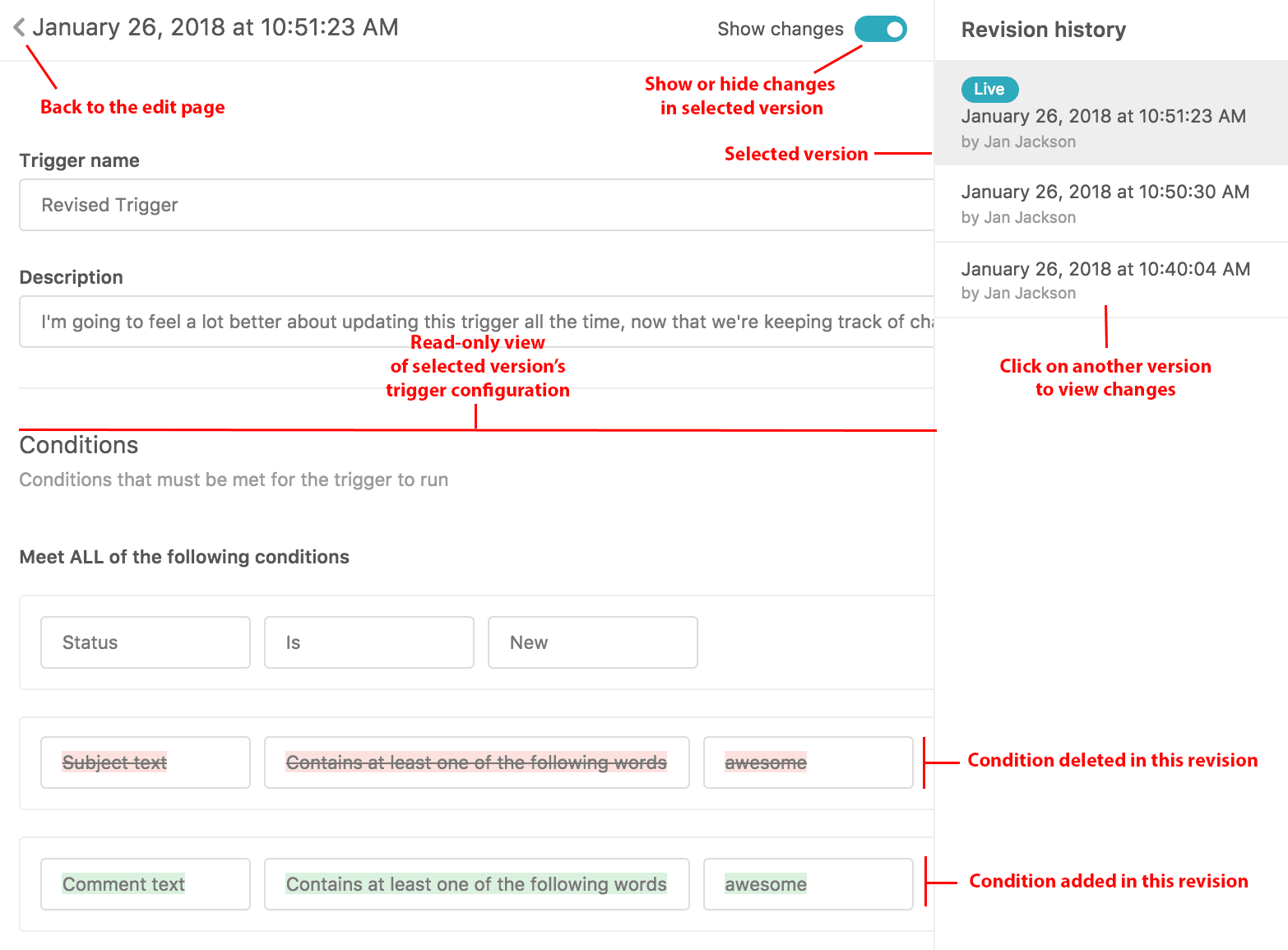
Even active triggers can fail if their conditions or actions are wrong. Click into each notification trigger and verify:
Conditions should include:
- Ticket status checks (Created, Updated, Solved)
- Comment visibility (Public comments trigger customer notifications)
- Any custom conditions your workflow requires
Actions must include:
- Email user > (requester) for customer notifications
- Email assignee for agent notifications
- Email group for team notifications
A common mistake is editing the default "Notify assignee of comment update" trigger and accidentally removing the email action. If the trigger fires but doesn't include an email action, nothing gets sent.
Use ticket events to diagnose
The ticket events log shows you exactly what happened (or didn't happen) when a ticket was updated. To access it, open any affected ticket and add /events to the end of the URL.
Look for:
- Which triggers fired on the ticket update
- Whether an email notification action was triggered
- Any error messages or warnings
If you see the trigger in the events log but no email was sent, the issue is likely outside Zendesk (email deliverability). If the trigger doesn't appear at all, check your trigger conditions.
Step 2: Verify email deliverability settings
When triggers are working but emails still aren't arriving, the problem is usually email deliverability. This is where things get technical, but the fixes are straightforward.
Check your SPF record
SPF (Sender Policy Framework) tells email providers which servers are allowed to send email on behalf of your domain. Without proper SPF configuration, emails from Zendesk often get flagged as spam or rejected entirely.
Your domain's SPF record must include:
include:mail.zendesk.com
To check your current SPF record:
- Go to Admin Center > Channels > Email
- Look for the SPF check status next to your support email address
- If it shows errors, you'll need to update your DNS records
A complete SPF record looks something like this:
v=spf1 include:_spf.google.com include:mail.zendesk.com ~all
Contact your domain administrator to add the Zendesk include if it's missing. There can only be one SPF record per domain, so you'll need to modify the existing record rather than creating a new one.
Understand common error codes
When email delivery fails, Zendesk displays error codes in the ticket interface. Here are the most common ones:
| Error Code | Meaning | What to do |
|---|---|---|
| 500 | General delivery failure | Check recipient address, retry sending |
| 550 | Recipient server rejected email | Recipient's server blocked the email; ask them to whitelist your domain |
| 552 | Message too large | Reduce attachment size or split into multiple emails |
| 554 | Transaction failed | Often a spam filter; check SPF/DKIM configuration |
Click the warning icon next to a recipient's name in the ticket to see the specific error message.
Check suspended tickets
Sometimes emails get caught in Zendesk's spam filters before they even create tickets. Check your Suspended tickets view (in the left sidebar under Views) for legitimate messages that were flagged incorrectly.
If you find legitimate emails suspended, recover them to train the filter. You may need to recover several before the system learns to allow emails from that sender.
Step 3: Check agent notification settings
Agent notification issues are different from customer notification issues. Here's how to troubleshoot them.
Verify individual agent preferences
Each agent controls their own notification settings. If one agent isn't getting notifications while others are, check their profile:
- Go to Admin Center > People > Team members
- Click the affected agent's name
- Check their Contact info and Preferences sections
Make sure:
- Their email address is correct
- Email notifications are enabled
- They haven't unsubscribed from notification types
Check group assignment notifications
If agents aren't getting notified about tickets assigned to their group, verify the Notify group of assignment trigger is active. This trigger sends notifications to all group members when a ticket is assigned to that group.
Some teams prefer to disable group notifications to reduce email noise. If that's your setup, make sure agents know to check their views regularly instead.
Differences between agent and customer notifications
Remember that agent and customer notifications use different triggers:
- Customer notifications use "Notify requester" triggers
- Agent notifications use "Notify assignee" or "Notify group" triggers
If customers are getting emails but agents aren't (or vice versa), focus on the specific trigger category that's failing.
Step 4: Test and verify the fix
Once you've made changes, test them before assuming everything works.
Create test tickets
The simplest test is creating a ticket and walking through your typical workflow:
- Submit a test ticket as a customer
- Verify the confirmation email arrives
- Add a public comment as an agent
- Verify the customer receives the update
- Solve the ticket
- Verify the resolution notification sends
Use a personal email address (not your work email) for the test customer so you can see exactly what customers see.
Use ticket events to confirm
After each test, check the ticket events log to confirm:
- The correct triggers fired
- Email notifications were sent
- No error messages appeared
When to contact Zendesk support
If you've verified triggers are active, SPF is configured correctly, and agents have the right settings, but notifications still aren't working, it's time to contact Zendesk support. They can investigate server-side issues that aren't visible in your admin panel.
Prevention best practices for Zendesk notifications not sent
Fixing notifications is good. Preventing them from breaking is better. Here are habits that help:
- Audit triggers quarterly Review your trigger list every few months to catch deactivated or conflicting triggers
- Document your setup Keep internal docs explaining which triggers handle which notifications, especially if you have custom triggers
- Monitor the suspended tickets view Check it weekly to catch legitimate emails getting flagged
- Test after major changes Any time you modify triggers, email settings, or DNS records, run through your notification test suite
Streamlining notifications with AI
Zendesk triggers work, but they require constant maintenance. Every new brand, team, or workflow means more triggers to create and manage. Before long, you're spending more time debugging trigger conflicts than actually helping customers.
At eesel AI, we take a different approach. Instead of building complex trigger chains, our AI teammate learns your business and handles notifications intelligently:
- Automatic brand detection We identify which brand the customer contacted based on their email, ticket fields, or message content
- Consistent voice across channels Whether customers email, chat, or use your help center, responses match your brand automatically
- No trigger maintenance Add a new brand by simply telling us about it, rather than cloning and customizing multiple triggers

If you're tired of trigger troubleshooting and want to explore how AI can simplify your support workflow, check out how we work with Zendesk or try eesel AI free. You can also browse the full eesel AI for Zendesk overview to see how notifications and automations work with AI-driven support.


