
Sometimes your support team needs to discuss a ticket internally without cluttering the main customer thread. Maybe you need to loop in engineering to check a bug, get legal to review a sensitive request, or coordinate with sales about an important account. Zendesk side conversations give you a dedicated space for these discussions, right inside the ticket.
But what if you want to keep these conversations strictly internal? What if you're worried about accidentally emailing a customer when you meant to ping a teammate? This guide walks you through configuring Zendesk side conversations for internal-only collaboration, including the critical "Only show agent email addresses" setting that prevents external communication.

What are Zendesk side conversations?
Side conversations are separate discussion threads tied to a support ticket. Think of them as private chat rooms attached to a customer case. Unlike internal notes (which are single comments visible only to agents), side conversations support back-and-forth messaging with specific people, and you can include participants who don't have Zendesk accounts.
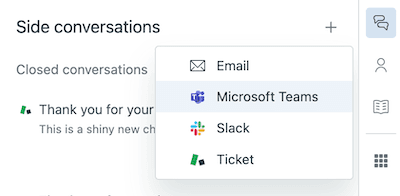
Zendesk offers four channels for side conversations:
- Email Send messages to any email address, including people outside your organization
- Slack Start discussions in specific Slack channels (requires the Slack for Zendesk Support app)
- Microsoft Teams Create conversations in Teams channels (requires Zendesk for Microsoft Teams)
- Child tickets Create linked internal tickets assigned to specific groups or agents
For internal-only use, child tickets are naturally restricted to your Zendesk instance. But email side conversations need extra configuration to prevent accidental external communication. That's where the "internal only" settings come in.
Prerequisites and activation
Before you can use side conversations, you'll need the right plan and an admin to activate the feature.
Required plans
Side conversations are available on:
- Zendesk Suite: Professional, Enterprise, or Enterprise Plus
- Zendesk Support: Requires the Collaboration add-on
If you're on a Support plan without the add-on, you'll need to upgrade or add the feature before proceeding.
Activation steps
Side conversations are turned off by default. An administrator needs to activate them:
-
Navigate to Admin Center > Workspaces > Agent tools > Side conversations
-
Turn on emails outside the main conversation This enables email-based side conversations. You'll see additional options appear, including the "Only show agent email addresses" setting.
-
Turn on child tickets This lets agents create internal child tickets for team collaboration. You can also configure child ticket settings like making them private by default.
-
Enable Slack or Teams (optional) If your team uses these tools, turn on the integrations here. You'll need the respective apps installed from the Zendesk Marketplace.
-
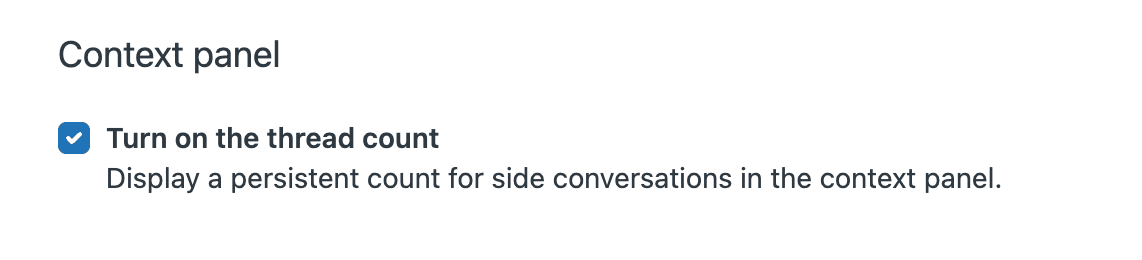
Configure the context panel Under "Context panel," select "Turn on the side conversations view" to display the conversation count in the agent workspace.
-
Set up signatures (optional) Choose whether to include agent or brand signatures in side conversation emails.
-
Click Save
Once activated, side conversations become available for all agents (unless you restrict access via custom roles on Enterprise plans).
Configuring Zendesk side conversation internal only settings
Now for the important part: restricting side conversations to internal use only. The key setting is "Only show agent email addresses," which limits the autocomplete suggestions to your internal team.
The "Only show agent email addresses" setting explained
When you enable "Turn on emails outside the main conversation," you'll see a checkbox labeled "Only show agent email addresses." Here's what it does:
- When enabled: The To field only suggests email addresses of agents and light agents in your Zendesk account. External email addresses won't appear in autocomplete, reducing the risk of accidentally selecting a customer.
- When disabled: The autocomplete suggests any email address you've previously used in side conversations, including external contacts.
This setting doesn't block you from typing external email addresses manually. It just removes them from suggestions, adding a layer of friction that helps prevent mistakes.
Step-by-step: Enable internal-only restrictions
-
In Admin Center > Workspaces > Agent tools > Side conversations, locate the "Turn on emails outside the main conversation" section
-
Check the box for "Only show agent email addresses"
-
Click Save
-
Test the configuration: Open a ticket, start a new email side conversation, and type in the To field. You should only see suggestions for internal agents.
Configuring custom roles for access control
On Enterprise plans, you can create custom roles to control who can create side conversations:
-
Go to Admin Center > People > Roles
-
Create or edit a custom role
-
Under Tickets, set permissions for side conversations
-
Assign the role to specific agents or groups
This is useful if you want only senior agents or specific teams to have side conversation access.
Best practices for preventing external communication
Beyond the "Only show agent email addresses" setting, consider these practices:
- Train agents to double-check recipients before sending, especially when typing email addresses manually
- Use child tickets for purely internal discussions they're naturally restricted to your Zendesk instance
- Set up triggers to notify managers when side conversations are created (covered in the next section)
- Review side conversation activity regularly in ticket audits
- Create macros with pre-filled internal recipients for common workflows
Side conversations vs internal notes: when to use each
Agents often wonder whether to use a side conversation or a simple internal note. Here's how to decide:
| Factor | Side Conversations | Internal Notes |
|---|---|---|
| Threading | Full back-and-forth conversation | Single comment |
| Participants | Multiple people, including non-agents | Only Zendesk agents |
| Response expected? | Yes | No |
| Organization | Separate thread, easy to track | Part of main ticket history |
| Best for | Multi-person discussions, external input | Quick updates, context for other agents |
When to use side conversations
- You need input from multiple people (engineering, legal, sales)
- The discussion might span several messages
- You want to keep the conversation organized separately from the main ticket
- You need to include someone who doesn't have Zendesk access
When to use internal notes
- You're adding context for the next agent who picks up the ticket
- No response is needed just information sharing
- The update is quick and doesn't need its own thread
- You want the note visible in the main ticket timeline
For more on use cases, see our guide to Zendesk side conversations use cases.
Setting up triggers for internal side conversations
Triggers help automate your internal workflows and keep agents informed about side conversation activity.
Key trigger conditions for side conversations
Zendesk offers several side conversation-related conditions:
- Side conversation created Fires when a new side conversation starts
- Side conversation replied to Fires when someone responds to a side conversation
- Side conversation closed Fires when a side conversation is marked closed
- Side conversation reopened Fires when a closed side conversation gets a new reply
Example trigger: Notify assignee of replies
Create a trigger to notify the ticket assignee when a side conversation receives a response:
-
Go to Admin Center > Objects and rules > Triggers
-
Click Add trigger
-
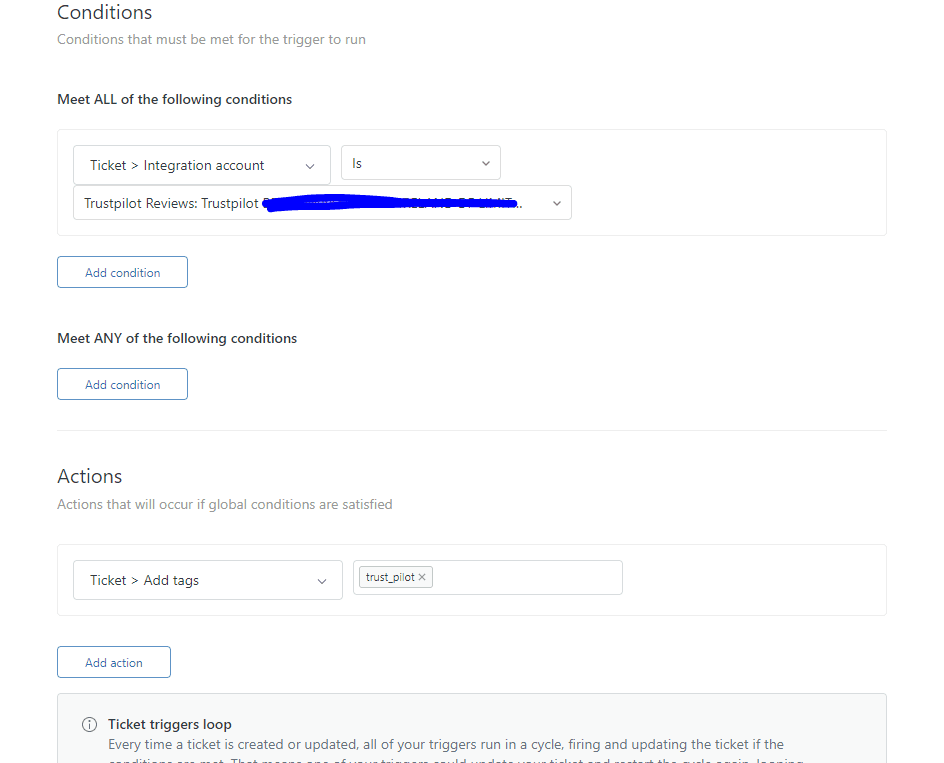
Set conditions:
- Ticket > Side conversation > Replied to
-
Set actions:
- Email user > (assignee) with a message like: "A side conversation on ticket {{ticket.id}} has received a reply."
-
Click Create
Example trigger: Auto-assign child tickets
If you use child tickets for specific teams, auto-route them:
-
Create a new trigger
-
Set conditions:
- Ticket > Side conversation > Created
- Ticket > Tags > Contains at least one of >
child_ticket_legal
-
Set actions:
- Group > Legal Team
- Priority > High
This ensures legal-related child tickets get immediate attention.
Common issues and troubleshooting
Even with proper configuration, you might encounter issues with side conversations. Here are the most common problems and solutions.
"Internal only not working" common causes
If agents are still seeing external email suggestions:
- Browser cache: Clear cache and reload Zendesk. Settings changes sometimes need a fresh session.
- Saved addresses: The "Only show agent email addresses" setting only affects autocomplete. Agents can still type external addresses manually or use previously saved contacts.
- Light agents: Light agent email addresses do appear in suggestions (they're considered internal), but they have limited permissions.
Visibility issues with child tickets
A common complaint: agents can't see child tickets they didn't create, even when the parent ticket is visible. This happens because:
- Child tickets inherit the permissions of their assigned group
- If a child ticket is assigned to a private group, only members of that group can see it
- The parent ticket assignee isn't automatically added as a follower on child tickets
Workaround: Create a trigger that adds the parent ticket assignee as a CC on child tickets, or use webhooks to post child ticket details as a comment on the parent.
Email routing problems
If side conversation emails aren't reaching internal recipients:
- Check your support address configuration
- Verify internal email routing rules (especially in Microsoft Exchange)
- Ensure your allowlists include Zendesk's sending IPs
- Confirm the recipient email addresses are correct
The 50 child ticket limit
Zendesk limits each parent ticket to 50 child tickets. If you hit this limit:
- Close completed child tickets to free up slots
- Consider creating a new parent ticket for ongoing issues
- Use email side conversations instead of child tickets for high-volume scenarios
Enhancing internal collaboration with eesel AI
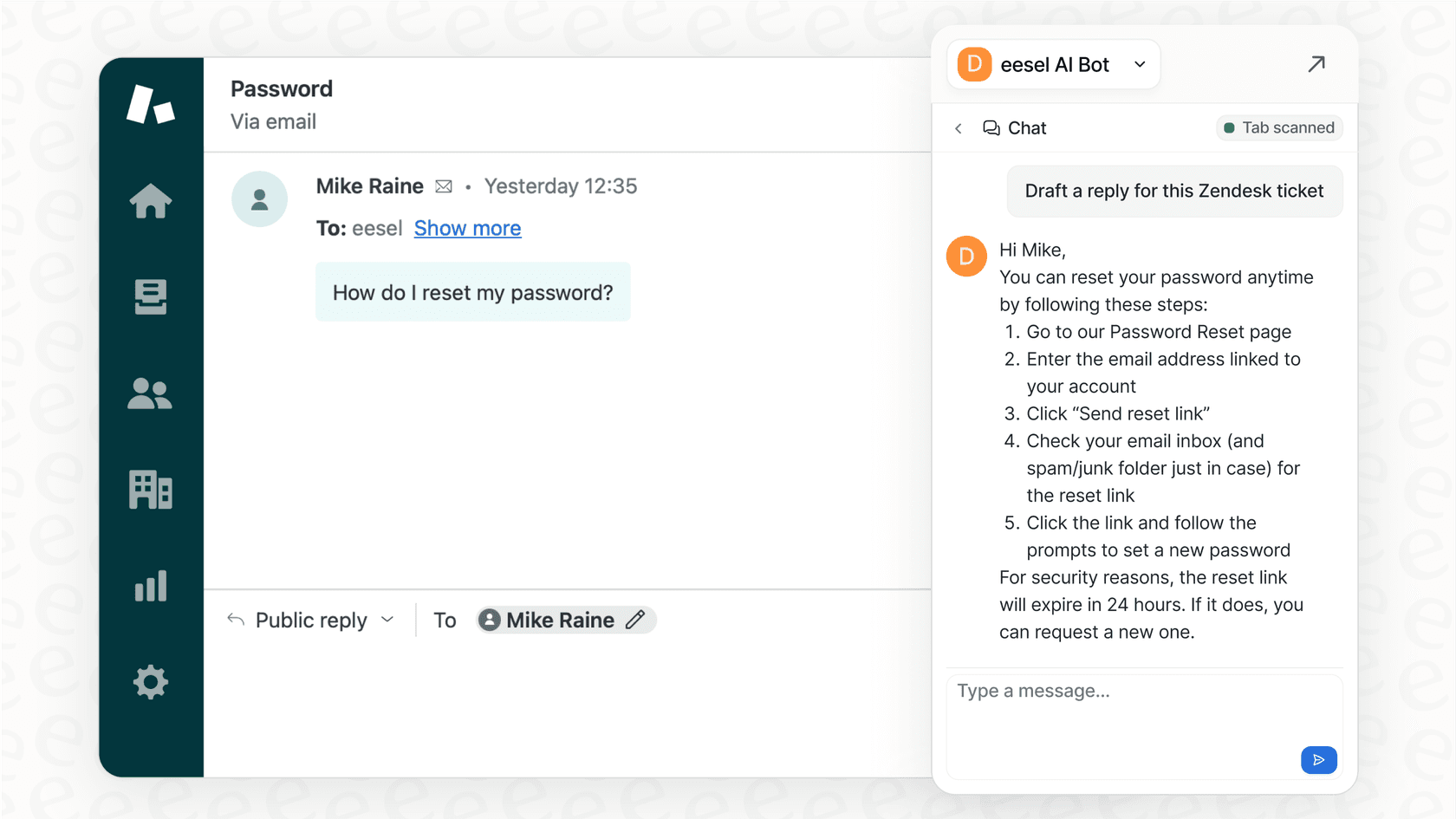
Side conversations are great for organizing internal discussions, but they still require manual work. You have to decide when to start one, draft the message, and follow up on responses. eesel AI can automate much of this workflow.
Here's how we complement Zendesk side conversations:
AI Copilot drafts internal responses faster. When you're in a side conversation and need to respond, our AI Copilot suggests replies based on your past tickets and internal documentation. Instead of typing out the same explanation to engineering for the hundredth time, you get a ready-to-send draft in seconds.
AI Agent automates routine internal requests. Many side conversations are for repetitive tasks: checking order status, processing refunds, or verifying account details. Our AI agent for Zendesk can handle these directly through API actions, eliminating the need for a side conversation entirely.
Smart triage routes tickets correctly from the start. One reason side conversations get overused is tickets landing with the wrong team initially. Our AI triage analyzes incoming tickets and routes them to the right group immediately, reducing the need for internal handoffs.
We integrate directly with Zendesk, so everything works within your existing workflow. If you're looking to reduce the manual overhead of internal collaboration, book a demo and see how it works.


