
Every support agent has had that moment. You're typing a quick note to a teammate about a difficult customer, hit submit, and realize with horror that you just sent it as a public reply. The customer saw everything.
Understanding the difference between Zendesk internal notes and public replies isn't just a nice-to-have skill. It's essential for protecting customer relationships and maintaining professional boundaries. One wrong click can turn an internal discussion into a very public problem. If you're evaluating help desk solutions, you might also find our Zendesk review helpful.
In this guide, we'll break down exactly how Zendesk ticket comments work, when to use each type, and how to avoid the common mistakes that trip up even experienced agents. We'll also look at how teams using eesel AI alongside Zendesk can streamline their comment workflows with AI-powered drafting.
What are Zendesk ticket comments?
Ticket comments are the primary way communication happens in Zendesk. Every time someone adds information to a ticket, they're creating a comment. But not all comments are created equal. According to Zendesk's documentation, comments are the foundation of ticket communication.
Zendesk gives you two distinct comment types:
- Public replies visible to the customer, requester, and anyone CC'd on the ticket
- Internal notes visible only to agents and admins
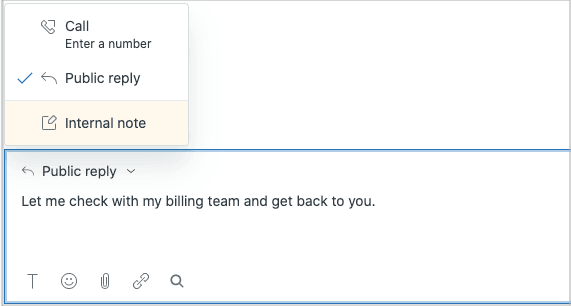
When you open a ticket in the Agent Workspace, you'll see a comment box with a dropdown that lets you choose between these two options. The visual distinction is immediate: internal notes have a yellow background that makes them stand out from public replies.
Here's the short version: if the customer needs to see it, use a public reply. If it's just for your team's eyes, use an internal note.
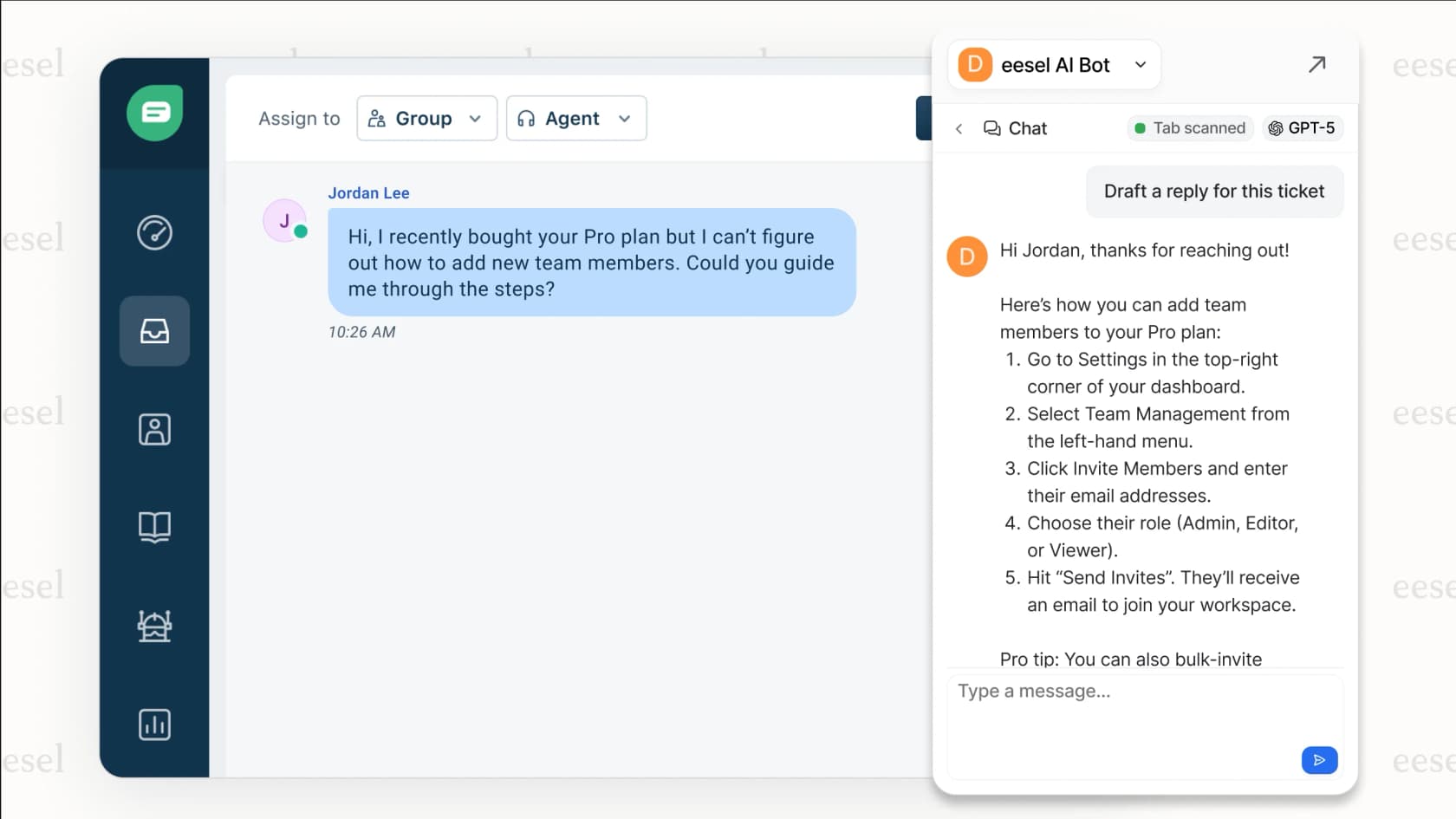
Teams using eesel AI's Copilot can draft both types of comments in their team's voice, learning from past tickets to suggest the right tone and content for each situation.
Public replies: Communicating with customers
What are public replies?
Public replies are the customer-facing side of Zendesk. When you select "Public reply" from the dropdown, everything you type becomes visible to the ticket requester and anyone CC'd on the ticket.
Once you submit a public reply, the customer typically receives an email notification (unless your admin has disabled this trigger). The customer can respond directly to that email, and their reply gets added as another public comment on the ticket. This creates a complete communication thread that both sides can see.
Public replies can be read by anyone who has access to the ticket, including other agents, admins, and any end users who might be copied.
When to use public replies
Public replies are your default for customer communication. Use them when you need to:
- Respond to customer questions answering what they asked, providing clarification
- Provide updates on ticket progress letting them know you're working on their issue
- Request additional information asking for screenshots, account details, or clarification
- Share solutions or workarounds explaining how to fix their problem
The key question to ask yourself: does the customer need to see this to move their ticket forward? If yes, it's a public reply.
Best practices for public replies
Public replies represent your company to the customer. A few guidelines:
- Keep it professional even when the customer is frustrated, maintain a calm, helpful tone
- Be clear and concise customers are often reading on mobile, so get to the point quickly
- Use formatting bold key information, use bullet points for steps, break up long paragraphs
- Proofread before sending once it's public, you can't take it back
Remember: you cannot delete a comment after it's added to a ticket. If you need to remove sensitive data after the fact, your administrator would need to use the redaction feature.
Internal notes: Behind-the-scenes collaboration
What are internal notes?
Internal notes (also called private comments) are where the real work of support happens behind the scenes. They're visible only to agents and admins, not to customers or end users.
When you select "Internal note" from the dropdown, the comment box changes to a yellow background. This visual cue is your safety net. Yellow means "agents only."
Internal notes are perfect for the conversations that happen while you're solving a ticket. They're where you document your thought process, consult with colleagues, and record decisions without cluttering the customer's view.
When to use internal notes
Use internal notes anytime you need to communicate with your team without involving the customer:
- Consulting with teammates asking a senior agent for advice on a complex issue
- Documenting troubleshooting steps recording what you've tried so far
- Escalating to specialists flagging a ticket for the technical team or a supervisor
- Adding context for future agents explaining background that the customer doesn't need to know
- Recording decisions or approvals documenting that you got sign-off for a refund or exception
A ticket with only internal notes is considered a "private ticket." This can be useful for internal requests or cases where you're gathering information before making first contact with the customer.
Common internal note scenarios
Let's look at some real situations where internal notes shine:
Phone call documentation
A customer calls in with a complex issue. You take detailed notes during the call using internal notes. Once you have all the information, you send a single public reply summarizing the next steps. The customer doesn't need to see your messy real-time notes.
Cross-team handoffs
You identify that a ticket needs engineering involvement. You add an internal note explaining the technical details and @mention the engineering team. They can pick up the context without the customer seeing internal technical jargon.
Manager review requests
A customer is asking for an exception to policy. You add an internal note asking your manager for approval, including your reasoning. Once approved, you send a clean public reply granting the request.
Teams can also use macros to add internal notes automatically, saving time on repetitive documentation. For more ways to optimize your support workflow, check out our guide on AI macros.
How to add comments in Zendesk
Adding comments in Zendesk is straightforward, but there are some important limitations to keep in mind.
Step 1: Open a ticket
Navigate to the ticket you want to update in the Agent Workspace. You can find tickets through views, search, or direct links.
Step 2: Select comment type
Above the comment box, you'll see a dropdown. Choose between:
- Public reply for customer-facing communication
- Internal note for agent-only discussions
Take a moment to verify you've selected the right option. The yellow background for internal notes is your visual confirmation.
Step 3: Compose your message
Type your comment in the text area. You can use the rich text formatting toolbar (click the T at the bottom) to add:
- Bold and italic text
- Bulleted or numbered lists
- Links
- Code blocks
- Block quotes
You can also paste images directly into comments by copying and pasting, or drag and drop files.
Step 4: Submit the comment
Click Submit to add your comment to the ticket. Here's the critical part: you cannot delete a comment after it's submitted. Double-check your comment type and content before hitting that button.
Important limitations
Every ticket has limits you should know about:
| Limit | Value | What it means |
|---|---|---|
| Comments per ticket | 5,000 maximum | Once you hit this limit, you can't add more comments (but you can update other ticket fields) |
| Characters per comment | 65,535 maximum | This includes all HTML tags and characters |
| Comment deletion | Not possible | Plan accordingly; use redaction for sensitive data removal |
Bottom line? Be thoughtful about what you add to tickets. That internal note about how the customer "doesn't understand basic concepts" will live in the ticket history forever.
Email replies: When things get complicated
Email adds a layer of complexity to the public vs private decision. When customers reply to ticket notifications via email, Zendesk has to figure out whether that reply should be public or private.
How email replies become public or private
Zendesk performs a series of checks to determine comment privacy for inbound emails:
- Author permissions if the author can't edit the ticket, the comment may be private
- CC behavior replies from CC'd users may be private depending on your settings
- Reply vs Reply all using "Reply" instead of "Reply all" can make a comment private
- Third-party detection if someone forwards a ticket notification and a third party replies, it becomes an internal note
The "Reply" vs "Reply all" behavior trips up a lot of people. When a CC'd user hits "Reply" (not "Reply all"), the requester isn't on the reply. By default, this makes the comment private because the requester won't see it.

Common email pitfalls
Here are the mistakes we see most often:
- Accidentally private customer replies a CC'd user replies with important information, but it becomes an internal note because they used "Reply" instead of "Reply all"
- Misconfigured default settings agent comments via email defaulting to private when they should be public
- Forwarded email confusion someone forwards a ticket notification to a colleague, and their reply becomes an internal note that the original agent might miss
Mail API commands
If you're updating tickets via email, you can use Mail API commands to control comment privacy:
#public truemakes the comment public (this is the default)#public falsemakes the comment private#noteshorthand for making the comment an internal note
Add these commands at the top of your email body. They're processed by Zendesk and removed from the final comment.
Changing default comment settings
By default, Zendesk assumes agent comments should be public. But you can change this if your workflow requires it.
Making internal notes the default
Admins can configure ticket comments to be private by default. Here's how:
- Go to Admin Center > Objects and rules > Tickets > Settings
- Click Comment options for agents to expand
- Deselect Set composer to public channel by default
- Deselect Allow agent comments via email to be public by default
Once configured, agents will need to actively select a public channel if they want customers to see their comments.
There's one exception to this rule: tickets that only have internal notes and no public comments will always default to internal notes, even if the public-by-default setting is turned on. See Zendesk's guide on changing default comment privacy for complete details.
When to change defaults
Consider making internal notes the default if:
- You work in a high-sensitivity environment (healthcare, finance, legal)
- Your team does frequent internal collaboration before customer contact
- You have compliance or privacy requirements that make accidental public comments risky
- Most of your tickets start with internal investigation before customer communication
Note that these settings don't apply to "live" channels like chat, messaging, and social media. Those have their own logic.
Best practices for support teams
Getting comment types right isn't just about individual agent behavior. It's about building team habits and workflows that make the right choice the easy choice.
Training agents on comment types
New agents should understand:
- The "who needs to see this?" test before submitting any comment, ask who needs to see it. If the answer is "just my team," it's an internal note.
- Common mistake patterns share stories (anonymized) of when public/private mix-ups caused problems
- Quality assurance checks have team leads periodically review tickets for appropriate comment usage
Workflow optimization
A few workflow tips that help:
- Use macros for consistent responses pre-written responses ensure consistency and reduce the chance of errors
- Set up triggers for internal notifications automatically notify teams when tickets need their attention via internal notes
- Balance transparency with privacy customers appreciate being kept in the loop, but they don't need to see every internal discussion
How eesel AI helps with comment management
Teams using eesel AI alongside Zendesk get additional support for comment management:
- AI Copilot drafts both public replies and internal notes in your team's voice, learning from past tickets
- Context-aware suggestions help agents choose the right comment type based on the ticket content
- Consistent tone across both public and private communications, reducing the mental load on agents
When you invite eesel AI to your team, we learn from your existing tickets and help center content. This means we understand your company's voice and can draft comments that sound like they came from your best agents.
Key takeaways: Choosing the right comment type
Let's simplify this. When you're deciding between a public reply and an internal note, ask one question: who needs to see this?
- If the customer needs to see it to move forward → Public reply
- If it's just for your team's coordination → Internal note
When in doubt, start with an internal note. You can always copy the content into a public reply later. You can't take back a public comment once it's sent.
Review before submitting. That extra five seconds of checking the comment type dropdown can save you from a very awkward conversation with a customer.
For teams looking to streamline their Zendesk workflows, consider inviting eesel AI to your team. Our AI Copilot drafts both public replies and internal notes in your team's voice, helping you maintain consistency while reducing the cognitive load on your agents. You can start with AI-drafted responses and level up to more autonomous support as your team gets comfortable. Learn more about our Zendesk integration or explore AI-powered customer support solutions.