
If you're managing a Zendesk knowledge base, you've probably noticed that articles end up looking inconsistent. One agent writes detailed troubleshooting guides while another posts two-sentence FAQs. Customers get confused, and your help center starts looking unprofessional.
That's where Zendesk article templates come in. They give your team a consistent structure to follow, so every article meets the same standards. Let's break down how to set them up and use them effectively.
What are Zendesk article templates?
Zendesk article templates are pre-structured article formats that your team can reuse when creating new knowledge base content. Instead of starting from a blank page every time, agents select a template that already has the right sections, headings, and placeholders in place.
Here's how the system works: you create an article with the structure you want, add the special label "KCTemplate" to it, and Zendesk recognizes it as a template. When agents create new articles (either directly in Guide or from the Knowledge Capture app in tickets), they can select from your available templates and get a head start.
The key benefit is consistency. Every FAQ follows the same format. Every troubleshooting guide has the same sections. Customers know what to expect, and agents spend less time figuring out how to structure their content.

Setting up article templates in Zendesk Guide
Getting templates working takes a few steps, but once they're set up, they save significant time. Here's the process:
Step 1: Create a template article
Start by navigating to Guide Admin and creating a new article. This will become your template, so structure it with placeholder sections that agents can fill in.
For a troubleshooting template, you might include:
- An introduction explaining what issue the guide addresses
- A "Signs and symptoms" section
- A basic troubleshooting checklist
- Step-by-step solutions
- A "Contact support" section for escalation
Don't add actual content that would appear in final articles. Instead, use bracketed placeholders like [Describe the issue here] or [Insert step 1 instructions].

Step 2: Add the KCTemplate label
This is the critical step that most people miss. In the article settings sidebar, find the Labels field and add KCTemplate. This specific label is what tells Zendesk to treat this article as a template.
You can add other labels too (like "Template" or "Troubleshooting"), but KCTemplate is required for the template system to recognize it.
Step 3: Configure permissions
Set the "Managed by" field to control who can edit the template itself. Usually, you'll want only knowledge managers or admins to modify templates.
For "Visible to," select who should be able to see articles created from this template. Most templates are set to "Everyone" so agents can create public articles, but you might have internal-only templates set to "Agents and managers."
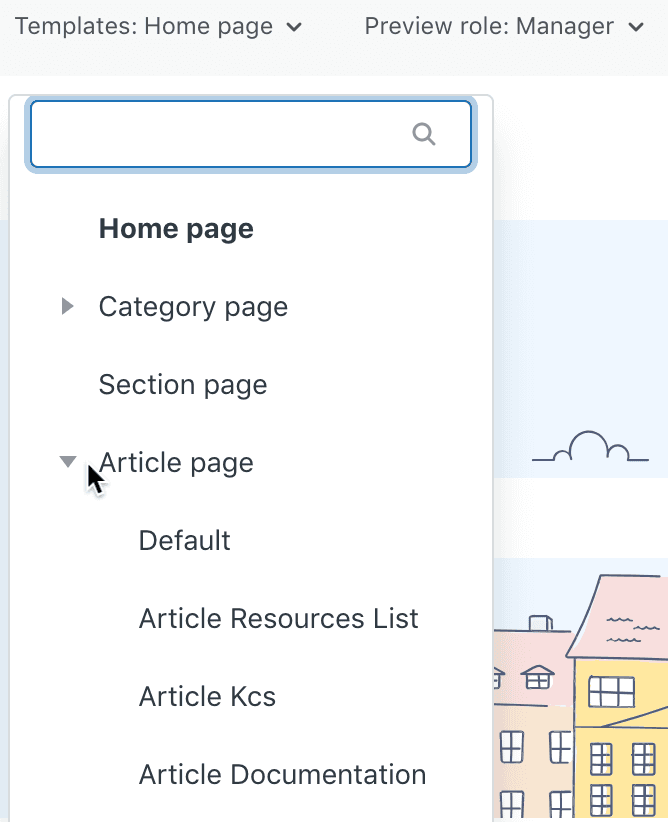
Step 4: Access templates when creating articles
Here's where it gets slightly unintuitive. Templates are accessed differently depending on where you're creating the article:
From the Support interface (tickets): Open a ticket, click the book icon in the right sidebar to open the Knowledge panel, then click the + icon to create an article. Your templates will appear here.
From Guide Admin: When you click "Add article," you'll see an option to select from available templates.
The template loads as a new draft article with all your placeholder content ready to be filled in.
4 essential Zendesk article templates you can use today
Based on what works for most support teams, here are four template structures you can implement immediately:


