
Custom fields in Zendesk are only useful if you can actually report on them. You might have a drop-down tracking product categories or a numeric field capturing customer satisfaction scores, but without proper reporting, that data just sits there. This guide walks you through using Zendesk Explore to turn your custom field data into actionable insights.
What you'll need to get started
Before diving into reporting, make sure you have the right setup:
- Zendesk Suite: Professional, Enterprise, or Enterprise Plus plan
- Explore subscription: Professional or Enterprise (custom reporting isn't available on Lite)
- Permissions: Editor or Admin access to Explore
- Custom fields: Already created in Zendesk Support with tickets using them
If you haven't created custom fields yet, check out our guide on how to create Zendesk custom ticket fields first. You need actual data in those fields before Explore can report on them.
Understanding how Zendesk custom field reporting Explore works
Here's where things get a bit technical, but it's important to understand. When you create a custom field in Zendesk Support, it doesn't immediately appear in Explore. The two systems sync on a schedule, hourly or daily depending on your plan.
How field types appear in Explore
Different custom field types show up differently in Explore. Getting this wrong is one of the most common sources of confusion:
| Field Type | Where It Appears | Object Type |
|---|---|---|
| Drop-down, Multi-select, Text, Checkbox | Ticket custom fields folder | Attribute |
| Numeric, Decimal | Numeric custom fields folder | Metric |
| Date | Individual time dimension folders | Attribute |
| Lookup relationships | Ticket custom fields (with "- id" or "- name" suffix) | Attribute |
The key thing to remember: numeric fields are metrics, not attributes. This means they show up in the Metrics panel where you can sum, average, or calculate with them. Text-based fields are attributes, which means they show up in the Rows or Columns panels for grouping and filtering.
Also worth noting: the Support - Backlog history and Support - Group SLAs datasets don't include custom fields at all. If you need to report on custom fields, stick with the Support: Tickets dataset.
Creating your first custom field report
Let's walk through building a report step by step. We'll create a simple table showing tickets grouped by a custom field.
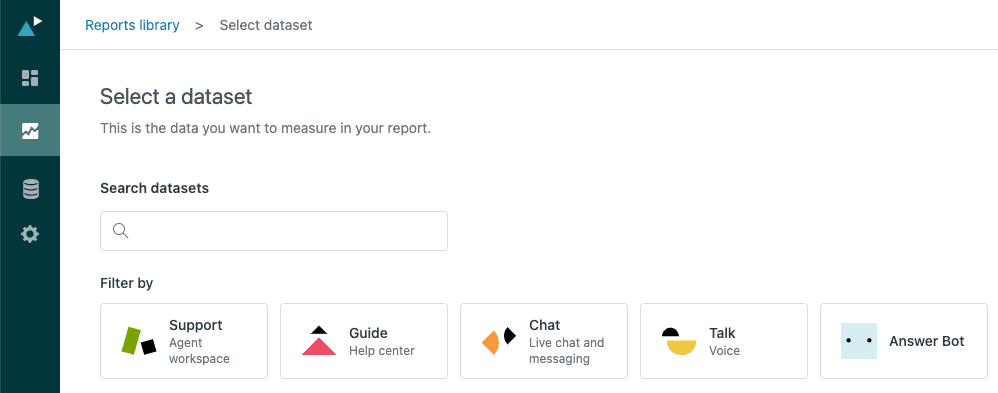
Step 1: Select your dataset
Navigate to Explore, click the Reports icon, then select New report. Choose Support > Support: Tickets as your dataset. This is the most commonly used dataset for custom field reporting.
Step 2: Add metrics
In the Metrics panel, click Add and select Tickets > Tickets. This gives you a basic count of tickets. If you're working with numeric custom fields, you'll find them under the Numeric custom fields folder instead.

Step 3: Add custom field attributes
Now for the main event. In the Rows panel, expand Ticket custom fields and select the field you want to report on. This might be Product Category, Issue Type, or whatever custom field you've created.
If you don't see your field, remember: it only appears after the field has been used in tickets and after the sync has run. Also, numeric fields won't be here, they're in Metrics.

Step 4: Apply filters
Always add a time filter first. Without one, your report will try to calculate results for all time, which can timeout if you have a lot of tickets. Start with a day or week, then expand once you know the report works.
Set your visualization to Table initially. This lets you see the actual data before switching to charts. Once you verify the numbers look right, you can change to bar charts or other visualizations.

Step 5: Save and share
Give your report a descriptive name that includes what it shows and the timeframe. Add it to a dashboard so your team can access it easily. You can also export reports or schedule them to be delivered via email on a recurring basis.
Troubleshooting common Zendesk custom field reporting Explore issues
Even with clear instructions, things go wrong. Here are the most common issues and how to fix them.
New custom field not appearing in Explore
You created a field an hour ago and it's not showing up. This is usually a sync timing issue. Explore syncs with Support on an hourly or daily schedule depending on your plan. Wait for the next sync cycle, or check your sync status in the Explore admin settings.
Workaround: If you need data immediately, you can report on the tags that custom fields generate. Drop-down, multi-select, and checkbox fields all create tags you can filter by.
Numeric fields showing as metrics instead of attributes
This confuses almost everyone at first. Numeric and decimal fields are designed as metrics so you can calculate with them (sums, averages, etc.). If you need to use a numeric field for grouping, you'll need to create a calculated attribute or bucket the values.
Deleted field values showing as tags
If you delete a field value without deactivating it first, Explore shows the raw tag instead of the readable name. For example, "vip_plan" instead of "VIP Plan". Unfortunately, this data isn't recoverable. Always deactivate field values before deleting them.
Field not showing any data
The field exists in Explore but shows no values. This usually means no tickets actually have data in that field yet. Check a few recent tickets to confirm the field is being populated by agents or customers.
Best practices for custom field reporting
After working with hundreds of Zendesk instances, here are the practices that separate organized teams from chaotic ones:
-
Use consistent naming conventions. Decide on a format like "Product - [Name]" or "[Category]: [Field Name]" and stick to it. This keeps fields organized alphabetically.
-
Limit your total field count. Agents can only process so much information. Aim for 10-15 well-chosen fields rather than 30 mediocre ones. We recommend auditing fields quarterly and deactivating unused ones.
-
Group related fields together in your ticket forms. If you have multiple fields about customer account details, keep them together.
-
Document your fields. Create an internal reference explaining what each field means and when to use it. This is especially important for drop-down options.
-
Train agents on field importance. Fields only work if agents fill them out consistently. Explain why the data matters and how it gets used.
-
Start reports with date filters to avoid timeouts, then expand the range once you know the report works.
-
Use tables first to verify your data looks correct, then switch to charts for presentation.
Taking your reporting further with eesel AI
Custom fields become even more powerful when combined with AI. At eesel AI, we've built AI agents that can leverage your custom field data to handle tickets autonomously.

Here's what that looks like in practice: our AI agents can read a "Customer Tier" field and automatically apply different response templates for VIP customers. They can check a "Product" field and pull relevant troubleshooting steps from your knowledge base. They can even update fields based on conversation context, like setting an "Escalation Reason" after detecting frustration in a customer's message.
We integrate deeply with Zendesk custom fields. Our AI agents can:
- Read any custom field value to personalize responses
- Update fields based on conversation context
- Use field data to make intelligent routing decisions
- Generate reports showing resolution rates by field value
This means your custom fields aren't just data capture tools. They become the intelligence layer that lets AI handle routine tickets while escalating complex issues to your team.
Start building better Zendesk reports today
You now have everything you need to start reporting on custom fields in Zendesk Explore. The process is straightforward once you understand how field types map to metrics and attributes, and how the sync process works.
Start small. Pick one custom field that would give you useful insights and build a simple report around it. Once that works, expand to more complex reports with multiple fields and filters.
And if you're ready to take your Zendesk automation to the next level, consider how an AI agent could leverage your custom fields to handle routine tickets autonomously. The structured data you've built becomes the foundation for intelligent automation that scales with your business.


