
Building a community forum is like planting a garden. It takes some upfront work to prepare the soil, but once it grows, it becomes a self-sustaining ecosystem where customers help each other and your support team gets some breathing room.
Zendesk Gather is Zendesk's built-in community forum solution. It lets your customers ask questions, share knowledge, and connect with each other directly within your help center. When done right, a community forum can deflect tickets, build customer loyalty, and create a searchable knowledge base of real-world solutions.
This guide walks you through the complete Zendesk community forums setup process, from activation to launch strategy. Whether you want to get something live this week or plan a more deliberate rollout, you'll find the steps you need.
What you'll need before starting
Before you dive into the Zendesk community forums setup, make sure you have the basics covered:
- Zendesk Suite Professional, Enterprise, or Enterprise Plus plan Gather isn't available on lower-tier plans
- Guide admin permissions You'll need access to manage help center settings
- Zendesk Guide enabled Gather is an add-on to Guide, not a standalone product
- A clear idea of your community's purpose Are you building for peer support, product feedback, or general discussion?
If you're still evaluating your overall support stack, you might also want to look at how eesel AI integrates with Zendesk to complement your community with AI-powered ticket handling. The eesel AI agent for Zendesk can triage and resolve tickets that originate from community discussions, keeping your queue under control as the forum scales.
Step 1: Activate your Zendesk Gather community
The actual activation is surprisingly simple. Here's how to turn on your community:
- In Guide, click the Settings icon (gear symbol) in the sidebar
- Select Gather settings
- Check the box for Activate community
- Click Save
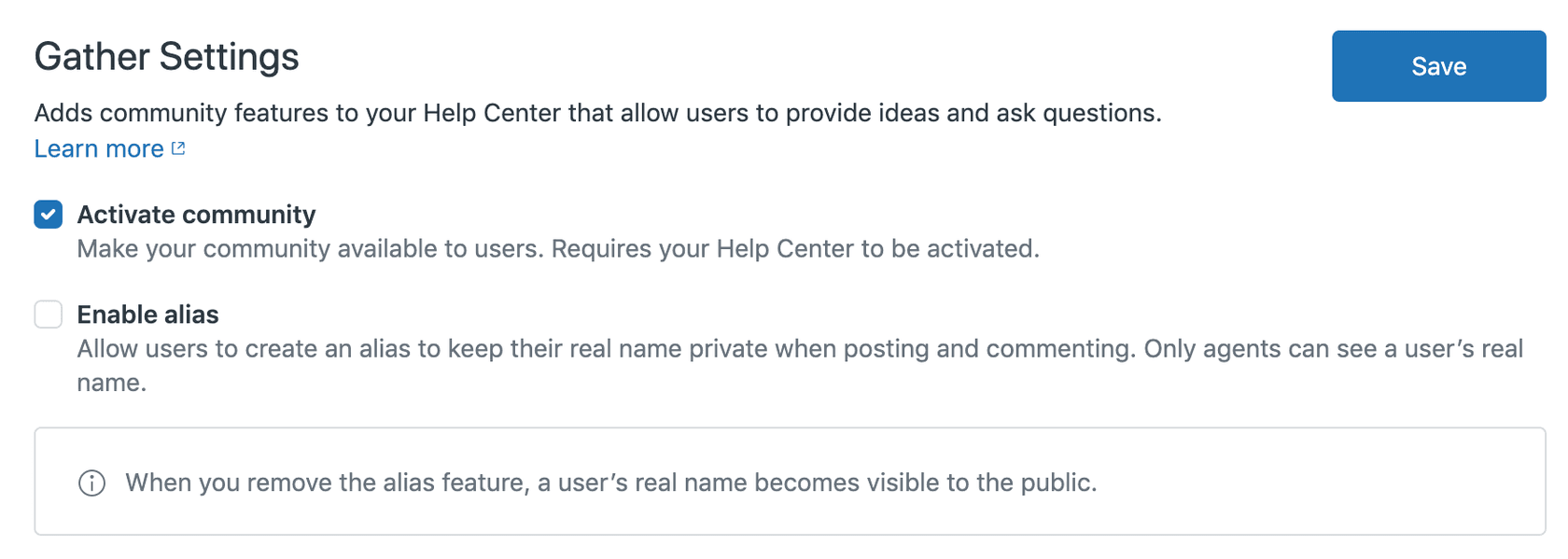
That's it. Your community is now live and visible to end users in your help center. If you've been working on your help center in setup mode, you'll also need to activate the help center itself when you're ready to go live.
One thing to keep in mind: once activated, the community is public to anyone who can access your help center. So make sure you're actually ready before flipping that switch.
Step 2: Configure community-wide settings
With the community activated, it's time to configure the broader settings that affect how users interact with your forum. Head back to Gather settings to adjust these options:
Content moderation Enable this to hold posts and comments in a pending queue until approved. This is useful if you're concerned about spam or want tight control over what appears publicly. Available on Gather Professional plans.
User aliases Allow users to post under alternate names rather than their account name. This can encourage more candid feedback but makes it harder to build personal connections.
Badges Enable the badge system to recognize and reward active community contributors. You can create up to 100 custom badges for different achievements.
@mentions Control whether users can tag each other in posts and comments. Useful for drawing specific people into conversations.
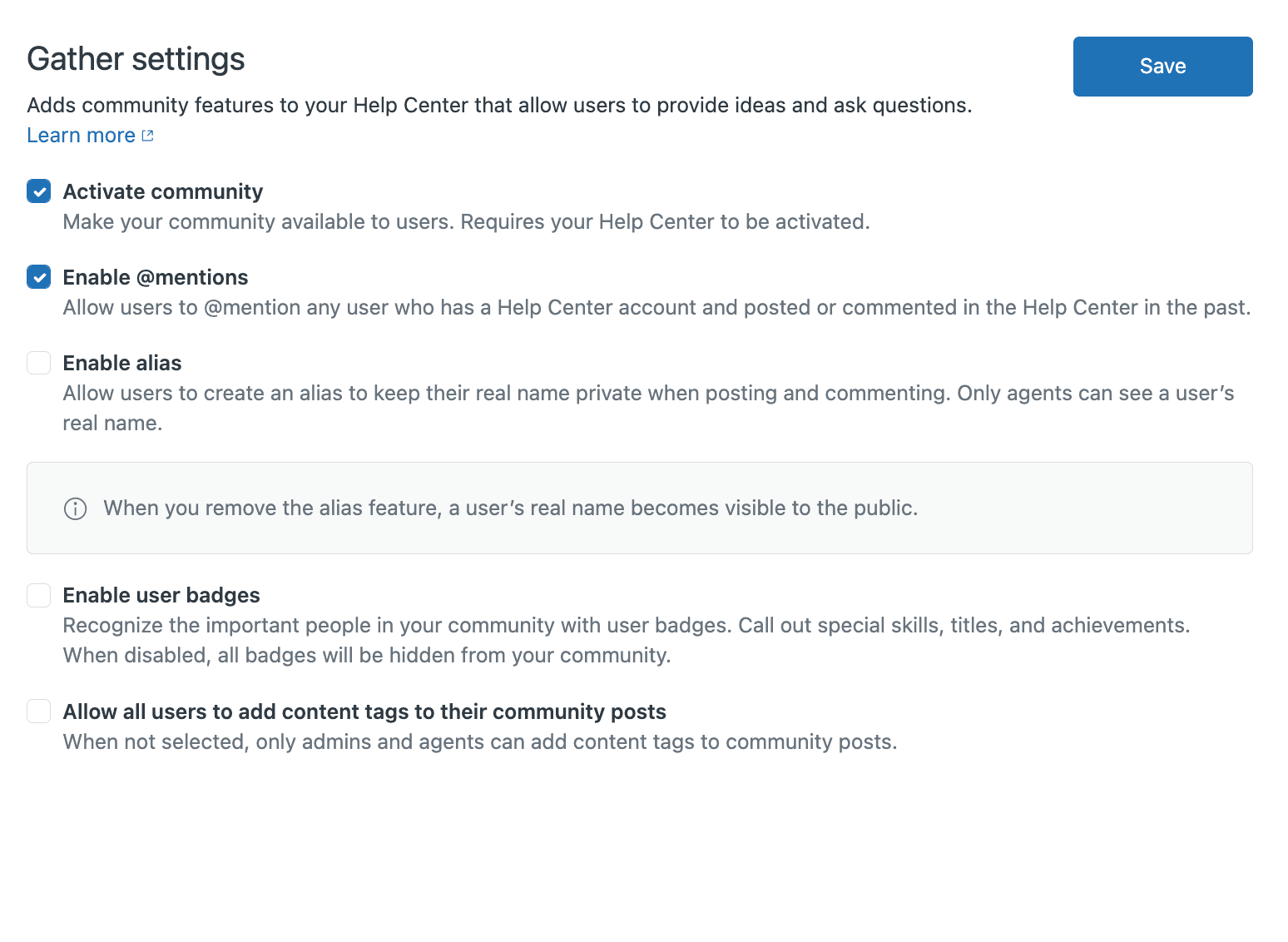
Most of these advanced features require Gather Professional or higher, so check your plan before getting too deep into configuration.
Step 3: Create your community topic structure
Topics are the categories that organize your community posts. Think of them like folders that group related discussions together. Getting this structure right makes the difference between a community that feels organized and one that feels chaotic.
Here's the key principle: start broad, then narrow based on actual usage.
Zendesk recommends beginning with a general Questions & Answers topic that catches everything. As you see patterns emerge (lots of reporting questions, for example), you can create more specific topics and move discussions there.
To create and manage topics:
- Go to Guide → Arrange content → Arrange topics
- Click Add topic to create new discussion categories
- Drag and drop to reorder topics put the most important ones at the top
- Set user segment permissions to control who can view each topic
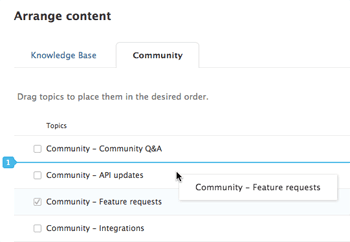
User segments let you restrict topic access based on tags, organizations, or signed-in status. For example, you might have a topic only visible to enterprise customers or one reserved for beta testers.
The two built-in segments are "Signed-in users" and "Agents and managers," but you can create custom segments for more granular control.
Step 4: Set up moderation and user permissions
Someone needs to keep an eye on things. Zendesk lets you create moderator groups with specific permissions to help manage the community without giving people full admin access.
To create a moderator group (requires Gather Professional):
- Go to Guide → User permissions → Community moderators
- Click Add moderator group
- Name your group and select the permissions you want to grant
- Assign a user segment to determine who can be part of this group
- Click Create group
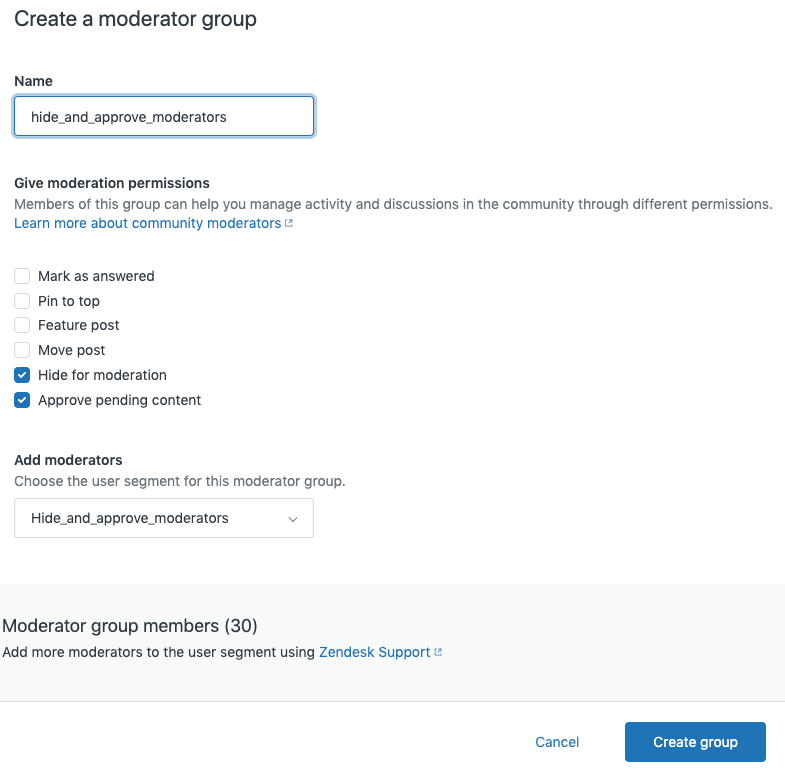
Available moderator permissions:
- Mark as answered Indicate that a comment answers the post's question
- Pin to top Move posts to the top of a topic with a star indicator
- Feature post Label posts as "featured" for special display
- Move post Relocate posts to different discussion topics
- Hide for moderation Remove posts and send them to the moderation queue
- Approve pending content Make moderated content visible to everyone
Moderators can be agents or end-users. In fact, empowering your most helpful customers as moderators can be a great way to build community investment. Just remember that moderator groups apply across all help centers if you have multiple.
Step 5: Choose your launch approach
You have two basic paths for launching your community. Which one you choose depends on your timeline, resources, and risk tolerance.
The MVP approach: Launch fast and iterate
If you need to get something live quickly, take the minimum viable product route:
- Document basic community guidelines (keep it to one page)
- Set up 2-3 initial topics with clear descriptions
- Create one example post in each topic so it's not empty
- Establish 1-2 "sticky" discussion points to seed conversation
The critical requirement here: be prepared to respond quickly. Zendesk's data shows that users who get a response within 5 hours have a 53% chance of re-engaging in the community. Wait 24 hours and that drops to 10%.
The rollout approach: Plan for long-term success
If you have more time, a strategic rollout sets you up better for scale:
- Research your audience Use surveys, Zendesk reporting, and analytics to understand what customers actually want from a community
- Staff properly Designate a community manager who knows your product and can respond thoughtfully
- Curate content If you're migrating from an old forum, use the Community API to bring over valuable historical content
- Plan your promotion Work with marketing to announce the community through the right channels
The rollout approach also lets you identify and recruit super users before launch. These are your brand enthusiasts, early adopters, and power users who can help answer questions and set the tone for the community.
Best practices for ongoing community management
Setting up the community is just the beginning. Here's how to keep it healthy over time:
Harvest the knowledge Don't let good answers disappear into the archive. When you see particularly helpful discussions, consider turning them into knowledge base articles. This creates a permanent, searchable resource and reduces repeat questions.
Track what matters Use Zendesk's native community analytics or connect Google Analytics to track engagement. A simple self-service ratio: divide total help center views by number of tickets. The higher that number, the more effectively your community is deflecting support volume.
Know when to escalate Sometimes a community post needs to become a ticket. Do this when the issue requires extensive troubleshooting that's inappropriate for a public space. Don't create tickets just to answer questions silently that defeats the purpose of the community.
Use AI to handle the volume As your community grows, manually moderating and responding to every post becomes unsustainable. Tools like eesel AI can help classify incoming posts, draft responses, and escalate complex issues to your team.
Encourage participation Recognize your most active contributors with badges, feature their posts, and consider offering swag or other incentives for top community members. The more invested users feel, the more they'll contribute.
Scaling your community with AI
A thriving community generates a lot of activity. That's the goal, but it also creates work. Someone has to read every post, route questions to the right place, and make sure nothing falls through the cracks.
This is where AI can help. Rather than replacing your community, AI augments it by handling the repetitive work so your team can focus on the conversations that need a human touch.
Here's what AI can do for your community:
- Auto-classify incoming posts Route technical questions to your product team, billing questions to finance, and general how-tos to your community managers
- Draft initial responses Generate helpful replies based on your knowledge base and past community answers
- Escalate intelligently Identify posts that need human attention based on sentiment, complexity, or VIP status
- Identify knowledge gaps Spot topics that come up repeatedly but aren't well-covered in your documentation

We built eesel AI to handle exactly this kind of work. It learns from your existing community content, help center articles, and past tickets to provide responses that sound like they came from your team. And when something needs a human touch, it escalates gracefully.
If you're already using Zendesk, eesel AI works alongside your existing setup no rip-and-replace required.
Start building your Zendesk community today
Setting up a Zendesk community forum doesn't have to be complicated. The activation itself takes minutes. The real work is in the strategy: deciding what topics to create, who will moderate, and how you'll encourage participation.
If you're not sure where to start, go with the MVP approach. Get something live, learn from your users, and iterate. You can always add more structure later as you understand what your community actually needs.
And remember: a community is just one piece of your support ecosystem. For the tickets that do come in, having AI that can draft responses, route issues, and handle routine questions lets your team focus on the complex problems that really need human expertise.
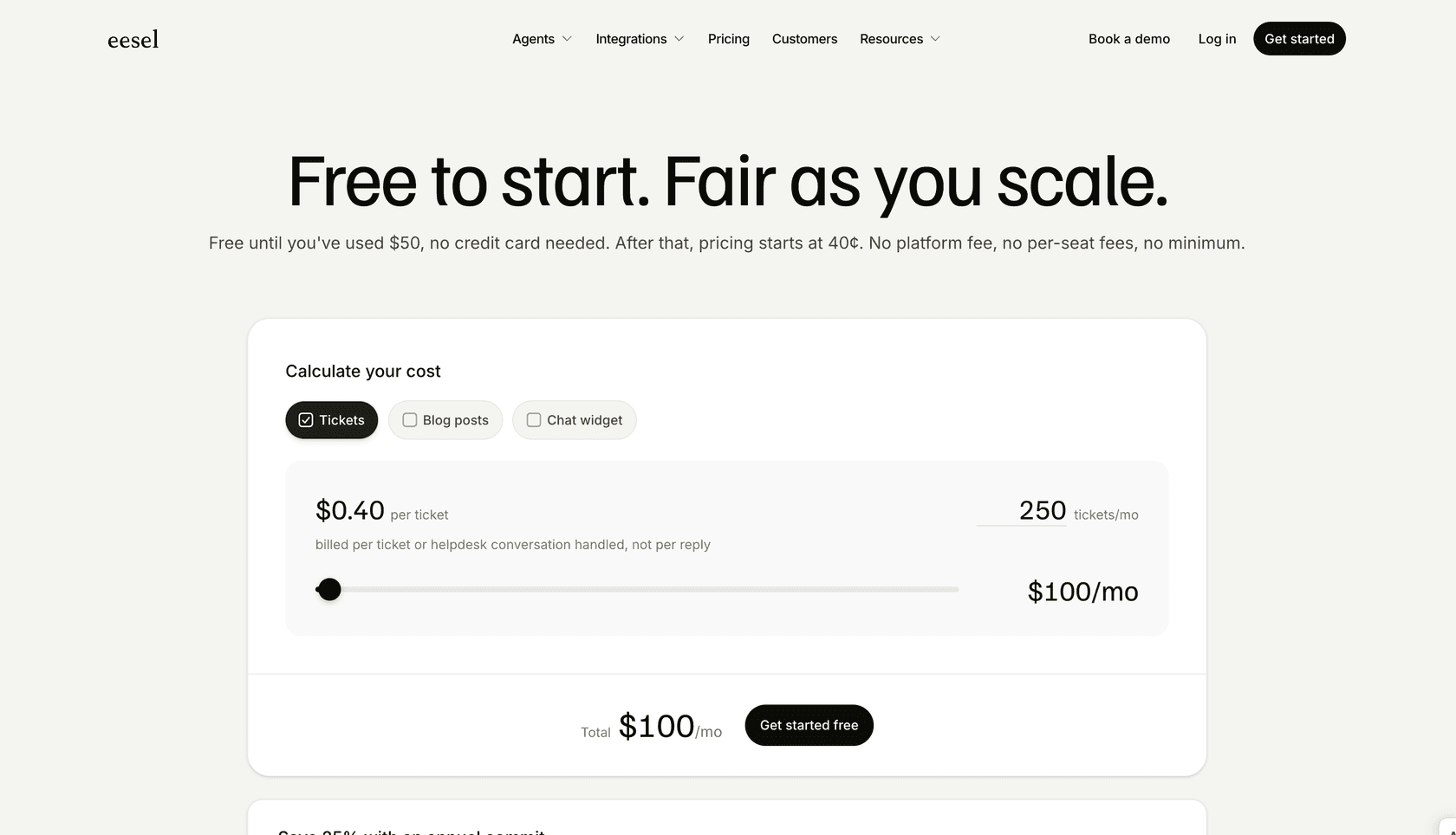
If that sounds useful, check out eesel AI's pricing and see how it fits into your support stack. Or book a demo to see it in action alongside your Zendesk setup.


