
If you're managing a busy support queue, you've probably run into this situation: you need to send a response to a customer, but you also want to leave a note for your team about what happened, what to do next, or why you handled it a certain way. You can do both in Zendesk, but there's a catch that trips up a lot of teams.
Here's the short version: Zendesk macros can add internal notes, but one macro can only add one comment type. Either a public comment to the customer, or a private internal note for agents. Not both. This limitation exists because macros are designed as single-action workflows, and Zendesk treats public and private comments as distinct actions.

Let's break down how to work within this constraint, plus a few workarounds if you need both types of comments in your workflow.
Understanding the native limitation
When you create a macro in Zendesk, you add actions that update tickets. One of those actions is Comment/description, which lets you set the comment mode to either Public reply or Internal note.
The limitation is straightforward: a single macro application can only create one comment. If you set the comment mode to Internal note, the macro adds a private note visible only to agents. If you set it to Public reply, it adds a comment the customer can see. You cannot configure a macro to add both simultaneously.
This matters because many support workflows need both. Think about agent handoffs, where you want to update the customer but also leave context for the next agent. Or quality assurance reminders, where you need to document something internally while still resolving the ticket externally.
The good news: there are ways to handle this. Some use native Zendesk functionality. Others require third-party apps or alternative approaches.
What you'll need
Before you start building macros, make sure you have:
- A Zendesk Support account (Team, Professional, or Enterprise plan)
- Admin access or permission to create macros in your role
- A clear idea of when your team needs internal notes versus public comments
If you're not an admin, you can still create personal macros for your own use. Shared macros, which all agents can access, require administrator permissions.
Method 1: Creating a basic internal note macro
This is the simplest approach. You create a macro that adds only an internal note, which agents apply when they need to document something privately.
Step 1: Access the macro builder
Navigate to Admin Center > Workspaces > Agent tools > Macros. You'll see a list of existing macros if any have been created. Click the Create macro button to start building a new one.
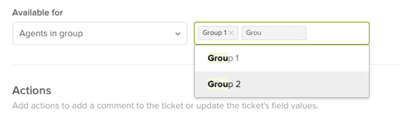
Give your macro a clear, descriptive name. Use double colon notation to categorize your macros. For example:
Internal::Handoff noteInternal::Escalation contextInternal::QA reminder
This naming convention makes it easy for agents to find the right macro quickly, especially as your library grows.
Step 2: Configure the comment action
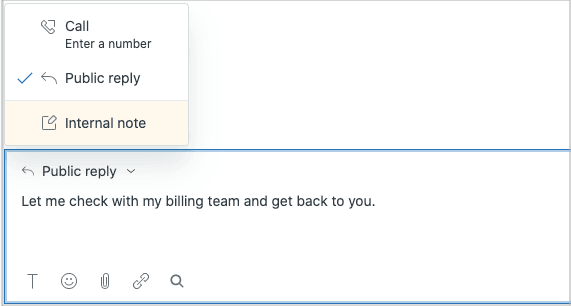
Click Add action and select Comment/description from the dropdown. You'll see two important options:
Comment mode determines who can see the comment. Select Internal note for private agent-only visibility.
Comment text is where you write the actual message. You can use placeholders to personalize the response:
{{ticket.requester.name}}for the customer's full name{{ticket.requester.first_name}}for just the first name{{ticket.id}}for the ticket number
Step 3: Add supporting actions
The real power of macros comes from layering multiple actions. While the internal note is the core action, consider adding:
- Set tags: Add tags like
handofforescalatedfor reporting - Assignee: Route the ticket to a specific agent or group
- Priority: Set to High or Urgent for escalations
- Custom fields: Update any custom ticket fields your team uses
Step 4: Save and test
Once you've configured all your actions, click Create to save the macro.
Before rolling it out to your team, test it:
- Open a test ticket (or create a new one)
- Click Apply macro in the bottom toolbar
- Find your new macro and select it
- Review the changes before submitting
- Submit the ticket and verify the internal note was added correctly
You can also apply macros using the keyboard shortcut: type / in the comment box and start typing your macro name.
Method 2: The two-macro workaround
When you need both a public comment AND an internal note, the native workaround is to use two macros. This requires two clicks, but it works with standard Zendesk functionality.
Here's how it works:
Macro A (Public): Contains the customer-facing response
- Comment mode: Public reply
- Message: Your response to the customer
- Actions: Set status, add tags, etc.
Macro B (Internal): Contains the agent-only context
- Comment mode: Internal note
- Message: Context, next steps, or documentation
- Actions: Assign to another group, set priority, etc.
Agents apply Macro A first, then immediately apply Macro B. Both comments are added to the ticket.
Pros: Uses native functionality, no additional cost, works on all Zendesk plans
Cons: Requires two clicks, agents must remember to apply both, slightly slower workflow
To make this smoother, train your team to use consistent naming so the macros appear together in the list. For example:
Escalation::Customer response + SolvedEscalation::Internal handoff note
Method 3: Using the Internal Note app
If your team frequently needs to add both comment types and the two-macro approach feels clunky, there's a third-party solution. The Internal Note app by pluscloud, available on the Zendesk Marketplace, enables simultaneous public and internal notes in a single action.
The app works by adding special syntax to your macros. Instead of using the standard Comment/description action, you include placeholders that the app recognizes and expands into separate comments.
How to create a macro with the Internal Note app
There are three syntax options depending on what you need:
Regular internal note beside a public comment:
{internal-note}Your internal note text here{/internal-note}
Sunshine Event (Enterprise customers):
{internal-note event="true"}Text to append as Sunshine Event{/internal-note}
Replace existing internal note:
{internal-note replace="true"}New note that replaces current content{/internal-note}
The app is developed by pluscloud, a Zendesk Master Partner and Premier Solution Provider. It includes a 7-day free trial. After that, it requires a paid subscription (pricing available upon request).
Best for: Teams that frequently need both comment types and want to streamline the workflow into a single click.
Common use cases for internal note macros
Internal notes in macros serve several practical purposes across support operations:
-
Agent handoff notes: When transferring tickets between shifts or teams, internal notes capture context about what was discussed, what the customer needs, and what actions were taken. This prevents customers from having to repeat themselves.
-
Quality reminders: Macros can prompt agents to complete specific documentation steps before resolving tickets. For example, an internal note reminding agents to log the root cause or update a related knowledge base article.
-
Escalation tracking: When escalating to managers or specialized teams, internal notes document urgency, customer sentiment, and why standard resolution paths were insufficient.
-
Product feedback summaries: Structured internal notes help product teams understand feature requests without wading through entire ticket threads. Agents summarize the problem, desired outcome, and customer impact.
-
Compliance documentation: For regulated industries, internal notes create audit trails showing why certain decisions were made or exceptions granted.
Best practices and troubleshooting
Building effective internal note macros is about more than just setting the comment mode. Here's how to keep them useful:
Use consistent naming conventions. The double colon format (Category::Subcategory::Action) creates an intuitive hierarchy that agents can navigate quickly. Match your macro categories to your ticket field taxonomy for consistency.
Include all relevant actions. Don't just add the internal note. If the macro documents an escalation, also set the priority to High and add appropriate tags. This ensures complete ticket hygiene with one click.
Review and update regularly. Set a monthly reminder to audit your macros. Remove outdated ones, update language that's changed, and check that any links still work.
Common issues
Macro actions aren't applying: Check that any ticket fields your macro updates actually appear on the ticket form. If a field is hidden, the macro cannot update it.
Placeholders aren't rendering: Make sure you're using double curly braces: {{ticket.requester.name}}. Single braces won't work. Also, on Problem tickets, placeholders render immediately when the macro is applied, not when submitted. Use a backslash to escape if needed: \{{ticket.requester.name}}.
Cannot add public and internal comments in the same macro: This is the known Zendesk limitation we've covered. Use the two-macro workaround or the Internal Note app if you need both.
When to consider AI-powered alternatives like eesel AI
Macros are excellent for standardized responses. But they've got limits. They cannot adapt to context, learn from past interactions, or handle nuanced situations.

Consider eesel AI when you need:
- Dynamic, personalized responses that adapt to each ticket's specific context instead of using static templates
- Learning from past tickets to improve responses over time without manual updates to macro libraries
- Handling complex scenarios that don't fit neatly into predefined templates
- Automatic resolution for common issues without any agent intervention
We integrate directly with Zendesk and can run in simulation mode on your past tickets, so you can see exactly how we'd perform before going live. This lets you validate quality and measure potential time savings with real data from your own support history.
Start streamlining your Zendesk workflow today
You now have three approaches for adding internal notes in Zendesk: basic internal note macros for simple documentation, the two-macro workaround for combined public and private comments, and the Internal Note app for streamlined single-click workflows.
Start by identifying your team's most common use cases. If agents just need to document handoffs occasionally, a basic internal note macro is probably enough. If they're constantly adding both customer responses and internal context, the two-macro approach or the Internal Note app will save more time.
Once you've got the basics working, expand systematically. The goal is to handle routine documentation in seconds, freeing your team to focus on the complex issues that actually need human judgment.
Ready to explore more advanced automation? If you want an AI layer that works natively inside your help desk, eesel AI's Zendesk integration handles dynamic responses that macros simply cannot manage.