You have spent hours setting up the perfect custom fields in Zendesk. You have mapped out exactly what data you need to capture, configured the field types, and set the permissions. Then your agents start working and... the fields are nowhere to be found. Or they are visible in tickets but missing from your Explore reports. Or your API integration is returning "undefined" for values you know exist.
Welcome to the frustrating world of Zendesk custom field issues. These problems are common enough that they generate thousands of support tickets and forum posts, yet the solutions are often scattered across multiple documentation pages and community threads.
This guide brings everything together. We will walk through the most common custom field problems, explain why they happen, and give you step-by-step fixes that actually work. We will also look at how teams are reducing their dependency on complex custom field setups by using AI tools like eesel's AI agent for Zendesk that learn from context instead of requiring rigid field configurations.

Quick diagnosis: Identify your Zendesk custom field issue
Before diving into detailed solutions, we will match your symptoms to the right fix:
| Symptom | Likely Cause | Jump to Solution |
|---|---|---|
| Custom fields visible in Admin but not in tickets | Field not added to ticket form | Issue 1: Fields not showing in tickets |
| Fields disappeared after a Zendesk update | Form configuration changed | Issue 1: Fields not showing in tickets |
| Custom fields missing in Explore reports | Data sync delay or naming conflict | Issue 2: Fields missing in Explore |
| Numeric fields not appearing as attributes | Stored under Metrics instead | Issue 2: Fields missing in Explore |
| API returning "undefined" for custom field values | Incorrect array access method | Issue 3: API extraction problems |
| Jira custom fields not mapping to Zendesk | Plugin limitations | Issue 4: Integration failures |
If your issue is not in this table, work through the sections below systematically. Most Zendesk custom field issues fall into one of these four categories.
Issue 1: Custom fields not showing in tickets
This is the most common custom field issue. You have created the field, it shows as active in Admin Center, but agents cannot see it when viewing or creating tickets.
Why this happens
In Zendesk, creating a custom field and making it visible to agents are two separate steps. When you create a field, it exists in your account but does not automatically appear on any ticket forms. You must explicitly add it to each form where you want it displayed.
This trips up even experienced admins because it is counterintuitive. Other platforms often show all active fields automatically. Zendesk's approach gives you precise control over form layouts but creates this common stumbling block.
Post-update issues (like those reported after the March 2023 update) usually occur when Zendesk changes default form behaviors or when conditional field rules get reset.
Step-by-step fix
Step 1: Verify the field is active
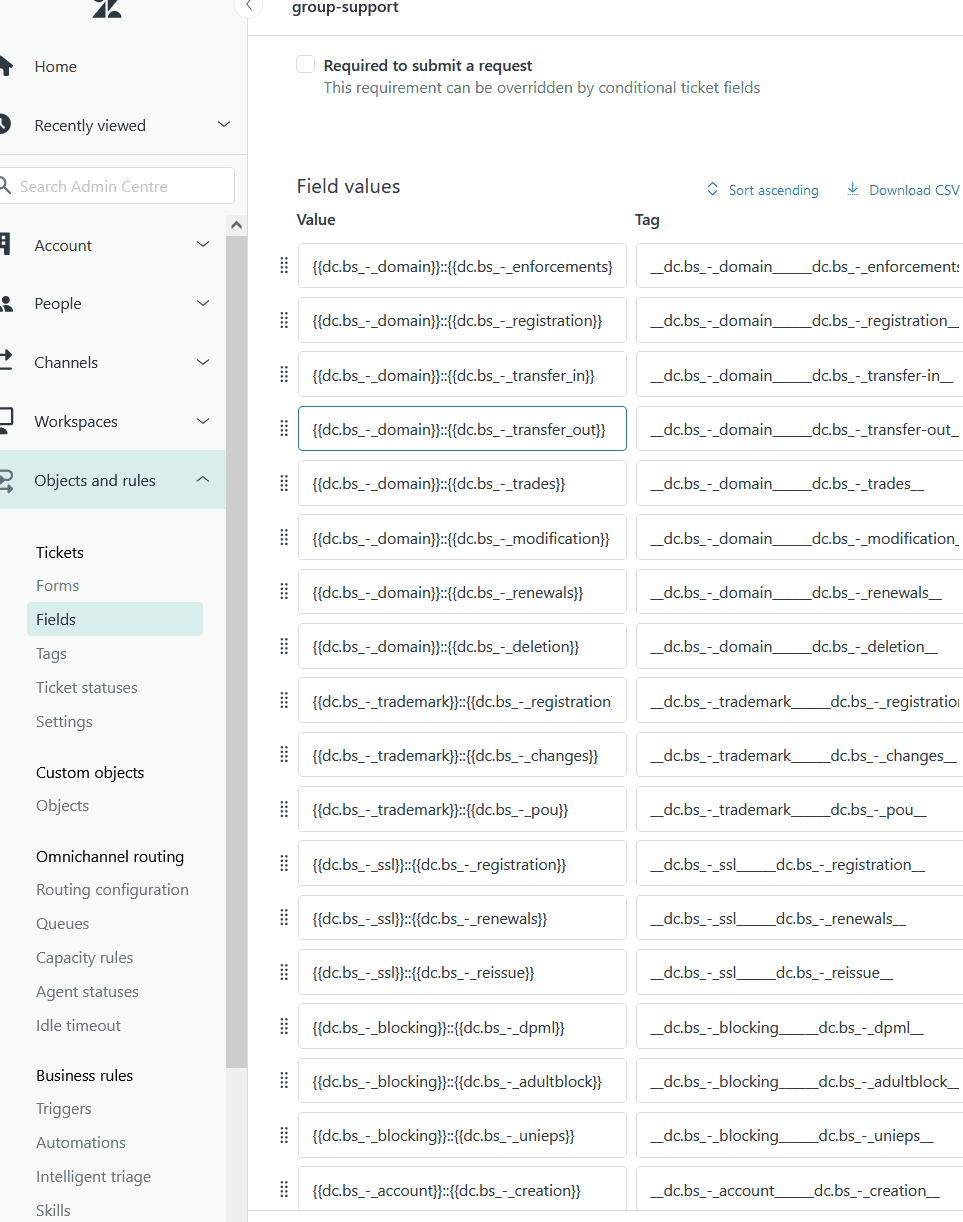
Navigate to Admin Center > Objects and rules > Tickets > Fields. Find your custom field and confirm the status shows "Active." Inactive fields will not appear anywhere, regardless of form configuration.
Step 2: Check field visibility permissions
Click into the field settings and review the visibility options. Fields can be set to visible for:
- Agents only
- End users only
- Both agents and end users
If your agents cannot see a field, make sure "Visible to agents" is enabled.
Step 3: Add the field to your ticket form
This is the step most people miss. Go to Admin Center > Objects and rules > Tickets > Forms. Select the form your agents use (often the default form if you have not created custom ones).
In the form editor, you will see available fields on the left and the current form layout on the right. Drag your custom field from the available list to the form layout. Save the form.
Step 4: Test with different agent roles
If the field still does not appear, check agent permissions. Some custom fields are restricted based on agent roles. Test with an admin account first to rule out permission issues, then verify the specific agent role has access.
Step 5: Check for conditional field rules
If you use conditional fields, your missing field might be hidden until another field gets a specific value. Go to Admin Center > Objects and rules > Tickets > Forms, click the three dots next to your form, and select "Conditions." Review any rules that might be hiding your field.
Prevention tip
Document which fields belong to which forms. A simple spreadsheet mapping fields to forms prevents this issue and makes troubleshooting faster when problems arise.
Issue 2: Custom fields missing in Explore reporting
You have data in your custom fields. You can see it in tickets. But when you build reports in Zendesk Explore, the fields are missing or not returning the expected values.
Why this happens
There are three common causes for this issue:
-
Data sync delay: New custom fields take up to an hour to appear in Explore. This catches people off guard who expect immediate availability.
-
Naming conflicts: When multiple custom fields share the same name (even if some are inactive), calculated attributes based on field names fail. Explore cannot determine which field you mean.
-
Field type confusion: Numeric and decimal custom fields are stored as metrics, not attributes. People look for them in the wrong place.
Step-by-step fix
Step 1: Allow sync time for new fields
If you created the field within the last hour, wait. Explore data synchronization is not instantaneous. Historical data changes can take even longer. Grab a coffee and check again in an hour.
Step 2: Check for duplicate field names
Go to Admin Center > Objects and rules > Tickets > Fields and scan your field list. Look for any fields with identical names, including inactive ones. If you find duplicates, rename them to be unique.
The key thing to remember is that calculated attributes in Explore reference fields by name, not ID. When names collide, the formula cannot resolve which field to use.
Step 3: Check the correct location for numeric fields
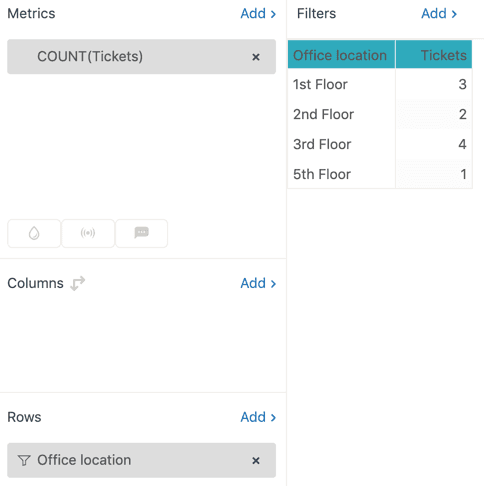
If you are looking for numeric or decimal custom fields, check under Metrics in your Explore report, not Attributes. These field types store numeric values that calculate similarly to system metrics.
To convert them to attributes for different reporting needs, Zendesk provides a recipe: "Explore recipe: Converting between metrics and attributes."
Step 4: Verify dataset permissions
Ensure you have access to the appropriate datasets in Explore. Some fields only appear in specific datasets (Tickets, Ticket updates, etc.). Check with your Zendesk admin if you are unsure about dataset access.
Step 5: Refresh your Explore connection
Sometimes the simplest solution works. Log out of Explore and log back in. This forces a connection refresh and can resolve field visibility issues.
Prevention tip
Establish naming conventions for custom fields. Include a department code or category prefix (like "BILL_" for billing fields or "PROD_" for product fields) to prevent naming conflicts and make fields easier to find in Explore.
Issue 3: API custom field extraction problems
You are building an integration or pulling data via the API. You can see custom field values in the Zendesk interface, but your API calls return "undefined" or empty values.
Why this happens
Custom fields in the Zendesk API are returned as an array of objects, not as direct properties on the ticket object. Many developers try to access them like ticket.custom_field_12345, which does not work. You need to search the array for the field with the matching ID.
The solution
Here is the correct pattern for extracting custom field values from the Zendesk API:
// Wrong way - returns undefined
ticket.custom_fields_6515116803345

// Right way - searches the array for the field ID
ticket.custom_fields[ticket.custom_fields.findIndex((cf) => cf.id==6515116803345)].value
The custom_fields array contains objects with id and value properties. You must find the index of the object with your target field ID, then access its value.
Prevention tip
Use field IDs rather than names in API calls. Field IDs are stable and unique. Field names can change, breaking your integration. Store field IDs as constants in your code with descriptive variable names so your integration remains readable.
Issue 4: Integration field mapping failures
You are trying to sync Zendesk with another platform (Jira, Power BI, Salesforce) and your custom fields are not mapping correctly or appearing in the integration.
Jira integration limitations
The Zendesk for Jira plugin has known limitations with custom field detection. According to user reports in the Atlassian Community, the plugin only detects system fields, not all custom fields created in Jira.
If you need to map Jira custom fields to Zendesk and the standard plugin does not support them, consider these workarounds:
- Use a third-party integration tool like Exalate, which handles custom field mapping more robustly
- Create workflow rules in Jira that copy custom field values to system fields that Zendesk can see
- Use webhooks to sync field values between systems
Power BI connection issues
When connecting Power BI to Zendesk, custom ticket fields sometimes fail to appear in the data model. This usually happens because:
- The field was created recently and has not synced to the data warehouse
- The field type is not supported by the Power BI connector
- Field permissions restrict data access
Try refreshing the connection in Power BI after waiting the one-hour sync period. If fields still do not appear, check whether the connector supports your specific field type.
When to use third-party tools
Native integrations work for basic setups, but complex field mapping usually requires dedicated integration platforms. Tools like Zapier, Workato, or Exalate provide more flexible field mapping options than native Zendesk integrations.
Best practices to prevent custom field issues
After troubleshooting hundreds of custom field problems, patterns emerge. Here are the practices that prevent most issues before they start:
Naming conventions
Establish and enforce naming conventions from day one. Good conventions include:
- Department or category prefixes (BILL_, PROD_, TECH_)
- Sequential numbering for related fields (BILL_REFUND_01, BILL_REFUND_02)
- Avoiding generic names like "Type" or "Status" that might conflict with system fields
Field organization strategies
- Limit the number of fields on any single form to what agents actually need
- Use conditional fields to show relevant fields based on context rather than displaying everything
- Regularly audit inactive fields and delete ones that are no longer needed
Testing workflow
Never deploy custom field changes directly to production. Test with:
- A small group of agents first
- Different agent roles
- Both agent and end-user views (if applicable)
- Explore reporting after the sync period
Consider AI alternatives
Here is something worth considering: many teams create complex custom field setups to categorize and route tickets automatically. They build elaborate dropdown menus, conditional fields, and required fields to ensure tickets reach the right team with the right context.
eesel AI takes a different approach. Instead of requiring agents to fill out rigid fields, our AI reads ticket content and automatically categorizes, tags, and routes based on what the customer actually wrote. This eliminates many of the field management headaches while often achieving better accuracy than manual field selection.

For teams struggling with custom field complexity, our AI Agent can handle frontline support without requiring the elaborate field configurations that cause so many issues. And our AI Triage product automatically tags and routes tickets based on content, reducing dependency on custom fields for categorization.
When to seek additional help
Some custom field issues require Zendesk support intervention. Contact Zendesk Support if:
- Issues persist beyond 24 hours after trying the solutions above
- You suspect data integrity problems (missing historical data, incorrect field values)
- You need complex conditional field logic that exceeds the 1,500 condition limit per user type
- Integration field mapping fails despite using supported field types
For teams finding that custom field management is consuming too much admin time, it might be worth exploring whether AI-powered alternatives could simplify your workflow. Our integration with Zendesk works alongside your existing setup to automate the categorization and routing that custom fields were originally designed to handle.