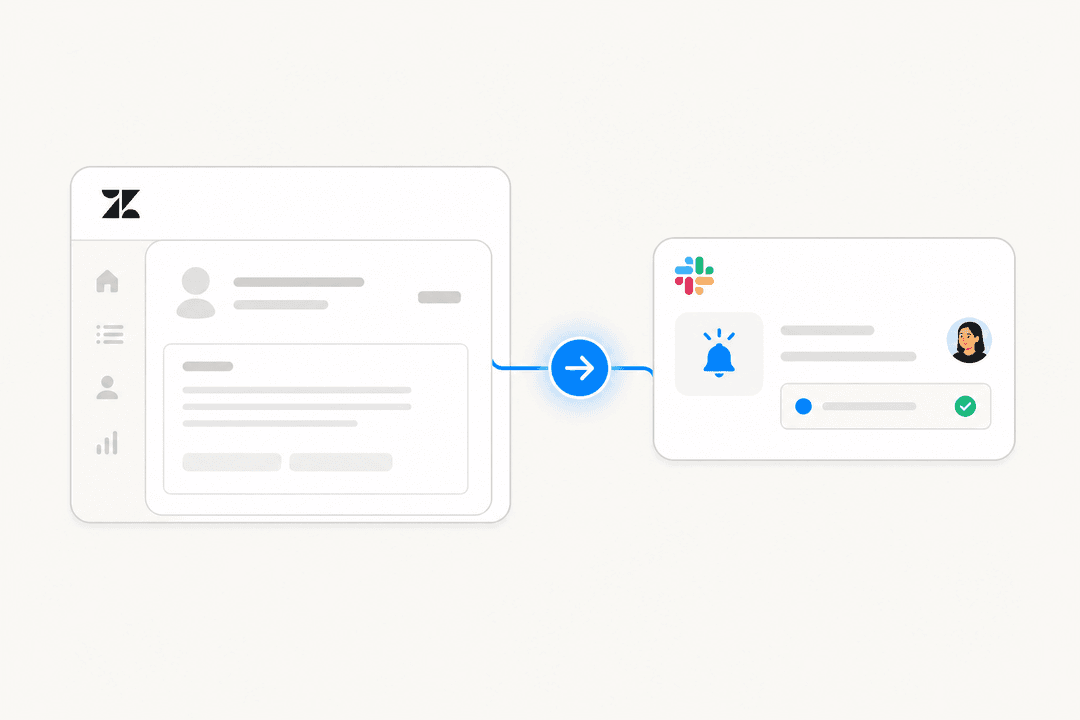
Side conversations in Zendesk let you discuss tickets with internal teams without cluttering the main customer thread. When you connect Slack to Zendesk, agents can start these conversations directly from a ticket and keep all replies synchronized between both platforms. No more switching tabs or losing context when you need input from engineering, billing, or another department.
This guide walks you through setting up and using Zendesk side conversations with Slack. You'll learn how to enable the feature, configure your channels, create conversations from tickets, and troubleshoot common issues.
What you'll need
Before you start, make sure you have the following in place:
- Zendesk Suite Professional plan or higher. Side conversations are not available on Suite Team or Support plans unless you have the Collaboration add-on.
- Administrator access to your Zendesk account. Only admins can enable side conversations and connect Slack workspaces.
- Permission to install apps in your Slack workspace. You'll need to authorize the Zendesk app during setup.
- A list of Slack channels where you want side conversations to go. Public channels work immediately; private channels need the Zendesk app invited.
Step 1: Enable side conversations in Zendesk Admin Center
The first step is turning on side conversations for Slack for your Zendesk account. This happens in the Admin Center, which is where all your account configuration lives.
- Go to Admin Center (click the gear icon in the top navigation).
- In the left sidebar, click Workspaces, then select Agent tools > Side conversations.
- Find the toggle labeled Turn on side conversations in Slack and activate it.
- Under Context panel, select Turn on the side conversations view. This makes the side conversations icon visible to agents when they open tickets.
- Click Save.
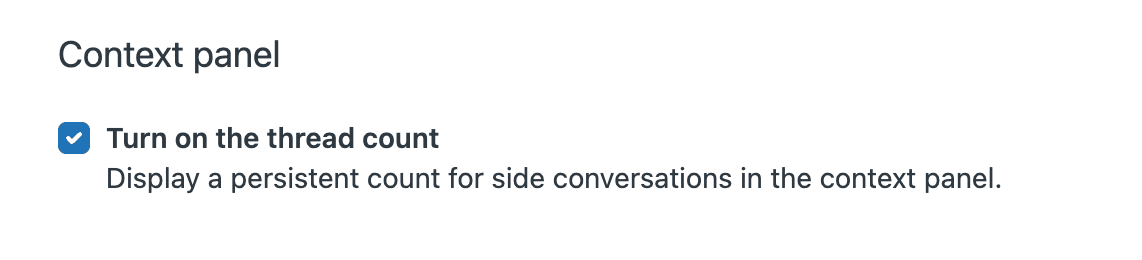
Side conversations are deactivated by default, so you must complete this step before agents can use the feature. On Enterprise plans, you can also control access by creating custom roles if you want to limit which agents can create side conversations.
Step 2: Connect your Slack workspace
Now that side conversations are enabled, you need to connect your Slack workspace to Zendesk. This creates the link between the two platforms.
- In Admin Center, click Apps and integrations in the sidebar, then select Integrations > Integrations.
- Find Slack in the list, click the options menu icon (three dots), then click View.
- Click Connect workspace.
- If your company uses multiple Slack workspaces, select the one you want to connect from the dropdown in the upper right corner.
- Review the permissions and click Allow to authorize Zendesk to access your Slack workspace.
- Click Set up in Zendesk Admin Center to configure the connection, or repeat this process to add more workspaces.
The integration supports multiple connections. If you have several Zendesk accounts or Slack workspaces, you can connect them in any combination. Just run through this installation process for each connection you need.
Step 3: Configure Slack channels for side conversations
With the integration connected, you need to make sure Zendesk can access the Slack channels where you want side conversations to happen.
For public channels:
You can add Zendesk to public channels in bulk through the Admin Center. Go to Integrations > Slack > Channels and select the channels you want to enable.
For private channels:
Private channels require a manual invitation. In Slack, go to the private channel and type:
/invite @zendesk
After inviting the app, wait up to 15 minutes for the channel to appear in Zendesk's channel list. This sync delay is normal.
Understanding workspace labels:
If you have multiple Slack workspaces connected, channel names in Zendesk will show the workspace after the channel name. For example: "#support - Workspace A" or "#general - Workspace B". This helps agents pick the right destination when creating side conversations.
Step 4: Create a side conversation from a ticket
Once everything is set up, agents can start creating side conversations directly from tickets.
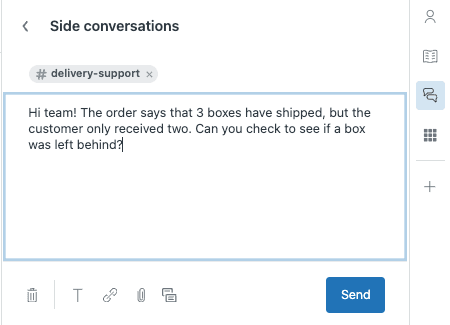
- Open any ticket in Zendesk.
- Look at the context panel on the right side of the screen. Click the Side conversations icon (it looks like a plus sign), then click the plus sign again.
- Select Slack as the conversation type.
- Choose the Slack channel from the dropdown. If you have many channels, the list may take a moment to load.
- Type your message. You can use Slack's formatting and attach files if needed.
- Click Send.
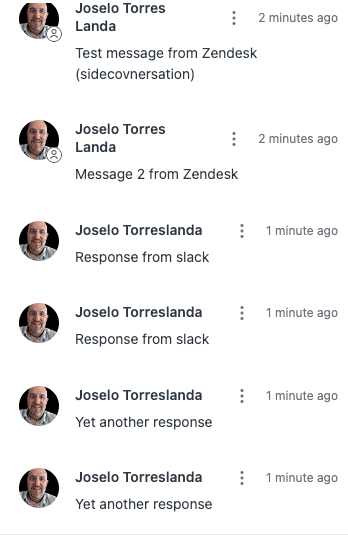
Your message appears in the selected Slack channel as a new thread. Team members in Slack can reply directly in that thread, and their responses automatically sync back to the ticket's side conversation panel.
A note on timing: There is typically a 5-second delay for updates between Slack and Zendesk, though it can sometimes take 30 seconds or longer. If you don't see replies immediately, wait a moment and check again.
Step 5: Manage and close side conversations
Side conversations stay open until you mark them done. Here's how to manage them effectively.
How replies flow:
When someone replies in the Slack thread, their message appears in the ticket's side conversation panel. The conversation can continue back and forth as long as needed.
Closing conversations:
When you've gotten the information you need, click Mark done in the ticket. This is an internal status change that helps you track which conversations are complete. If someone replies to a "done" conversation, it stays marked done, but you can click Reopen if you need to continue the discussion.
Deleting conversations:
You can delete Slack side conversations (unlike email side conversations). Only the agent who created the conversation or an administrator can delete it. When you delete, the conversation is removed from both the ticket and Slack. Note that messages edited or deleted in Slack are also reflected in the ticket.
Tips and best practices
Here are some ways to get the most out of Zendesk side conversations with Slack.
Choose the right channel:
Use Slack for quick internal discussions with teams who live in Slack. Use email side conversations when you need to loop in external partners, vendors, or people who don't use your company's Slack.
Use macros for common requests:
If your agents frequently ask the same team the same questions, create a macro that starts a side conversation with a pre-written message. This saves time and keeps requests consistent.
Add ticket comments for context:
Instead of re-explaining the customer's issue, include relevant ticket comments in your side conversation. Click the comments icon in the composer and select the comments you want to share. This gives your internal team the full context without extra work.
Notify the right people:
Slack @mentions work in side conversations, but they don't autocomplete. You need to enter the user's Slack member ID in angle brackets (like <@U1H63D8SZ>). To find a member ID, go to the user's profile in Slack, click the options menu, and select Copy member ID. Alternatively, use @here to notify everyone currently logged in or @channel to alert all channel members.
Organize by topic:
Create dedicated Slack channels for different types of side conversations. For example, have a channel for engineering escalations, another for billing questions, and another for product feedback. This keeps discussions organized and ensures the right people see relevant conversations.
Troubleshooting common issues
Even with proper setup, you might run into issues. Here's how to fix the most common problems.
"Side conversation can't be sent right now"
This error often happens with Slack Connect channels. Side conversations only work correctly if your workspace owns the Slack Connect channel. If you invite your bot and external users to a channel owned by an external workspace, side conversations won't work. Make sure you're using a channel your company owns.
Channels not appearing in the dropdown:
If you don't see a channel, first wait 15 minutes after inviting the Zendesk app to a private channel. For public channels, try refreshing the channel list in Admin Center. If the channel still doesn't appear, verify the app is properly installed in your Slack workspace.
Permission issues for agents:
If agents can't see the side conversations icon, check that Turn on the side conversations view is enabled in Admin Center. Also verify the agents are on a plan that supports side conversations (Suite Professional or higher).
Character limits:
Only ticket comments with 1,000 characters or less can be inserted into a Slack side conversation. If you need to share a longer comment, summarize it in your message instead of attaching the full comment.
Formatting issues:
Rich text formatting and Slack Markdown entered in the side conversation composer may not always display as intended in Slack. Keep formatting simple to ensure your message appears correctly on both platforms.
Streamline your support workflow with eesel AI
Side conversations help your team collaborate on complex tickets, but they're just one piece of an efficient support operation. At eesel AI, we build tools that complement Zendesk by unifying your knowledge and automating repetitive work.
Our AI connects to your help center, past tickets, and internal documentation to give agents instant answers with cited sources. When an agent starts a side conversation, they can quickly find the right information to share without hunting through multiple systems.
If you're looking to reduce resolution times and improve consistency across your team, explore how eesel AI works alongside Zendesk. We integrate directly with your existing setup, so you can start seeing value without disrupting your current workflows.