
API tokens are the keys that unlock Zendesk's full potential. Whether you're building custom integrations, automating workflows, or connecting third-party tools, you'll need an API token to authenticate your requests. Think of it like a password that lets applications talk to your Zendesk account securely.
The good news? Creating a Zendesk API token takes just a few minutes. The bad news? If you don't follow security best practices, you could expose sensitive customer data or compromise your entire support system.
In this guide, I'll walk you through the entire process: from enabling token access to generating your first token, testing it, and implementing security measures that keep your data safe. I'll also show you how tools like eesel AI's Zendesk integration use these tokens to build powerful AI agents that handle support tickets autonomously.
What you'll need
Before you start, make sure you have:
- Administrator access to your Zendesk account (only admins can generate API tokens)
- Token access enabled in your account settings (I'll show you how to check this)
- A secure place to store the token (password manager, environment variables, or secure vault)
If you're not an admin, you'll need to ask your Zendesk administrator to generate a token for you or grant you admin privileges.
Step 1: Enable token access in Admin Center
Before you can generate any tokens, you need to make sure token access is turned on at the account level. This is a security feature that prevents unauthorized API access.
Here's how to check and enable it:
- Log in to your Zendesk account
- Click the gear icon in the left sidebar, then select Go to Admin Center
- In the left sidebar, click Apps and integrations, then select APIs > Zendesk API
- Click the Settings tab
- Toggle Token Access to ON
If token access is already enabled, you'll see the toggle set to ON and a list of any existing tokens below. If you don't see this option, your account might not have API access included in its plan.
Important: Only verified users can use API tokens. If someone leaves your organization, their tokens remain active until you manually deactivate them. This is why regular token audits matter.
Step 2: Generate a new API token
Now that token access is enabled, you can create your first API token. Each token should have a descriptive name so you know what it's for later.
- In Admin Center, go to Apps and integrations > APIs > API tokens
- Click the Add API token button (or the plus icon next to "Active API Tokens")
- Enter a Description for the token (for example: "eesel AI Integration" or "Internal Reporting Script")
- Click Save to generate the token
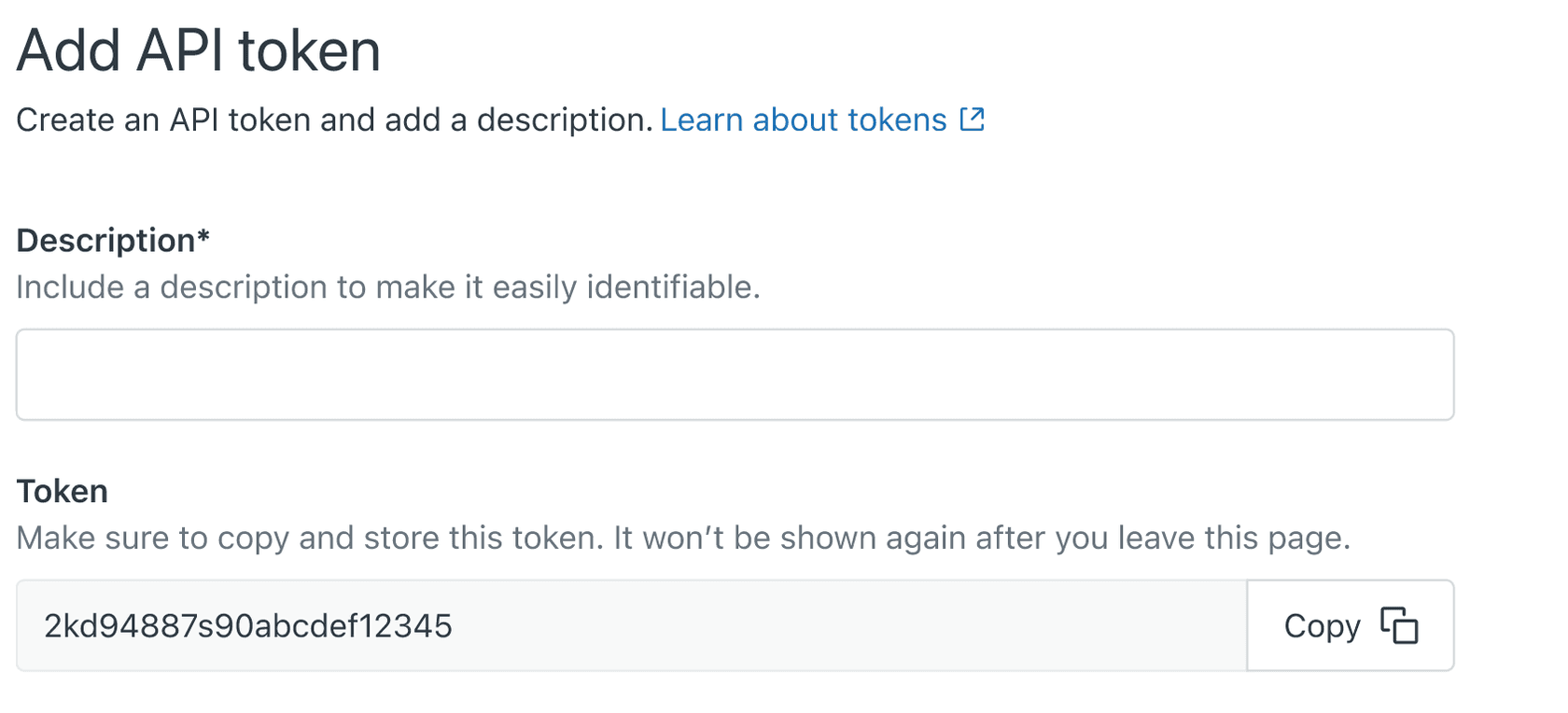
The description is optional but highly recommended. Six months from now, you won't remember what "Token #7" was for. Good descriptions include the tool name, purpose, and creation date.
You can have up to 256 active tokens per account (or 2,048 if your account already exceeds 256). If you hit the limit, you'll need to delete an existing token before creating a new one.
Step 3: Copy and store your token securely
Here's the critical part: the full token is only displayed once. After you close this window, you'll never see the complete token again. If you lose it, you'll need to generate a new one.
- Click the Copy button to copy the token to your clipboard
- Paste it somewhere secure immediately (your password manager, a secure environment variable, or an encrypted vault)
- Click Save again to return to the token list
Never store API tokens in:
- Code repositories (GitHub, GitLab, etc.)
- Shared documents or spreadsheets
- Email or chat messages
- Plain text files on your computer
If you accidentally expose a token, delete it immediately and create a new one. API tokens can impersonate any user in your account, including admins, so treat them like passwords.
Step 4: Test your API token
Before using your token in production, verify it works with a simple API request. The easiest way is using curl from your command line:
curl https://your-subdomain.zendesk.com/api/v2/users.json \
  -u your-email@example.com/token:your-api-token
Replace:
your-subdomainwith your Zendesk subdomain (the part before.zendesk.com)your-email@example.comwith your Zendesk admin emailyour-api-tokenwith the token you just copied
If everything works, you'll see a JSON response with user data. If you get an authentication error, double-check:
- Your email address is correct
- You included
/token:between your email and the API token - The token hasn't been deleted or deactivated
- Token access is still enabled in Admin Center
You can also test your token using Postman or any HTTP client. Set the authentication type to "Basic Auth" and use your email address with /token appended as the username, and your API token as the password.
API token vs OAuth access token
Zendesk offers two authentication methods, and choosing the right one matters for security.
API tokens are best for:
- Internal scripts and automation
- Single-account integrations
- Quick testing and development
- Tools that need broad access
OAuth access tokens are better for:
- Third-party applications
- User-specific access
- Scoped permissions (limiting what the token can do)
- Apps distributed to multiple customers
The key difference? API tokens act like master passwords. They can impersonate any user and access everything that user can access. OAuth tokens are tied to specific users and can be limited to specific permissions (scopes).
If you're building something for internal use only, API tokens are simpler. If you're building a product that other companies will use, OAuth is the secure choice.
Security best practices
API tokens are powerful. Follow these practices to keep your Zendesk data secure:
Store tokens in environment variables, not code
export ZENDESK_API_TOKEN="your-token-here"

import os
token = os.environ.get('ZENDESK_API_TOKEN')
Rotate tokens regularly Set a calendar reminder to rotate tokens every 90 days. Generate a new token, update your applications, then delete the old token.
Deactivate unused tokens If you stop using an integration, deactivate its token immediately. Don't wait until you "might need it again."
Use the minimum permissions necessary Unlike OAuth tokens, API tokens don't support scoped permissions. This means any API token can do anything an admin can do. Consider creating a dedicated admin account with limited permissions for API access.
Monitor token usage with audit logs On Enterprise plans, Zendesk records API token activity in the audit log. You can see when tokens were created, deactivated, or used. Review these logs monthly for suspicious activity.
Delete compromised tokens immediately If you suspect a token has been exposed, delete it immediately. There's no "undo" for token deletion, so make sure your applications are ready to use a new token.
Troubleshooting common issues
"Token access is disabled" error This means token access hasn't been enabled in Admin Center. Follow Step 1 above to turn it on.
Authentication failures
Double-check your authentication format. It should be email@example.com/token:api_token (with the /token: separator). Common mistakes include using a colon instead of a slash, or forgetting the /token part entirely.
Rate limiting Zendesk limits API requests based on your plan. If you hit rate limits, you'll get a 429 response. The High Volume API add-on can increase your limits if needed.
Token expiration API tokens don't expire automatically, but they can become invalid if:
- The admin who created them loses admin privileges
- Token access is disabled at the account level
- The token is manually deleted or deactivated
Using your token with eesel AI
Once you have your API token, you can connect Zendesk to powerful automation tools. At eesel AI, we use Zendesk API tokens to build AI agents that handle support tickets autonomously.

Here's how it works: you provide your API token, and our AI learns from your past tickets, help center articles, and macros. Within minutes, it understands your business context and can start handling frontline support. The AI drafts responses, looks up order information in Shopify, processes refunds, and escalates complex issues to your human team.
Unlike basic chatbots, eesel AI operates as a true teammate. You start with oversight (the AI drafts replies for review), then gradually expand its scope as it proves itself. Mature deployments achieve up to 81% autonomous resolution.
The Zendesk API token is what lets our AI read tickets, update fields, and send responses directly in your help desk. It's secure, scoped to your account only, and you maintain full control over what the AI can access.
Start automating your Zendesk support today
Creating a Zendesk API token is straightforward, but using it effectively is where the real value lies. Whether you're building custom integrations or connecting AI-powered tools like eesel AI, your API token is the bridge between your support data and the automation that can transform your workflow.
Remember: security comes first. Store tokens safely, rotate them regularly, and monitor their usage. With these practices in place, you'll unlock the full power of Zendesk's API while keeping your customer data protected.
Ready to see what AI can do for your support team? Try eesel AI free and connect it to your Zendesk account in minutes. Our AI learns your business instantly and starts helping with tickets from day one.