
Managing who can do what in your Zendesk instance is one of those tasks that seems simple until you actually need to set it up. The Admin Center gives you control over user access, but with multiple role types across different Zendesk products, it's easy to get lost in the details.
This guide breaks down everything you need to know about Zendesk admin center roles and permissions. We'll cover standard roles, custom roles, workspace permissions, and practical tips for setting up your team correctly the first time.

Understanding Zendesk's role hierarchy
Zendesk organizes users into a clear hierarchy based on what they need to accomplish. At the top level, there are three categories of users:
End users are your customers. They submit tickets, track their requests, and access your help center. They never see the admin side of Zendesk.
Team members are your internal staff. This includes agents who handle tickets, administrators who configure the system, and the account owner who manages billing and subscriptions.
Custom roles exist only on Enterprise plans. These let you create specialized permission sets that fall somewhere between standard agent and admin capabilities.
The key thing to remember: roles determine what users can see and do across Zendesk. An agent with restricted ticket access won't see tickets outside their assigned groups, even if they have the "agent" title. An admin can access everything by default, but you can limit this on Enterprise plans through custom roles.
Standard user roles in Zendesk Support
End users (customers)
End users are why you've got a help desk in the first place. They can submit tickets through any channel you've enabled (email, web form, messaging), track their ticket status, and access your help center content. Their comments on tickets are always public, which means agents and other end users can see them.
You have two main options for end user access:
- Open support: Anyone can submit tickets, with or without registration
- Closed support: Only registered end users can submit tickets
Most businesses start with open support for simplicity, then move to closed support as they grow or handle sensitive data.
Agents
Agents are the bulk of your support staff. They're assigned tickets, communicate with customers, and use Zendesk's tools to resolve issues. But not all agents have the same access.
Every agent must belong to at least one group, and their ticket access determines what they can see:
- All tickets: Full visibility across your entire Zendesk instance
- Group tickets only: Only tickets assigned to their groups
- Organization tickets: Only tickets from end users in their organization
- Assigned tickets only: Only tickets specifically assigned to them
Here's where it gets interesting. An agent with access to "all tickets" can assign tickets to any group and create or edit end user profiles. An agent with restricted access (anything other than "all tickets") has limited user management capabilities. This makes sense when you think about it: if an agent can only see their group's tickets, they shouldn't be able to edit profiles of users who might have tickets in other groups.
Agents can also create personal macros and views to speed up their work, and they can access reports if they have permission to view all tickets.
Administrators
Admins are agents with extra capabilities. They can do everything agents can do, plus:
- Access all tickets regardless of assignment
- Create and edit business rules (automations, macros, triggers, views)
- Install and configure apps from the marketplace
- Create and edit reports
- Manage account settings, ticket fields, and channels
- Add, manage, and delete any user (end users, agents, other admins)
- Promote agents to admin status
- Create groups and organizations
- Assume an end user's identity (useful for troubleshooting)
On Enterprise plans, admins can also create custom agent roles to delegate specific permissions without giving full admin access.
Account owner
The account owner is a special type of administrator. There's only one per Zendesk account, and this person is typically whoever originally created the account. The account owner has unique permissions that even other admins don't have:
- Managing subscription changes and billing
- Payment management
- Transferring account ownership to another admin
Only the account owner can update their own account owner profile. Other admins cannot modify account ownership settings.
Zendesk Knowledge (formerly Guide) and Knowledge roles
If you're using Zendesk Knowledge (the help center/knowledge base product), there's a separate permission system for content management. These roles work alongside your Support roles.
| Role | What they can do |
|---|---|
| Anonymous user | View public help center content without signing in |
| End user | View content, comment on articles, vote, subscribe to sections |
| Knowledge viewer | Internal staff with view-only access (same as end user) |
| Knowledge agent | Can edit and publish articles where explicitly granted permission |
| Knowledge admin | Full help center management: all articles, themes, settings |
The important distinction here: being a "Knowledge agent" doesn't automatically let you edit all articles. Article-level permissions determine where Knowledge agents can actually make changes. A Support agent might have Knowledge agent privileges but only be able to edit articles in specific sections.
Knowledge admins, on the other hand, have full control. They can manage themes, configure help center settings, add or delete categories and sections, and edit any article.
Custom agent roles (Enterprise plans only)
Here's where Zendesk gets flexible. On Enterprise plans, you're not stuck with the standard agent/admin binary. You can create up to 197 custom roles with granular permissions.
System custom roles
Zendesk provides three predefined custom roles to get you started:
Advisor: Manages workflow and configuration but doesn't solve tickets. They can create automations, macros, triggers, and views. They can set up SLAs and channels. But they can only create tickets on behalf of end users and make private comments. This role works well for people who need to configure the system without handling customer conversations.
Staff: The standard ticket-solving agent. They handle tickets, create tickets for end users, edit tickets within their groups, view reports, and create personal views and macros. This is your frontline support role.
Team lead: Has more access than staff agents. They can read and edit all tickets (not just their group's), moderate forums, create tickets for end users, and manage end users, groups, and organizations. This role suits senior agents or supervisors who need broader visibility.
Creating custom roles
When you create a custom role, you choose from eight permission categories:
| Category | Sample permissions |
|---|---|
| Tickets | Access level, comment types, editing, merging, deletion |
| People | User management, group management, organization management |
| Channels | Channel management, social media, chat, phone |
| Agent workflow | Views, macros, dynamic content, side conversations |
| Business rules | Automations, triggers, SLAs, skills |
| Security & privacy | Deletion schedules, audit logs, data masking |
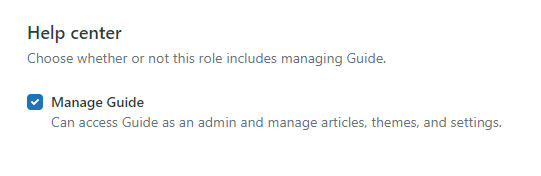
| Help center | Knowledge management, article publishing |
| Analytics | Explore access, report creation, data visibility |
Each category has multiple specific permissions you can toggle on or off. For example, under Tickets, you might let an agent "edit ticket properties" but not "delete tickets" or "merge tickets."
There are some permissions you cannot assign to custom roles, even on Enterprise:
- Creating or editing other agent or admin profiles
- Installing apps
- Changing a user's role
- Bulk importing users or organizations
- Deleting call recordings
- Assuming other agents' identities
- Editing subscriptions
- Generating API tokens
These remain admin-only capabilities.

Managing roles in the Admin Center
Accessing role settings
To manage roles, open any Zendesk product and click the Zendesk Products icon (the grid/waffle icon) in the top bar. Select Admin Center, then navigate to People > Team > Roles. For detailed steps, see Zendesk's guide to managing roles.
The Roles page shows all your custom roles if you're on Enterprise. On lower-tier plans, you'll see the standard roles without the ability to create new ones.
Assigning roles to team members
You can assign roles in two ways:
From the role settings:
- Find the role you want to assign
- Click the options icon and select Edit
- Click Actions > Assign role
- Select team members from the list or search by name
- Click Assign role
From the agent's profile:
- Go to People > Team > Team members
- Click on the agent's name
- Edit their profile and change the role assignment
Agents cannot modify their own roles or permissions. They also cannot manage admin roles, even if they have permission to create and edit other custom roles.
Workspace permissions (Zendesk QA)
If you're using Zendesk QA (Quality Assurance) or Workforce Engagement Management, there's another layer of permissions: workspace roles. These apply within specific QA workspaces and can differ from the user's account-level role.
| Workspace role | Capabilities |
|---|---|
| Manager | View all reviews, manage all workspace settings |
| Lead | View everything, manage quizzes/assignments/groups/disputes/calibration |
| Reviewer | View all reviews, perform peer reviews, cannot edit settings |
| Agent | View own conversations, reply to feedback, view CSAT, self-reviews |
A user might be an Admin at the account level but only a Reviewer in a specific workspace. Or they could be a standard Agent in Support but a Lead in QA. These workspace permissions are managed separately from your main Support roles.
Best practices for role management
Getting roles right from the start saves you headaches later. Here are some practical guidelines:
Start with the principle of least privilege. Give users the minimum access they need to do their job. It's easier to add permissions later than to clean up after an overly permissive setup.
Document your role structure. As you create custom roles, write down what each role is for and who should have it. This helps when onboarding new team members and prevents role creep over time.
Review roles quarterly. People change jobs, teams reorganize, and permissions accumulate. Set a calendar reminder to audit who has what access and whether it still makes sense.
Use groups alongside roles. Roles determine what users can do; groups determine which tickets they handle. A well-designed setup uses both: roles for permissions, groups for ticket routing.
Be careful with "all tickets" access. Only give this to people who genuinely need to see everything. It's a security risk and can overwhelm agents with irrelevant tickets.
Test custom roles before rolling them out. Create a test agent account with your new custom role and verify they can do what they need to do (and can't do what they shouldn't).
Enhancing Zendesk administration with eesel AI
Managing Zendesk roles and permissions is important, but it's just one piece of running an efficient support operation. Once your roles are configured, you might find yourself wanting to automate more of the routine work that fills your agents' days.

At eesel AI for Zendesk, we've built an AI teammate that works within your existing Zendesk setup, respecting the role structure you've carefully configured.
Our AI Agent for Zendesk can handle frontline support tickets autonomously, draft replies for human review, or triage and route tickets based on content. It integrates directly with your Zendesk instance and learns from your past tickets, help center articles, and macros.
The key thing: our AI works within your permission framework. It won't try to access tickets or perform actions that exceed the boundaries you have set for your team. You control what it can see and do, just like any other team member.
If you're spending too much time on repetitive ticket handling after getting your roles sorted, check out how eesel AI works with Zendesk. It might save your team hours every week.
Getting started with Zendesk roles
If you're setting up Zendesk for the first time, here's a quick checklist:
- Identify your account owner (usually whoever created the account)
- Add your admins (people who need to configure the system)
- Create groups for your team structure (Support, Sales, Tier 2, etc.)
- Add agents with appropriate ticket access levels
- Set up custom roles (if on Enterprise) for any specialized needs
- Configure Knowledge roles if using Guide
- Document everything so future you knows why you made these choices
Remember, you can always adjust roles as your team grows. The goal is to give people enough access to be effective without creating security risks or overwhelming them with irrelevant information.
For more on navigating the Admin Center itself, our guide on how to navigate Zendesk's admin center like a pro covers the interface in detail.