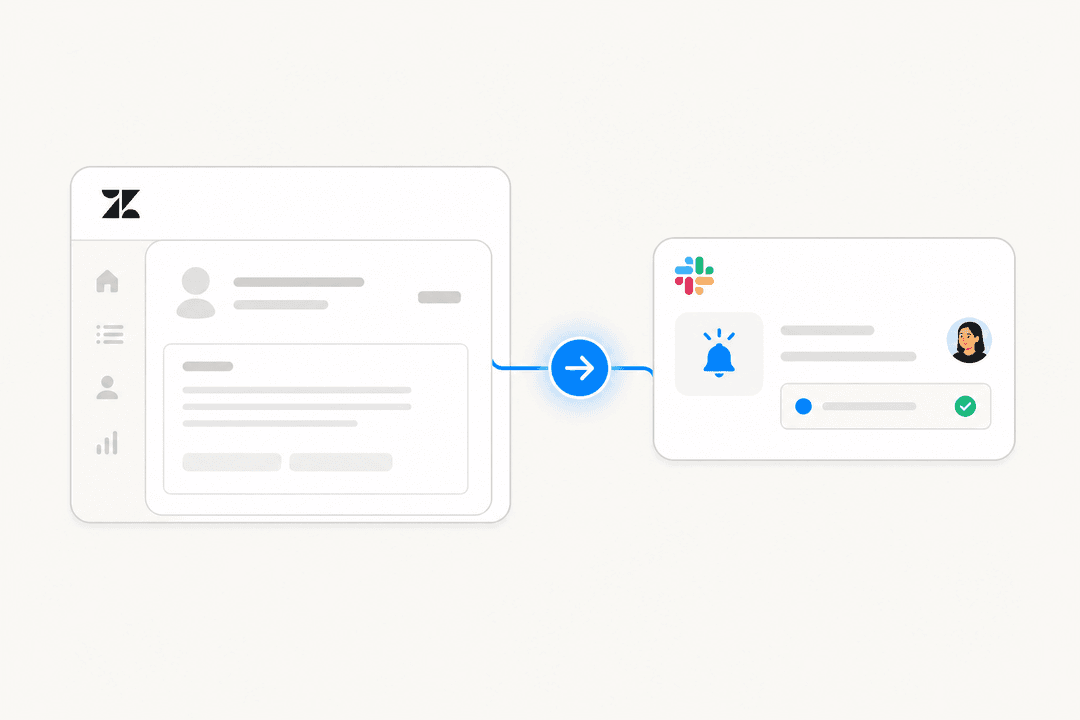
Support tickets live in Zendesk. Your team lives in Slack. When these two systems don't talk to each other, you end up with blind spots, missed escalations, and customers waiting longer than they should.
This guide walks you through exactly how to set up Slack notifications for Zendesk tickets. We'll cover the native integration (easiest), custom webhooks (most flexible), and when you might want to skip notifications entirely in favor of something more powerful.
What you'll need
Before you start, make sure you have:
- A Zendesk account with admin access
- A Slack workspace where you can install apps
- Basic familiarity with JSON if you plan to use the webhook method
- A clear idea of which channels should receive which notifications
Method 1: Using the native Zendesk-Slack integration
The official Slack for Zendesk Support integration is the fastest way to get started. It handles the heavy lifting and requires no coding.
Step 1: Install the Zendesk app in Slack
Head to the Slack App Directory or your Zendesk Admin Center to install the integration. You'll need to authorize the connection between your Zendesk account and Slack workspace.
The authorization process grants Zendesk permission to post to your Slack channels and lets Slack create tickets in Zendesk. Both platforms use OAuth, so you won't need to share passwords.
Step 2: Configure channel notifications
Once installed, invite the Zendesk app to any channel where you want ticket notifications to appear. Type /invite @zendesk in the channel, or use the channel settings to add the app.
You can add the app to multiple channels. Many teams set up different channels for different purposes: one for urgent tickets, one for new ticket alerts, and one for general updates.
Step 3: Create triggers for Slack notifications
Here's where the magic happens. In your Zendesk Admin Center, navigate to Objects and rules > Business rules > Triggers. Create a new trigger that defines when Zendesk should notify Slack.
A basic trigger for new tickets might look like this:
- Conditions: Ticket is Created
- Actions: Notify by Slack > [Your Channel]
You can add more conditions to filter what gets posted. For example, only notify Slack when tickets are created with Urgent priority, or when they're assigned to a specific group.
Limitations of the native approach
The native integration works well for basic use cases, but it has some constraints:
- Limited message customization: You can't fully control how the notification appears in Slack
- No complex logic: Simple conditionals only, no advanced filtering
- Restricted ticket fields: You can't edit custom ticket fields from Slack
- No attachments: Comment attachments don't appear in Slack notifications
If these limitations are dealbreakers, the webhook method gives you full control.
Method 2: Setting up custom webhooks for advanced notifications
Webhooks let you send custom-formatted notifications to Slack with complete control over the message content, timing, and appearance. This method requires more setup but unlocks powerful customization.
Step 1: Create a Slack incoming webhook
Start at the Slack API site. Create a new app, enable incoming webhooks, and generate a webhook URL for your target channel.
The webhook URL will look something like:
https://hooks.slack.com/services/T00000000/B00000000/XXXXXXXXXXXXXXXXXXXXXXXX
Keep this URL secure. It contains a secret token that allows posting to your channel. Slack actively scans for leaked webhook URLs and will revoke them if found in public repositories.
Step 2: Create the webhook in Zendesk
In your Zendesk Admin Center, go to Apps and integrations > Webhooks. Create a new webhook with these settings:
- Endpoint URL: Your Slack webhook URL from Step 1
- Method: POST
- Request format: JSON
- Authentication: None needed (the token is in the URL)

Test the webhook to make sure Zendesk can reach Slack. You should see a test message appear in your channel.
Step 3: Build a trigger to send notifications
Now create a trigger that uses your webhook. In Admin Center > Triggers, set up your conditions and add the action "Notify active webhook."
Here's where webhooks shine: you can customize the JSON payload using Zendesk placeholders. A well-formatted payload might look like this:
{
  "text": "New ticket from {{ticket.requester.name}}",
  "attachments": [{
    "color": "#D00000",
    "fields": [
      {
        "title": "Subject",
        "value": "{{ticket.title}}",
        "short": false
      },
      {
        "title": "Priority",
        "value": "{{ticket.priority}}",
        "short": true
      },
      {
        "title": "View Ticket",
        "value": "<{{ticket.url}}|Open in Zendesk>",
        "short": true
      }
    ]
  }]
}
This creates a rich notification with color coding, structured fields, and a clickable link back to the ticket.
Common notification use cases and trigger conditions
Different situations call for different notification strategies. Here are the most common setups we see:
New ticket alerts
Condition: Ticket is Created Use case: Keep your support team immediately aware of incoming work
This is the most basic notification. Every new ticket posts to your main support channel. It's simple but can get noisy if you have high volume.
High-priority escalations
Condition: Priority is Urgent OR Priority is High Use case: Alert management or senior agents when critical issues arrive
Add a condition for "Ticket is Created" so this only fires on new tickets, not every time someone updates an urgent ticket. Route these to a separate channel or mention specific users with @here or @channel.
Unassigned ticket reminders
Condition: Ticket is Updated AND Assignee is - AND Hours since created > 1 Use case: Prevent tickets from sitting in the queue unclaimed
This requires an automation rather than a trigger (since it relies on time passing). Set it to run hourly and post a gentle reminder to your support channel.
SLA breach warnings
Condition: Hours since requester update > [Your SLA threshold] Use case: Proactive SLA management before you miss your target
Most teams set this to fire a few hours before the actual SLA deadline, giving agents time to respond. Include the remaining time in the Slack message for urgency.
Best practices for Zendesk Slack notifications
Getting notifications working is just the start. Keeping them useful requires some discipline:
-
Use dedicated channels. Mixing Zendesk alerts with general chat creates noise. Create specific channels like
#support-urgentor#tickets-newso people can choose their level of engagement. -
Avoid notification overload. The fastest way to get ignored is to post everything. Be specific with your trigger conditions. If a notification doesn't require action, it probably doesn't need to exist.
-
Include actionable links. Every notification should link directly to the relevant ticket. Don't make people hunt for it.
-
Use emojis and formatting. Slack supports emoji in webhook payloads. Use :red_circle: for urgent, :yellow_circle: for high priority, and :green_circle: for normal. Visual scanning is faster than reading.
-
Test before going live. Set up your triggers in a test environment first, or use a private channel. Nothing undermines confidence like a flood of broken notifications.
-
Monitor and adjust. Check in with your team after a week. Are the notifications helpful or annoying? Adjust conditions based on real feedback.
Troubleshooting common issues
Even with careful setup, things go wrong. Here's how to fix the most common problems:
Notifications not appearing: Check that your webhook URL is correct and the trigger is active. In Zendesk, look at the ticket events to see if the trigger fired. If it fired but nothing appeared in Slack, test the webhook URL directly with a tool like curl.
Wrong formatting: If your Slack messages look garbled, validate your JSON syntax. A missing comma or quote will break the entire payload. Use a JSON validator to catch errors.
Too many notifications: This usually means your trigger conditions are too broad. Add more specific conditions, like requiring a certain tag or excluding certain ticket types. Remember that triggers fire on every ticket update that matches the conditions.
Authentication errors: Make sure your webhook URL uses HTTPS. Slack rejects unencrypted webhook calls. If using the native integration, try disconnecting and reconnecting the app.
Alternative: eesel AI for intelligent ticket handling
Notifications keep your team informed, but they don't actually solve tickets. If your goal is to reduce response times and ticket volume, there's a better approach.

We built eesel AI to handle tickets autonomously, not just notify people about them. Instead of sending a Slack message every time a ticket arrives, eesel reads the ticket, checks your knowledge base, and drafts a response. Your team reviews and sends, or lets eesel handle it directly once you're confident.
The difference is meaningful. Teams using eesel see up to 81% of tickets resolved without human intervention. That means fewer Slack notifications, less context switching, and faster customer responses.
We integrate with Zendesk just like the native Slack app, but instead of just posting notifications, we actually work the tickets. You can still get Slack updates about what eesel is handling if you want visibility, but the default mode is silent resolution.
If your notification strategy is starting to feel like a band-aid for a bigger problem, it might be time to consider whether you need better notifications or fewer tickets to notify about.
Start streamlining your support workflow today
You now have two solid approaches for notifying Slack channels about Zendesk tickets. The native integration gets you up and running in minutes. Custom webhooks give you full control over formatting and logic. Both work well for keeping teams informed.
Which should you choose? If you need something running today and your notification needs are straightforward, start with the native integration. If you have specific formatting requirements or need complex conditional logic, invest the time in webhooks.
And if you're finding that notifications alone aren't solving your support challenges, consider whether an AI teammate might be a better investment. Try eesel AI and see how autonomous ticket handling compares to better notifications.