
Managing a growing support queue means dealing with hundreds or thousands of tickets, users, and records. Sometimes you need to make the same change across many items at once. That's where Zendesk bulk update features come in.
This guide walks you through everything you can bulk update in Zendesk, how to do it, and what limitations to watch out for. We'll also look at how AI automation can reduce your need for manual bulk updates in the first place.
What you can bulk update in Zendesk
Zendesk lets you perform bulk operations on four main categories:
- Tickets: Status changes, assignments, tags, merging, and deletion
- Users: Profile updates, custom fields, and organizational changes via CSV or API
- Organizations: Tags and custom fields (though this requires workarounds)
- Knowledge base articles: Publishing, archiving, labeling, and author changes
Each category has different methods and limitations. Some work through the native UI, others require CSV imports or API calls. Let's break down each one.
Bulk updating tickets
Ticket bulk updates are the most common use case. Zendesk lets you update up to 100 tickets at once directly from any ticket view.
Step 1: Select tickets from a view
Open any ticket view and select the tickets you want to update. You can pick individual tickets or click the checkbox at the top left to select the entire visible list. The maximum is 100 tickets per bulk action.
When you select tickets, a toolbar appears at the bottom of the list with your available actions.
Important limitations to know:
- You cannot bulk update closed tickets
- AI agent tickets cannot be managed in bulk
- If you navigate to different pages, your selections remain active
Step 2: Choose your bulk action
The toolbar gives you four main options:
- Edit: Update ticket properties like status, assignee, priority, and tags
- Delete: Move tickets to the Deleted Tickets view (restorable for 30 days)
- Merge: Combine multiple tickets into one ticket
- Mark as spam: Delete tickets and suspend the requesters

Step 3: Apply updates and confirm
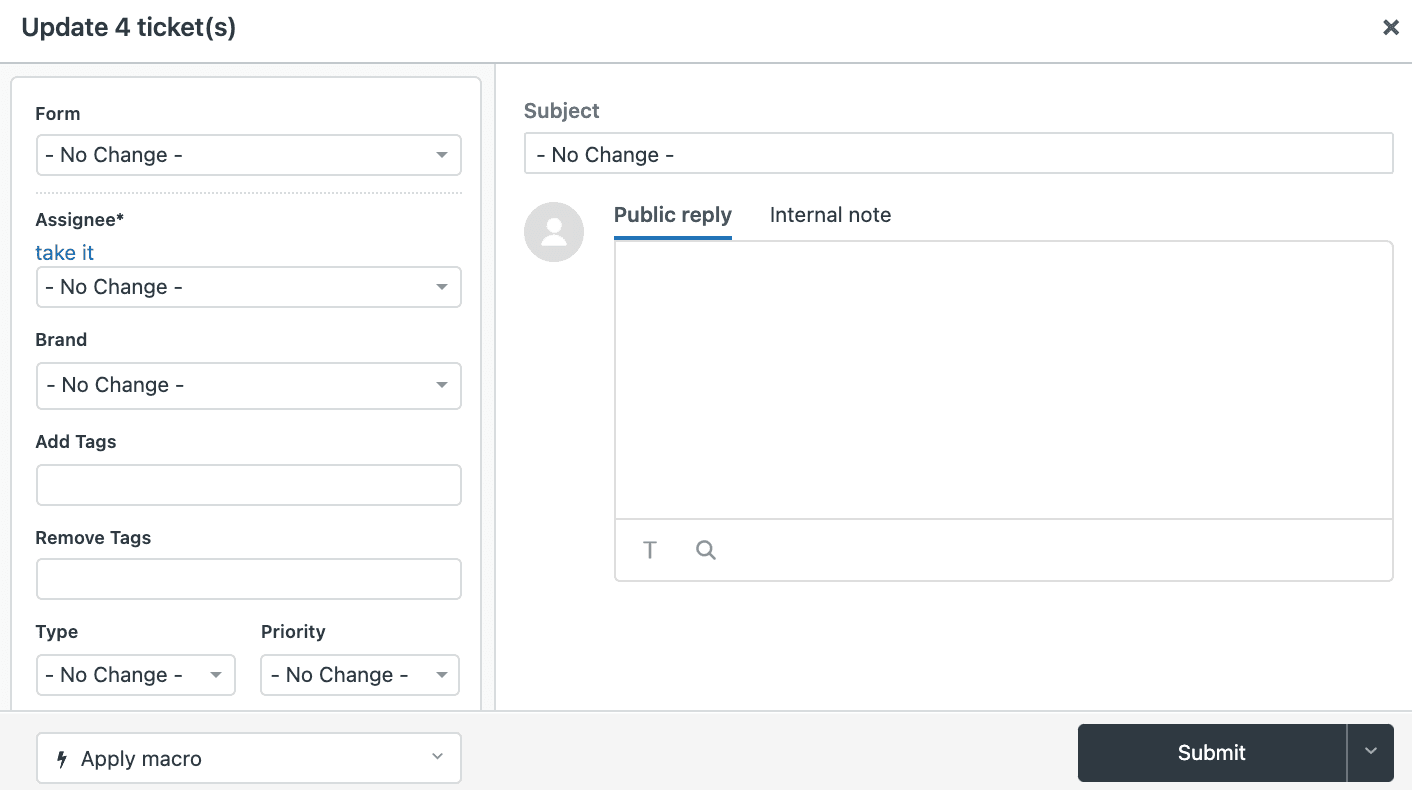
Clicking Edit opens a dialog where you can update most ticket properties:
- Status (Open, Pending, Solved)
- Assignee and Group
- Priority and Type
- Tags (add or remove)
- Subject
- Comments (add to all selected tickets)
- Custom fields
You can also apply a macro to all selected tickets using the Apply Macro menu. Note that macro attachments won't be included in bulk updates, and dynamic content placeholders may not render correctly.
One critical gotcha: The bulk editor doesn't support CCs, followers, or @mentions. If you try to @mention someone, it stays as plain text and they won't be notified.
When you submit a bulk update, Zendesk records each ticket's last-updated timestamp. If a ticket gets modified after you started the bulk action (someone else updates it), the system skips that ticket and continues with the rest. You'll see an error for any skipped tickets.
Bulk updating users
Updating user data at scale requires a different approach. Zendesk offers three methods:
Method 1: CSV import via Admin Center
This is the most common approach for non-technical users:
- Export your existing users to a CSV file (Professional and Enterprise plans)
- Edit the user fields you want to update
- Re-import the file through Admin Center > Objects and rules > Tools > Data Importer

Key points:
- You only need one unique identifier per user (email or external ID)
- Existing users get updated, new users get created
- The import process captures logs of all attempted imports
- You can update custom user fields this way
Method 2: Zendesk API
For technical teams, the API offers more control. The Create or Update Many Users endpoint accepts up to 100 user records per request.
This is useful when:
- You need to update users based on complex conditions
- You're integrating with an external system
- You want to automate regular user updates
The Zendesk API processes bulk updates asynchronously, so you track them as jobs rather than getting immediate confirmation.
Method 3: Super Admin app
The Super Admin app from the Zendesk Marketplace provides a UI for bulk user management without writing code. It lets you update agents and end users directly in Zendesk.
Bulk updating organizations
Here's where things get tricky. Unlike tickets, Zendesk doesn't provide a native UI for bulk updating organizations. You have two options:
The CSV export/import workflow
- Export your organizations to CSV
- Edit the fields or tags in your spreadsheet
- Import the updated file back into Zendesk
This works but has drawbacks. It's slow, requires downloading and uploading files, and there's risk of data errors during the back-and-forth.
Third-party solutions
Apps like Swifteq's Advanced Search Plus fill this gap. They let you search and bulk update organizations directly in Zendesk without the CSV dance. You can update tags, custom fields, and standard fields across hundreds or thousands of organizations in a few clicks.
This is worth considering if you frequently need to:
- Clean up old or inconsistent tags
- Update organization fields after restructuring
- Set new custom fields for existing organizations
Bulk updating knowledge base articles
For Guide admins, bulk actions work on up to 30 articles at a time. From the Knowledge admin > Manage articles section, you can:
- Publish or unpublish articles
- Archive or restore articles
- Delete articles
- Change authors
- Update labels
- Change user permissions
- Schedule publish/unpublish dates (Enterprise only)
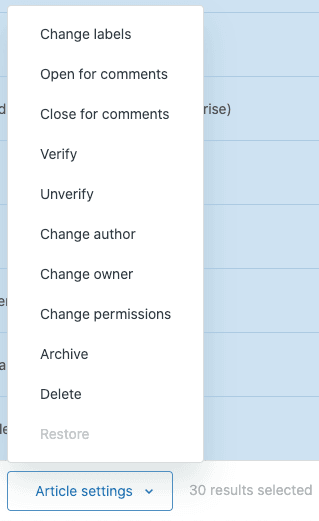
The 30-article limit means larger updates require multiple batches. Also, some actions like changing permissions and labels aren't available on the Suite Team plan.
Common mistakes and how to avoid them
Bulk updates are powerful but can cause problems if misused. Here are the most common pitfalls:
Not verifying selections
Double-check which tickets you've selected before hitting submit. It's easy to accidentally include tickets you didn't mean to update. Use Views to filter down to exactly the tickets you need before selecting.
Trying to update closed tickets
Zendesk won't let you bulk update closed tickets. If your view includes closed tickets, they'll be skipped. Plan your bulk updates before tickets close, or use automations to catch tickets before they reach closed status.
Exceeding batch limits
Remember the limits: 100 tickets max, 30 articles max. If you need to update more, you'll have to work in batches. For very large updates, the API might be more efficient than the UI.
Timestamp conflicts
If someone updates a ticket while your bulk action is processing, that ticket gets skipped. This is actually a safety feature, but it means some tickets might not get updated. Check the results and re-run if needed.
Not backing up first
Before major bulk operations, export your data. For tickets, you can create a view and export. For users and organizations, use the export features in Admin Center. Zendesk provides secure data handling, and if something goes wrong, you have a recovery path.
Breaking triggers and automations
Bulk updates are recorded as "Web Service (API)" events. If you have triggers based on "Ticket: Updated via" conditions, bulk updates will fire them. Review your business rules before large bulk operations.
When to consider AI automation instead
Bulk updates are essentially a reaction to problems that have already happened. Tickets piled up. Tags got inconsistent. Fields weren't filled in correctly. You're fixing the past.
AI automation approaches the problem differently. Instead of manually cleaning up messes, you prevent them from happening in the first place.

If you want to stop doing bulk cleanup altogether, eesel's AI agent for Zendesk can handle ticket hygiene continuously instead of reactively. With eesel AI, you get an AI teammate that handles tickets autonomously. It reads incoming tickets, drafts responses based on your knowledge base, and can even send replies directly. This means fewer tickets sitting in queues waiting for bulk updates later.
Our AI Triage feature automatically tags, routes, and prioritizes tickets as they arrive. No more realizing weeks later that hundreds of tickets were mis-tagged. The AI handles ticket hygiene continuously, not as a quarterly cleanup project.
The difference is proactive versus reactive. Bulk updates fix problems after they accumulate. AI automation prevents the accumulation.
For teams using Zendesk, we integrate directly. The AI learns from your past tickets, help center articles, and macros. It understands your business context and responds in your team's voice. You can start with AI Copilot drafting replies for review, then level up to full automation as the AI proves itself.
If you're finding yourself doing bulk updates weekly or monthly, it might be time to ask whether automation could eliminate the root cause. See how eesel AI works with Zendesk.


