
When you search for "Zendesk events support," you might be looking for one of two very different things. You could be trying to attend a Zendesk conference or webinar. Or, more likely, you're trying to figure out why a ticket behaved a certain way, trace a workflow issue, or understand what actually happened to a support request behind the scenes.
This guide focuses on the second interpretation: Zendesk ticket events. Think of ticket events as a flight recorder for your support tickets. They capture every change, notification, and system action that occurs from the moment a ticket is created until it's resolved. Whether you're troubleshooting a trigger that isn't firing, investigating a missing notification, or simply trying to understand your support workflow better, ticket events are where the truth lives.
Let's break down how to access, read, and use Zendesk events support to improve your customer service operations.
What are Zendesk ticket events?
At its core, a ticket event is a record of activity. Every time something happens to a ticket, Zendesk logs it as an event. This includes obvious things like an agent changing the status from "Open" to "Pending," but also less visible activities like a trigger firing, an automation running, or a webhook being called.
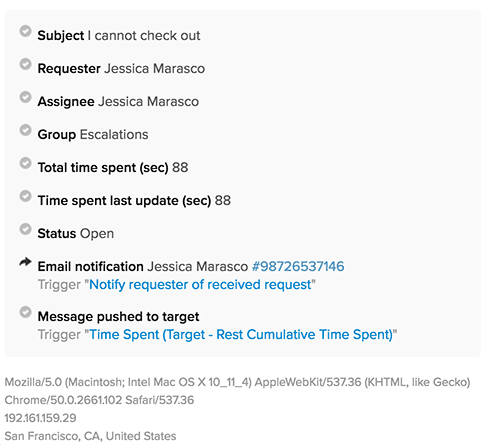
The key thing to remember is that events show you the complete history of a ticket, not just the conversation between agent and customer. While ticket comments show you what people said, events show you what the system did.
Types of events you'll encounter
Zendesk organizes ticket events into several categories:
Properties events track changes to ticket fields. This includes status updates, priority changes, assignee switches, group reassignments, and custom field modifications. If a value changed, you'll see both the old and new values crossed out and displayed side by side.
Communications events capture system-generated activities. Email notifications sent, triggers that fired, webhooks called, and messages pushed to external targets like JIRA all appear here. This is often where you'll find answers when troubleshooting notification issues.
User information events record details about the end user who submitted the ticket. This includes their submission channel (web form, email, X, etc.), browser information, IP address, and approximate location. Keep in mind that VPNs and privacy settings can affect location data accuracy.
Auto-assist events (Enterprise plans only) track AI-powered activities. When agents approve AI-generated reply suggestions or when automated actions complete, skip, or fail, those events appear in the log.
How to view ticket events in Zendesk
Accessing ticket events depends on which interface you're using. Zendesk has been gradually moving users to the Agent Workspace, but many teams still use the classic interface.
For Agent Workspace users
If you're using the Zendesk Agent Workspace, viewing events is straightforward:
- Open any ticket
- Look for the events icon in the conversation header (it looks like a small list or timeline)
- Click the icon to toggle between viewing the conversation and viewing events
- Review the chronological list of everything that happened to the ticket
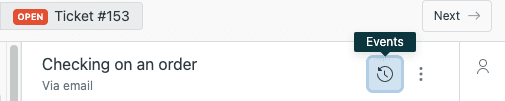
The events display separately for each ticket update, making it easy to correlate system actions with specific agent or customer activities.
For classic interface users
If your team hasn't migrated to Agent Workspace yet, the process is slightly different:
- Open a ticket
- Look for the Conversations dropdown under the active comment area
- Click it and select Events from the dropdown menu
- The events panel will replace the conversation view
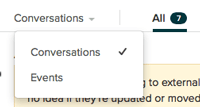
When you're done reviewing events, simply toggle back to Conversations using the same control.
Pro tip: Previewing notifications
One useful feature many agents overlook: you can preview the exact email that was sent for any notification event. Just click the ID number next to a notification event, and Zendesk will show you the full email content, including any template formatting and dynamic content. This is invaluable when customers claim they didn't receive an email or when troubleshooting template issues.
Understanding ticket event types in depth
Let's look at what each event category shows you and why it matters.
Properties events: The what-changed log
Properties events answer the question "What changed on this ticket and when?" When an agent updates the status from "Open" to "Pending," you'll see both values displayed with the old value crossed out. This makes it immediately obvious what changed without comparing timestamps or guessing.
Common properties events include:
- Subject updates when the ticket title changes
- Form changes when the ticket is moved to a different form (if your plan supports multiple forms)
- Group reassignments showing which team now owns the ticket
- Organization updates when a ticket is linked to a different company
- Type changes (Question, Incident, Problem, Task)
- Status transitions (New → Open → Pending → Solved → Closed)
- Priority adjustments (Low → Normal → High → Urgent)
- Assignee changes showing who is now responsible
- Custom fields updates for any fields your admin has configured
- CCs added or removed from the ticket
Teams using time tracking will also see Total time spent and Time spent last update in seconds.
Communications events: The behind-the-scenes activity
This is where you'll find the most useful troubleshooting information. Communications events show you everything the system did automatically:
Email notifications appear with a unique ID you can click to preview the actual message sent. This includes notifications to customers, agents, and any CC'd parties.
Triggers that fired display the trigger name. On Enterprise plans, you can click the trigger title to see the specific version that ran, which is helpful if your triggers have been modified over time.
Messages pushed to target indicate when Zendesk sent data to external systems via targets. If you have integrations with JIRA, Slack, or other tools, you'll see those interactions here.
Offered to events appear in omnichannel routing setups, showing which agents were offered the conversation and what skills were considered in the routing decision.
One important note: In the Agent Workspace, text messages (SMS) sent via triggers don't appear in the events log. You'll need to check your SMS provider's logs for those.
User information events: Context about the requester
At the bottom of each event set, you'll find details about the user who submitted that particular update:
- Submission channel identifies how the ticket was created (web form, email, X, API, etc.)
- User agent string shows browser and operating system information (web form submissions only)
- IP address records where the request originated
- Location provides approximate geographic data based on the IP address
Remember that browser security settings, VPNs, and proxies can affect IP and location data accuracy. Don't rely on these fields for security-critical decisions.
Auto-assist events: AI-powered interactions
For teams using Zendesk's AI features (Enterprise plans), events capture AI activity:
- Auto assist reply approved shows which AI-generated suggestion was used and which agent approved it
- Auto assist action completed/skipped/failed tracks automated actions and their outcomes
- Pre-approved auto assist action events indicate actions the AI performed automatically without agent intervention
Failed actions appear in both the events log and the conversation itself, so agents are alerted when something goes wrong.
Using events for troubleshooting common issues
Now that you know what events show, let's look at practical troubleshooting scenarios.
Scenario 1: "The customer says they never got the email"
Check the communications events for that ticket update. Look for an email notification event with the customer's email address. If you see it, click the ID to preview the email. If the event exists and the preview looks correct, the email was sent from Zendesk's side. The issue is likely in spam filters, the customer's email server, or the email address.
If you don't see an email notification event, check whether a trigger should have fired. Look for trigger events around the same time. No trigger event means the conditions weren't met, or the trigger is inactive.
Scenario 2: "This ticket was assigned to the wrong group"
Review the properties events chronologically. Look for the Group change event. The event will show you both the old and new group. Then check communications events around that time to see if a trigger fired that caused the reassignment. You can click the trigger name (Enterprise) to review its conditions and see why it fired.
Scenario 3: "A trigger fired when it shouldn't have"
Find the trigger event in the communications section. On Enterprise plans, click the trigger name to view the specific version that ran. Compare the trigger conditions against the ticket properties at that moment (shown in the properties events). This often reveals subtle issues like unexpected tags, incorrect status values, or timing problems.
Scenario 4: "The integration didn't update the external system"
Look for Message pushed to target events in communications. If you see the event but the external system didn't update, the issue is likely in the target configuration or the receiving system. If you don't see the event, the trigger or automation that should have sent it didn't fire.
Scenario 5: "The ticket status changed mysteriously"
Check properties events for status changes. If no agent updated it, look for automation events in communications. Zendesk's built-in automations (like the "Close ticket 4 days after status is set to solved" automation) appear here. You can also see if a third-party integration triggered the change via the API.
Accessing events via the API
While the UI is great for troubleshooting individual tickets, sometimes you need event data at scale. The Zendesk Events API lets you retrieve event data programmatically.
When to use the API instead of the UI
- Building custom reports on ticket activity patterns
- Analyzing trigger performance across thousands of tickets
- Creating alerts for specific event types
- Integrating event data into external analytics platforms
- Backing up or archiving ticket history
Basic API overview
The Events API uses cursor-based pagination and returns events in chronological order. Each event includes:
- A unique event ID
- Timestamp (when it occurred)
- Event type
- Actor (who or what caused it)
- Details specific to the event type
Rate limits apply, so plan your integration accordingly. For high-volume operations, consider using the Zendesk API incremental export instead.
Common API use cases
Monitoring trigger effectiveness: Query events to see which triggers fire most often, which rarely fire, and whether any trigger errors are occurring.
Analyzing response times: Combine event timestamps to calculate metrics like time to first response, time to resolution, and time between status changes.
Auditing agent activity: Track assignee changes, status updates, and comment additions to understand agent workload and performance.
Integration debugging: Monitor webhook events to ensure external systems are receiving and processing Zendesk notifications.
Zendesk company events and community resources
While this guide focuses on technical ticket events, it's worth noting that Zendesk also offers extensive learning opportunities through company events.
Relate 2026
Zendesk's annual flagship conference, Relate 2026, takes place May 18-20 at the Colorado Convention Center in Denver. The event features product announcements, hands-on workshops, and networking with other support leaders. Pricing ranges from $895 (early bird) to $1,495 (standard).
User groups and community
Zendesk maintains active user groups organized by region and topic. Groups include AI User Group, Administrator User Group, Developer User Group, and industry-specific communities like Retail & E-Commerce. Most events are virtual and free to attend.
Training and webinars
The Zendesk Training portal offers both free on-demand courses and paid live training. Regular webinars cover product updates, best practices, and customer success stories.
Streamlining support with eesel AI
While Zendesk events give you visibility into what happened, they require manual review and interpretation. For teams looking to automate ticket analysis and reduce the time spent digging through event logs, there's another approach.

eesel AI works alongside Zendesk as an AI teammate that learns your support patterns. Instead of manually reviewing events to understand ticket history, eesel AI analyzes your past tickets, help center articles, and macros to provide immediate context and draft responses.
Here's how it works: you connect eesel AI to your Zendesk account, and it immediately learns from your existing data. There's no need to upload documentation or configure complex rules. The AI understands your business context, tone, and common issues from day one.
Teams can start with eesel AI drafting replies for agent review, then gradually expand to more autonomous handling as the AI proves itself. This progressive approach means you'll verify quality before customers see AI-generated responses. Unlike manually tracing through event logs to understand ticket patterns, eesel AI surfaces insights automatically and suggests actions based on what it learned from your historical data.
For teams already using Zendesk events to troubleshoot and optimize, eesel AI's Zendesk integration offers a way to turn those insights into automated actions. While events show you what happened, eesel AI helps you act on that information at scale.


