


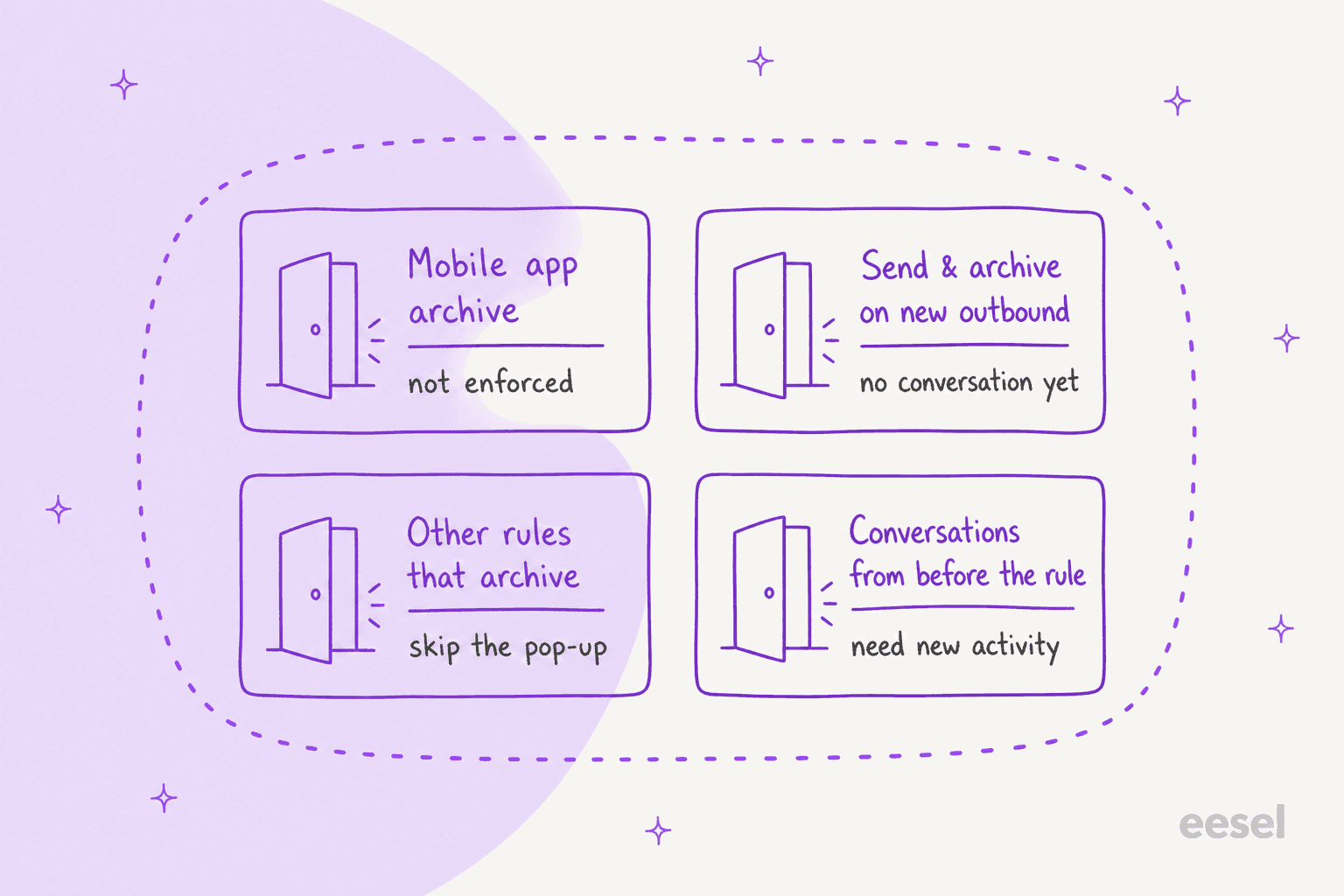
Front makes a conversation custom field required through a rule, not a switch on the field. The Require tag or custom field rule, on the Professional plan or above, blocks Archive and Move until the teammate fills in every field in a group, and shows a pop-up with a Save & Archive button. It is not retroactive, it does not run in the mobile app, and rules that archive on their own skip it, so it is a nudge for people rather than a lock on the data.
eesel can tag, update and archive a Front conversation, so the useful question is who fills the field in. With the eesel CLI, a coding agent can connect Front and test an internal-comment draft on a test conversation before anything goes live, and I could not find documentation saying whether an archive by eesel is checked against this rule. Approving the Front connection still needs someone with admin rights.
What does Front's required field rule actually do?
It makes teammates describe a conversation before they close it. Front's help center calls it a rule that "ensures that every conversation in any shared inbox carries the information you need" for categorization and analytics. Teammates must apply the required tags and fill in the required conversation custom fields before archiving or moving a conversation.
I build helpdesk integrations at eesel, Front's included, and this is the rule that decides whether your reports mean anything. Front's help center describes the end goal as running analytics on tags and fields, and the rule is how you get complete data to run them on.
A few terms first. Front is a shared inbox, so a conversation is unassigned, assigned or archived. There is no open, pending or solved status in the default setup, which is why Front's docs say "archive/resolve" together. If you came from a ticketing system, "resolve" in this article means "archive".
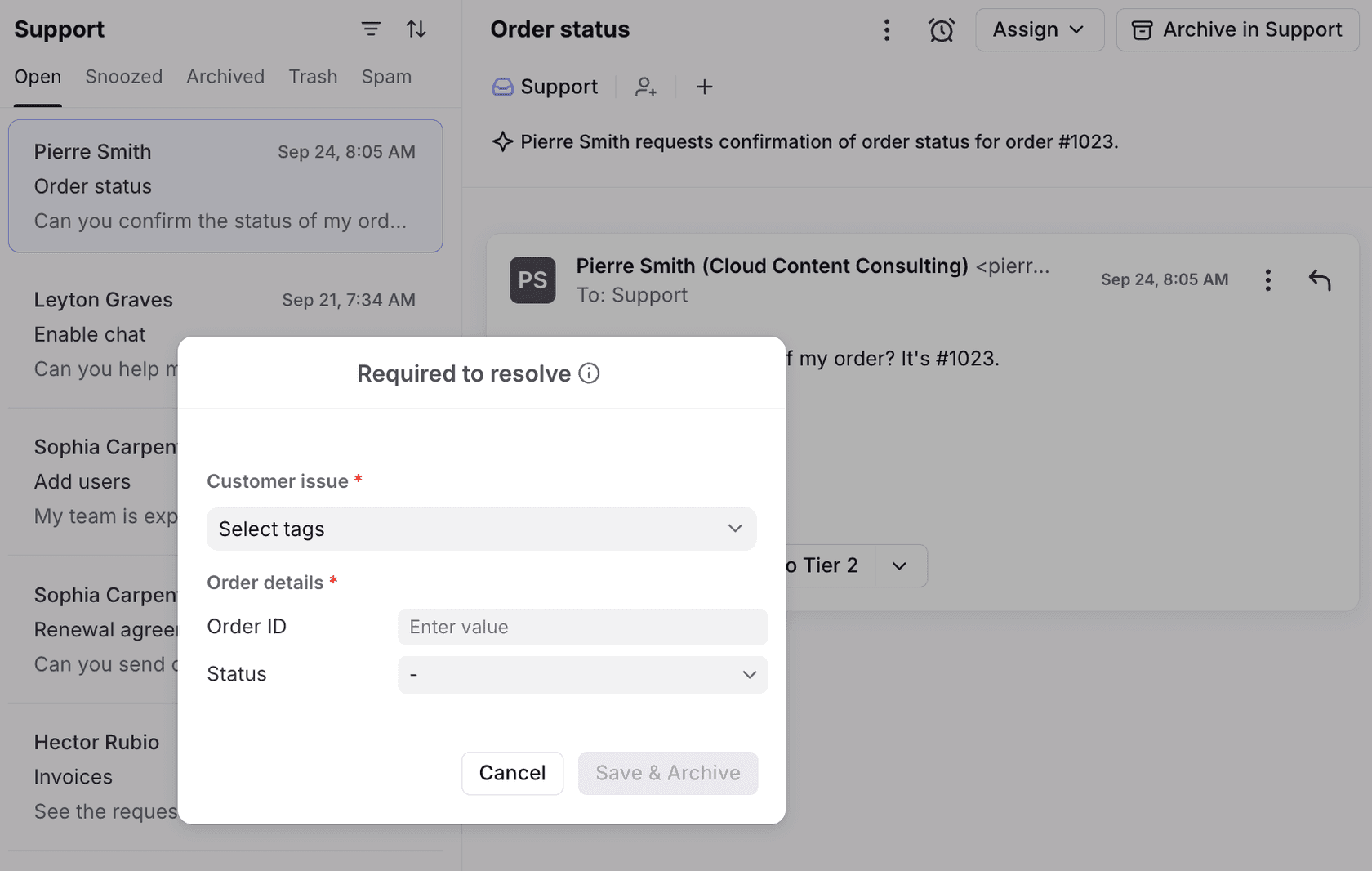
That pop-up is the whole user experience. In the screenshot the title reads Required to resolve, and the Save & Archive button is greyed out until every required value is in.
Which Front plan do I need?
Conversation custom fields are on every plan, but the rule that makes them required is Professional or above. Front's custom fields article puts the field features this way:
| Feature | Starter | Professional | Enterprise |
|---|---|---|---|
| Create and use conversation custom fields | Yes | Yes | Yes |
| Require tag or custom field rule | No | Yes | Yes |
| Use the Conversation custom field is rule condition | No | Yes | Yes |
| Update custom field value rule action and Smart Rules | No | No | Yes |
The first, third and fourth rows come from that article's own pricing table. The second row comes from the rule's page, which says the feature is on the Professional plan or above. Front's pricing page lists Starter at $25, Professional at $65 and Enterprise at $105 per seat per month, billed annually. My Front pricing post tracks changes.
One limit to plan around: Front's rules article caps the latest Professional plan at 20 workspace rules and Enterprise at unlimited. The docs do not say whether a required field rule counts as one, so I would assume it does and budget accordingly. A rule set or branching rule counts as one.
How do I set up required custom fields in Front?
Create the fields first, then build the rule. Front's steps, in short:
- Create the conversation custom fields. Click the gear icon, open company settings, choose Custom fields, then the Conversations tab and Create conversation custom field. Only company admins can create new field types.
- Pick a data type. Front supports seven: date and time, inbox, number, teammate, text (2,000 character limit), dropdown, and yes or no.
- Create the rule. Open Rules and macros in your workspace settings, click Create rule and pick the Require tag or field template from the rule library.
- Name it and choose inboxes. Select the shared inboxes it applies to and add any extra conditions.
- Add a field group. Pick each required conversation custom field and name the group. Every field in a group is required.
- Click Create. Teammates now see a red asterisk in the tag and custom field menus of your chosen inboxes.
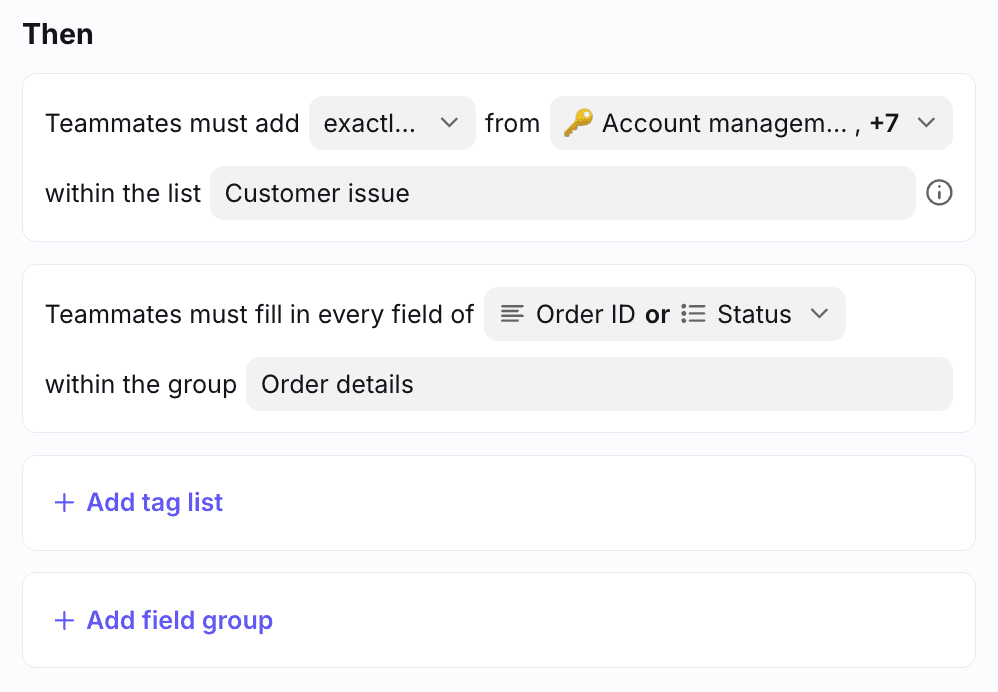
That screenshot shows the part people miss. A single rule can require a tag list, a field group, or both, and one rule can hold several of each. The wording in the editor is "must fill in every field of Order ID or Status", which means a group is an all-or-nothing bundle.
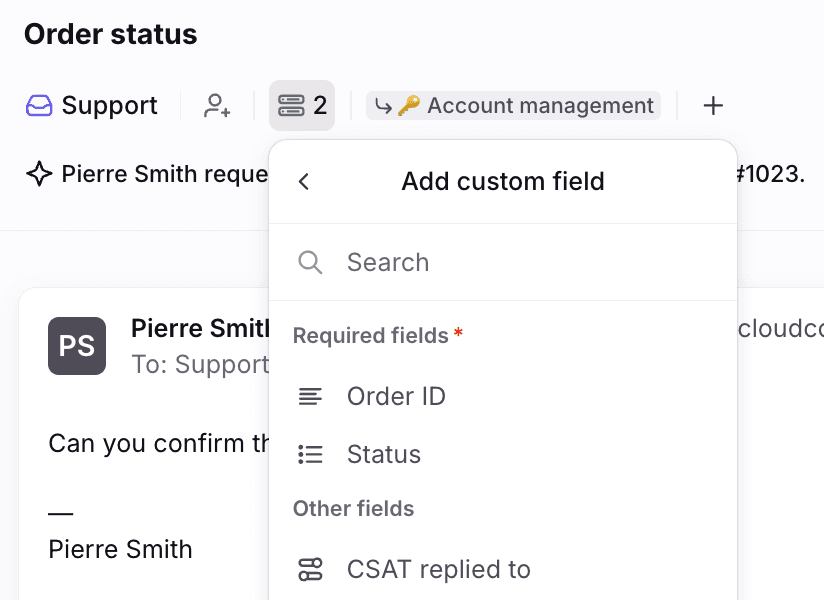
If you are still choosing what to track, my Freshdesk ticket fields and Zendesk custom field issues posts show what teams on other helpdesks regret about their field design.
When does the pop-up actually appear?
Only after new activity, and only on Archive or Move. Front's FAQ splits it into two steps, and I drew them side by side because they are easy to mix up.
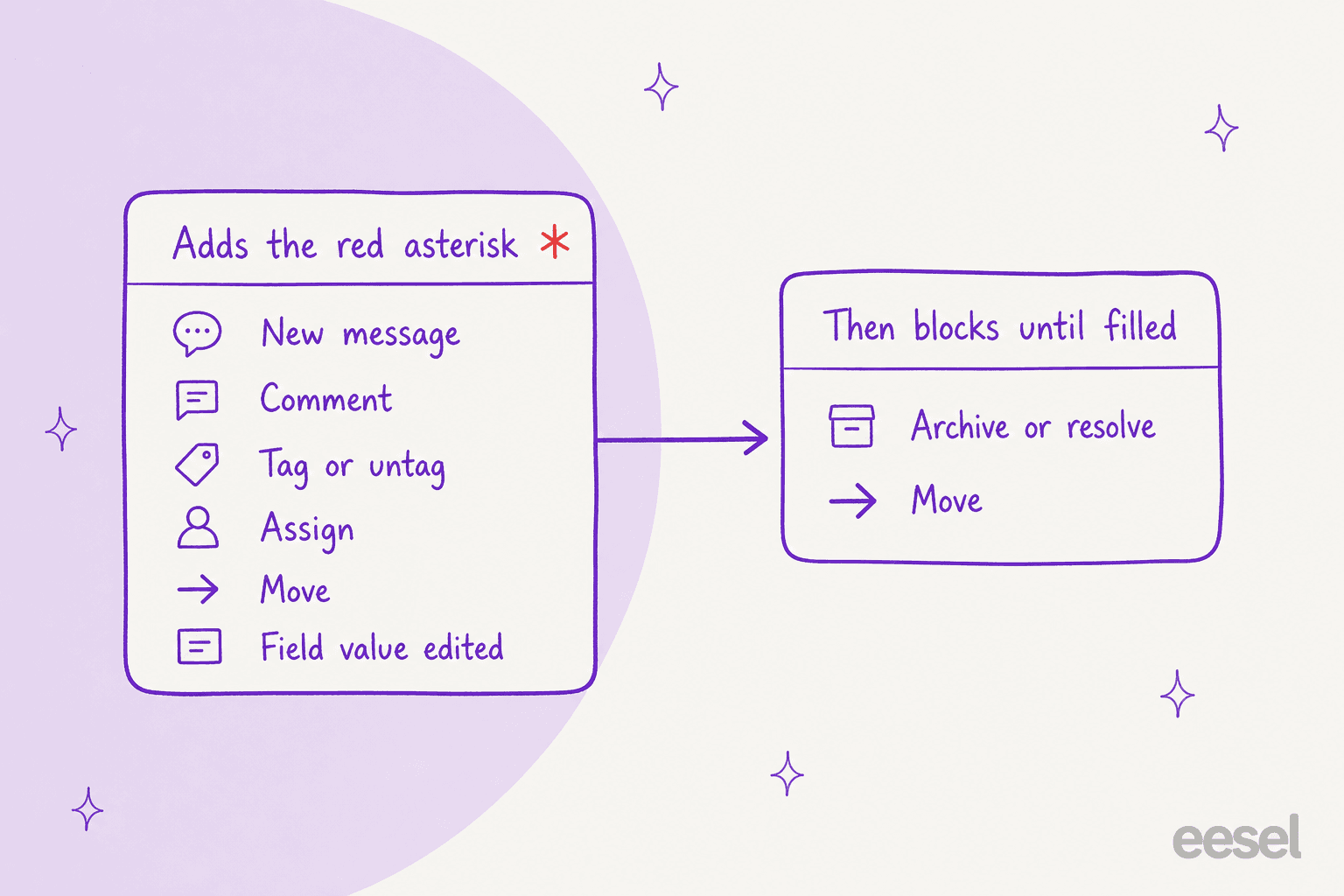
Step one: a new message, a comment, a tag or untag, an assignment, a move, or an edit to a custom field value puts the red asterisk on the conversation. Step two: once the asterisk is there, trying to Move or Archive/resolve brings up the pop-up. Snoozing is not on either list, so Front's docs do not say whether a snooze is blocked.
Pick a situation below to see what Front's docs say happens.
The widget's last tab is the honest answer for two places I wanted a clear yes or no. Everything else above comes straight from Front's FAQ.
Who is this rule for, and who should skip it?
It suits teams whose reporting depends on a few specific values. Front's own use cases are tagging every inbound message by topic, requiring a Product issue tag to see which part of the product needs attention, and requiring conversation custom fields such as a root cause or severity so the data lands in a field you can report on instead of a tag.
I would use it when you can name the three things a manager reads every Monday. If you cannot, the rule will just add a click to every archive. Then my notes on ticket tagging and AI for support reporting are a better start than another field.
Two mismatches show up in practice:
- Many small inboxes. The rule applies to the inboxes you pick on each rule, so a team with ten inboxes either builds one broad rule or manages several. The docs do not describe a company-wide setting.
- Fast first-touch queues. A mandatory two-field pop-up adds seconds to each archive. If your queue is built for speed, a single dropdown field is kinder than a group of five.
Required tags or required custom fields?
Use tags for what a conversation is about, and fields for values you want to sort, filter or route on. Front lets one rule require both, so the choice is about data shape rather than the rule.
| Use | Best fit | Why |
|---|---|---|
| Topic of the message | Required tag list (pick exactly one or several) | Cheap to apply, shows in the Tags report |
| Root cause or severity | Dropdown custom field | Fixed values, clean grouping |
| Order ID or ticket number | Text custom field | Free text, 2,000 characters |
| Account tier | Dropdown custom field | Matches your plan names |
| Who is following up | Teammate custom field | Links to a login address |
Fields also feed other automations. Front's docs say the Conversation custom field is condition, on Professional or above, can move a conversation to another inbox based on a value, and Enterprise or the Autopilot add-on can update fields through rules. If you are weighing routing logic, see my ticket routing glossary entry and Front load balancing assignment post.
The tag side has its own mechanics. A required tag list asks the teammate to pick "exactly one" or multiple tags from a curated list, and Front's reports count a conversation for a tag only if it is currently labeled with it. My Front AI analyze topics post covers the AI route to the same categories.
What are the limits and gotchas?
Seven, all from Front's FAQ:
- Not retroactive. It acts on conversations only after the rule exists.
- New activity needed. An existing conversation needs a fresh message, comment, tag, assignment, move or field edit before it gets the asterisk.
- No toggle. To turn the rule off you delete it. Front's workaround is a condition that is never true, such as the body containing a random string.
- Other archive rules win. Rules that archive on their own do not ask for tags or fields.
- New outbound with Send & archive is not caught.
- Mobile app is not enforced.
- Edits are forward only. Changing the rule affects matching conversations from then on.
The third gotcha is the one I would warn a new admin about. Because there is no on and off switch, a rule you add to test it is a rule you either keep or delete, and deleting it removes the tag lists and field groups configured in it. Build it in a copy of an inbox first, or use Front's never-true condition while you check the pop-up.
What happens when a rule or an AI agent archives the conversation?
By Front's own account, it is not blocked. The FAQ says other rules that normally archive conversations "will still archive those conversations automatically" and nobody is asked to fill in values. That is useful for spam, auto-replies and notification mail you do not want to tag. It is also the gap where data goes missing if a rule archives something a person should have classified.
An AI agent sits somewhere between a teammate and a rule, and Front's docs do not say which. Two things I checked:
- The API. Front's update conversation call accepts a status of
archived,open,deletedorspam, andcustom_fieldsas an object of names and values. It lists a400for invalid input such as invalid custom fields, and nothing about required ones. - A trap in that call. If you send only the custom fields you want to change, Front says the others will be erased. An integration has to read the existing fields first and send all of them back.
The second point matters more than it looks. A script that sets one Category value can wipe the Order ID your team filled in by hand. If you build anything on this, read first and write the full set.
eesel's Front docs list the relevant actions: add tags (the tag must already exist, since the agent never creates a new one), update conversation fields, and close a conversation, which means archiving it. They do not say whether a close is checked against a required-field rule, or which fields "update conversation fields" covers. I would test it on a test conversation, not a live inbox. My Front AI automate Autopilot and Front AI email triage posts cover Front's own AI.
What do Front's docs not say?
A list of things I went looking for. I would verify each in a test inbox before a customer-facing queue depends on it.
- API and bulk archive. No statement on whether either is checked.
- Snooze. Not in the list of blocked actions.
- Admin bypass. No mention of an override for admins or a custom permission.
- Rule limit. No statement on whether this rule counts toward the
20workspace rules on Professional. - Yes or no fields. The docs do not say whether "no" counts as filled in.
- Ticketing statuses. The API mentions an optional
status_idwhen ticketing is on. The rule's page only says archive and move. - Multiple rules. No statement on how two required field rules on the same inbox combine.
None of that is a flaw so much as an edge. The rule is simple and the docs are clear where they speak.
How do AI agents fit with required fields?
They are good at the filling in, and the rule is a good place to point them. A required tag list is also a fixed list, which is exactly what a classifier wants: pick one value from a short set. I would let an agent suggest the value and keep a teammate as the one who confirms it, since a wrong tag is a silent data bug in your reports. See human in the loop for how I think about that.
Rúngne shows the pattern on Gorgias rather than Front. Its triage agent runs on every new ticket and tags it from a fixed list, topic, VIP and B2B, where nothing is invented, and noise such as spam and social comments is tagged and closed. Between 8 August and 8 September 2026, eesel handled about 2,100 of its Gorgias tickets and set about 880 tags. Front has no equivalent customer story I can cite, so treat that as the same shape on a different helpdesk, not proof for Front.
If you want more of this, my AI ticket triage guide and the best AI for ticket triage roundup cover tools. The Help Scout equivalents are in Help Scout ticket triage and Help Scout customer properties.
How do I know the data is any good afterward?
Check the fields people archived with, not just the ones they filled in. A required field guarantees something is there, not that it is right. People pick the first dropdown option when they are in a hurry, and the pop-up will let them.
Three checks I would run a month after launch:
- Spread of values. If one dropdown option holds more than half of conversations, it is a default, not a measurement.
- Archive source. Compare conversations archived by teammates with those archived by rules, since the rule only covers the first group.
- Handling versus resolution. Pair the fields with resolution time and first contact resolution so you can see whether a root cause correlates with a long fix. My AI resolution rate post covers the AI side of that number, and AI support quality assurance covers sampling conversations for accuracy.
If you have to audit a mixed queue, automated ticket resolution and AI for first contact resolution are good follow-ups, and Front alternatives is worth a look if the rule's gaps are a dealbreaker.
Try eesel in your Front inbox
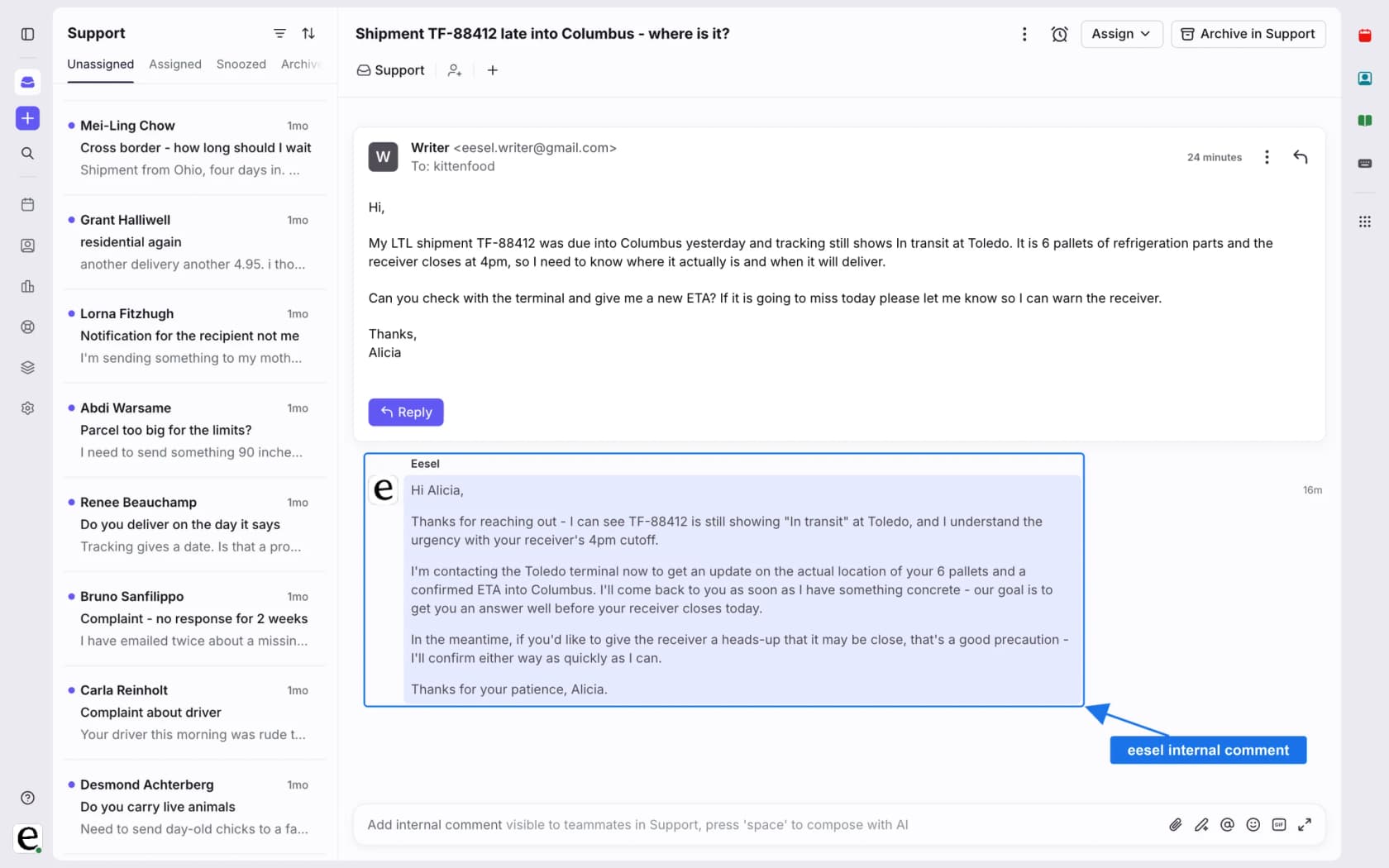
If your archive step stalls because nobody wants to pick a category, eesel is built for that gap in Front. It reads your help center and past Front conversations, drafts a reply as an internal comment, and can add tags from the list you already use, so a teammate confirms instead of starting from scratch. Start with drafts only, keep your required field rule as the gate, and expand once the tags match what a person would have chosen.
For the setup steps, see my guide to adding AI to Front, the Front AI overview and the Front vs eesel comparison. Try eesel on a few real conversations before deciding.