

Front load balancing assignment sends each new conversation to the teammate with the fewest open assigned shared conversations, and stops assigning when everyone reaches their limit (default and maximum 100 per workspace). Conversations that arrive while everyone is full wait in a queue, oldest unreplied first, instead of going unassigned the way round robin leaves them. It needs the Professional plan, it skips teammates who are Busy or Out of office, and a customer reopening a thread can still push someone over their limit.
eesel does not take part in the assignment itself, but it can have a drafted reply waiting as an internal comment when the rule picks someone. With the eesel CLI, a coding agent can upload approved knowledge, such as exported Front help center articles, and test its answers on a sample conversation before anything goes live. Approving the Front connection still needs someone with admin rights.
What does Front load balancing assignment actually do?
It is a type of auto-assignment rule with a per-person cap. Front's help center describes it as a rule that automatically assigns inbound conversations "to the teammate with the fewest open assigned shared conversations until they reach their limit." When every teammate is full, the rule pauses on its own and resumes as people free up room.
I build the helpdesk integrations at eesel, Front's included, so I spend a lot of time reading how each tool decides who gets the next conversation. Front's version has one feature the simpler round robin rules in other tools lack: a waiting line. Here is the order Front follows.
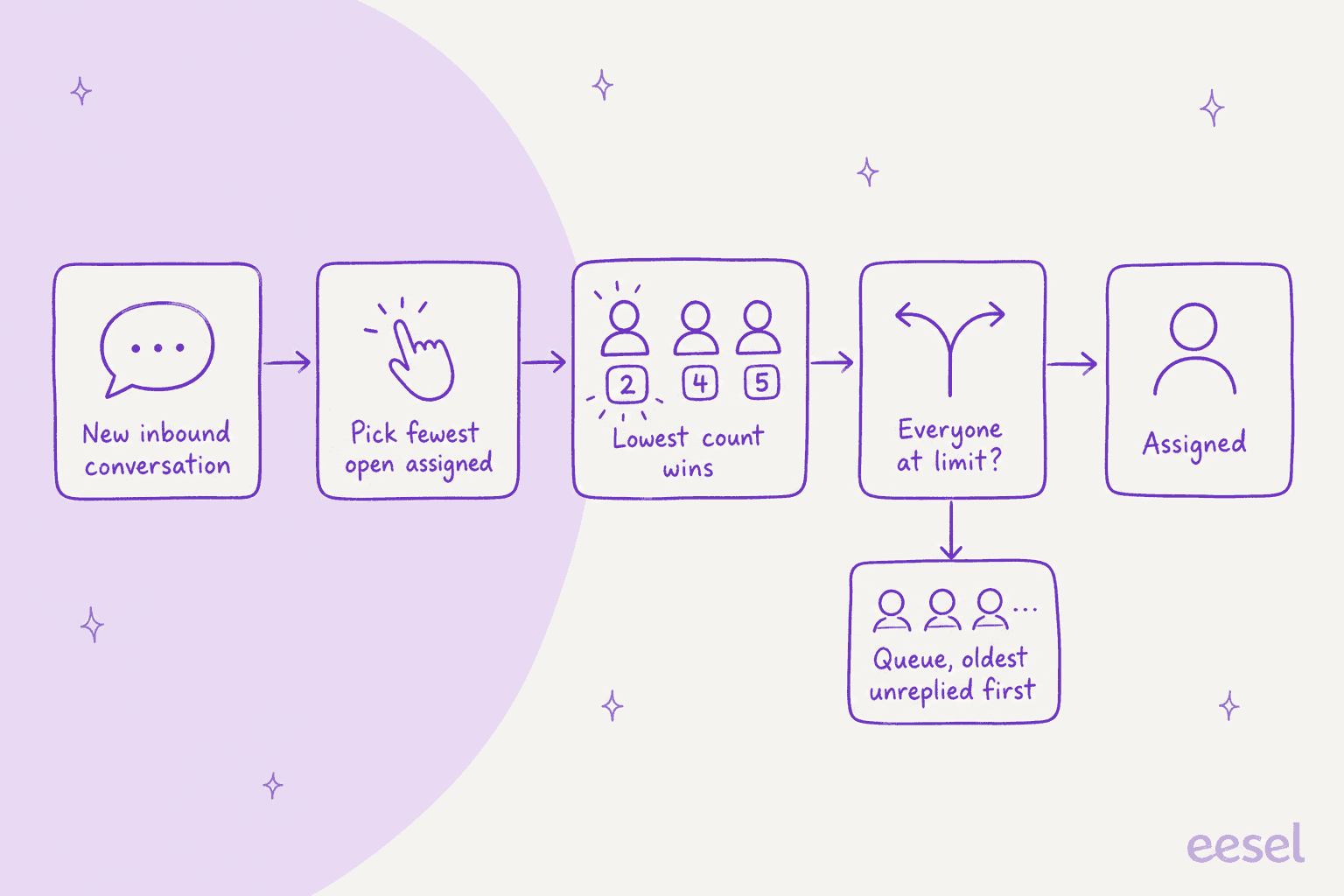
The docs spell out a few details that matter once you run it:
- Ties and capacity. If several teammates are below their limit, the one with the fewest assigned conversations goes first.
- The queue. When someone drops below capacity, Front assigns "starting with the oldest unreplied conversation" from the highest-ordered load balancing rule that targets that teammate. A lower rule's queue waits until the higher one is empty.
- When it retries. The next attempt happens when an archive action frees capacity, or when an Out of office or Busy teammate becomes Available again.
- Closed conversations. If a queued conversation is archived before it is assigned, the assignment is skipped. Only open conversations are evaluated.
If you want the wider picture of who owns what in a shared inbox, my Front shared inbox ownership post covers first-reply claiming and the inactivity timer.
How do assignment limits work?
Limits live in a separate tab, not inside the rule. Per Front's docs, workspace admins open Rules and macros in workspace settings and use the Assignment limits tab to give each teammate a number. You can select several teammates, type one number at the top, and click Set limit to apply it to all of them.
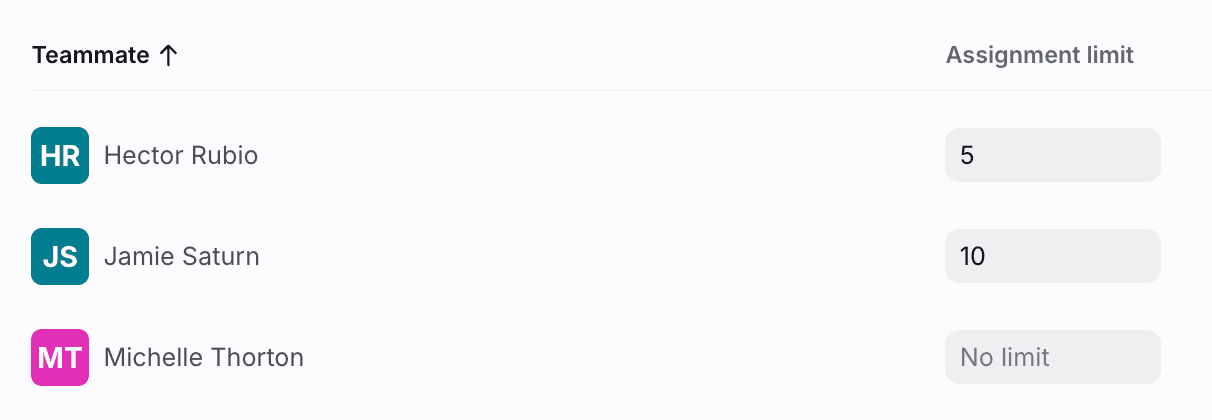
Four rules from the same page are worth writing down:
- The ceiling is 100.
100is the maximum per teammate per workspace, and also the default if you set nothing. - Limits are per workspace. Front's own example is a teammate with a limit of 4 in workspace A and 5 in workspace B, who can hold up to
9conversations at once. - Only the load balancing action uses them. The Assign to teammate and Assign round robin actions ignore limits entirely.
- No limit still means 100. The screenshot above shows a row reading "No limit", but the docs say assigning continues until a hard cap of
100. Treat "No limit" as "100".
A limit is a gate for rules, not a lock. Front says you can end up over your limit, because a new message reopening an archived conversation you were assigned to, or a teammate manually assigning to you, bypasses it. The rule engine simply stops sending you more.
What counts toward a teammate's limit?
All open conversations assigned to the teammate from shared inboxes. Snoozed conversations do not count, and personal-inbox conversations do not count because they are not tied to a workspace.
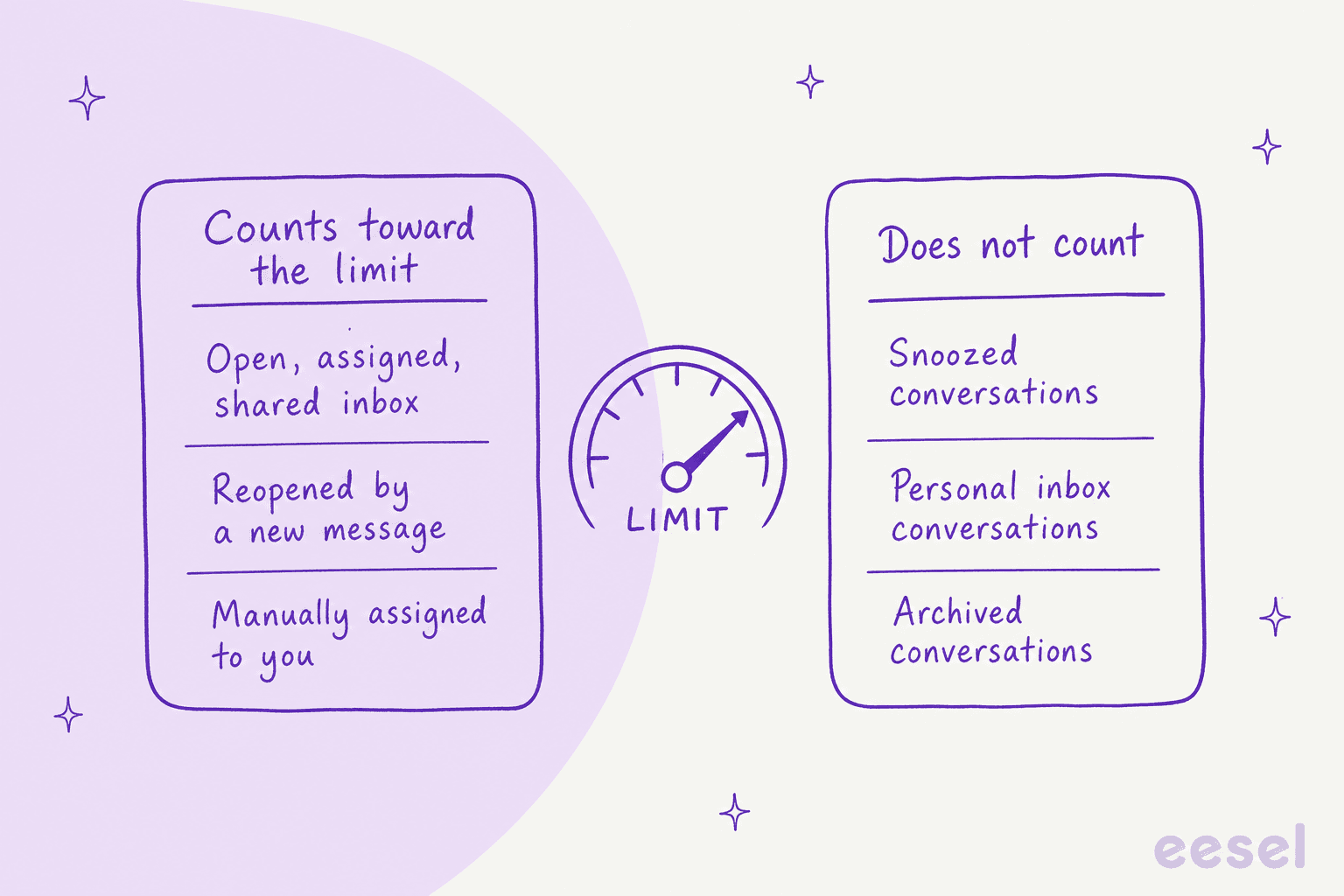
The cross-inbox detail catches people. Front's example: a teammate has a limit of 5 and five open conversations from the Finance inbox, so a load balancing rule on the Support inbox sends her nothing until she drops below 5. If you run several shared inboxes, the limit is a total across them, not a per-inbox quota. Set it with that total in mind and compare it with a ticket queue model if you need finer workload rules.
| Situation | Counts toward the limit? |
|---|---|
| Open, assigned, shared inbox conversation | Yes |
| Snoozed conversation | No |
| Personal inbox conversation | No |
| Archived or resolved before assignment | Skipped by the rule |
| Reopened by a customer reply | Can push the teammate over the limit |
| Manually assigned by a colleague | Can push the teammate over the limit |
How do I set up a load balancing rule in Front?
Set limits first, then build the rule. Front's steps, in short: open workspace settings, choose Rules and macros, set limits on the Assignment limits tab, then go to the Rules tab, click Create rule and pick the Assign to teammate template or start from scratch. You need to be a workspace admin.
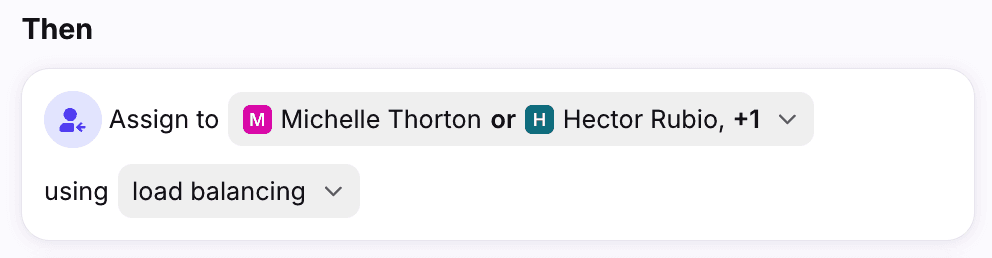
In the action, choose the teammates (or a teammate group) and set the method to load balancing. Three choices decide whether it works the way you expect:
- Add an Assignee is removed trigger. Without it, a conversation unassigned because its owner went Busy or Out of office is not re-assigned by the rule.
- Order your rules on purpose. Front lets different inboxes have different load balancing rules, ordered by priority. A chat rule placed above an email rule always runs first for anyone with capacity. Company rules run before workspace rules regardless of order.
- Know that conditions are not re-checked. Front assesses conditions "at the time of the triggering event only." A conversation retagged while waiting in the queue is still assigned by the rule that first matched it.
Load balancing assignments also fire sequential rules that use an Assignee is changed trigger, so you can chain a follow-up such as a tag or an internal comment. One reviewer on G2 described the cost of piling these up:
"If you create too many rules, you end up having to check why each message ended up in a different place. We had to simplify the setup so that everyone understood how to work with it."

The same idea applies in other helpdesks. My Help Scout workflow auto assignment, Gorgias auto assign and Freshdesk auto assign tickets posts show how each tool orders its rules.
How do Busy and Out of office change assignments?
They decide who is eligible at all. From Front's teammate status page, the four indicators behave differently:
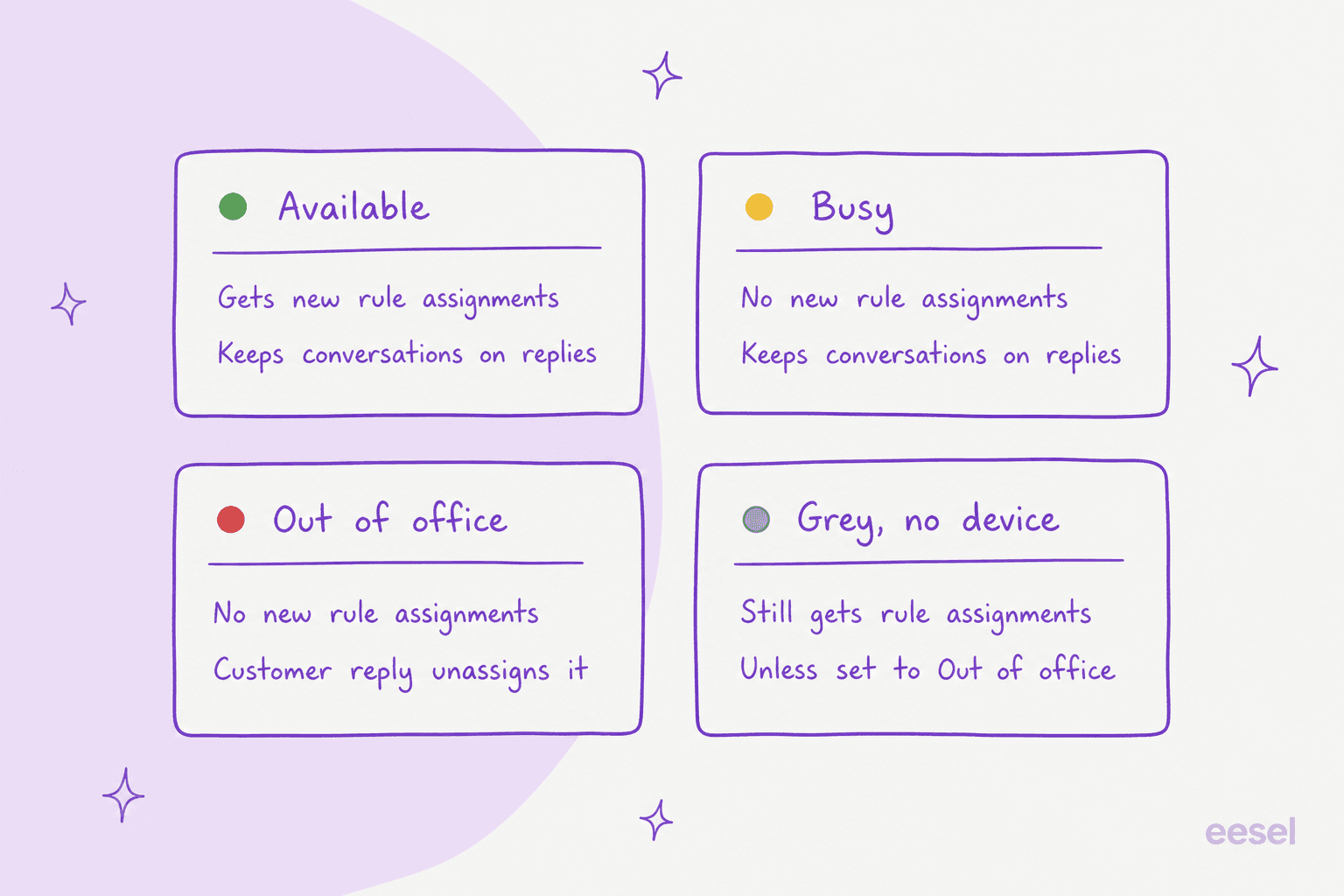
- Available (green) can be assigned new conversations from rules.
- Busy (yellow) pauses new rule assignments, but conversations stay assigned when new activity arrives. Front suggests it for short breaks and for the last 30 minutes of a shift.
- Out of office (red) pauses new rule assignments and unassigns conversations when the customer replies. Conversations that get no reply stay put until someone reassigns them.
- Grey means no device is connected. Front says a grey teammate can still receive rule assignments unless they are set to Out of office.
That last one is the trap for load balancing. A teammate who closes their laptop without changing status can keep receiving assignments, and the conversation sits with them until they are back. Front's fix for teams on a schedule is shifts, which set teammates Available at the start of a shift and Out of office at the end, so rules skip anyone off shift. Shifts do not support Busy, and they are on the Enterprise plan.
There is also a shared-inbox switch, Keep assignments when teammate is out of office or busy. With it on, Front's inbox settings say new conversations can be assigned to unavailable teammates and existing ones stay put on new activity. It also disables the inactivity-unassign setting. For a load balancing setup, I would leave it off, since Front's out-of-office article says its behavior assumes the setting is off.
Round robin or load balancing: which should I pick?
Pick load balancing if your team is ever fully offline or your workload varies; pick round robin if someone is always online and an even rotation is enough. Front's comparison page says round robin only assigns to online teammates, has no queue, and does not backfill a teammate who comes online later. Load balancing queues and assigns as people become available.
| Round robin | Load balancing | |
|---|---|---|
| Picks | Next online teammate in sequence | Teammate with fewest open conversations |
| Everyone offline | Not assigned, not queued | Queued |
| Caps per person | None | Up to 100 per workspace |
| Catch-up on skipped conversations | No | Oldest unreplied first |
For a team across time zones, my follow the sun support and weekend support coverage guides cover the staffing side, and AI for after-hours support is the option when you cannot staff a shift at all.
What happens in each situation?
Pick a situation to see what Front's docs say will happen.
Which Front plan do I need?
Professional or above. Front's help center says load balancing is available on the Professional plan or above, and that some legacy plans may also have it. Front's pricing page lists Starter at $25, Professional at $65 and Enterprise at $105 per seat per month billed annually.
Rules themselves are on every plan, with a cap: up to 10 automation rules on Starter, up to 20 on Professional and unlimited on Enterprise, per the pricing page. That cap matters here, because each inbox or channel that needs its own load balancing rule uses one of your slots. Shifts need Enterprise. For a cost comparison across the field, see my Front pricing breakdown, Front vs Hiver, Help Scout vs Front and Zendesk vs Front.
What do Front's docs not say?
Several things I would want to know before relying on this for a live queue. The pages I read state the mechanics clearly and then stop. They do not say, as far as I could verify:
- Where you can see the queue. The docs describe queued conversations but I found no page showing where to view them.
- What a snooze expiry does to your count. Snoozed conversations do not count, but only a new message or a manual assignment is named as a way to go over the limit.
- Whether ticket statuses matter. Front's docs count "open" conversations. I could not find a statement on whether an optional status like Waiting changes that.
- Which setting wins when they disagree. The load balancing page says rules will not assign to Busy or Out of office teammates, while the inbox setting Keep assignments says new conversations can be assigned to them when it is on.
- How limits and multiple workspaces interact on the count. Limits are per workspace, but the docs do not spell out whether open conversations from another workspace count toward this one.
- Whether an AI teammate occupies a slot. The docs do not mention it.
I would test each of these on a throwaway workspace or ask Front support before promising a customer anything based on them. The load balancing page was edited recently, so details may shift.
Where does AI fit next to a load balancing rule?
It fits after the assignment, on the first draft. Load balancing decides who gets the conversation; it does not make that person faster. eesel works inside Front and, per its documentation, can draft replies as internal comments or send them, tag, assign and archive. It assigns to one named teammate, not a team or group, so your load balancing rule keeps doing the routing, and I would not point an AI at your group in its place.
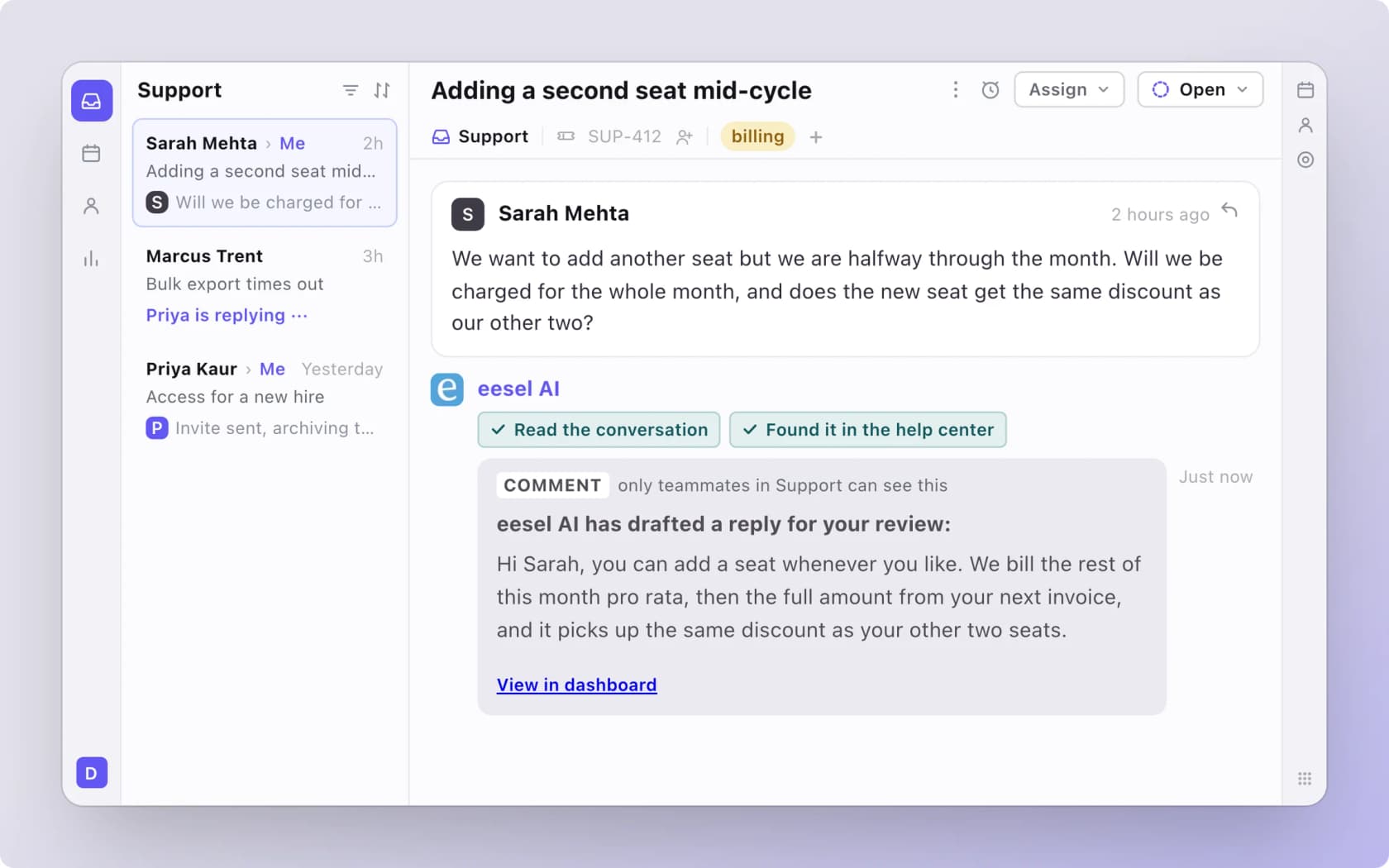
SamCart shows the pattern on a different helpdesk. It runs eesel on Freshdesk, where, on tickets in the groups it covers, the agent replies only while no person is assigned yet. Once a teammate picks the ticket up, the agent steps back, and a seller asking for a person gets the ticket tagged for handoff. The same shape works with a Front rule: the rule picks a person, the AI prepares the draft, and the person decides what goes out. Whether eesel's Front draft counts against anyone's limit is not something the docs settle, so I would start with drafts only and watch the numbers.
If a conversation should leave the queue entirely, my guides on AI escalation and AI agent handoff cover when to stop automating, and AI first response automation covers the speed side. A support queue that is full all day is also a staffing signal, so read AI for support staffing and clearing a ticket backlog before you raise every limit.
Try eesel in your Front inbox
If your load balancing rule keeps your team evenly loaded but every conversation still starts from a blank reply box, eesel is built for that gap in Front. It reads your help center and past Front conversations, then drafts a reply as an internal comment on each new conversation, so whoever the rule picks starts with something to edit. You can begin with drafts only and expand from there. For the full set of options, see my roundup of the best AI for Front, the Front AI overview and Front alternatives.