

Why Front teams go looking for AI in the first place
Front is a genuinely good shared inbox. It is loved (4.7 out of 5 across roughly 2,460 G2 reviews) precisely because it makes a team feel like one organised inbox instead of a pile of forwarded emails. One reviewer summed up the appeal nicely:
"I like being able to organize our emails and not having to CC a bunch of coworkers if they need to be involved or forward them."
G2 reviewer, on what they like best about Front (source)

But a shared inbox does not answer tickets on its own. As volume grows, the same repetitive questions ("where's my order", "how do I reset this", "is this under warranty") eat the team's day, and that is the moment most Front users start shopping for an AI agent. The catch is that "AI for Front" means two very different things, and conflating them is where buyers waste money:
- Front's own AI features, billed as add-ons on top of your seats.
- Third-party AI agents that install into your Front inbox and work alongside your existing rules.
This guide covers the best of both, with real pricing and a clear pick for each kind of team. Let's get into how we judged them.
How we picked
We are an AI support company, so we live in this category, and we held every tool (including the native option) to the same bar. Four things mattered:
- Does it actually connect to Front? We only included tools with a real, documented Front integration, not "you could wire it up over the API." That rule alone cut a few popular names from the list.
- Autonomous or assistive? Some tools resolve tickets end to end; others only draft replies for a human to send. Both are useful, but you should know which you are buying.
- What does it really cost? We looked past the headline number to the billable unit, the minimums, and what scales with your team versus your volume.
- How fast and controllable is it? Setup time, whether you can test on past tickets before going live, and how cleanly it hands off to a human when it is unsure.
A quick note on what is not here: a couple of well-known AI support agents (Ada, for one) don't publish a real Front integration, so we left them out rather than pad the list. Honesty beats a longer table.
The best AI for Front at a glance
| Tool | Best for | AI type | Front integration | Pricing model | Entry point | Setup | Security |
|---|---|---|---|---|---|---|---|
| eesel AI | Most teams wanting predictable cost + fast setup | Autonomous + assist (drafts or sends) | Native, App Store | Flat per conversation | $0.40 / conversation, no seat fees | < 30 min, self-serve | SOC 2 Type II, GDPR |
| Front AI (Autopilot + Copilot) | Teams already on Front Enterprise | Autonomous (Autopilot) + assist (Copilot) | Native (first-party) | Per outcome + per seat | $0.05–$0.89 / conversation, on top of seats | Admin setup, varies | SOC 2 Type 2, zero data retention |
| Forethought | Mid-market and enterprise, multi-channel | Autonomous (agentic) | Native, integrations directory | Platform fee + outcome-based (quote) | Quote only (~5–6 figures/yr) | Sales-led, POV | SOC 2, enterprise controls |
| Fini | High-volume / regulated (fintech) | Autonomous (voice, chat, email) | Native, App Store | Per resolution + minimum | $0.69 / resolution, $2,999/mo min | 14–30 days | SOC 2 II, PCI, ISO, HIPAA |
| Aide | Teams wanting a managed, done-for-you rollout | Autonomous + copilot | Native, App Store | Flat monthly (partnership) | From $3,000/mo | 1–2 weeks, guided | SOC 2, GDPR, HIPAA |
Now the detail on each, in the order we'd reach for them.
1. eesel AI: the best AI for Front for most teams
Best for: teams that want autonomous resolution inside Front without per-seat fees, a sales call, or a multi-week implementation.
eesel AI installs from the Front App Store and joins your shared inbox as a real AI agent, not a chatbot widget bolted onto a corner of your website. In eesel's own words, it "reads conversations, drafts and sends replies, adds private comments, updates tags, and routes to teammates. Exactly like a human agent would." On connection it auto-imports your Front knowledge base articles, past conversations, and canned responses, so there is no manual training or data labelling to do.
The thing that makes it our default recommendation for Front is the combination of speed and control. Setup is self-serve and takes under 30 minutes, and before you let it touch a live customer you can run it in simulation mode against your real past Front conversations to see exactly how it would have answered. That is the single best antidote to the "what if it says something wrong" fear, and it is something Front's own docs candidly admit they can't fully prevent.
Features
- Drafts or sends replies inside Front, grounded in your KB, past tickets, and canned responses, in the same channel the customer used (email, chat, or SMS).
- Auto-resolves tier-1 conversations, with eesel citing 85%+ average tier-1 resolution out of the box within a week.
- Confidence-based escalation: low-confidence conversations route back to a human, and you can start in a drafts-for-review (AI Copilot) mode before going autonomous.
- Respects your existing Front setup: routing rules, assignment rules, and SLA policies keep working untouched.
- Multilingual across 80+ languages, auto-detected from the incoming message.
- Knowledge-gap detection that flags what your docs are missing and can draft new KB articles.
Pros
- Flat, predictable pricing: one conversation is one task, no matter how many back-and-forth messages it takes.
- Works on any Front plan, so you are not forced onto Enterprise just to get a capable agent.
- Genuinely fast to value: test on history, go live the same day.
- No per-seat fees, which matters when you scale the team.
Cons
- It is a layer on top of Front, not a full helpdesk replacement, so Front is still doing the inbox heavy lifting (that is by design, but worth knowing).
- The biggest wins are on repetitive tier-1 volume; deeply bespoke, multi-system workflows still benefit from a human in the loop.
Pricing
$0.40 per conversation handled, with no platform fee and no per-seat pricing. A conversation covers the whole interaction, including every reply. There is a free tier to start ($50 of usage), spend caps you set yourself, and a 25% discount if you commit to $300+/month annually. A team routing 1,000 Front conversations a month to eesel pays around $400, and crucially that number doesn't jump just because the AI got better at resolving things.
One Front customer on eesel's page puts the practical fit plainly:
"We're using eesel for customer support after sales. It integrates with our Front inbox and Shopify."
Raul Sanz Garcia, IT Manager, Friscomos (source)
Our take: if you are on Front and want autonomous AI without re-platforming, a sales cycle, or a pricing model that punishes you for resolving more tickets, start here. It is the most "try it this afternoon" option on the list, and the flat per-conversation rate is the one that stays boring on the invoice.
2. Front AI: the native Autopilot and Copilot option
Best for: teams already committed to Front Enterprise who want to stay fully first-party.
Front's own AI is organised around three verbs: Automate, Assist, and Analyze. It is a serious effort, and for some teams the fact that it is built right into the product is reason enough to use it. We have a full Front AI explainer if you want the deep dive, but here is what matters for a buying decision.
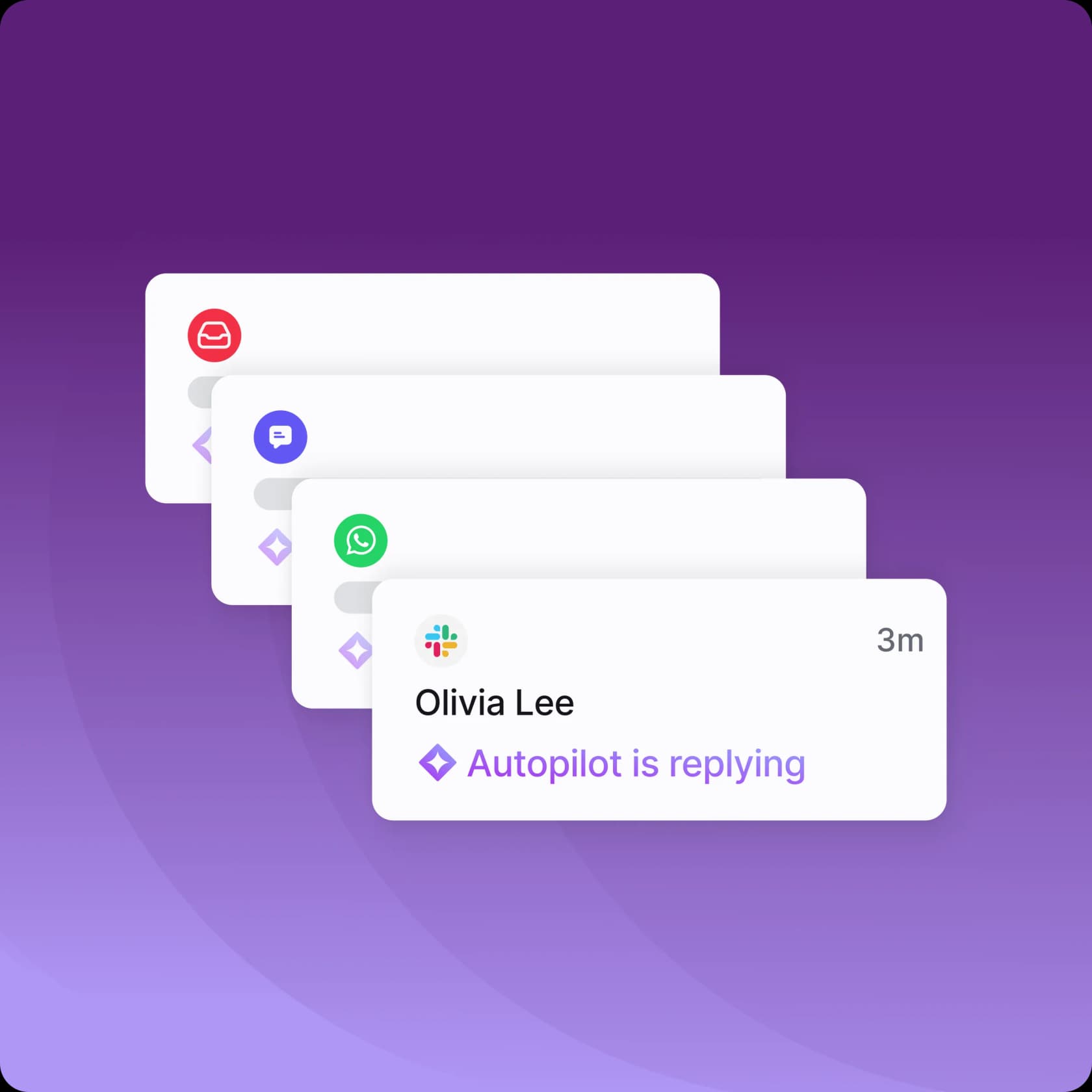
Autopilot is the autonomous agent. Front claims it can resolve up to 70% of requests, runs multi-step "Playbooks" across connected systems, and works across email, chat, and Slack. You can test a Playbook in a simulation before it goes live, and it hands off to a human with full context when it can't finish the job.
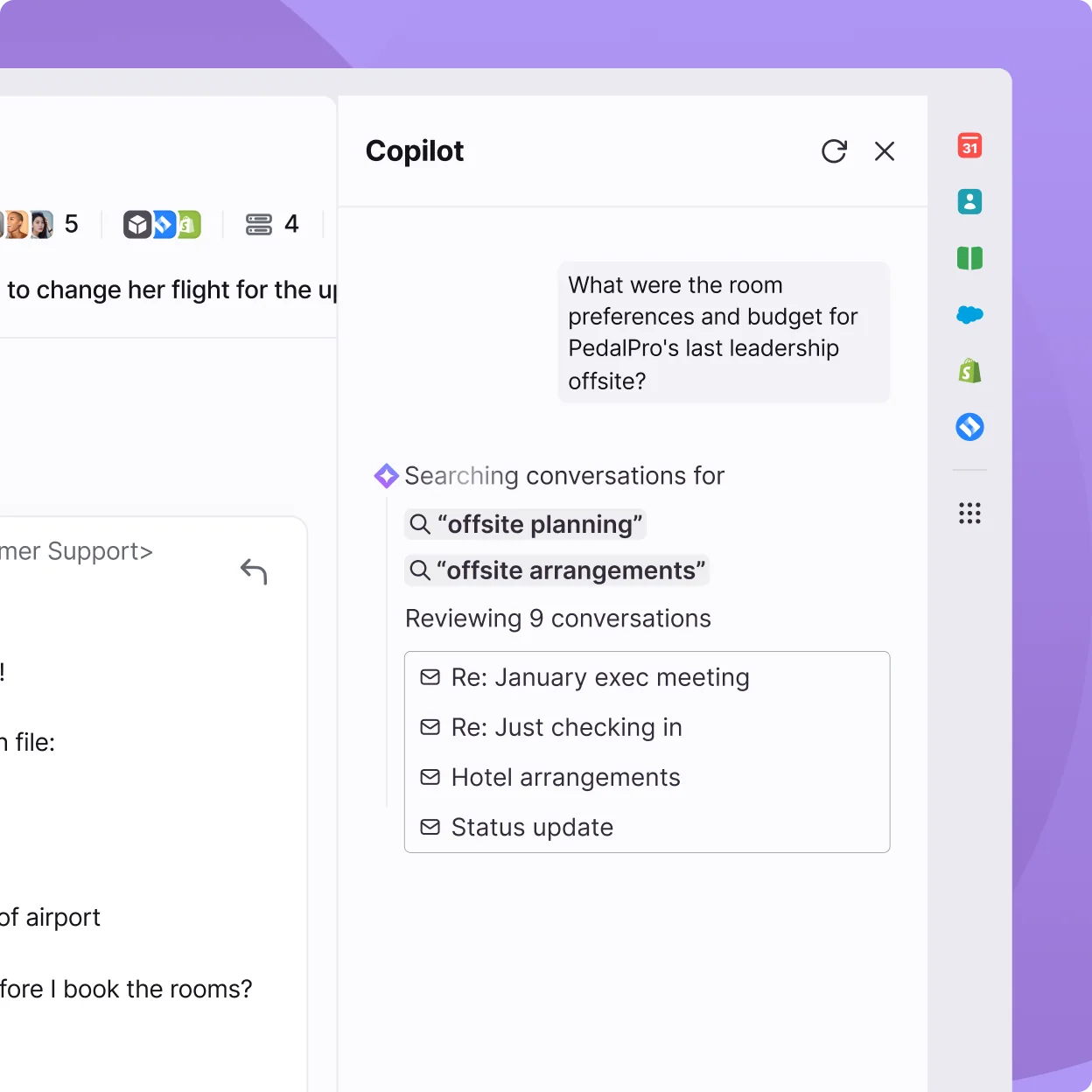
Copilot is the assistive side: it suggests replies grounded in conversation history, rewrites drafts for tone and length, and summarises threads, but a human always sends. Then Smart QA, Smart CSAT, and Topics form the analytics layer, scoring quality across every interaction and inferring satisfaction even when customers don't fill out a survey.
Worth knowing: the older AI Answers chatbot is now a legacy feature "no longer available for purchase," and Front steers new buyers to Autopilot Resolve instead. If you set up a Front chatbot today, you are building on Autopilot, priced per outcome.
Pros
- Deeply native: no extra integration, and the AI sees the full cross-team customer relationship.
- Strong analytics (Smart QA and Smart CSAT) bundled on the newest Enterprise plan.
- Autopilot's Playbooks are a real attempt at multi-step, cross-system workflows.
Cons
- Cost stacks up. Autopilot is always a paid add-on, even on Enterprise, on top of your per-seat plan.
- Autopilot is English-only officially, and shared-inbox only.
- Pricing scales with success: a full resolution costs more than a triage, so the better it works, the more you pay per conversation.
- Some users feel the AI push has gone too far. One Trustpilot reviewer vented: "Overpriced, adding junk AI features nobody asked for" (source). To be fair, others love it: another reviewer found "the new AI tools to be extremely beneficial in streamlining" their complex ticketing (source).
Pricing
Front's plans are per seat, billed annually: Starter $25, Professional $65, and Enterprise $105 per seat per month. On top of that:
| Front AI add-on | Price | Included on Enterprise? |
|---|---|---|
| Autopilot (autonomous agent) | From $0.05 / conversation (outcome-based: $0.05 triage, $0.39 handoff, $0.89 resolution) | No (always an add-on) |
| Copilot (AI assistant) | $20 / seat / month | Yes |
| Smart QA | $20 / seat / month | Yes |
| Smart CSAT | $10 / seat / month | Yes |
Our take: if you are already on Front Enterprise and value a single, native vendor, turn Copilot on and pilot Autopilot. Just go in clear-eyed that Autopilot's per-resolution pricing sits on top of seats you are already paying for, and model the cost at your real resolution rate before you scale it. For many teams, a flat-rate layer like eesel ends up cheaper at volume, which is exactly the comparison we'd run.
3. Forethought: agentic AI for larger, multi-channel teams
Best for: mid-market and enterprise support orgs that want a standalone agentic platform on top of Front (and other tools).
Forethought is an enterprise AI platform that lists Front natively in its integrations directory. Founded in 2017 and backed by roughly $92M in funding (including a Series B with Ashton Kutcher and Diddy on the cap table), it markets a multi-agent system: Solve (the customer-facing agent), Triage (classification and routing), Assist (an agent copilot), plus Discover and Agent QA.
It is genuinely powerful. Forethought's pitch is that it reasons and takes action across helpdesk and downstream systems, even operating legacy tools without APIs via a Browser Agent. Its benchmark report claims up to 98% resolution and 100+ languages, and customers like Upwork and Carta are real enterprise references.
Pros
- Helpdesk-agnostic: sits on top of your Front stack rather than replacing it.
- Strong multi-channel story (chat, email, voice, SMS, Slack) and mature enterprise controls.
- Action-taking across connected systems, not just FAQ deflection.
Cons
- No public pricing and no free trial: every path is "Get a Quote," with a Proof of Value engagement instead of self-serve.
- Aimed at mature, higher-volume orgs; overkill (and overpriced) for a small Front team.
- Heavier to deploy than an App Store install.
Pricing
Quote-only. Forethought describes its model as "a blend of platform access fees and an outcome-based pricing cost," and third-party trackers tend to put it in the mid-five-figure to low-six-figure annual range. There is no published number, which itself tells you the target buyer.
Our take: a great fit if you are an enterprise Front user with serious volume across many channels and the procurement patience for a sales-led rollout. If you want to be live this week without a quote, it is the wrong shape of tool, and a self-serve option will get you to value faster.
4. Fini: autonomous AI built for high-volume and regulated teams
Best for: fintech, e-commerce, and other high-volume teams that need voice plus chat plus email and heavyweight compliance.
Fini (YC S22, backed by Matrix Partners) is a self-learning autonomous agent it calls "Sophie," and it is confirmed in Front's integration directory with a setup article in Front's help center. It auto-replies inside the Front inbox and trains on your Front conversation history. Fini leans hard into regulated industries, advertising SOC 2 Type II, PCI DSS Level 1, ISO 27001, GDPR, and HIPAA.
Its standout is genuine agentic action across voice, chat, and email. The product shows an end-to-end duplicate-charge refund: Fini searches Stripe, finds the duplicate, issues the refund, and closes the ticket with a full audit trail.

A fair word on the headline numbers: Fini advertises resolving "90% of support tickets" at "99% accuracy" and a "live in 14 days, fully autonomous in 30" timeline. Those are vendor-authored claims, so treat them as Fini's marketing rather than independent results, the same caution we'd apply to any vendor (us included).
Pros
- Native voice channel as a first-class citizen, not an afterthought.
- Deep compliance posture that matters in fintech and healthcare.
- A "Zero-Pay Guarantee" (90% resolution in 90 days or you pay $0) aimed at very large volumes.
Cons
- The real entry point is ~$3k/month. The $0.69-per-resolution headline carries a $2,999/month minimum on the Growth plan.
- Per-resolution pricing means costs rise as resolution rates climb.
- The fintech tilt can be overkill for a general support team.
Pricing
| Plan | Cost | Notes |
|---|---|---|
| Starter | Free | 50 tickets, up to 5 users |
| Growth | $0.69 / resolution | $2,999/month minimum, 5,000 tickets |
| Enterprise | Contact sales | Unlimited |
Our take: if you are a regulated, high-volume Front team that needs voice and can clear a ~$3k/month floor, Fini is a credible autonomous agent. For everyone else, that minimum and the per-resolution model make it pricier than it looks; a flat per-conversation rate is friendlier to a growing inbox.
5. Aide: a managed, done-for-you AI partner
Best for: scaling CX teams that want a guided implementation and an ongoing partner rather than self-serve software.
Aide is an AI agents and Copilot platform with a developer-maintained Front integration (Front's help center documents it). It drafts replies in Front's composer, auto-applies macros, and gives agents a side-panel copilot with smart tagging. It supports Front, Zendesk, and Gorgias, and positions itself as "the AI CX partner for scaling companies," which is a polite way of saying this is a guided, high-touch relationship, not a checkout-and-go tool.
Aide advertises 99% accuracy and 60–80% automatic resolution, and is SOC 2, GDPR, and HIPAA compliant. Most teams are live within 1–2 weeks with a configured deployment.
Pros
- Unlimited seats on every plan: you pay for the partnership, not headcount.
- Hands-on onboarding, performance reviews, and custom workflow builds at higher tiers.
- Solid four-pillar product (AI Agents, Copilot, Workflows, Insights).
Cons
- Sales-led only: every CTA is "Book a demo," with no self-serve signup.
- The entry price is steep for a small team (see below).
- The managed-service model is a feature for some buyers and a friction for others.
Pricing
Outcome-based, billed annually, with unlimited seats:
| Plan | Price |
|---|---|
| Growth | $3,000 / month |
| Scale | $8,000 / month |
| Operations | $15,000 / month |
| Enterprise | Custom, from ~$150,000 / year |
Our take: Aide suits a mature CX org that wants an AI partner to drive the rollout and keep tuning it. If your team is smaller, or you'd rather configure things yourself in an afternoon, the $3k/month floor is hard to justify against a self-serve, pay-as-you-go option.
What you'll actually pay: a worked example
Sticker prices hide the real story, so here is a concrete scenario. Say you handle 1,000 AI-resolvable conversations a month through Front, and the AI resolves 80% of them.
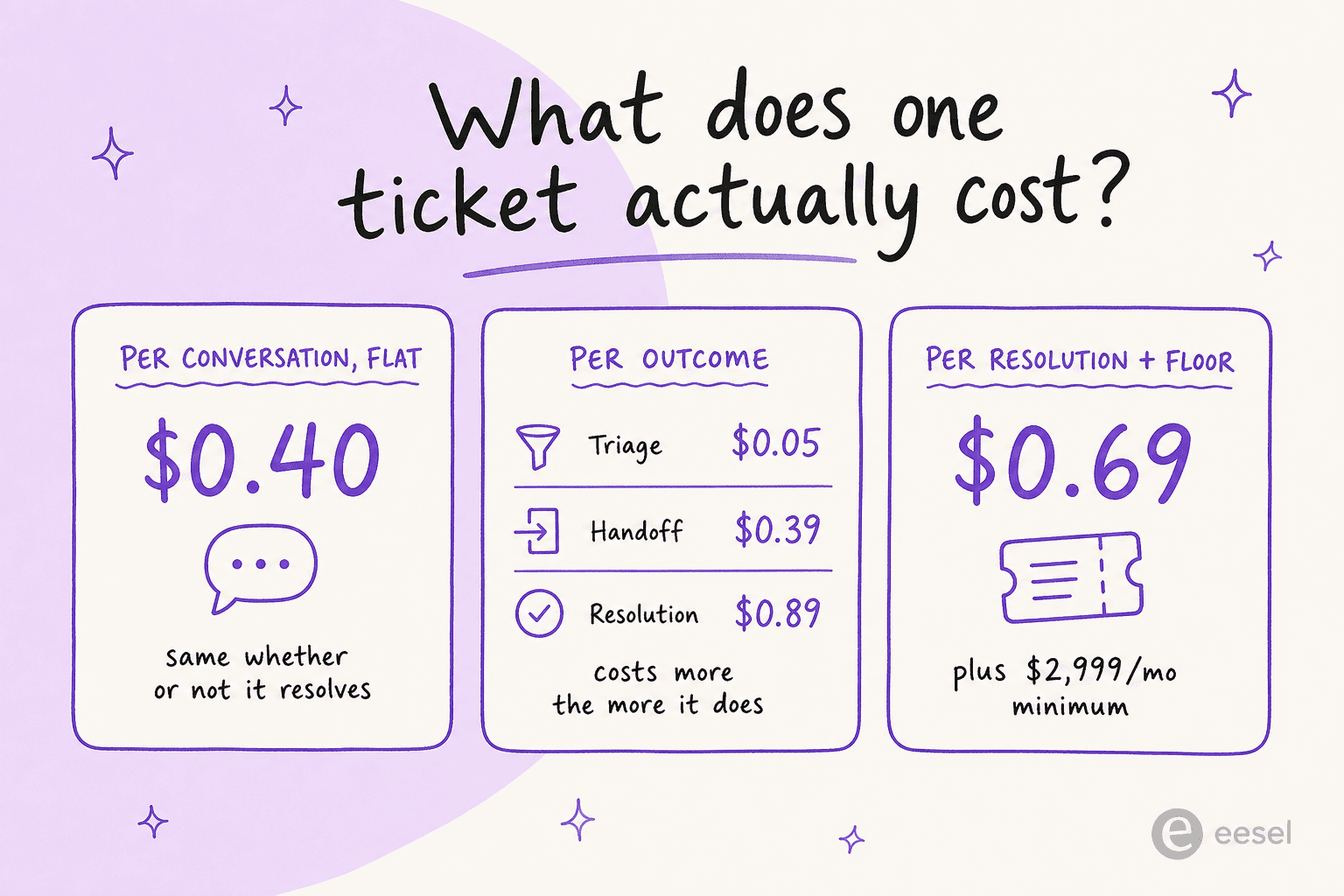
- eesel (flat per conversation): 1,000 × $0.40 = $400/month, flat, whether it resolves 50% or 90%.
- Front Autopilot (per outcome): 800 resolutions × $0.89 + 200 handoffs × $0.39 ≈ $790/month in AI usage, on top of your per-seat Front plan.
- Fini (per resolution + floor): 800 × $0.69 = $552, but the $2,999/month minimum means you actually pay $2,999/month.
Two things jump out. First, the pricing model decides the bill far more than the per-unit rate. Second, and this is the trap, per-resolution pricing charges you more the better the AI performs. Push your resolution rate from 80% to 90% and your per-resolution bill goes up, while a flat per-conversation rate stays put. Now picture a Black Friday spike: a flat rate scales linearly and predictably, while an outcome-based bill can balloon exactly when volume does.
This is the kind of analysis we run for prospects all the time. For a roughly 1,000-ticket-a-month inbox, moving from a per-resolution model to a flat rate routinely keeps the peak-season invoice identical to the quiet-month one, which is the whole point of budgeting.
How layering AI onto Front actually works
If you go the third-party route, the mechanics are simpler than they sound, and understanding them kills the "is this risky?" worry. The AI agent lives inside your existing Front shared inbox; customers never see a separate bot, and your rules keep running.
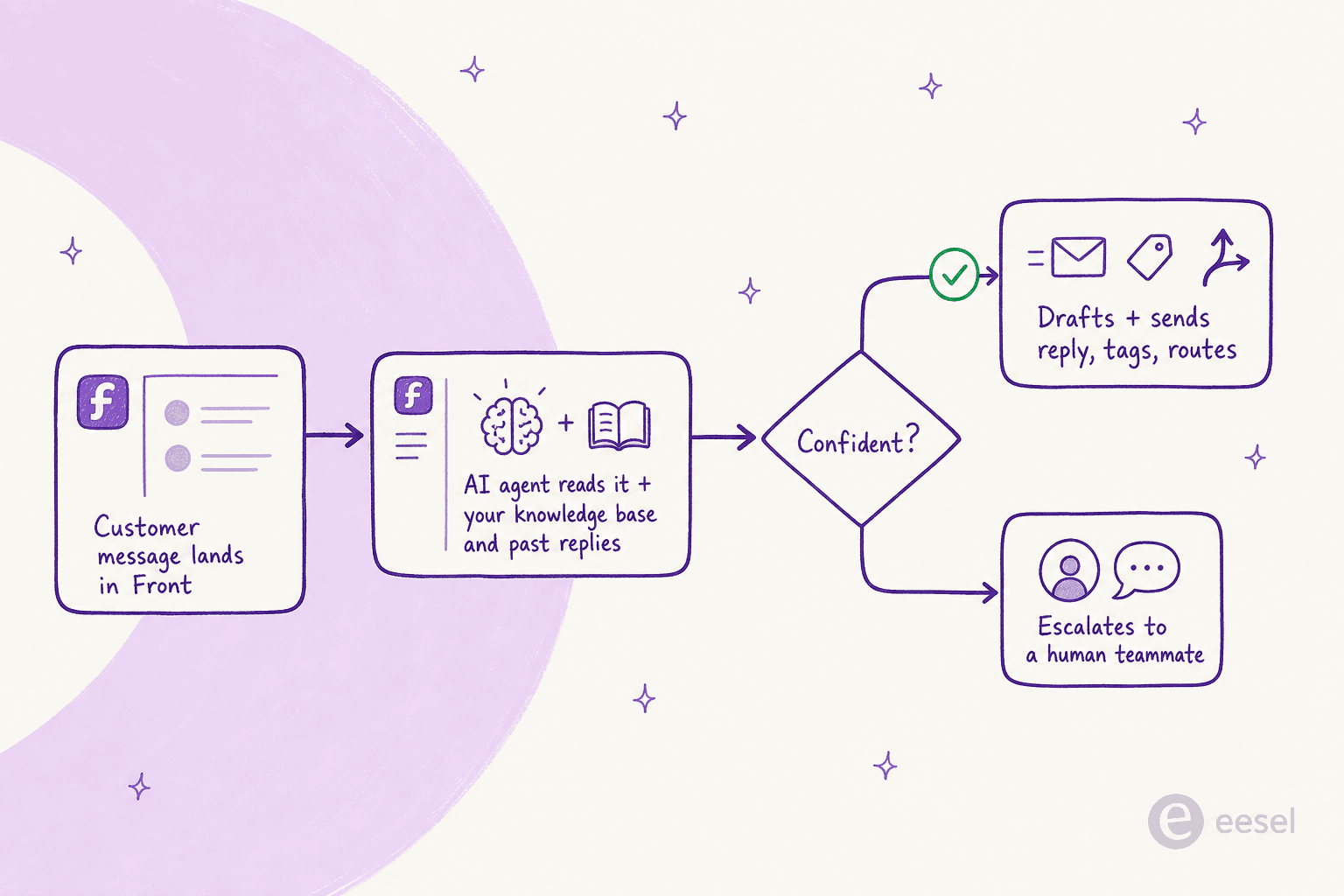
The flow is: a customer message lands in Front, the agent reads it against your knowledge base and past replies, and then it either drafts and sends a grounded answer (tagging and routing as needed) or, when it isn't confident, escalates to a human teammate with full context. The best implementations let you start in a drafts-for-review mode and tighten the autonomy as trust builds, so your customers never see a shaky answer.
Front's own chatbot builder does something similar visually, with a flow you assemble step by step:
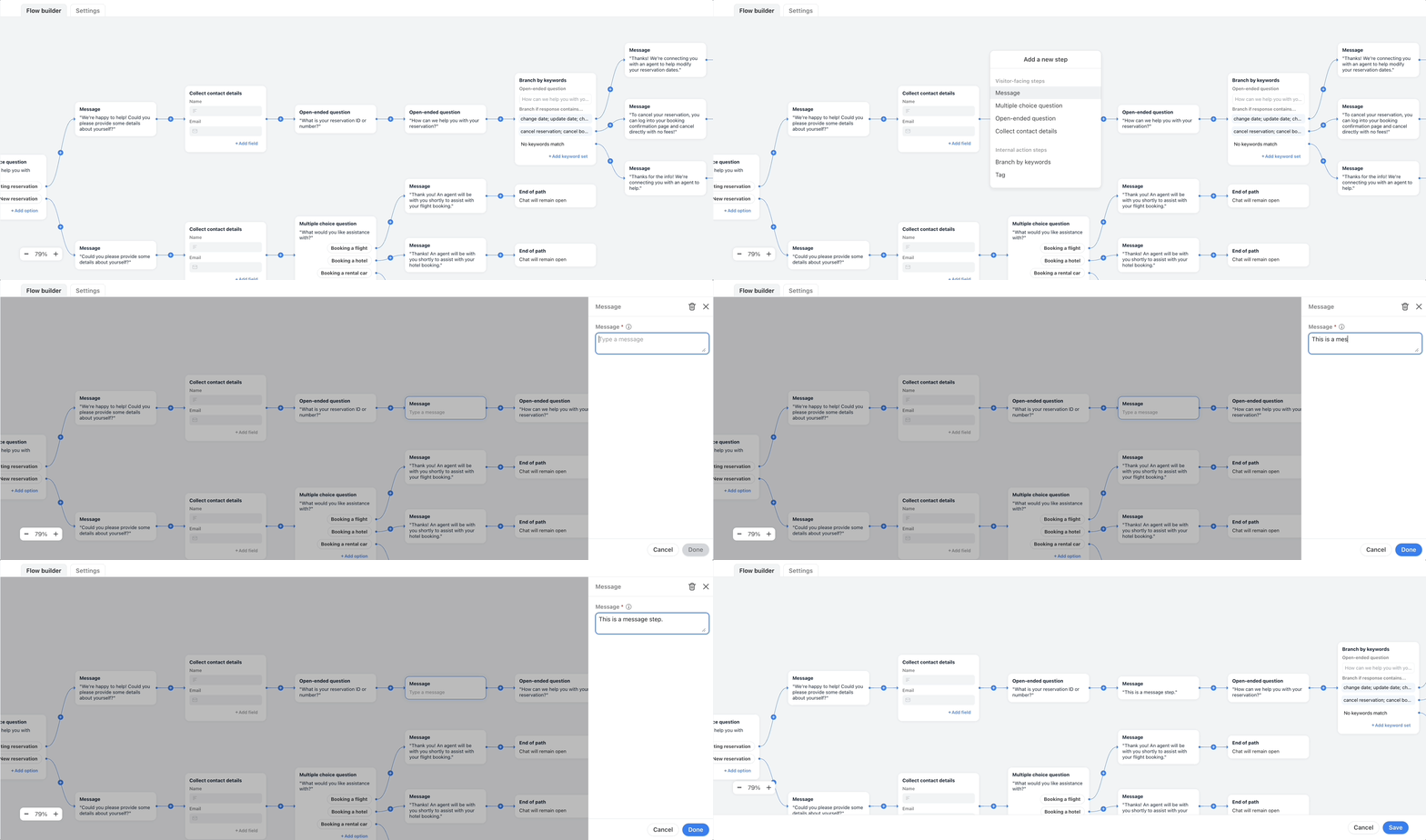
The difference is that a flow builder makes you anticipate every branch up front, while a knowledge-trained agent reasons from your docs and history. For most support inboxes, the second approach scales with far less maintenance.
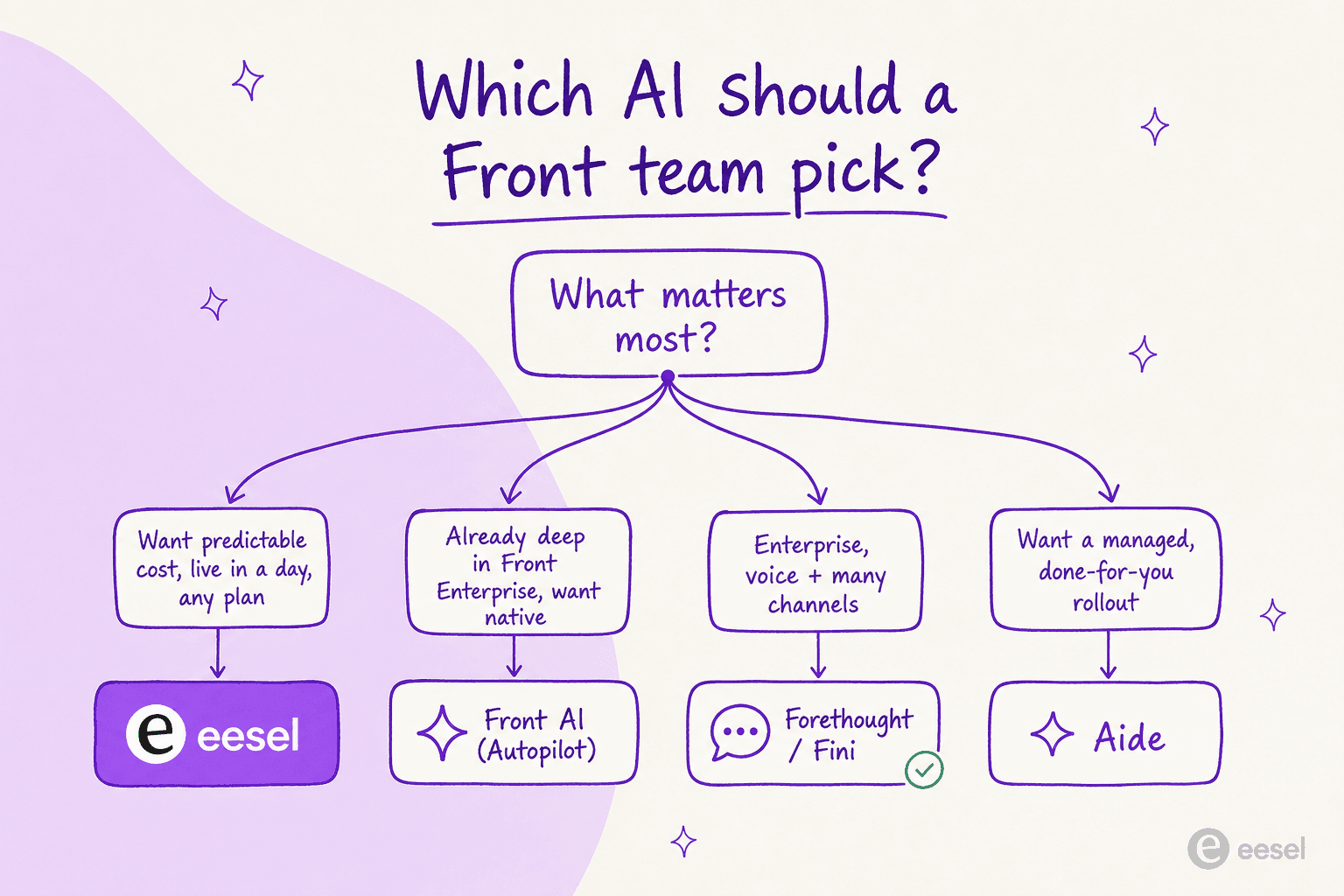
So which one should you actually pick? Here is the quick decision:
Try eesel for Front
If you take one thing from this guide: you don't have to re-platform or sit through a sales cycle to put real AI in your Front inbox. eesel AI installs from the Front App Store, learns from your existing knowledge base and past conversations, and starts resolving tier-1 conversations inside Front, drafting and sending replies, tagging, and routing escalations, all while respecting the routing and SLA rules you already set up.
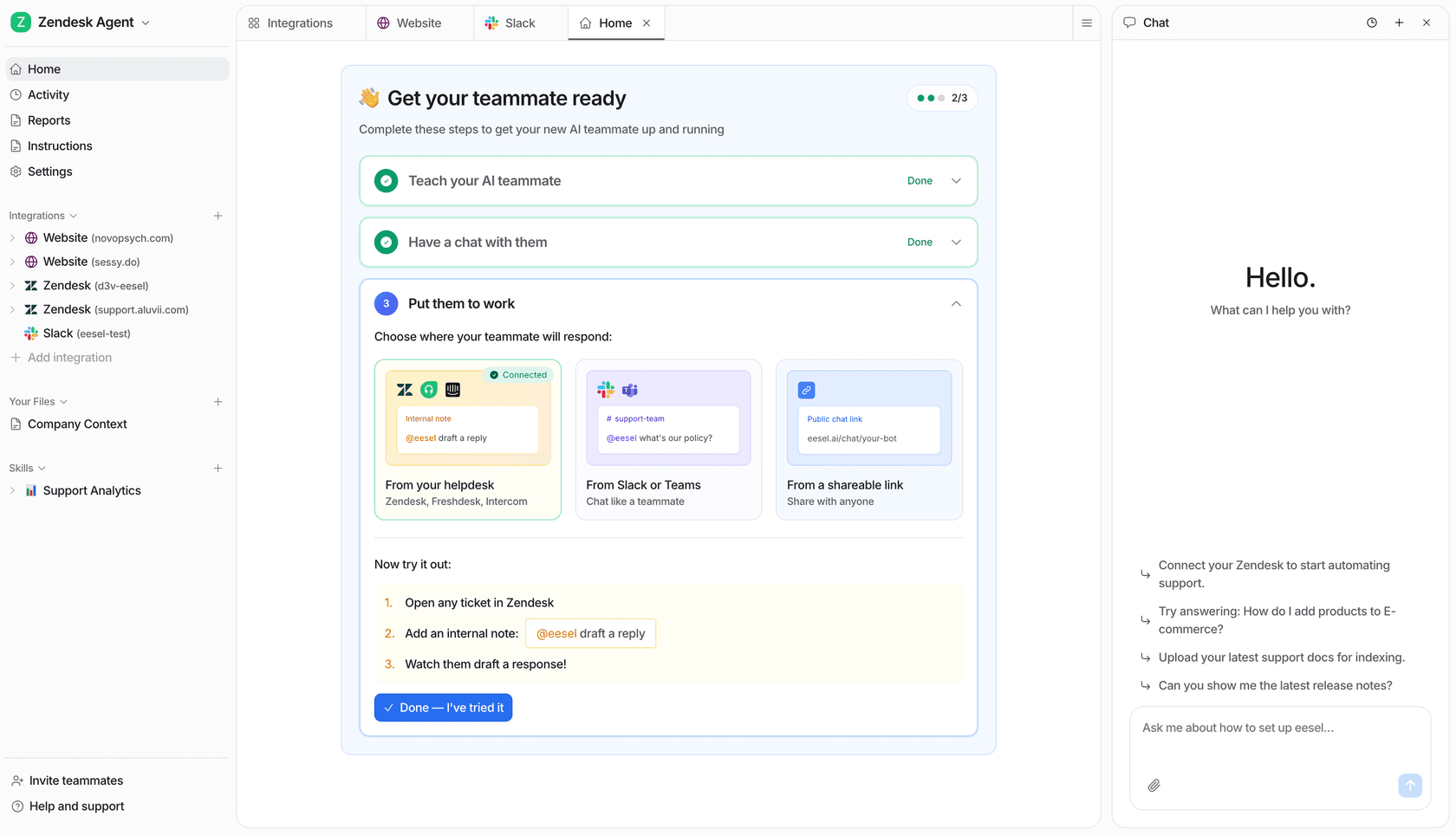
The differentiator is the part most tools skip: you can simulate eesel against your real past Front tickets before going live, so you see the resolution rate and the answers it would have sent with zero customer risk. Pair that with flat $0.40-per-conversation pricing and no per-seat fees, and it is the lowest-risk way to find out what AI can do for your inbox.
Connect Front and start a free trial, or book a quick demo if you'd rather see it on your own tickets first.
Frequently Asked Questions
What is the best AI for Front?
Does Front have its own built-in AI?
How much does AI for Front cost?
Can I add a third-party AI agent to Front without leaving Front?
What happens when the AI is not confident about a Front ticket?
Is there a free way to try AI on Front?
What is the difference between Front Autopilot and Copilot?


Article by
Riellvriany Indriawan
Riell is a designer and writer at eesel AI with about two years of experience researching CX platforms, AI chatbots, and helpdesk software. She combines her design background with a sharp eye for how these tools actually look and feel in practice — making her comparisons unusually visual and user-focused.