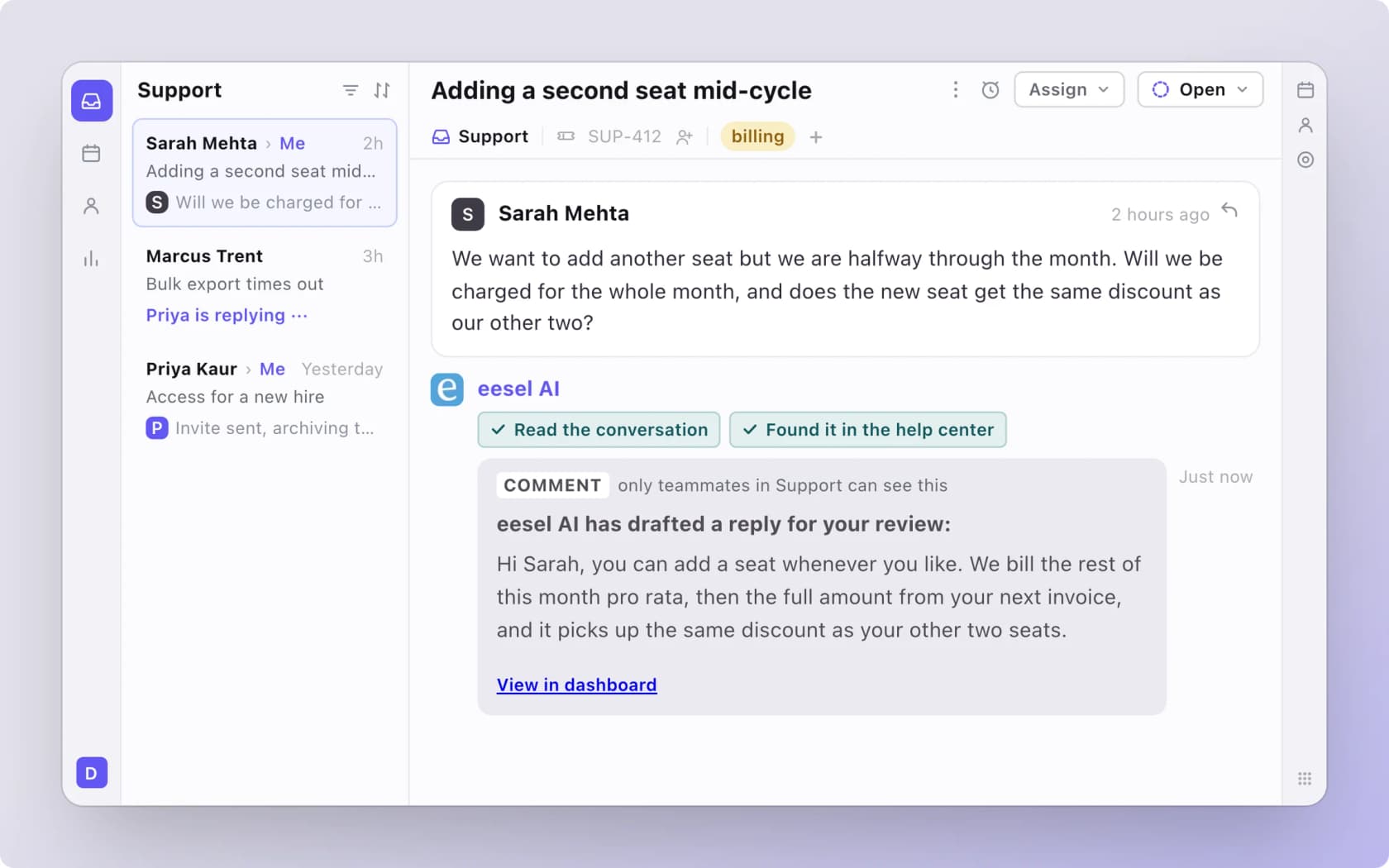


Front ticket statuses are a layer over archive and snooze: once you enable them on a shared inbox, Archived becomes Resolved, Snoozed becomes Waiting and everything else stays Open. You can add custom statuses (up to 10 active) inside those three categories, and rules can trigger on, check or set a status, which is how Front's own example closes a conversation after 5 days in Waiting. Customer replies still reopen into the Open tab, and your old archive and snooze rules keep working through the same mapping.
eesel can draft replies as internal comments in the same inbox, but I did not find status changes in its documented Front actions, so a status rule still owns the Resolved step. With the eesel CLI, a coding agent can upload approved knowledge, like your exported status policy and Front help center articles, then ask test questions before anything goes live. Approving the Front connection itself still needs someone with admin access.
What are ticket statuses in Front?
They are Front's ticketing layer: Open, Waiting and Resolved, switched on per shared inbox. Front's help center says it introduced ticketing on October 8, 2024, and describes statuses as a way to "track, organize, and resolve complex customer requests at scale." Before that, a conversation was open, snoozed or archived and nothing more.
I build the helpdesk integrations at eesel, Front's included, so I spend my days reading how each tool models "done". Front's model is inbox-like: the status is not a field on a ticket form, it is a relabel of states your team already uses. That also makes it easy to get wrong, because the old behaviors do not disappear.
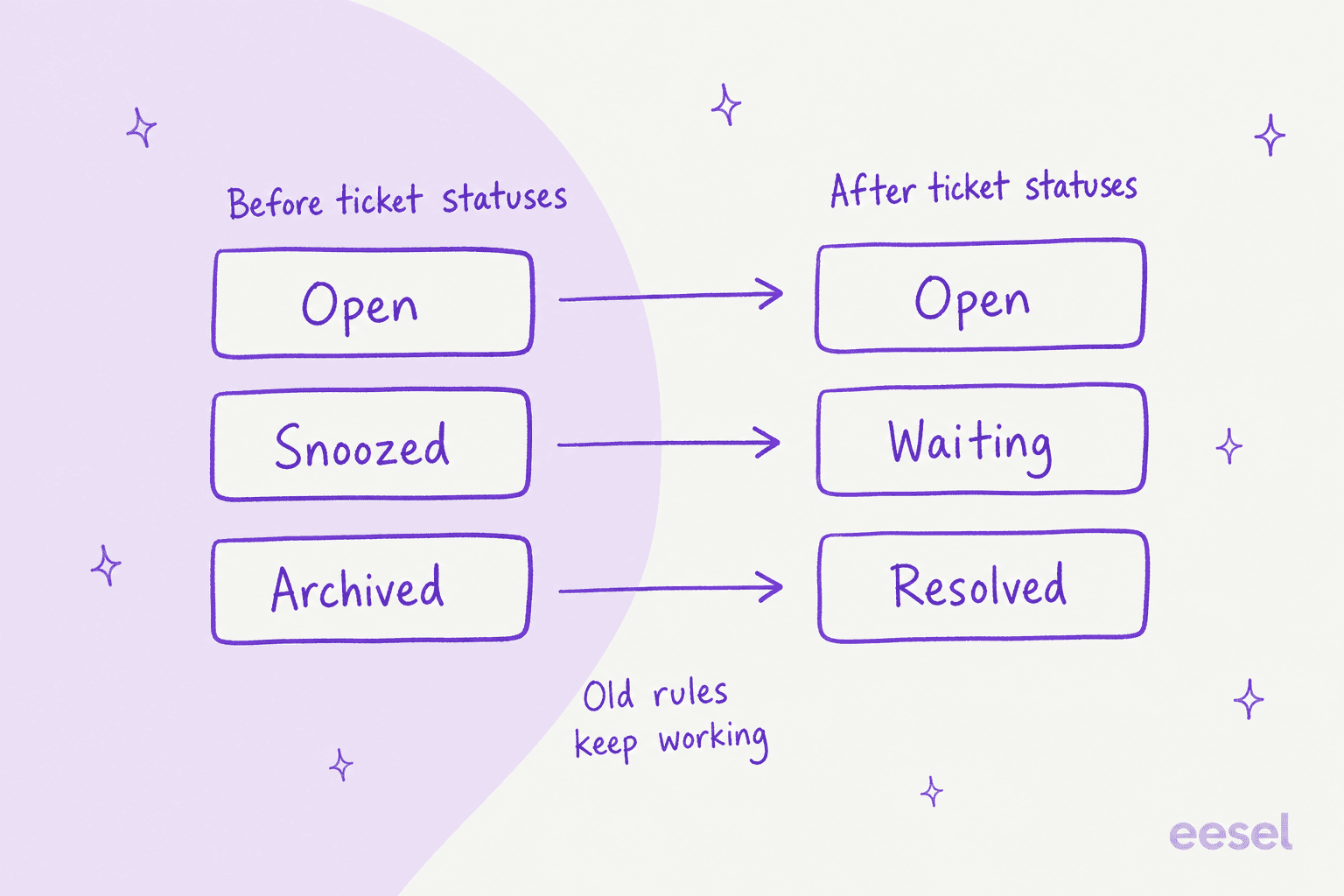
Three details from Front's ticket status guide shape everything below:
- Unassigned and Assigned tabs count as Open. If you show those tabs in a shared inbox, both sit under Open.
- It works on every channel. Front's FAQ says ticket statuses support all channel types.
- It is per inbox. Turning it on for one shared inbox leaves the others on archive and snooze.
If you are weighing Front against a form-based tool, my shared inbox vs ticketing system post explains the trade, and zendesk vs front compares the two directly.
How do I turn on ticket statuses?
Open workspace settings as a workspace admin, go to Inboxes, choose the inbox, click the Ticketing tab and toggle Enable ticket statuses. Front's steps then let you pick a ticket status group, or choose None so teammates see every custom status your company has configured.
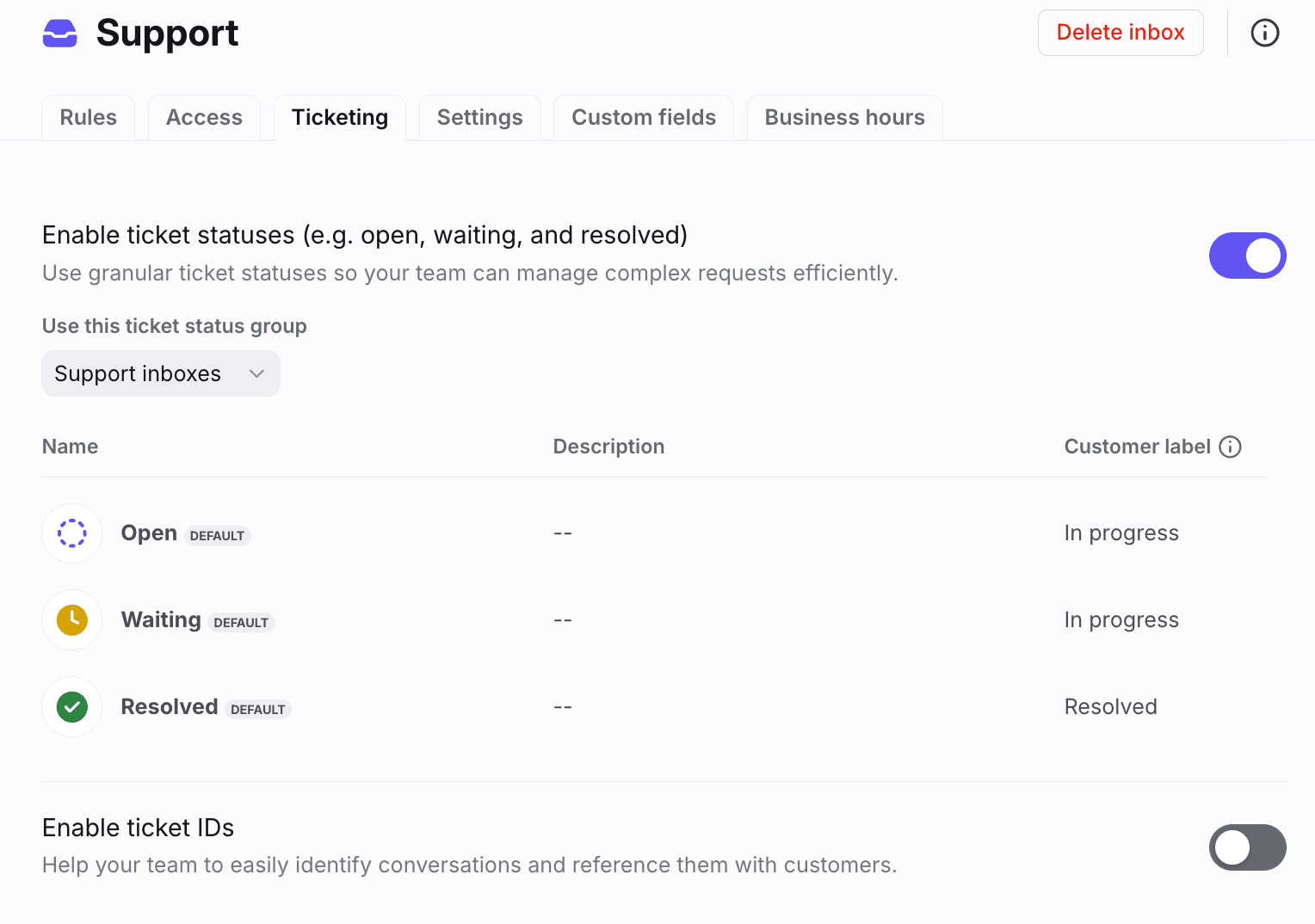
Two shortcuts help. You can select several inboxes in the inbox list and enable ticket statuses (or ticket IDs) in one action. And in the composer, Front adds Send as resolved plus an arrow menu for the other statuses, so closing a conversation takes one click instead of send-then-archive.
The send button has a quirk. Front says you cannot pick a custom status as the default, but your existing preference maps to a status: Send becomes send as open, Send & archive becomes send as resolved, and Send & snooze is unchanged, with snoozed tickets appearing in the Waiting tab.
What do Open, Waiting and Resolved mean?
Open means your team owes the next move, Waiting means someone else does, and Resolved means nothing more is needed unless the customer writes back. Front spells out when to use each:
| Status | Front's guidance | Typical use |
|---|---|---|
| Open | Not yet worked on, or being worked on and the customer needs a response | New and active conversations |
| Waiting | Waiting on the customer and you intend to follow up, or waiting on a teammate before you can reply | Info requests, internal escalations |
| Resolved | Request is complete, or waiting on the customer but no action is needed unless they respond | Finished work, quiet threads |
The Waiting definition has two halves, and the split matters. If you plan to chase the customer, it is Waiting; if you will not, it is Resolved. Filing every "asked a question, no reply yet" thread under Waiting can leave a pile nobody reviews. Front itself points to its Resolution report to measure how long conversations sit in Waiting, which is a polite hint that this is where queues go stale.
Snooze keeps a different job. Front says to still snooze a conversation when you need to follow up by a specific date, because a snooze is the only state with a timer. Snoozing moves a conversation to the Waiting tab, and when the timer ends it reopens into Open.
How do custom ticket statuses and groups work?
Custom statuses add detail inside the three categories, and groups decide which inboxes see which statuses. Front's example statuses are "Waiting for Approval" and "Waiting for Finance", and its example groups are "Support team statuses" and "Sales team statuses".
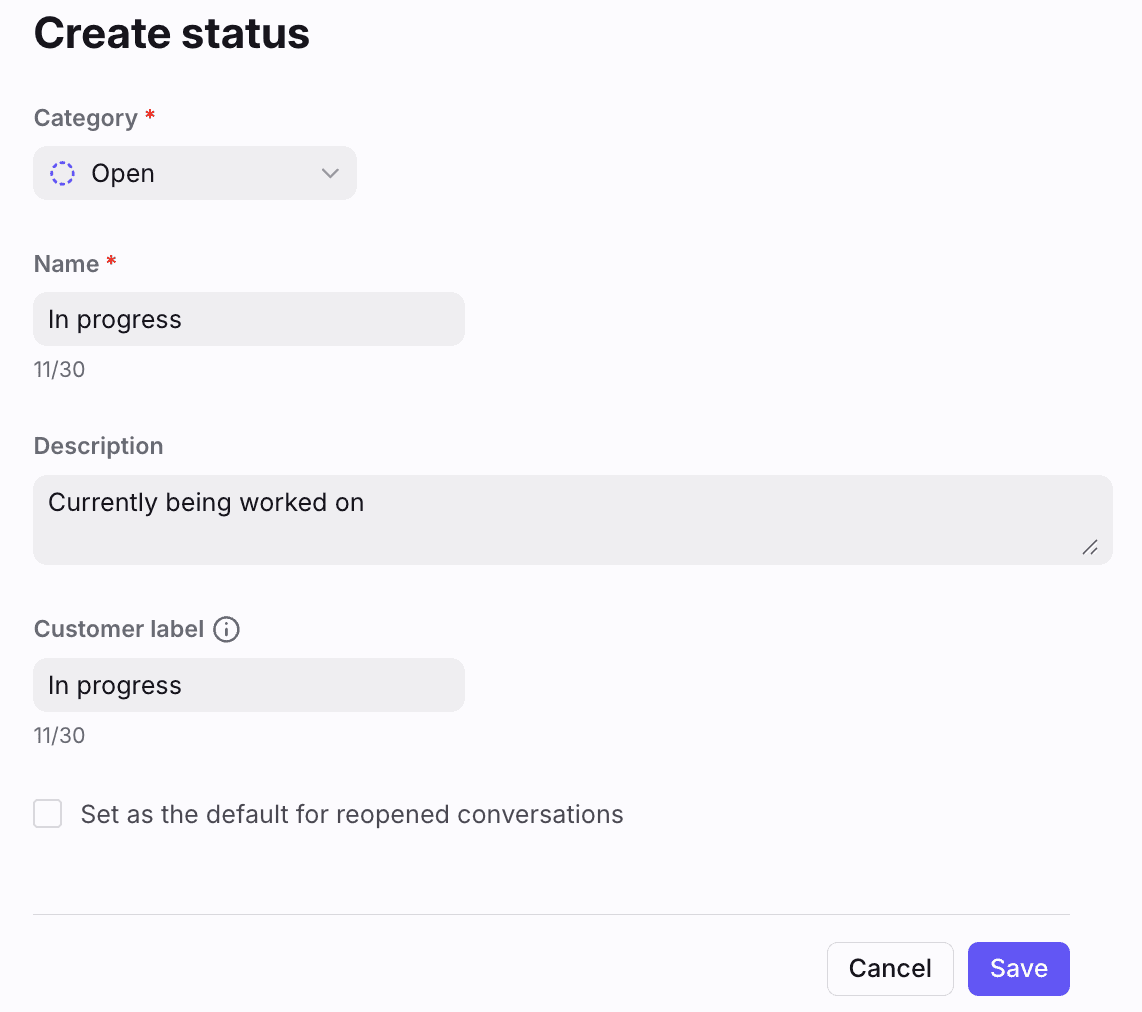
The create form, per Front's custom status article, has five fields:
- Category. Open, Waiting or Resolved, and it cannot be changed after the status is created.
- Name. What teammates see in buttons and inboxes. The form in the screenshot caps names at
30characters. - Description. Optional tooltip text that tells teammates when to use it.
- Customer label. Optional, shown to customers in Front's customer portal.
- Default for reopen. Open statuses only. It assigns that status when a conversation reopens.
Limits worth knowing before you design a list:
- Up to 10 active statuses in company preferences.
- Default statuses cannot be renamed or archived.
- No reordering. Statuses sort alphabetically within each category, then Open, Waiting, Resolved.
- A group holds up to 10 statuses, with at least one per category.
- No group means everything. An inbox without a selected group shows all custom statuses, which gets noisy fast.
Front's own advice is to build a "default" group first and apply it to every ticketing inbox, so new statuses do not leak into inboxes that never asked for them. A custom status also cannot be archived while it sits in a group, which means retiring one is a two-step job.
Which status should I pick for this conversation?
Pick a situation and the widget shows what Front's guidance says to do.
What happens to my old archive and snooze rules?
They keep running. Front's FAQ says rules and macros map conversations by status: an Archive action resolves the conversation, an Archive trigger or condition now refers to Resolved, and Snooze refers to Waiting. Disable ticket statuses and the mapping reverses, so Resolved maps back to Archived.
Macros have one more edge. If a macro uses Update ticket status to in an inbox without ticket statuses, Open maps to Open and both Waiting and Resolved map to Archived. A shared macro used across mixed inboxes can therefore behave differently from inbox to inbox, and I would test it in a throwaway inbox before rolling it out.
If your team has been writing macros for a while, my notes on macros 101 cover the habits, and AI macros shows how to generate them from past replies.
Which triggers, conditions and actions use ticket status?
Front added a status trigger, two status conditions and one status action, and macros share the action. As the person who builds integrations here, I read these as hooks you can chain.
| Block | Name in Front | What it does | Rules | Macros |
|---|---|---|---|---|
| Trigger (When) | Ticket status is changed to | Fires when a conversation is set to one of the chosen statuses | Yes | No |
| Condition (If) | Ticket status is | Conversation has the chosen status(es) | Yes | No |
| Condition (If) | Ticket status is not | Conversation does not have them | Yes | No |
| Action (Then) | Update ticket status to | Sets one status | Yes | Yes |
Front's rules and macros article gives four worked examples. Three are rules and one is a macro pair:
- Notify managers after 48 hours. A rule on Ticket status is changed to Open alerts a Managers teammate group when a conversation has been Open for more than 48 hours.
- Move unresolved work to another inbox. If the Billing tag is added and the conversation is Open or Waiting in Support, the rule moves it to the Billing inbox.
- Auto-resolve quiet Waiting threads. Combine the Waiting trigger with the Time passed since trigger is condition and an Update ticket status to Resolved action.
- Macros that set a status. A "Password reset" macro comments, sends a template and sets Resolved; an "Outage" macro tags, comments and sets Waiting, which clears the Open queue.
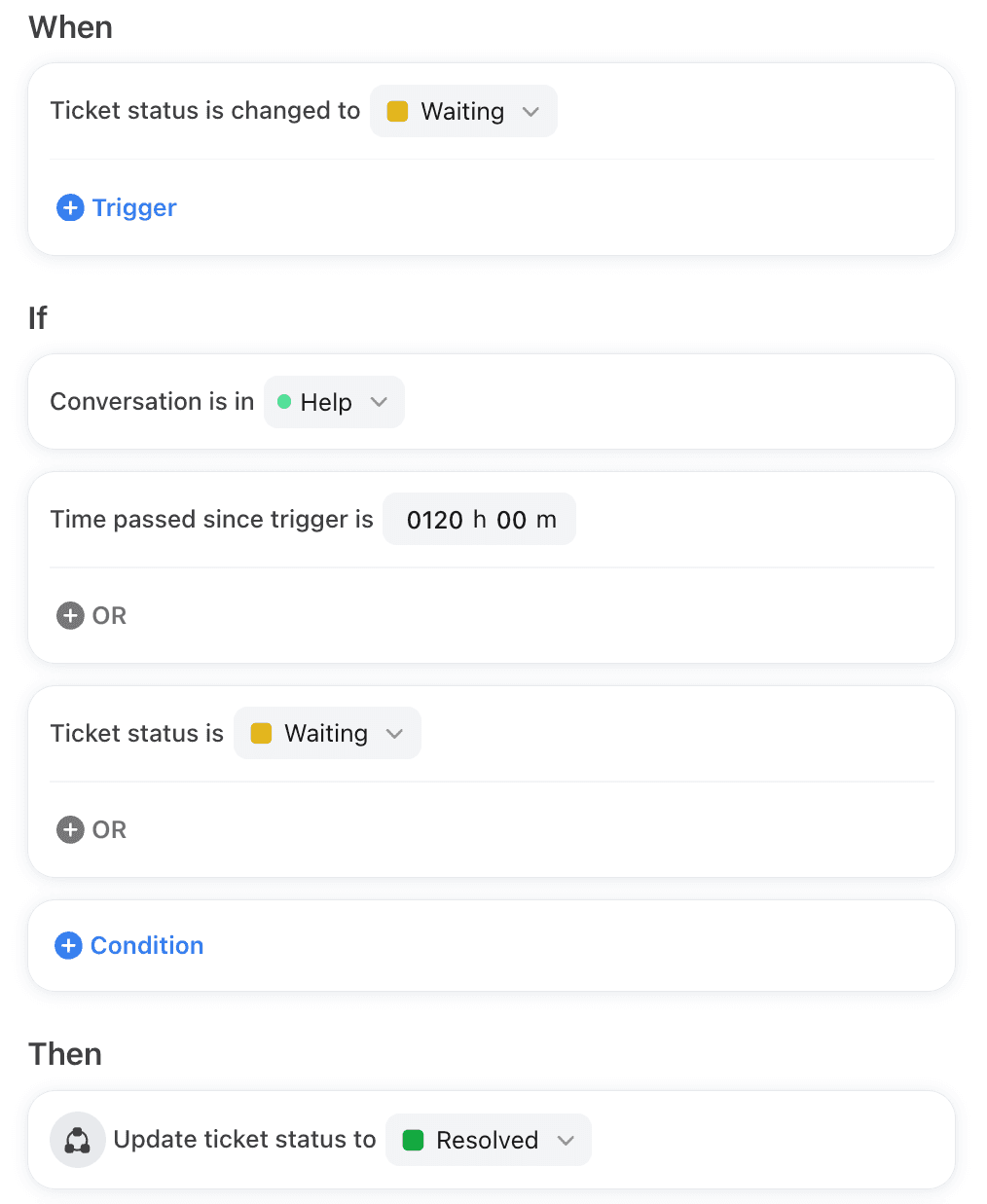
The screenshot is Front's own auto-resolve rule. The condition reads 120 h 00 m, which is the 5 days in Front's copy. This one rule is the difference between a Waiting tab that is a queue and one that is a graveyard.
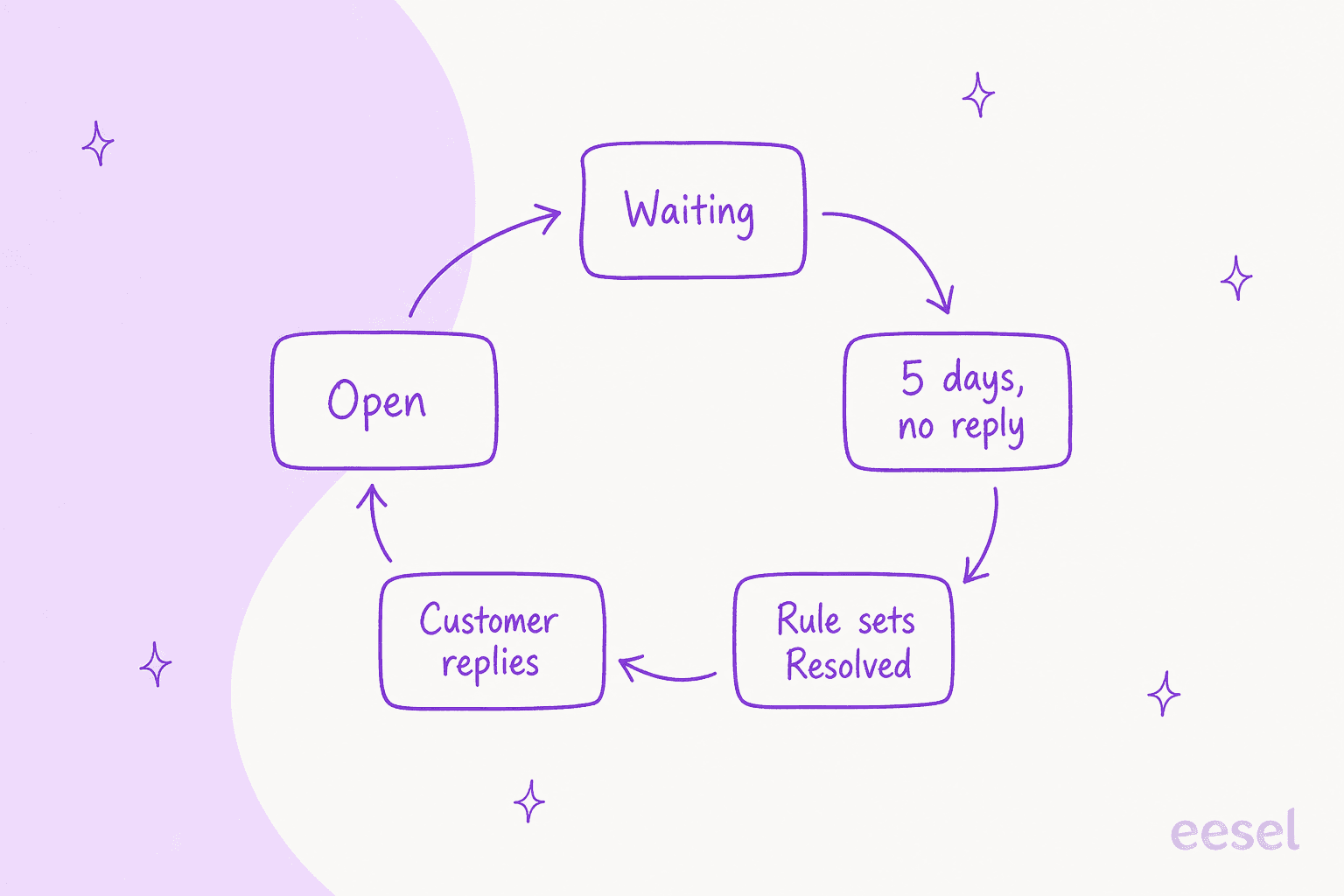
The loop is safe because a reply puts the conversation straight back into Open. A fourth pattern, in Front's assignment-time article, adds a custom Open status called "In progress" and two rules that flip tickets between "Open" and "In progress" as they are assigned or unassigned. That separates unassigned waiting time from active work in the Resolution report, and Front lists it as a Professional plan workflow that applies only to tickets going forward.
For comparison with other helpdesks, Freshdesk automation rules and Gorgias rules each decide differently when a status change fires, and Zendesk's pending-ticket automation is the closest cousin of Front's Waiting rule.
What happens when a customer replies?
The conversation reopens into the Open tab, whatever its status. Front's FAQ says conversations reopen based on your company's bump settings regardless of ticket status, and a snooze that expires also lands in Open (or the Unassigned and Assigned tabs if you show those).
Bump settings are a company-wide choice for admins, with four options, per Front's bump article:
- Replies: bumps when a teammate sends an outbound reply.
- Comments: bumps when a teammate adds an internal comment.
- Replies and comments: bumps on either.
- Never: neither changes the order of conversations.
Those settings decide ordering and, by default, reopen archived conversations. A related detail from the snooze guide: if a snooze timer expires while the assignee is out of office, the conversation is unassigned so someone else can pick it up. My Front shared inbox ownership post covers that unassign behavior in more depth, and load balancing assignment explains how reopened conversations can push a teammate over their limit.
One reporting gotcha: Front says time goals do not reset when a conversation reopens after Waiting or Resolved. A customer who replies on day six after a day-five auto-resolve is still on the original clock, so your SLA numbers can look worse than the work felt. My SLA best practices guide has ways to handle that.
How do statuses show up in reports?
Through the Resolution report and the Live dashboard. Per Front's Resolution report page, Time in ticket status is one of its listed metrics, so you can see how long conversations spend in each status. The Live dashboard gets a status filter, a Waiting card, a Waiting column in the Workload by inbox table and a Status column in the Oldest conversations table.
Two consequences of that design:
- Waiting is only as honest as your habits. If agents park conversations in Waiting to clear their Open list, the report shows a healthy Open count and a swollen Waiting one.
- Resolution metrics depend on ticketing. Front's conversation stages migration note says that if you never enable ticketing, resolution-based metrics (resolved and unresolved counts, resolution time, replies to resolution, resolved on first reply) stop populating once stages are deprecated. It also says to delete conversation stages rules once ticket statuses are on.
Front says CSAT supports ticket statuses, so sending surveys on Resolved is a natural next step. If you track resolution time or first response time, enable statuses before you build dashboards around them, because the data is not retroactive.
Which Front plan do I need?
Ticket statuses are on Starter and above, but several of the useful pieces are not. Front's help center lists ticket statuses on the latest Starter plan or above, ticket status groups and custom statuses in the customer portal on Professional or above, and the "In progress" assignment workflow on Professional or above.
| Plan | Price (billed annually) | Rules | Relevant to statuses |
|---|---|---|---|
| Starter | $25 per seat per month, up to 10 seats | Up to 10 rules | Ticket statuses; no macros listed |
| Professional | $65 per seat per month, up to 50 seats | Macros and up to 20 rules | Status groups, portal custom statuses, status macros |
| Enterprise | $105 per seat per month | Unlimited rules and macros | Unlimited rules for every status workflow |
Read the rules column twice. Each of the four example workflows above uses a rule or a macro, and a Starter workspace tops out at 10 rules shared with routing and tagging. If you want status macros, Front's pricing page lists macros starting at Professional. I cover seat costs in Front pricing, and Front alternatives is the page to read if the rule cap is the blocker.
What do the docs leave open?
A few things I could not confirm from Front's help center, which are worth a throwaway-inbox test before you rely on them:
- Whether the 10-status limit counts the three defaults. The docs say up to 10 active statuses without saying.
- Whether the "time passed" timer restarts if a conversation leaves Waiting and comes back.
- Whether an auto-resolve rule applies to conversations already sitting in Waiting when you save it, since the trigger is a change event.
- How an AI agent's actions map. Front says archive actions resolve a conversation, but I could not confirm what a third-party tool that archives through the API ends up setting.
Front's Core API exposes ticket statuses with an ID, a name, a category of open, waiting or resolved and a description, and says default statuses match their category name. That is handy if you sync status to a CRM or a dashboard, since the category is the stable part and custom names are not.
Where does AI fit next to status rules?
It fits in the Open queue, and the status rules decide when something leaves it. A status rule can resolve a quiet Waiting thread, but nothing in it writes the reply that moves a conversation from Open to Waiting in the first place.
The failure mode I would plan for is the one a small team in Cape Town already designed around. Cape Coffee Beans runs eesel on Zendesk, not Front, but its problem is the Waiting tab's twin: a pending ticket waits on a customer with no date to come back to it. Each morning eesel checks Zendesk for pending tickets with no follow-up date and for tickets with no group, and emails the founder a short list with a link to each. Its harder sweeps are read only, and about 160 scheduled Zendesk and Google Drive checks ran in one month. In Front, a rule that resolves Waiting threads after a set period plays the same role, and I would add a morning check for conversations that have been Open for 48 hours, which is Front's own manager-alert example.
eesel works inside Front, and per its documentation it can draft replies as internal comments or send them, add private comments, route to teammates, update tags and manage SLA timelines. Status updates are not on that list, so I would keep the Resolved step in a Front rule and let the AI handle the first draft. If you want first drafts without touching status, the AI first response automation and reducing first response time guides cover the approach.
When a conversation should leave automation entirely, my notes on AI escalation and AI agent handoff explain how to stop at the right moment.
A support queue that fills Waiting faster than it empties is also a staffing signal, so read clearing a ticket backlog and the ticket backlog entry before you raise anyone's targets.
Try eesel in your Front inbox
If your status rules keep Waiting tidy but every Open conversation still starts from a blank reply box, eesel is built for that gap in Front. It reads your help center and past conversations, then drafts a reply as an internal comment on each new one, so your teammate starts with something to edit and your status rule closes the loop afterwards. Begin with drafts only and widen from there. See my roundup of the best AI for Front and the Front AI overview for the full set of options.