
If your support team handles dozens of tickets daily, you have probably noticed something frustrating. Every time an agent replies and waits for a customer response, they manually set the ticket to "Pending." Then they have to remember to follow up, send reminders, and eventually close tickets where customers never reply. Over hundreds of tickets, this manual work adds up to hours of wasted time.
The good news: you can automate this entire workflow. Zendesk automations and triggers can handle the status changes, send reminder emails, and even auto-solve tickets when customers go silent. No more manual tracking. No more forgotten follow-ups.
In this guide, we will walk through setting up a complete Zendesk automation set pending awaiting customer workflow. We will cover the exact trigger conditions, the automation timing, and the common mistakes that break these workflows. We will also look at how modern AI tools like eesel AI's AI agent for Zendesk can handle status management without complex rule configuration.

What you will need
Before we start building, make sure you have the following:
- A Zendesk Support account on Team plan or higher. Automations are not available on the Essential plan.
- Admin permissions or trigger management rights in your Zendesk instance.
- A rough idea of your follow-up schedule. For this tutorial, we will use 24 hours for the first reminder and 72 hours for auto-solve, but you can adjust these to fit your workflow.
That is it. You do not need coding skills or technical expertise. Zendesk business rules are built for administrators, not developers.
Understanding triggers vs. automations in Zendesk
To build an effective workflow, you need to understand how Zendesk business rules work. Think of triggers and automations as two different tools for different jobs.
Triggers are event-based. They fire the moment a ticket is created or updated. For instance, when an agent submits a reply, a trigger can immediately change the status to Pending. It is an instant response to an action.
Automations are time-based. They run on a consistent schedule, checking your tickets once an hour to see if any meet specific time-based conditions. Since our goal is to send a reminder after 24 hours have passed, we use automations to wait for that specific duration.
Here is the difference at a glance:
| Feature | Triggers | Automations |
|---|---|---|
| Execution | Instant, event-based | Scheduled, time-based (hourly) |
| Purpose | Immediate actions on ticket creation/update | Actions based on elapsed time |
| Example | Set status to Pending when agent replies | Send reminder after 24 hours pending |
For our pending workflow, we need both. Triggers handle the immediate status change when agents reply. Automations handle the time-based follow-ups and cleanup.
Step 1: Create a trigger to auto-set status to pending
Let us start with the trigger that automatically sets tickets to Pending when agents reply. This saves your team from manually selecting the status on every response.
First, navigate to your Zendesk Admin Center. Click Objects and rules in the left sidebar, then select Business rules > Triggers. Make sure you are on the Tickets tab, not Messaging triggers.
Click Add trigger in the top right. Give it a clear name like "Auto-set to pending on agent reply." Add a description explaining what it does: "Automatically changes ticket status to Pending when an agent submits a public comment."
Now configure the conditions under Meet ALL of the following conditions:
-
Ticket: Status | Is | Open This ensures the trigger only runs on tickets that are currently Open. It prevents the trigger from firing on New tickets or tickets already in Pending, Solved, or Closed status.
-
Ticket: Comment | Is | Public This condition checks that the update includes a public comment, meaning the agent actually replied to the customer. Without this, the trigger might fire on internal notes.
-
Current User | Is | (Agent) This is the critical condition. It ensures the trigger only fires when an agent makes the update, not when a customer replies. Without this, you will have a serious problem: when a customer responds to a Pending ticket, the trigger would keep setting it back to Pending instead of letting it become Open. Agents would never see the update.
Under Actions, add:
- Ticket: Status | Set to | Pending
Leave the trigger inactive for now. You will test it before activating.
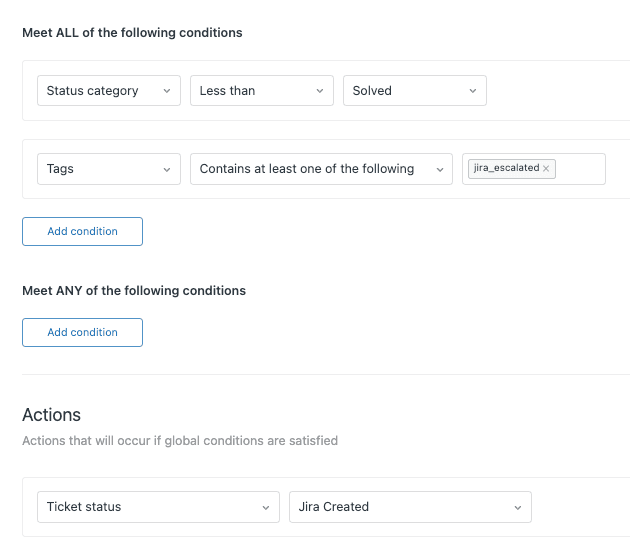
Step 2: Create the first reminder automation (24-hour bump)
Now let us build the automation that sends a friendly reminder when customers have not responded after 24 hours.
Navigate to Admin Center > Objects and rules > Business rules > Automations. Click Add automation.
Name it something clear like "Send pending reminder after 24 hours."
Set the conditions under Meet ALL of the following conditions:
- Ticket: Status | Is | Pending
- Ticket: Hours since pending | Greater than | 24
- Ticket: Tags | Contains none of the following | pending_reminder_1
The tag condition is essential. It ensures the automation only runs once per ticket. Without it, your customer would get a reminder every hour until they reply.
Under Perform these actions, add:
-
Notifications: Email user | (requester)
- Email subject: "Re: {{ticket.title}} - Just checking in"
- Email body: "Hi there, I just wanted to quickly check in to see if you had a chance to look at our last message. We are waiting on your reply to move forward. Let us know if you have any questions!"
-
Ticket: Add tags | pending_reminder_1
The tag gets added after the email sends, which prevents the automation from running again on this ticket.
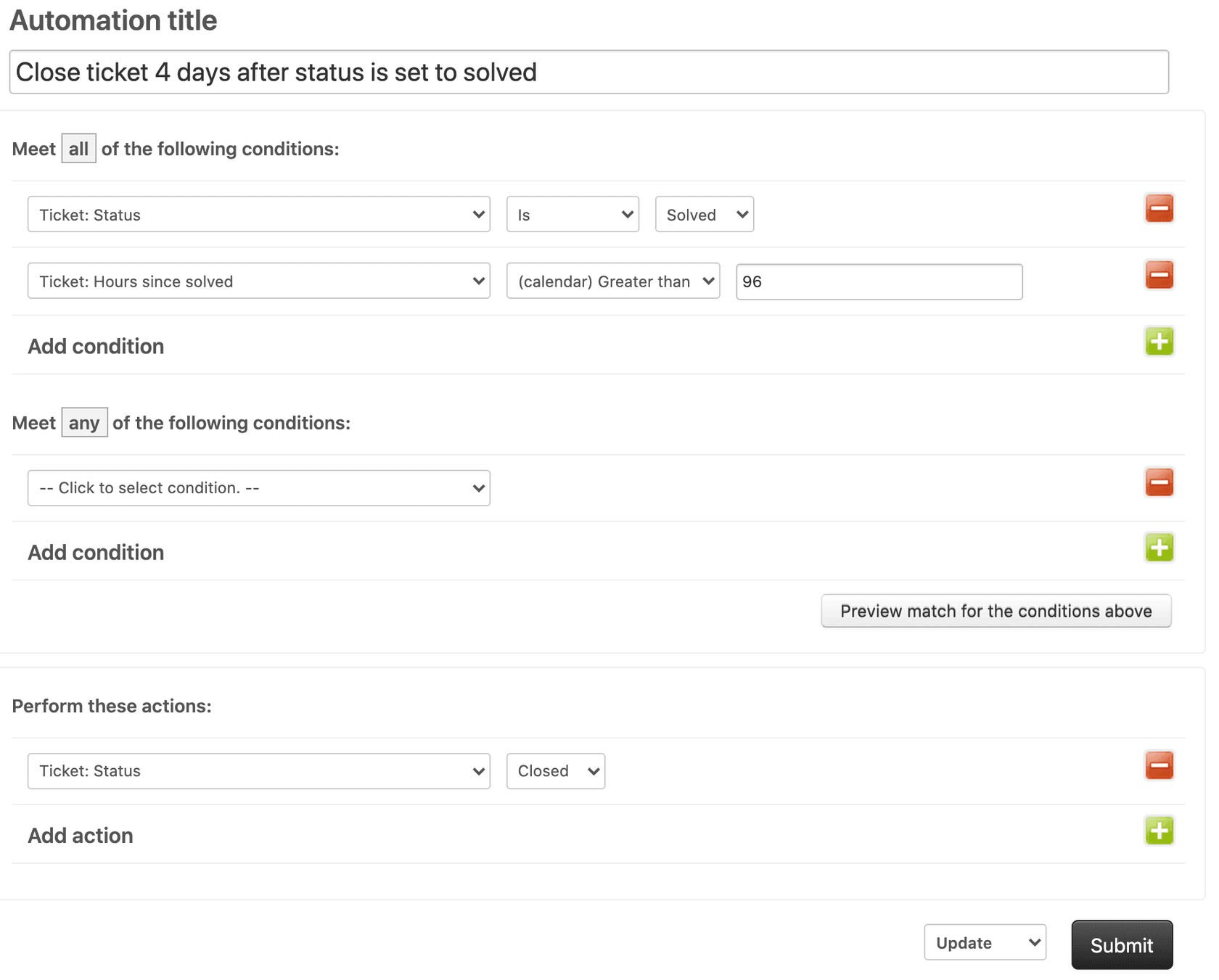
Step 3: Create the auto-solve automation (72-hour close)
If the customer still has not replied after your first reminder, you can keep your queue tidy by automatically closing the loop. This automation sends one final message and marks the ticket as solved.
Create another automation named "Solve pending ticket after 72 hours."
Set the conditions:
- Ticket: Status | Is | Pending
- Ticket: Hours since pending | Greater than | 72
- Ticket: Tags | Contains at least one of the following | pending_reminder_1
Notice this automation looks for the tag from the first reminder. This ensures a logical progression: reminder first, then solve. It will not solve tickets that never received the initial reminder.
Set the actions:
-
Notifications: Email user | (requester)
- Email subject: "Re: {{ticket.title}} - Closing this for now"
- Email body: "Hi, since we have not heard back, we are going to mark this ticket as solved for now. If you still need help, just reply to this email and we will be happy to reopen it for you!"
-
Ticket: Status | Solved
Step 4: Create the reset trigger
Once your automations are active, you need a way to reset the workflow when customers reply. Without this, a customer who responds after receiving a reminder would still have the reminder tag, messing up your automation logic.
Create a new trigger named "Reset pending reminder tags on reply."
Set the conditions:
- Ticket: Status | Changed to | Open
- Ticket: Current user | Is | (end-user)
Set the action:
- Ticket: Remove tags | pending_reminder_1
With this trigger, when a customer replies and the ticket reopens, the reminder tag is cleared. If an agent sets the ticket to Pending again later, the entire workflow starts fresh.
Test this scenario: A customer submits a ticket, an agent replies (trigger sets Pending), 24 hours pass (automation sends reminder), the customer replies (trigger removes tag, ticket becomes Open), agent replies again (trigger sets Pending), 24 hours pass (automation sends reminder again). The workflow resets properly.
Common mistakes and how to avoid them
Even experienced Zendesk administrators make these mistakes. Here is what to watch for:
Mistake 1: Forgetting "Current User is Agent"
Without this condition in your auto-pending trigger, when customers reply to Pending tickets, the status stays Pending instead of becoming Open. Agents never see the update. Tickets languish unnoticed. Always include this condition.
Mistake 2: Using "Is" instead of "Greater than" for time conditions
Zendesk automations run on an hourly schedule. If you set "Hours since pending is 24," the automation only catches tickets at exactly that moment. Using "Greater than" ensures your automation captures every ticket that has crossed your time threshold.
Mistake 3: No tag-based nullification
Every automation that sends notifications must include a tag action that prevents it from running again. Without this, customers receive endless reminders until they reply.
Mistake 4: Creating conflicting triggers
If you have multiple triggers that change status, they can conflict. One trigger sets status to Pending, another sets it to something else. Check your trigger list for overlapping conditions. Zendesk processes triggers in the order they appear, so position matters.
Debugging tip: When a trigger or automation misbehaves, check the ticket Events log. Scroll to the bottom of any ticket and click Events. This shows every business rule that evaluated and whether it fired. If your trigger appears with a red X, hover over it to see which condition failed.
Advanced variations for your Zendesk automation set pending awaiting customer workflow
Once you have the basic workflow working, consider these enhancements:
Conditional auto-pending by ticket type: Add a condition like "Ticket: Type | Is | Question" to only auto-pending certain ticket types. Technical incidents might need to stay Open for tracking while questions can go Pending.
Group-specific triggers: Add "Ticket: Group | Is | [Specific Group]" so only certain teams get auto-pending behavior. Your sales team might want different workflows than your support team.
Business hours only: Add "Ticket: Within business hours? | Is | Yes" to prevent status changes outside working hours. This can help with SLA calculations.
"Do not disturb" tag for high-touch tickets: Create a checkbox field that adds a "no_auto_remind" tag. Add a condition to your automations: "Ticket: Tags | Contains none of the following | no_auto_remind." This gives agents control over which tickets get automated reminders.
Multi-stage reminders: Instead of one reminder at 24 hours, create a sequence: 24 hours (first reminder), 48 hours (second reminder), 72 hours (solve). Each stage needs its own tag to track progress.
A smarter approach: AI-powered ticket management with eesel AI
Triggers and automations work, but they have limitations. They are rule-based, meaning they follow exact conditions you specify. They cannot interpret context or understand conversation nuance.
This is where eesel AI takes a different approach. Instead of configuring triggers, you hire eesel as an AI teammate that learns your workflow.

Here is how it works: eesel connects to your Zendesk instance and reads your past tickets, help center articles, and macros. It learns how your team communicates and what status changes mean in your context. Then it handles tickets autonomously, including intelligent status management.
The key difference: eesel reads the actual conversation and decides the appropriate status based on content, not just actions. If an agent asks a question, eesel knows to set Pending. If an agent provides a solution, it might set Solved instead. No trigger configuration required.
Additional capabilities include:
- Context-aware follow-ups: Drafts reminders that reference the specific conversation history, not generic templates.
- Resolution detection: Identifies when a customer's "thanks" or "that worked" means the issue is resolved.
- Simulation mode: Tests how the AI would handle your historical tickets before going live.
- Progressive rollout: Start with eesel drafting replies for review, then level up to full autonomy as it proves itself.
Our AI Agent handles the entire ticket lifecycle, including intelligent status changes, escalation decisions, and follow-ups. Pricing starts at $299 per month for the Team plan, which includes up to 3 bots and 1,000 interactions. Unlike per-seat pricing, you pay for what you use.
Start automating your Zendesk pending workflow today
You now have a complete workflow that automatically sets tickets to Pending when agents reply, sends reminder emails after 24 hours, solves tickets after 72 hours if there is no response, and resets the workflow when customers reply. This saves your team from manual status management and ensures consistent follow-up with customers.
Before activating these rules in production, test them thoroughly. Create a test ticket, submit replies as an agent, wait for the automation timing (or temporarily reduce the hours for testing), and verify each step works as expected. Check the ticket Events log to confirm triggers and automations fire correctly.
If you are looking for a more intelligent approach to ticket management, consider eesel AI. Instead of writing complex business rules, you get an AI teammate that understands context, learns from your past tickets, and handles status management intelligently. You can try eesel free or book a demo to see it in action.


