
By default, Zendesk gives your customers four days to reopen a solved ticket before it closes automatically. That's the standard "Close ticket 4 days after status is set to solved" automation doing its job. But what if your workflow needs a faster turnaround? Maybe you want tickets locked down within 24 hours to keep your queue tidy, or your industry requires quicker resolution cycles.
This guide walks you through exactly how to modify that default automation to close tickets after 24 hours instead of 96. We'll cover the technical steps, important considerations, and common pitfalls that trip up even experienced Zendesk admins.
Understanding solved vs closed tickets in Zendesk
Before you change anything, you'll want to understand what you're actually changing. In Zendesk, "solved" and "closed" aren't just labels. They represent fundamentally different states with different rules about what happens next.
Solved tickets are resolved but still active. The customer can reply and reopen the ticket. Agents can still update fields, add comments, and change the status. Think of solved as "resolved pending customer confirmation."
Closed tickets are locked. When a ticket closes, it becomes read-only for most purposes. If a customer replies to a closed ticket, Zendesk creates a new follow-up ticket rather than reopening the original. Only admins can modify certain fields on closed tickets, and even then, only through the API or Agent Workspace.
Here's how they compare:
| Aspect | Solved | Closed |
|---|---|---|
| Can agents directly set? | Yes | No (only via trigger or automation) |
| Reopens on customer reply? | Yes | No (creates follow-up ticket) |
| Agent updates allowed? | Full access | Limited (tags, some custom fields only) |
| Auto-transition | To Closed after 4-28 days | To Archived after 120 days |
Source: Zendesk Support
The two-step process exists for good reason. It gives customers a grace period to respond if your solution didn't quite fix their issue. But that grace period doesn't need to be four days for every business. Support teams handling simple, transactional requests might prefer 24 hours. Complex enterprise support might want two weeks.
How Zendesk's default auto-close automation works
Zendesk includes a standard automation called "Close ticket 4 days after status is set to solved." You can't delete it (it's there to prevent performance issues), but you can edit the timeframe.

Here's what this automation does:
- Runs hourly: Zendesk checks all tickets approximately every hour to see if they meet automation conditions
- Targets solved tickets: Looks for tickets in "Solved" status
- Waits 96 hours: By default, acts on tickets that have been solved for more than 96 hours (4 days)
- Changes status to Closed: Locks the ticket and prevents further updates
You can adjust that 96-hour window anywhere from 1 hour to 28 days (672 hours). The 24-hour setting you're looking for falls well within that range.
Source: Zendesk Standard Automations
Why change to 24 hours?
Faster closure makes sense when:
- You handle simple, transactional requests (password resets, order status checks)
- Your customers rarely reopen tickets after the first solution
- You want cleaner reporting with faster resolution cycles
- You're integrating with other systems that work better with closed tickets
- Your compliance or SLA requirements demand quicker finalization
The trade-off? Customers'll have less time to catch issues with your solution. If you close too fast, you'll likely see more follow-up tickets created when customers reply to closed conversations.
Step-by-step: Configure 24-hour auto-close
Let's walk through modifying the automation. You'll need administrator access to your Zendesk account.
Step 1: Access your automations
Navigate to Admin Center > Objects and rules > Business rules > Automations.
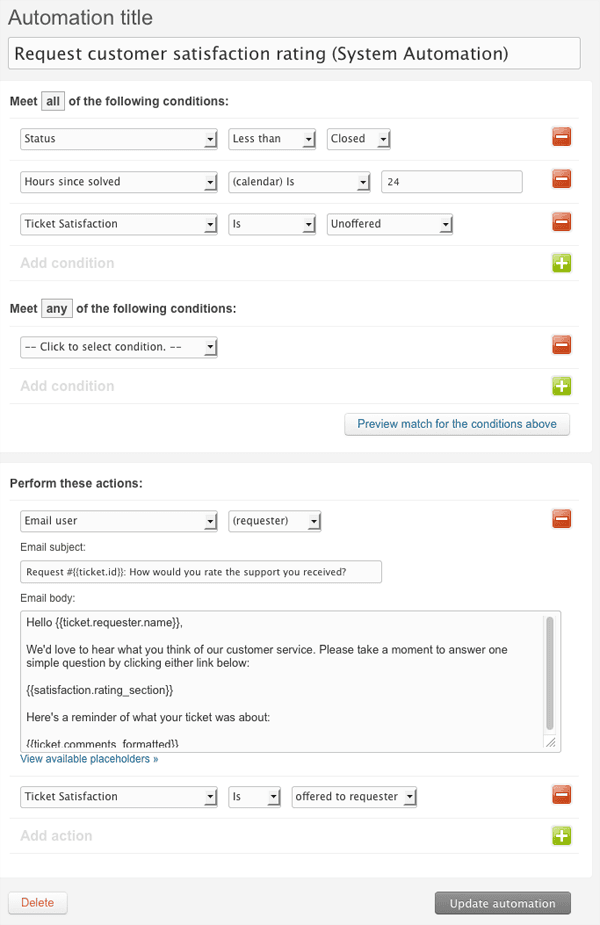
You'll see a list of all automations in your account. The standard ones are near the top.
Step 2: Locate the close ticket automation
Find the automation named "Close ticket 4 days after status is set to solved." Click on it to edit.
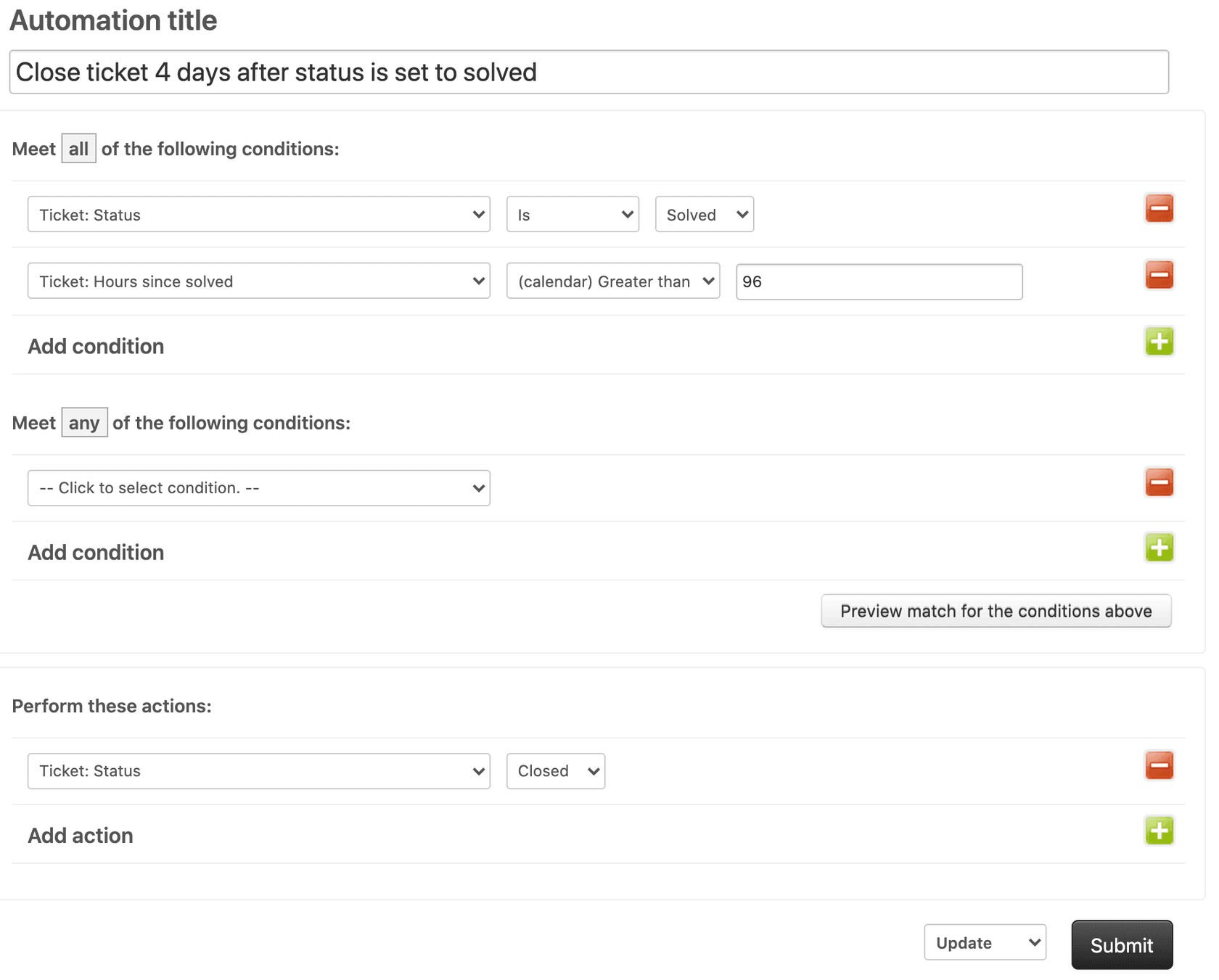
You'll see the current conditions and actions. By default, it looks something like this:
Conditions:
- Ticket: Status category | Is | Solved
- Ticket: Hours since solved | Greater than | 96
Actions:
- Ticket: Status category | Closed
Step 3: Modify the hours condition
Here's the critical change. Locate the "Hours since solved" condition and change the value from 96 to 24.
Important: Use "Greater than" as the operator, not "Is."
Why does this matter? Zendesk automations run on an hourly cycle. If you use "Is 24," the automation only catches tickets at exactly 24 hours. But the hourly check might run at 23.5 hours, then again at 24.5 hours. Your ticket'll miss the window.
"Greater than 24" ensures any ticket at 24+ hours gets caught in the next check cycle.
Source: Zendesk Hours Since Condition
Step 4: Save and verify
Click Save to apply your changes.
Now test it:
- Create a test ticket
- Solve the ticket (mark it as Solved)
- Wait 24+ hours (or check the automation activity log)
- Verify the ticket status changed to Closed
You can check if the automation fired by viewing the ticket's events. Look for the automation name in the ticket history.
Important best practices
Use "Greater than" not "Is"
We mentioned this in the steps, but it's worth repeating. The "Is" operator works for exact matches, but Zendesk's hourly automation cycle means exact timing is unreliable. "Greater than" captures all tickets that have exceeded your threshold, regardless of when the hourly check runs.
Add nullifying conditions for custom automations
If you build additional automations (beyond the standard one), add conditions that prevent them from running multiple times on the same ticket.
For example, if you create an automation that sends a reminder email before closing:
Conditions:
- Ticket: Status category | Is | Solved
- Ticket: Hours since solved | Greater than | 20
- Ticket: Tags | Contains none of the following | closure_reminder_sent
Actions:
- Ticket: Add tags | closure_reminder_sent
- Notifications: Email user | (requester) | Reminder message
The tag ensures the automation'll only run once per ticket.
Source: Zendesk Creating Automations
Consider your CSAT workflow
Closing tickets faster affects customer satisfaction surveys. Zendesk's standard CSAT automation sends surveys after tickets close. If you close at 24 hours instead of 4 days, customers get survey requests sooner.
Ask yourself:
- Have customers had enough time to verify your solution works?
- Will faster survey requests annoy customers?
- Should you adjust the CSAT automation timing?
Communicate with your team
Faster closure changes how agents work. Make sure they know:
- Tickets'll close after 24 hours now, not 4 days
- If customers reply to closed tickets, follow-up tickets'll get created
- Agents'll want to verify solutions are complete before solving
- Any internal processes that reference "solved" vs "closed" timing
Update your internal documentation and brief the team before making the change.
Common issues and troubleshooting
Automation not firing
If tickets aren't closing after 24 hours:
- Check the condition operator: Make sure it's "Greater than," not "Is"
- Verify the automation is active: Inactive automations don't run
- Review trigger order: Other automations might be interfering
- Check ticket events: View the ticket history to see what actions occurred
Tickets closing too fast
If 24 hours feels too aggressive:
- Adjust to 48 or 72 hours
- Add exceptions for specific ticket types (using tags or groups)
- Create different auto-close rules for different customer segments
Customer confusion
When customers reply to closed tickets, they'll get a new follow-up ticket with a new number. This confuses some customers who expect the original ticket to reopen.
Consider updating your auto-reply messages to explain:
- When tickets close
- How to reopen or create follow-ups
- What to expect if they reply to a closed ticket
Integration conflicts
Some third-party integrations write data back to tickets after they're solved. If the ticket closes before the writeback completes, you might lose data or cause errors.
Check your integrations and adjust timing if needed. Some teams use 48-72 hours specifically to accommodate integration delays.
Reporting discrepancies
Your "solved" and "closed" metrics will shift. Tickets move to closed faster, which affects:
- Resolution time reports
- CSAT timing
- Ticket volume metrics
- Agent performance dashboards
Update your reports and dashboards to reflect the new workflow.
Going further: AI-powered ticket lifecycle management
Time-based automations work well for straightforward workflows. But they're rigid. They don't account for ticket content, customer history, or conversation context.
AI-powered tools offer a more flexible approach.

At eesel AI, we approach ticket lifecycle management differently. Instead of relying solely on time-based rules, our AI Agent learns from your existing tickets, macros, and help center content. It understands when a ticket's truly resolved versus when it needs more attention.
Here's how it works with Zendesk:
Context-aware decisions: Rather than closing every ticket after 24 hours, the AI reads the conversation and determines if the issue's actually resolved. A simple password reset? Close quickly. A complex technical issue? Give it more time.
Intelligent follow-up handling: When customers reply, the AI understands whether they're reopening the original issue or asking something new. It routes appropriately instead of blindly creating follow-up tickets.
Progressive rollout: You don't have to go fully autonomous immediately. Start with the AI drafting replies for your team to review. As it proves itself, you'll level up to handling post-resolution workflows automatically.
Pre-go-live testing: Run simulations on thousands of your past tickets before deploying. See exactly how the AI would have handled your historical conversations.
Our AI agent for Zendesk connects directly to your instance. The AI reads your tickets, learns your processes, and handles follow-ups without disrupting your existing workflow.
For teams spending hours configuring automations, testing conditions, and troubleshooting why notifications aren't sending, an AI teammate'll handle those post-resolution tasks with more nuance than rigid rules allow. You can see how it works with your actual ticket data and decide if it fits your workflow.


