You check your Zendesk dashboard at the end of the day and spot it: three tickets that breached their SLAs hours ago. Nobody was notified. The customers are frustrated, and your team's metrics took a hit. If you've been there, you're not alone.
Setting up reliable SLA breach alerts in Zendesk is harder than it should be. The platform has automation conditions for SLA breaches, but they come with significant limitations that catch many teams off guard. This guide walks you through what's possible with native Zendesk features, how to work around the gaps, and when it makes sense to look at alternatives like eesel AI for Zendesk.

What you'll need
Before diving into automation setup, make sure you have the right foundation in place.
Zendesk plan requirements:
- SLA policies require Zendesk Suite Professional ($115 per agent per month billed annually) or higher
- Group SLAs (for team-specific agreements) are only available on Suite Enterprise ($169 per agent per month)
- Automations and triggers are available on all plans, but without SLA policies on lower tiers, you can't use SLA-based conditions
Access and knowledge:
- Admin access to create business rules
- A basic understanding of the difference between triggers (immediate) and automations (time-based)
- Your escalation matrix: who should be notified and when
Understanding Zendesk's SLA automation limitations
Here's the core problem: Zendesk cannot natively trigger an action at the exact moment an SLA is about to breach. There's no "alert 30 minutes before breach" condition. Instead, you're working with time-based approximations.
The available conditions are:
Hours since last SLA breach tells you how much time has passed after a breach already occurred. This is reactive. By the time this fires, the commitment to your customer has already been broken.
Hours until next SLA breach is the closest thing to proactive alerting. It tells you approximately how much time remains before the next target is missed. But there's a catch: automations in Zendesk run once per hour. So your "2 hours until breach" alert might fire anywhere from 2 hours to 1 hour and 1 minute before the actual breach.
Group SLA variants (Hours since last Group SLA breach, Hours until next Group SLA breach) work the same way but are limited to Enterprise plans.
The distinction between triggers and automations matters here. Triggers fire immediately when a ticket is created or updated. Automations run on a schedule (hourly) and check conditions against the current state. Because SLA targets are constantly counting down, they can't be trigger conditions. They can only be automation conditions.
This hourly granularity is the fundamental limitation. If you need minute-level precision for critical SLAs, native Zendesk automations won't get you there.
Method 1: Alert before SLA breach using "Hours until next SLA breach"
This is your best native option for proactive alerting. The automation checks if a ticket is approaching its SLA breach and notifies the assigned group.

Step 1: Navigate to the automations section
Go to Admin Center → Objects and rules → Business rules → Automations.
Step 2: Create the automation with conditions
Click "Add automation" and configure these conditions under "Meet all of the following conditions":
- Ticket: Hours until next SLA breach | Less than |
2 - Ticket: Status category | Less than | Solved
- Ticket: Tags | Contains none of the following |
sla_alert
The tag condition is critical. Without it, this automation would fire every hour until the ticket is solved, spamming your team with duplicate notifications.
Step 3: Configure the notification actions
Under "Perform these actions":
- Notifications: Group email → Select the assigned group
- Ticket: Add tags → Enter
sla_alert
Step 4: Write the notification content
Subject:
SLA about to breach: {{ticket.id}}
Body:
This is a notification to inform you that a ticket assigned to your group is approaching its SLA breach time.

Ticket: {{ticket.link}}
Time remaining until SLA breach: Less than 2 hours
Prioritize this ticket to ensure it is resolved or addressed promptly.
Step 5: Save and test
Create a test ticket that matches your SLA policy conditions and verify the automation fires as expected. Remember: automations run hourly, so you may need to wait up to an hour to see results.
Key limitation: This alerts when the ticket is approximately 2 hours from breach. It could be 2 hours, or it could be 1 hour and 5 minutes. Plan your buffer time accordingly.
Method 2: Alert after SLA breach using "Hours since last SLA breach"
Sometimes you need to know when a breach has occurred so managers can investigate or customer success can reach out proactively.

Step 1: Create a new automation
Navigate to Admin Center → Objects and rules → Business rules → Automations and click "Add automation."
Step 2: Set the breach detection conditions
Under "Meet all of the following conditions":
- Ticket: Hours since last SLA breach | Less than |
1 - Ticket: Status category | Less than | Solved
- Ticket: Tags | Contains none of the following |
sla_alert2
Again, the tag prevents duplicate notifications.
Step 3: Configure notification actions
Under "Perform these actions":
- Notifications: User email → Select the manager or team lead responsible for SLA monitoring
- Ticket: Add tags → Enter
sla_alert2
Step 4: Test with a breached ticket
Create a test scenario where a ticket breaches its SLA, then verify the automation fires within the hour.
Use case: This works well for compliance tracking. A manager receives a notification when any ticket breaches, allowing them to review the cause and follow up with the customer if needed.
Method 3: Group-based escalation workflow
For more sophisticated escalation, you can use Zendesk groups combined with automations and triggers. This creates a visual escalation path that makes ownership clear.
Step 1: Create an escalation group
Go to Admin Center → People → Groups and click "Add group." Name it something clear like "SLA Escalations" or "Tier 2 - Breach Risk." Add the agents or managers who should handle escalated tickets.
Step 2: Set up the automation to move tickets
Create an automation with these conditions:
- Ticket: Hours until next SLA breach | Less than |
1 - Ticket: Status category | Less than | Solved
- Ticket: Group | Is not | SLA Escalations (your escalation group name)
- Ticket: Tags | Contains none of the following |
escalated
Actions:
- Ticket: Group → Set to your escalation group
- Ticket: Add tags → Add
escalated
Step 3: Create a trigger for immediate notification
Now create a trigger (not an automation) that fires when tickets enter the escalation group:
Conditions:
- Ticket: Group | Changed to | SLA Escalations
Actions:
- Notifications: Group email → Send to the escalation group
- Ticket: Priority | Set to | High (optional)
The trigger fires immediately when the automation changes the group, giving you real-time notification even though the time-based condition is still hourly.
Step 4: Set up views for monitoring
Create a view called "SLA Escalations" with conditions:
- Ticket: Group | Is | SLA Escalations
- Ticket: Status | Less than | Solved
Benefits: This approach gives you visual tracking of escalated tickets, clear ownership when tickets move to the escalation group, and immediate notifications via trigger.
Limitations: You need to manually manage group membership, and agents need to remember to move tickets back to their original group after resolution.
Common mistakes and how to avoid them
Even experienced Zendesk admins run into these issues:
Forgetting nullifying conditions is the most common mistake. Without a tag check ("Contains none of the following: sla_alert"), your automation fires every hour until the ticket is solved. Your team gets 8 identical notifications for one ticket.
Using decimal hours causes unexpected behavior. Zendesk rounds down to whole numbers. If you set "Hours since created is 1.5", Zendesk treats it as 1.
Not accounting for business hours leads to confusion. The "Hours until next SLA breach" condition respects your business hours schedule if one is applied to the ticket. A ticket with 2 calendar hours remaining might have 4 business hours remaining.
Confusing "is" with "less than" for time conditions matters more than you'd think. "Hours since solved is 24" only matches at exactly 24 hours. "Hours since solved less than 24" matches from 0 to 23 hours. For notifications that need to fire within a window, use "less than."
When native solutions aren't enough: AI alternatives
Native Zendesk automations work for basic scenarios, but they have hard limits. If you need:
- Real-time alerts (not hourly)
- Precise timing (15 minutes before breach, not "less than 1 hour")
- Complex escalation logic (if VIP customer AND high priority AND 30 minutes to breach)
- Automatic re-routing based on workload
Then native tools fall short. Several third-party options exist:
n8n offers workflow automation with Zendesk integration. You can build precise SLA monitoring with percentage-based triggers (alert at 75% of SLA elapsed, 90%, etc.).
SweetHawk Timers is a Zendesk app that adds countdown timers and more granular automation triggers.
eesel AI takes a different approach. Instead of configuring complex automation rules, you describe what you want in plain English. For example: "Escalate tickets from Enterprise customers if they haven't been replied to in 2 hours" or "Notify the billing team when any invoice-related ticket is 30 minutes from breaching."
The AI learns your patterns from past tickets, understands your business context, and handles the escalation logic without you building automations. It also monitors continuously rather than hourly, so alerts are genuinely real-time.
Setting up smarter SLA workflows with eesel AI
If you're spending more time wrestling with Zendesk automation conditions than actually improving your support process, an AI-powered approach might make sense.
With eesel AI's Zendesk integration, escalation rules look like this:
"If a ticket from a VIP customer has been open for more than 1 hour without a reply, escalate to the senior support team and notify the account manager."
No automation builder. No tag-based nullification. No hourly batch processing. The AI understands the intent and monitors continuously.
You can also test escalation logic against your historical tickets before going live. Run simulations to see how often the rule would have fired last month, what tickets it would have caught, and whether it would have helped or created noise.
For teams managing complex SLA requirements across multiple customer tiers, products, or regions, this approach cuts configuration time significantly. Instead of building dozens of automations with intricate tag logic, you describe your business rules and let the AI handle execution.
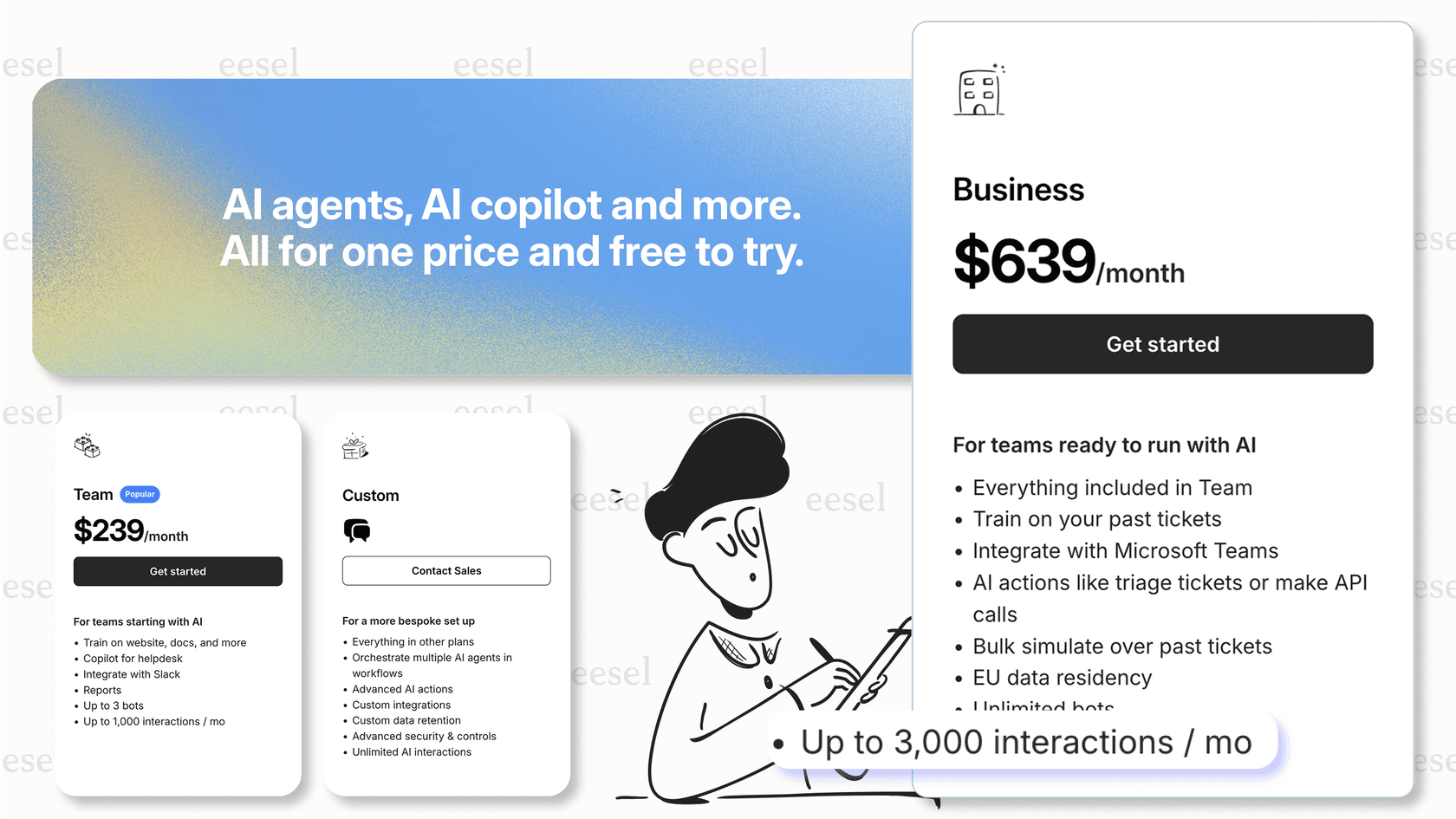
eesel AI pricing starts from $299/month for 500 credits (1 credit per ticket or chat), with a free plan of 100 credits, no platform fee and no per-seat fee. The AI Agent for helpdesk, bulk simulation over past tickets, unlimited bots, and Zendesk integration are all included.