
If you're managing a busy support queue, you've probably encountered tickets that just won't die. A simple question turns into a 15-message thread, eating up agent time and testing customer patience. Wouldn't it be great if Zendesk could automatically flag these conversations so you could escalate them or assign senior agents?
The challenge is that Zendesk doesn't have a built-in "reply count" condition. You can't create a rule that says "if this ticket has more than 5 replies, add the 'escalate' tag." But that doesn't mean you're out of options. In this guide, I'll show you practical workarounds to achieve reply-based tagging in Zendesk, plus a smarter alternative if you're tired of fighting automation limitations.

Understanding the challenge with reply-based tagging in Zendesk
Let's start with the basics. Zendesk offers two types of business rules: triggers and automations. They sound similar, but they work differently.
Triggers are event-based. They fire immediately when something happens, like when a ticket is created or updated. If you want to tag tickets based on channel, priority, or keywords in the subject line, triggers are your tool.
Automations are time-based. They run approximately once per hour and check conditions based on elapsed time. Things like "hours since created" or "hours since last update."
Here's the problem: neither triggers nor automations can directly count the number of replies on a ticket. There's no condition for "reply count is greater than X." This is a common frustration for support teams who want to:
- Escalate tickets that have gone back and forth too many times
- Identify complex issues that might need a phone call instead of email
- Flag potential customer satisfaction risks before they explode
- Measure ticket complexity for reporting and resource planning
The good news? There are workarounds that'll get you most of the way there. They're not perfect, but they'll help you identify those problem conversations before they spiral out of control.
If you're looking for a more intelligent approach, eesel AI integrates with Zendesk to understand conversation context and intent, not just count replies.
What you'll need before setting up reply-based automation
Before diving in, make sure you have:
- A Zendesk Support account on Team plan or higher (automations aren't available on the Essential plan)
- Administrator permissions to create and manage business rules
- A clear idea of what you want to achieve (escalation, complexity tracking, SLA management)
- About 20-30 minutes to set up and test your automation
That's it. No third-party apps required for the basic workaround, though we'll discuss some options later if you need more sophistication.
Method 1: Using "hours since requester update" as a proxy
The most practical workaround uses the "hours since requester update" condition. Here's the logic: if a customer has updated their ticket recently, that's effectively a reply. By measuring time since their last update, you can approximate reply activity.
This method works best when combined with the Pending status. When an agent puts a ticket in Pending, they're waiting for the customer to respond. If the customer replies (updating the ticket), the automation can tag it based on how much time has passed.
Step 1: Navigate to the automations menu
Go to Admin Center > Objects and rules > Business rules > Automations.
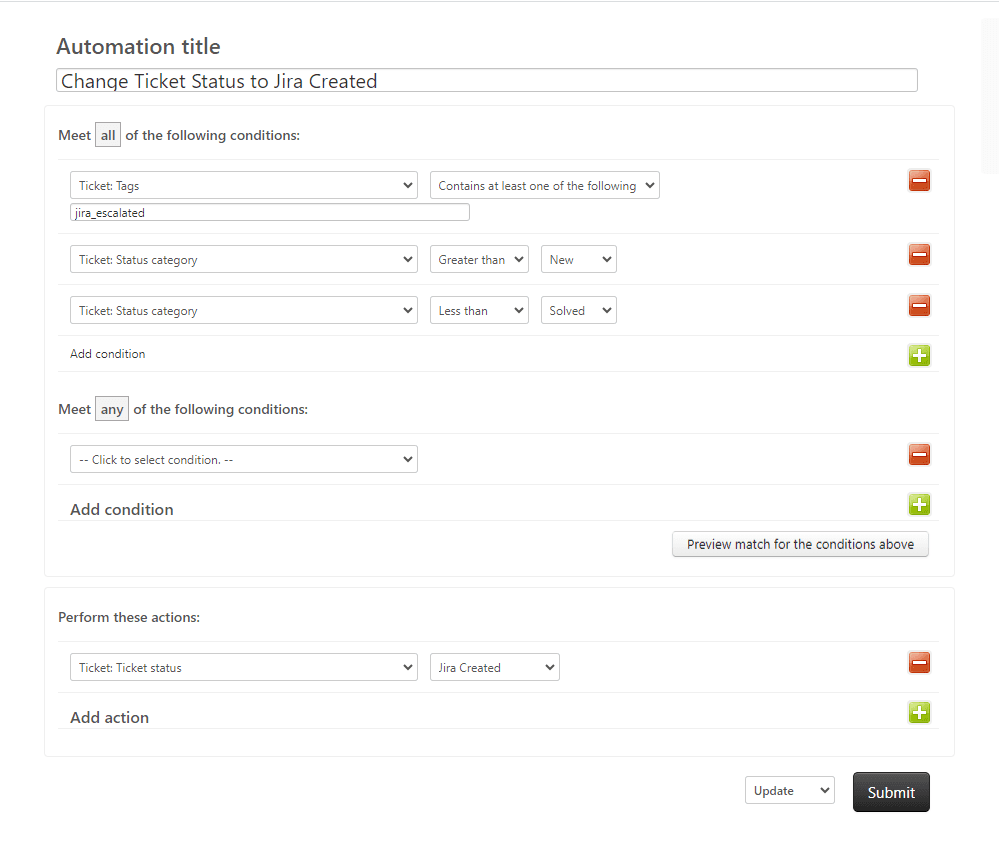
You'll see a list of existing automations. These run hourly, checking all your tickets against their conditions.
Step 2: Create a new automation
Click Add automation in the top right corner.
Give it a descriptive name like "Tag tickets with excessive back-and-forth" and add a description explaining what it does. Future you (and other admins) will appreciate it.
Step 3: Set your conditions
This is where the magic happens. Add these conditions under Meet ALL of the following conditions:
- Ticket: Status category > Is > Pending - This ensures you're only looking at tickets waiting for customer input
- Ticket: Hours since requester update > Greater than > 24 (or whatever timeframe makes sense for your workflow)
- Ticket: Tags > Contains none of the following > multiple_replies
The third condition is critical. It's called a "nullifying condition" and it prevents the automation from firing repeatedly on the same ticket. Without this, your automation would tag the ticket every hour. Zendesk's automation documentation explains this pattern in more detail.
Step 4: Add the tag action
Under Actions, click Add action and select Add tags.
Enter a tag like multiple_replies or escalation_candidate. This tag will now appear on any ticket where the customer has responded after being in Pending status for your specified timeframe.
Step 5: Save and test
Click Create to save your automation.
Now test it. Create a test ticket, put it in Pending status, then add a comment as the requester (you can do this by switching to the requester's view or using the "Submit as" option). Wait for the automation to run (remember, it checks hourly), then verify the tag appears.
Limitations to understand
This workaround has some constraints you should know about:
- It measures time, not actual reply count. A single reply after 24 hours gets the same tag as five rapid-fire replies.
- It only works for tickets in Pending status. If your workflow doesn't use Pending consistently, this won't help.
- The hourly automation cycle means there's a delay between the reply and the tag being applied.
Despite these limitations, this method catches a significant portion of the tickets you'd want to flag. For many teams, it's good enough. If you're looking for more advanced tagging capabilities, check out our guide on how to use AI to classify or tag support tickets.
Method 2: Tracking back-and-forth with custom fields
If you need actual reply counting, you can build a more complex system using custom fields and multiple triggers. It's more work to set up, but it's more accurate. Zendesk's custom fields documentation covers the basics of setting these up.
The concept
You create a numeric custom field called "Reply Count." Then you build triggers that increment this field each time the customer replies. Finally, you create an automation that adds tags when the counter hits your threshold.
Setting up the custom field
- Go to Admin Center > Objects and rules > Tickets > Fields
- Click Add field and select Numeric
- Name it "Reply Counter" or similar
- Set the default value to 0
Creating the increment trigger
Now create a trigger that adds 1 to this field each time the customer updates the ticket:
Conditions:
- Ticket: Is > Updated
- Comment: Is > Public (or Private, depending on your needs)
- Comment author: Is > Requester
Actions:
- Ticket: Reply Counter + 1 (this requires a bit of a workaround since Zendesk doesn't do math in triggers, but you can use a series of triggers or a third-party app)
The pure Zendesk approach for incrementing counters is clunky. You'd need multiple triggers (one for each number: if counter is 1, set to 2; if counter is 2, set to 3, etc.) or use a third-party app that can perform calculations.
The tagging automation
Once you have the counter working, create an automation:
Conditions:
- Ticket: Reply Counter > Greater than > 4
- Ticket: Tags > Contains none of the following > high_reply_count
Actions:
- Ticket: Add tags > high_reply_count
This approach is more accurate but needs significantly more setup and maintenance. It's best for teams with dedicated Zendesk administrators who can manage the complexity. For teams without dedicated admin resources, consider exploring AI-powered alternatives that handle complexity automatically.
Common use cases for reply-based tagging
Why go through all this trouble? Here are the most common scenarios where reply-based tagging makes a real difference:
Escalating tickets with excessive back-and-forth
When a ticket hits 5+ replies, it's often a sign that email isn't the right channel. Maybe the issue is too complex, or there's a misunderstanding that needs real-time conversation. Tagging these tickets lets you proactively reach out and offer a phone or video call before the customer gets frustrated.
Identifying complex issues
Some problems are inherently complicated. If you see certain ticket types consistently racking up high reply counts, that's valuable data. It might indicate a need for better documentation, a product improvement, or specialized training for your team. You might also benefit from ticket summarization tools to quickly understand long conversation threads.
Flagging SLA risks
Tickets with lots of back-and-forth often take longer to resolve. By tagging them early, you can prioritize them before they breach your SLA commitments.
Measuring for reporting
Reply count is a proxy for ticket complexity. By tagging and tracking these tickets, you can report on what percentage of your queue is "complex" versus "simple," helping with staffing and training decisions. For more on automating your support workflows, read our guide on AI and automation in customer support.
Best practices for Zendesk automation tagging
Whether you use the simple workaround or the complex custom field approach, these practices'll save you headaches:
Always use "Add tags" not "Set tags"
The Set tags action removes ALL existing tags and replaces them with whatever you specify. If a ticket has important tags like vip_customer or billing_issue, using Set tags will wipe them out. Always use Add tags unless you genuinely want to clear all tags.
Use consistent naming conventions
Establish a pattern for your reply-related tags:
reply_count_3for tickets with 3+ repliesescalation_candidatefor tickets needing attentioncomplex_issuefor inherently difficult problems
Consistent naming makes reporting and searching much easier.
Include nullifying conditions
Every automation that adds tags should also have a condition checking that the tag isn't already present. Then add that tag as an action. This prevents the automation from firing repeatedly.
Test before going live
Create test tickets and walk through your automation logic. Check the ticket events to see exactly when and why the automation fired. It's much easier to debug with test data than with real customer tickets.
Document your setup
Write down what each automation does and why. When you're on vacation or have moved to a new role, the next admin will need to understand your logic. A simple shared document beats digging through automation settings every time.
For more tagging best practices, check out our guide on Zendesk trigger actions for add tag, remove tag, and set tag.
A smarter alternative: AI-powered tagging with eesel AI
Workarounds are fine, but they're still workarounds. They don't actually understand your conversations. They just count time or approximate replies based on status changes.
What if your tagging system understood the actual content and intent of each conversation?

eesel AI takes a different approach. Instead of building complex rules around reply counts and time conditions, our AI Triage product analyzes the actual content of your tickets.
Here's how it's different:
No complex rules to maintain. You don't need to predict every scenario and write conditions for each one. The AI learns from your existing tickets and understands context. Learn more about AI Triage capabilities.
Content-aware tagging. Rather than just counting replies, eesel AI can identify when a conversation is getting frustrated, when technical complexity is increasing, or when a ticket needs escalation based on what people are actually saying.
Automatic adaptation. As your business changes, the AI learns from corrections. No need to constantly update automation rules when you add new products or change processes.
Works immediately. Connect eesel AI to your Zendesk account and it starts learning from your historical tickets right away. You can run simulations on past tickets to see how it would have tagged them before going live.
For teams spending more time maintaining trigger rules than benefiting from the tags they create, AI-powered tagging's worth exploring. See our pricing to learn more.
Start automating your Zendesk tagging today
You've got options for reply-based tagging in Zendesk. The "hours since requester update" workaround is quick to set up and catches most of what you need. The custom field approach is more accurate but needs more maintenance. Both work within Zendesk's native capabilities.
But if you're tired of workarounds and want tagging that actually understands your conversations, try eesel AI. We handle the complexity of intelligent tagging so you can focus on delivering great support, not maintaining automation rules.
The bottom line? Don't let Zendesk's limitations stop you from identifying and escalating complex tickets. Whether you build a workaround or upgrade to AI-powered tagging, your customers (and your agents) will thank you for catching those problem conversations early.


