


A Front conversation custom field is a typed value, such as Category, External app ID or Last assignee, that sits on a thread and can drive rules, filters and exports. Any company admin can create up to 50 of them, in seven data types, on every plan, but the useful parts are gated: rule conditions need Professional, and automatic updates need Enterprise or the Autopilot add-on. Pick dropdowns for anything you will report on, because analytics filters only accept text, dropdown and yes or no fields.
eesel can update conversation fields in Front, so the real question is who fills the field in. With the eesel CLI, a coding agent can upload your approved category list as knowledge and ask test questions about it before anything goes live. Approving the Front connection itself still needs someone with admin rights.
What is a conversation custom field in Front?
It is extra, structured information attached to one thread. Front's help center says you can add fields to a conversation to "designate information like Category, Last Assignee, or External app ID". Once set, they can be used in rules to automate workflows.
I write about helpdesk tools with a search-intent lens, and "custom fields" is a query where people really want a setup answer and a limits answer. Front's docs give both, but they are spread over about six pages, so I pulled them together here.
Two things to separate early. A field is not a tag: a tag says what a conversation is about, a field stores a value with a type. And a conversation field is not a contact field, which is the point of the next picture.
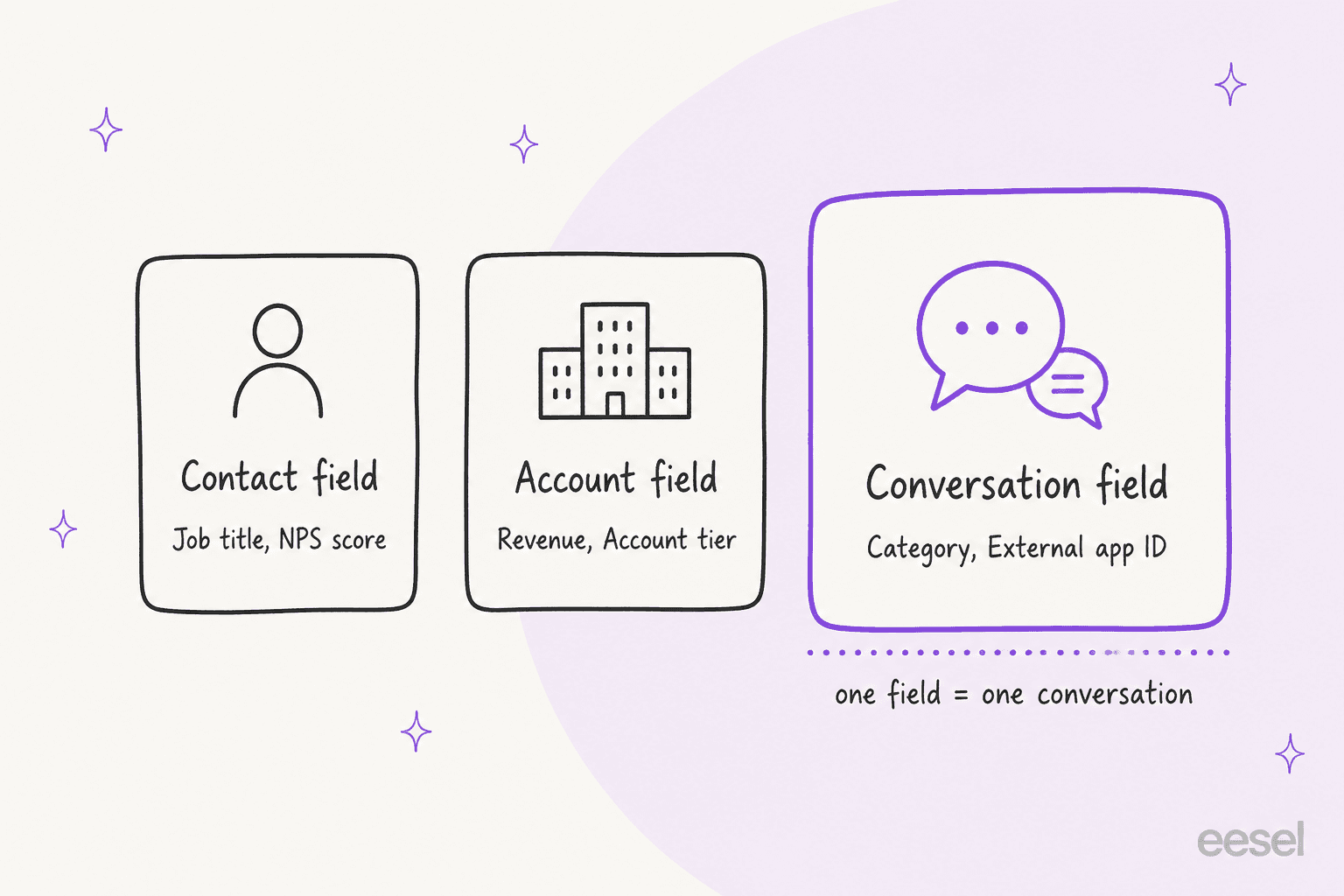
Front lets you create custom fields for contacts, accounts, teammates, inboxes, conversations and application objects. Contact fields hold things like job title or NPS score, account fields hold things like revenue or account tier, and conversation fields describe the thread. This guide is about the conversation tab only.
How do I create a conversation custom field?
Create it in company settings, as an admin. Front's steps:
- Open settings. Click the gear icon, go to company settings and choose Custom fields.
- Pick the tab. Select Conversations, then click Create conversation custom field.
- Fill the form. Enter a Name, a Description and a data Type.
- Click Create.
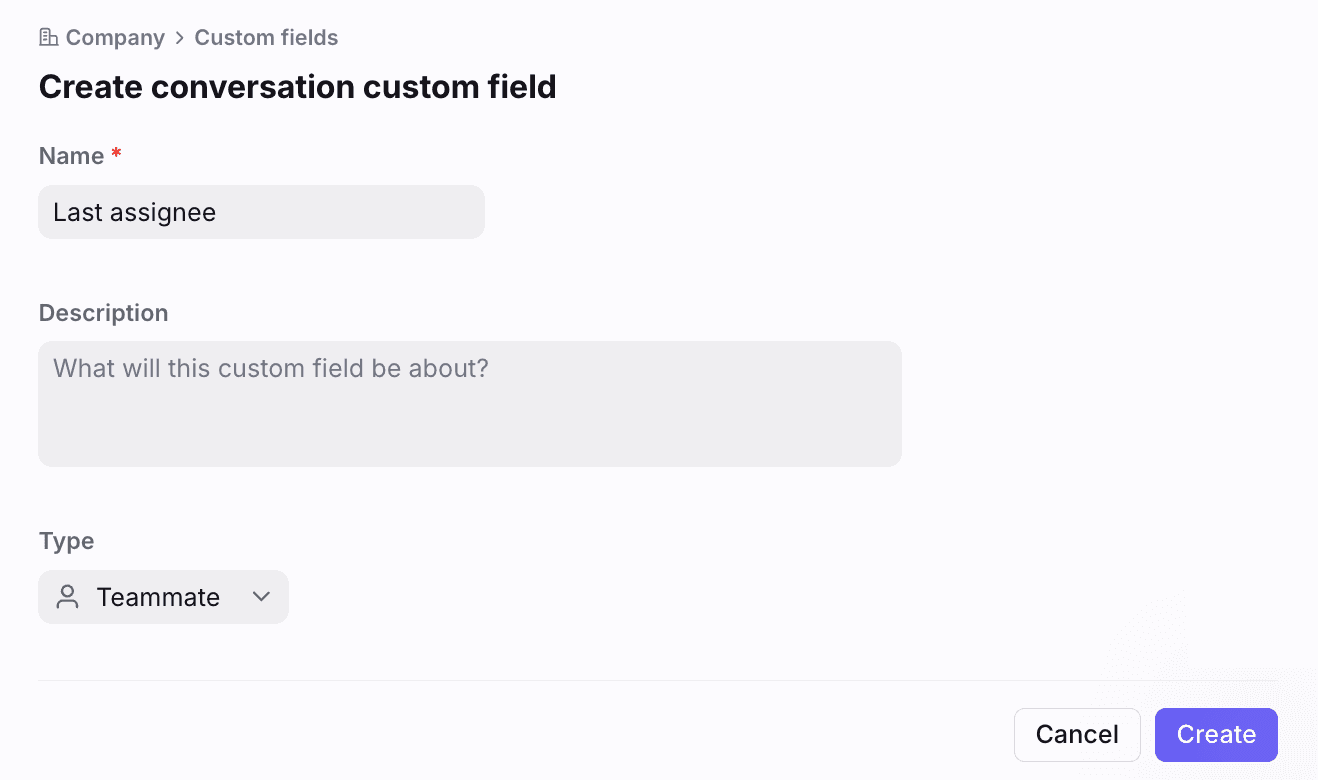
Only company admins can create new field types, so a team lead without admin rights has to ask. The form is the whole job, but the type you choose in step 3 cannot be changed through the API later: Front's developer docs say that if a field needs a different type, you create a new one in the interface.
Which data types does Front support?
Seven. Front's table lists them with examples, and I added the format its API expects, from the custom fields reference.
| Type in the UI | What it holds | Example from Front | API value |
|---|---|---|---|
| Date and time | A date and time | Renewal date | Epoch timestamp |
| Inbox | Name of a shared inbox | Finance, Support | Inbox ID, like inb_55c8c149 |
| Number | A numerical value | NPS score, ZIP code | Integer |
| Teammate | A teammate's login address | Account Manager | Teammate email |
| Text | Free text, 2,000 character limit | Job title, Website URL | String |
| Dropdown | A list of preset values | Account tier | Enum list |
| Yes or no | A boolean | Churn risk, Onboarded | true or false |
Pick the type for how you will use the value, not how it looks today. Not sure which fits? Choose below.
The pattern across the six answers: the types analytics can filter on (text, dropdown, yes or no) are the ones to prefer for anything a manager reads every week.
What are the limits?
The documented limits are short, which is itself useful.
- 50 per category. Up to
50custom fields each for contacts, accounts, teammates, inboxes, conversations and application objects. - Admins create. Front says you must be a company admin to create fields.
2,000characters in a text value.- Type is fixed. The API lists and updates fields but cannot change a type.
- No plan limit on fields. The docs state no per-plan cap, only the per-category one.
I could not find a documented cap on how many fields can be set on one conversation, or a rule for archiving unused fields. Treat both as unknown and test before designing 40 fields.
Which Front plan do I need?
Fields are on every plan, and each automation layer on top is gated. Front's custom fields article puts it like this:
| Feature | Starter | Professional | Enterprise |
|---|---|---|---|
| Create and use conversation custom fields | Yes | Yes | Yes |
| Use a conversation custom field as a rule condition | No | Yes | Yes |
| Require tag or custom field rule | No | Yes | Yes |
| Update custom field value action, Smart Rules, and the field-updated trigger | No | No | Yes, or the Autopilot add-on |
Rows one, two and four come from the custom fields article; row three comes from the rule's own page, which says the feature is on the Professional plan or above. Front's pricing page lists Starter at $25 per seat per month for up to 10 seats, Professional at $65 for up to 50 seats and Enterprise at $105, all billed annually. My Front pricing post tracks changes, and Front vs Hiver and Help Scout vs Front show how the tiers compare.
One naming wrinkle: the same Front article calls the rule condition both "contains" and "is". The rule library page lists it as Conversation custom field contains. I would use whichever your rule builder shows.
How do I add values to a conversation?
Three ways, from least to most automated.
By hand. Open the three-dot menu on a conversation, click View conversation details, expand Custom fields, click Add and choose the field. The value saves automatically, and hovering lets you copy, edit or delete it.
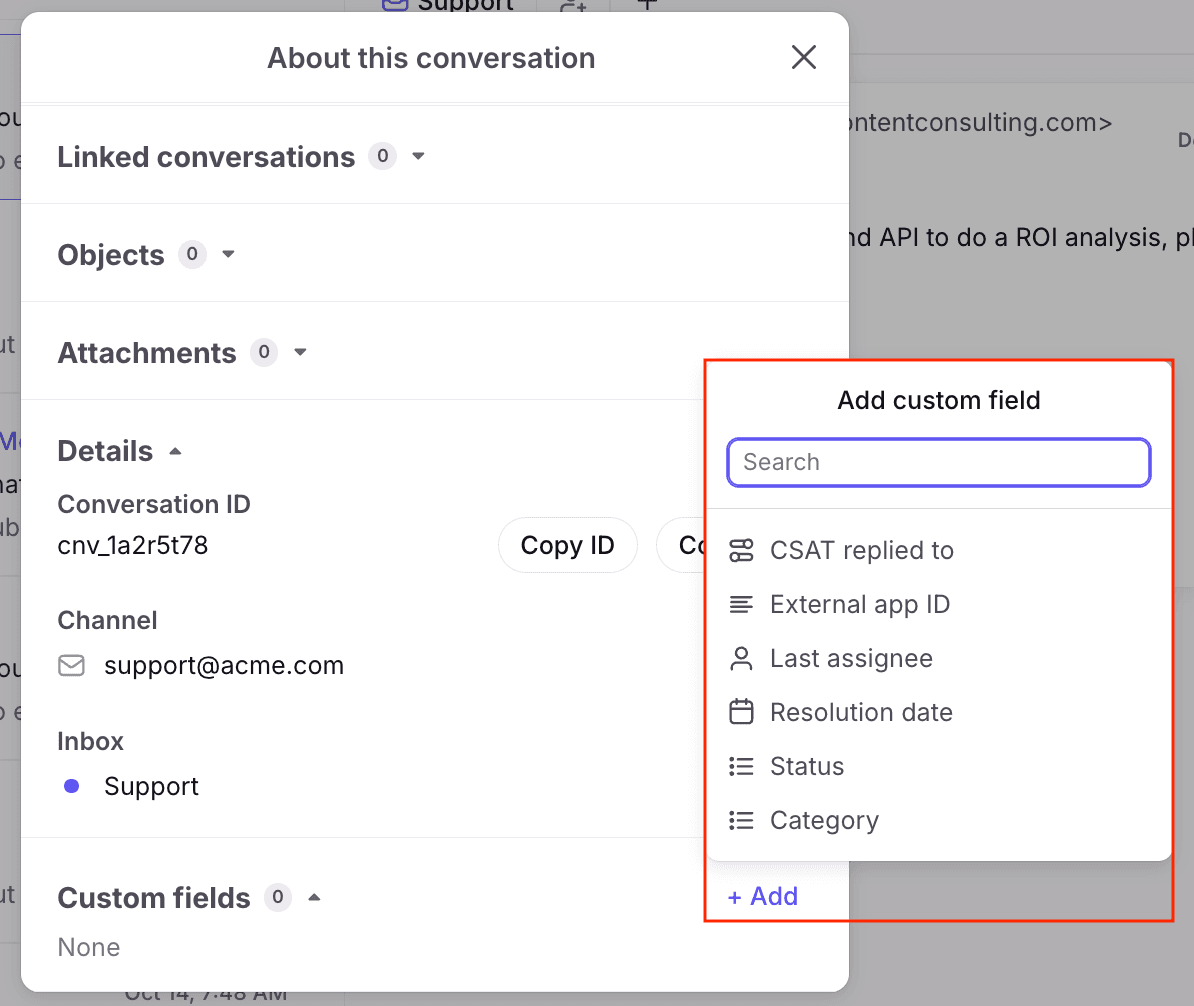
By rule. On Enterprise or with the Autopilot add-on, the Update custom field value action sets a field automatically. Front's example copies the assignee into a Last assignee field, then a second rule assigns new inbound messages to that person.
By API. A PATCH to the update conversation endpoint takes custom_fields as an object of field names and values. A warning from Front's own reference: if you send only the fields you want to change, the other custom fields will be erased. Read the existing fields first, then send the full set back. A script that sets one Category value can quietly wipe an Order ID that a teammate typed by hand.
The reference also lists a 400 for invalid input such as invalid custom fields. The list endpoint, GET /conversations/custom_fields, needs the custom_fields:read scope and excludes Front-managed system fields.
How do custom fields work in rules?
They work as a condition, a trigger and an action, on different plans.
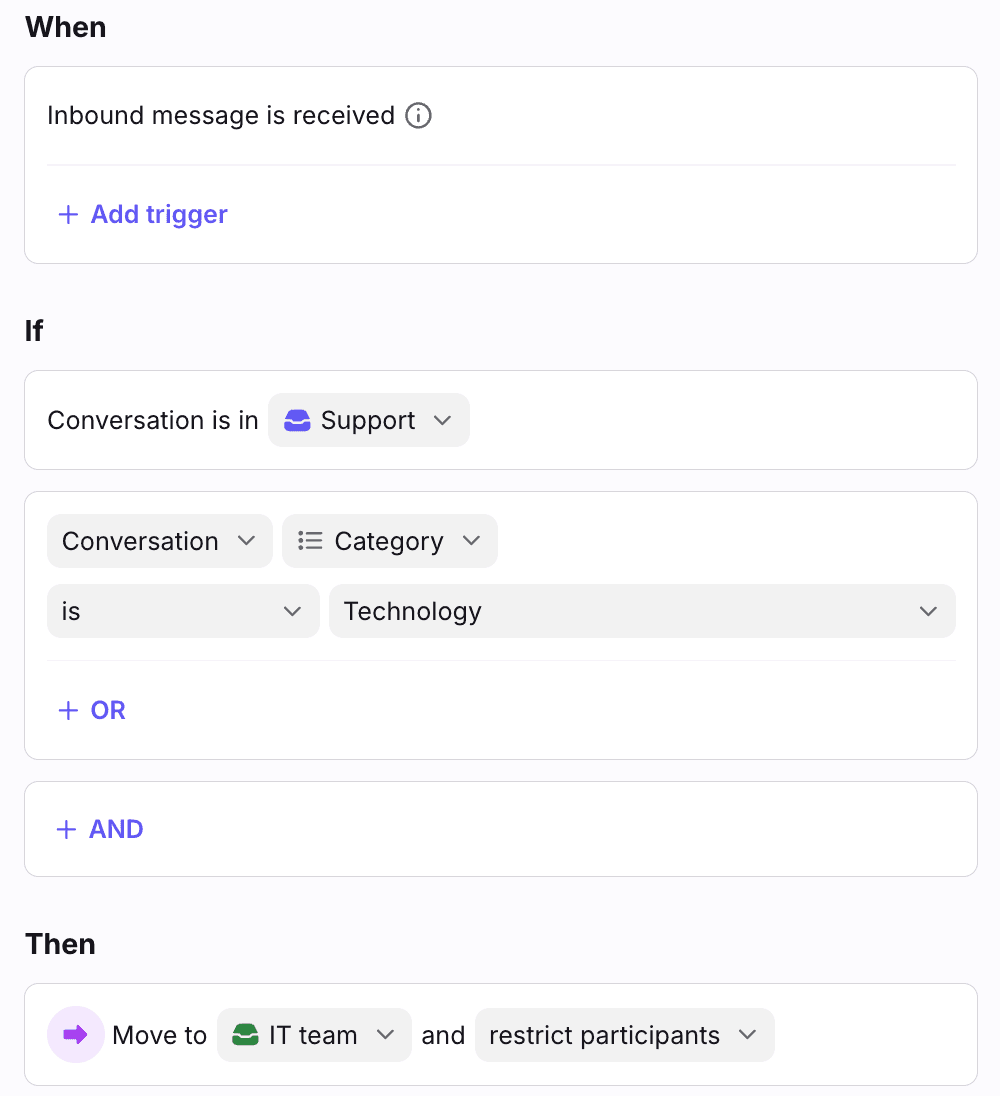
That is Front's own routing example: when an inbound message arrives in Support and Category is Technology, move the conversation to the IT team inbox. The three rule hooks, from Front's rules documentation:
- Condition: Conversation custom field matches a value (Professional or above).
- Trigger: Conversation custom field is updated, which can add a comment (Enterprise or Autopilot).
- Action: Update custom field value (Enterprise or Autopilot).
There is one behavior worth knowing before you build. Front says that when a rule checks a field with no value, empty counts as false for positive conditions (contains, is, starts with) and true for negative ones (doesn't contain, is not). So a rule saying "Category is not Billing" will also match conversations where Category was never set. If you route with negatives, add a check that the field is filled.
For more routing logic see my ticket routing entry, intelligent routing and Front load balancing assignment.
Can I search, filter and export by field?
Yes, with a few caveats. Three places a value shows up after you set it.
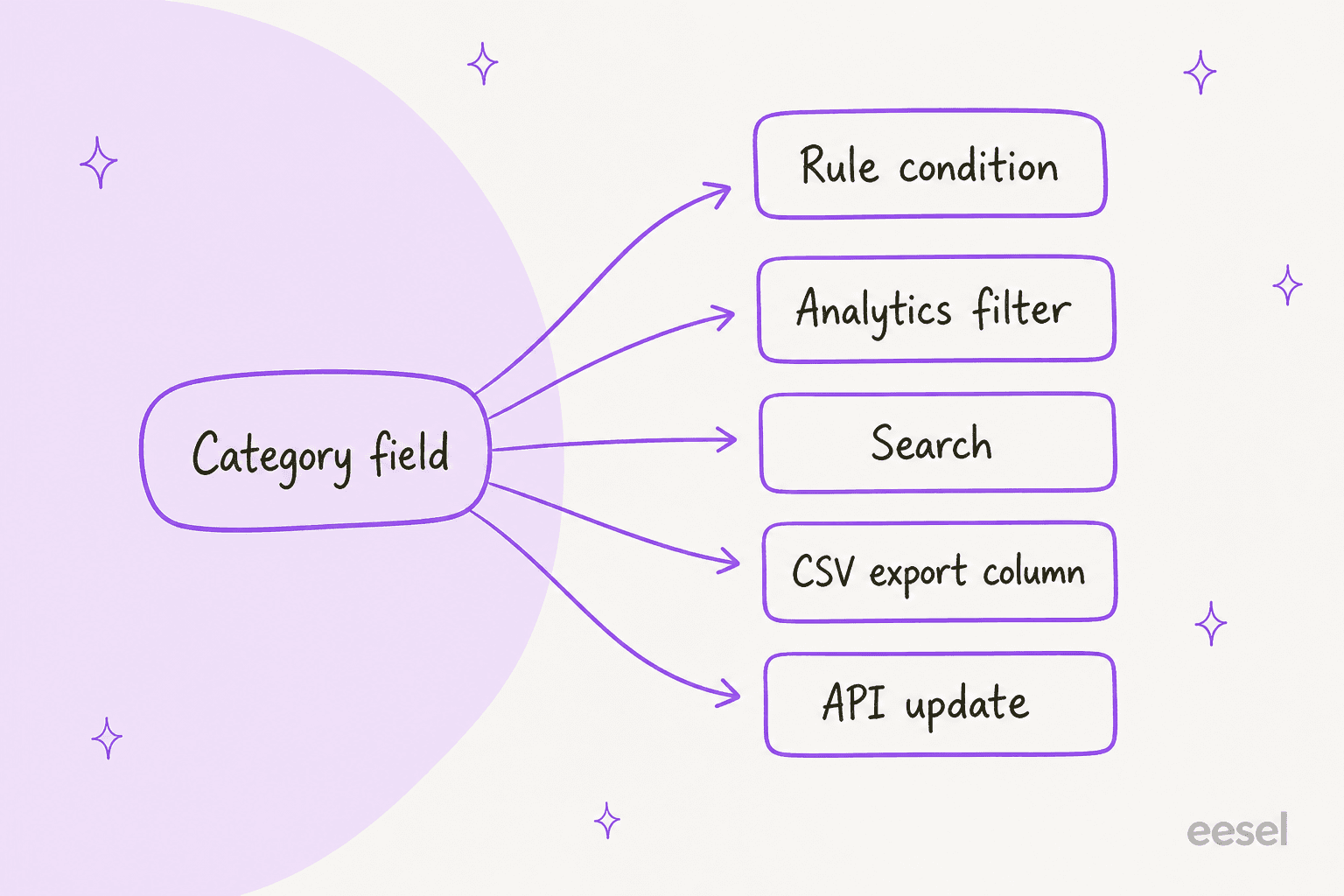
- Search. Front's search operators include
custom_field:field name=value. Wrap names with spaces in double quotes. Multiple semicolon-separated text values searchable individually only apply to data added or updated after 9 June 2026. - Analytics filter. Front's analytics navigation page says the custom field filter supports only Text, Dropdown and Yes or No fields. You can combine values from different fields with AND logic, and OR between fields is not supported.
- Export. Front's messages export has a column for each conversation custom field. Per Front, data is not available for conversation segments closed before early February 2026.
So a dropdown Category with seven values gives you a filter, a routing condition and a clean export column. A free-text Category gives you search only, and a number or date gives you search plus export.
When is a field better than a tag?
When you want a typed answer rather than a topic. Tags are cheap and can overlap, so they suit "what is this about". Fields suit values you route, sort or report on.
| What you want to capture | Better as | Why |
|---|---|---|
| Topic of the message (bug, pricing, feature request) | Tag | Overlap is fine, tags appear in reports |
| Root cause or severity | Dropdown field | One value per conversation, filterable |
| Order ID or Jira key | Text field | Searchable, up to 2,000 characters |
| Needs review | Yes or no field | Works as an analytics filter |
| Follow-up owner | Teammate field | Ties to a login, usable in Smart Rules |
If you want to force teammates to fill a field before closing, that is a separate rule, covered in Front required fields to resolve a conversation. For the status side of closing, see Front ticket status rules, and for fields used inside templates, see Front message template variables.
What about contact and account fields?
They live on different objects and answer different questions. Front's contact custom fields can be created manually, updated through the API or third-party contact integrations, loaded from a CSV, and used in rules. Once created, they can be used as custom variables in message templates and signatures. Front's account custom fields show in the Relationships plugin, appear as columns and filters on the account details page, and are available in rules, templates and signatures.
One gotcha from the account page: custom field names are case-sensitive, so Revenue and revenue are two fields, and the capitalization has to match when you import by CSV or API. I would assume the same care applies to conversation fields, since the API takes names as keys, though the conversation page does not say so.
A rule of thumb I use: put anything about the person on the contact, anything about their company on the account, and anything about this one thread on the conversation. A Category belongs on the conversation because the same customer can write about billing today and a bug tomorrow.
What do Front's docs not say?
Gaps I looked for and did not find. I would test each before a live queue depends on it.
- Fields per conversation. No stated cap on how many fields one thread can carry.
- Deleting a field. The docs do not describe what happens to existing values.
- Dropdown changes. No statement on what happens to a thread when you remove an option.
- Required toggle. There is no switch on the field itself. Required behavior comes from a separate rule.
- Reporting beyond three types. Number, date, teammate and inbox fields are not in the analytics filter list.
- Autopilot-written fields. No list of which types Front's own AI can write.
The docs are clear where they speak, and short. Most of the open questions are edge behavior, not setup.
How do AI agents fit with custom fields?
They are good at filling a dropdown from a fixed list, and weaker when the list is vague. A Category field with seven well-named values is a classification task, which is where an agent does its best work. I would let it suggest or set the value and have a person spot-check a sample, see human in the loop for how I think about that.
smava shows the pattern on Zendesk rather than Front. Its categorisation agent runs on every new ticket and comment, tags the language, and picks one category from a fixed mapping document written by the team, then writes it into two Zendesk fields. Between 8 August and 8 September 2026, eesel handled about 27,000 tickets for smava and categorised about 14,600 of them. Front has no customer story I can cite, so read that as the same job on a different helpdesk, not proof for Front.
On Front, eesel's docs list adding tags, updating conversation fields and closing a conversation. They do not list which field types it writes, so test a dropdown, a text field and a number on a throwaway conversation first. My AI ticket classification, AI ticket triage and best AI for ticket triage pages cover the tools, and Front AI analyze topics covers Front's own route to similar categories.
How do I keep the data clean?
Design the fields before you build them, then check them a month later. Four habits.
- Name values for the reader. "Refund request" beats "RF-2".
- Prefer dropdowns. They give clean groups, work in rules and are one of the three analytics filter types.
- Keep the list short. I would start with three to five fields. Past that, teammates skip them.
- Audit the spread. If one dropdown option holds over half the conversations, it has become a default.
If you are weighing what to track, compare how other desks handle it: Freshdesk ticket fields, Zendesk custom ticket fields and Help Scout customer properties. Tie the fields to numbers that matter, such as resolution time and first contact resolution, and read customer service KPIs for what else to report. For shared inbox hygiene, Front shared inbox ownership is a good companion. Good ticket tagging habits carry over to fields, and the Front AI Autopilot and Front AI email triage posts cover Front's built-in automation.
Try eesel in your Front inbox
If your Category field stays empty because nobody wants to pick one, eesel is built for that gap in Front. It reads your help center and past conversations, drafts a reply as an internal comment and can set conversation fields from the list you already use, so a teammate confirms instead of starting from a blank form. Start with drafts only, keep your rules as the gate and widen once the values match what a person would have chosen.
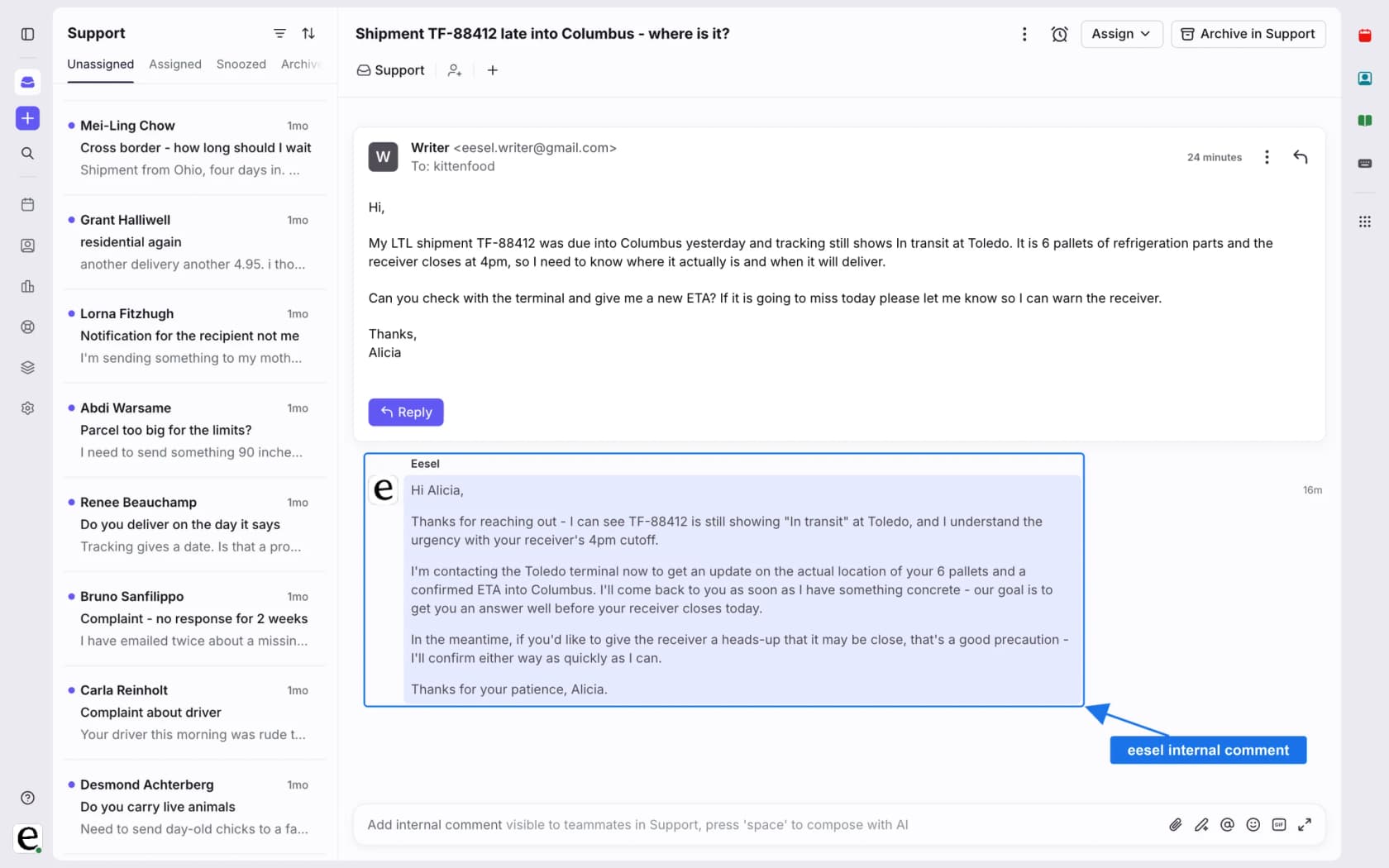
For setup, see my guide to adding AI to Front, the Front AI overview, the best AI for Front roundup and the Front vs eesel comparison. Try eesel on a few real conversations before deciding.