Zendesk AI agent one-time passcode: setup, limits, plans

Rama Adi

Katelin Teen
Last edited November 12, 2026
Zendesk's one-time passcode (OTP) lets a messaging AI agent check a customer's identity by emailing a 6-digit code before it shares restricted answers or takes a sensitive action. You add an Email verification block to a dialogue, with no developer work, and it works on channels like WhatsApp that JWT sign-in can't cover. The catch: it only proves control of an inbox, needs a scripted dialogue, and isn't available on essential AI agents. eesel's Zendesk integration documents no passcode step, so the identity check stays with Zendesk, while the eesel CLI lets an AI coding agent set up the helpdesk teammate's ticket automations and test its answers before anything goes live.
What is the Zendesk AI agent one-time passcode?
It is a verification step inside a messaging AI agent conversation. Zendesk announced it on November 2, 2026 as a simpler alternative to JWT authentication for messaging, which needs back-end development to sign users in. Zendesk's setup guide calls it "ad-hoc authentication" for end users before they reach certain data or sensitive actions.
The problem it solves is old. Before this, an AI agent that asked for an email address had no way to know the typed address belonged to the person typing it. Zendesk's own messaging authentication article says that with the Web Widget or mobile apps, users can give an email in response to an AI agent prompt, and "there's nothing preventing a malicious user from providing someone else's email address." A passcode closes that gap for the email address only.
One detail people often assume wrongly: the docs describe an email passcode only. I found no SMS option in Zendesk's announcement or setup guide.
Zendesk has also been moving customers onto its agentic AI stack, which matters for who can use this. My new AI agent guide covers the wider change. AI agents - Essential is legacy as of May 11, 2026, stops getting fixes on August 31, 2026, and goes away on December 10, 2026. If you are still deciding between the two tiers, my advanced vs essential comparison covers the older picture, and the advanced AI agents guide covers where Zendesk is heading.
How does the one-time passcode flow work?
The conversation goes through four steps, per Zendesk's setup guide.
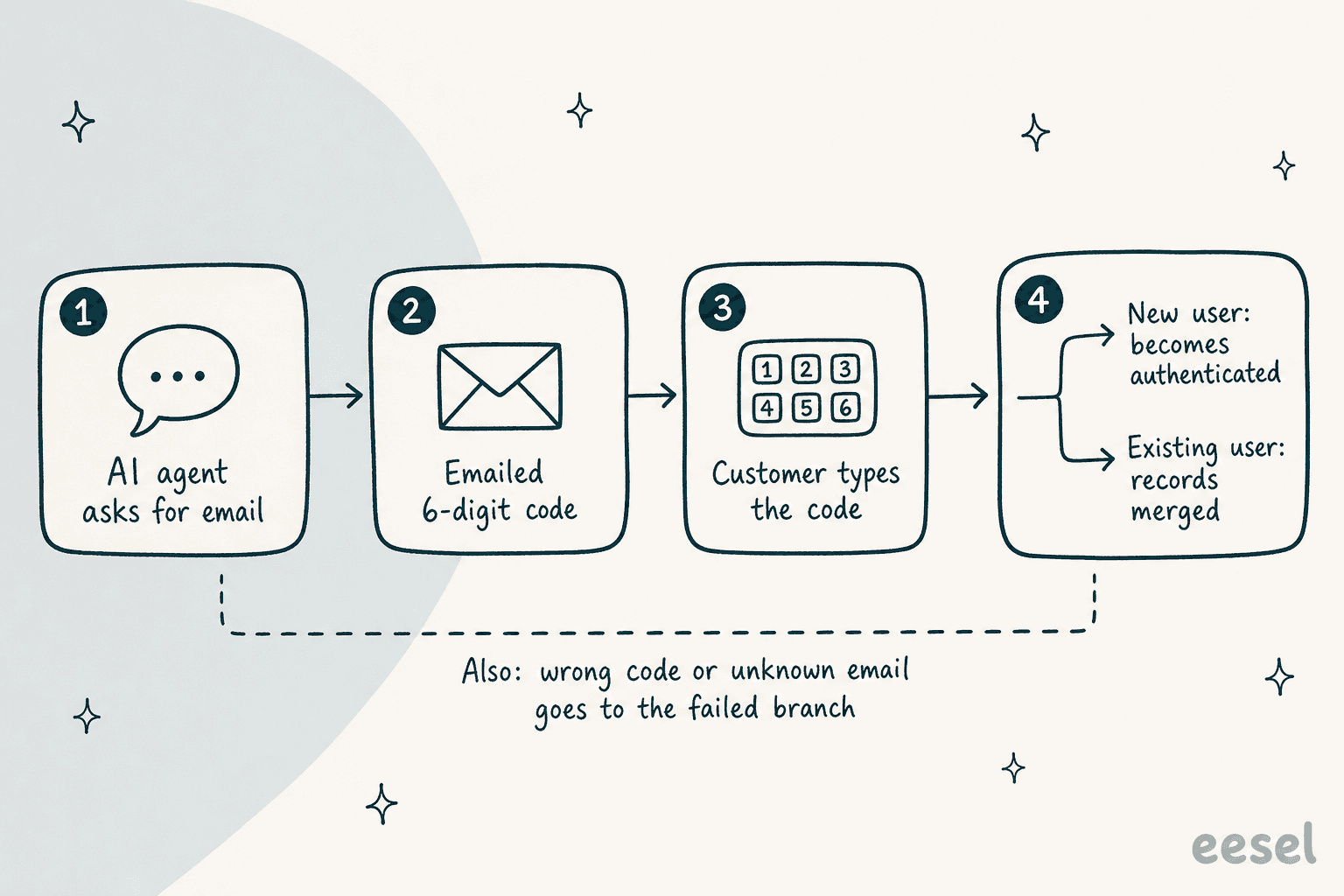
- The AI agent asks the customer for their email address.
- Zendesk emails that address a passcode, tied to the currently unauthenticated user.
- The customer types the passcode from the email into the conversation.
- The AI agent checks it. A brand-new user is upgraded to authenticated. If an authenticated user already exists for that email, the two records are merged, and so are the two messaging sessions.
The email itself is fixed: "Your
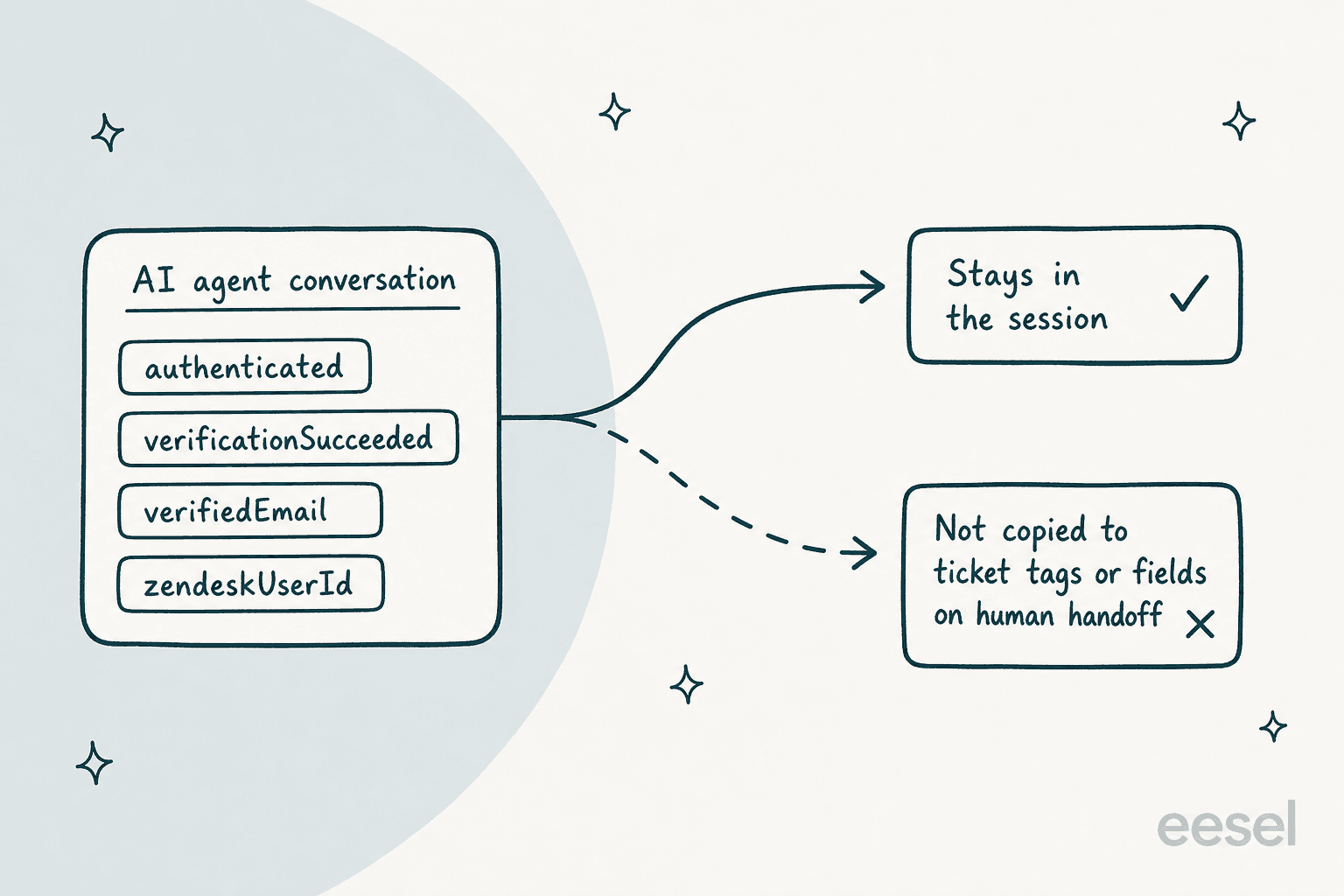
After a successful check, Zendesk adds four session parameters automatically: authenticated, verificationSucceeded, verifiedEmail and zendeskUserId. That detail is easy to miss and it matters for handoffs, which I come back to below.
How do you set up the Email verification block?
You add one block to a dialogue, which is Zendesk's scripted conversation flow. If you haven't used the builder, my conversation flow builder guide walks through the other block types.
- Create a new dialogue or open an existing one.
- Click the plus (+) icon where verification should happen and choose Email verification.
- In the Details sidebar, edit the messages the AI agent sends, or leave them blank to keep the defaults.
- Under Successful verification, add the blocks that continue the conversation, such as a restricted knowledge search and a reply.
- Under Failed verification, add what happens next: a retry message or an escalation to a person.
- Save and publish the dialogue.
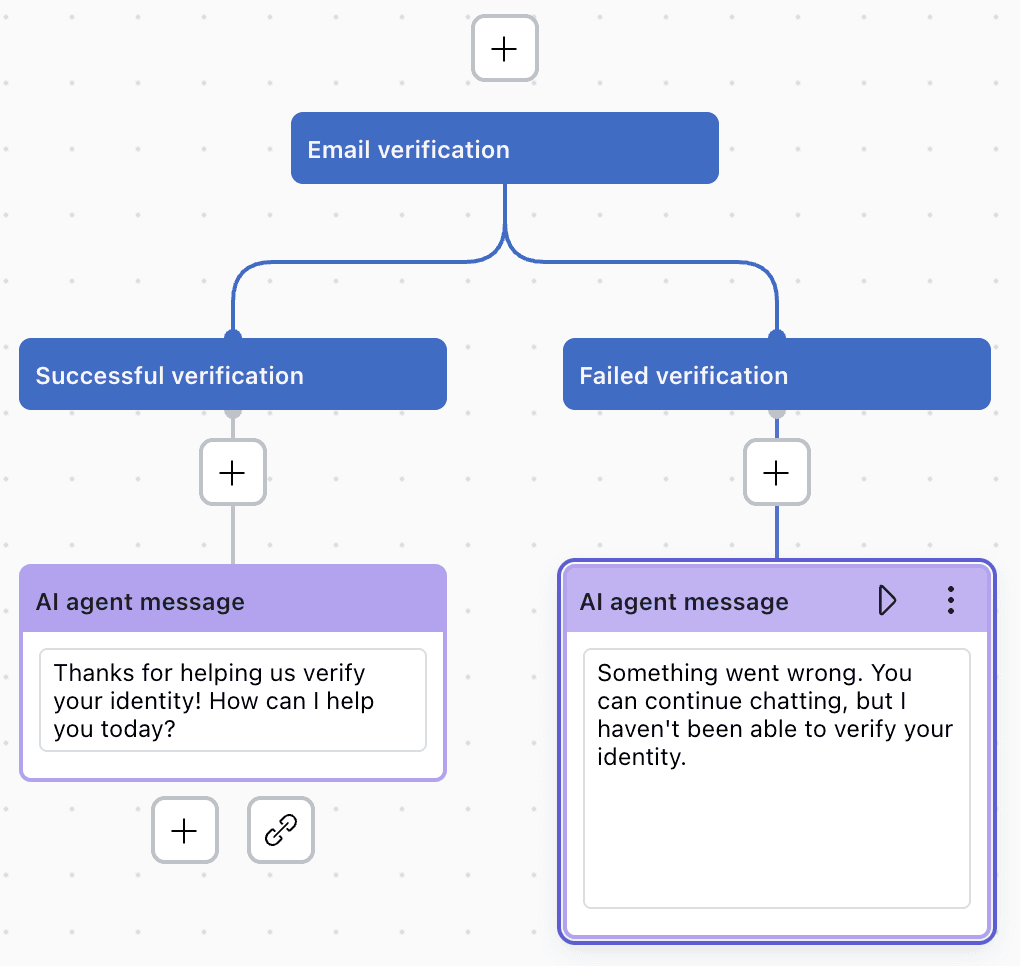
There are seven messages you can customize, all shown in the sidebar, with these defaults:
| Message | Default text |
|---|---|
| Request email | Enter your email. |
| Request verification code | Enter your verification code. |
| Verification successful | Your email has been verified. |
| Invalid code retry | Invalid verification code. Please try again. |
| Verification failed | Invalid verification code. |
| Code expired | This verification code has expired. |
| Email not found | A user by that email does not exist. |
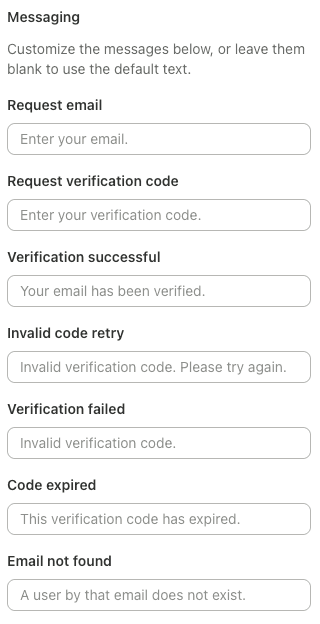
Zendesk's best practice is to put the block in the AI agent's welcome reply so people are verified at the start. Tune the rest in the advanced settings guide, and pair the block with a Get user action that checks for existing verification, and returning customers skip the prompt while new ones are asked straight away. After launch, review failures in your conversation logs, and write a sensible fallback message for the failed branch. If you route failures to a person, read my notes on escalation behavior and the transfer-to-human setup first.
Which Zendesk plans and AI agents does it need?
The OTP guide lists all Suite plans (Team, Growth, Professional, Enterprise, Enterprise Plus) and Support Team, Professional and Enterprise. It applies only to messaging AI agents, so the API channel and voice are out, and Zendesk lists three limits:
- It needs a scripted conversation flow controlled by a dialogue.
- It doesn't work with essential AI agents.
- Passcodes can't be sent to staff users, agents and admins included.
I did not find a separate price for OTP. The feature sits inside AI agent usage, which Zendesk bills per automated resolution: a request the AI agent resolves without escalating to a human. On the Zendesk pricing page, committed automated resolutions cost $1.50 each and pay-as-you-go resolutions cost $2.00 each. Included allowances are 5 resolutions per agent per month on Support Team and Suite Team, and 10 on Suite Professional. Suite Team is $55 per agent per month billed annually.
That has a practical consequence. By Zendesk's definition, a conversation that fails verification and gets escalated is not an automated resolution. One that verifies and then resolves is. For the full cost picture, see my complete setup and cost guide, my Zendesk AI agent review and the resolution rate guide.
One docs wrinkle: the OTP guide still lists Suite Growth, while the current pricing page shows four service plans without it. Check what's on your own account before you plan around the plan list.
Should you use a passcode or JWT sign-in?
Use JWT if you have a logged-in product and a developer. Use a passcode if you don't, or if the channel can't do JWT. Zendesk's own comparison is blunt about the trade-off.
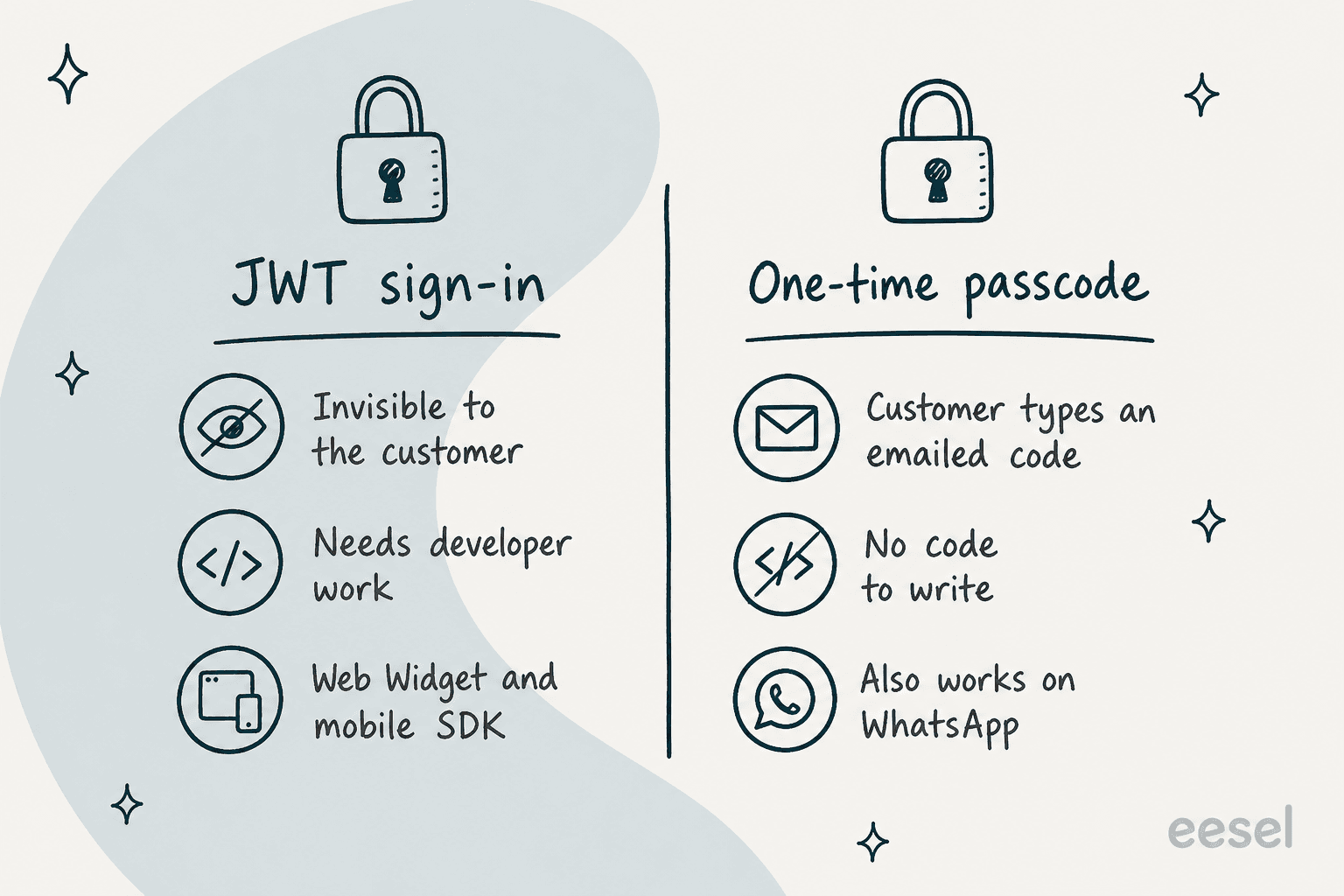
JWT authentication works in the background for the customer. A passcode interrupts them with an email step. JWT is limited to the Web Widget and mobile SDK, while a passcode also covers channels such as WhatsApp (see my WhatsApp support platform roundup). Zendesk adds that JWT "offers a stronger security posture" because it relies on the sign-in methods you already run, and if you require two-factor authentication for customer logins, a passcode isn't a viable replacement. If you need the JWT route, the Sunshine Conversations user data guide explains how identities map to users.
The demand for an easier path is visible in Zendesk's own help center. On the restricted-content article, one admin wrote:
"Frankly, the setup instructions for this are overly complex, required extensive trial and error, and give the impression that this functionality was added as an afterthought rather than being a fully integrated feature."
That comment is about JWT-based setup for restricted help center content, which is the use case OTP was built to ease.
What does a one-time passcode not do?
Five limits are worth knowing before you promise anything to a security team.
It proves an inbox, not an account or an order. Someone who controls the email address passes. If a customer's mailbox is compromised, so is the check. Pair it with a lookup that matches the verified email to the record you care about, and capture order numbers with data capture so the match is exact.
It has a Web Widget security trade-off. The widget stores the session identifier in browser localStorage, or sessionStorage if you pick "Forget history", which clears the state when the tab closes. Client-side JavaScript can read both, so a successful cross-site scripting attack could expose the messaging session. Zendesk shows a warning in the builder and says to use JWT if that risk is unacceptable.

The verified state doesn't follow the handoff. The session parameters are not automatically set as tags or fields on the support ticket when a conversation escalates. A human agent opening the ticket won't see a "verified" tag unless you write one in yourself.
It is messaging only. The guide applies to messaging AI agents. Email-channel and web form AI agents don't get this block.
The docs leave two things open. The default "Email not found" message and the "failed verification" example both imply the address must match an existing user, yet step 4 of the flow says a brand-new user is upgraded. I couldn't reconcile those from the docs. Separately, the older restricted-content article still says messaging needs JWT for restricted help center answers, and it hasn't been updated to mention passcodes. Test both on a sandbox before you rely on either.
Which requests should you gate behind a passcode?
I put each request type on a risk ladder, and I would not put a passcode in front of everything.
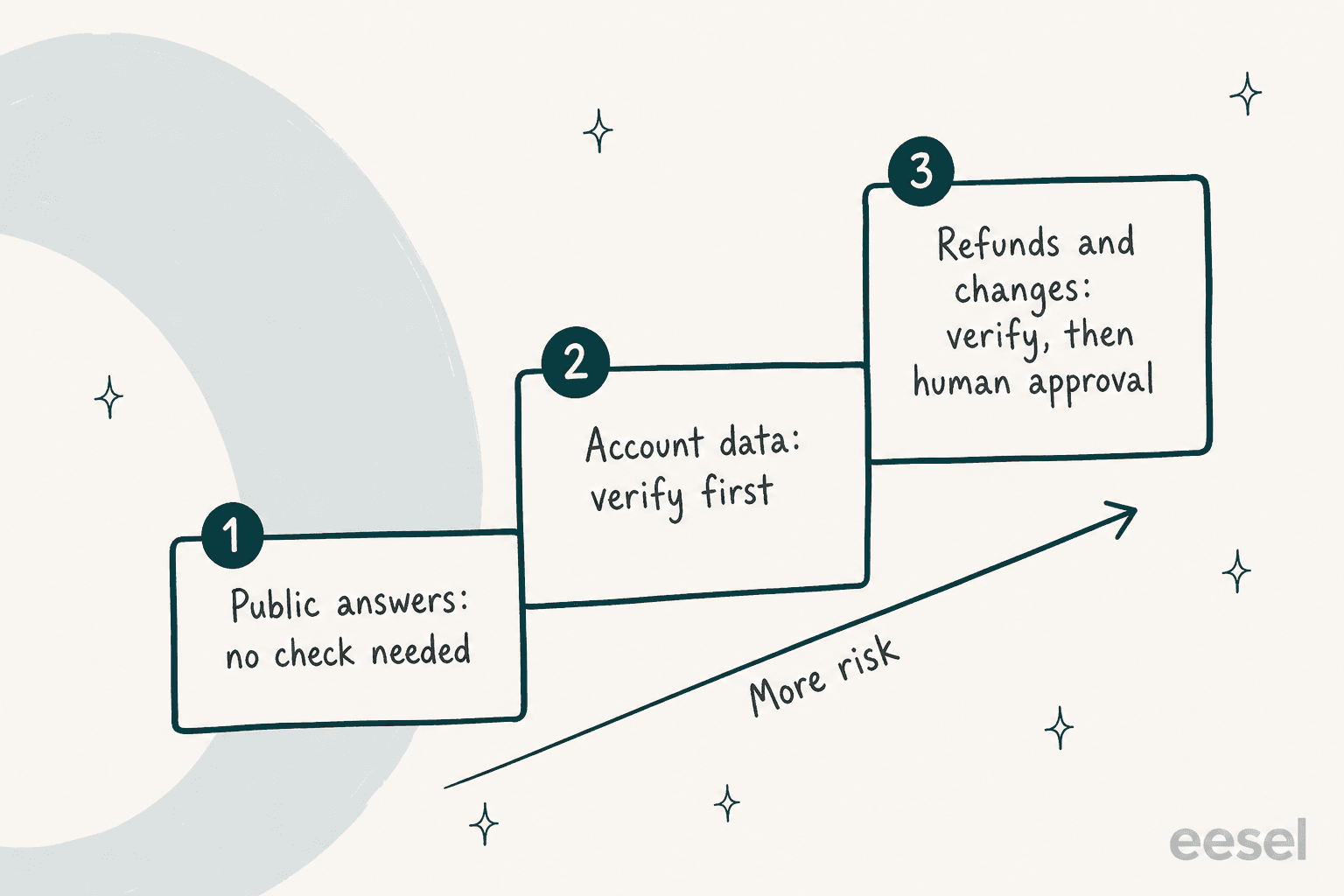
On an eesel sales call, a B2B buyer whose internal security review gates any trial asked me whether the tickets we process, with card details and passwords sometimes inside them, stay inside their environment. That is the right order of worry. The first question isn't "how do we verify?" It's "what could this AI agent expose or change if the wrong person is on the other end?" Public help articles need no check. Order status and account details do. Refunds and address changes need a check and a person. Pick the request type below for my default.
How does eesel handle identity checks on Zendesk?
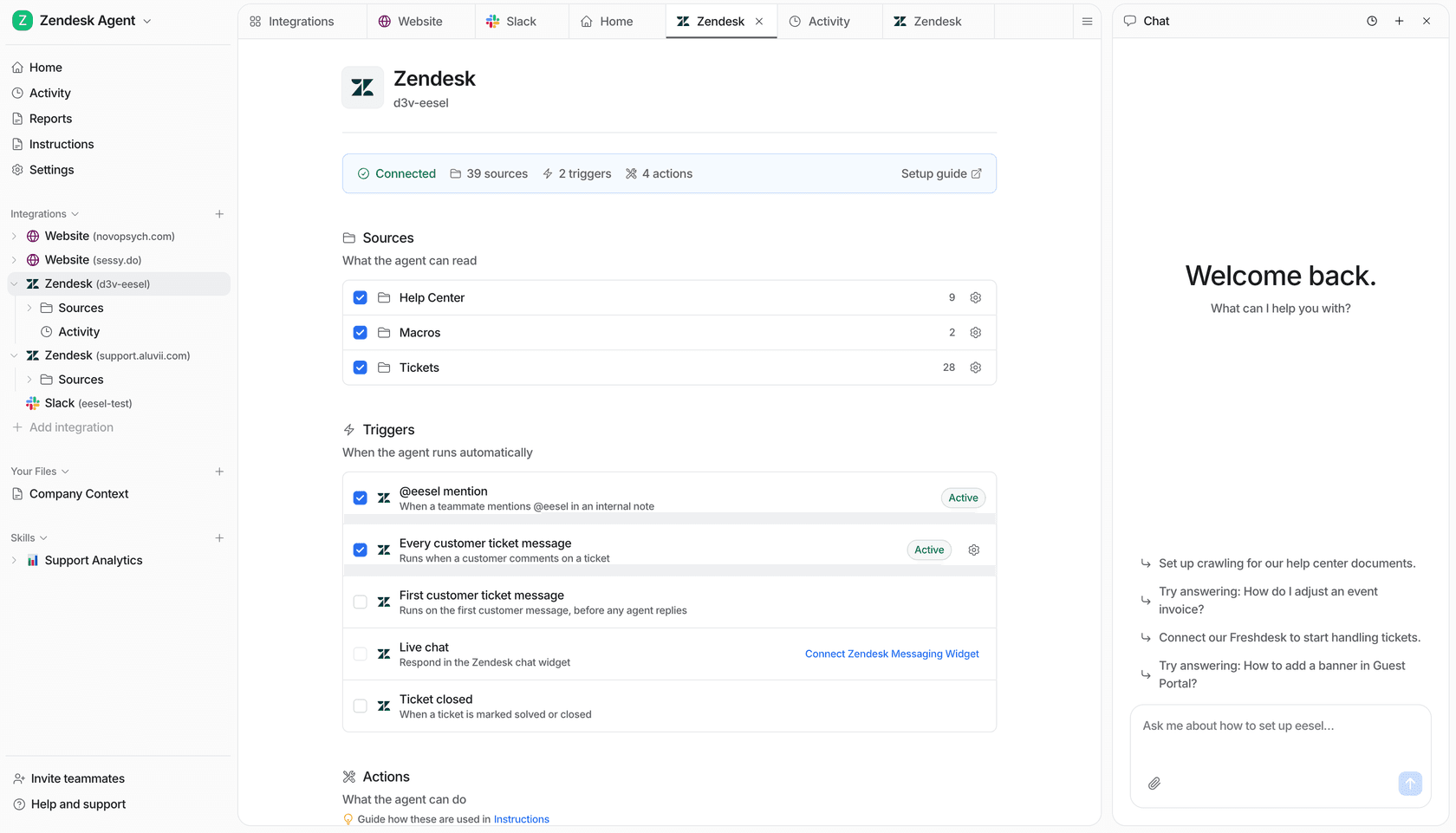
Honestly, eesel doesn't ship a one-time passcode step, and I won't pretend otherwise. eesel's Zendesk documentation describes an AI helpdesk teammate that works inside your Zendesk like another agent: it reads the ticket and your help center, macros and past tickets, then drafts or sends a reply. I found no passcode or email-code verification in those docs.
What it does offer for identity-sensitive work is control over what the teammate may do. Each action has three settings, On, Ask first or Off, per Actions and Approvals. A Look up customer action reads customer details from Zendesk, and new agents use Send ticket reply set to ask first, which holds a ticket reply until a person approves it. One limit to plan around: live chat actions, such as replying in Zendesk Messenger, are always On, because nobody can pause a live chat to approve a reply. On chat, your gate has to live in the instructions and in Zendesk's verification, not in an approval click. And some actions are team-chat only, because the docs say they show other customers' records and shouldn't run on a customer's own ticket or chat. The Zendesk Messenger guide covers the live chat widget.
So the split I'd use is this. Let Zendesk's OTP or JWT decide who is in the chat, set limits with access control for AI agents, and let an eesel AI helpdesk teammate decide nothing about money without a person.
smava is a good example of a gate built from data you already have. It runs three eesel agents on one Zendesk for about 27,000 tickets a month in regulated finance. The categorisation agent marks a ticket eligible for an automatic reply only when no advisor is assigned, and about 1,100 of the 27,000 tickets qualify. Everything else is a draft that a person approves. That is the same instinct as a passcode: decide who gets an automatic answer before the answer is written.
If you're comparing Zendesk's native AI with an add-on, Zendesk AI vs eesel lays out the differences, and my data privacy checklist and GDPR guide cover what to review with your security team. The security page lists eesel's own posture. For agent-side sign-in rather than customer-side, see Zendesk two-factor authentication, which is a different feature from the passcode in this post.
Try eesel for Zendesk
If your worry is "what is the AI allowed to do on a ticket," eesel works inside your Zendesk like a new hire: it learns your help center and macros, drafts replies for a person to approve, and only sends on its own for the routine ones you switch on. It's priced on the eesel pricing page, and you can start with drafts and watch what it writes before it sends anything. Try eesel on a sandbox ticket queue first, and see my guide to AI for Zendesk or the event triggers guide for how runs start. Coding agents can drive the same workspace through the eesel CLI for agents.
Frequently Asked Questions
What is the Zendesk AI agent one-time passcode?
It is a verification step where a messaging AI agent emails the customer a 6-digit code and checks it before sharing restricted answers or taking sensitive actions. Zendesk announced it on November 2, 2026 as a no-code alternative to JWT sign-in, and I cover the wider advanced AI agent context above.
How do I set up a Zendesk AI agent one-time passcode?
Add an Email verification block to a dialogue, edit or keep the default messages, then build the Successful and Failed verification branches and publish. Start in the conversation flow builder, ideally in the welcome reply.
Does the one-time passcode work with essential AI agents or email tickets?
No. Zendesk says it needs a scripted dialogue, doesn't work with essential AI agents, and applies only to messaging AI agents, so email-channel AI agents don't get it. See the advanced vs essential comparison.
How much does Zendesk AI agent OTP verification cost?
I found no separate OTP fee. AI agents are billed per automated resolution, at $1.50 committed or $2.00 pay-as-you-go on the Zendesk pricing page. My Zendesk AI agent review has the full cost picture.
Should I use a one-time passcode or JWT authentication?
Use JWT if customers are logged in and you have developer time, because Zendesk says it offers a stronger security posture. Use a passcode when you have no developer capacity or need a channel such as WhatsApp. Zendesk notes a passcode isn't viable if you require two-factor authentication for customer logins.
Does the verified status reach the human agent after a handoff?
Not automatically. The session parameters are not set as ticket tags or fields on escalation, so write the tag yourself. My escalation guide and handoff best practices cover the pattern.
Can eesel verify a customer's identity with a one-time passcode in Zendesk?
No. eesel's Zendesk documentation describes no passcode step. Keep Zendesk's check for who is in the chat, and use eesel's Zendesk integration with Ask first on actions that change anything.