How to use Zendesk AI agent conversation logs: A complete guide

Stevia Putri

Stanley Nicholas
Last edited February 26, 2026
Expert Verified
When you deploy an AI agent to handle customer conversations, you're essentially putting an automated team member on the front lines of your support operation. But unlike human agents who give verbal feedback after each shift, AI agents communicate through data. Zendesk AI agent conversation logs give you that visibility.
These logs are your window into how your AI agent's performing. They show you exactly what customers are asking, how the AI's responding, and where things might be going off track. Whether you're troubleshooting a specific issue or looking for patterns to improve your automation strategy, conversation logs give you the visibility you need.
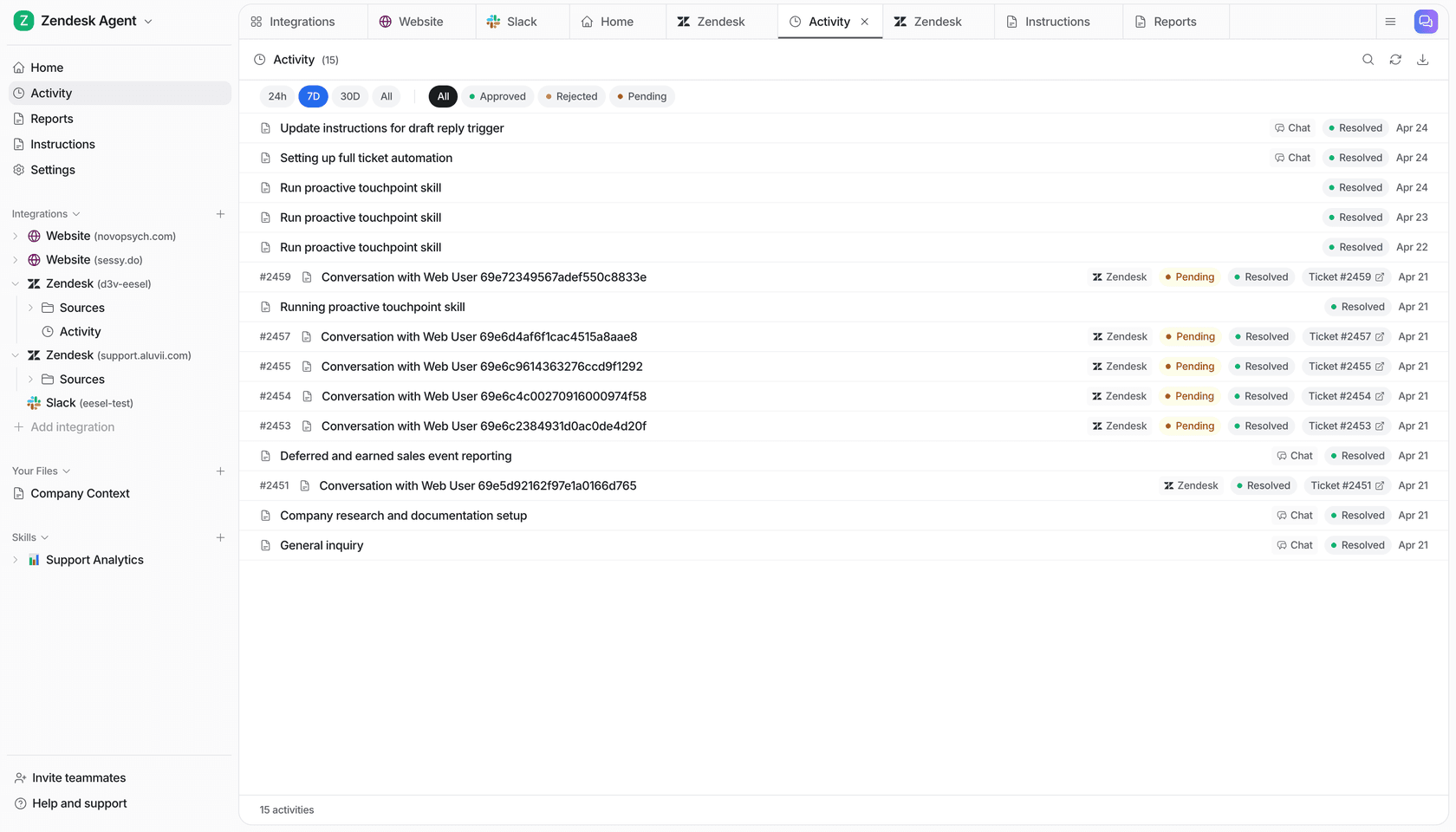
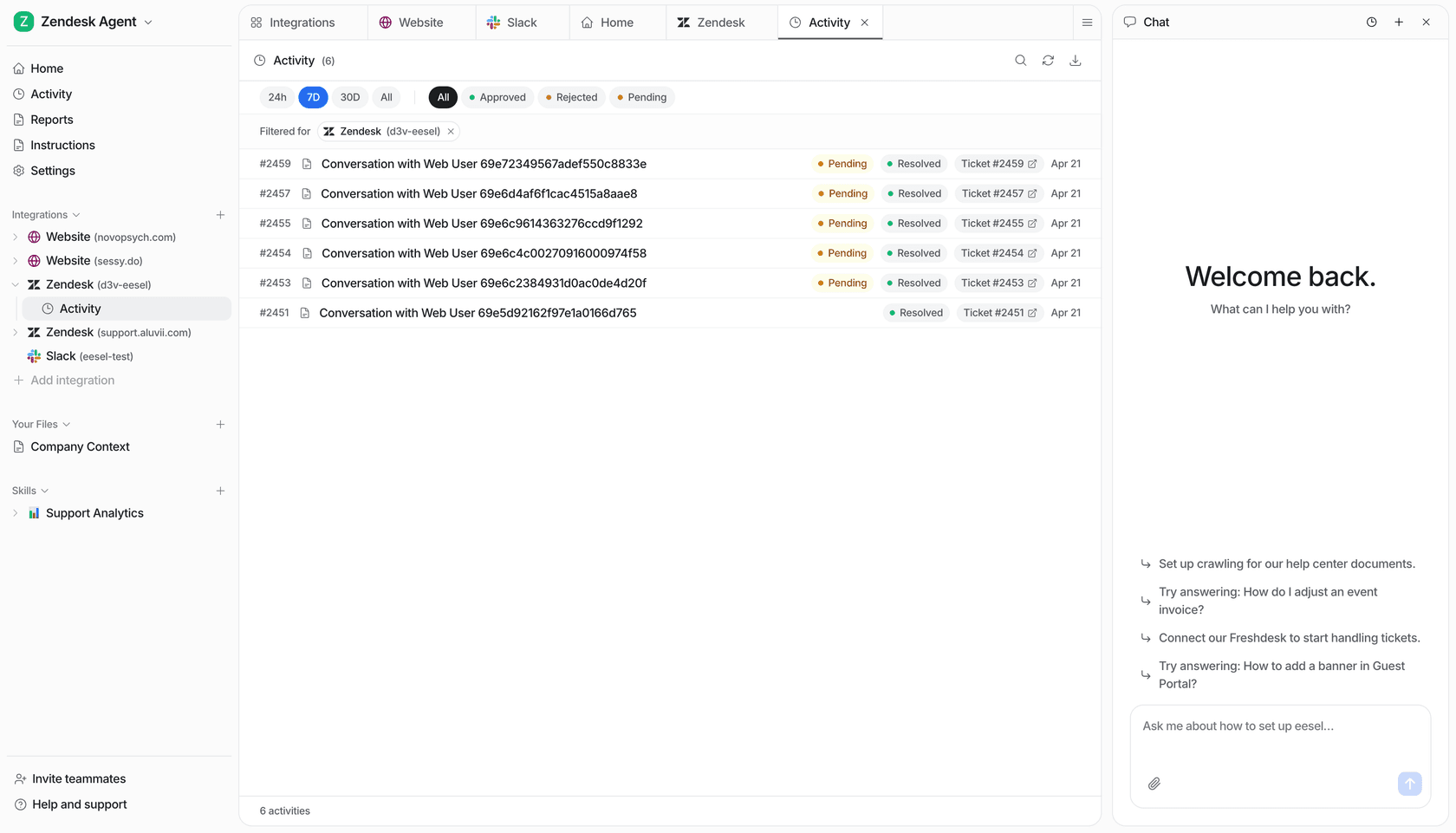
In this guide, we'll walk through how to access, review, and use Zendesk AI agent conversation logs effectively. We'll also look at how tools like eesel AI can complement Zendesk's native features for deeper analysis and automation.
What are Zendesk AI agent conversation logs?
Zendesk AI agent conversation logs are detailed records of every interaction between your AI agent and customers. Think of them as a complete transcript plus metadata. You get the full conversation history along with technical details about how the AI interpreted each message, what actions it took, and how the conversation was resolved.
Note that Zendesk offers two levels of AI agent conversation visibility:
- Conversation logs (Advanced AI): Full-featured logging with detailed filtering, message-level analysis, error tracking, and API integration details
- Conversation transcripts (Essential AI): Simpler view showing the conversation flow without the deep technical metadata
If you're using Zendesk AI agents with the Advanced add-on, you get access to the full conversation logs. This gives you granular control over monitoring and optimization. For complete details on available features, see Zendesk's conversation logs documentation.
In October 2025, Zendesk rolled out a significant update: AI agent conversations now appear as read-only tickets in your Agent Workspace. This means you can see AI-handled interactions right alongside human agent tickets, giving you a complete picture of your support operation. Learn more about this feature in Zendesk's announcement.

How to access AI agent conversation logs in Zendesk
Getting to your conversation logs is straightforward once you know where to look. Here's the step-by-step process:
Step 1: Navigate to Admin Center
Log into your Zendesk account and click the Admin Center icon in the sidebar. From there, select AI and then AI agents.
Step 2: Select your AI agent
Click on the specific AI agent you want to review. If you've got multiple bots for different purposes, make sure you're looking at the right one.
Step 3: Open conversation logs
In the sidebar, click Conversation logs. You'll see a list of conversations from the past 7 days by default.
Step 4: Adjust the time frame if needed
If you don't see the conversations you're looking for, click the Time frame button in the upper-right corner. You can select predefined ranges like Today, Yesterday, Last 7 days, or Last 30 days. You can also set custom date ranges using the calendar.
One thing to keep in mind: the time frame filter uses UTC, even though conversation timestamps display in your browser's local time zone.
Finding AI agent tickets in Agent Workspace
If you're looking for the new AI agent tickets feature (the October 2025 update), these appear directly in your standard ticket views. They're marked as read-only and won't trigger your usual automations, but they're visible alongside regular tickets for complete customer history. For teams using Essential AI, conversation transcripts provide a simpler view of conversation flow.

Filtering and searching Zendesk AI agent conversation logs
The real power of conversation logs comes from filtering. With potentially thousands of interactions, you need ways to find the specific conversations that matter for your analysis.
Time-based filtering
Start with the basics. The time frame selector lets you quickly narrow down to recent activity or investigate issues from a specific period. This is useful when a customer reports a problem that happened "last week" or when you're doing monthly performance reviews.
Message text search
The message text filter lets you search for specific words or phrases within conversations. Looking for all conversations where customers mentioned "refund"? Type it in and see every instance. This is invaluable for spotting emerging issues or tracking how the AI handles specific topics.
Language filtering
If you support multiple languages, you can filter conversations by the language used. This helps you identify if certain languages are seeing more escalations or misunderstandings.
Conversation status filters
Status filters are where the real insights live. You can filter by:
- Agent escalation: Conversations successfully transferred to humans
- AI agent handled: Conversations the bot resolved on its own
- Escalation failed: Attempts to transfer that didn't work
- Custom escalation: Conversations that triggered your custom escalation rules
Advanced filters
For deeper analysis, you can filter by:
- Conversation type: Messages not understood, actions applied, interrupted dialogues, drop-offs
- Labels: Custom tags you've applied to categorize conversations
- Intents: Specific use cases or topics the AI detected
- Segments: Customer groups you've defined
- Duration: How long the conversation lasted
- Generative replies: Whether generative AI was used and how it performed
The key is combining filters. For example, filter for "Escalation failed" + "Last 7 days" + "Message text: password" to find recent password-related conversations where the AI couldn't successfully transfer to an agent.
Understanding conversation statuses in Zendesk AI agent conversation logs
Every conversation in your logs has a status. Understanding what these statuses mean is crucial for interpreting your data correctly.
Messaging AI agent statuses
For chat-based AI agents, you'll see these statuses:
- Agent escalation: The conversation was successfully transferred to a human agent. This is generally a positive outcome when the AI recognizes it can't handle the request.
- Bot handled: The AI agent understood the customer's intent, didn't attempt escalation, and completed the conversation without any message misunderstandings. This is your ideal automated resolution.
- Custom escalation: The conversation triggered a custom escalation rule you defined. Maybe VIP customers always go to humans, or certain topics bypass the AI.
- Email escalation: The conversation was converted to an email ticket for your support team. This happens when live agents aren't available.
- Escalation failed: The AI tried to transfer to a human but couldn't. This could mean no agents were available, or there was a technical error.
- No status: The conversation didn't meet criteria for any of the above statuses.
Email AI agent statuses
For email-based AI agents, the statuses work slightly differently:
- Not understood: The AI couldn't figure out what the customer wanted. No actions or replies were triggered.
- Recognized intent: The AI understood the request but didn't take any action or send a reply.
- Processed: The AI took some actions (like tagging the ticket) but didn't send a reply, or the reply was empty.
- Answered: The AI understood the message and either sent a reply or triggered a macro that added a public comment.
- Escalated: Both the AI and a human agent sent replies to the customer.
- No status: No criteria were met for the above statuses.
How status changes over time
A conversation's status isn't fixed. It gets recalculated with every interaction. A conversation might start as "Bot handled" but change to "Agent escalation" if the customer later asks something the AI can't handle. For messaging agents, sessions typically end after 2 hours of inactivity (or on escalation). For email agents, sessions end after 72 hours. For a complete breakdown of all statuses, refer to Zendesk's conversation status documentation.
Reviewing conversation details in Zendesk AI agent conversation logs
Once you've filtered to find interesting conversations, it's time to dig into the details.
Viewing a complete conversation
Click on any conversation in the log list to see the full interaction. The conversation appears on the right side of your screen, showing the back-and-forth between the customer and AI agent, plus any actions or events that occurred.
Conversation overview pane
Click Details in the upper-right corner to see metadata about the conversation:
- Date and time: When the conversation started
- Duration: How long it lasted
- Custom resolution: Which resolution state applied (if you're using custom resolutions)
- Test conversation: Whether this was a test interaction
- Platform conversation ID: A unique identifier you can use to find this conversation in your CRM
- Labels: Any tags applied to this conversation
- Presumed use case: For zero-training AI agents, this shows which use case the AI identified
- Automated resolution: Whether this conversation counted toward your automated resolution metrics
You can also view Segment matches to see which customer segments applied, and Session data to see actions, events, and language settings throughout the conversation.
Reviewing individual messages
Hover over any message and click the View details icon to see message-level information:
- For user messages: See the exact text sent, plus which use case the AI thought it matched (for zero-training and agentic AI agents)
- For AI agent messages: See which dialogue or procedure generated the response, the intent it was associated with, and the AI's reasoning plan (for generative procedures)
Understanding API integration details
If your AI agent connects to external systems, you'll see Integration triggered or Integration parameter requested entries in the conversation. Click these to see the API request details: when it was made, what parameters were sent, what response came back, and any errors that occurred.
This is incredibly useful for troubleshooting. If a customer asked for their order status and the AI couldn't retrieve it, the API details will show you exactly what went wrong.

Using error logs for troubleshooting Zendesk AI agent issues
Sometimes conversations don't go as planned. When that happens, error logs help you understand what went wrong.
Accessing error logs
In your AI agent settings, navigate to CRM integration and then Error logs. You'll see a list of failures organized by type. For more details on troubleshooting, see Zendesk's error logs documentation.
Types of errors tracked
Zendesk tracks errors across three categories:
- Support error logs: Failures related to ticket actions like adding tags, updating ticket info, adding internal notes, or retrieving organization data
- Chat error logs: Failures for escalations, actions, and replies in chat conversations
- Sunshine Conversations error logs: Failures for user lookups, conversation updates, and Sunshine Conversations-specific actions
What you'll see for each error
Each error entry includes:
- Timestamp: When the error occurred
- Details: What type of error happened and which field or structure was impacted
- Type: The category of error (failed action, reply failure, escalation failure)
- Conversation ID: Clickable link to view the full conversation where the error happened
- Ticket ID: The associated ticket number
- Recommended action: Suggested steps to fix the issue and prevent it from recurring
Common error types
You'll typically see errors like:
- Data type mismatches (expected a string but got something else)
- Missing required fields
- Non-existent conversation or user fields
- Failed API calls to external systems
Use the search and filter options to find specific errors. You can search by conversation ID if you know it, filter by error type, or set a date range to focus on recent issues.

Practical use cases for Zendesk AI agent conversation logs
Now that you know how to access and navigate conversation logs, let's look at what you can actually do with this data.
Identifying knowledge gaps
Look for conversations with statuses like "Not understood" or "Escalation failed." These often reveal topics your AI agent isn't equipped to handle. If you see a pattern, like 20% of escalations involving "return policy questions," you know you need to either improve your help center article on returns or train the AI better on that topic.
Spotting escalation patterns
Filter for "Agent escalation" conversations and look for commonalities. Are certain customer segments escalating more? Specific topics? Times of day? This data helps you understand where your AI agent's boundaries should be.
Understanding customer intent trends
Use the message text filter to track what customers are asking about over time. You might discover that questions about a new feature are spiking, giving you a heads-up that you need to create better documentation or train the AI on that topic.
Training and improving AI responses
Review "Bot handled" conversations to see what's working well. Look for successful resolutions you can use as templates for improving other responses. Conversely, review escalations to understand where the AI fell short.
Quality assurance and compliance
For regulated industries, conversation logs provide an audit trail of every AI interaction. You can verify the AI is providing accurate information, not making claims it shouldn't, and handling sensitive topics appropriately.
Scaling analysis with eesel AI
While Zendesk's native conversation logs are great for individual review, analyzing thousands of conversations manually isn't practical. This is where eesel AI can help. Our simulation mode lets you test AI improvements against your historical conversation data to forecast resolution rates before going live. We can also automatically tag and categorize conversations based on content, turning raw logs into actionable insights.

Exporting and analyzing Zendesk AI agent conversation data
Sometimes you need to take your conversation data outside of Zendesk for deeper analysis.
Export options
Zendesk allows you to export tickets with their full comment history, which includes AI agent conversations. This data typically comes as a JSON file, which is powerful for technical teams who want to parse and analyze it programmatically.
What you can do with exported data
- Run custom analytics to identify trends
- Build dashboards in external BI tools
- Train machine learning models on your conversation patterns
- Create detailed reports for stakeholders
Limitations to be aware of
Native export has some constraints. The data structure can be complex to work with, and you're limited to what's included in the standard export format. Real-time analysis isn't possible with periodic exports.
Going deeper with complementary tools
For teams that need more sophisticated analysis, tools like eesel AI can connect directly to your Zendesk data and provide ongoing analytics without manual exports. We can analyze conversation patterns, identify knowledge gaps, and suggest improvements automatically. This saves you from writing custom scripts and maintaining export pipelines.
Taking action on your Zendesk AI agent conversation insights
Data is only valuable if you act on it. Here's how to turn your conversation log insights into improvements.
Creating better help center articles
When you see common questions that the AI struggles to answer, that's a signal you need better documentation. Create or update help center articles on those topics, then verify the AI starts handling those questions better.
Updating AI agent responses
For conversations where the AI gave suboptimal responses, use what you learned to refine your dialogues, procedures, or generative AI instructions. The goal is continuous improvement based on real customer interactions.
Improving conversation flows
If you see customers getting stuck or dropping off at certain points, rethink your conversation flow. Maybe the AI is asking for too much information upfront, or the escalation path isn't clear enough.
Setting up better escalation triggers
Use escalation pattern data to fine-tune when and how the AI transfers to humans. You might discover certain keywords or customer types that should always go straight to an agent.
Automating actions with eesel AI
Beyond just analyzing conversations, eesel AI can take automated actions based on what we find. Our AI Triage product can automatically tag tickets, set priorities, and route conversations based on content analysis. This turns your conversation insights into immediate workflow improvements without manual intervention.

Start improving your AI agent performance with better conversation insights
Zendesk AI agent conversation logs give you the visibility you need to understand and improve your automated support. From basic transcript review to advanced filtering and error tracking, these tools help you ensure your AI agent is representing your brand well and actually helping customers.
The key is making conversation review a regular habit. Set aside time weekly or monthly to dig into your logs, identify patterns, and make incremental improvements. Small tweaks based on real conversation data can lead to significant improvements in resolution rates and customer satisfaction.
If you're looking to go beyond manual review and want automated insights, simulation testing, or intelligent triage based on your conversation data, try eesel AI. We integrate seamlessly with Zendesk to help you get more value from every conversation.
Frequently Asked Questions
Share this post

Article by
Stevia Putri
Stevia Putri is a marketing generalist at eesel AI, where she helps turn powerful AI tools into stories that resonate. She’s driven by curiosity, clarity, and the human side of technology.