Zendesk AI agent event triggers: A complete guide for 2026

Stevia Putri
Written by

Stevia Putri

Reviewed by

Stanley Nicholas

Last edited February 26, 2026

Expert Verified

Banner image for Zendesk AI agent event triggers: A complete guide for 2026

Most customer service teams have experienced this: a conversation ends, but nothing happens. The ticket sits there. No tags get applied. No routing occurs. No one knows what happened or why. The data you need for reporting never gets captured.

Zendesk AI agent event triggers solve this problem. They're part of the Advanced AI add-on and let you automate actions based on specific events during AI agent conversations. When a conversation escalates, ends, or goes inactive, you can trigger workflows automatically.

Here's the short version: event triggers watch for specific moments in AI agent conversations and execute actions when those moments occur. They're different from standard Zendesk triggers (which react to ticket updates) because they respond to real-time conversation events.

Zendesk customer service platform homepage

This guide covers how event triggers work, what events are available, and how to set them up.

What are Zendesk AI agent event triggers?

Zendesk AI agent event triggers are automated rules that fire when specific events occur during AI agent conversations. They're part of the AI agents - Advanced add-on, which builds on top of the Essential AI agent features included in Zendesk Suite plans.

The key distinction: standard Zendesk triggers react to ticket properties and updates. Event triggers react to conversation moments. A ticket trigger might fire when a ticket's priority changes. An event trigger fires when a conversation escalates to a human, when a session ends, or when a customer goes inactive.

This matters because AI agent conversations happen in real time. You need automation that responds to the flow of the conversation, not just the resulting ticket.

How event triggers differ from other Zendesk automation

Automation TypeWhat It Reacts ToTimingUse Case
Standard triggersTicket updates (status, priority, tags)ImmediateRoute tickets, send notifications
AutomationsTime-based conditions (hours since update)HourlyFollow-ups, escalations
Event triggersConversation events (escalation, session end)ImmediateCapture conversation outcomes, trigger CRM actions

The Advanced AI add-on is required for event triggers. It's available for any Suite or Support plan, but you will need to contact Zendesk Sales to add it to your account.

How event triggers work

Event triggers follow a simple pattern: Event → Condition → Action.

Event-Condition-Action framework for automating ticket updates

  1. Event: Something happens in the conversation (customer escalates, session ends, etc.)
  2. Condition: The system checks if criteria are met (optional)
  3. Action: Something happens (add tags, update fields, trigger external workflows)

Here is how the process works in practice. When a customer is chatting with your AI agent and decides they need a human, the escalation attempt fires an event. Your trigger catches that event and can add an "escalated" tag, update a custom field with the escalation reason, or even call an external API to notify another system.

The power here is that you are capturing data at the moment it matters. Instead of trying to reconstruct what happened from ticket history, you have precise event data you can act on immediately.

Where actions can trigger

Actions can happen in two places:

  • Within the conversation: Add tags, update ticket fields, add internal notes
  • In external systems: Trigger webhooks to update CRM records, notify Slack channels, or integrate with other tools via the integration builder

This dual capability means event triggers can connect your AI agent conversations with the rest of your tech stack.

Available events for messaging AI agents

Messaging AI agents have access to ten different events. Which ones you use depends on what you're trying to automate.

Messaging event categories for tracking engagement and bot performance

Conversation lifecycle events

These events track the basic flow of a conversation:

  • Conversation started: Fires when a new conversation begins. Use this for initial tagging or routing setup.
  • Conversation ended: Fires when the customer ends the conversation or the session duration expires. Good for cleanup actions.
  • Session ended: Fires when AI agent automation completes. This happens when the conversation ends, an escalation occurs, or the session times out. After this event, the conversation is evaluated for an automated resolution. Use this to mark the end of automation with tags or labels.

Escalation events

These events track handoffs to human agents.

  • Conversation escalation attempt: Fires when the AI agent tries to hand over to a human. This is your early warning signal.
  • Conversation escalated to human: Fires when the handover succeeds. Use this for routing and reporting.
  • Conversation escalation failed: Fires when the handover encounters an issue. You will want to track these for operational awareness.

Activity and engagement events

These events track customer behavior.

  • Conversation inactive: Fires when there's no customer activity for the configured inactivity duration. Useful for managing queue hygiene.
  • Suggestion used: Fires when a human agent uses an AI-suggested answer. Helps measure AI assistance effectiveness.

Agentic AI events (Advanced only)

These events are only available for AI agents with agentic AI capabilities:

  • End of procedure reached: Fires when the AI agent reaches the end of a generative procedure and the specified time has passed.
  • Knowledge answer shared: Fires when the AI agent shares an AI-generated answer.

Source: About events for advanced AI agents

Available events for email AI agents

Email AI agents have a different event model because the interaction pattern is different. Instead of real-time chat, you're dealing with asynchronous ticket-based communication.

The four email events follow a specific sequence:

Email event sequence for AI agent ticket processing

  1. Ticket received by AI agents - Advanced: A message arrives and a ticket is created. This is your entry point. Best used for actions that affect the rest of the process, like collecting user information.

  2. (Use case-level and block-level actions happen here)

  3. Ticket processed by AI agents - Advanced: The AI has processed the message contents. Best for updating the platform with dynamic session data like phone numbers or emails using entities.

  4. Reply delay timer started: The AI agent reply node is reached and the delay timer begins. Only available if you've set up a ticket reply delay. Use this to add tags and internal notes.

  5. Reply sent after delay: The AI agent reply is sent after the delay. Use this for post-reply ticket updates to ensure agents can see issues that were previously hidden but later answered.

The sequence matters because each event represents a different stage in the email handling process. You might capture customer data when the ticket is received, process intent when the AI analyzes it, and update status when the reply actually goes out.

Source: About events for advanced AI agents

Setting up event triggers in Zendesk

Configuring event triggers requires the Advanced AI add-on and admin access to your Zendesk account.

Prerequisites

Before you start, make sure you have:

  • The AI agents - Advanced add-on purchased and activated
  • Admin permissions in Zendesk
  • An AI agent configured for either messaging or email

Configuration steps

  1. Navigate to AI agent settings

    Go to Admin Center, then select AI → AI agents. Choose the AI agent you want to configure.

Zendesk Generative AI settings panel for AI agent configuration

  1. Access the events and actions section

    Within your AI agent settings, find the section for managing actions. This is where you'll configure what happens when events fire.

Zendesk action details configuration interface for event triggers

  1. Create actions for your events

    For each event you want to handle, create an action. Actions can include:

    • Adding tags to tickets
    • Updating custom fields
    • Adding internal notes
    • Triggering external integrations

Zendesk automation action configuration panel with webhook setup

  1. Test your triggers

    Before going live, test your event triggers in a sandbox or with test conversations. Verify that:

    • Events fire when expected
    • Actions execute correctly
    • Data is captured accurately

Managing email automation triggers

For email AI agents specifically, you'll manage the email automation trigger separately. This controls how the AI agent handles incoming email tickets and when it sends replies.

The trigger configuration lets you set reply delays, define when the AI should respond versus escalate, and configure how ticket fields get updated throughout the email handling process.

Source: Managing the email automation trigger

Common use cases for event triggers

Event triggers solve specific operational problems. Here are the patterns that work well for teams using AI-powered customer support.

Common event trigger use cases for AI agent workflow automation

Intelligent ticket routing

When a conversation escalates, you often need different routing logic than standard tickets. Event triggers let you:

  • Tag escalated conversations with the escalation reason
  • Route based on conversation content captured during the AI interaction
  • Prioritize tickets that required escalation versus those that started with humans

Automated tagging and categorization

Manual tagging is inconsistent. Event triggers automate it:

  • Apply "ai-handled" tags to conversations the AI resolved
  • Tag escalations with the topic that caused the handoff
  • Mark inactive conversations for queue cleanup

Internal context for agents

When a conversation reaches a human agent, they need context. Event triggers can:

  • Add internal notes summarizing what the AI did
  • Capture customer intent identified during the AI conversation
  • Flag conversations where the AI was uncertain

Post-conversation actions

After a session ends, you often need cleanup or follow-up:

  • Update CRM records with conversation outcomes
  • Trigger satisfaction surveys for AI-resolved conversations
  • Archive or categorize completed conversations

Managing reply delays for email

Email AI agents with reply delays need careful handling. Event triggers let you:

  • Hide tickets from agent views while the delay timer is running
  • Reveal tickets after the AI reply is sent
  • Add internal notes explaining the delay timing

Best practices for organizing triggers

Event triggers are powerful, but they can become unmanageable if you're not thoughtful about organization.

One trigger, one job

The best practice from experienced Zendesk admins: each trigger should do one thing. Don't create a single trigger that adds tags, updates fields, sends notifications, and calls webhooks. Create separate triggers for each action.

This makes troubleshooting easier. When something isn't working, you know exactly which trigger to check.

Order triggers logically

When you have multiple triggers firing on the same event, order matters. Zendesk processes triggers sequentially. A common pattern:

  1. Categorization triggers (add tags, identify intent)
  2. Routing triggers (assign to groups, set priorities)
  3. Action triggers (update external systems, send notifications)

Document your triggers

Every trigger should have a clear name and description explaining:

  • What event it responds to
  • What conditions it checks
  • What actions it takes
  • Why it exists (business purpose)

Your future self (and your teammates) will appreciate the clarity.

Test thoroughly

Event triggers fire in real time. A misconfigured trigger can create chaos quickly. Test in a sandbox environment first. Verify that:

  • Events fire when you expect them to
  • Conditions work as intended
  • Actions produce the right results
  • Triggers don't conflict with each other

Extending automation beyond Zendesk with eesel AI

Event triggers handle the Zendesk side well. But many teams need to connect AI agent conversations to other systems in their stack. That's where we come in.

eesel AI simulation mode for testing AI agent workflows

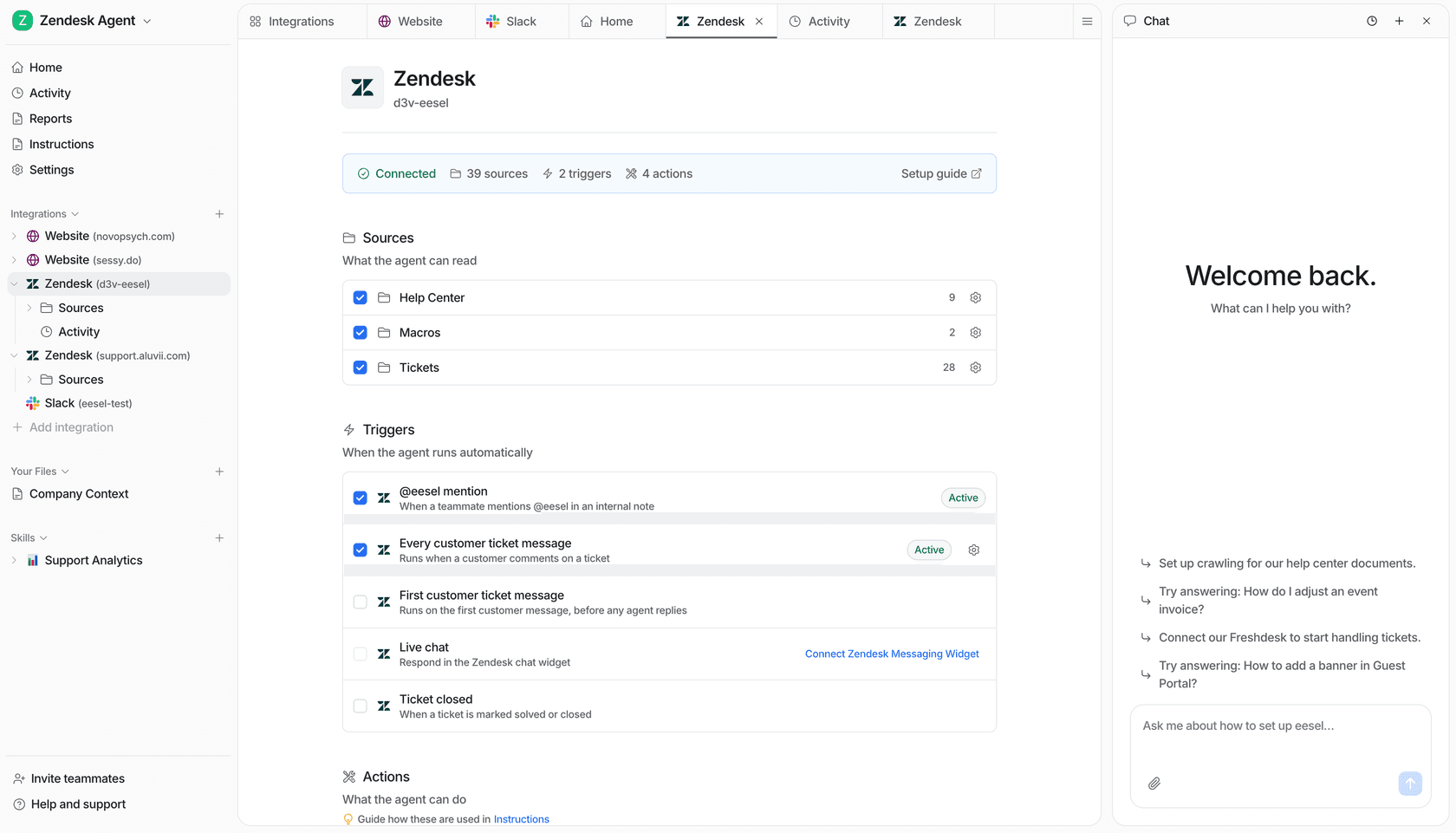
At eesel AI, we integrate directly with Zendesk and extend what you can automate. While Zendesk's event triggers work within the platform, we help you connect those events to external systems without complex webhook configuration.

Here's how we complement Zendesk's event triggers:

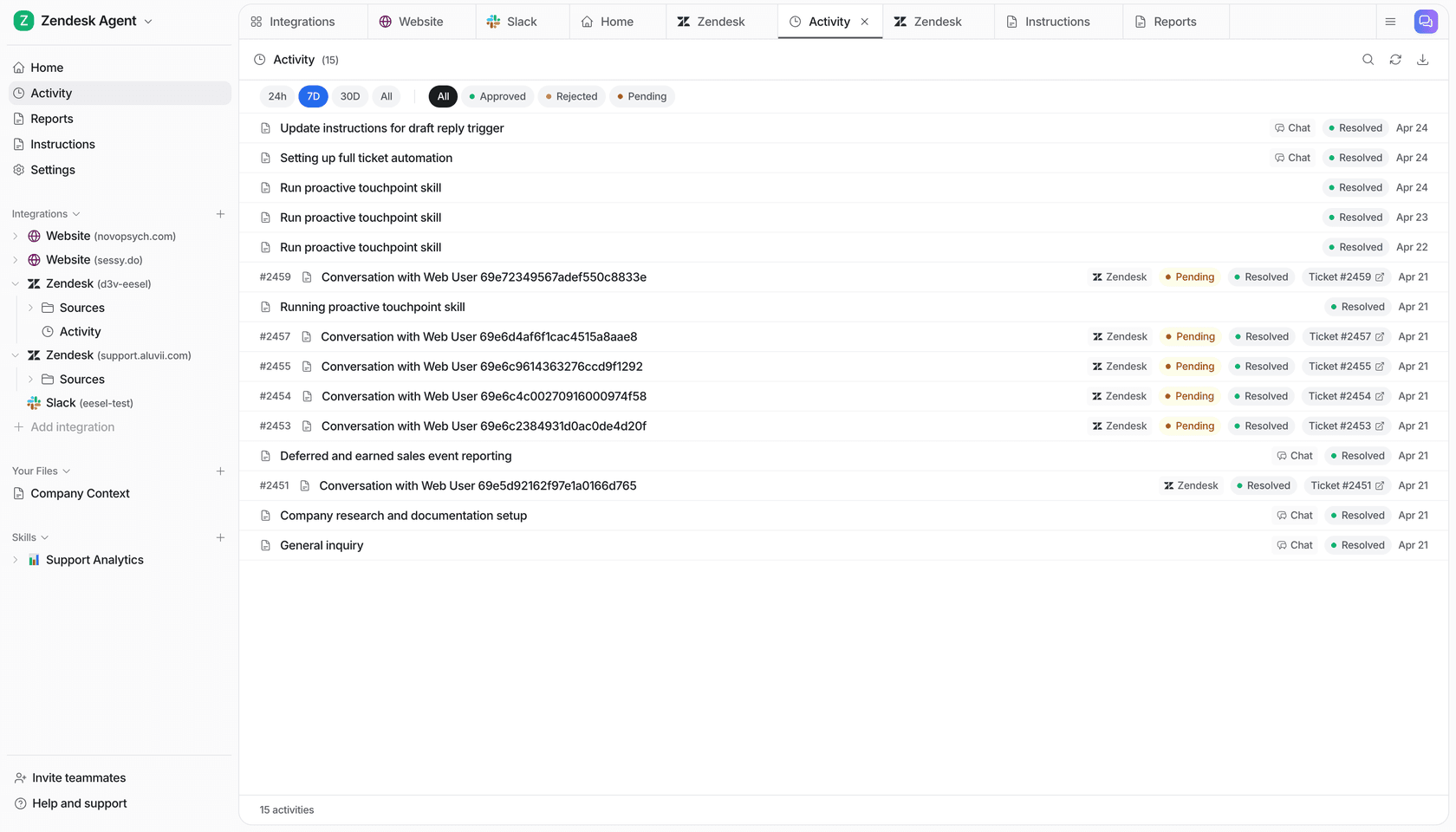
  • Connect to your full tech stack: We integrate with Shopify, Salesforce, Jira, and 100+ other tools. When an escalation event fires, we can look up order details, create CRM records, or generate Jira tickets automatically.

  • Plain-English escalation rules: Instead of configuring complex trigger conditions, you define escalation logic in natural language. "If the customer mentions a billing dispute over $500, escalate to the finance team."

  • Simulation mode: Test your automation on past tickets before going live. See exactly how your event triggers and connected workflows would have performed on historical data.

  • Gradual rollout: Start with AI Copilot drafting replies for agent review, then expand to full AI Agent automation as you gain confidence. You control the pace.

We work alongside Zendesk's event triggers. Use Zendesk's native triggers for platform-specific actions, and use eesel AI when you need deeper integrations or more flexible logic.

If you're managing high-volume support and need to connect AI agent events to your broader workflow, see how we integrate with Zendesk.

Key takeaways

Zendesk AI agent event triggers give you real-time automation based on conversation events rather than ticket updates. Here's what to remember:

  • Event triggers require the Advanced AI add-on for Zendesk
  • Messaging AI agents have ten available events; email AI agents have four
  • Follow the Event → Condition → Action pattern when designing triggers
  • One trigger should handle one job for easier troubleshooting
  • Test thoroughly in a sandbox before going live

If you need to connect AI agent events to systems beyond Zendesk, tools like eesel AI can extend your automation capabilities with deeper integrations and plain-English configuration.

Frequently Asked Questions

You need the AI agents - Advanced add-on, which is available for any Zendesk Suite or Support plan. The add-on is purchased separately. Contact Zendesk Sales for pricing.
Standard triggers react to ticket updates (status changes, field updates). Event triggers react to real-time conversation events like escalations, session ends, and customer inactivity. Event triggers are specifically for AI agent conversations and require the Advanced add-on.
Yes, but the available events differ. Messaging AI agents have ten events covering conversation lifecycle, escalations, and engagement. Email AI agents have four events that follow a specific sequence through ticket receipt, processing, and reply timing.
Event triggers can add tags, update ticket fields, add internal notes, and trigger external integrations via webhooks. For more complex integrations with CRMs, e-commerce platforms, or other tools, you may need additional integration tools.
First, verify the Advanced AI add-on is active and the AI agent is properly configured. Check that the event you're expecting actually occurred (review conversation logs). Test triggers in isolation to ensure conditions are met. Finally, check trigger ordering if you have multiple triggers on the same event.
Zendesk doesn't publish specific limits on event trigger quantity, but best practice suggests keeping your trigger set manageable. Focus on triggers that serve clear operational purposes rather than creating triggers for every possible scenario.

Share this post

Stevia undefined

Article by

Stevia Putri

Stevia Putri is a marketing generalist at eesel AI, where she helps turn powerful AI tools into stories that resonate. She’s driven by curiosity, clarity, and the human side of technology.